








Integrate Devin with Live Suadeo Data Using CData Connect AI

Devin is an AI software engineer from Cognition that plans, writes, and tests code in autonomous sessions. It supports the model context protocol (MCP) through its built-in MCP marketplace, allowing you to install remote MCP servers and give Devin access to external tools and live data sources.
By integrating Devin with CData Connect AI through the built-in MCP Server, Devin gains governed, real-time access to live Suadeo data. You can list catalogs, explore schemas, and query records from Suadeo data using natural language prompts, with all data access running securely against authorized sources.
This article explains how to configure Suadeo connectivity in Connect AI, install the CData Connect AI MCP Server from the Devin MCP marketplace, and verify the integration by querying live Suadeo data from a Devin session.
Step 1: Configure Suadeo connectivity for Devin
Connectivity to Suadeo from Devin is made possible through Connect AI's Remote MCP Server. To interact with Suadeo data from Devin, start by creating and configuring a Suadeo connection in Connect AI.
- Log into Connect AI, click Sources, and then click Add Connection
- Select Suadeo from the Add Connection panel
-
Enter the necessary authentication properties to connect to Suadeo.
The driver uses the OAuth 2.0 Resource Owner Password Credentials (ROPC) grant to authenticate to Suadeo. Authentication occurs directly using your credentials; there is no browser-based authorization flow or refresh token.
Set the following connection properties:
- URL: The base URL of your Suadeo instance.
- User: Your Suadeo username.
- Password: Your Suadeo password.
- AuthenticationName: The name identifier for the authentication configuration in your Suadeo instance. Different authentication names can be configured for different environments or use cases.
When you connect, the driver sends your credentials to the Suadeo OAuth token endpoint, receives an access token, and uses it for all subsequent requests. A new access token is obtained automatically when needed during the session.

- Click Save & Test
- Navigate to the Permissions tab and update user-based permissions



With the Suadeo connection configured, Devin can now connect to Suadeo data through Connect AI.
Step 2: Install the Connect AI MCP Server in Devin
Next, install the CData Connect AI MCP Server from the Devin MCP servers list so your sessions can discover and call live data tools through Connect AI.
Note: Installing MCP servers in Devin requires the Manage MCP Servers permission. If you don't have this permission, use the Suggest option or contact your organization admin.
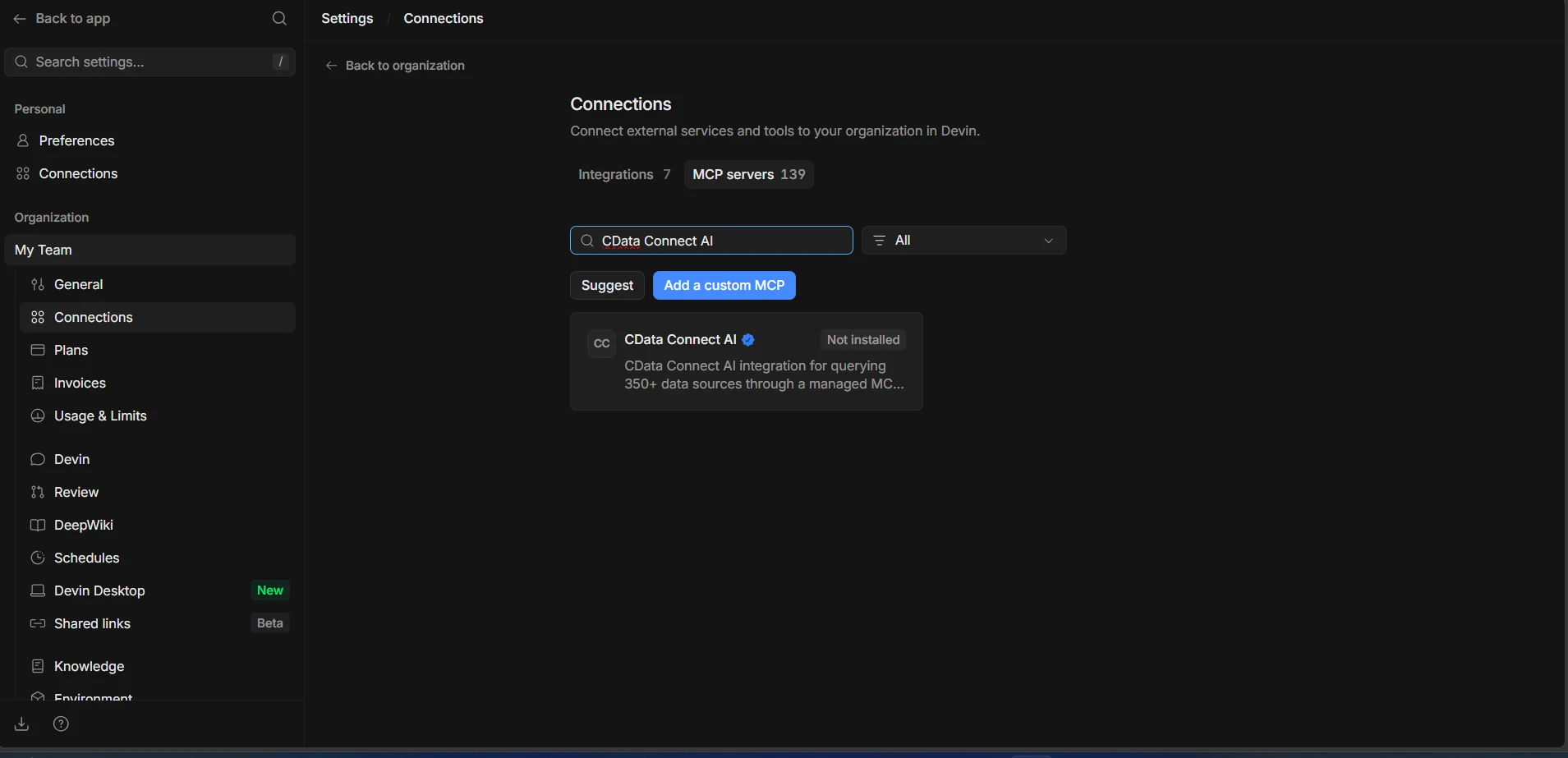
- Log into Devin and navigate to Settings and Connections, then select the MCP servers tab
- Search for CData Connect AI in the marketplace and select the verified listing
-
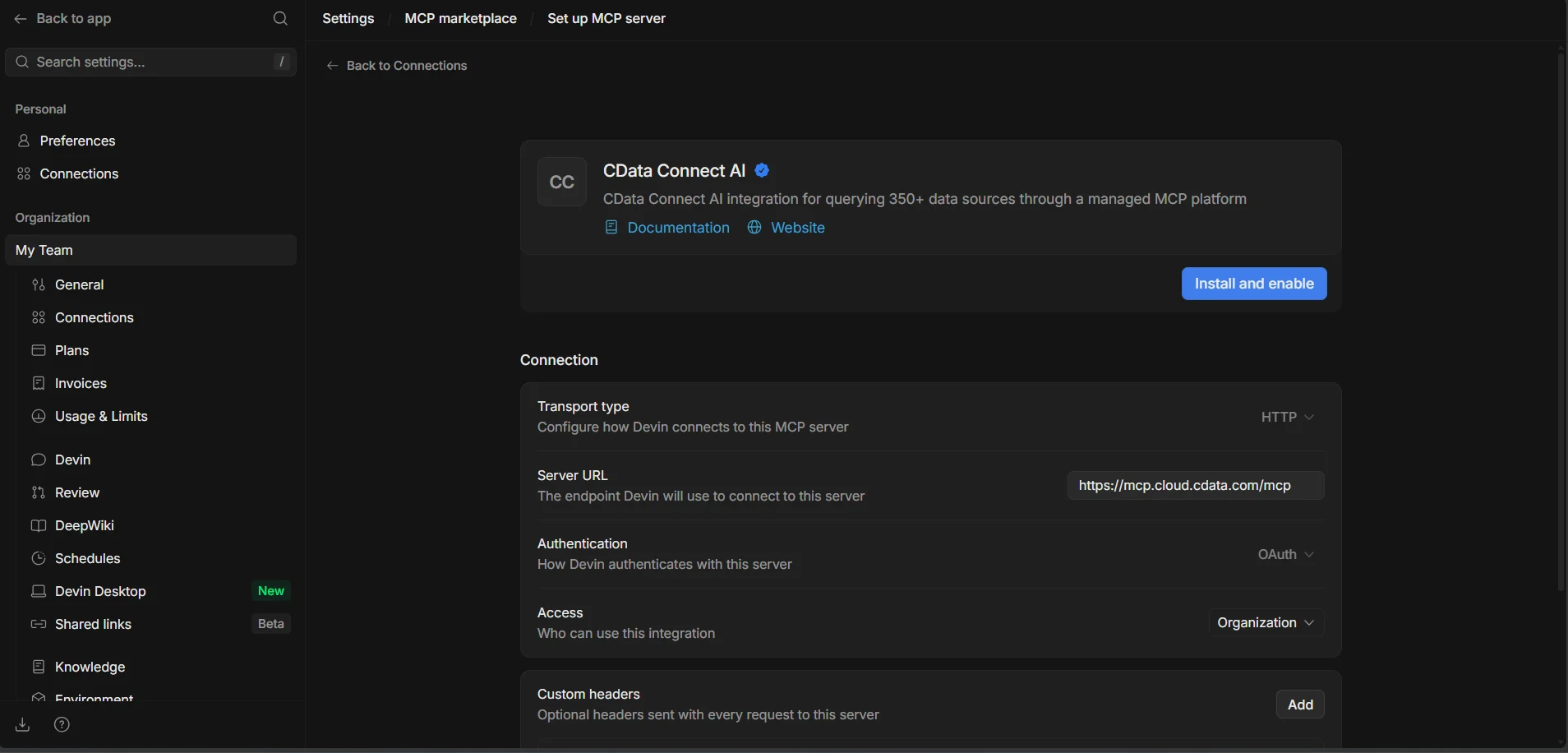
Click Install and enable. When prompted, complete the OAuth flow to authenticate with your Connect AI account
-
Once installed, confirm the Enable in sessions toggle is on and click Test tools. Devin validates the connection and lists the available Connect AI tools, such as getCatalogs, getSchemas, getTables, and queryData
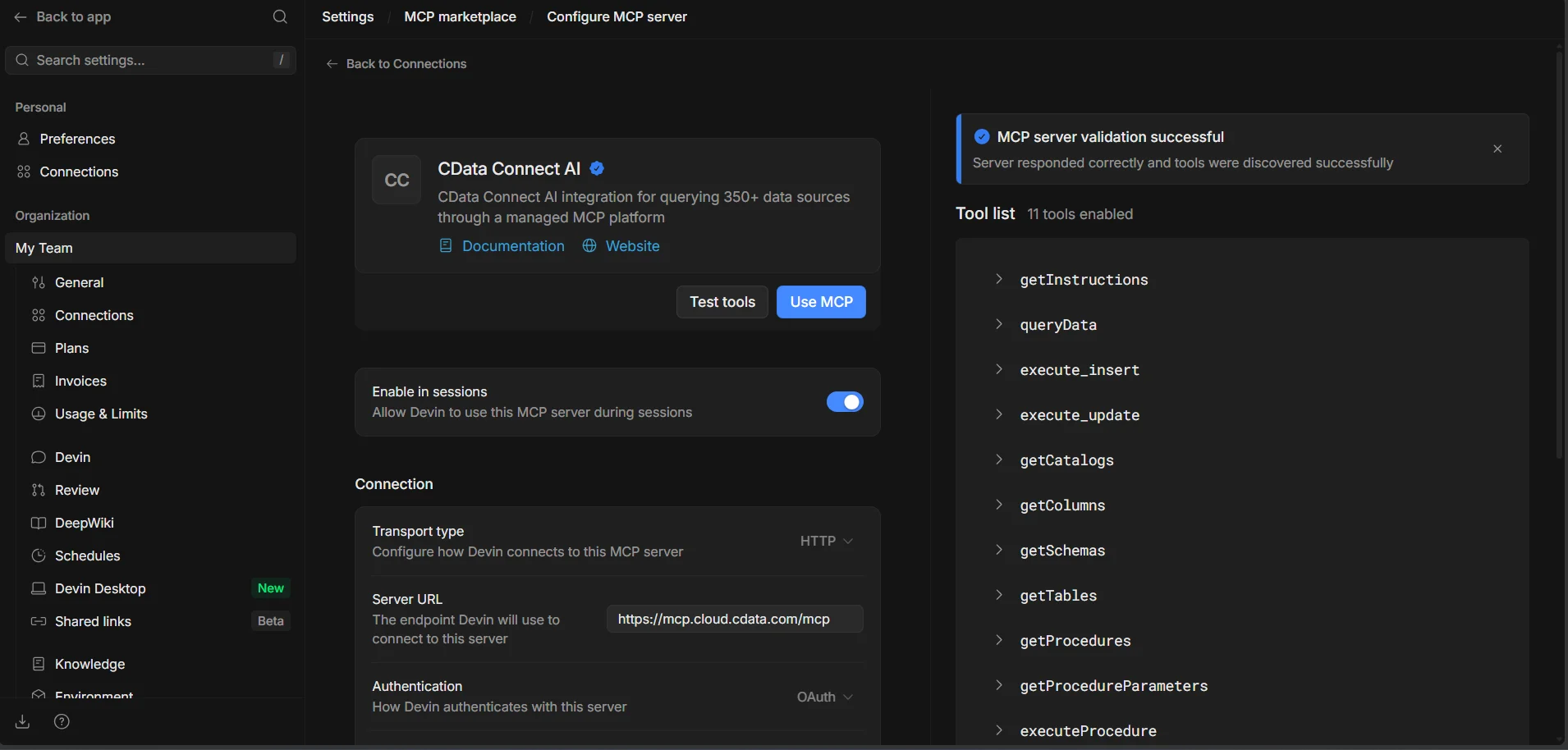
With the MCP server installed and enabled, the Connect AI tools are available to every Devin session in your workspace.
Step 3: Query live Suadeo data from Devin
With the integration complete, start a Devin session and interact with live Suadeo data through natural language prompts.
- From the Devin home page, start a new session
-
In the session prompt, ask Devin to work with your Connect AI data, for example:
- Can you list the connections in CData Connect AI
- Show the available schemas and tables for Suadeo
- Query the top 5 records from a table in Suadeo
-
Devin calls the Connect AI MCP Server and returns live results from Suadeo data directly in the session. You can follow the tool calls, inputs, and outputs in the Progress panel
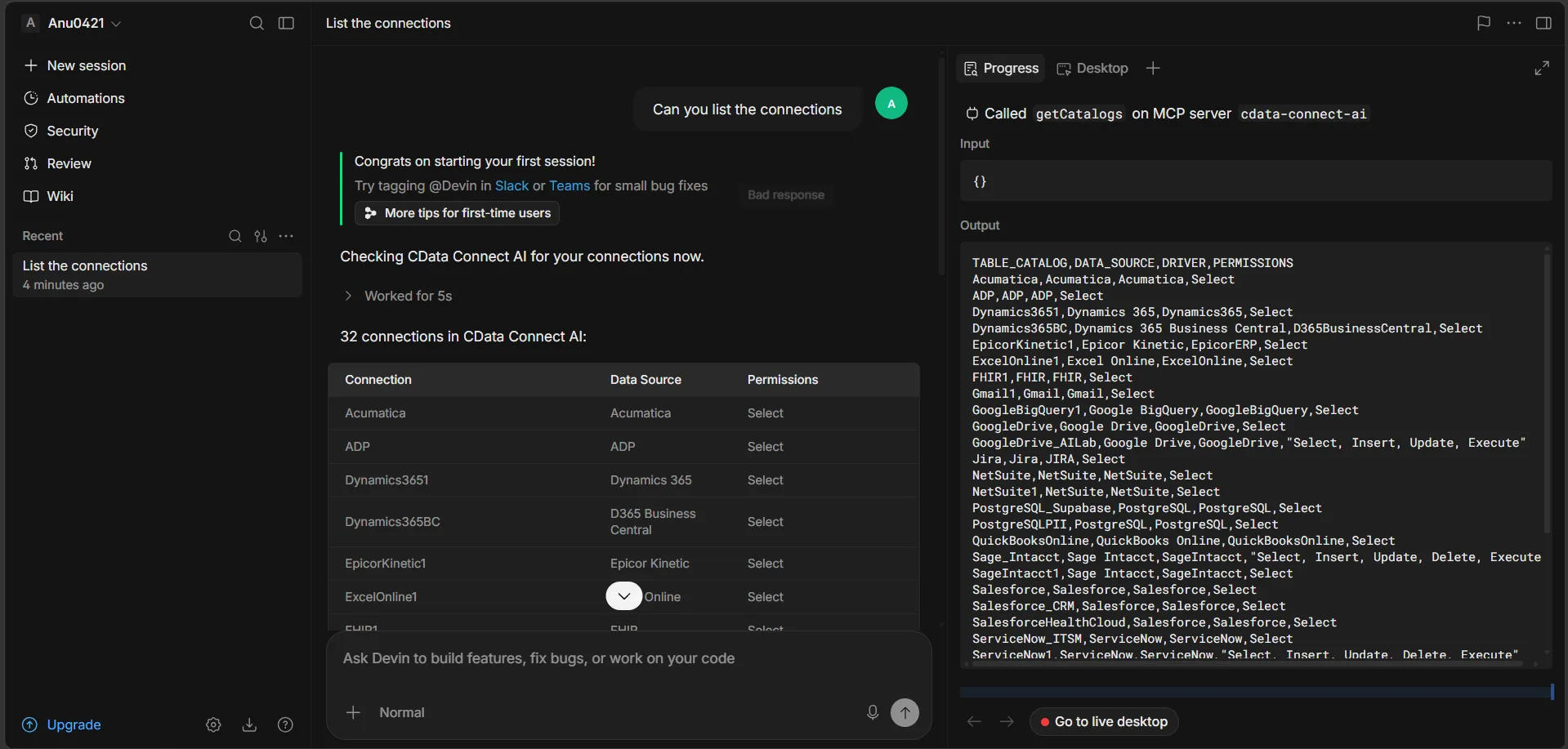
At this point, Devin communicates with the Connect AI MCP Server and retrieves live Suadeo data through remote MCP tools directly from your sessions, whether you're exploring data, building features against it, or automating engineering tasks.
Get started with CData Connect AI
To access hundreds of SaaS, big data, and NoSQL sources directly from your cloud applications, try CData Connect AI today. Download a free 14-day trial of CData Connect AI, and our Support Team is available to help with any questions you have.