








Access Live Typeform Data in Roo Code via CData Connect AI

Roo Code is an open-source AI coding agent that runs inside VS Code with real file system access, terminal control, and multi-step workflows. It works across entire project workspaces through specialized modes like Code, Architect, and Orchestrator. Available as a VS Code Extension for local development, or as Cloud Agents that integrate with Slack and GitHub. Roo Code natively supports MCP, connecting external tools and data sources via STDIO or Streamable HTTP.
By default, Roo Code has no access to live enterprise data. CData Connect AI bridges this gap by exposing hundreds of data sources. Once connected, Roo can introspect live schemas, validate queries, and generate code directly inside VS Code, retrieved by real enterprise data.
Step 1: Configure Typeform connectivity for Roo Code
Connectivity to Typeform from Roo Code is made possible through CData Connect AI's Remote MCP Server. To interact with Typeform data from Roo Code, start by creating and configuring a Typeform connection in CData Connect AI.
- Log into Connect AI, click Sources, and then click Add Connection
- Select Typeform from the Add Connection panel
-
Enter the necessary authentication properties to connect to Typeform.
Start by setting the Profile connection property to the location of the TypeForm Profile on disk (e.g. C:\profiles\TypeForm.apip). Next, set the ProfileSettings connection property to the connection string for TypeForm (see below).
TypeForm API Profile Settings
Authentication to TypeForm uses the OAuth standard.
To authenticate to TypeForm, you must first register and configure an OAuth application with TypeForm here: https://admin.typeform.com/account#/section/tokens. Your app will be assigned a client ID and a client secret which can be set in the connection string. More information on setting up an OAuth application can be found at https://developer.typeform.com/get-started/.
Note that there are several different use scenarios which all require different redirect URIs:
- CData Desktop Applications: CData desktop applications (Sync, API Server, ArcESB) accept OAuth tokens at /src/oauthCallback.rst. The host and port is the same as the default port used by the application. For example, if you use http://localhost:8019/ to access CData Sync then the redirect URI will be http://localhost:8019/src/oauthCallback.rst.
- CData Cloud Applications: CData cloud applications are similar to their desktop counterparts. If you access Connect AI at https://1.2.3.4/ then you should use the redirect https://1.2.3.4/src/oauthCallback.rst.
- Desktop Application: When using a desktop application, the URI https://localhost:33333 is recommended.
- Web Application: When developing a web application using the driver, use your own URI here such as https://my-website.com/oauth.
After setting the following connection properties, you are ready to connect:
- AuthScheme: Set this to OAuth.
- InitiateOAuth: Set this to GETANDREFRESH. You can use InitiateOAuth to manage the process to obtain the OAuthAccessToken.
- OAuthClientId: Set this to the Client Id that is specified in your app settings.
- OAuthClientSecret: Set this to Client Secret that is specified in your app settings.
- CallbackURL: Set this to the Redirect URI you specified in your app settings.

- Click Save & Test
- Navigate to the Permissions tab and update user-based permissions



Add a Personal Access Token
A Personal Access Token (PAT) is used to authenticate the connection to Connect AI from Roo Code. It is best practice to create a separate PAT for each integration to maintain granular access control.
- Click the gear icon at the top right of the Connect AI app to open Settings
- On the Settings page, go to the Access Tokens section and click Create PAT
- Give the PAT a descriptive name and click Create
- Copy the token when displayed and store it securely. It will not be shown again

With the Typeform connection configured and a PAT generated, Roo Code can now connect to Typeform data through Connect AI.
Step 2: Configure Connect AI in Roo Code
CData Connect AI can be integrated with Roo Code by registering the MCP Server directly in the Roo Code MCP configuration panel. Once registered, Roo Code agents can call live Typeform data through MCP tools without additional setup.
Method 1: Direct MCP configuration
Users can register the CData Connect AI MCP Server directly in the Roo Code MCP settings. Once registered, agents in any project can query live Typeform data through MCP tools without additional setup.
- Open VS Code with the Roo Code extension installed
- Click the Roo Code icon in the Activity Bar
-
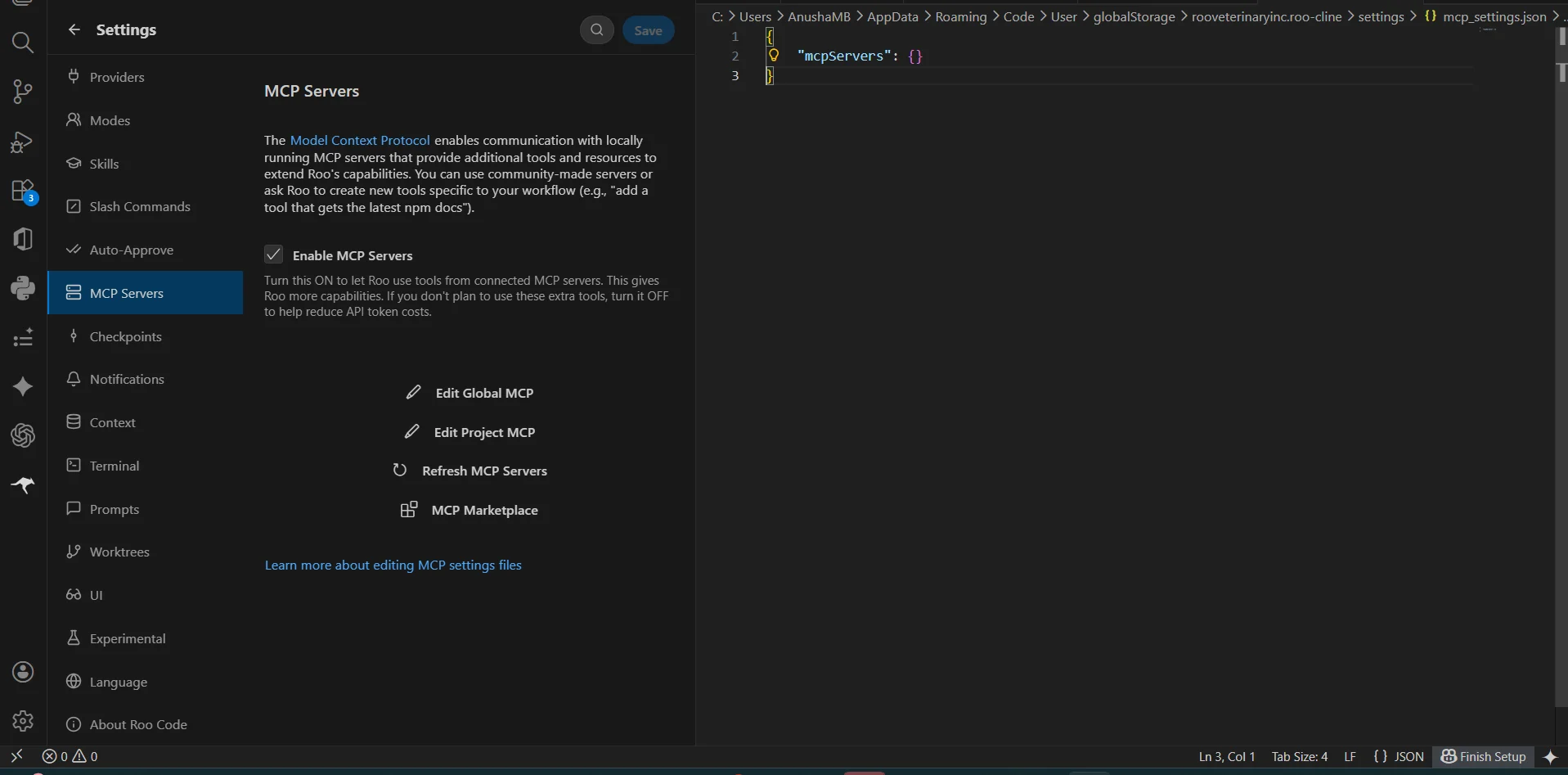
Navigate to Settings, then choose MCP Servers in the Roo Code pane and turn on Enable MCP Servers, now click Edit Global MCP to open the MCP configuration file
-
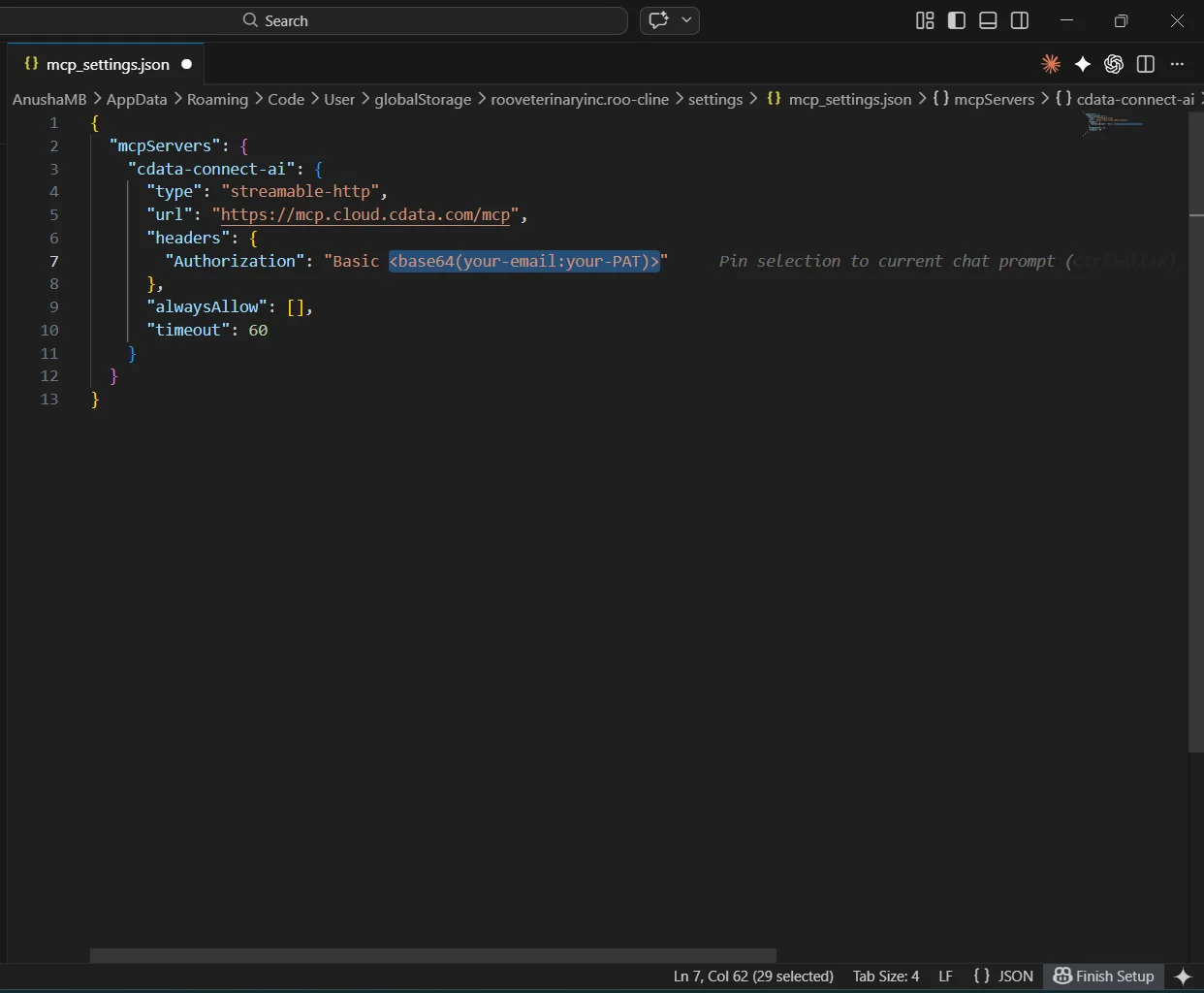
In the mcp_settings.json file, add the following inside the mcpServers object, replacing base64encode
{
    "mcpServers": {
        "cdata-mcp": {
            "type": "streamable-http",
            "url": "https://mcp.cloud.cdata.com/mcp",
            "headers": {
                "Authorization": "Basic base64encode(USERNAME:PAT)"
            }
        }
    }
}
- Save the file to register the MCP server
- Return to the MCP Servers panel and confirm that cdata-mcp is listed and its toggle is enabled. If it is not enabled, toggle it on
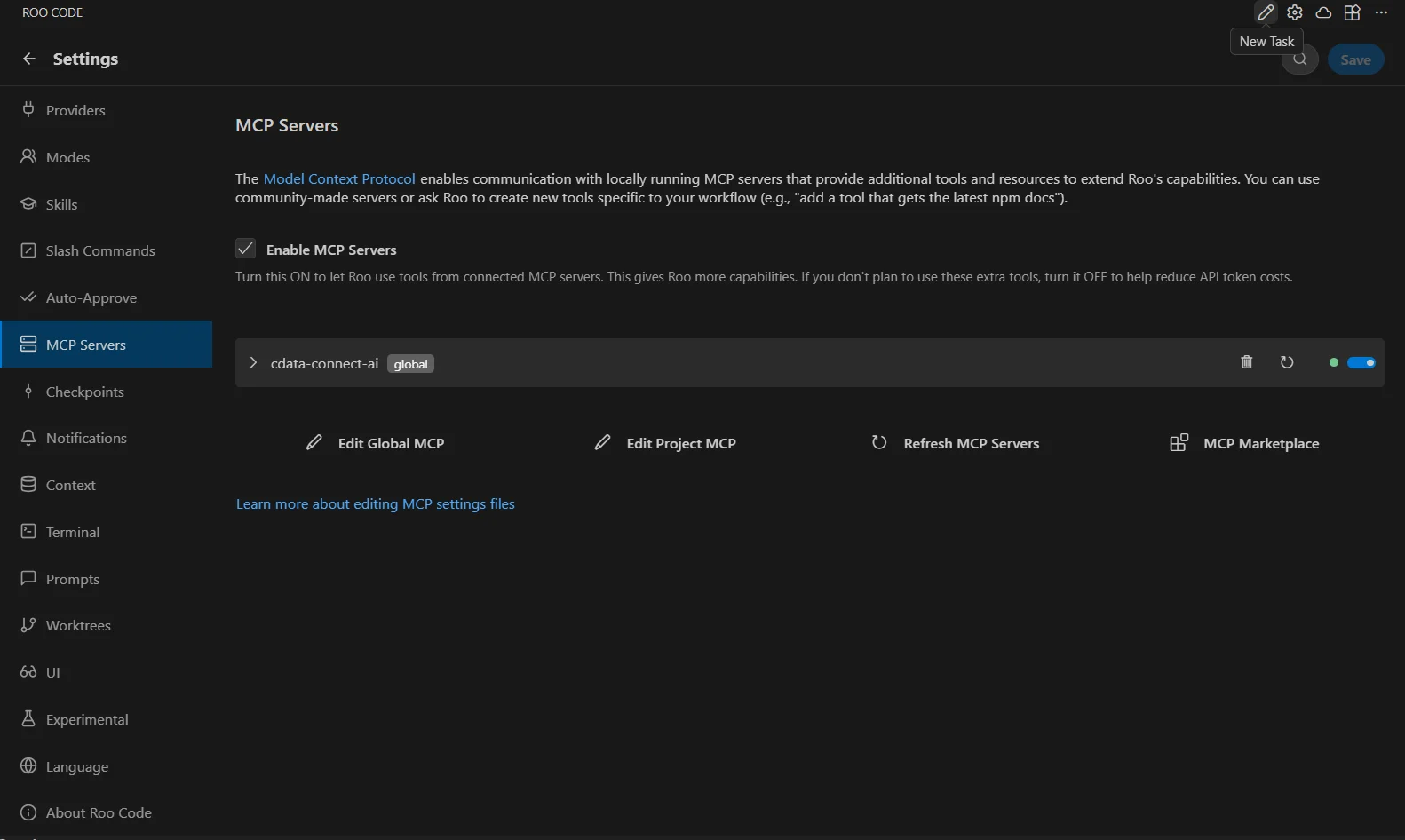
With the CData MCP Server registered and enabled, Roo Code agents can now query and act on live Typeform data through Connect AI in any project.
Query live Typeform data from Roo Code
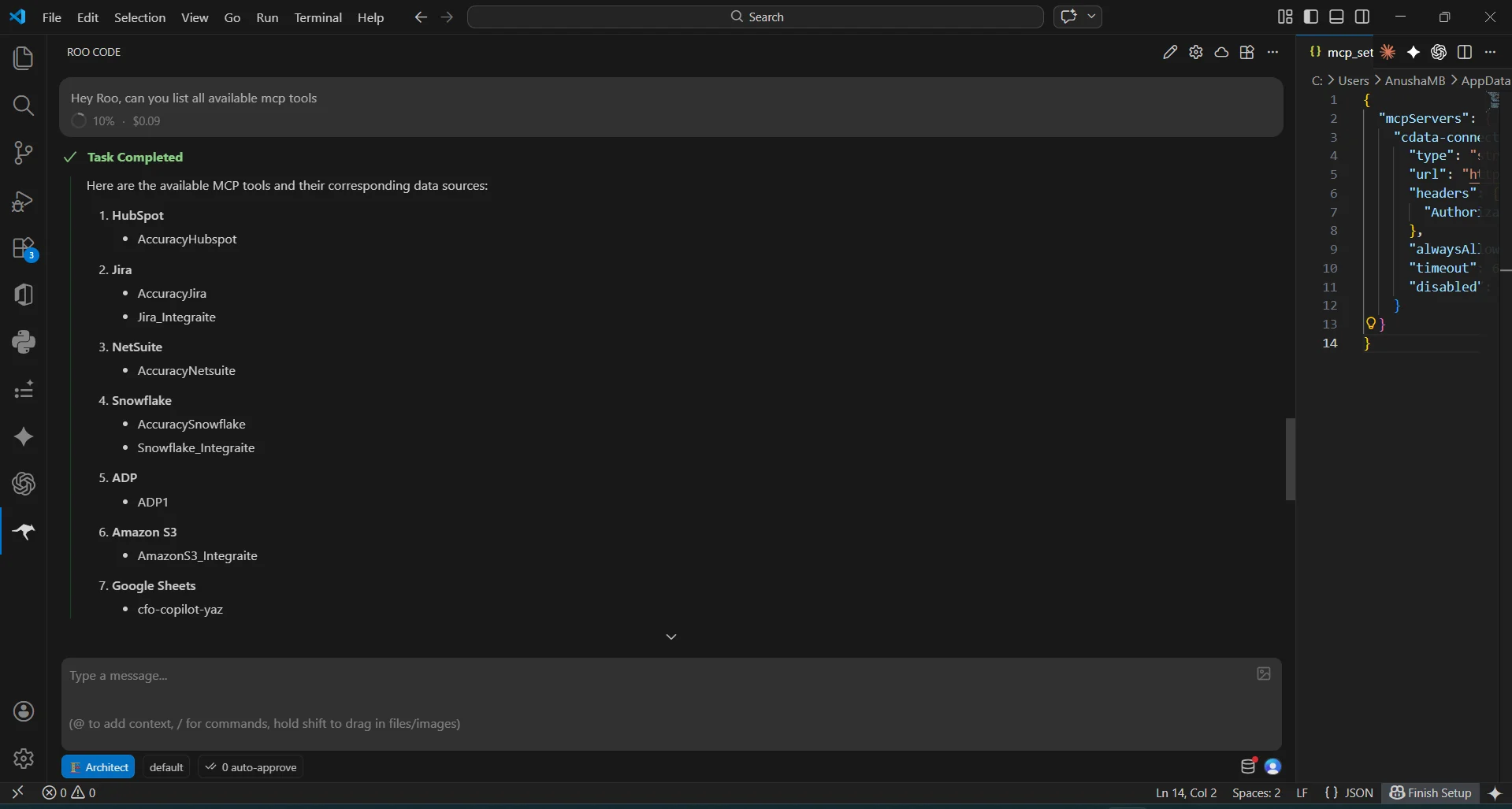
With the MCP server configured, start a conversation in the Roo Code chat panel to interact with live Typeform data.
-
Open the Roo Code chat and enter a prompt to explore your data, for example:
- List all available catalogs in my cdata-mcp connection.
- Show the schemas and tables available for Typeform.
- Query the top 5 records from Typeform data.
- The agent calls the CData Connect AI MCP Server and returns live results from Typeform data
Method 2: Build an application with natural language
Users can direct Roo Code to build a full application that connects to the CData Connect AI MCP Server through a natural language prompt. The agent gathers the required endpoint and credentials interactively, then generates a working application wired to live Typeform data — all from the Roo Code chat panel inside VS Code.
- Open the Roo Code panel in VS Code and select your preferred model from the dropdown
-
Enter a prompt that describes the application you want to build.
For example:
I would like to build a small application that connects to a remote MCP HTTPS server. I already have the MCP endpoint URL and the required credentials. The application should: - Establish a connection to the remote MCP server - Authenticate using the provided credentials - Retrieve and list all available catalogs from the MCP Please make sure the credentials are stored securely in a .env file and not hardcoded in the application. -
Roo Code will prompt you to provide the MCP endpoint URL and
authentication credentials. Supply the following values:
- MCP Endpoint URL: https://mcp.cloud.cdata.com/mcp
- Authorization: Basic base64(email:PAT)
-
Roo Code creates the project directory, initializes a
Node.js project, installs the necessary packages, and stores
credentials securely in a .env file
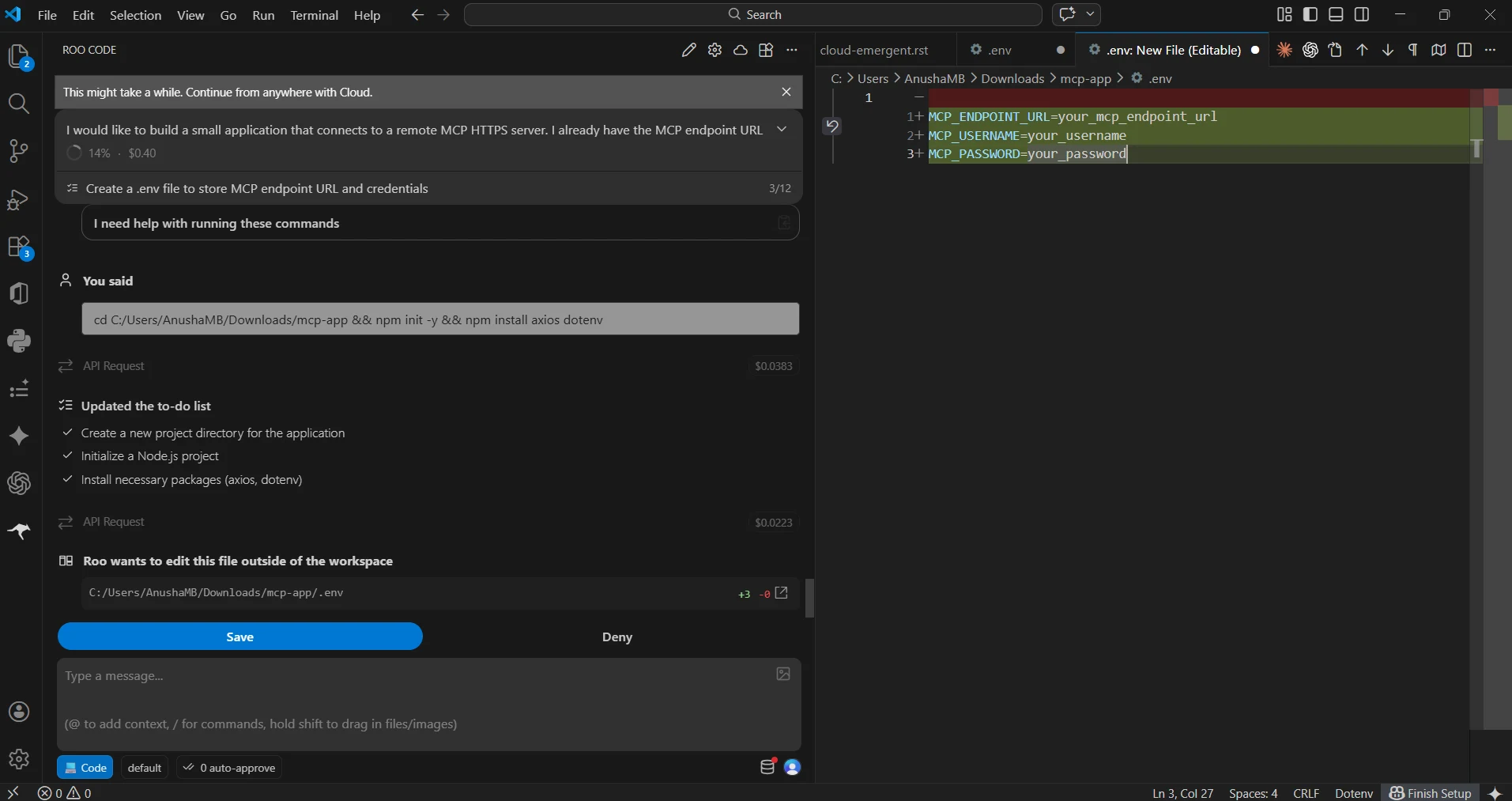
At this point, Roo Code has built an application that communicates with the CData Connect AI MCP Server and retrieves live Typeform data, all from a single natural language prompt inside VS Code.
Get CData Connect AI
To access hundreds of SaaS, Big Data, and NoSQL sources directly from Roo Code, try CData Connect AI today! Sign up for a free 14-day trial of CData Connect AI, and as always, our world-class Support Team is available to assist you with any questions you may have.