








Build Semantic Layer Views for Yelp Data in APOS Live Data Gateway

APOS Live Data Gateway (LDG) serves as a data connection and data transformation solution, facilitating live data connectivity and broadening data source possibilities for SAP Analytics Cloud and other SAP solutions. When integrated with CData Connect AI, users have the capability to construct semantic layer views for real-time access to Yelp data, enabling real-time analytics on Yelp in a manner akin to working with a relational database.
CData Connect AI offers a dedicated SQL Server interface for Yelp, enabling data querying directly from Yelp without the need to replicate data to a native database. With pre-optimized data processing capabilities, CData Connect AI efficiently directs all supported SQL operations, including filters and JOINs, directly to Yelp. This harnesses server-side processing to swiftly retrieve the requested Yelp data.
Configure Yelp Connectivity for APOS Live Data Gateway
Connectivity to Yelp from APOS Live Data Gateway is made possible through CData Connect AI. To work with Yelp data from APOS Live Data Gateway, we start by creating and configuring a Yelp connection.
- Log into Connect AI, click Sources, and then click Add Connection
- Select "Yelp" from the Add Connection panel
-
Enter the necessary authentication properties to connect to Yelp.
Start by setting the Profile connection property to the location of the Yelp Profile on disk (e.g. C:\profiles\Yelp.apip). Next, set the ProfileSettings connection property to the connection string for Yelp (see below).
Yelp API Profile Settings
Create an app at yelp.com/developers/v3/manage_app to automatically generate a private API token.

- Click Save & Test
-
Navigate to the Permissions tab in the Add Yelp Connection page and update the User-based permissions.



Add a Personal Access Token
When connecting to Connect AI through the REST API, the OData API, or the Virtual SQL Server, a Personal Access Token (PAT) is used to authenticate the connection to Connect AI. It is best practice to create a separate PAT for each service to maintain granularity of access.
- Click on the Gear icon () at the top right of the Connect AI app to open the settings page.
- On the Settings page, go to the Access Tokens section and click Create PAT.
-
Give the PAT a name and click Create.

- The personal access token is only visible at creation, so be sure to copy it and store it securely for future use.
With the connection configured and a PAT generated, you are ready to connect to Yelp data in the APOS Live Data Gateway.
Connecting to Yelp & Creating a Semantic Layer View
After configuring the connection in CData Connect AI you are ready to connect to Yelp in the Live Data Gateway Admin tool and build a semantic layer view in the Live Data Gateway Web UI.
Configuring the Connection to Yelp
- Log into your APOS Live Data Gateway Manager
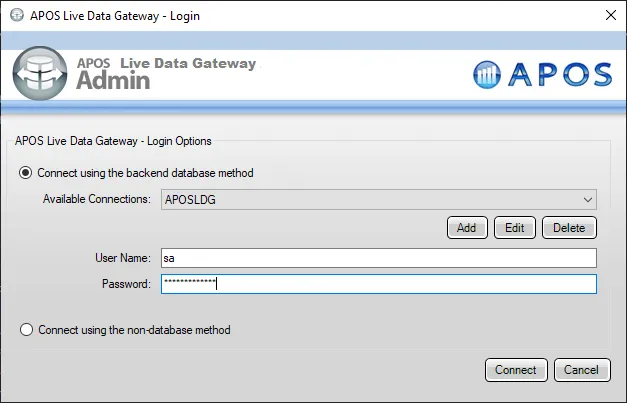
- If you haven't already, update your APOS LDG license file
- Click File -> Configurations
- Click on the "..." Menu for the License
- Select the license file from the APOS team that includes your CData Connect AI license
- In the APOS Live Data Gateway Manager, click "Add"
- In the APOS Live Data Gateway On the Connection tab, configure the connection:
- Set Data Source to "Database"
- Set Database to "JDBC Generic"
- Set Connection String to a connection string similar to the following, using the name of the connection you configured earlier, e.g.
jdbc:sqlserver://tds.cdata.com:14333;databaseName=API1 - Set Driver Class to "com.CData.connect.Driver" (this should be set by default)
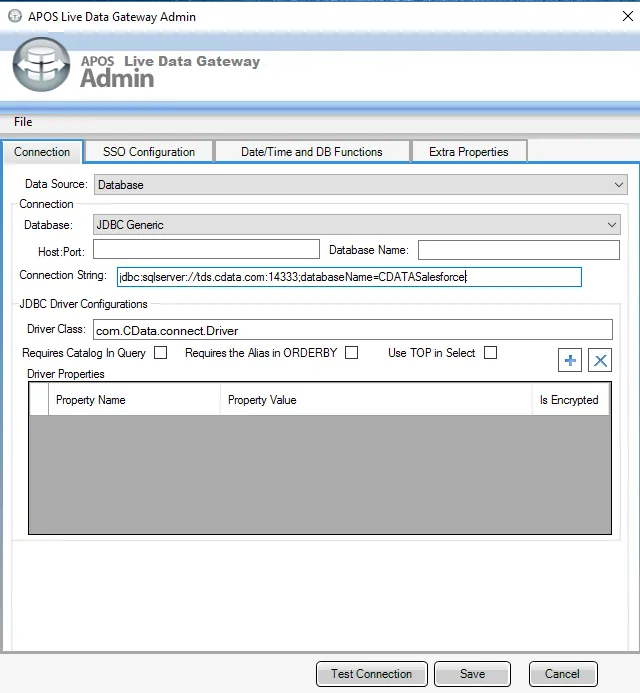
- Click Test Connection
- Click Save
- Give your connection a unique prefix (e.g. "api")
- Highlight the newly created connection and click File -> "Approve Users For Web UI"
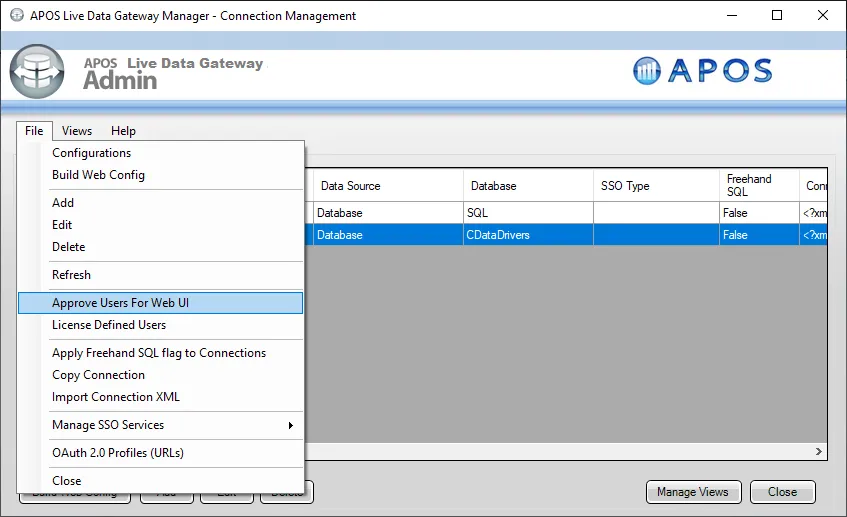
- Approve the appropriate DB users to create views and click "Save"
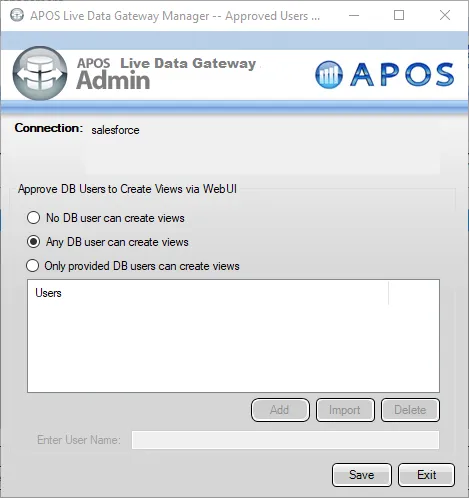
At this point, we are ready to build our semantic layer view in the Live Data Gateway Web UI.
Creating a Semantic Layer View
- In your browser, navigate to the APOS Live Data Gateway Portal
- Select a Connection (e.g. "api")
- Set User Name and Password to your Connect AI username and PAT .
- Click "Login"
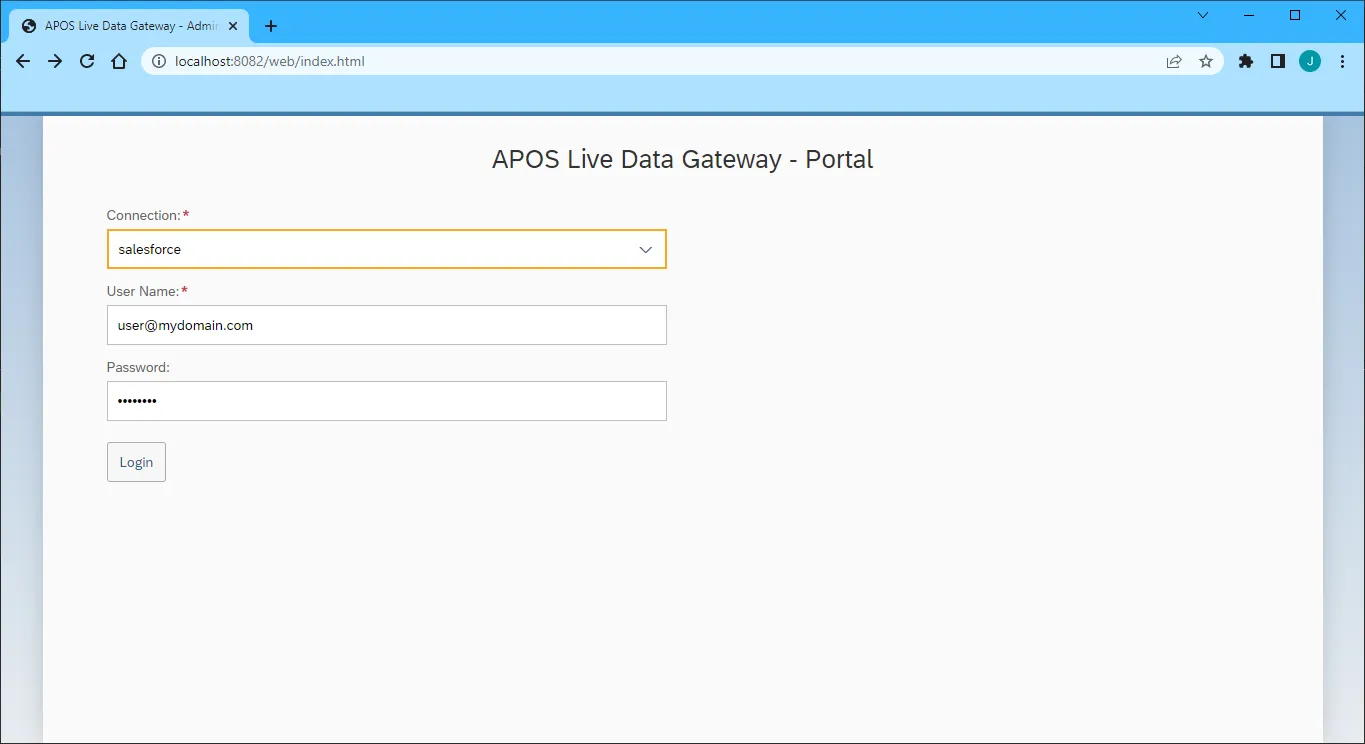
- Once connected, click "Semantic Layer" to create a new semantic layer view
- Click "New Semantic Layer View"
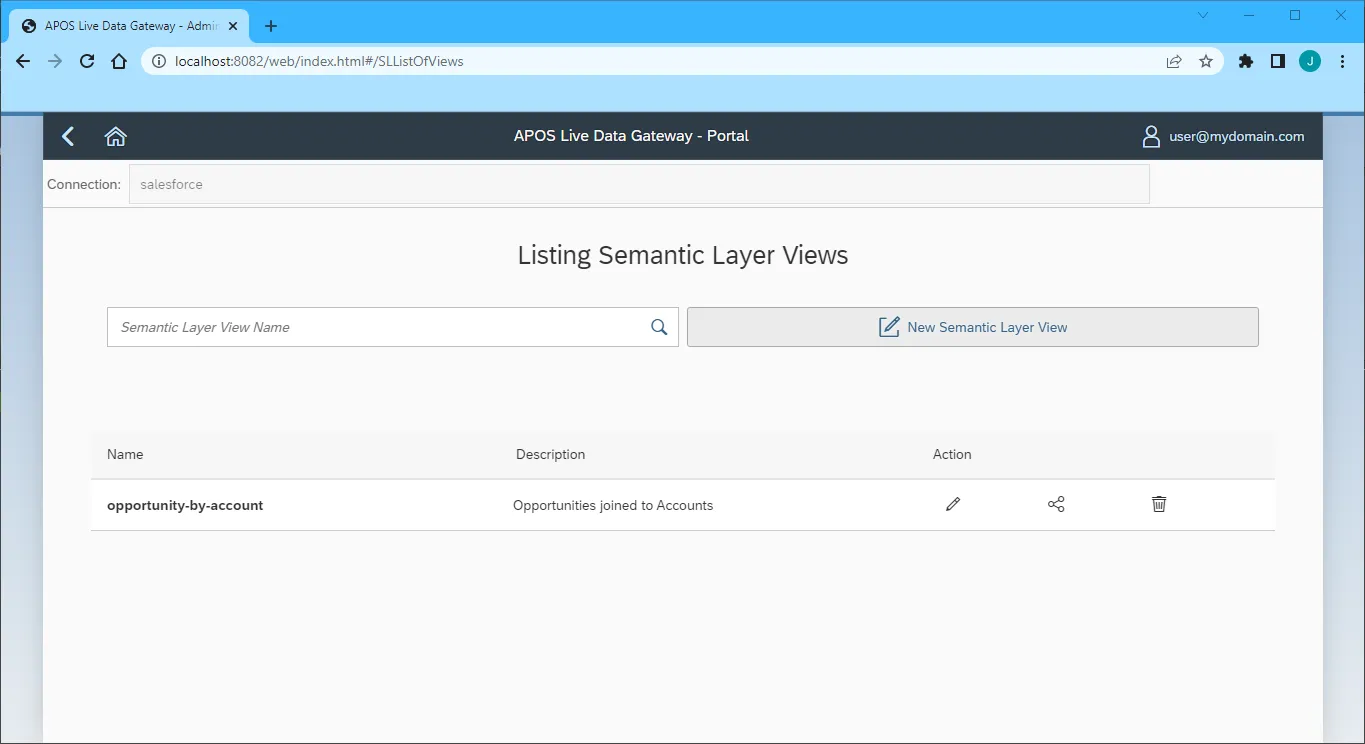
- Set the Semantic Layer View Prefix and Semantic Layer View Name
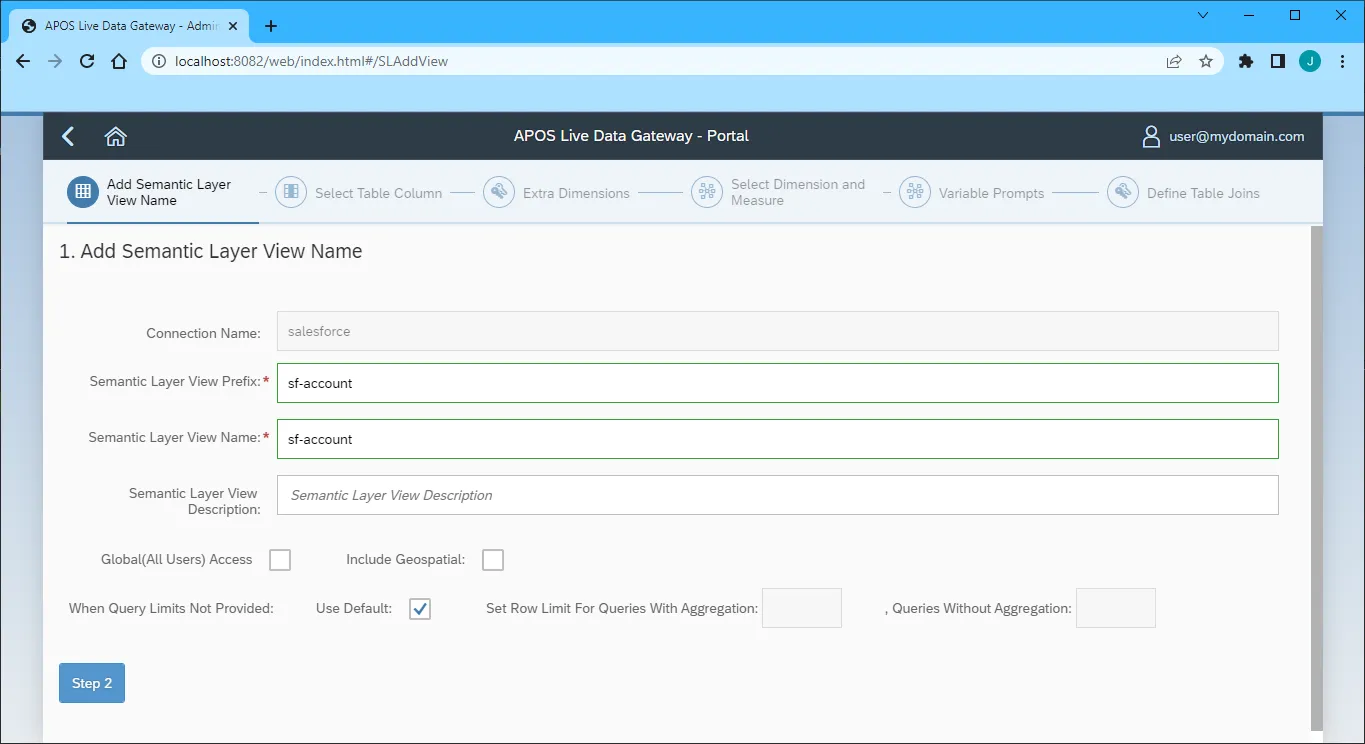
- Click "Step 2"
- Select the table(s) and column(s) you wish to include in your view
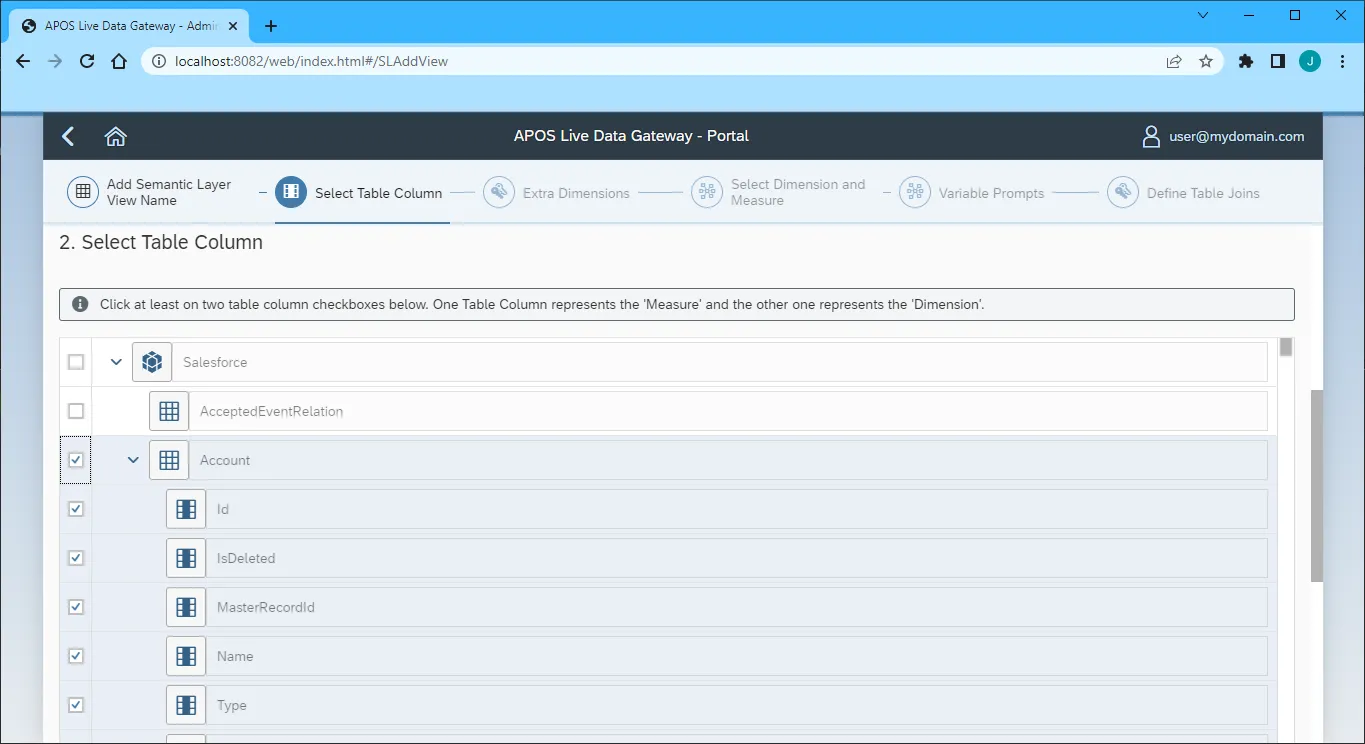
- Click "Step 3"
- Select the Measures from the available table columns
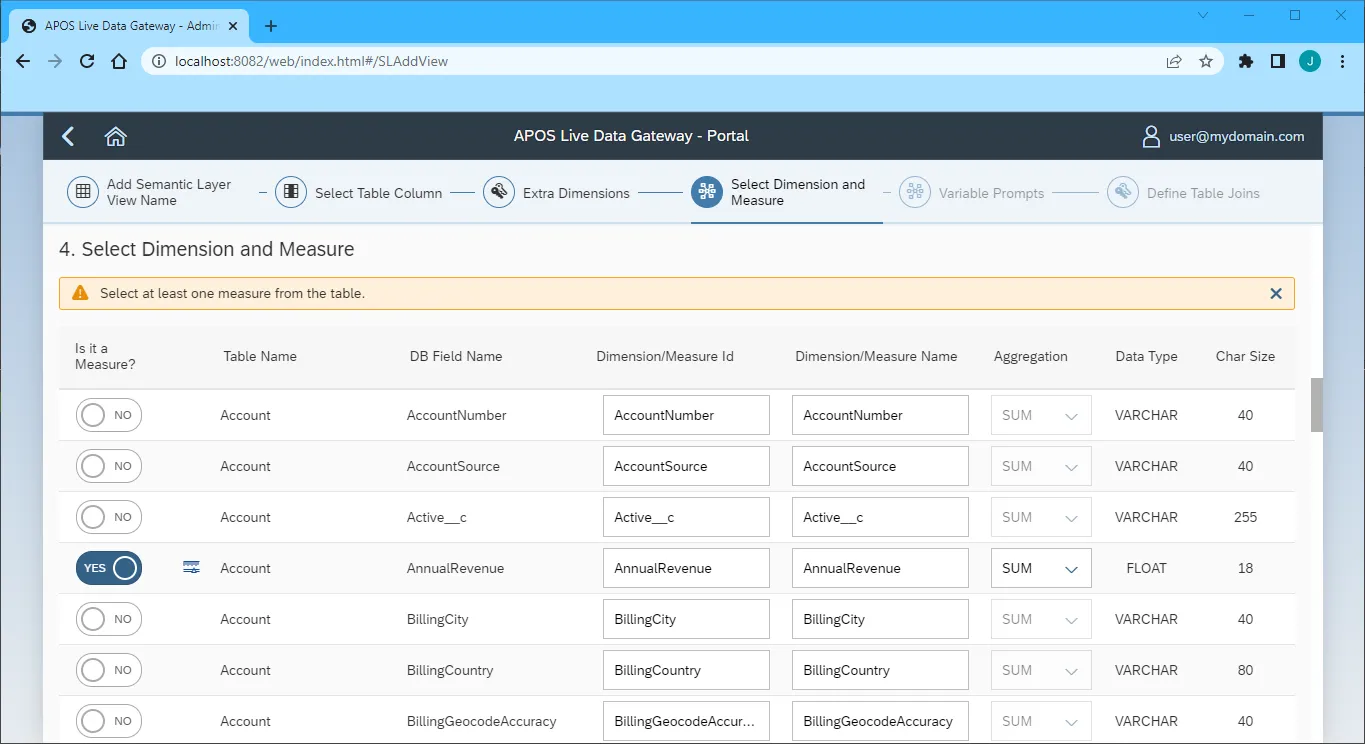
- Click "Step 5" (we skipped the "Extra Dimensions" step)
- Add any Variable Prompts
- Click "Step 6"
- Define any Table Joins
- Click "Review"
- Review you semantic layer view and click "Save"
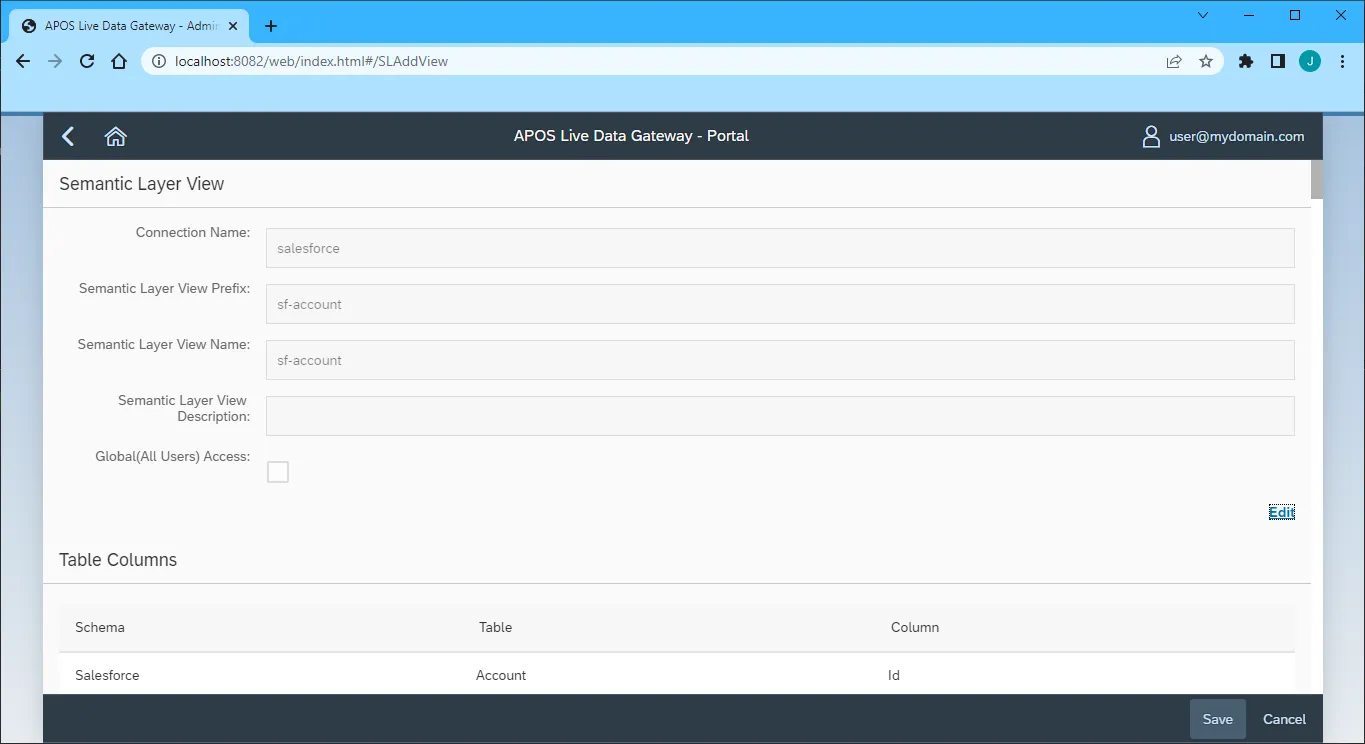
With the Semantic Layer View created, you are ready to access your Yelp data through the APOS Live Data Gateway, enabling real-time data connectivity to Yelp data from SAP Analytics Cloud and other SAP solutions.
Get CData Connect AI
To get live data access to hundreds of SaaS, Big Data, and NoSQL sources directly from your SQL Server database, try CData Connect AI today!