








Integrate Devin with Live Zuora Data Using CData Connect AI

Devin is an AI software engineer from Cognition that plans, writes, and tests code in autonomous sessions. It supports the model context protocol (MCP) through its built-in MCP marketplace, allowing you to install remote MCP servers and give Devin access to external tools and live data sources.
By integrating Devin with CData Connect AI through the built-in MCP Server, Devin gains governed, real-time access to live Zuora data. You can list catalogs, explore schemas, and query records from Zuora data using natural language prompts, with all data access running securely against authorized sources.
This article explains how to configure Zuora connectivity in Connect AI, install the CData Connect AI MCP Server from the Devin MCP marketplace, and verify the integration by querying live Zuora data from a Devin session.
Step 1: Configure Zuora connectivity for Devin
Connectivity to Zuora from Devin is made possible through Connect AI's Remote MCP Server. To interact with Zuora data from Devin, start by creating and configuring a Zuora connection in Connect AI.
- Log into Connect AI, click Sources, and then click Add Connection
- Select Zuora from the Add Connection panel
-
Enter the necessary authentication properties to connect to Zuora.
Zuora uses the OAuth standard to authenticate users. See the online Help documentation for a full OAuth authentication guide.
Configuring Tenant property
In order to create a valid connection with the provider you need to choose one of the Tenant values (USProduction by default) which matches your account configuration. The following is a list with the available options:
- USProduction: Requests sent to https://rest.zuora.com.
- USAPISandbox: Requests sent to https://rest.apisandbox.zuora.com"
- USPerformanceTest: Requests sent to https://rest.pt1.zuora.com"
- EUProduction: Requests sent to https://rest.eu.zuora.com"
- EUSandbox: Requests sent to https://rest.sandbox.eu.zuora.com"
Selecting a Zuora Service
Two Zuora services are available: Data Query and AQuA API. By default ZuoraService is set to AQuADataExport.
DataQuery
The Data Query feature enables you to export data from your Zuora tenant by performing asynchronous, read-only SQL queries. We recommend to use this service for quick lightweight SQL queries.
Limitations- The maximum number of input records per table after filters have been applied: 1,000,000
- The maximum number of output records: 100,000
- The maximum number of simultaneous queries submitted for execution per tenant: 5
- The maximum number of queued queries submitted for execution after reaching the limitation of simultaneous queries per tenant: 10
- The maximum processing time for each query in hours: 1
- The maximum size of memory allocated to each query in GB: 2
- The maximum number of indices when using Index Join, in other words, the maximum number of records being returned by the left table based on the unique value used in the WHERE clause when using Index Join: 20,000
AQuADataExport
AQuA API export is designed to export all the records for all the objects ( tables ). AQuA query jobs have the following limitations:
Limitations- If a query in an AQuA job is executed longer than 8 hours, this job will be killed automatically.
- The killed AQuA job can be retried three times before returned as failed.

- Click Save & Test
- Navigate to the Permissions tab and update user-based permissions



With the Zuora connection configured, Devin can now connect to Zuora data through Connect AI.
Step 2: Install the Connect AI MCP Server in Devin
Next, install the CData Connect AI MCP Server from the Devin MCP servers list so your sessions can discover and call live data tools through Connect AI.
Note: Installing MCP servers in Devin requires the Manage MCP Servers permission. If you don't have this permission, use the Suggest option or contact your organization admin.
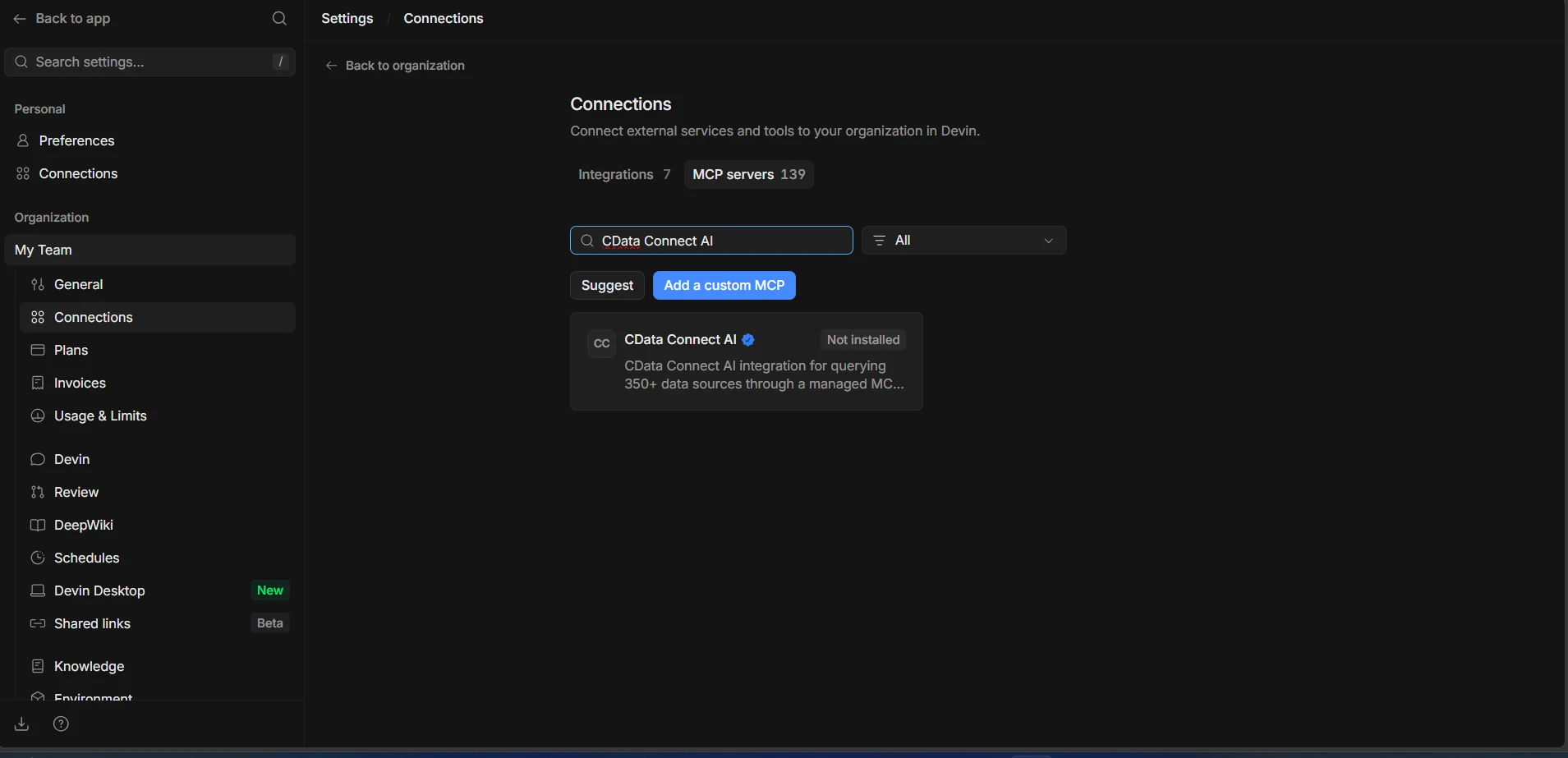
- Log into Devin and navigate to Settings and Connections, then select the MCP servers tab
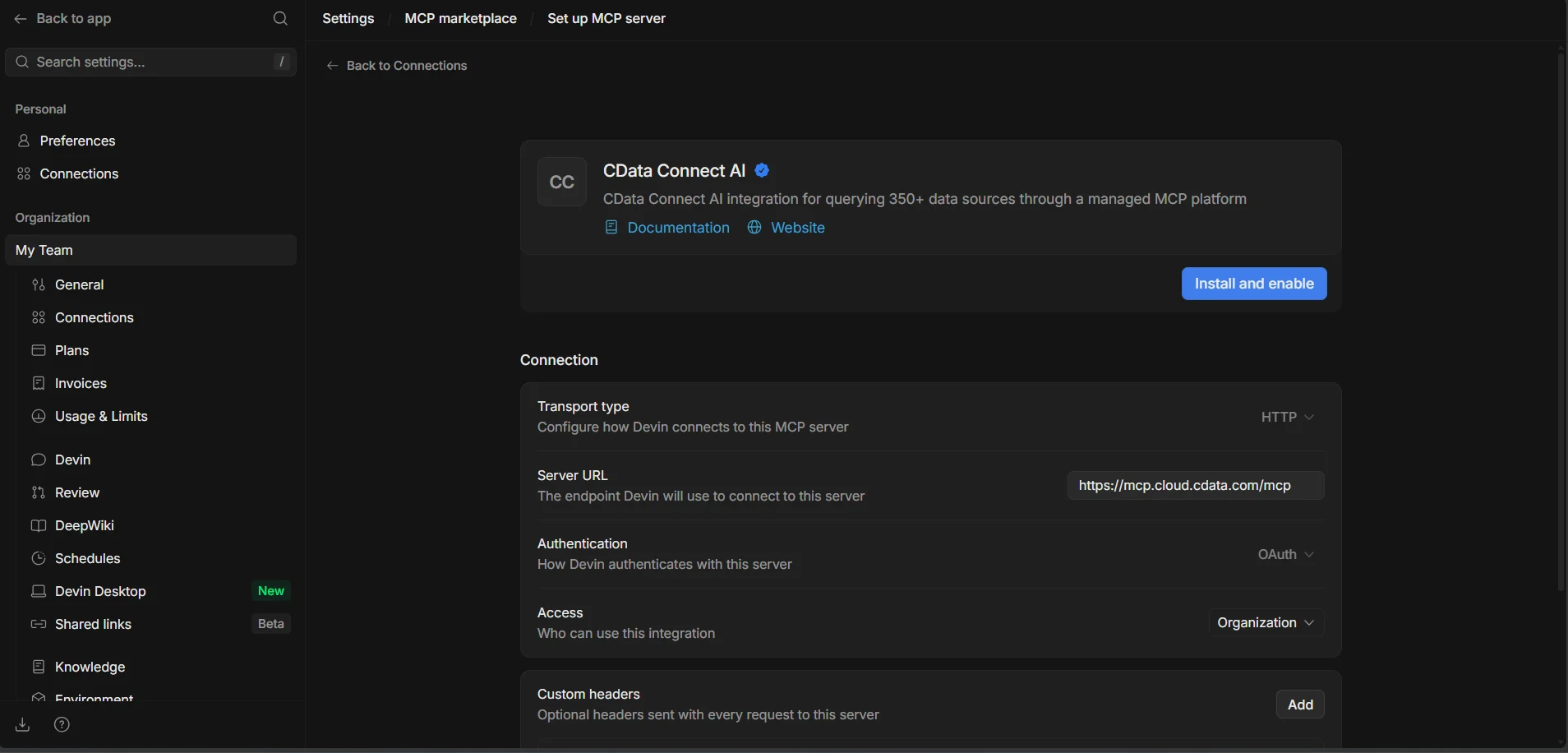
- Search for CData Connect AI in the marketplace and select the verified listing
-
Click Install and enable. When prompted, complete the OAuth flow to authenticate with your Connect AI account
-
Once installed, confirm the Enable in sessions toggle is on and click Test tools. Devin validates the connection and lists the available Connect AI tools, such as getCatalogs, getSchemas, getTables, and queryData
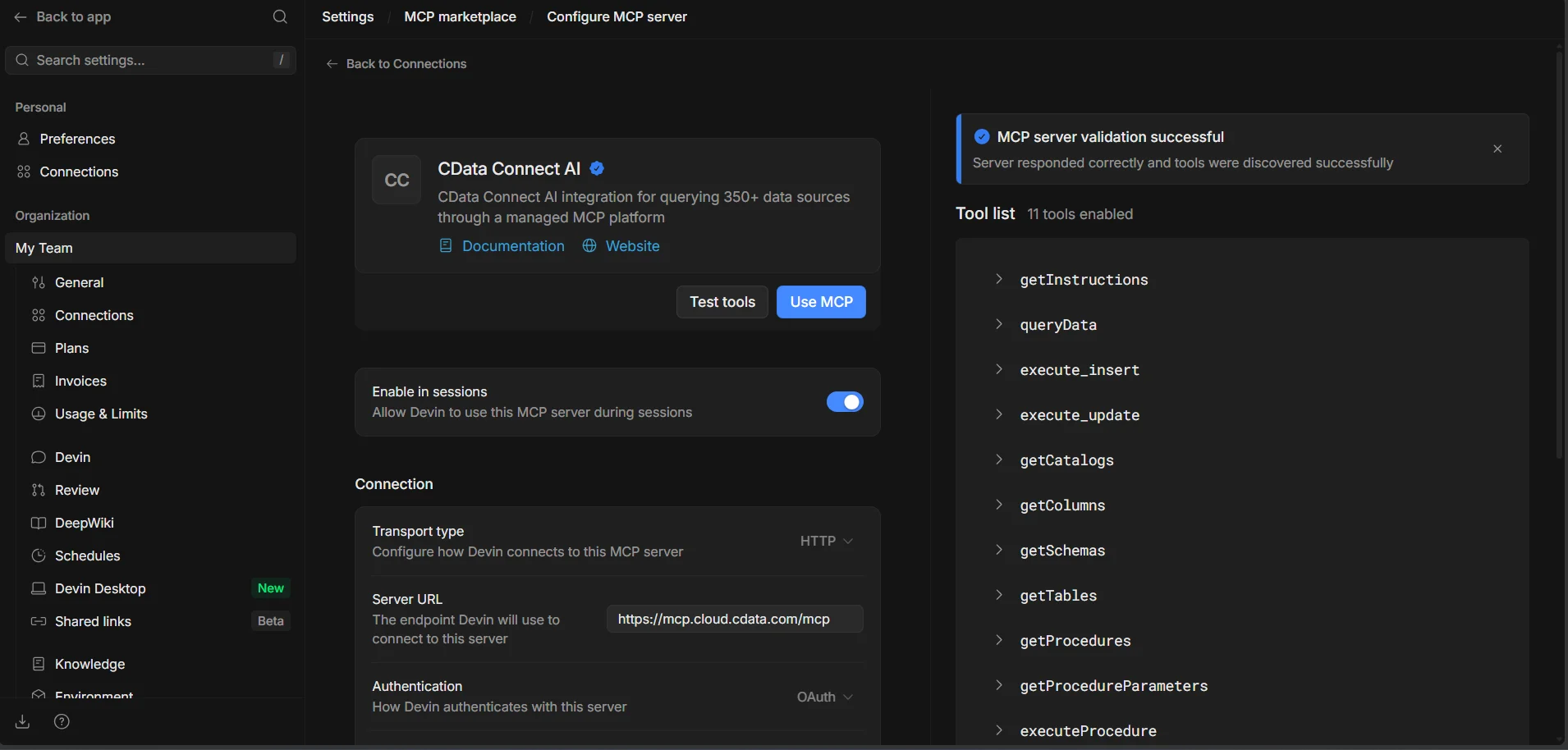
With the MCP server installed and enabled, the Connect AI tools are available to every Devin session in your workspace.
Step 3: Query live Zuora data from Devin
With the integration complete, start a Devin session and interact with live Zuora data through natural language prompts.
- From the Devin home page, start a new session
-
In the session prompt, ask Devin to work with your Connect AI data, for example:
- Can you list the connections in CData Connect AI
- Show the available schemas and tables for Zuora
- Query the top 5 records from a table in Zuora
-
Devin calls the Connect AI MCP Server and returns live results from Zuora data directly in the session. You can follow the tool calls, inputs, and outputs in the Progress panel
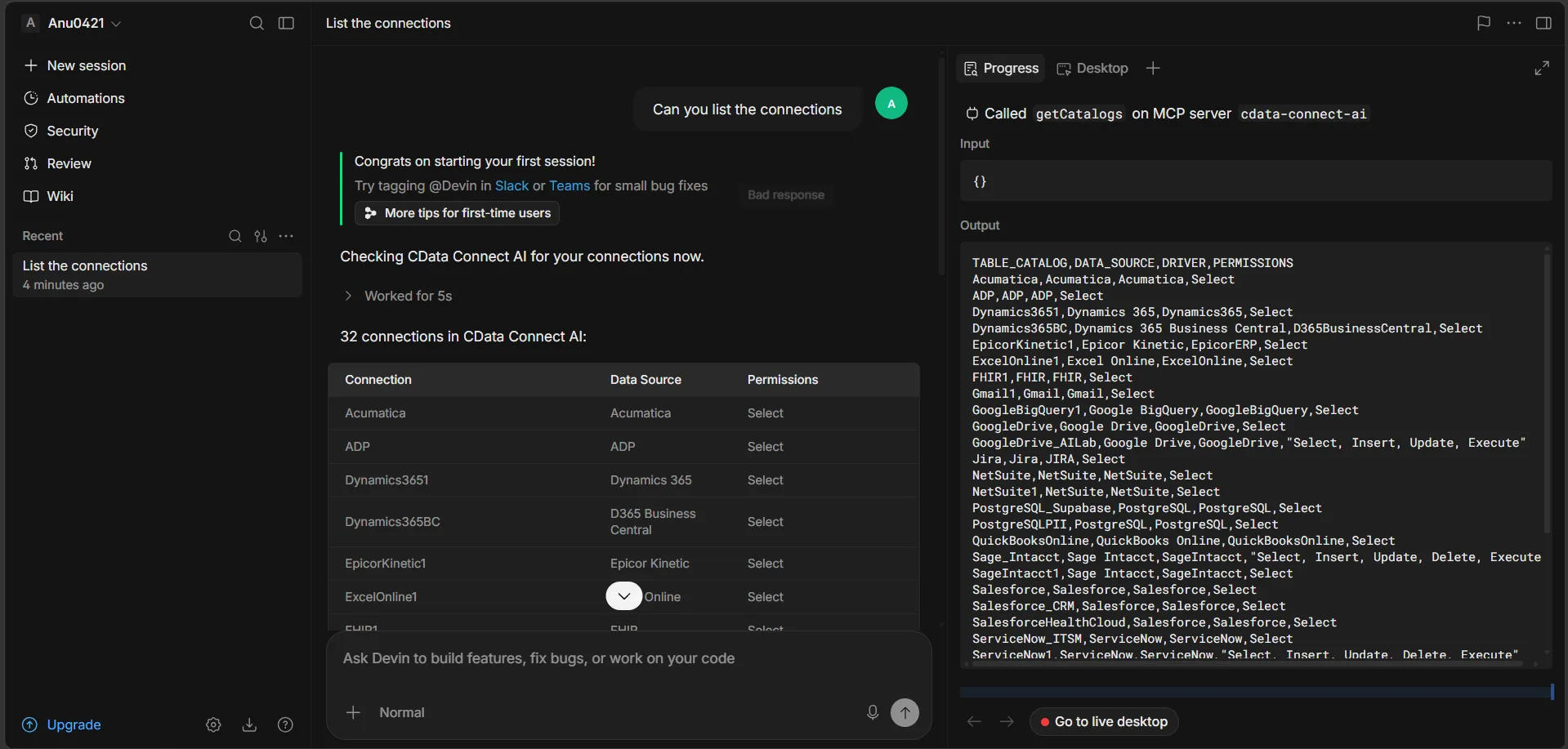
At this point, Devin communicates with the Connect AI MCP Server and retrieves live Zuora data through remote MCP tools directly from your sessions, whether you're exploring data, building features against it, or automating engineering tasks.
Get started with CData Connect AI
To access hundreds of SaaS, big data, and NoSQL sources directly from your cloud applications, try CData Connect AI today. Download a free 14-day trial of CData Connect AI, and our Support Team is available to help with any questions you have.