TL;DR: Connect ChatGPT dots to the business apps you already use, like Salesforce, Jira, Google Analytics, and NetSuite, in a few minutes and without code. Once it’s connected, your dot can answer questions that span those apps, flag deals at risk, combine invoices from two accounting systems, and run a weekly check without being asked.
OpenAI launched ChatGPT dots on September 29, 2026, and the setup flow suggests connecting email, calendar, and files first. The systems a sales manager, marketer, or operations lead works in every day live somewhere else: Salesforce, Jira, Google Analytics, NetSuite, and older line-of-business apps that may never get a ChatGPT plugin of their own. To use ChatGPT dots with all your work apps, you connect them to CData Connect AI and install one plugin. You don’t need a Connect AI account yet to follow along.
Why not install each app’s own ChatGPT plugin? If you only need one app and it has a plugin, that works. Most questions worth asking don’t stay in one app, though, and plenty of business systems have no plugin at all. Here’s what you get by connecting through Connect AI instead:
One plugin for hundreds of apps. One sign-in covers every app you connect in Connect AI, and your dot can combine them in a single answer. The deal-risk check later in this post uses both Salesforce and Jira.
Live data. Connect AI reads from each app in place when your dot asks, so answers come from current records, not last week’s export.
Fewer tokens per question. Connect AI filters and combines data at the source and hands the model only what the question needs, instead of every field from every tool. CData measured up to 97.6% fewer tokens per request in its token optimization analysis.
More accurate answers. In a CData benchmark of five Model Context Protocol (MCP) providers, the services that connect AI agents to business apps, across customer relationship management (CRM), project management, data warehouse, and ERP platforms, Connect AI returned correct results 98.5% of the time, while the others ranged from 65% to 75% (read the full report).
Governed access. You get one place to set what your dot can read and one log of every request it makes, backed by Connect AI’s access policies and audit trails.
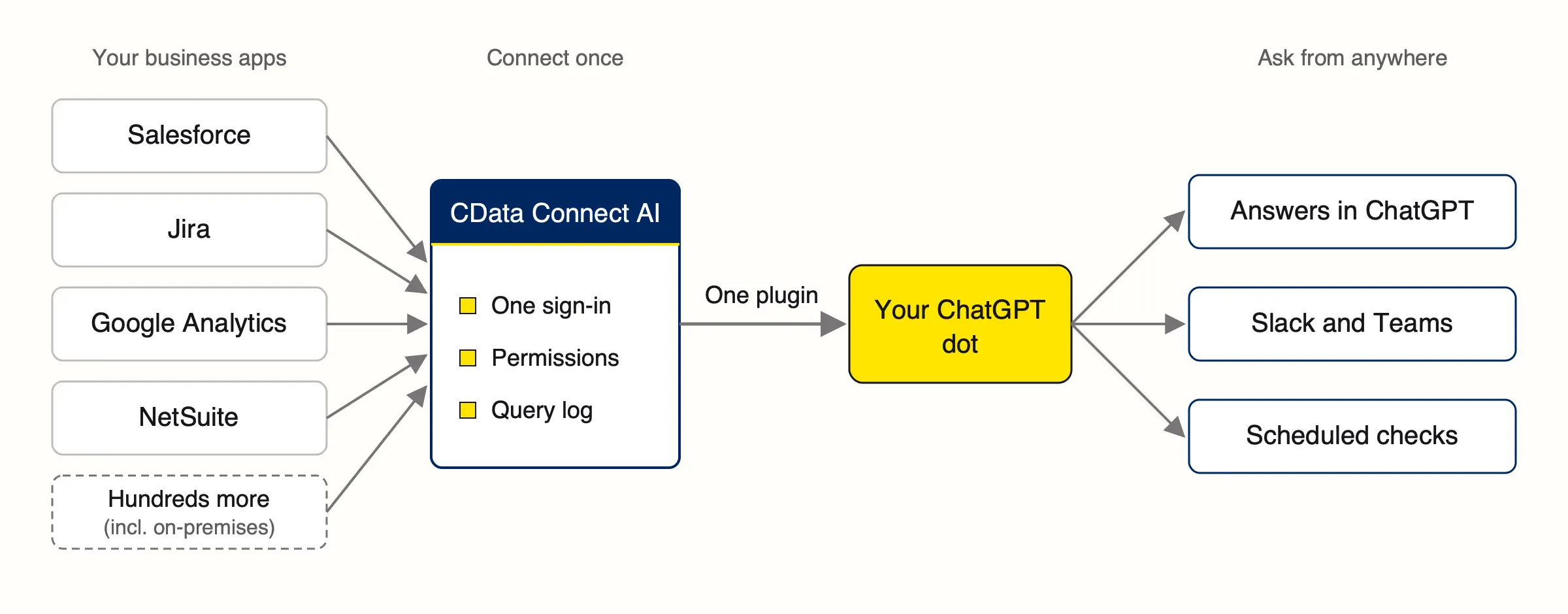
Diagram in three columns. Salesforce, Jira, Google Analytics, NetSuite, and hundreds more business apps, including on-premises ones, all connect into one CData Connect AI box that provides one sign-in, permissions, and a query log. A single plugin links it to your ChatGPT dot, which delivers answers in ChatGPT, answers in Slack and Teams, and scheduled checks.
At a glance
What a dot is: An always-on personal agent in ChatGPT, launched September 29, 2026, with its own cloud computer. You can reach it in ChatGPT, Slack, or Microsoft Teams.
Who can use dots: ChatGPT Pro and Business Premium users in eligible markets, plus Enterprise workspaces where an admin turns on the beta (OpenAI’s dots overview)
How to connect business apps to ChatGPT dots
A dot doesn’t need its own integration. It can use the supported plugins you’ve connected in ChatGPT. CData Connect AI for ChatGPT is listed in ChatGPT’s public plugin directory (Connect AI ChatGPT integration), and it gives your dot access to every app you connect in Connect AI.
What you need before you start
You need two things in ChatGPT. You’ll create the Connect AI account in Part 1.
A plan that includes dots. That’s Pro or Business Premium, or Enterprise once your workspace admin enables it.
A dot already created. It appears as Your dot near the top of the ChatGPT sidebar. OpenAI asks you to create it in the desktop app or a desktop browser, and after that the ChatGPT mobile app works too, once its update rolls out to you.
Part 1: Connect your business apps to Connect AI
Sign up for Connect AI. Start a free trial. The Connect AI quick start walks through the same steps with screenshots, including a sample data file you can use if you’d like to try it before connecting.
Add your first app. In Connect AI, open Sources > + Add Connection, search for the app (Salesforce, for example), and select it.
Sign in to that app. Choose OAuth as the sign-in method if the app offers it, click Sign in, log in to the app, and grant access. Then click Save and Test. For Salesforce, an admin has to install the CData connector in your Salesforce org once before the first connection works.
Repeat for each app you want your dot to use. Every connection should show as Authenticated on the Sources page. Your dot can only reach apps that are connected and authenticated here.
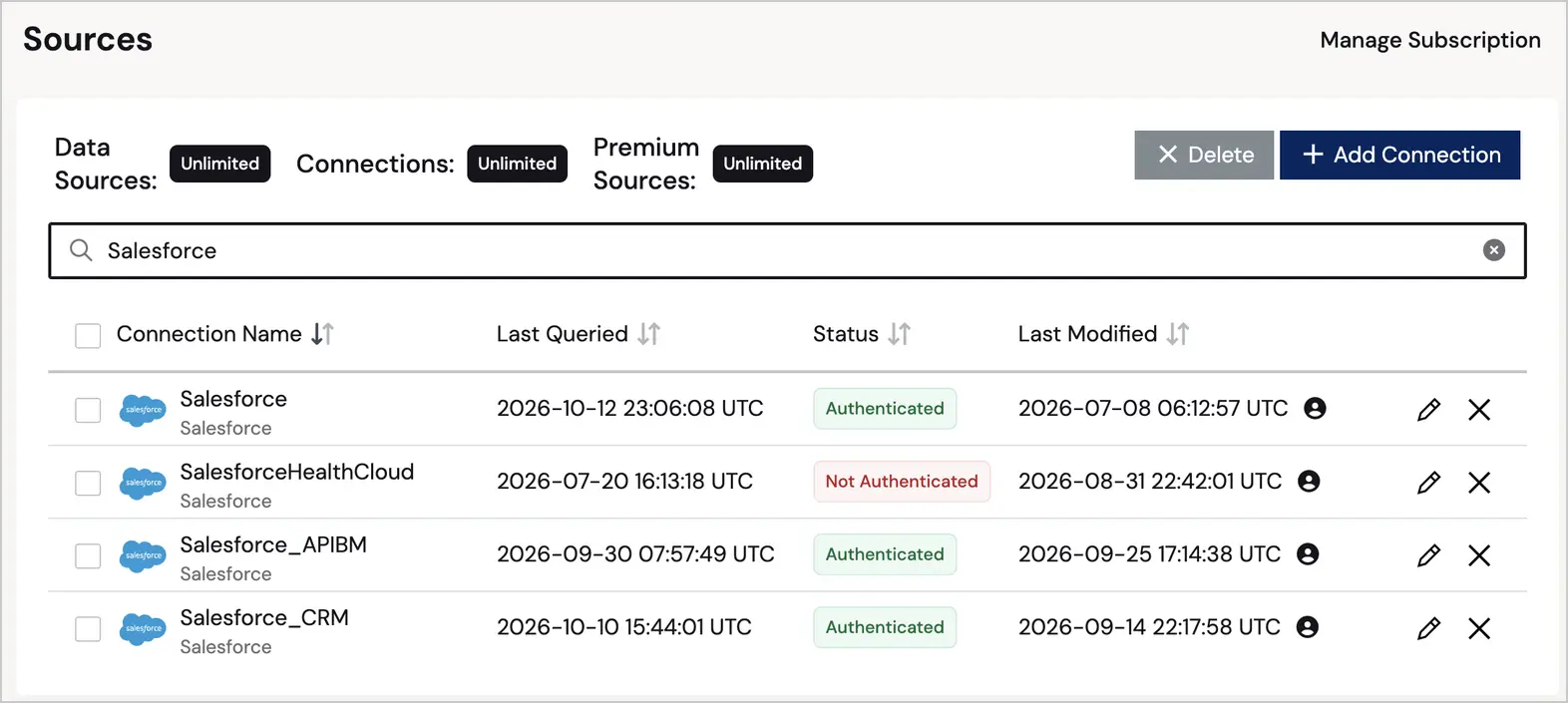
The CData Connect AI Sources page filtered to “Salesforce,” showing four Salesforce connections (Salesforce, SalesforceHealthCloud, Salesforce_APIBM, and Salesforce_CRM) with each connection’s last-queried time, a green Authenticated or red Not Authenticated status, and last-modified time.
Part 2: Install the CData Connect AI plugin in ChatGPT
Open Plugins. In ChatGPT, click the Plugins icon in the far-left rail. You can also go to Settings > Integrations > Plugins > Browse directory.
Search for CData. On the Public tab, type CData in the search box. The result is CData Connect AI, “Get answers without queries.”
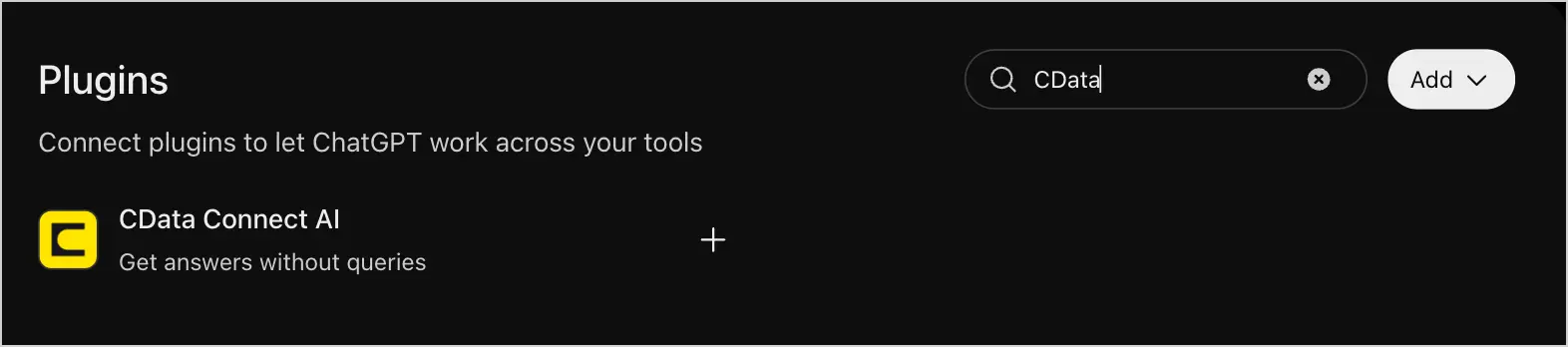
The ChatGPT Plugins page with “CData” typed in the Search plugins box. One result is shown: CData Connect AI, with the tagline “Get answers without queries” and a plus button to add it.
Install it. Click the result to open its detail page, then click Install plugin.
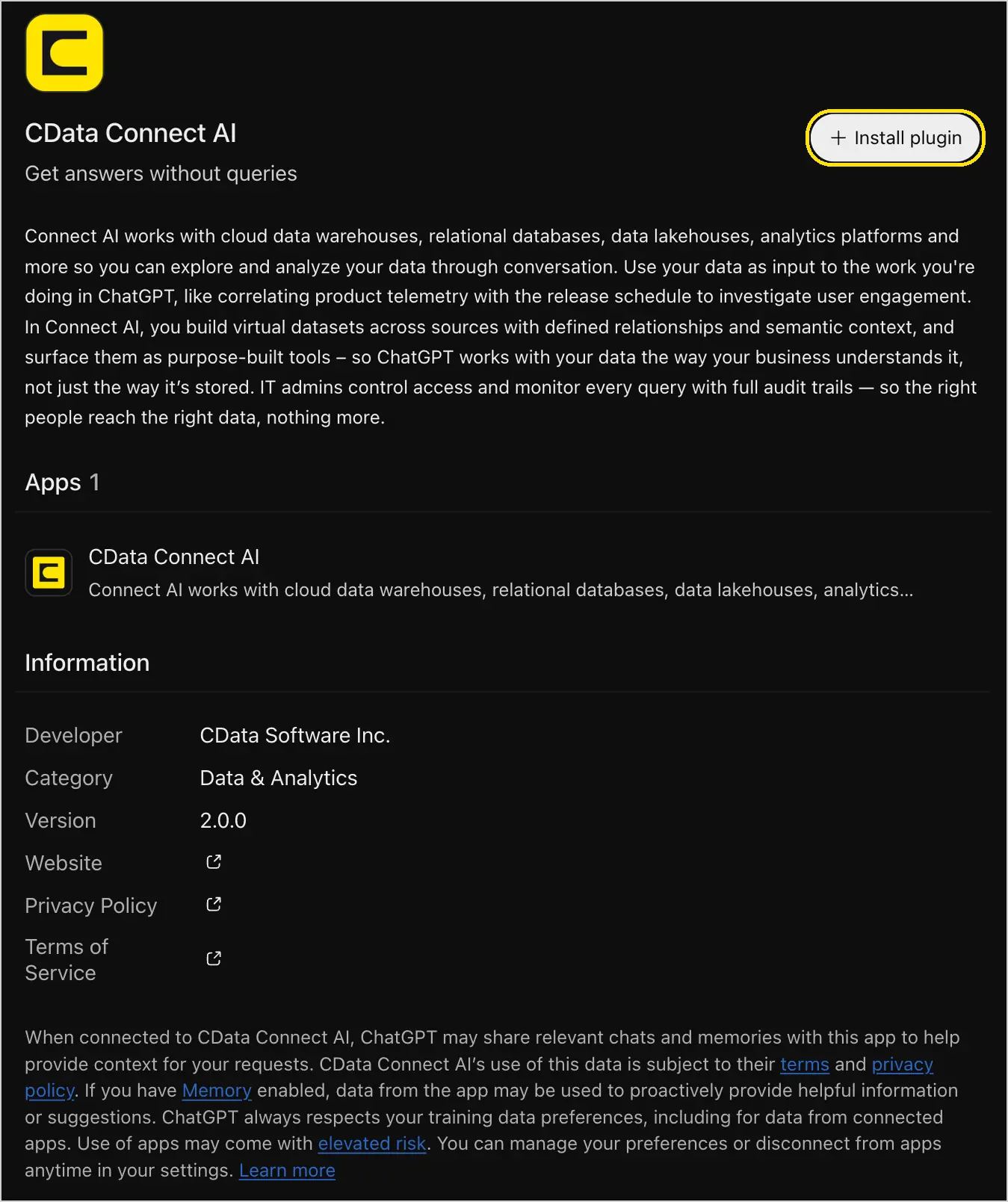
The CData Connect AI plugin page in ChatGPT’s plugin directory. The Install plugin button at the top right is outlined in yellow. Below the tagline “Get answers without queries” are a description of the plugin, an Apps section, and an Information panel listing CData Software Inc. as the developer, Data and Analytics as the category, and version 2.0.0, followed by the notice that ChatGPT may share relevant chats and memories with the app.
Sign in with your Connect AI account. ChatGPT opens the Connect AI sign-in. Use the account you created in Part 1 and approve access. If you’re still signed in to Connect AI in the same browser, this step finishes on its own in a few seconds.
Confirm it’s connected. A message reads “CData Connect AI plugin installed,” and the plugin moves to Installed in the sidebar.
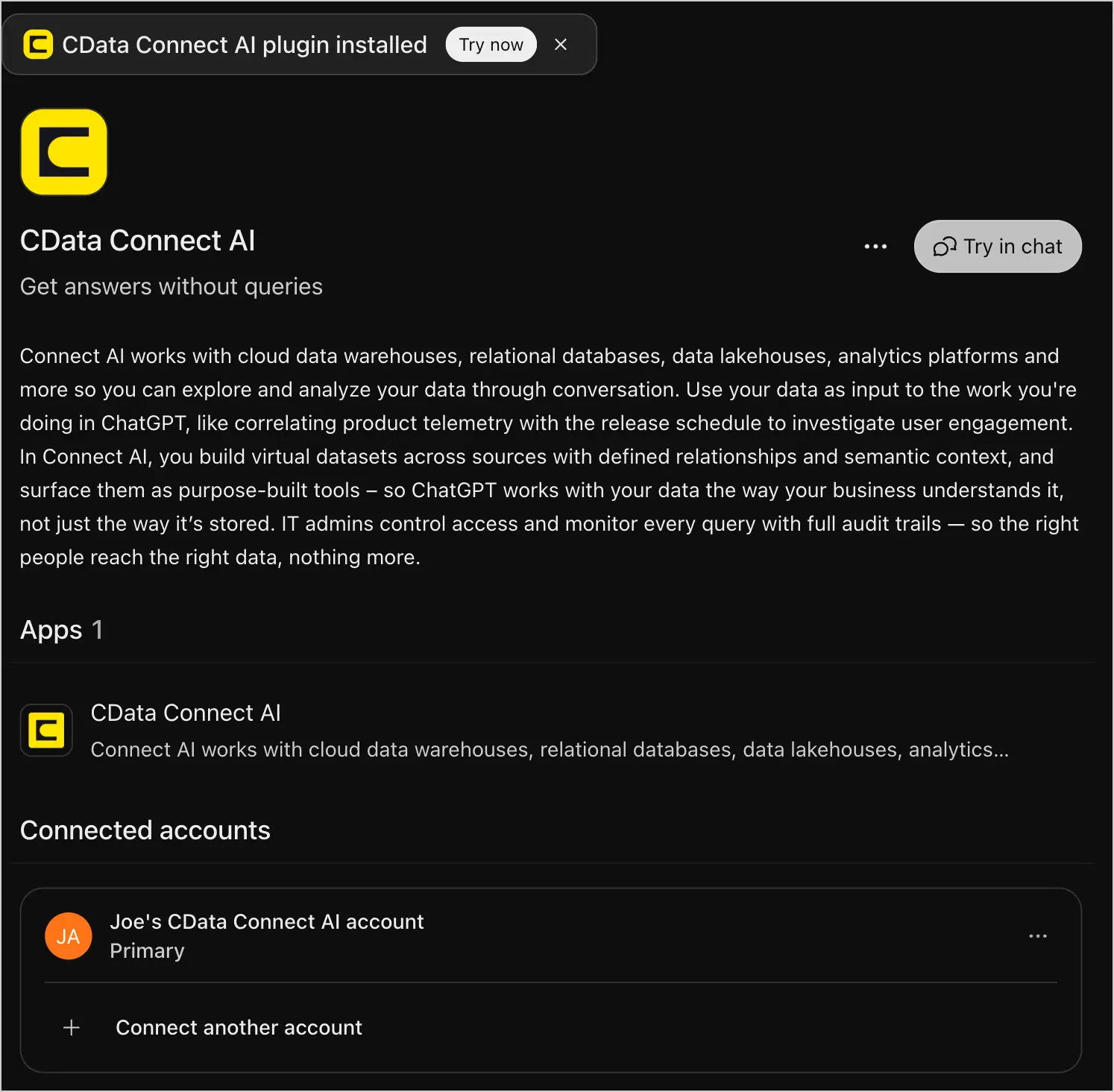
The CData Connect AI plugin page in ChatGPT right after installation. A notification reads “CData Connect AI plugin installed” with a Try now button. The Install plugin button has changed to Try in chat, and a Connected accounts section lists a CData Connect AI account marked Primary, with an option to connect another account.
Part 3: Test the connection with your dot
Click Your dot and start with a question that names the plugin:
Using CData Connect AI, which data sources do I have connected? Group them by category in a compact table with a count per category. Read-only, live Connect AI results only.
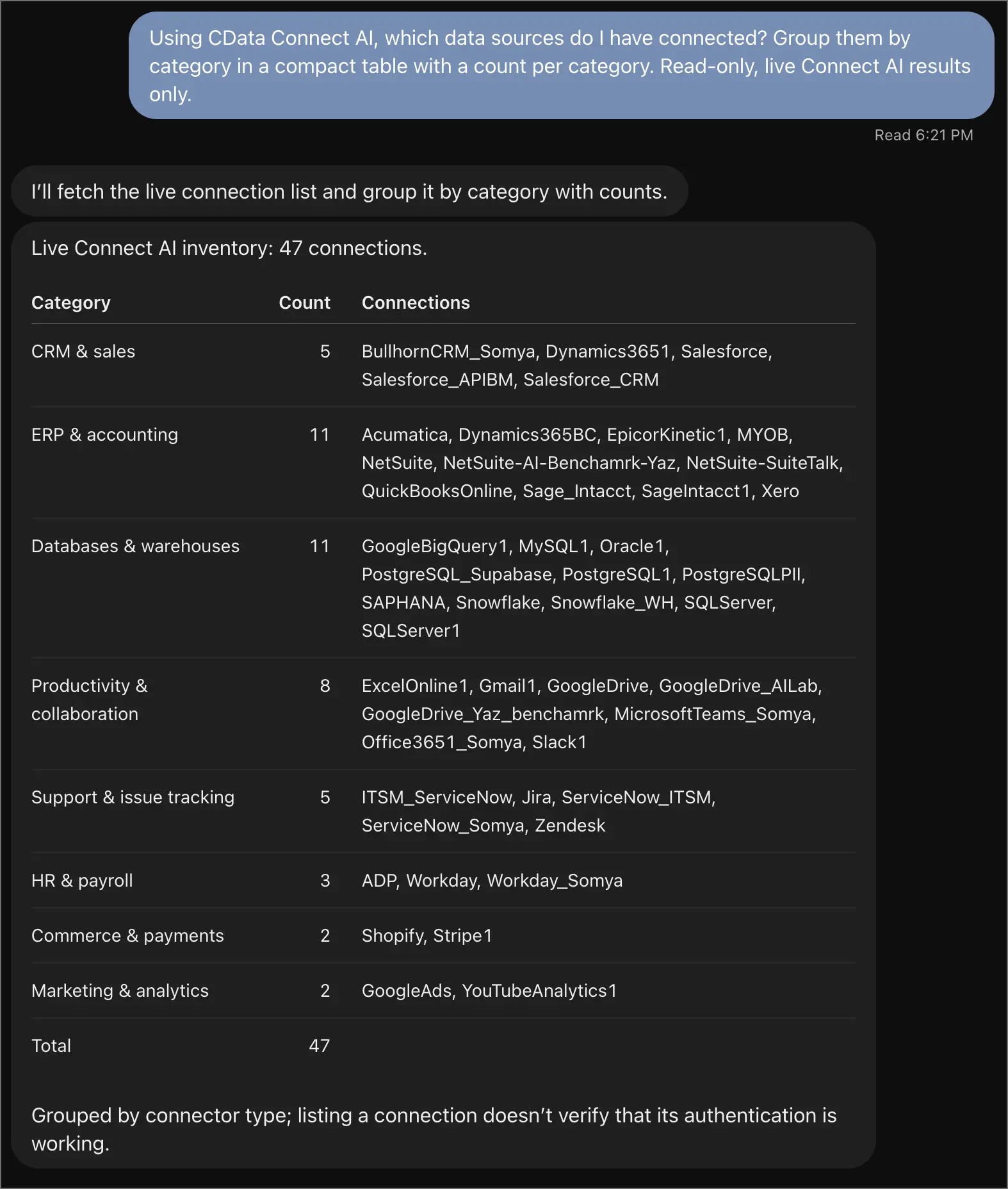
A ChatGPT dot conversation. The prompt asks which data sources are connected through CData Connect AI, grouped by category, read-only and using live results only. The dot replies with a table of 47 connections in eight categories: CRM and sales, ERP and accounting, databases and warehouses, productivity and collaboration, support and issue tracking, HR and payroll, commerce and payments, and marketing and analytics. A note says listing a connection doesn’t verify that its authentication is working.
ChatGPT dots use cases: what to ask your dot
Prompts to try first
Start with these, and swap in your own connection names.
Support (Zendesk)
Using CData Connect AI, which Zendesk tickets have been open longest, and which organizations do they belong to?
Finance (NetSuite)
Using CData Connect AI, list NetSuite invoices more than 30 days overdue, grouped by customer, with the total for each.
Engineering (Jira)
Using CData Connect AI, which Jira issues labeled "customer" have been open longest, and which accounts do they mention?
Review your Salesforce pipeline
A question a lot of sales managers ask every week:
Read-only, using CData Connect AI: in the Salesforce connection, show me the 5 largest open opportunities expected to close this quarter. Include account, stage, amount, and close date in a table, and flag any with no activity in the last 30 days. Use only live Connect AI results.
A ChatGPT dot conversation answering a Salesforce pipeline question with a table of the five largest open opportunities closing October through December 2026 (opportunity, account, stage, amount, close date, and a 30-day activity check). All five are flagged with no logged activity. A note below the table explains that their Last Activity fields are blank, that one deal is still open six days past its close date, and that the connection didn’t expose a currency code.
Combine data from two accounting systems in one answer
Next, a question that usually means exporting two reports and matching them in a spreadsheet:
Read-only, using CData Connect AI: one business unit invoices from Xero and the other from QuickBooksOnline. For November 2025 through August 2026, pull invoiced totals by month from both, put them side by side in one table with a combined total, and tell me which month was strongest overall and where the two units diverge most. Live Connect AI results only.
The dot queried both systems through the same plugin, checked that their currencies and invoice statuses matched before adding them up, and returned one table. March 2026 was the strongest month at $28,000 combined, and also the month the two units diverged most. In August the pattern reversed and Xero pulled ahead. The dot also flagged that both systems hold demo data, which is true of the test account I used for these screenshots.
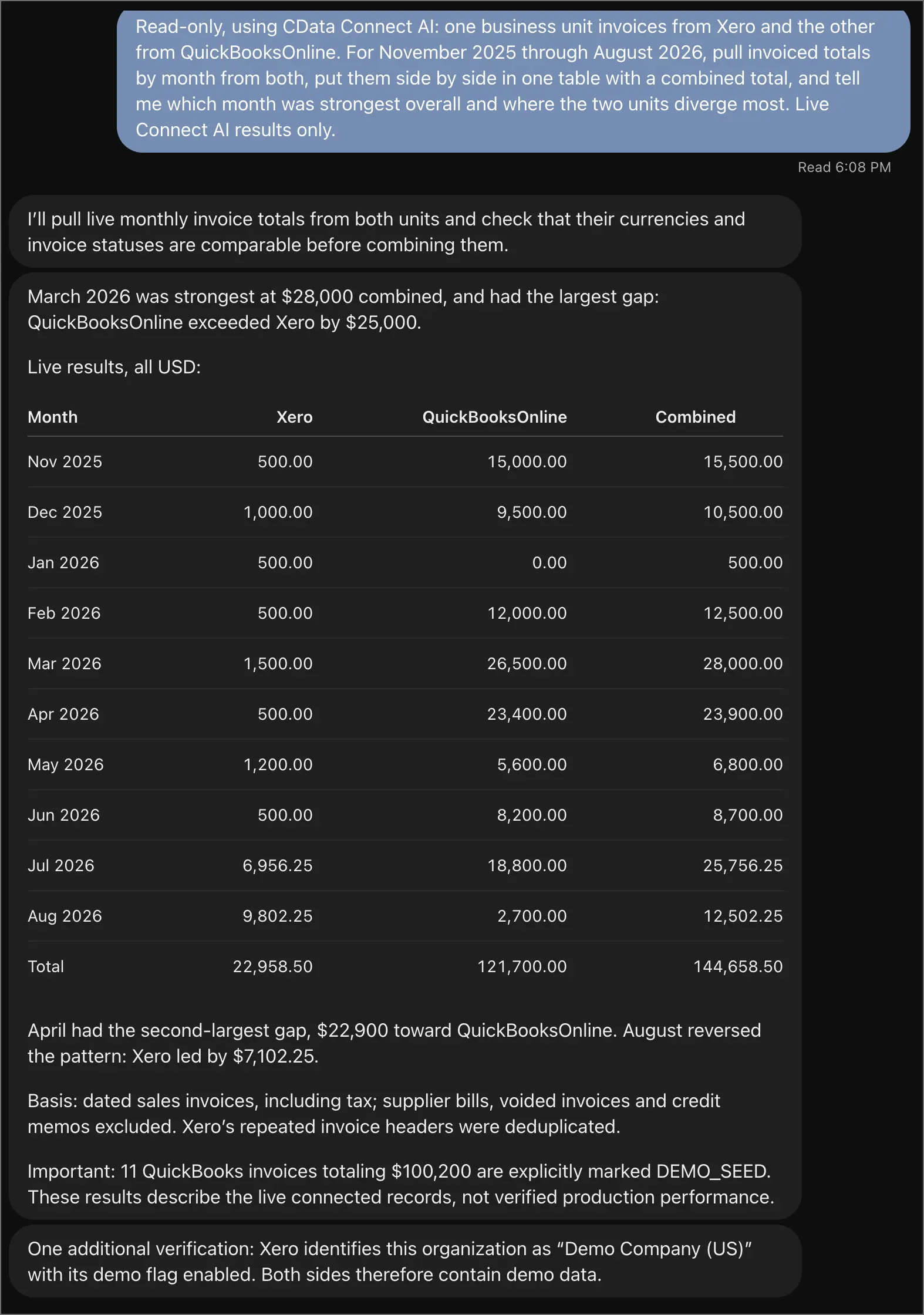
A ChatGPT dot conversation combining monthly invoice totals from Xero and QuickBooks Online for November 2025 through August 2026. The dot reports that March 2026 was strongest at $28,000 combined and had the largest gap between the two systems. A table lists Xero, QuickBooks Online, and combined totals by month, ending with totals of $22,958.50, $121,700.00, and $144,658.50. Notes below explain which invoices were counted and flag that both systems contain demo data.
Check deal risk across Salesforce and Jira
I followed up on the pipeline review without restating which deals I meant:
For the accounts on those 5 Salesforce deals, find open Jira issues tied to each account (search summary or description for the account name). Give me a table: account, open issue count, highest priority, and the oldest open issue's age in days. Then tell me which deal looks most at risk based on Salesforce activity plus Jira. Read-only, live Connect AI results only.
The dot remembered the five deals, noticed they covered only three accounts, and searched Jira for each. Jira had no open issues for any of them, so the dot said so and leaned on Salesforce instead. It named the Targeted Therapy Corp renewal as the biggest risk: its close date had passed, its description said the project was canceled, and Salesforce showed a 10% probability.
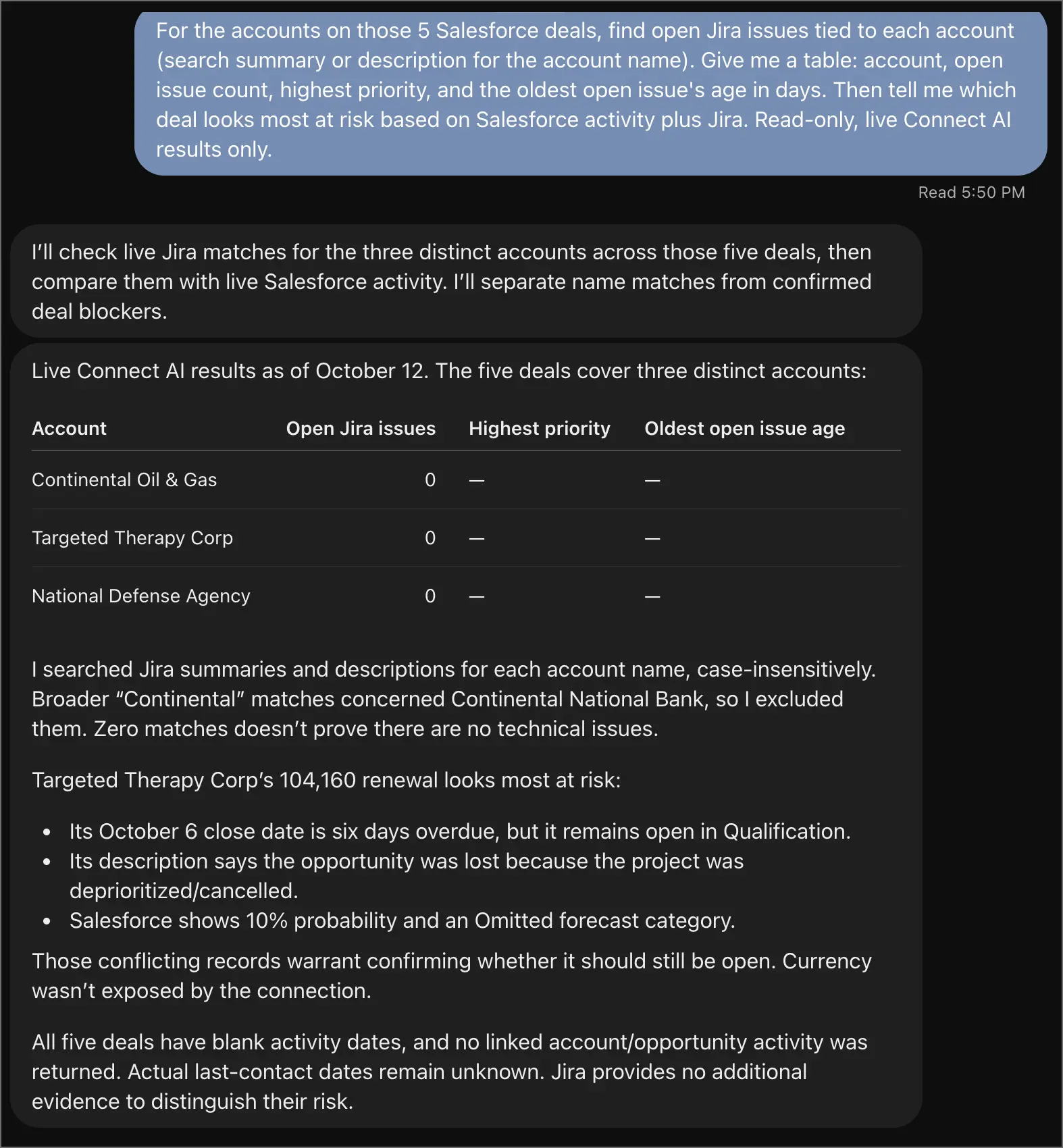
A ChatGPT dot conversation. The prompt asks for open Jira issues tied to the accounts on the five Salesforce deals and which deal looks most at risk. The dot finds that the five deals cover three accounts and returns a table showing zero open Jira issues for each. It explains how it searched, then names the Targeted Therapy Corp renewal as most at risk because its close date is six days overdue, its description says the project was canceled, and Salesforce shows a 10% probability.
It took one follow-up question and about two minutes. Getting the same answer by hand means asking engineering, searching Jira, and pulling Salesforce history, which often takes days.
How to schedule recurring tasks with ChatGPT dots
A dot can also run checks for you on a schedule. OpenAI’s docs describe scheduled tasks and follow-ups that you can review, disable, or delete from the dot’s Scheduled section (OpenAI’s dots controls).
Set up a recurring check
Ask your dot:
Set up a recurring check for me: every Monday at 8:00 AM Central, use CData Connect AI to look in Salesforce for open opportunities over $100,000 closing this quarter that have had no activity in the last 30 days. Message me a short table (opportunity, account, amount, close date, days since last activity). Read-only, don't change anything in Salesforce.
How to use ChatGPT dots in Slack and Microsoft Teams
You can also message your dot directly in Slack or Teams, or mention it in a channel (OpenAI’s channels guide).
Connect Slack or Teams to your dot
You connect Slack or Teams from your dot’s profile. Adding your dot to a channel doesn’t start monitoring by itself: you confirm any recurring watch you want, and you can choose where updates go, so the Monday check could land in Slack instead of ChatGPT. On Enterprise workspaces, the admin controls this with a separate setting for Slack.
Use Connect AI data from Slack
Because it’s the same dot in every channel, with the same memory and plugins, the Connect AI access you set up in ChatGPT comes with it.
How to see what data your ChatGPT dot accessed
Connect AI keeps its own record of what your dot accessed, independent of ChatGPT. Every query your dot runs appears in Connect AI under Logs > Query Log, with the timestamp, the user, the status, the connection, and the full query, so you can see exactly what it asked each system for. It’s part of Connect AI’s governance and observability controls.
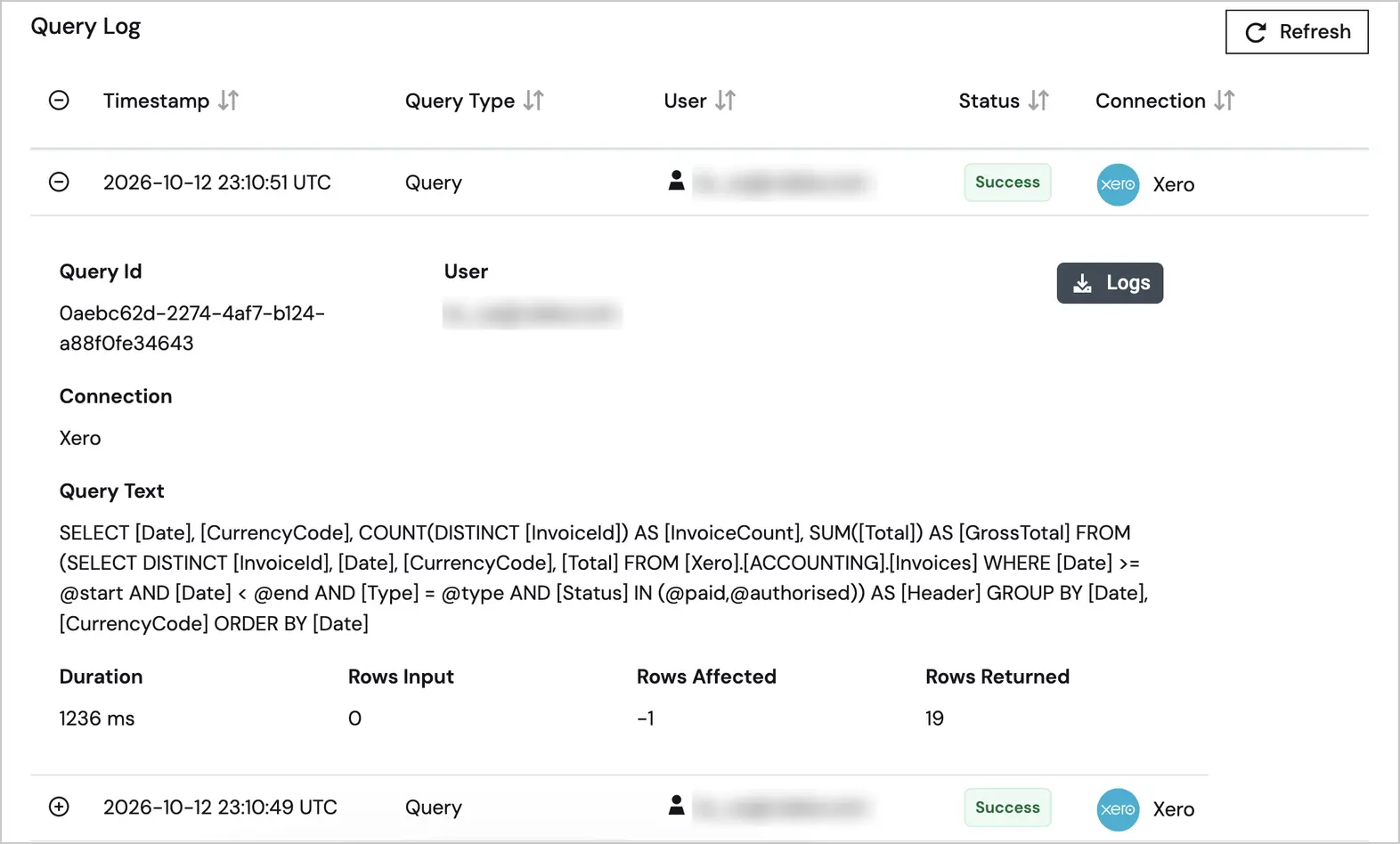
[Alt text]: The CData Connect AI Query Log with one Xero query expanded. The details show the query ID, the user (blurred), the Xero connection, the full SQL query against the Xero Invoices table, a duration of 1,236 ms, and 19 rows returned. Collapsed rows above and below show the timestamp, query type, user (blurred), Success status, and connection.
For a broader checklist, see our guide to AI agent data governance.
Connect your business apps to ChatGPT dots
With CData Connect AI installed once, your dot can answer from Salesforce, Jira, Xero, QuickBooks, and the rest of your connected sources, combine them in one answer, and keep checking on a schedule, with every request logged where IT can see it.
Start a free CData Connect AI trial, connect the systems your team already runs, and install the plugin in ChatGPT to put your dot to work on them.
Tips and troubleshooting for ChatGPT dots
Tips and limitations
Your dot sees every app your Connect AI account can access. The test account I used listed 47. If that’s more than you want, sign the plugin in with a Connect AI user that has less access.
Name the plugin in your first few prompts. Starting with “Using CData Connect AI” made the dot use it right away. Clear connection names in Connect AI make prompts easier to write. I also added “Read-only” and “live Connect AI results only” to each prompt, so the dot wouldn’t change records or answer from results earlier in the conversation.
Dots do some work in the background. OpenAI says the background research a dot does on its own can’t send messages, change app content, or control your browser, and that research can draw on your connected apps.
Troubleshooting
The dot answers without using your data. Start the prompt with “Using CData Connect AI” and name the connection.
The dot says an app is unreadable. Its sign-in has likely expired. Open Sources in Connect AI, re-authenticate the connection, and ask again. You don’t need to change anything in ChatGPT.
You can’t find or install the plugin on a work account. Your ChatGPT workspace admin may need to allow it.
Frequently asked questions
What are ChatGPT dots?
A dot is an always-on personal agent in ChatGPT, launched by OpenAI on September 29, 2026, with its own cloud computer. It can work in the background, run scheduled tasks, and use your connected plugins, and you can reach it in ChatGPT, Slack, or Microsoft Teams (OpenAI).
Can ChatGPT dots access Salesforce?
Yes, through a plugin. Install the CData Connect AI plugin from ChatGPT’s plugin directory and sign in, and your dot can interact with any Salesforce connection you’ve set up in Connect AI. In my testing, it answered pipeline questions and flagged stale deals from live Salesforce data.
Do ChatGPT dots need a separate integration from ChatGPT?
No. Dots can use the supported plugins already connected to your ChatGPT account (OpenAI’s dots admin guide). Install CData Connect AI once and both ChatGPT and your dot can use it.
Can a ChatGPT dot combine data from two business apps?
Yes. With Connect AI, every connected source is available through one plugin, so a dot can pull from two systems and combine them in one answer. I tested Xero with QuickBooks Online, and Salesforce with Jira.
Can I schedule a ChatGPT dot to check Salesforce or another app every week?
Yes. Ask your dot to set up a recurring check in plain language, for example every Monday at 8 a.m. The task appears in the dot’s Scheduled section, where you can review, disable, or delete it.
Can I use my ChatGPT dot in Slack?
Yes. OpenAI says you can message your dot in Slack or Microsoft Teams after connecting it from the dot’s profile (OpenAI’s channels guide). Because it’s the same dot, your Connect AI plugin comes with it.
Can my dot change data in my business systems?
It can, on sources that support updates, if the Connect AI user it signs in with has write permission. ChatGPT reviews a dot’s actions against your instructions and custom rules (OpenAI’s dots controls). If a dot should never change a system, give its Connect AI user read-only permission on that connection, so the limit holds no matter how the dot is asked.
Which ChatGPT plans include dots?
As of October 1, 2026, dots are rolling out to ChatGPT Pro and Business Premium users in eligible markets. Enterprise workspaces get a beta that an admin must turn on (OpenAI). On ChatGPT Plus, you can still use the Connect AI plugin in regular ChatGPT, but not in a dot.





