In August 2025, Microsoft announced that it will remove the licensed Salesforce ODBC driver currently bundled with Access in October 2025. (techcommunity.microsoft.com) According to Microsoft, the embedded driver will no longer receive security or feature updates (support ends June 30, 2026), so including it in Access is no longer viable. (Microsoft Learn)
For users who currently rely on linking Salesforce data within Access via the built-in connector, this change is disruptive: after October, the built-in option will vanish, and you’ll need an external ODBC driver to continue connecting to Salesforce.
The good news: Access will continue to support the ODBC framework itself - you just need a replacement Salesforce ODBC driver. (Microsoft Learn)
That’s where the CData Salesforce ODBC Driver comes in - and here’s how to migrate seamlessly.
Why CData’s Salesforce ODBC driver is the right choice
When Microsoft removes the built-in driver, you’ll need a third-party connector. Many vendors offer Salesforce ODBC drivers (e.g. InsightSoftware/Simba, Devart, etc.) (Azure Feeds), but the CData Salesforce ODBC Driver offers advantages that make it the best alternative:
Fully supports read/write, update, delete operations via linked tables in Access, not just one-time imports.
Automatically reflects metadata changes (new objects, new fields) in Salesforce without requiring reconfiguration.
Supports multiple authentication schemes (OAuth, basic + security token, SSO) to align with your Salesforce configuration.
Advanced features (bulk operations, caching, remoting via SQL Gateway) and full SQL compliance support.
Excellent integration into Access workflows using the ODBC interface you’re already familiar with.
Because Microsoft is simply removing the bundled driver - not the ODBC layer itself - switching to CData slides into your existing Access setup with only a bit of configuration.
How to integrate CData Salesforce ODBC with Access (linked tables, live updates)
Below is a step-by-step guide for linking Salesforce data into Microsoft Access using the CData driver:
(If you prefer, you can also import data one time, but linked mode is recommended for live synchronizations.) For more detailed instructions see our Knowledge Base article on replacing the deprecated connector with the CData ODBC Driver for Salesforce in Microsoft Access.
Step 1: Download, install, and configure the CData Salesforce ODBC Driver
Download the driver installer from the CData website and install it on the same machine running Access.
After installation, open the ODBC Data Source Administrator (32‑bit or 64‑bit matching your Access runtime).
Create a machine DSN (or user DSN) for Salesforce, specifying the connection properties:
Authentication method (OAuth, basic + security token, or SSO)
If OAuth, you can typically leave OAuthClientId, OAuthClientSecret, and CallbackURL blank to use the embedded OAuth app; set InitiateOAuth = GETANDREFRESH to allow automatic token refresh.
For basic login, set AuthScheme = Basic and specify User, Password, SecurityToken.
Other optional properties: SSL, connection timeouts, caching, etc.
Once the DSN is saved and validated, you can proceed to Access.
Step 2: Link a Salesforce table in Access
In Access, open your database (or create a new one).
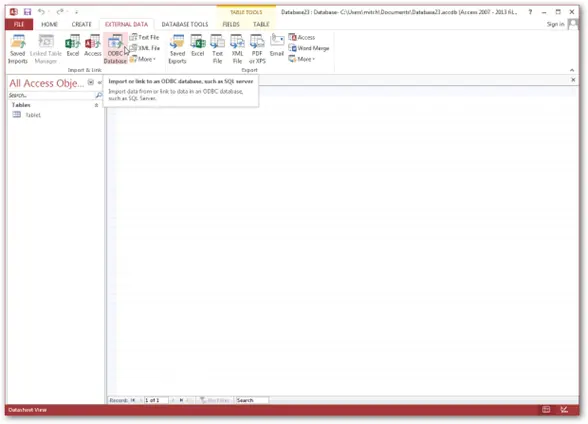
On the External Data tab → click ODBC Database.
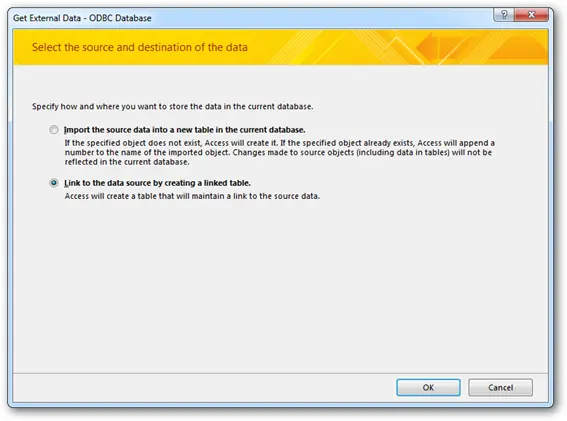
Choose the option “Link to the data source by creating a linked table” (rather than importing).
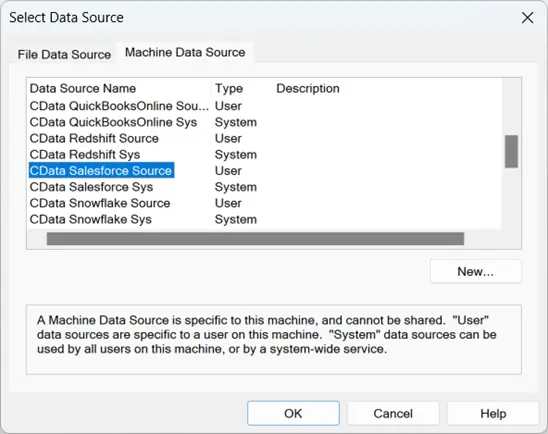
In the wizard, go to the Machine Data Source tab and select the DSN you just created (CData Salesforce).
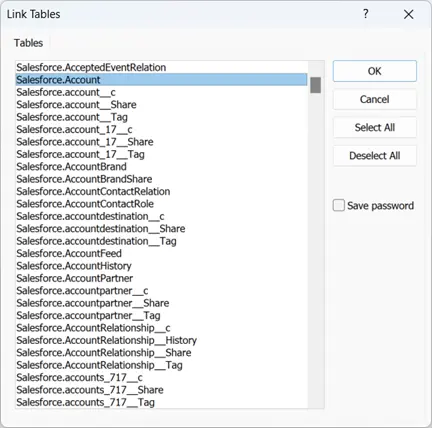
Access will present a list of available Salesforce tables (Standard and custom). Select the table(s) you want to link.
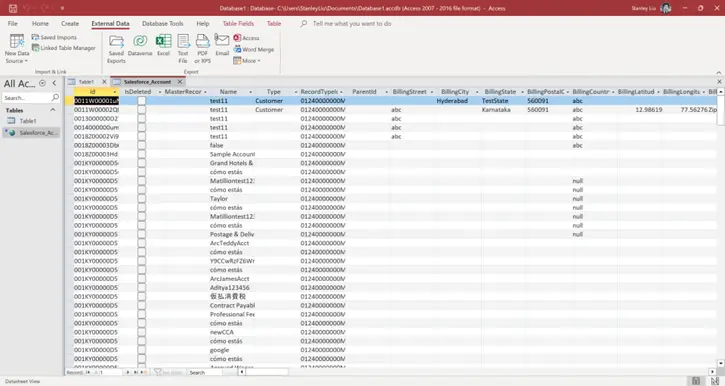
The linked table(s) appear under Tables in the Navigation Pane.
Double-click a linked table to view live Salesforce data. Any edits in Access (if permitted) propagate back to Salesforce.
Important caveats / limitations:
When inserting new rows, Access may sometimes display a #deleted value until you refresh, because Access cannot always re‑select newly inserted rows immediately. One workaround is to set the MaximumColumnSize property to less than 255 to force Access to re‑select the row.
Because the driver polls metadata dynamically, new fields or objects you add in Salesforce become available in Access automatically (next time you open the DSN).
(Optional) Step 3: Import instead of linking (read-only snapshot)
If you prefer a one-time import instead of live linkage:
In Access, go to External Data → ODBC Database.
Select “Import the source data into a new table in the current database”.
Choose the CData Salesforce DSN under Machine Data Source.
Select the tables and columns to import.
Access will create a static copy; changes in Salesforce will not automatically propagate.
This mode is useful for snapshot reporting needs, though it loses the bidirectional benefits of a linked table.
Migration tips and timeline
Migrate before October 2025. Once Microsoft removes the built-in driver, existing Access setups that rely on it will break. Migrating ahead of time ensures continuity.
Test your linked tables now. As you transition, create linked tables via CData in a non‑production database and validate that edits, lookups, and queries behave as expected.
Update references in Access objects (queries, forms, reports). Linked tables created by CData may have subtle differences. Review any VBA code, queries, or forms that reference Salesforce-linked tables - adjust field names, relationships, or joins if needed.
Train users. Educate users who directly access the Salesforce-linked tables, so they understand any slight behavioral changes (e.g. delay on insert refresh or the need to refresh manually).
Take advantage of advanced features. Once your driver is in place, you can explore using CData’s SQL Gateway and linked server support to expose Salesforce as a remote database via TDS or MySQL protocols.
Get started with the CData Salesforce ODBC Driver
Stay ahead of the October 2025 cutoff and ensure uninterrupted access to your Salesforce data in Access.
CData’s Salesforce ODBC Driver offers the most seamless transition from the deprecated Microsoft connector, with enterprise-grade features, ongoing support, and full compatibility with your Access workflows.




