CData has recently rolled out a new set of drivers and connectors for Cvent, making it easier than ever to connect Cvent data with your favorite BI tools, databases, and custom apps. In this blog post, we’ll take a closer look at what this new connectivity means for Cvent users, walk through some key features and data model highlights, and share a simple example of how to connect to your Cvent data in Power BI Desktop.
What is Cvent?
Cvent is a comprehensive event management platform that helps organizations to plan, execute, and analyze events efficiently. It offers tools for event registration, venue selection, attendee engagement, and post-event analytics, serving as a one-stop solution for event professionals.
With Cvent, organizations can manage various event types, including conferences, webinars, seminars, and trade shows, ensuring a streamlined experience from planning to execution.
CData drivers and connectors for Cvent
Connectivity options and available tools
The connectivity solutions offered by CData are designed to provide easy access to Cvent data across various platforms and applications:
JDBC Driver: Connects to tools like DBeaver, MicroStrategy, DbVisualizer, KNIME, and more.
ODBC Driver: Compatible with applications such as Qlik, Alteryx, MS Access, SAP BusinessObjects, SAS, and SQL Server Linked Servers.
ADO.NET Provider: Integrates with .NET applications, including SQL Server Analysis Services and custom .NET solutions.
Excel add-in: Allows direct connection to Cvent data within Microsoft Excel for data analysis and reporting.
Tableau and Power BI Connectors: Facilitates real-time data visualization in Tableau and Power BI.
Python Connector: Enables integration with Python tools like pandas, SQLAlchemy, and Dash.
PowerShell cmdlets: Provides command-line access to Cvent data for automation scripts.
Key features
Live access to Cvent data: Work with real-time data for up-to-date insights.
Powerful SQL-92 querying: Utilize standard SQL queries to interact with Cvent data.
Built-in authentication: Secure connections through OAuth and other authentication methods.
Broad compatibility: Integrate with over 270 BI, analytics, reporting, AI, and data integration tools.
Read and write access: Update event data, trigger operations, and call API procedures as needed
Data model
CData drivers and connectors for Cvent enable bi-directional access to Cvent data through the Cvent REST API version 1.0. They expose a rich set of entities that allow users to query and interact with event-related data using standard SQL. Key data objects include:
Events: A table that stores detailed information about events managed in Cvent.
Sessions: A table that contains data on individual sessions scheduled within events.
Attendees: A table that captures information about registered participants for each event.
Speakers: A table that lists profiles and details of event speakers.
Exhibitors: A table that includes information about event exhibitors and sponsors.
Emails: A view that provides access to records of emails sent concerning events, including content and metadata.
Surveys: A view that offers feedback and survey results submitted by attendees.
Example: Access live Cvent data in Power BI
As an example, let’s walk through how to use the CData Power BI Connector for Cvent in Power BI Desktop to build dashboards that visualize and track event data, such as registrations, sessions, or speaker lineups. You can query Cvent data from Power BI in four simple steps (for a full tutorial, check out this knowledge base article):
Install the CData Power BI connector: Install the CData Power BI Connector for Cvent on the machine running Power BI Desktop. Download a free 30-day trial of the Power BI connector.
Connect to Cvent: Open the ODBC Administrator (make sure it matches the bitness of your Power BI installation: 32-bit or 64-bit). Then, configure or create a new DSN using the installed Cvent connector.
Enter the required OAuth credentials and click Test Connection to verify connectivity with your Cvent account. Once successful, click OK to save the DSN configuration.
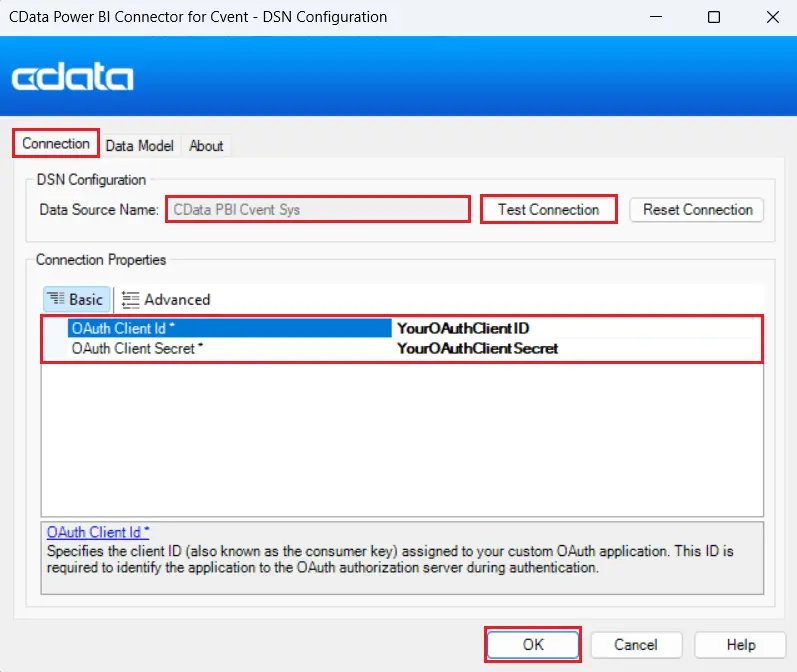
Figure 1: Enter your Cvent login credentials in the CData Power BI Connector for Cvent DSN configuration window.
Note: Cvent requires valid OAuth tokens for authentication. You may need to register a client app in your Cvent admin portal if custom credentials are required. You can read more about Cvent’s connection properties, data models, and a lot more in our Cvent driver documentation.
Open Cvent connection in Power BI: Launch Power BI Desktop, click Get Data, and search for CData Cvent under the "All" option. Select it and click Connect.
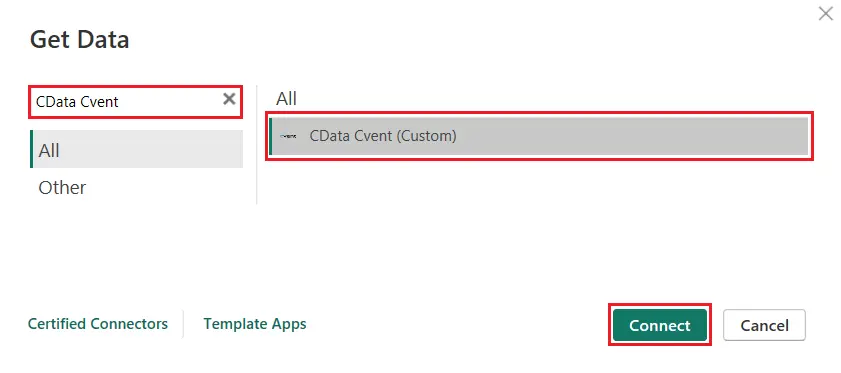
Figure 2: Search for and select the CData Cvent custom connector in Power BI's Get Data menu, then click Connect.
When prompted, enter the DSN name you configured in the previous step.
Choose your preferred Data Connectivity mode (Import or DirectQuery), and then select the tables, such as Events, Sessions, or Attendees, that you want to work with from the Navigator window.
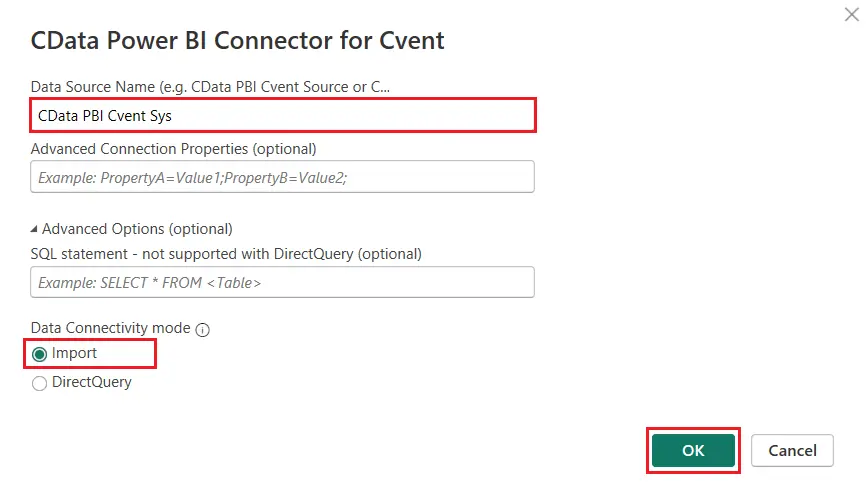
Figure 3: Enter the DSN, select a Data Connectivity mode of your choice, and click OK.
Visualize Cvent data in Power BI: Once your data is loaded into Power BI, you can start building visualizations in the Report View. Create charts, dashboards, and summaries using live data from Cvent, enabling your event and marketing teams to monitor registrations, track speaker lineups, analyze survey responses, and more.
In the example below, we created a simple pie chart to show the distribution of events by event category. Each segment of the chart represents a different category, such as Webinar, Meeting, or Training Session, along with the corresponding event count and percentage of the total.
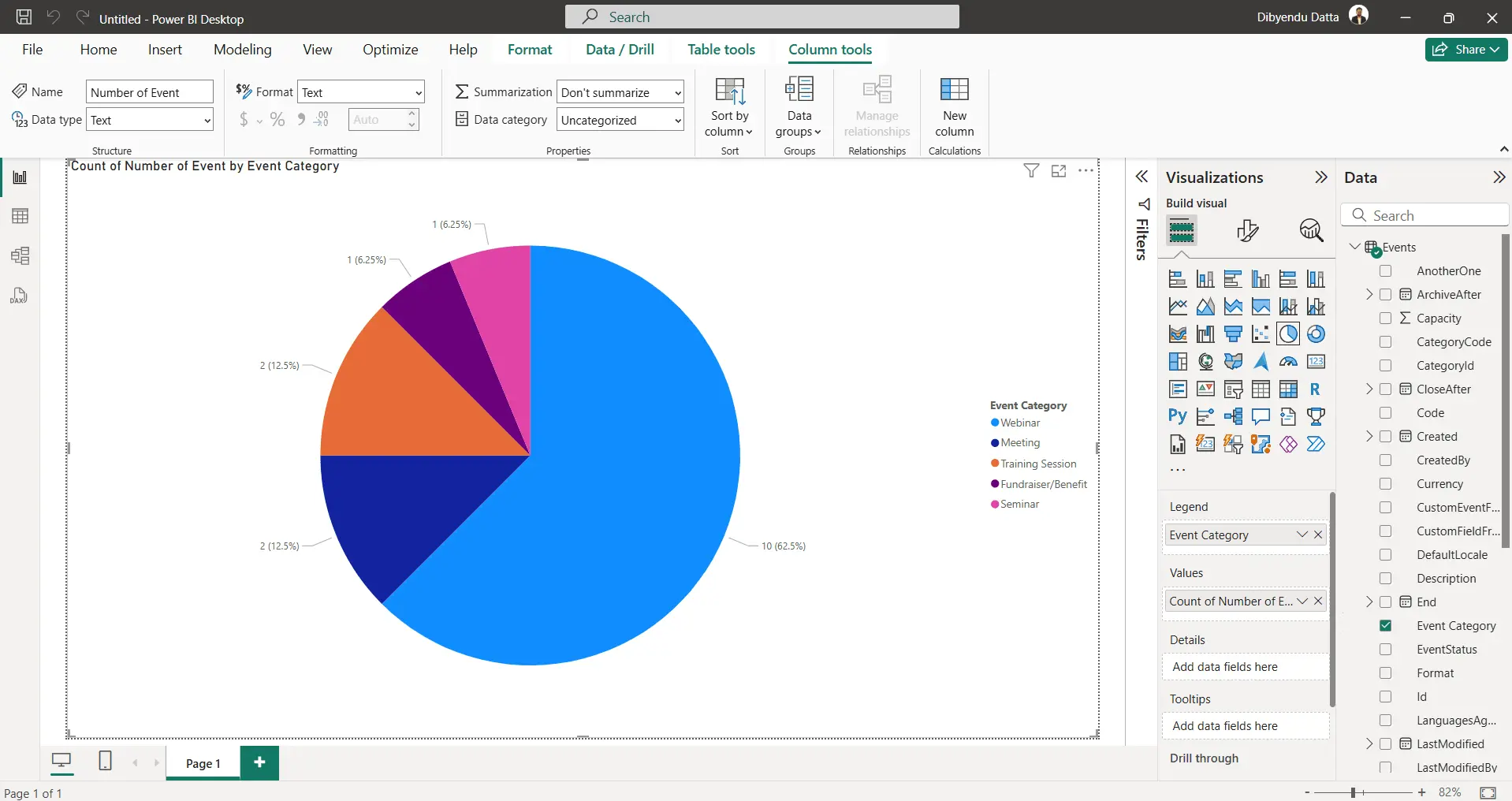
Figure 4: Start building visualizations using your Cvent data in Power BI.
Simplified Cvent connectivity with CData
Check out our other integration guides to see how easy it is to use CData connectivity solutions to work with Cvent data exactly where you want. Start connecting to your Cvent data — download a free 30-day trial of any of our CData Drivers and Connectors today!





