CData has recently released new CData Drivers and Connectors for Lakebase, which allow you to seamlessly integrate data from Databricks Lakebase with reporting tools, databases, and custom applications through standards-based drivers. In this article, we will explore what this connectivity means for Databricks users, highlight some of the key data type mappings, and provide an example of connecting to Lakebase data in Power BI Desktop.
What is Lakebase?
Lakebase is a fully managed, Postgres-compatible database built on a decoupled compute and storage architecture that brings OLTP (Online Transaction Processing) capabilities to the Databricks Lakehouse.
Designed to simplify data management and data engineering, Lakebase provides a foundation for data analytics and AI workflows across both structured and unstructured data. Built on the Databricks Lakehouse Platform, it includes a powerful query engine for not just data stored natively in Lakebase, but also federated data from external sources like Snowflake, MySQL, PostgreSQL, and more.
By leveraging the CData Drivers and Connectors for Lakebase, data engineers, analysts, and app developers can retrieve Databricks Lakebase data using standard SQL in analytics tools, databases, AI applications, and custom solutions.
CData Drivers and Connectors for Lakebase
Connectivity options and available tools
CData's connectivity solutions are built to provide the easiest connectivity with virtually every data tool, platform, or application available.
JDBC driver supports connecting from tools like DBeaver, MicroStrategy, DbVisualizer, SQuirreL SQL, Sisense, Yellowfin, etc.
ODBC driver supports connecting from Qlik, Alteryx, MS Access, SAP BusinessObjects, SAS, A5 SQL, SQL Server Linked Servers, etc.
ADO.NET data provider supports connecting from SQL Server Analysis Services and custom .NET Applications
MCP Server supports connecting from Claude, ChatGPT, Microsoft Copilot, n8n, and other AI tools
Natively supported Excel add-in, Tableau connector, and Power BI connector
Scripting through Python connectors and PowerShell cmdlets
Coming soon: CData Sync to replicate Lakebase data to any data warehouse or database, and CData Connect AI for live cloud-to-cloud connectivity from data tools and applications
Key features
Live access to Databricks Lakebase data
Powerful SQL-92 querying
Built-in authentication through OAuth
Compatibility with over 200 BI, analytics, reporting, AI, and data integration tools
Data model
The CData Lakebase drivers and connectors provide bi-directional access to Databricks Lakebase. Below are some examples of the data type mapping handled by the driver:
CData Schema | Lakebase Schema |
string | abstime, aclitem, bit, bit varying, box, char, character, character varying, cid, cidr, circle, daterange, gtsvector, inet, int2vector, int4range, int8range, json, line, lseg, macaddr, macaddr8, name, numrange, oid, oidvector, path, pg_dependencies, pg_lsn, pg_ndistinct, pg_node_tree, point, polygon, refcursor, regclass, regconfig, regdictionary, regnamespace, regoper, regoperator, regproc, regprocedure, regrole, regtype, reltime, smgr, text, tid, time with time zone, tinterval, tsquery, tsrange, tstzrange, tsvector, txid_snapshot, xid, xml |
int | integer, serial, smallint, smallserial |
long | bigint, bigserial |
float | double precision, real |
decimal | money, numeric |
datetime | timestamp with time zone, timestamp without time zone |
date | date |
time | time without time zone |
binary | bytea, jsonb |
bool | boolean |
uuid | uuid |
Example: Access live Lakebase data in Power BI
As an example, we will go over how to use the CData Power BI Connector for Lakebase in Power BI Desktop to build dashboards on Databricks Lakebase data. You can query Lakebase data from Power BI Desktop in 4 basic steps (for a detailed tutorial, check out our knowledge base article):
1. Install the CData Power BI Connector
Install the CData Power BI Connector for Lakebase on the machine running Power BI Desktop. You can download a free 30-day trial of the Power BI Connector here.
2. Connect to Lakebase
Start the ODBC Administrator that corresponds to the bitness of your Power BI Desktop installation (32-bit or 64-bit) and open the DSN for the installed Power BI Connector. OAuth authentication is supported, so set the necessary OAuth connection properties and click Test Connection to authenticate the connection to Lakebase. After a successful connection, click OK to save your DSN configuration.
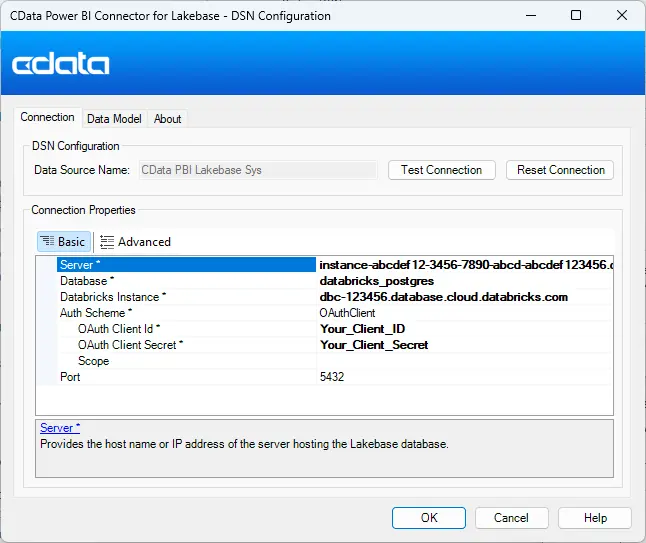
Note: Lakebase supports OAuth authentication only, so you must create a custom OAuth application before connecting. You can read more about this in our Lakebase Driver Documentation.
3. Open the Lakebase connection in Power BI
Open Power BI, click Get Data, then select All > CData Lakebase and click Connect. Enter the Data Source Name that you previously configured, select a Data Connectivity mode, and select the data you want to visualize.
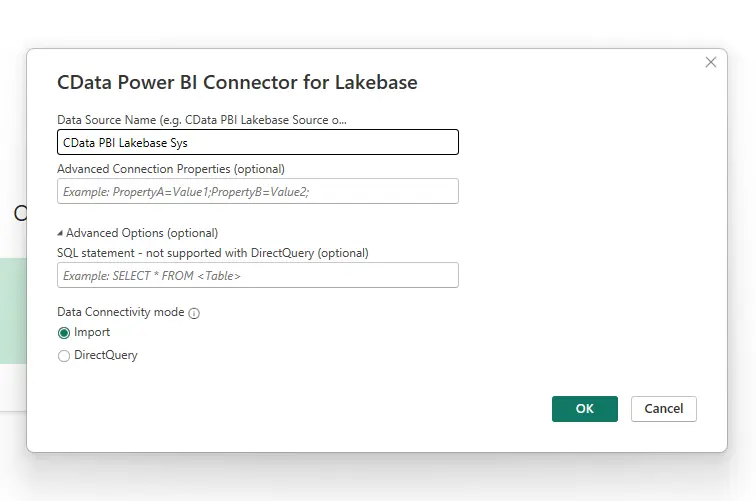
4. Visualize Lakebase data in Power BI
After pulling the Lakebase data into Power BI, you can create data visualizations in the Report view based on your Lakebase data.
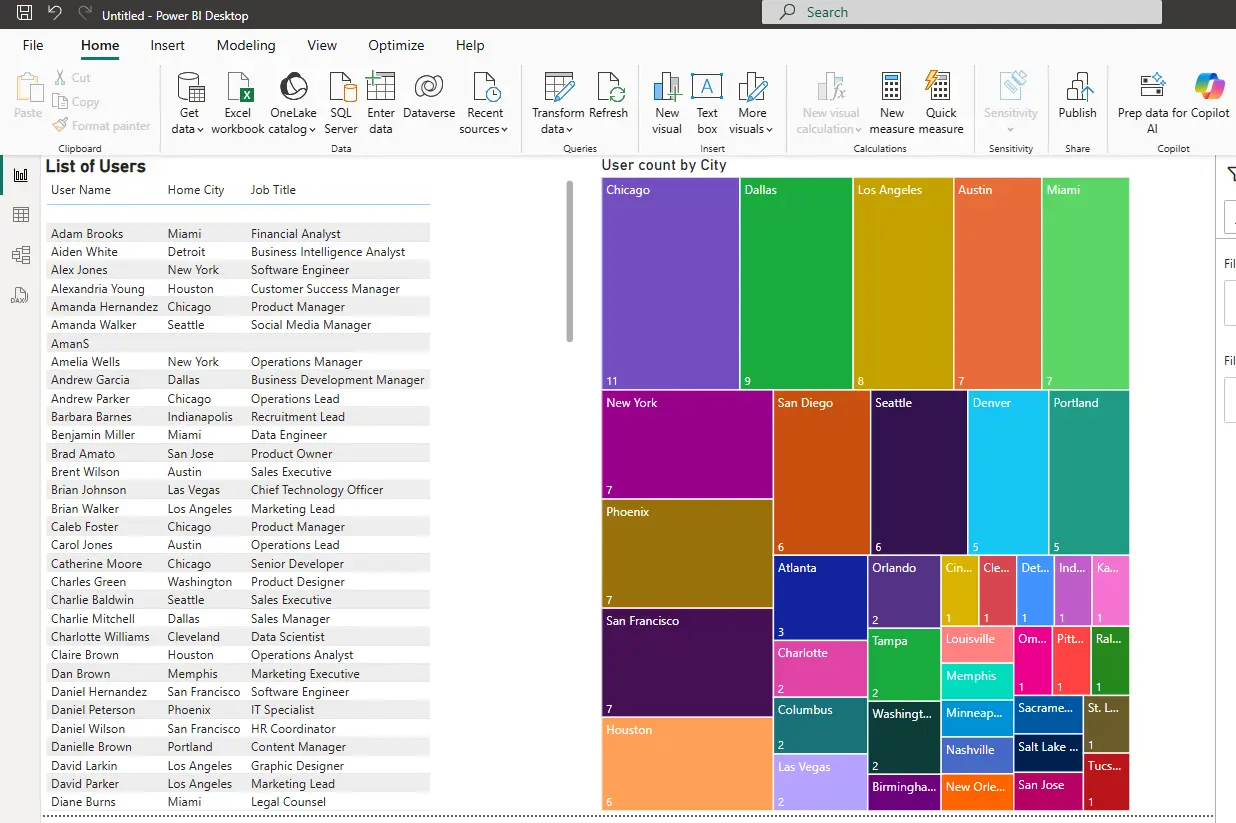
Using the CData Drivers, you can easily access Lakebase data from your BI tools without coding.
Simplified Lakebase connectivity with CData
Check out our other integration guides to see how easy it is to use CData connectivity solutions to work with Lakebase data exactly where you want. Start connecting to your Lakebase data—download a free 30-day trial of any of our CData Drivers and Connectors today.





