CData has recently released new drivers and connectors for Adobe Target, which allow you to seamlessly integrate data from Adobe Target with reporting tools, databases, and custom applications through standards-based drivers. In this article, we will explore what this connectivity means for Adobe Target users, highlight some of the key features and aspects of the data model, and provide an example of connecting to Adobe Target data in Power BI Desktop.
What is Adobe Target?
Adobe Target is a leading personalization and optimization solution that is an integral part of the Adobe Experience Cloud platform. Marketing and Product teams use Adobe Target to optimize digital experiences and deliver tailored messaging to individual users.
Core capabilities such as A/B and multivariate testing, rule-based targeting, and AI-powered personalization help organizations boost engagement and improve conversion outcomes. Adobe Target also tracks experiment results, customer behavior, and engagement trends by providing activity and performance metrics for teams to review.
By leveraging the CData drivers and connectors for Adobe Target, users can retrieve data such as Activities, Offers, Audiences, and Metrics using standard SQL in BI tools, databases, AI applications, and custom solutions.
CData drivers and connectors for Adobe Target
Connectivity options and available tools
CData's connectivity solutions are built to provide the easiest connectivity with virtually every data tool, platform, or application available.
JDBC Driver supports connecting from tools like DBeaver, MicroStrategy, DbVisualizer, SQuirreL SQL, Sisense, Yellowfin, etc.
ODBC Driver supports connecting from Qlik, Alteryx, MS Access, SAP BusinessObjects, SAS, A5 SQL, SQL Server Linked Servers, etc.
ADO.NET Data Provider supports connecting from SQL Server Analysis Services and custom .NET Applications
Natively supported Excel add-in, Tableau connector, and Power BI connector
Scripting through Python Connectors and PowerShell cmdlets
Key features
Live access to Adobe Target data
Powerful SQL-92 querying
Built-in authentication through OAuth
Compatibility with over 200 BI, analytics, reporting, AI, and data integration tools
Data model
The CData Adobe Target drivers and connectors leverage the Adobe Target API to enable access to Adobe Target. Below is some of the data available:
Activities: Returns basic activity data that is used to fill in other tables.
Audiences: Returns data about the Audiences.
Experiences: Returns information related to Experience Data from the tests and target.
Locations: Returns the location data for activities.
MBoxes: Returns data relating to the Adobe Target mailboxes.
Metrics: Returns data from the Metrics portion of the Adobe Target Activities
Offers: Returns data about the offers linked to this account.
Properties: Returns data relating to the properties available to this account.
Example: Access live Adobe Target data in Power BI
As an example, we will go over how to use the CData Power BI Connector for Adobe Target in Power BI Desktop to build dashboards that allow Adobe Target admins to monitor users. You can query Adobe Target data from Power BI Desktop in 4 basic steps (for a detailed tutorial, check out our knowledge base article):
Install the CData Power BI Connector
Install the CData Power BI Connector for Adobe Target on the machine running Power BI Desktop. You can download a free 30-day trial of the Power BI Connector here.
Connect to Adobe Target
Start the ODBC Administrator that corresponds to the bitness of your Power BI Desktop installation (32-bit or 64-bit) and open the DSN for the installed Power BI Connector. OAuth authentication is supported, so set up the necessary OAuth connection properties and click Test Connection to authenticate the connection to Adobe Target. After a successful connection, click OK to save your DSN configuration.
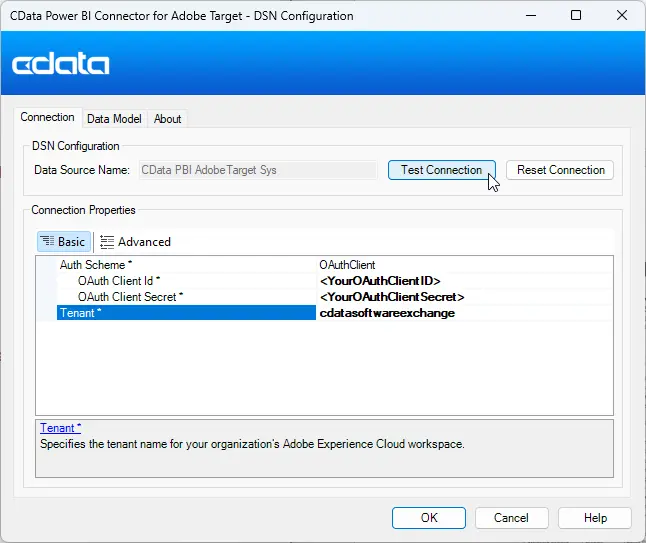
Figure 1: ODBC DSN configuration for the Power BI Connector for Adobe Target.
Note: Adobe Target supports OAuth authentication only, so you must create a custom OAuth application before connecting. You can read more about this in the CData Adobe Target Driver documentation.
Open the Adobe Target connection in Power BI
Open Power BI, click Get Data, then select All > CData Adobe Target and click Connect. Enter the Data Source Name that you previously configured, select a Data Connectivity mode, and select the data you want to visualize.

Figure 2: Opening the Adobe Target connection in Power BI.
Visualize Adobe Target data in Power BI
After pulling the Adobe Target data into Power BI, you can create data visualizations in the Report view based on your Adobe Target data.
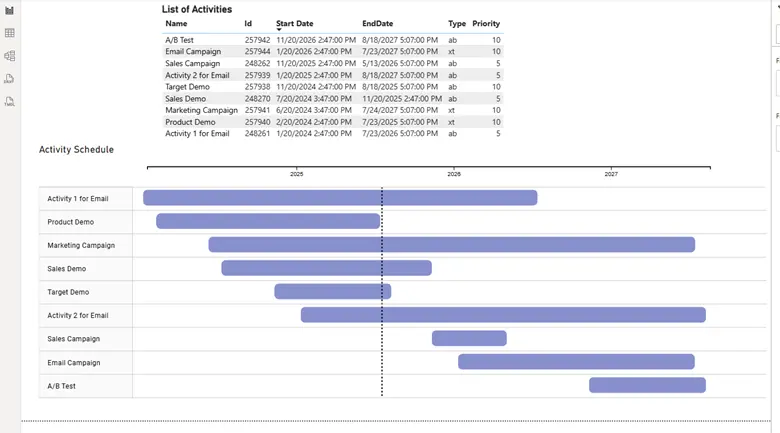
Figure 3: Visualization in Power BI using Adobe Target data.
Using the CData Drivers, you can easily access Adobe Target data from your BI tools without coding.
Simplified Adobe Target connectivity with CData
Check out our other integration guides to see how easy it is to use CData connectivity solutions to work with Adobe Target data exactly where you want. Start connecting to your Adobe Target data—download a free 30-day trial of any of our CData Drivers and Connectors today.




