





Connect Excel to SQL Server
Read, write, and update Microsoft SQL Server data from Excel
Connect with live Microsoft SQL Server data directly from Microsoft Excel. The free Excel Add-In for CData Connect AI for Spreadsheets gives you real-time access to Microsoft SQL Server data, right from the Excel tool bar.
Install the Add-In, configure your SQL Server connection, and go!




Discover what's possible with your SQL Server data in Excel
Real-time, seamless access to data removes the burden of manual data entry in Excel.
Work with live data in Online, Windows, and Mac editions of Excel to create up-to-date reports.
Integrate data and manage connections with no code or special skills required.
Securely govern your data with specific user permissions and built-in TLS / SSL data encryption.
Real-time access to SQL Server data from Excel
Get started
Get started in 3 simple steps
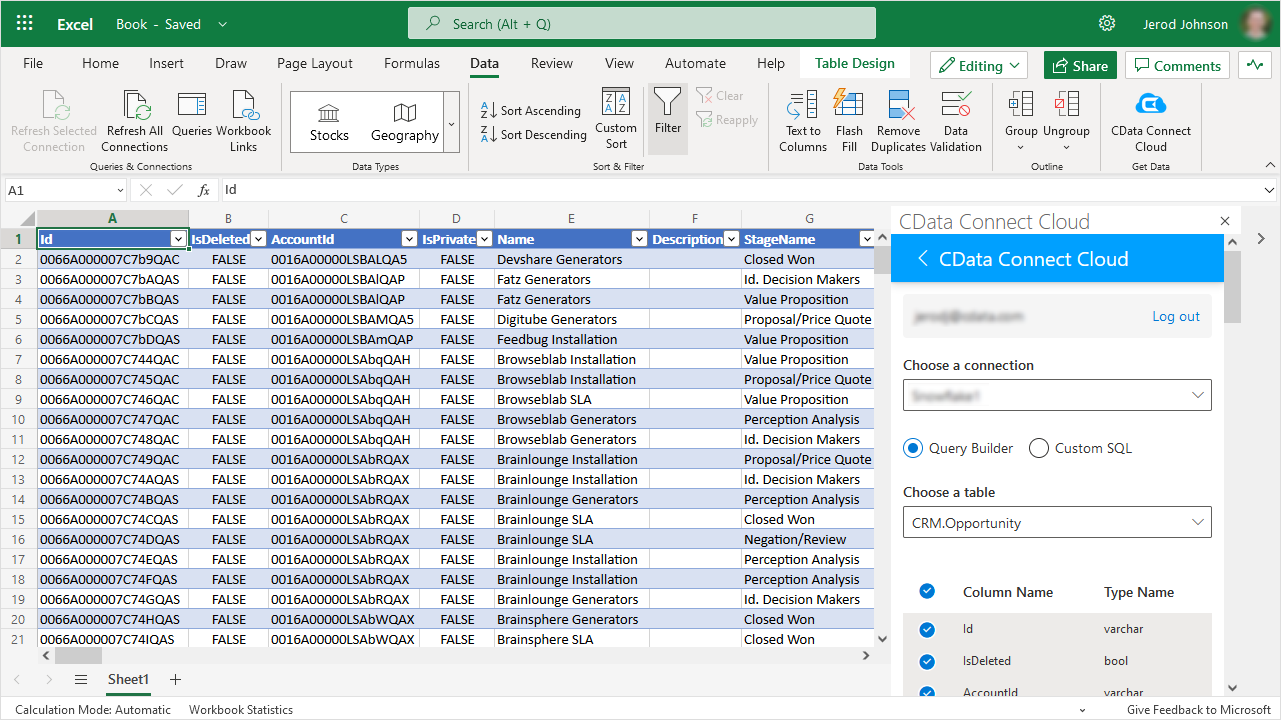
- Install the Excel Add-In — After installation look for the CData Connect AI for Spreadsheets button on the Excel Ribbon.
- Configure your SQL Server connection — Click on the Connect Spreadsheets add-in from within Excel to setup an account and configure a connection to SQL Server.
- Run your first query — Select any SQL Server data that you want to access. All data is exposed as standard tables and data views. You can even write custom queries with SQL to filter and join data.
Automation
Automate your workflow
Spend less time copying, pasting, and importing data. Build custom reports and dashboards with automatic refreshes (hourly, daily, weekly, monthly) for real-time insights.
Insights
Bring data to life in Excel
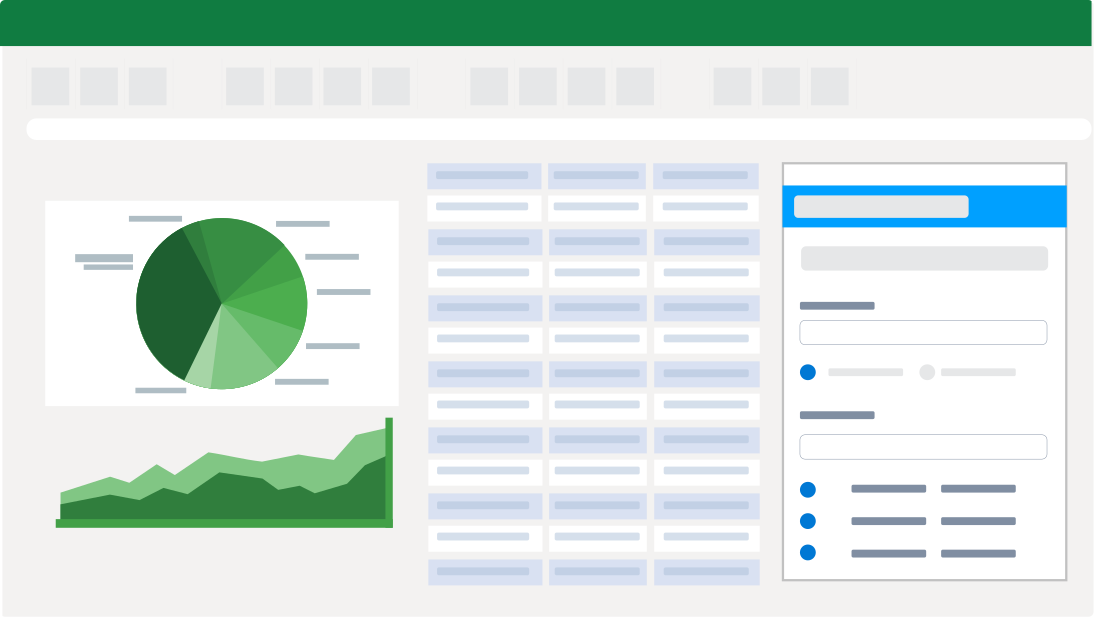
Bring your SQL Server data into Excel for up-to-date insights with Connect Spreadsheets. Easily combine that information with data from other sources in Excel to form a complete picture of the customer journey.

Analysis
SQL Server reporting, analysis, and data manipulation
Perfect for mass imports / exports / updates, data cleansing & de-duplication, Excel-based data analysis, and more!
- Modify and delete records and push updates back to SQL Server
- Quickly export and backup data.
- Operate on data with Charts and Pivot Tables.
FAQs
Frequent SQL Server Excel connectivity questions
Common questions about integrating SQL Server with Microsoft Excel.
Popular Excel Videos:

Get the Excel Add-In for SQL Server
Building custom dashboards & reports that connect with live SQL Server data has never been easier. Get the CData Excel Add-In for SQL Server now, and get connected.