







Integrate Dify with Live Airtable Data via CData Connect AI

Dify is an open source platform for building production-ready agentic workflows, chatbots, and other LLM applications. It includes built-in, two-way support for the model context protocol (MCP), allowing you to register remote MCP servers as tools in the platform to add external data sources and give your agents access to live data.
By integrating Dify with CData Connect AI through the built-in MCP Server, Dify gains governed, real-time access to live Airtable data. You can list catalogs, explore schemas, and query records from Airtable data using natural language prompts, with all data access running securely against authorized sources.
This article explains how to configure Airtable connectivity in Connect AI, generate the required personal access token, register the Connect AI MCP Server as a tool in Dify, add it to an agent application, and verify the integration by querying live Airtable data from Dify.
Step 1: Configure Airtable connectivity for Dify
Connectivity to Airtable from Dify is made possible through Connect AI's Remote MCP Server. To interact with Airtable data from Dify, start by creating and configuring a Airtable connection in Connect AI.
- Log into Connect AI, click Sources, and then click Add Connection
- Select Airtable from the Add Connection panel
-
Enter the necessary authentication properties to connect to Airtable.
APIKey, BaseId and TableNames parameters are required to connect to Airtable. ViewNames is an optional parameter where views of the tables may be specified.
- APIKey : API Key of your account. To obtain this value, after logging in go to Account. In API section click Generate API key.
- BaseId : Id of your base. To obtain this value, it is in the same section as the APIKey. Click on Airtable API, or navigate to https://airtable.com/api and select a base. In the introduction section you can find "The ID of this base is appxxN2ftedc0nEG7."
- TableNames : A comma separated list of table names for the selected base. These are the same names of tables as found in the UI.
- ViewNames : A comma separated list of views in the format of (table.view) names. These are the same names of the views as found in the UI.

- Click Save & Test
- Navigate to the Permissions tab and update user-based permissions



Add a Personal Access Token
A Personal Access Token (PAT) is used to authenticate the connection to Connect AI from Dify. It is best practice to create a separate PAT for each integration to maintain granular access control.
- Click the gear icon () at the top right of the Connect AI app to open Settings
- On the Settings page, go to the Access Tokens section and click Create PAT
- Give the PAT a descriptive name and click Create
- Copy the token when displayed and store it securely. It will not be shown again

With the Airtable connection configured and a PAT generated, Dify can now connect to Airtable data through Connect AI.
Step 2: Register the Connect AI MCP Server in Dify
Next, register the Connect AI Remote MCP Server as a tool in Dify so your agents and workflows can discover and call live data tools through Connect AI.
- Log into Dify, or open your self-hosted Dify instance (version 1.6.0 or later, which includes built-in MCP support)
- Navigate to the Integrations page, select Tools and click MCP tab
-
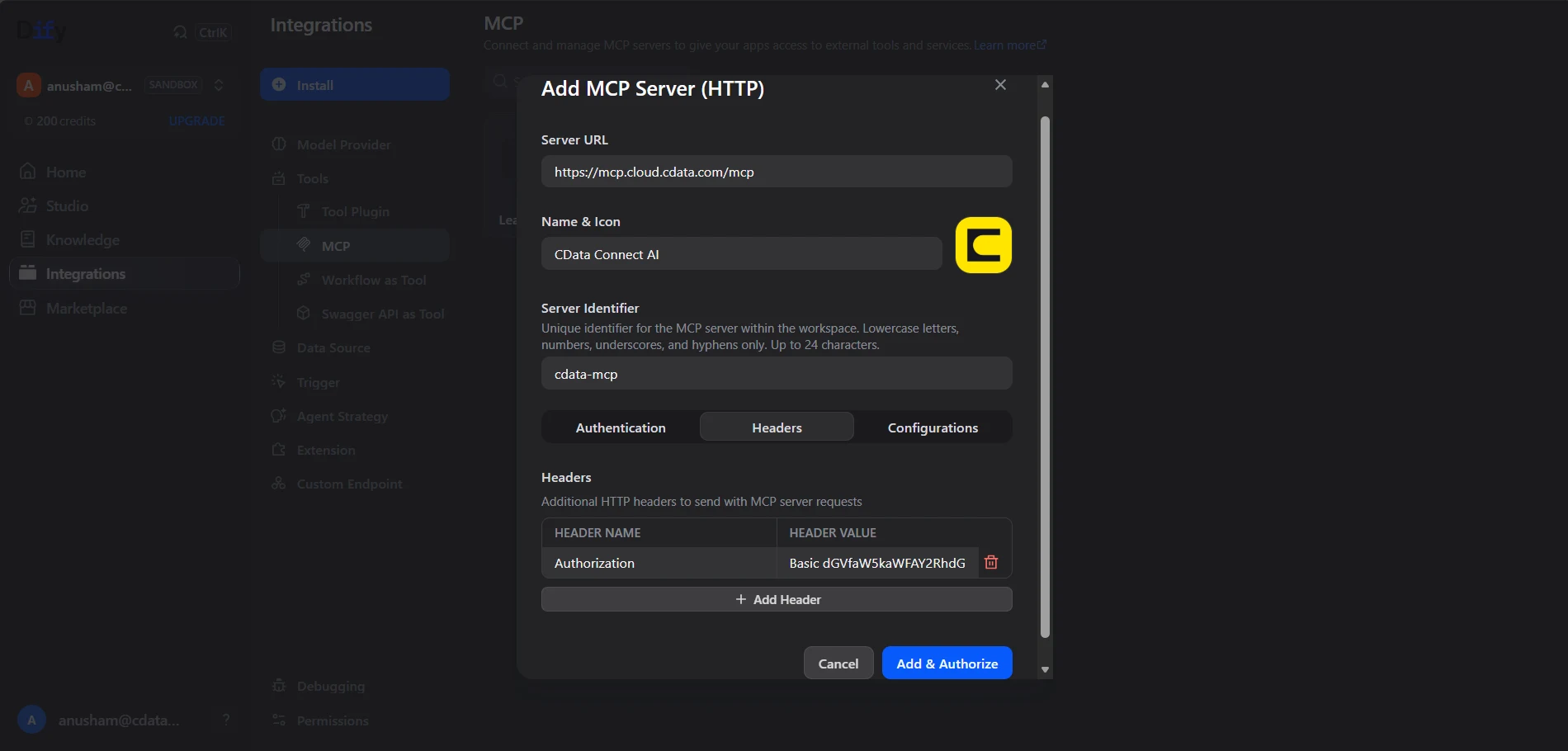
Click Add MCP Server (HTTP) and enter the following details:
- Server URL: https://mcp.cloud.cdata.com/mcp
- Name Icon: Give a descriptive name, for example, CData Connect AI
- Server Identifier: A unique identifier, for example, cdata-connect-ai
- Headers: Add an Authorization header with the value Basic your_base64_encoded_email_PAT
Note: Dify will use Basic authentication with Connect AI. Combine your Connect AI user email and the PAT you created earlier in the format email:PAT, base64 encode the combined string, and prefix it with Basic.
-
Click Add & Authorize. Dify connects to the Connect AI MCP Server and lists the available tools
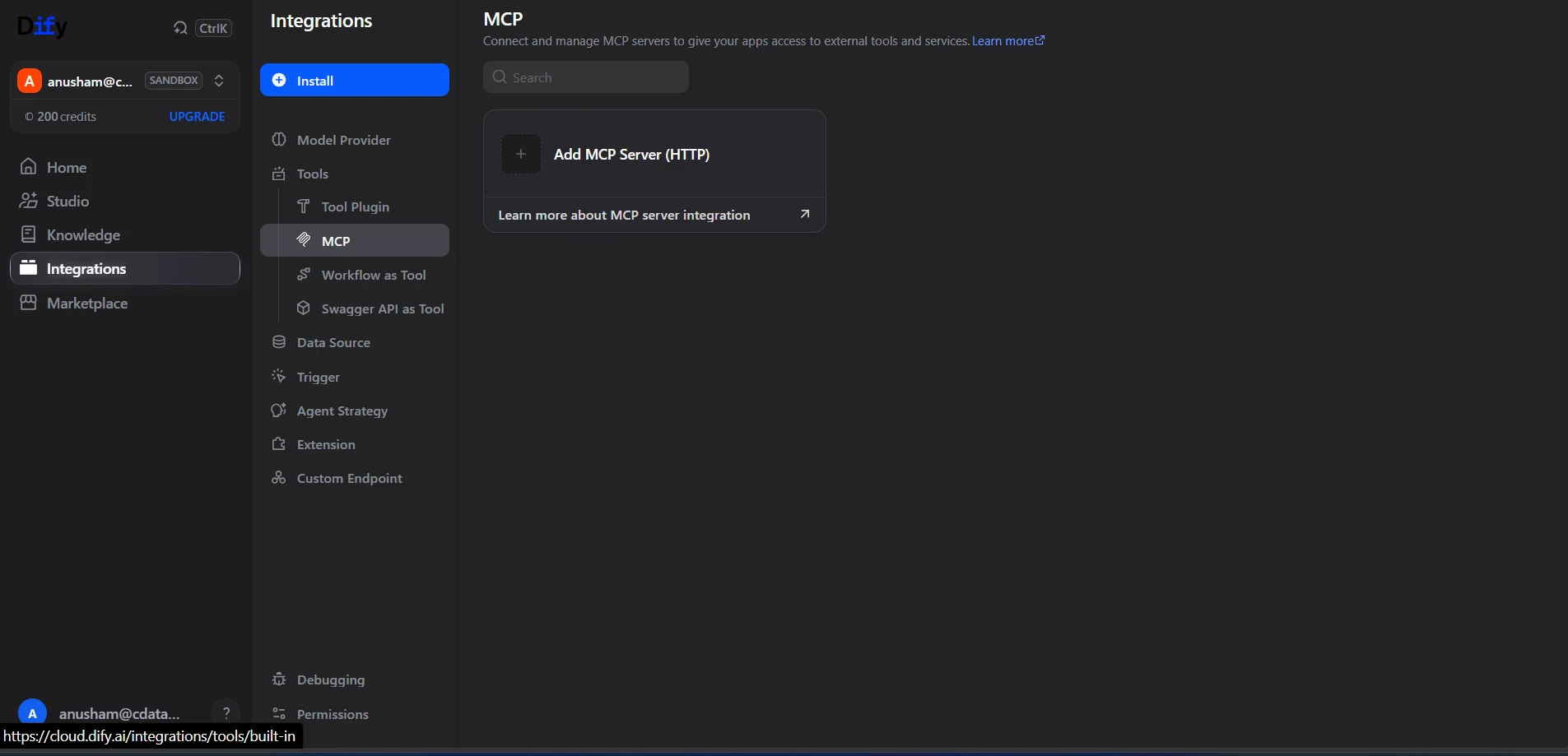
With the MCP server registered, the Connect AI tools are available to any agent application or workflow in your Dify workspace.
Step 3: Query live Airtable data from Dify
With the integration complete, build an agent application in Dify and interact with live Airtable data through natural language prompts.
-
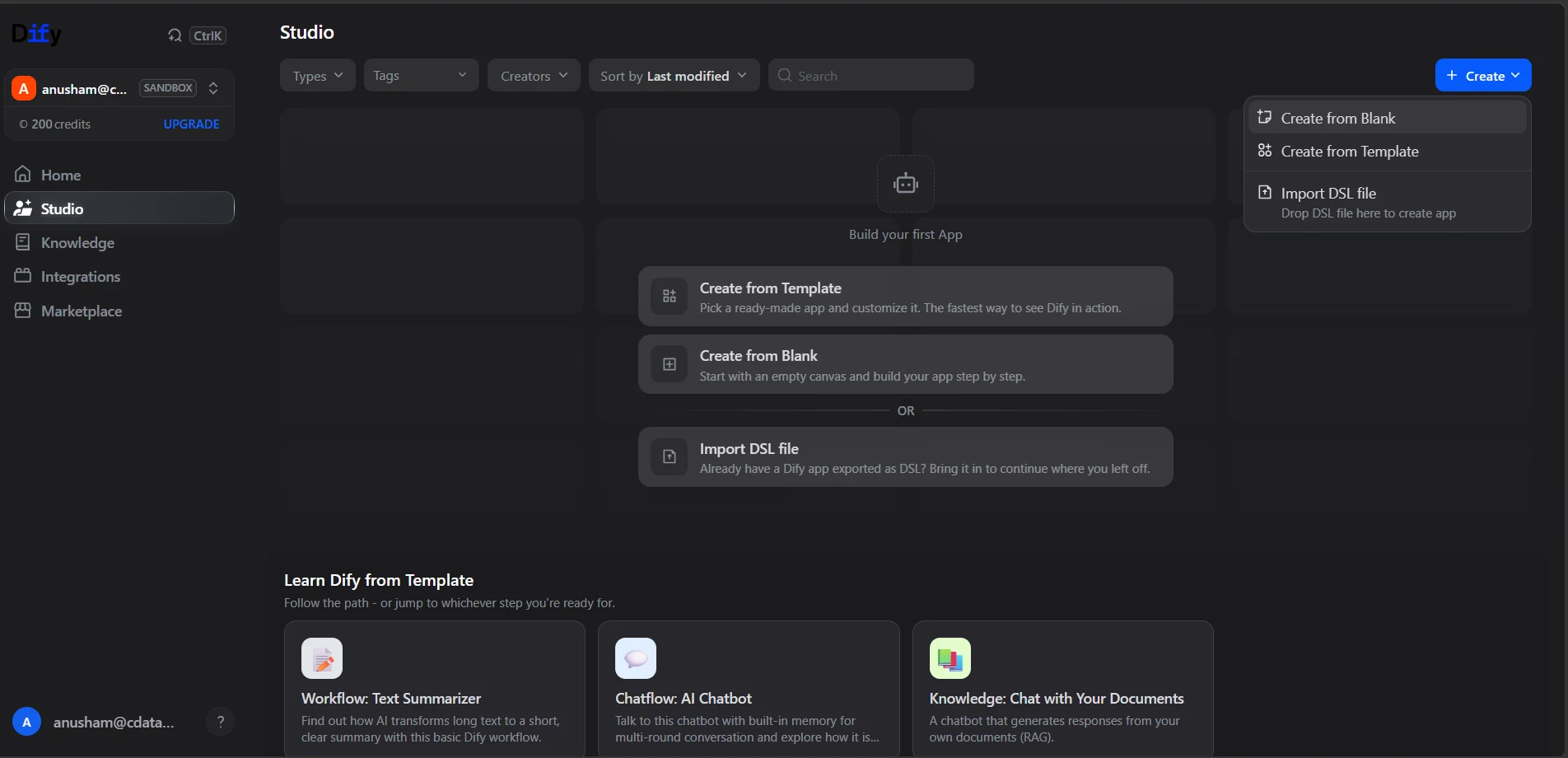
From the Dify Studio page, click Create from Blank and select Agent as the application type
-
In the agent configuration, click Add under the Tools section and select the Connect AI MCP tools registered in Step 2
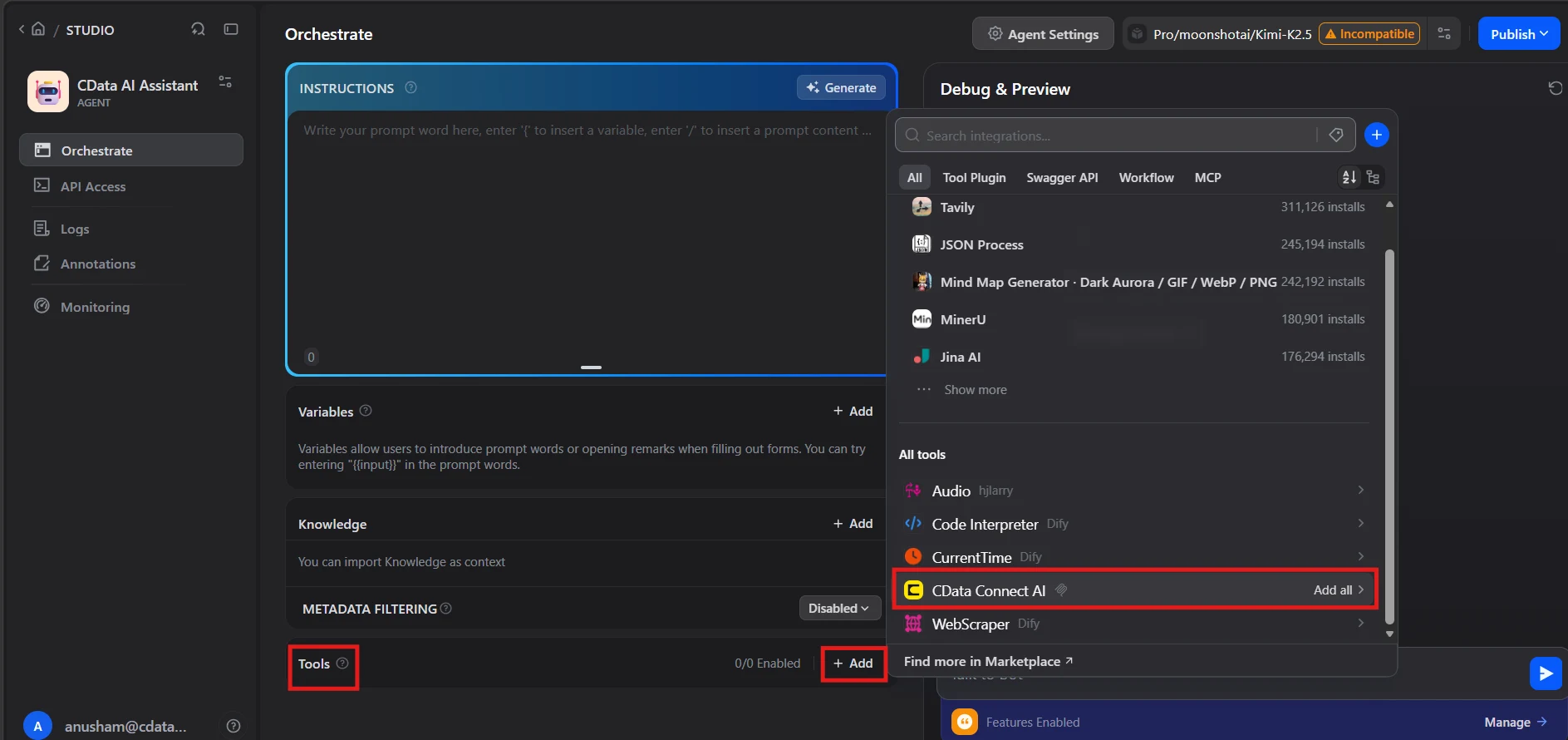
- Select an LLM provider and model for the agent so it can interpret prompts and call MCP tools
-
In the preview panel, type a prompt in the chat input, for example:
- Use the cdata-connect-ai tools to list all available catalogs
- Show the available schemas and tables for Airtable
- Query the top 5 records from a table in Airtable
-
The Dify agent calls the Connect AI MCP Server and returns live results from Airtable data
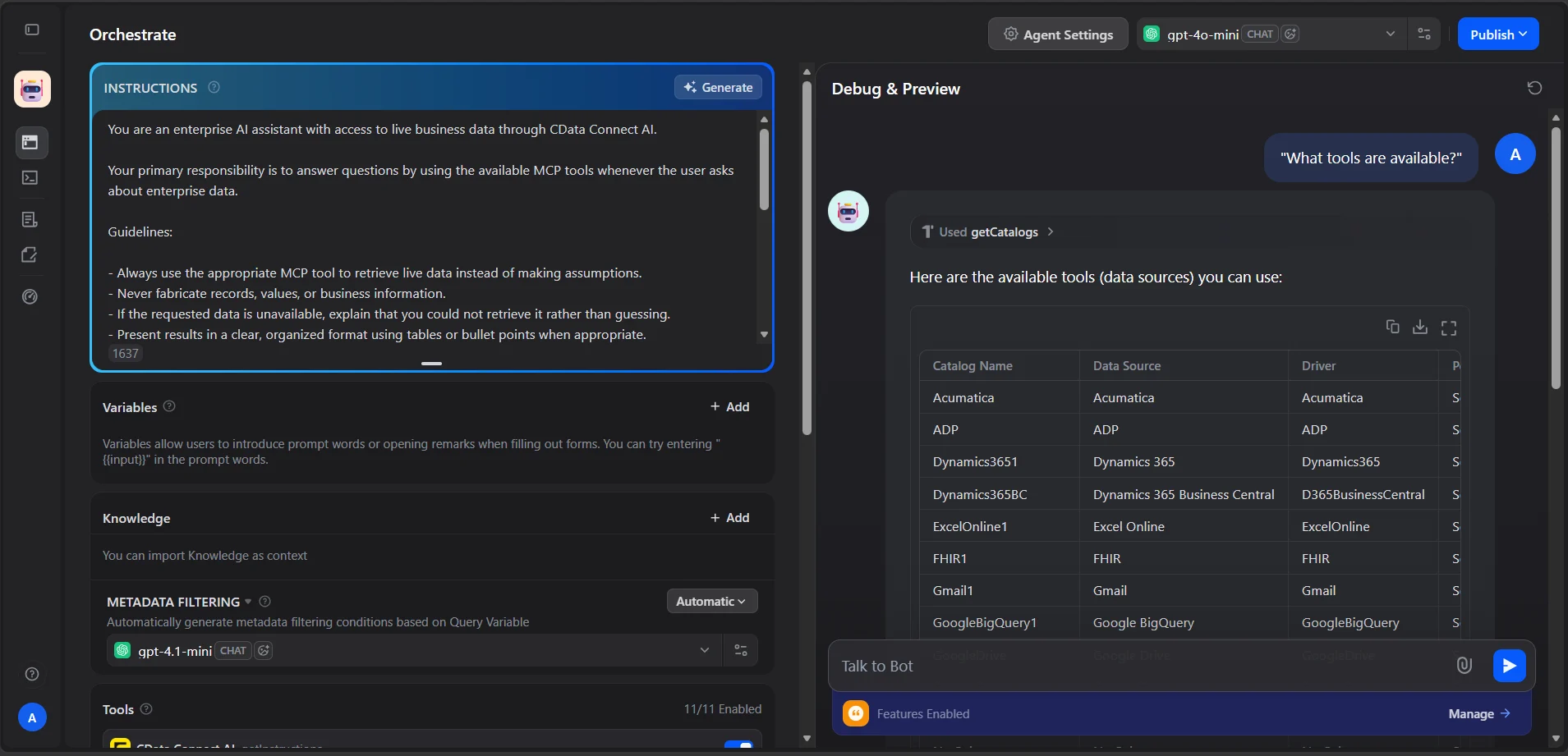
At this point, Dify communicates with the Connect AI MCP Server and retrieves live Airtable data through remote MCP tools directly from your agentic workflows.
Get started with CData Connect AI
To access hundreds of SaaS, big data, and NoSQL sources directly from your cloud applications, try CData Connect AI today. Download a free 14-day trial of CData Connect AI, and our Support Team is available to help with any questions you have.