








Create Reports from MailerLite Data in Looker Studio

Looker Studio, formerly known as Google Data Studio, empowers users to craft customized reports featuring data visualizations that can be shared with clients while reflecting your brand identity. When combined with CData Connect AI, you gain immediate cloud-to-cloud access to MailerLite data to create visualizations, dashboards, and more. This article provides step-by-step instructions on establishing a virtual database for MailerLite and generating reports from MailerLite data within Looker Studio.
CData Connect AI offers a seamless cloud-to-cloud interface tailored for MailerLite, making it straightforward to construct reports directly from live MailerLite data within Looker Studio without the need for data replication. As you create visualizations, Looker Studio generates queries to retrieve data. With its inherent optimized data processing capabilities, CData Connect AI efficiently channels all supported query operations, including filters, JOINs, and more, directly to MailerLite. This leverages server-side processing to swiftly provide the requested MailerLite data.
This article requires a CData Connect AI instance and the CData Connect AI Connector for Looker Studio. Get more information on the CData Connect AI and sign up for a free trial at https://www.cdata.com/cloud.
Configure MailerLite Connectivity for Looker Studio
Connectivity to MailerLite from Looker Studio is made possible through CData Connect AI. To work with MailerLite data from Looker Studio, we start by creating and configuring a MailerLite connection.
- Log into Connect AI, click Sources, and then click Add Connection
- Select "MailerLite" from the Add Connection panel
-
Enter the necessary authentication properties to connect to MailerLite.
Start by setting the Profile connection property to the location of the MailerLite Profile on disk (e.g. C:\profiles\MailerLite.apip). Next, set the ProfileSettings connection property to the connection string for MailerLite (see below).
MailerLite API Profile Settings
Obtain your API Key from the Integrations page in your MailerLite account dashboard.

- Click Save & Test
-
Navigate to the Permissions tab in the Add MailerLite Connection page and update the User-based permissions.



With the connection configured, you are ready to connect to MailerLite data from Looker Studio.
Visualize Live MailerLite Data from Looker Studio
The steps below outline connecting to CData Connect AI from Looker Studio to create a new MailerLite data source and build a simple visualization from the data.
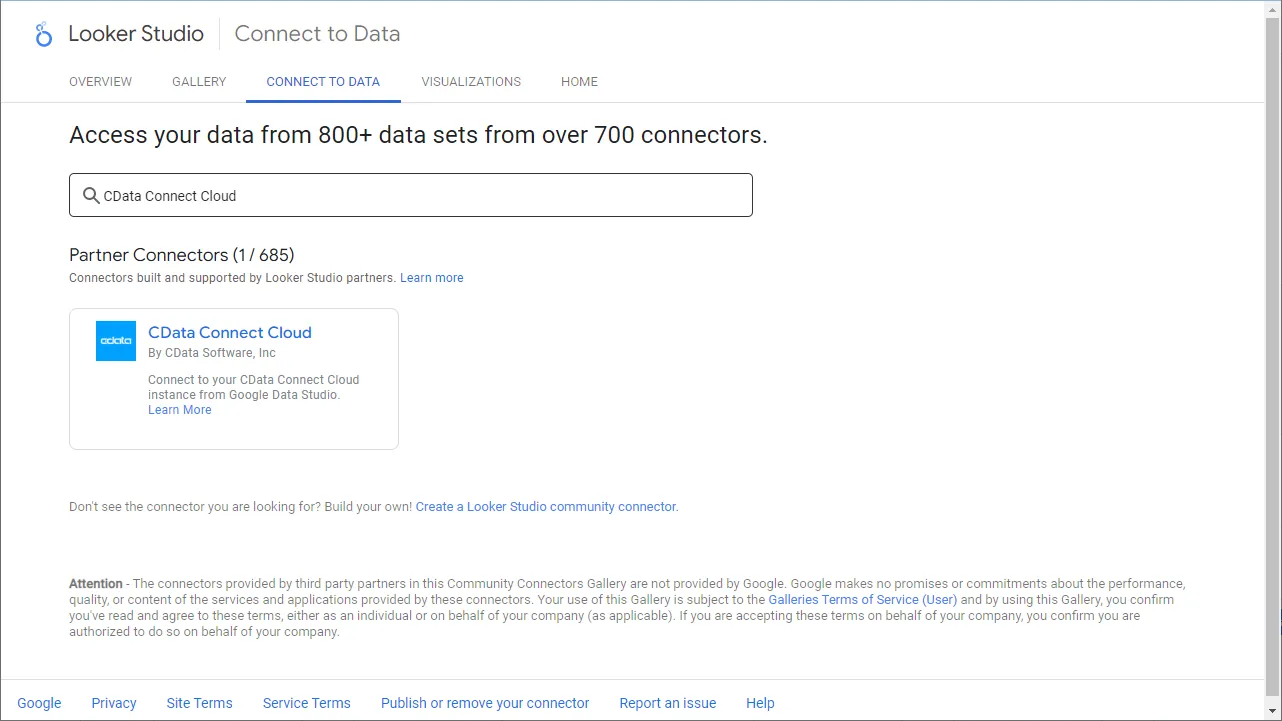
- Log into Looker Studio, click data sources, create a new data source, and choose CData Connect AI Connector.
- Click Authorize and allow access to your Google account.
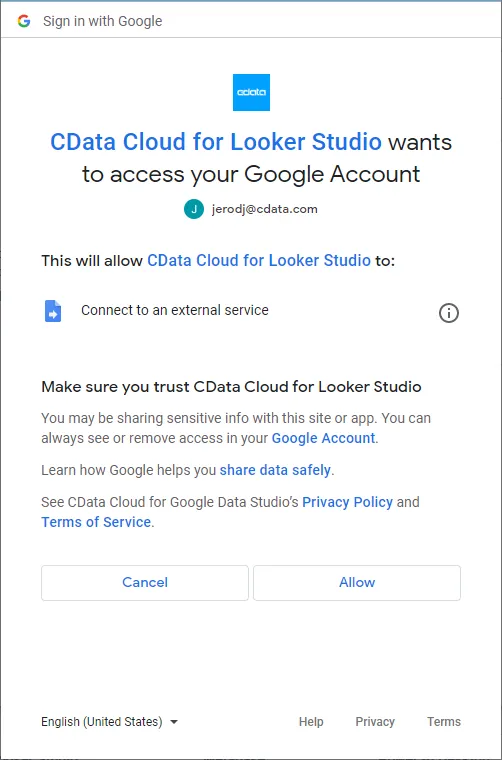
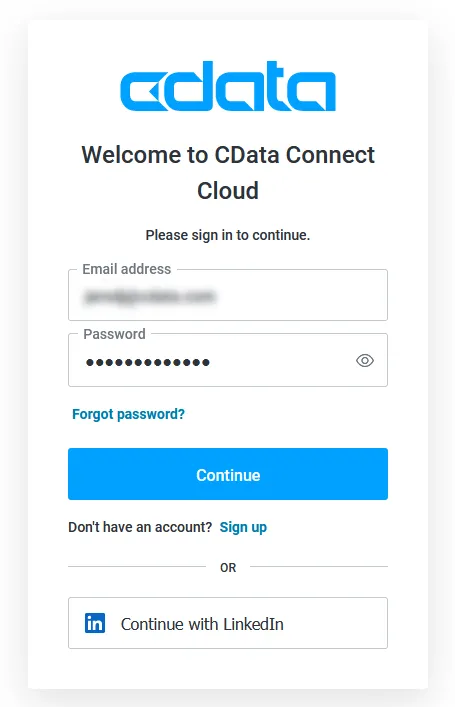
- Click Authorize to authenticate with your CData Connect AI instance
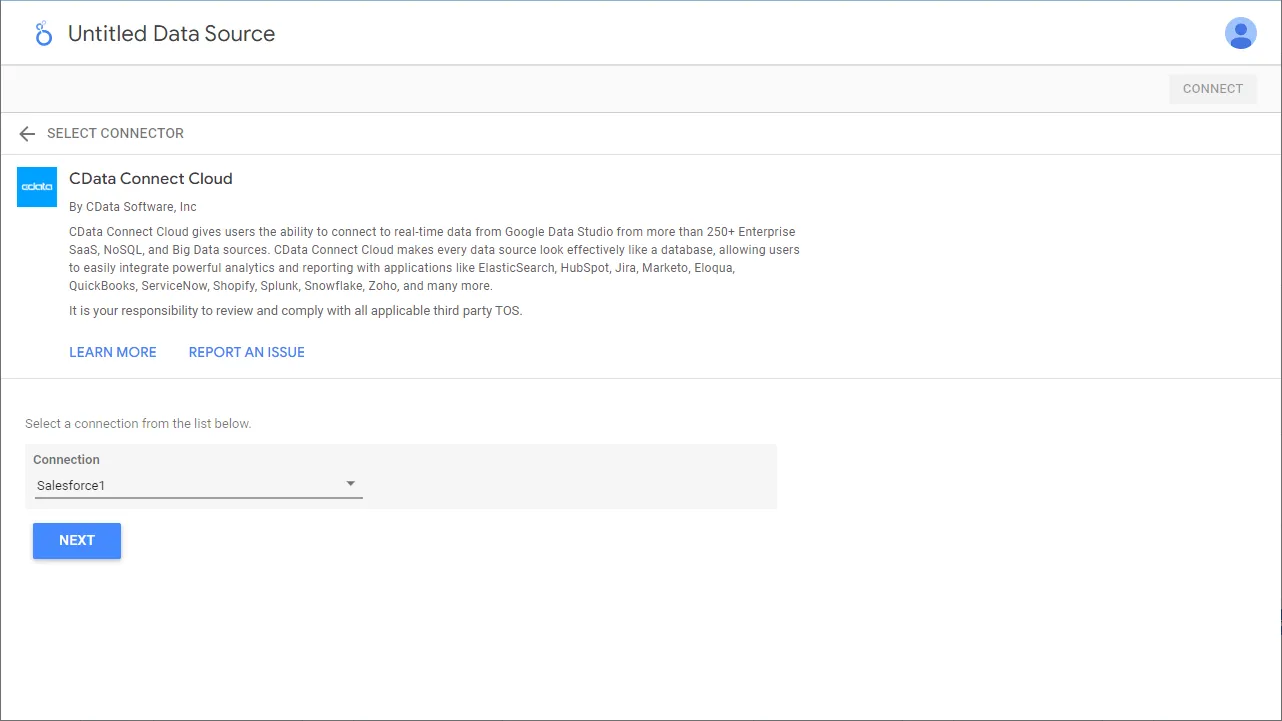
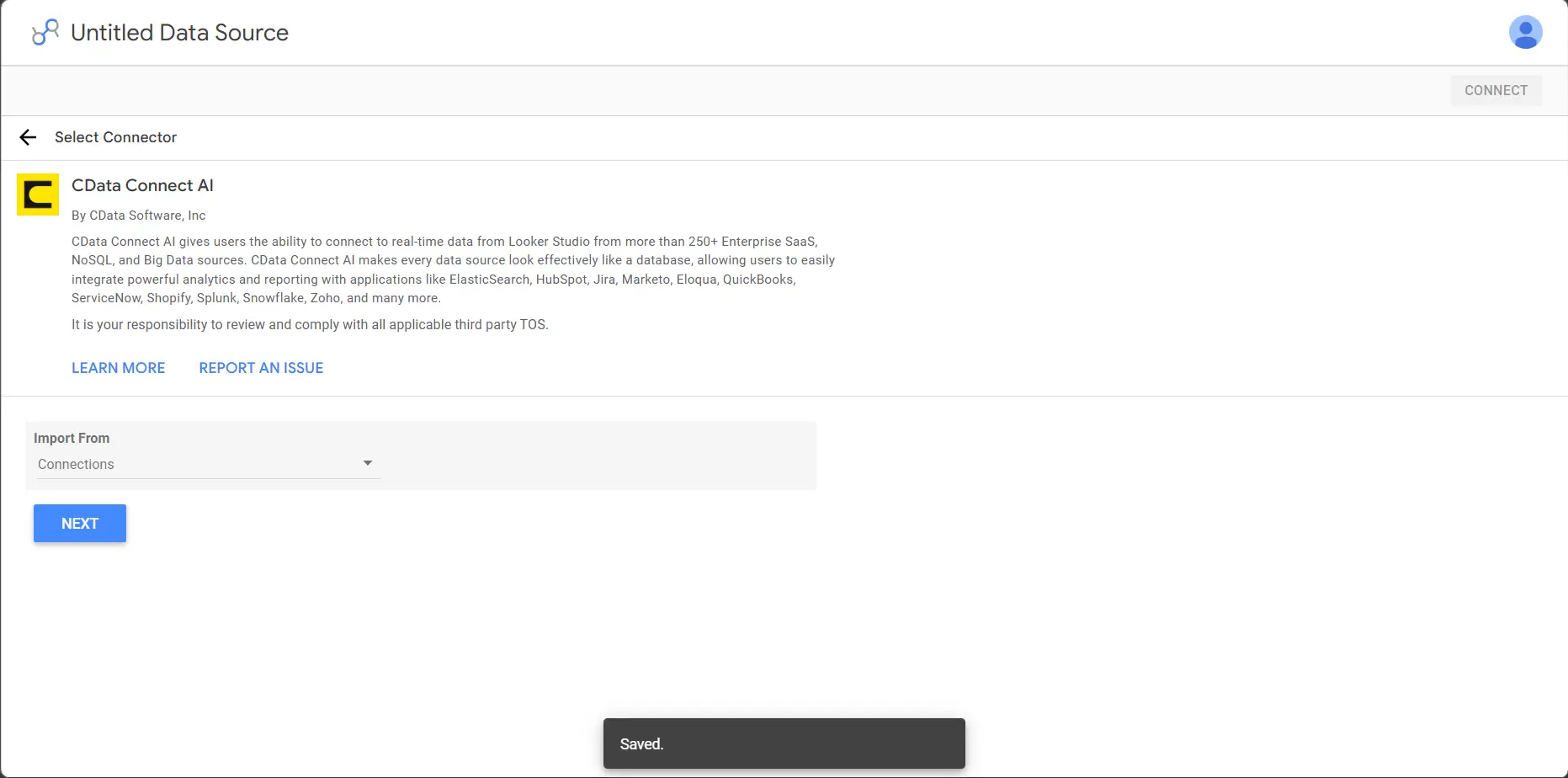
- In the CData Connect AI Connector in Looker Studio select Connections to import from the dropdown and click Next
- Now select a Connection (e.g. API1) and click Next
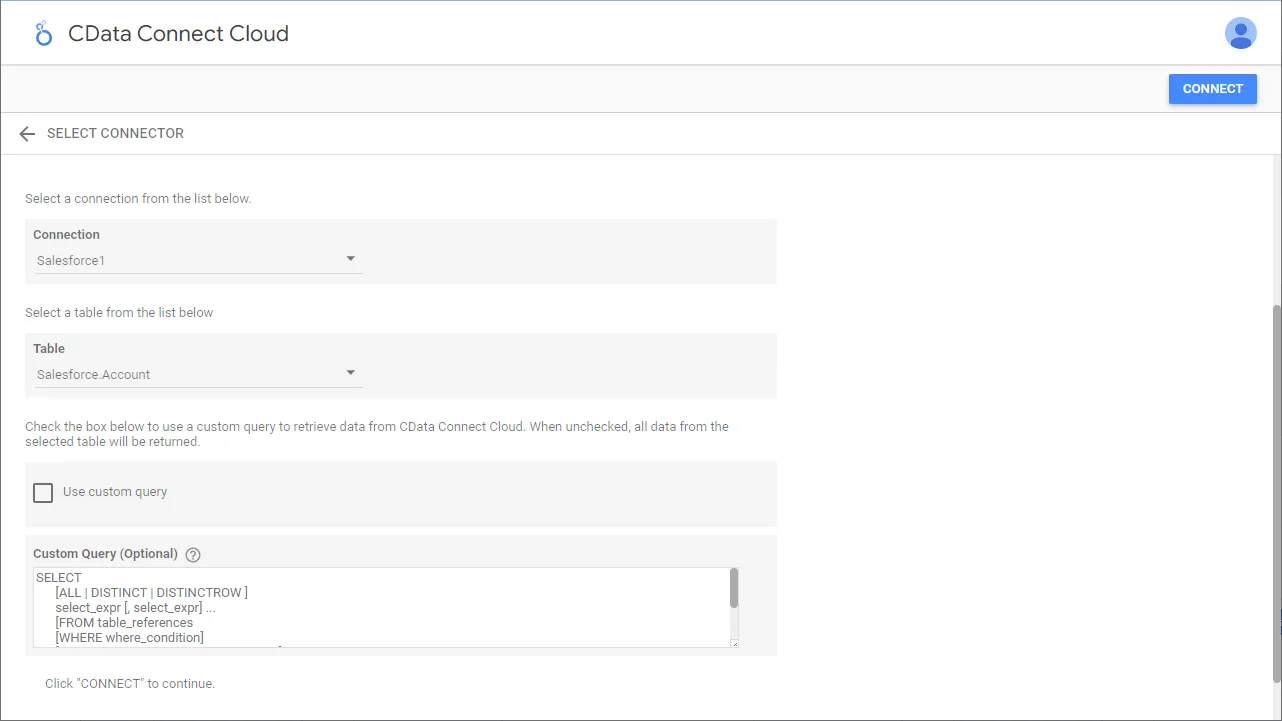
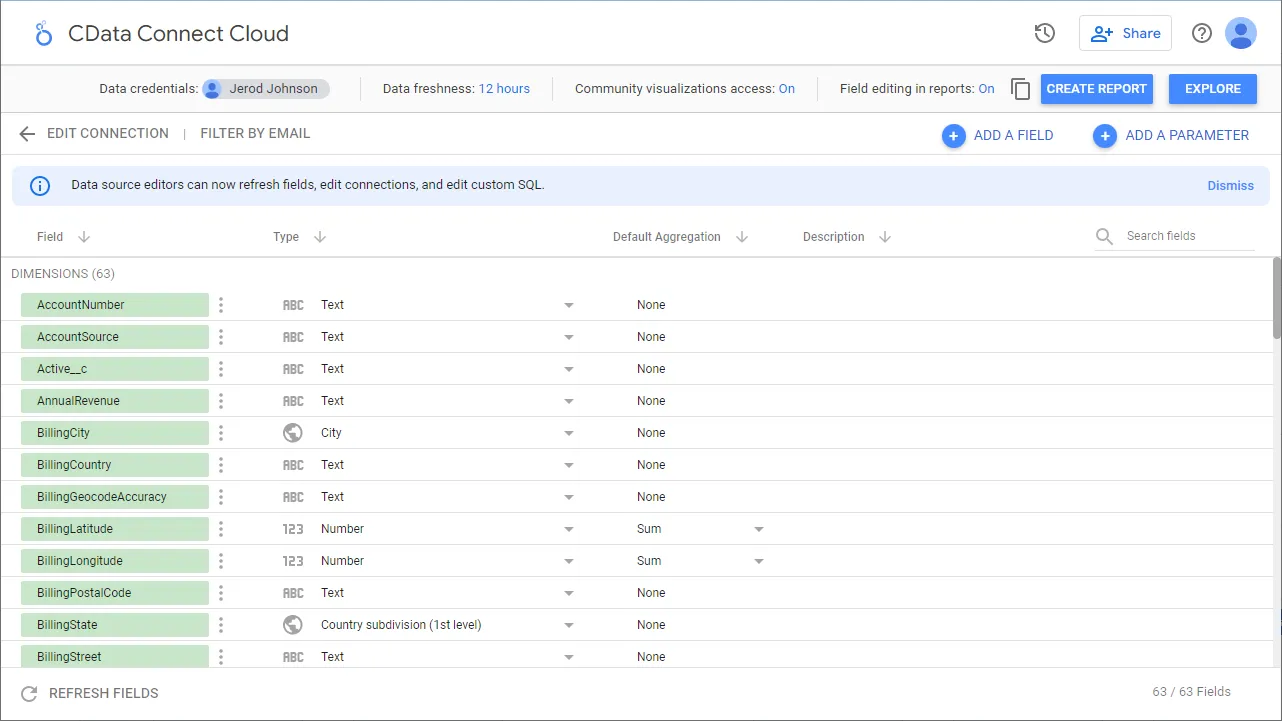
- Select a Table (e.g. Account) or use a Custom Query and click Connect to continue
- If needed, modify columns, click Create Report, and add the data source to the report.
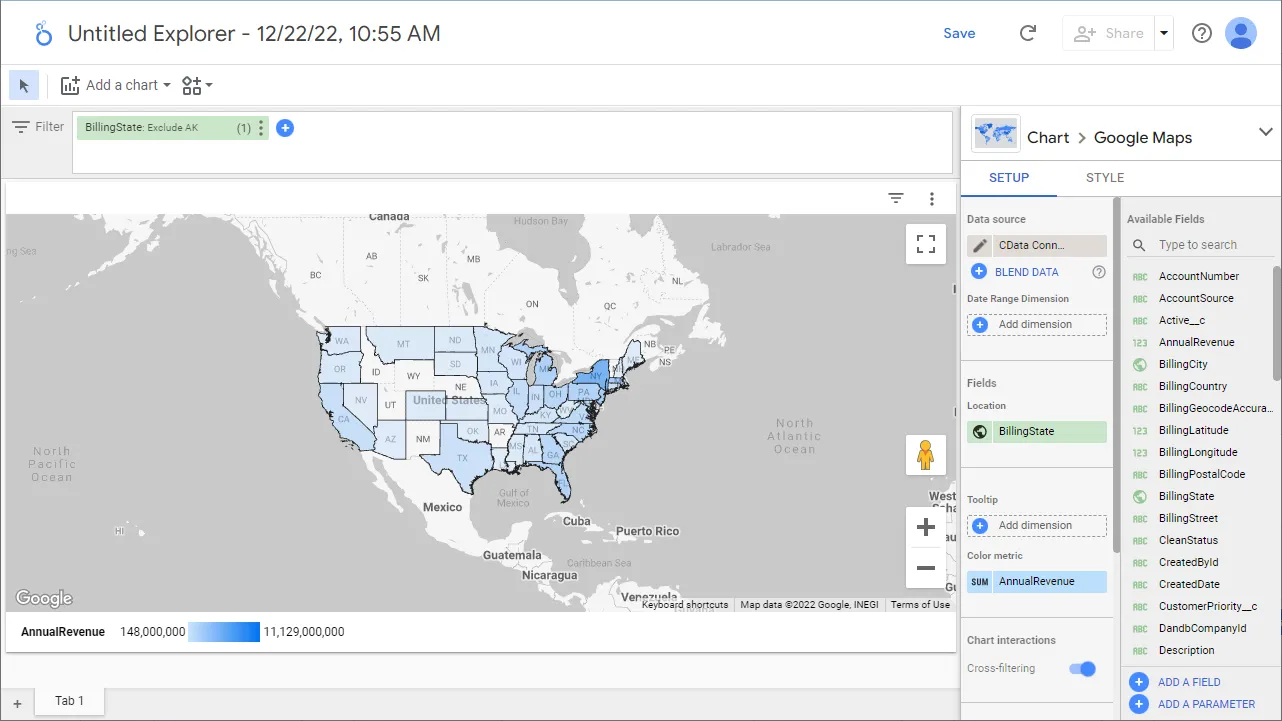
- Select a visualization style and add it to the report.
- Select Dimensions and Measures to customize your visualization.
Live Access to MailerLite Data from Cloud Applications
Now you have a direct, cloud-to-cloud connection to live MailerLite data from your Looker Studio workbook. You can create more data sources and new visualizations, build reports, and more — all without replicating MailerLite data.
Try CData Connect AI and get real-time data access to hundreds of SaaS, Big Data, and NoSQL sources directly from your cloud applications.