







Use Grok to Talk to Your QuickBooks Data via CData Connect AI

Grok AI is a large language model developed by xAI for real-time reasoning, tool invocation, and agentic workflows. It enables developers to build AI agents that can reason over live data, discover tools dynamically, and take intelligent actions.
CData Connect AI provides a secure cloud-to-cloud interface for integrating hundreds of enterprise data sources with Grok AI. Using Connect AI, live QuickBooks data is exposed through a remote MCP endpoint without replication, allowing Grok AI agents to securely query and analyze governed enterprise data in real time.
About QuickBooks Data Integration
CData simplifies access and integration of live QuickBooks data. Our customers leverage CData connectivity to:
- Access both local and remote company files.
- Connect across editions and regions: QuickBooks Premier, Professional, Enterprise, and Simple Start edition 2002+, as well as Canada, New Zealand, Australia, and UK editions from 2003+.
- Use SQL stored procedures to perform actions like voiding or clearing transactions, merging lists, searching entities, and more.
Customers regularly integrate their QuickBooks data with preferred tools, like Power BI, Tableau, or Excel, and integrate QuickBooks data into their database or data warehouse.
Getting Started
Step 1: Configure QuickBooks in CData Connect AI
To enable Grok to query live QuickBooks data, first create a QuickBooks connection in CData Connect AI. This connection is exposed through the CData Remote MCP Server.
-
Log into Connect AI, click Sources, and then click Add Connection.

-
Select "QuickBooks" from the Add Connection panel.

-
Enter the required authentication properties.
QuickBooks runs on-premises, so Connect AI requires the Connect Gateway to reach it. Install and start the gateway on the same machine (or network) as QuickBooks, then set the URL connection property to the Remote Connector address (e.g., http://remotehost:8166) and enter your User and Password.
 Click Create & Test.
-
Open the Permissions tab and configure user access.

Add a Personal Access Token
A Personal Access Token (PAT) authenticates MCP requests from Agno to CData Connect AI.
- Open Settings and navigate to Access Tokens.
- Click Create PAT.
-
Save the generated token securely.

Step 2: Install required dependencies
Remote MCP Tools allow Grok to connect to external MCP (Model Context Protocol) servers, extending its capabilities with custom tools from third parties or your own implementations. Simply specify a server URL and optional configuration xAI manages the MCP server connection and interaction on your behalf.
Open the terminal and install the required dependencies for the MCP integration using pip.
pip install xai-sdk==1.4.0
The xai-sdk (v1.4.0) enables Remote MCP tools, and python-dotenv is used to securely load environment variables.
pip install python-dotenv
Step 3: Generate an xAI API key
- Create or login to xAI account
- Open xAI API console
- Navigate to API Keys
- Click on create API key
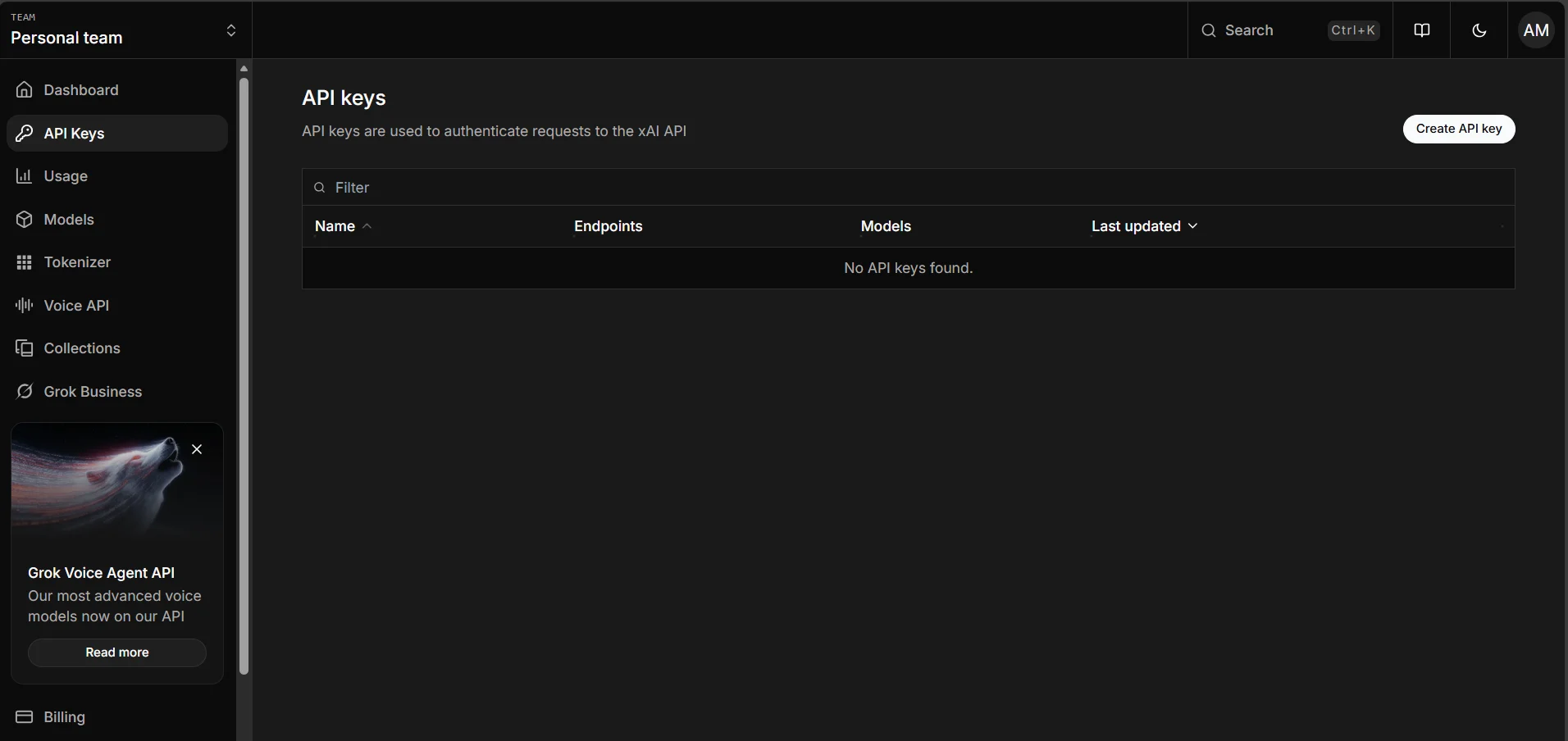
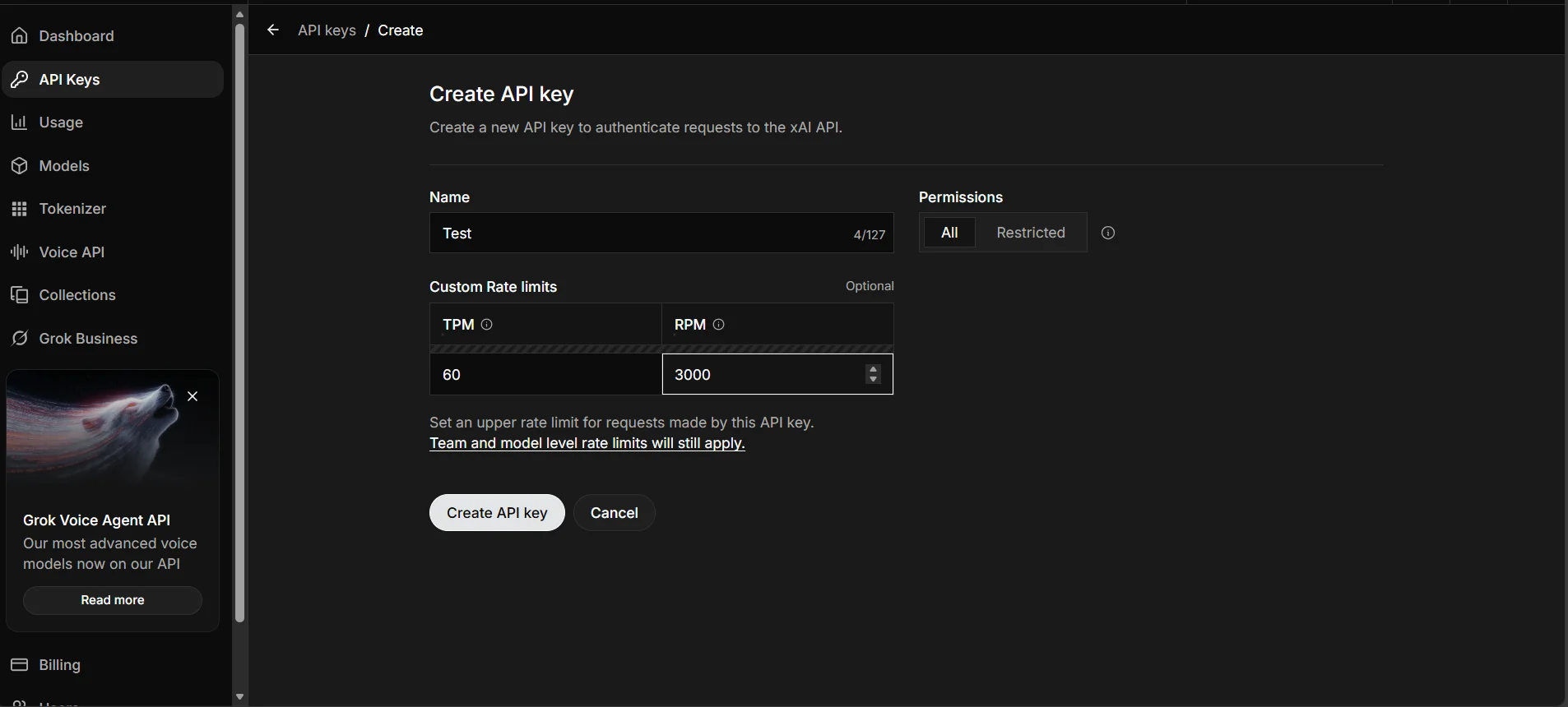
After generating an API key, user need to save it somewhere safe. Recommended option is to export it as an environment variable in your terminal or save it to a .env file.
Step 4: Connect to CData Connect AI
Initialize the Grok client and configure the MCP connection to CData Connect AI. The code below establishes a secure connection and sends a natural language query to your data source.
import os

from xai_sdk import Client
from xai_sdk.chat import user
from xai_sdk.tools import mcp

client = Client(api_key="Your_xAI-API_KEY")
chat = client.chat.create(
	model="grok-4-1-fast-non-reasoning",
	tools=[
		mcp(
			server_url="https://mcp.cloud.cdata.com/mcp",
			extra_headers={"Authorization": "Basic Username:PAT"} #Base64 Encoded Username:PAT
		)
		],
	include=["verbose_streaming"],
)

chat.append(user("List the top two catalogs for me please"))

is_thinking = True
for response, chunk in chat.stream():
	# View the server-side tool calls as they are being made in real-time
	for tool_call in chunk.tool_calls:
		print(f"
Calling tool: {tool_call.function.name} with arguments: {tool_call.function.arguments}")
	if response.usage.reasoning_tokens and is_thinking:
		print(f"
Thinking... ({response.usage.reasoning_tokens} tokens)", end="", flush=True)
	if chunk.content and is_thinking:
		print("

Final Response:")
		is_thinking = False
	if chunk.content and not is_thinking:
		print(chunk.content, end="", flush=True)

print("

Usage:")
print(response.usage)
print(response.server_side_tool_usage)
print("

Server Side Tool Calls:")
print(response.tool_calls)
This code initializes the Grok AI client, connects to CData Connect AI via MCP using Basic Authentication, and streams the response in real-time. The agent automatically discovers available tools, invokes them to query your live data, and displays both the tool calls and final results.
Run the script to see Grok query your connected data source.
Query Results
The output shows Grok invoking MCP tools through CData Connect AI and returning live data from your connected source.
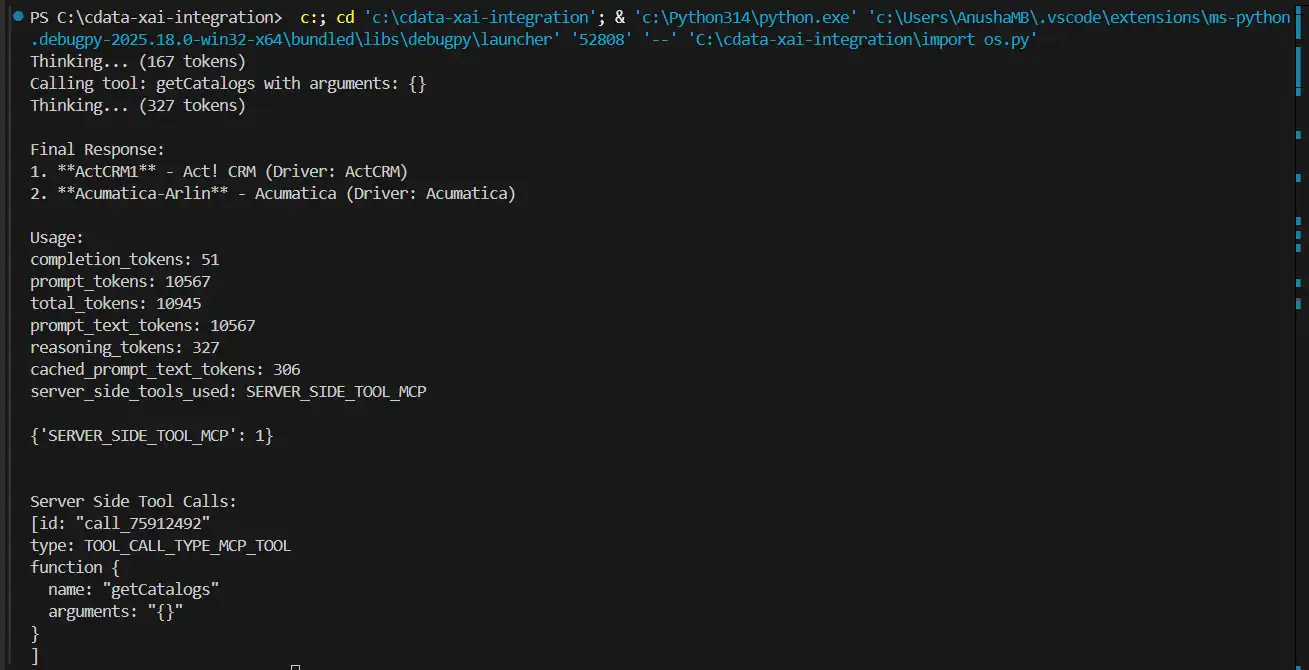
User can now query live data using natural language through Grok AI.
Build agentic workflows with Grok and CData Connect AI
Combining Grok AI with CData Connect AI delivers AI-powered data access without pipelines or custom integrations. Start your free trial today to see how CData can empower Grok with live, secure access to hundreds of external systems.