







Access Live Data in AWS Batch Using CData JDBC Drivers
AWS Batch is a fully managed service that runs containerized workloads at scale—without provisioning or managing the underlying compute infrastructure. For data teams, it’s a reliable way to schedule recurring extractions, run nightly sync jobs, or trigger data pipelines on demand.
The CData JDBC Driver for Salesforce gives Java applications standard SQL access to live Salesforce objects. Instead of writing against the Salesforce REST API directly—handling authentication, pagination, and field mapping yourself—you connect with a JDBC URL and query Accounts, Opportunities, Cases, or any other object using familiar SQL syntax.
In this article, we walk through writing a Java program that queries Salesforce data using the CData JDBC Driver for Salesforce, packaging it into a Docker container, pushing the image to Amazon Elastic Container Registry (ECR), and running it as a scheduled batch job on AWS Batch.
Prerequisites
You need the following before getting started:
- CData JDBC Driver for Salesforce (includes cdata.jdbc.salesforce.jar and cdata.jdbc.salesforce.lic)
- Java Development Kit (JDK) 17 or later
- Docker Desktop or Docker Engine, installed and running
- AWS CLI, installed and configured with IAM credentials
- An AWS account with permissions to create ECR repositories, Batch compute environments, job queues, and job definitions
- A Salesforce account with API access and a valid Security Token
Overview
Here’s a quick overview of the steps:
- Write a Java program that connects to Salesforce via JDBC and exports results to CSV
- Compile the program and build a Docker image
- Push the image to Amazon ECR
- Configure AWS Batch and submit the job
Step 1: Write the Java program
The program connects to Salesforce using the CData JDBC Driver, runs a SQL query, and writes the results to a CSV file. Both cdata.jdbc.salesforce.jar and cdata.jdbc.salesforce.lic must be in the same working directory as the compiled class.
import java.sql.*;
import java.io.FileWriter;

public class SalesforceBatchJob {

    public static void main(String[] args) {

        String url = "jdbc:salesforce:"
            + "SecurityToken=your_security_token;"
            + "User=your_username;"
            + "Password=your_password;"
            + "APIVersion=64.0;"
            + "AuthScheme=Basic;"
            + "UseSandbox=false;"
            + "RTK=your_rtk_key;";

        try {
            System.out.println("Connecting to Salesforce...");
            Connection conn = DriverManager.getConnection(url);
            System.out.println("Connection successful.");

            String query = "SELECT Id, Name FROM Account ORDER BY Name LIMIT 10";
            Statement stmt = conn.createStatement();
            ResultSet rs = stmt.executeQuery(query);

            FileWriter writer = new FileWriter("output.csv");
            writer.write("Id,Name\n");

            while (rs.next()) {
                String id = rs.getString("Id");
                String name = rs.getString("Name");
                writer.write(id + "," + name + "\n");
                System.out.println(id + " - " + name);
            }

            writer.close();
            conn.close();
            System.out.println("Job completed successfully.");

        } catch (Exception e) {
            e.printStackTrace();
        }
    }
}
Key connection properties used in the JDBC URL:
| Property | Description |
|---|---|
| SecurityToken | Your Salesforce security token, used alongside your password for API authentication. |
| User | Your Salesforce login email address. |
| Password | Your Salesforce account password. |
| APIVersion | The Salesforce API version to target (e.g., 64.0). |
| AuthScheme | Set to Basic for username + password + security token authentication. |
| UseSandbox | Set to false for production, true for sandbox environments. |
| RTK | Your CData runtime key, included with your driver license. See your license documentation for details. |
Step 2: Compile the program
Compile the Java source file with the CData JDBC JAR on the classpath. Run the following from the directory containing both the source file and the JAR:
# Compile the Java program
javac -cp cdata.jdbc.salesforce.jar SalesforceBatchJob.java

# To target a specific Java version (e.g., Java 17)
javac --release 17 -cp cdata.jdbc.salesforce.jar SalesforceBatchJob.java
This produces SalesforceBatchJob.class in the same directory.
Step 3: Create the Dockerfile
Create a file named Dockerfile (no extension) in the same directory as the compiled class, the JAR, and the license file. The Dockerfile packages the application into a container image based on Eclipse Temurin JDK 17.
FROM eclipse-temurin:17-jdk-jammy

WORKDIR /app

COPY SalesforceBatchJob.class .
COPY cdata.jdbc.salesforce.jar .
COPY cdata.jdbc.salesforce.lic .

CMD ["java", "-cp", ".:cdata.jdbc.salesforce.jar", "SalesforceBatchJob"]
NOTE: The cdata.jdbc.salesforce.lic file must be copied into the container. Without it, the driver won’t initialize. Make sure all three files are in the same directory before building.
Step 4: Build and test the Docker image locally
Build the image and run a local test before pushing to ECR.
# Build the Docker image
docker build -t salesforce-batch-job .

# Test the image locally
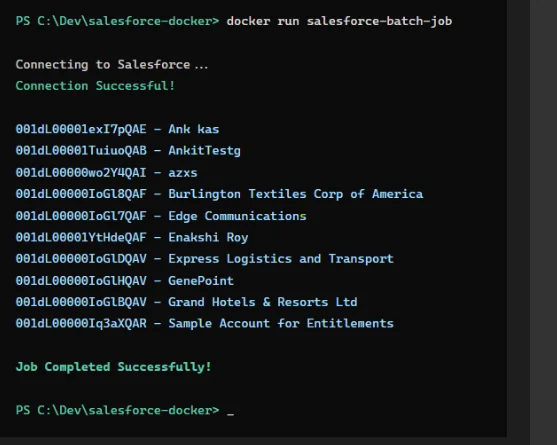
docker run salesforce-batch-job
If the container prints Salesforce Account records to the console and exits cleanly, the image is ready to deploy. Fix any connection errors before proceeding.
Step 5: Create an Amazon ECR repository
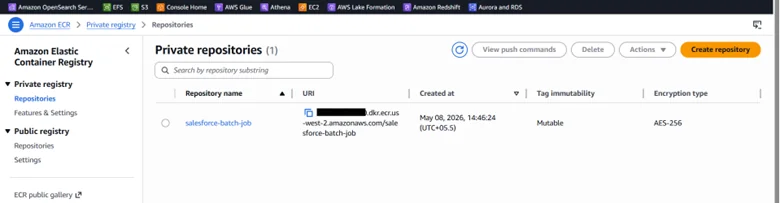
- Open the Amazon ECR console.
- Click Create repository.
- Enter a repository name—for example, salesforce-batch-job.
- Leave the default settings and click Create repository.
- Copy the Repository URI from the confirmation page. It follows this format: your-account-id.dkr.ecr.your-region.amazonaws.com/salesforce-batch-job.
Step 6: Push the Docker image to ECR
Authenticate your local Docker client to your ECR registry, then tag and push the image. Replace the placeholder values with your AWS account ID and region.
# Authenticate Docker to your ECR registry
aws ecr get-login-password --region your-region |
  docker login --username AWS `
    --password-stdin your-account-id.dkr.ecr.your-region.amazonaws.com

# Tag the image for ECR
docker tag salesforce-batch-job:latest `
  your-account-id.dkr.ecr.your-region.amazonaws.com/salesforce-batch-job:latest

# Push the image to ECR
docker push `
  your-account-id.dkr.ecr.your-region.amazonaws.com/salesforce-batch-job:latest
You’ll need an AWS Access Key ID and Secret Access Key with ECR push permissions before running these commands.
Step 7: Configure AWS Batch
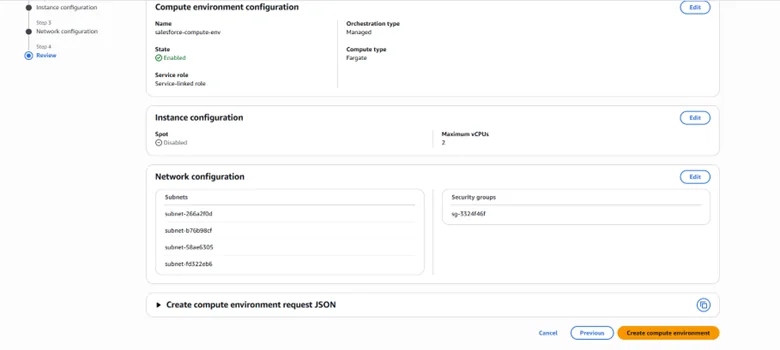
AWS Batch uses three resources to run a containerized job: a compute environment, a job queue, and a job definition. Create them in that order.
Create a compute environment
- In the AWS Batch console, navigate to Compute environments and click Create.
- Select Managed as the compute environment type.
- Configure instance type, vCPU, and memory settings for your workload.
- Click Create compute environment.
Create a job queue
- Navigate to Job queues and click Create.
- Give the queue a name and associate it with the compute environment you just created.
- Click Create.
Create a job definition
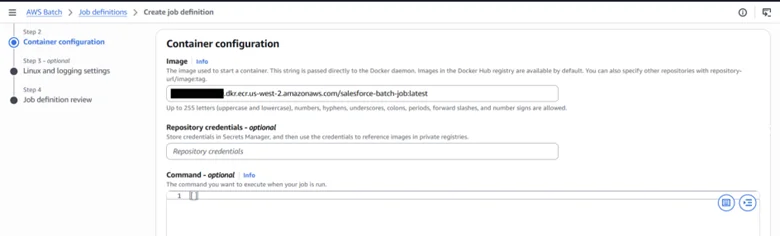
- Navigate to Job definitions and click Create.
- Set the Image field to your ECR Repository URI—for example, your-account-id.dkr.ecr.your-region.amazonaws.com/salesforce-batch-job.
- Set vCPU and memory limits appropriate for the Salesforce query workload.
- Click Create.
Submit the job
- Navigate to Jobs and click Submit new job.
- Select the job definition and job queue you created.
- Click Submit.
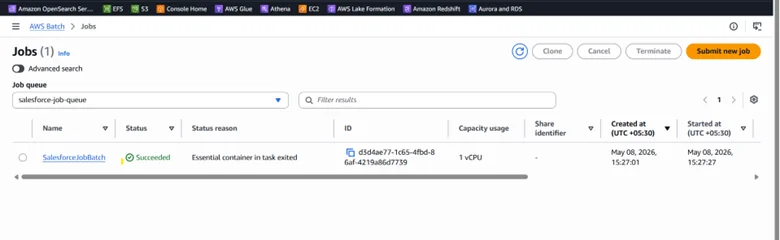
AWS Batch provisions a compute instance, pulls the image from ECR, runs the container, and terminates the instance when the job completes. Check the job status in the console to confirm a successful run.
Schedule recurring jobs with Amazon EventBridge
A one-time submission is useful for testing, but most teams need this to run on a schedule—nightly extractions, hourly syncs, or end-of-day reporting jobs. Amazon EventBridge Scheduler lets you trigger AWS Batch jobs on a cron schedule without any additional infrastructure.
- Open the Amazon EventBridge Scheduler console and click Create schedule.
- Choose Recurring schedule and set your cron expression—for example, cron(0 2 * * ? *) to run daily at 2 a.m. UTC.
- For the target, select AWS Batch → SubmitJob.
- Specify the job definition and job queue you created in Step 7.
- Assign an IAM role that grants EventBridge permission to submit Batch jobs, then save.
Once active, EventBridge fires the Batch job on your defined schedule. No servers to keep running between executions, and no manual triggers required.
Start querying live Salesforce data
The CData JDBC Driver for Salesforce turns any Java application—batch jobs, ETL pipelines, or microservices—into a live, SQL-based client for your Salesforce data. No REST calls to maintain, no pagination logic, no manual field mapping.
Download a free trial of the CData JDBC Driver for Salesforce and start querying live data in minutes.
Related resources
- Getting started — CData JDBC Driver for Salesforce
- Establishing a connection — CData JDBC Driver for Salesforce
- AWS Batch User Guide
- Amazon ECR User Guide
- Amazon EventBridge Scheduler User Guide
Questions or running into issues? Reach out to the CData support team at [email protected]—or explore the full library of CData JDBC Drivers to connect your Java applications to hundreds of data sources using the same approach.