







Configure a Receive Location for the CData BizTalk Adapter for Anaplan

You can follow the procedure in this article to connect to Anaplan data, configure a static one-way receive location, and use it to perform a simple test: retrieving Anaplan data and writing it to an XML file.
A receive location can execute SQL commands and create BizTalk messages that contain the results. If you want to execute updategram commands, use a send port.
Create the Receive Port
To add a receive location to your application, you first need to add a receive port. Receive ports can receive data from multiple receive locations.
- If you have not already done so, open your application in the BizTalk Administration Console.
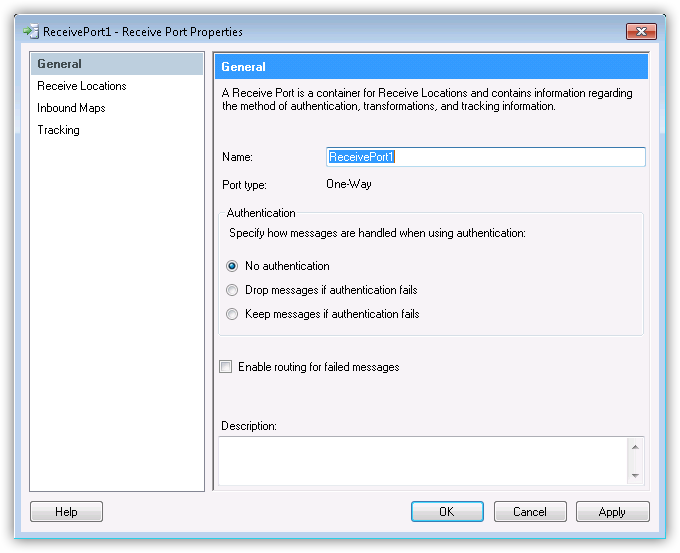
- In your application, right-click Receive Ports and click New -> Static One-Way Receive Port. The Receive Port Properties dialog is displayed.
- In the Name menu, enter a name for the receive port.
Create the Receive Location
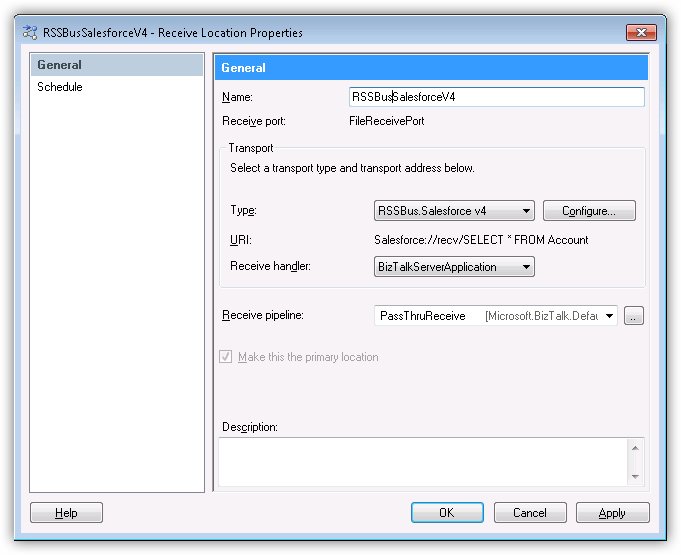
After you create the receive port, create the receive location and configure it to use the Anaplan adapter as its transport type.
- Right-click Receive Locations and click New -> One-Way Receive Location.
- Select the appropriate receive port of which the new receive location will be a member. The Receive Location Properties dialog is displayed.
- In the Name menu, enter a name for the receive location.
- In the Receive Location properties, select CData.Anaplan in the Transport Type menu.
- In the Receive pipeline menu, select the default option, PassThruReceive.
Configure the Adapter
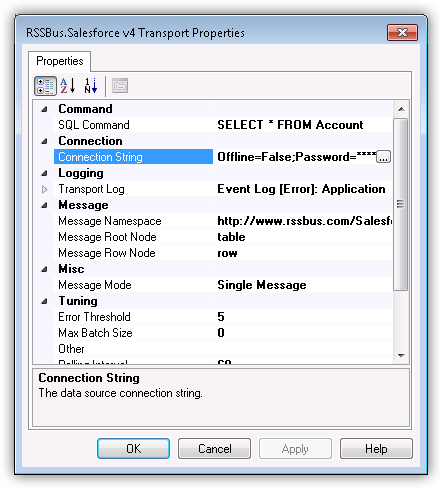
In the Transport Properties dialog, specify the command that the adapter will execute.
- In the receive location properties, click Configure. The Transport Properties dialog for the adapter is displayed.
- In the SQL Command property, enter the command. This example uses
SELECT Region, Product FROM [Workspace].[Model].[Sales] WHERE Value = '100'
Configure the Connection String
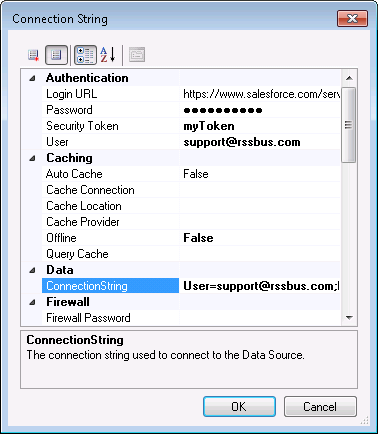
Set credentials and other connection properties in the Connection String Options dialog.
- In the receive location properties, click Configure. The adapter properties dialog is displayed.
- Click the button in the Connection String property.
- Click the box in the Connection String property. The Connection String Options dialog is displayed.
- Enter connection properties. Below is a typical connection string:
OAuthClientId=your_client_id;OAuthClientSecret=your_client_secret;CallbackURL=your_callback_url;Region=US1;InitiateOAuth=GETANDREFRESH;
Authenticating to Anaplan
The driver supports authenticating with Basic, Certificate, or OAuth. In every case, set Region to the region where your Anaplan account data is hosted (e.g., US1, which is the default).
Using Basic Authentication
Set AuthScheme to Basic, then supply your Anaplan User and Password. If your workspace uses single sign-on (SSO), you must be assigned as an Exception User to use Basic authentication.
Using Certificate Authentication
Set AuthScheme to Certificate, then supply the Certificate, CertificateType, and PrivateKey properties (and the matching CertificatePassword / PrivateKeyPassword if either is encrypted). The certificate must be a CA-issued X.509 certificate registered with your Anaplan tenant administrator.
Using OAuth Authentication
Register a custom OAuth application in Anaplan, then set the following properties:
- OAuthClientId: The client Id assigned when you registered your custom OAuth application.
- OAuthClientSecret: The client secret assigned when you registered your custom OAuth application.
- CallbackURL: The redirect URI defined when you registered your application.
- InitiateOAuth: Set to GETANDREFRESH to have the driver manage the OAuth token exchange and refresh automatically.
See the Getting Started chapter of the help documentation for a guide to creating a custom OAuth app and using OAuth.
- Click Test Connection to verify the connection values and test connectivity.
Refer to the help documentation for a description of the various properties and their functions.
Use a Send Port to Write Data to an XML File
The Static One-Way Receive Location is now ready for use with a send port: A send port must be associated with the BizTalk message that is created by the receive location. To write data to a file, create a file send port.
- In the BizTalk Administration console, right-click Send Ports -> New -> Static One-Way Send Port.
Enter a name for the send port at the top of the configuration window and select FILE from the Type menu.
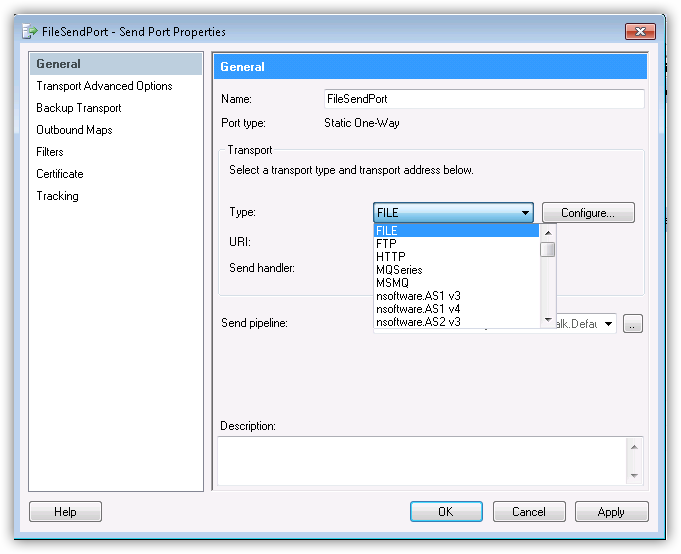
- Configure a destination folder; this will be the location where the files are created on disk.
For the file name, a macro can be used to easily identify what day the file was created. By default, %MessageId%.xml is used. However, this is not a very user-friendly name, as it is a randomly generated BizTalk Id. To produce a file in the format Sales_yyyy-MM-dd.xml, enter Sales_%Date%.xml.
Note: For additional information regarding macros, visit the BizTalk Configuration section in the help documentation.
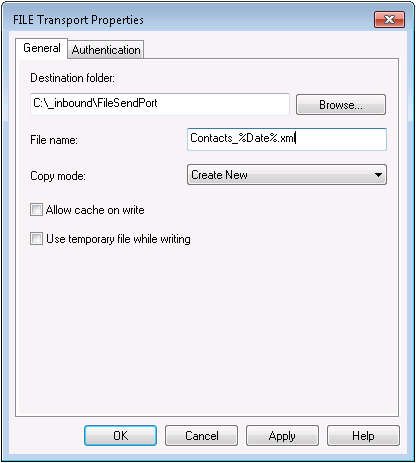
- Click OK. The URI field should now contain a value.
- Click Filters in the left-hand side of the configuration screen for the send port.
- Set the following properties:
- Property: Select "BTS.InboundTransportLocation" from the menu.
- Operator: Select "==" from the menu.
- Value: Enter the URI of the receive location. The URI is shown in the receive location properties.
- Operator: Select "==" from the menu.
- Property: Select "BTS.InboundTransportLocation" from the menu.
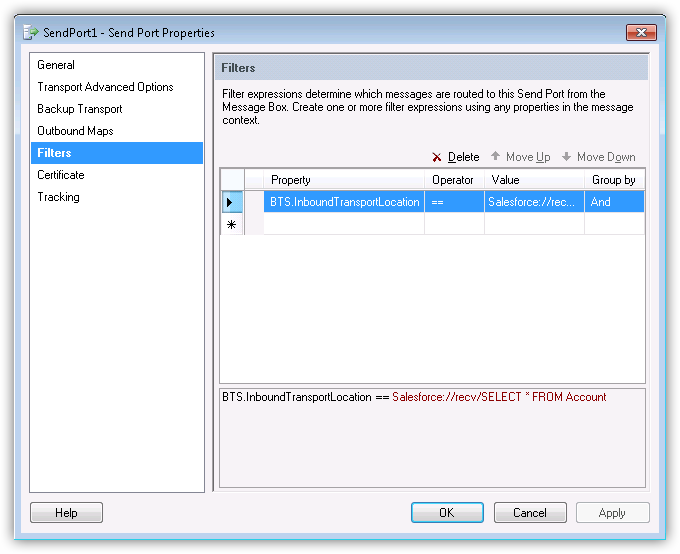
You can now use the send port to write files that have been sent from the receive location.
Enlist and Enable the Locations and Ports
The final step is to enlist the send port and enable the receive location: Right-click the send port and click Enlist. Then right-click the receive location and click Enable.
Note: Enable the receive location last: This makes sure the file gets picked up for writing by the send port.
Troubleshooting
To check if errors are occurring, expand "Event Viewer (Local)" in the navigation tree in the Administration Console. Expand Windows Logs and click Applications.
The log will include error messages for all applications on the system, so it is important to check that the source of the error message is "CData BizTalk Anaplan Receive Adapter". Details of the error message should provide insight into why the error is occurring. For guidance on resolving the error, contact [email protected].