







How to update Azure Synapse from Excel

The CData Excel Add-In for Azure Synapse enables you to edit and save Azure Synapse data directly from Excel. This article explains how to transfer data from Excel to Azure Synapse. This technique is useful if you want to work on Azure Synapse data in Excel and update changes, or if you have a whole spreadsheet you want to import into Azure Synapse. In this example, you will use the Products table; however, the same process will work for any table that can be retrieved by the CData Excel Add-In.
Establish a Connection
If you have not already done so, create a new Azure Synapse connection by clicking From Azure Synapse on the ribbon.
Connecting to Azure Synapse
In addition to providing authentication (see below), set the following properties to connect to a Azure Synapse database:
- Server: The server running Azure. You can find this by logging into the Azure portal and navigating to Azure Synapse Analytics -> Select your database -> Overview -> Server name.
- Database: The name of the database, as seen in the Azure portal on the Azure Synapse Analytics page.
Authenticating to Azure Synapse
Connect to Azure Synapse using the following properties:
- User: The username provided for authentication with Azure.
- Password: The password associated with the authenticating user.
Retrieve Data from Azure Synapse
To insert data into Azure Synapse, you will first need to retrieve data from the Azure Synapse table you want to add to. This links the Excel spreadsheet to the Azure Synapse table selected: After you retrieve data, any changes you make to the data are highlighted in red.
- Click the From Azure Synapse button on the CData ribbon. The Data Selection wizard is displayed.
- In the Table or View menu, select the Products table.
- In the Maximum Rows menu, select the number of rows you want to retrieve. If you want to insert rows, you need to retrieve only one row. The Query box will then display the SQL query that corresponds to your request.
- In the Sheet Name box, enter the name for the sheet that will be populated. By default the add-in will create a new sheet with the name of the table.
Insert Rows to Azure Synapse
After retrieving data, you can add data from an existing spreadsheet in Excel.
- In a cell after the last row, enter a formula referencing the corresponding cell from the other spreadsheet; for example, =MyProductsSheetInExcel!A1.
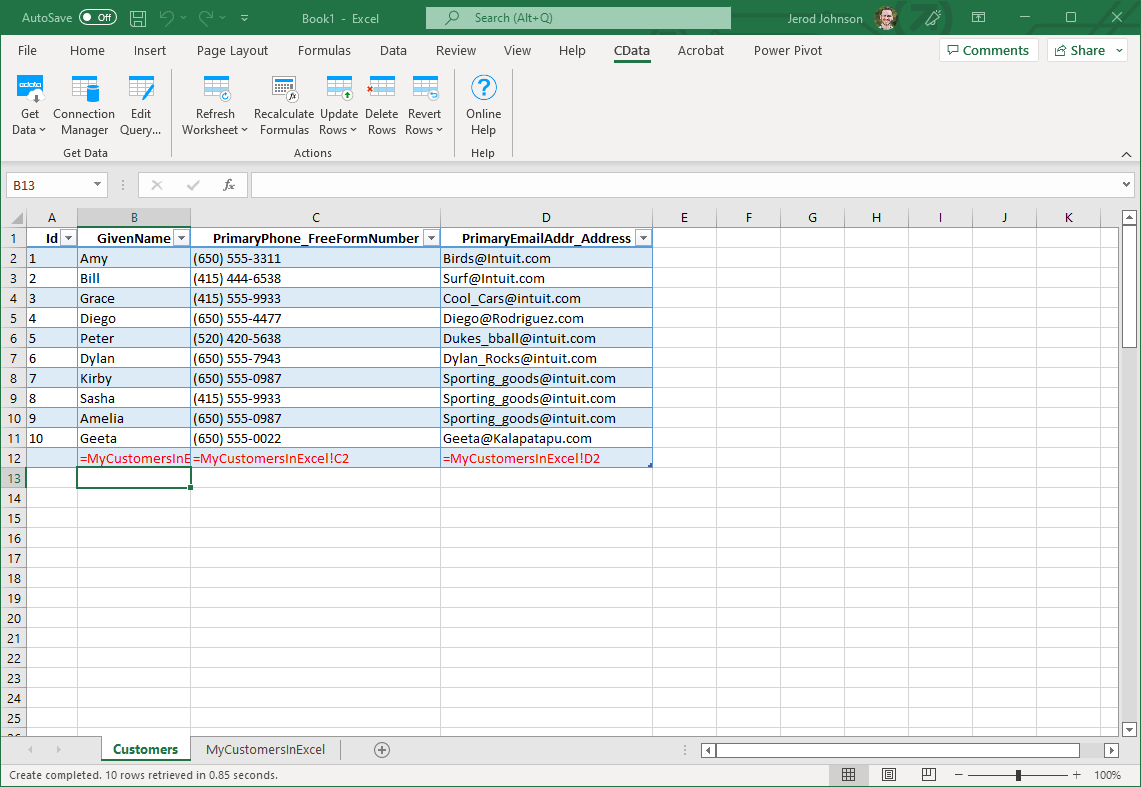
- After using a formula to reference the cells you want to add to Azure Synapse, select the cells that you are inserting data into and drag the formula down as far as needed. The referenced values you want to add will be displayed on
the Products sheet.
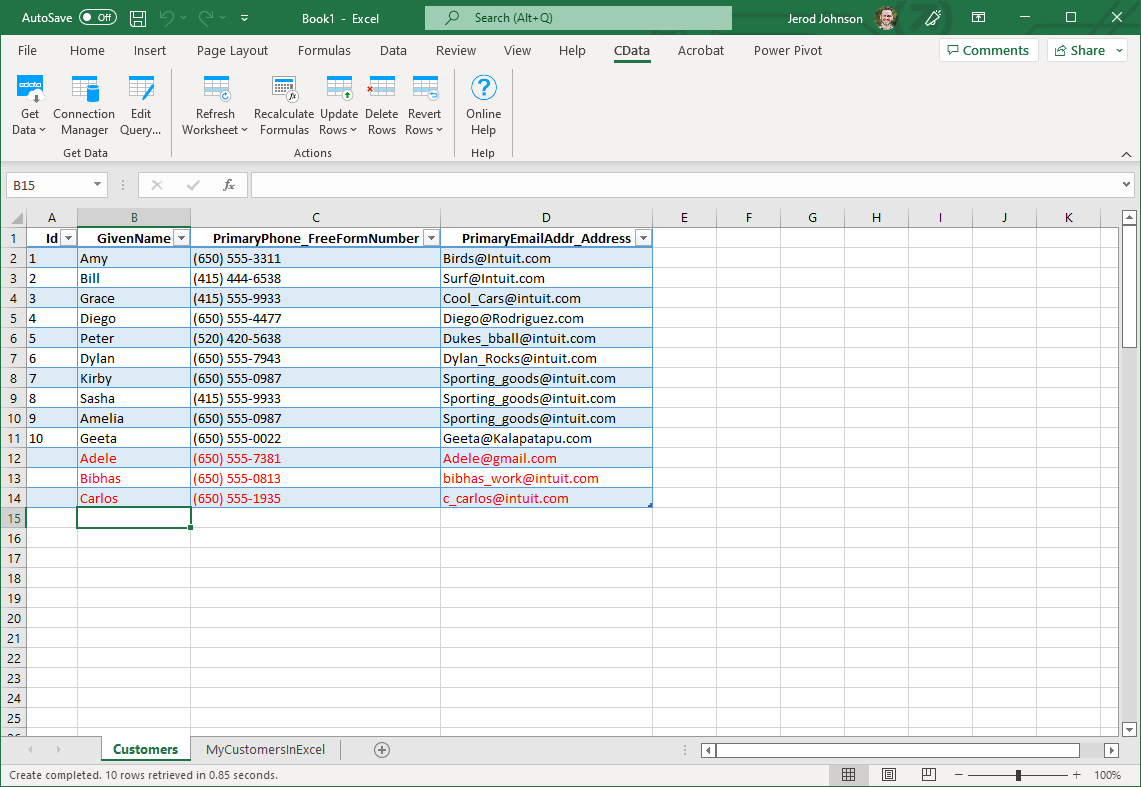
- Highlight the rows you want to insert and click the Update Rows button.
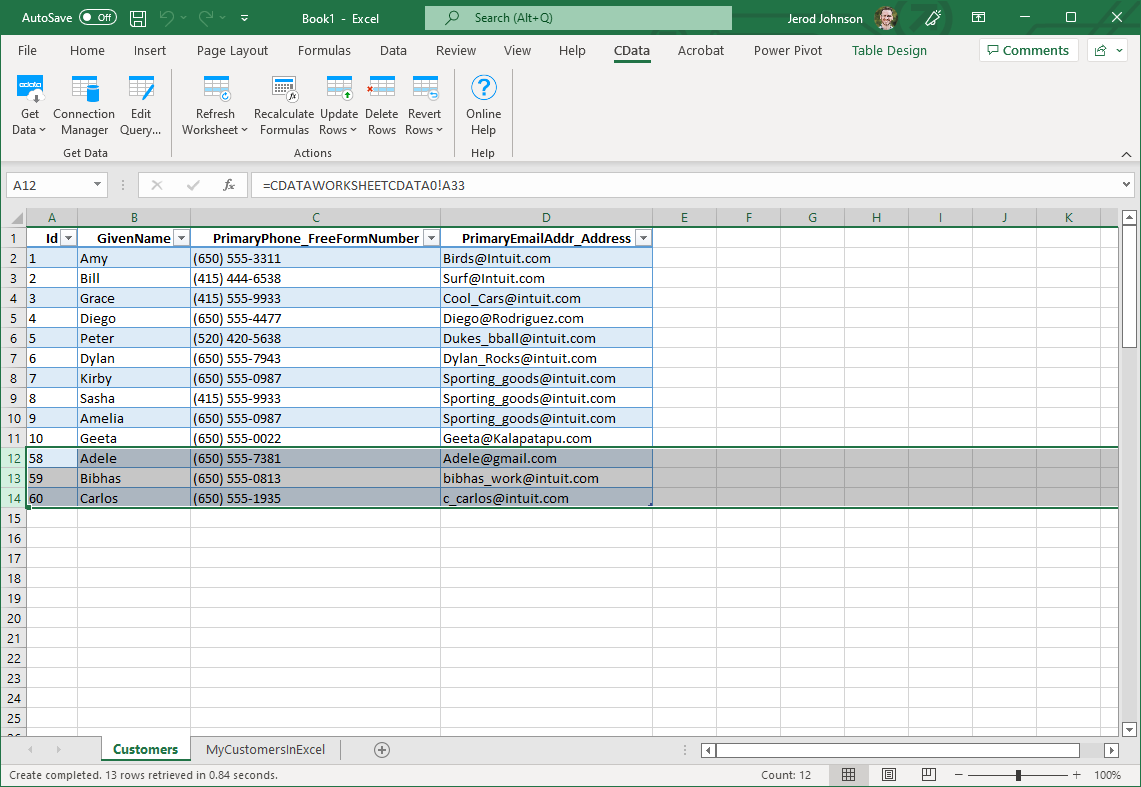
As each row is inserted, the Id value will appear in the Id column and the row's text will change to black, indicating that the record has been inserted.
Ready to get started?
Download a free trial of the Excel Add-In for Azure Synapse to get started:
Download NowLearn more:
 Excel Add-In for Azure Synapse
The Azure Synapse Excel Add-In is a powerful tool that allows you to connect with live Azure Synapse data, directly from Microsoft Excel.
Use Excel to read, write, and update Azure Synapse. Perfect for mass imports / exports / updates, data cleansing & de-duplication, Excel based data analysis, and more!