







Connect to CSV Data through External Services in Salesforce

CData Connect AI, enables you to access CSV data from cloud-based applications like the Salesforce and mobile applications like the Salesforce Mobile App. In this article, you will use CData Connect AI to access CSV data through Salesforce External Services.
Connect to CSV from Salesforce
Overview
Here is an overview of the steps:
- Configure: (Optional) Set up your CSV data source in CData Connect AI, add a Workspace, add assets to your Workspace, and generate a Personal Access Token (PAT).
- Connect: Link Salesforce to CData Connect AI using OpenAPI.
- Explore: Use your connected data in Salesforce.
Prerequisites
Ensure you have the following before starting:
- An active CSV account and credentials.
- A CData Connect AI account. Log in or sign up for a free trial here.
- A Salesforce account.
Connect to CSV from Connect AI
CData Connect AI uses a straightforward, point-and-click interface to connect to data sources.
- Log into Connect AI, click Sources, and then click Add Connection
- Select "CSV" from the Add Connection panel
-
Enter the necessary authentication properties to connect to CSV.
Connecting to Local or Cloud-Stored (Box, Google Drive, Amazon S3, SharePoint) CSV Files
CData Drivers let you work with CSV files stored locally and stored in cloud storage services like Box, Amazon S3, Google Drive, or SharePoint, right where they are.
Setting connection properties for local files
Set the URI property to local folder path.
Setting connection properties for files stored in Amazon S3
To connect to CSV file(s) within Amazon S3, set the URI property to the URI of the Bucket and Folder where the intended CSV files exist. In addition, at least set these properties:
- AWSAccessKey: AWS Access Key (username)
- AWSSecretKey: AWS Secret Key
Setting connection properties for files stored in Box
To connect to CSV file(s) within Box, set the URI property to the URI of the folder that includes the intended CSV file(s). Use the OAuth authentication method to connect to Box.
Dropbox
To connect to CSV file(s) within Dropbox, set the URI proprerty to the URI of the folder that includes the intended CSV file(s). Use the OAuth authentication method to connect to Dropbox. Either User Account or Service Account can be used to authenticate.
SharePoint Online (SOAP)
To connect to CSV file(s) within SharePoint with SOAP Schema, set the URI proprerty to the URI of the document library that includes the intended CSV file. Set User, Password, and StorageBaseURL.
SharePoint Online REST
To connect to CSV file(s) within SharePoint with REST Schema, set the URI proprerty to the URI of the document library that includes the intended CSV file. StorageBaseURL is optional. If not set, the driver will use the root drive. OAuth is used to authenticate.
Google Drive
To connect to CSV file(s) within Google Drive, set the URI property to the URI of the folder that includes the intended CSV file(s). Use the OAuth authentication method to connect and set InitiateOAuth to GETANDREFRESH.

- Click Save & Test
-
Navigate to the Permissions tab in the Add CSV Connection page and update the User-based permissions.



Add a Personal Access Token
When connecting to Connect AI through the REST API, the OData API, or the Virtual SQL Server, a Personal Access Token (PAT) is used to authenticate the connection to Connect AI. It is best practice to create a separate PAT for each service to maintain granularity of access.
- Click on the Gear icon () at the top right of the Connect AI app to open the settings page.
- On the Settings page, go to the Access Tokens section and click Create PAT.
-
Give the PAT a name and click Create.

- The personal access token is only visible at creation, so be sure to copy it and store it securely for future use.
Configure CSV Endpoints for Salesforce
After connecting to CSV, create a workspace for your desired table(s).
-
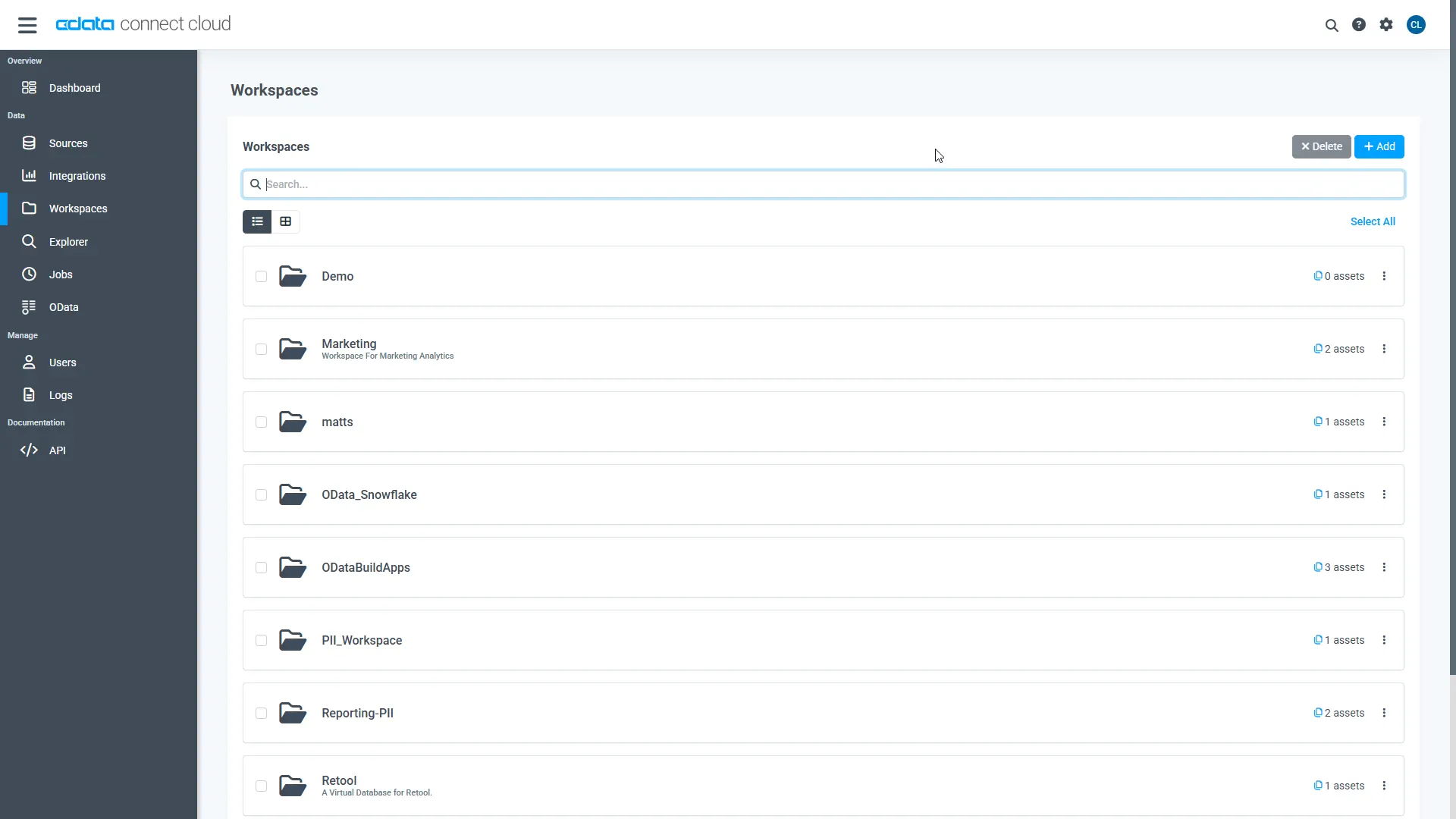
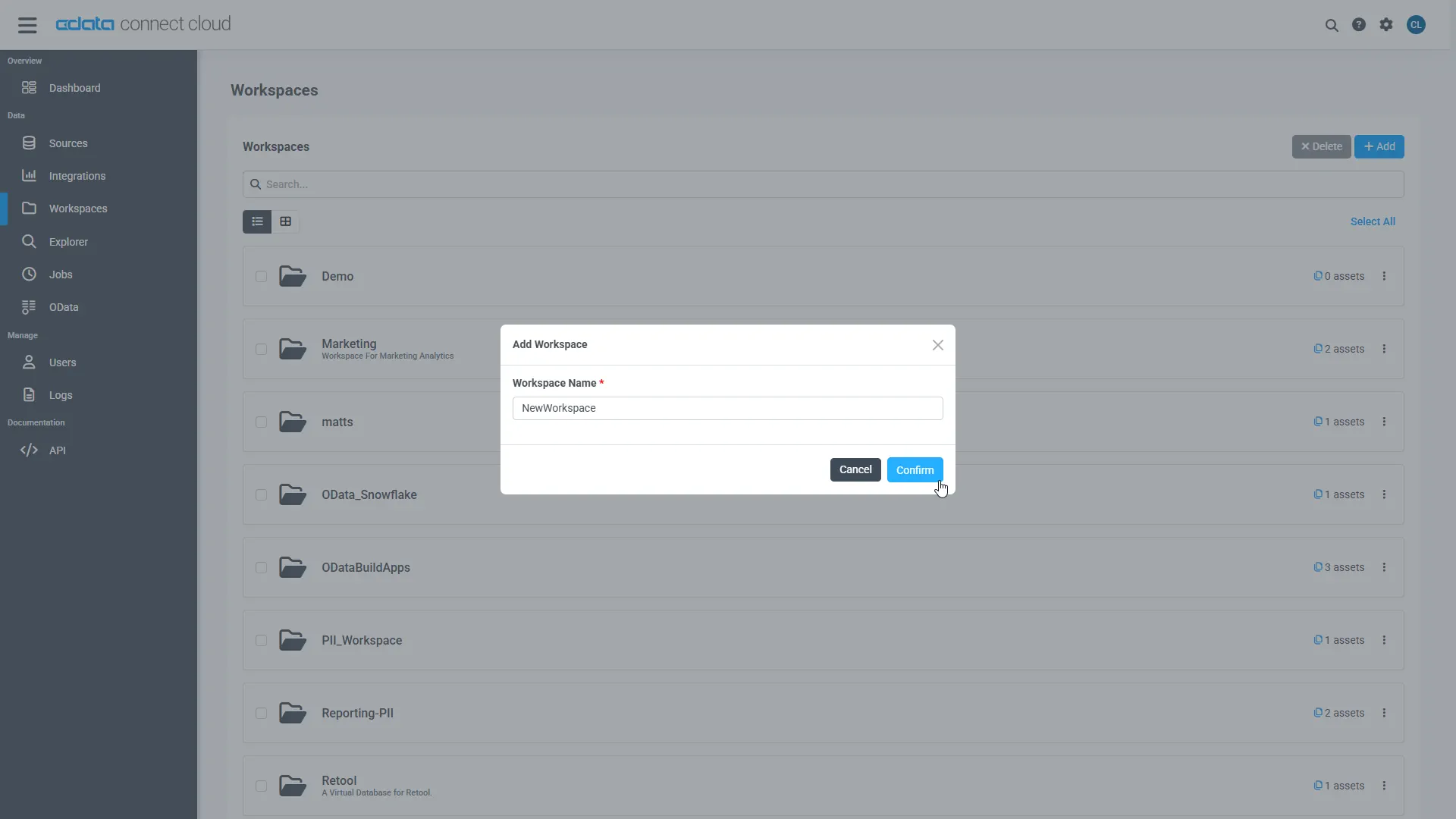
Navigate to the Workspaces page and click Add to create a new Workspace (or select an existing workspace).
- Click Add to add new assets to the Workspace.
-
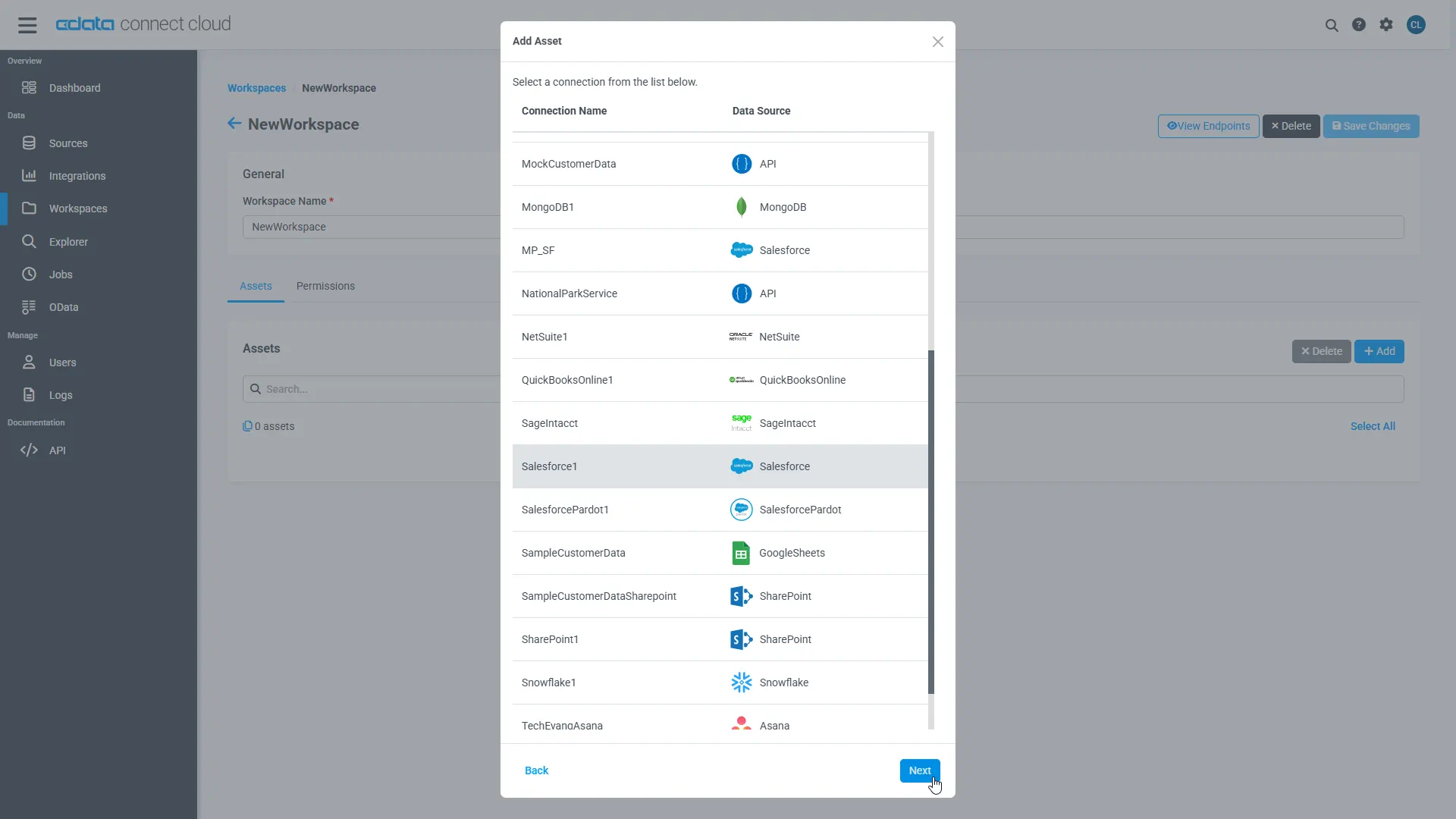
Select the CSV connection (e.g. CSV1) and click Next.
-
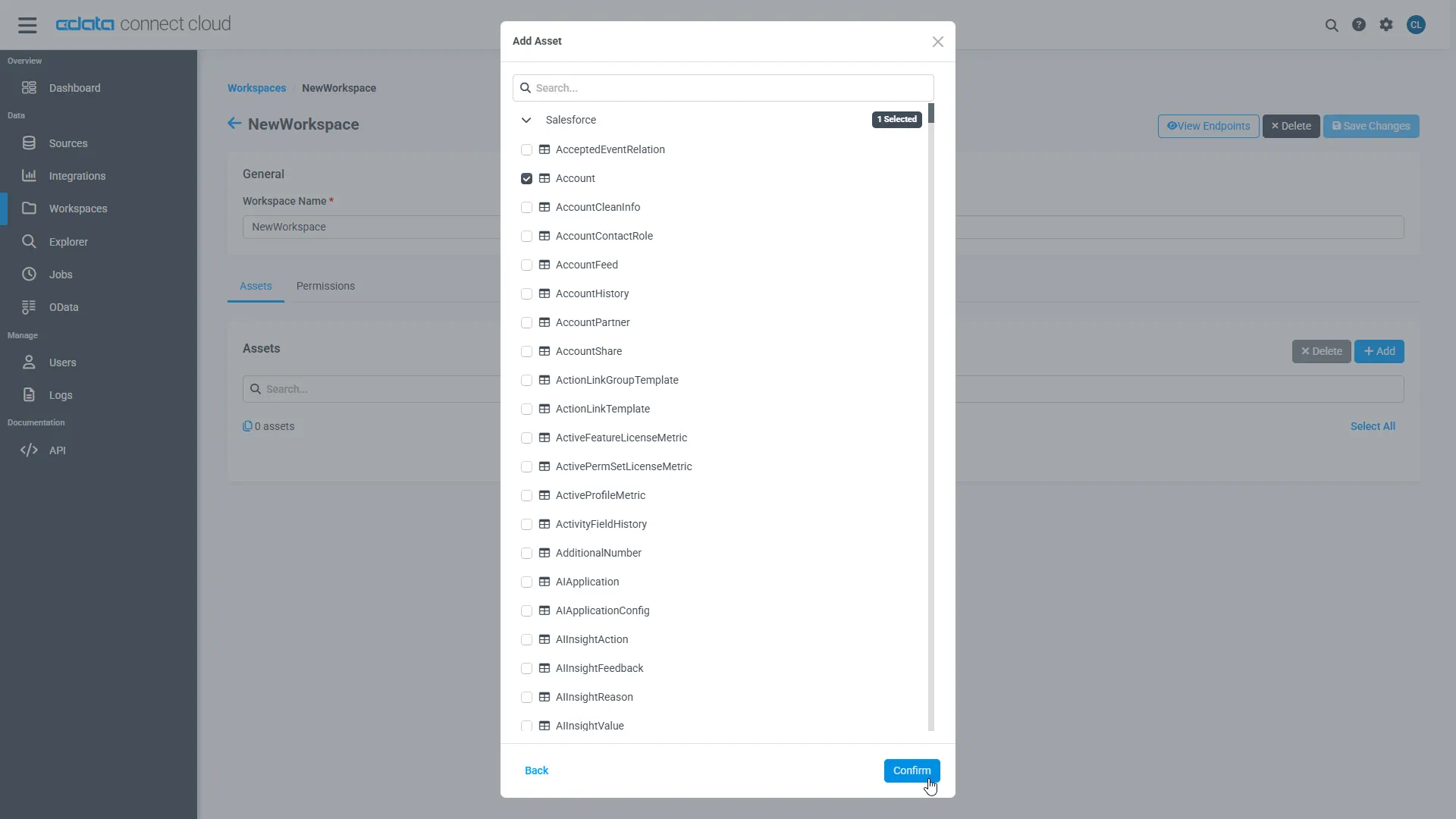
Select the table(s) you wish to work with and click Confirm.
- Make note of the OpenAPI URL for your workspace, e.g. https://cloud.cdata.com/api/openapi/v3/{workspace_name}...
Check the column data types of the selected table:
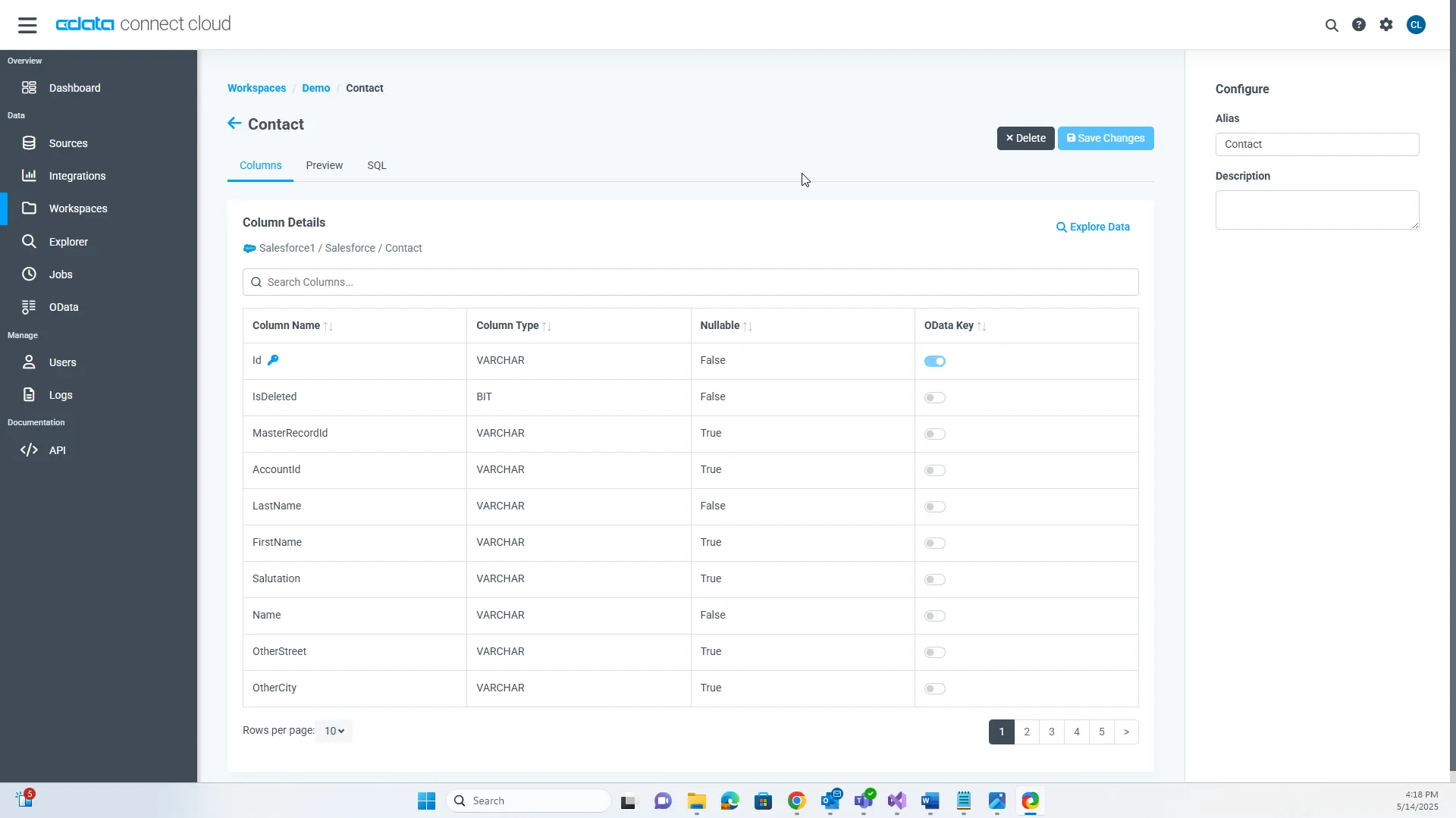
- Once the CSV data table is added as an asset, select the asset, and note the column names and data types from the Columns tab.
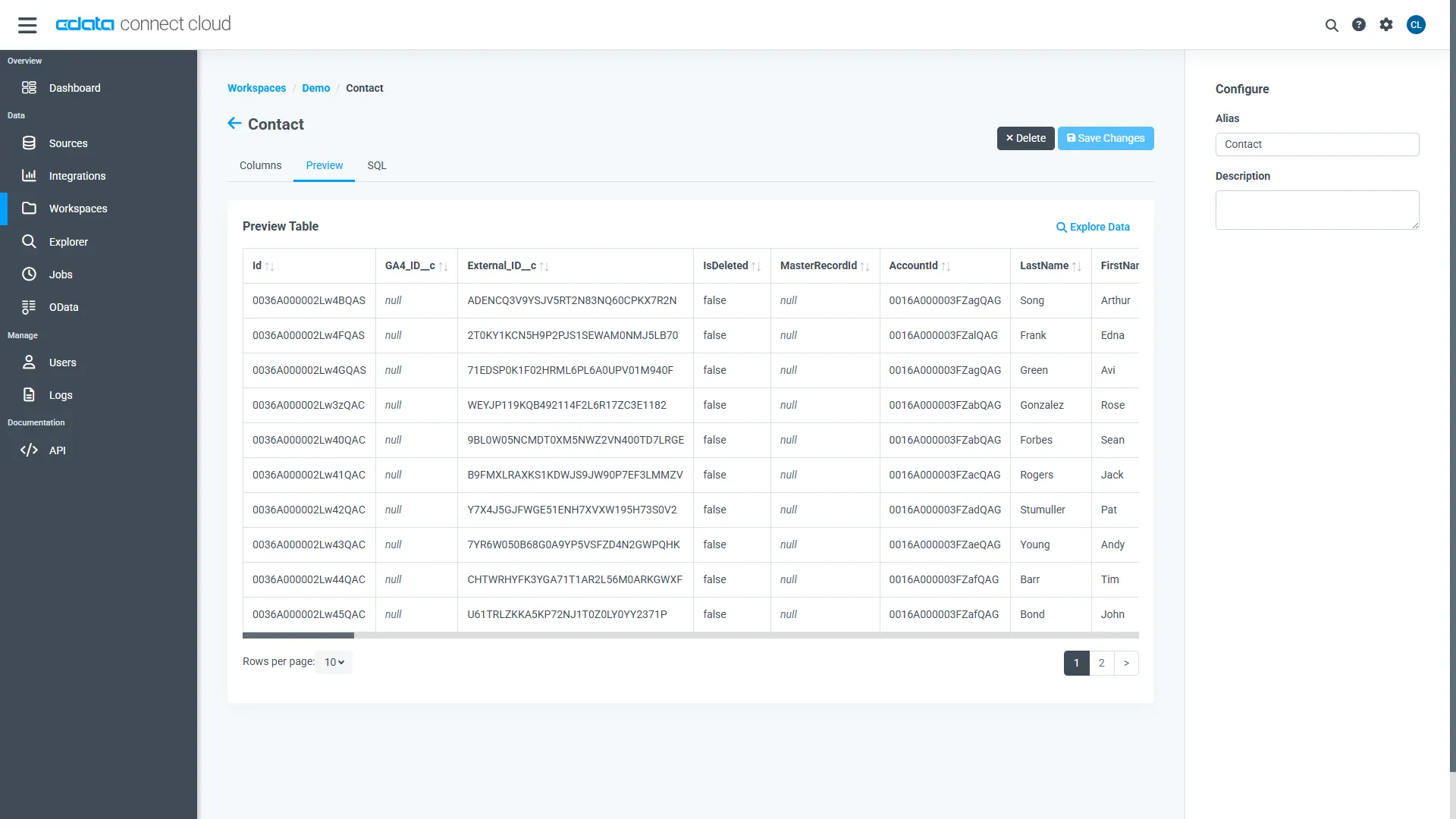
- In the Preview tab, preview the current data in the table to be referenced later.
- Click on Users from the left panel and search for your username, e.g. [email protected]. Click on the same.
- On the Edit Users screen, grant the respective user all Permissions (Select, Insert, Update, Delete, and Execute) for the entity (workspace).
With the connection, PAT, and Workspace configured, you are ready to connect to CSV data from Salesforce.
Connect to CSV Data as an External Service
Create a Named Credential
Follow the steps below to connect to the OpenAPI produced by CData Connect AI with Salesforce:
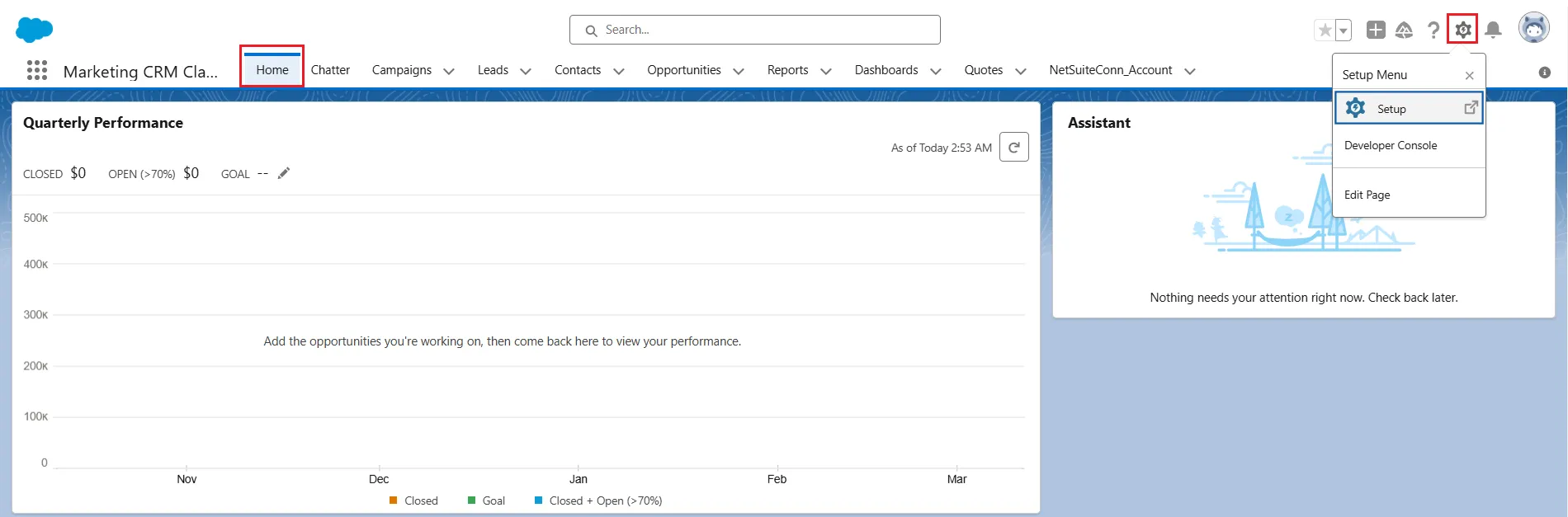
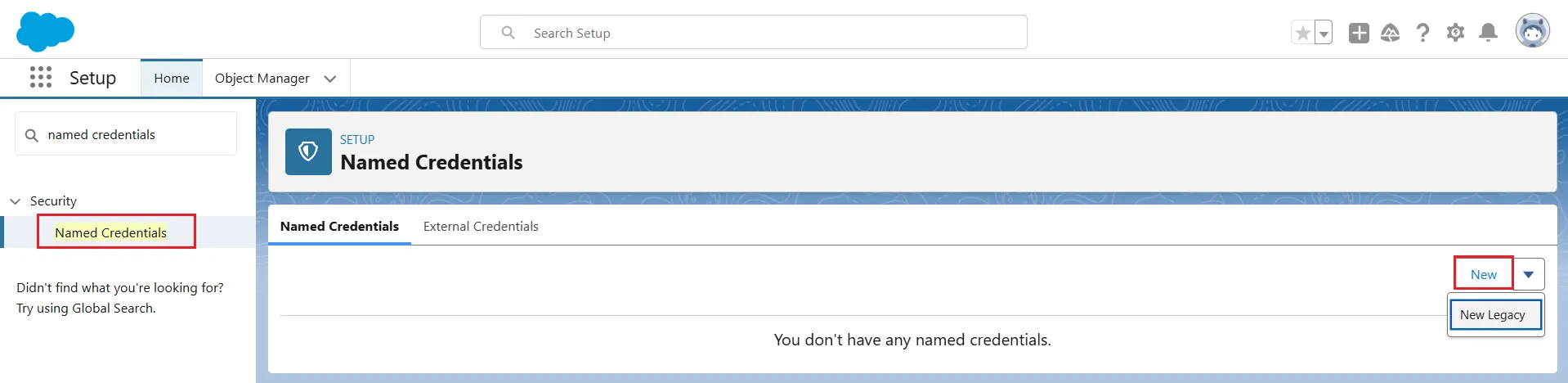
- Log into Salesforce and navigate to Setup.
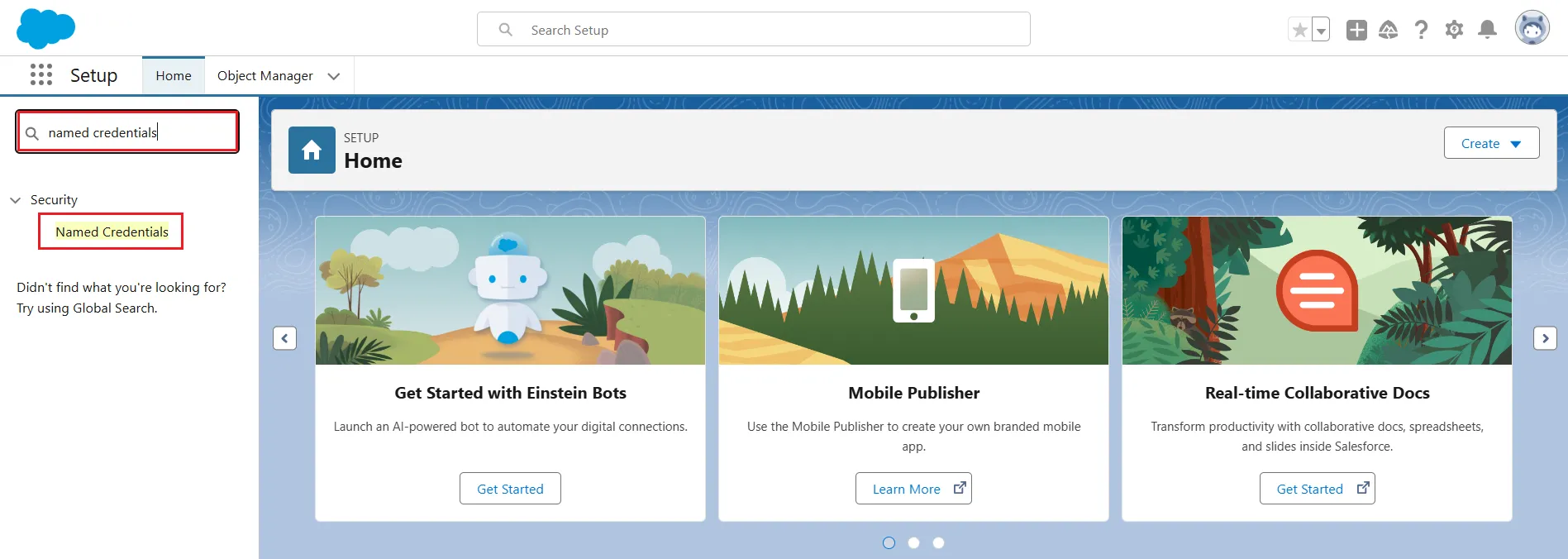
- Search for Named Credentials in the search bar and click on it.
- Select New -> New Legacy.
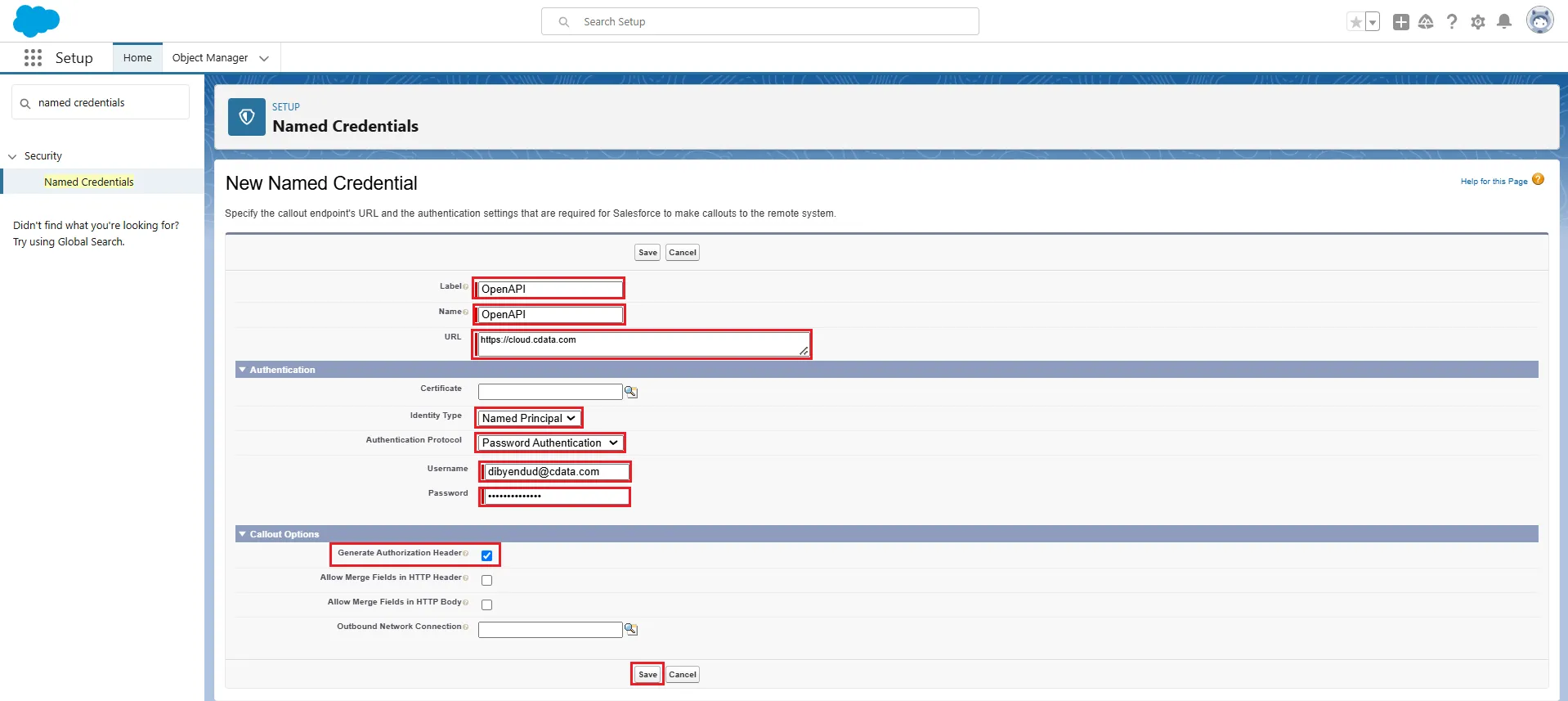
- Add the given details in the New Named Credential screen:
- Label: enter a label of your choice
- Name: enter a name for the named credential
- URL: https://cloud.cdata.com
- Identity Type: Named Principal
- Authentication Protocol: Password Authentication
- Username: enter your CData Connect AI username. This is displayed in the top-right corner of the CData Connect AI interface. For example, [email protected]
- Password: enter the PAT you generated on the Settings page
- Generate Authorization Header: enable the checkbox
Click Save to save the details.
Create an External Service
- Now, search for External Services in the search bar and click on it.
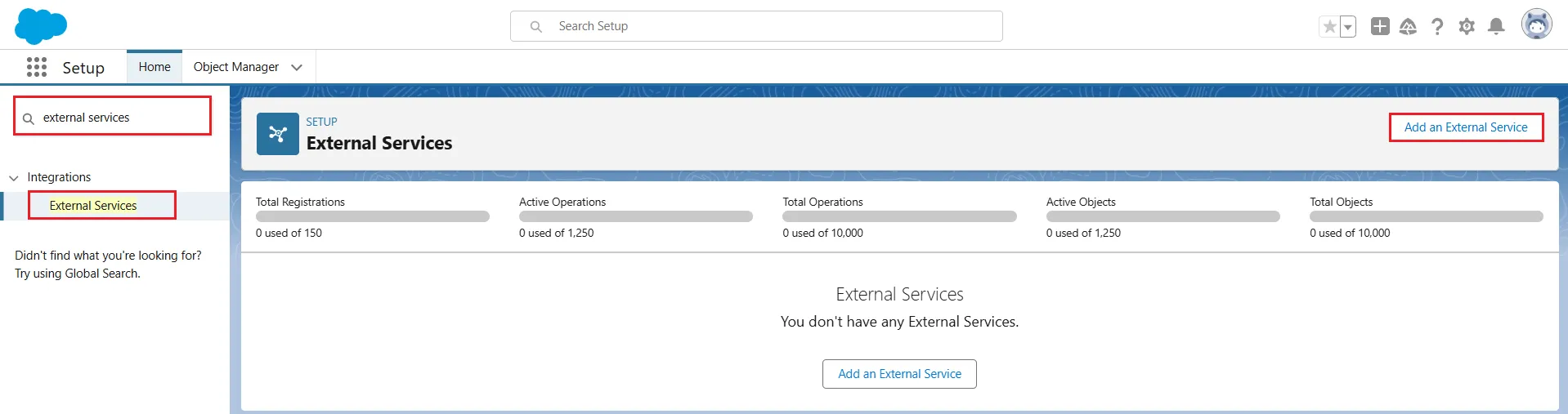
- In the Add an External Service page, click From API Specification under Select an API Source.
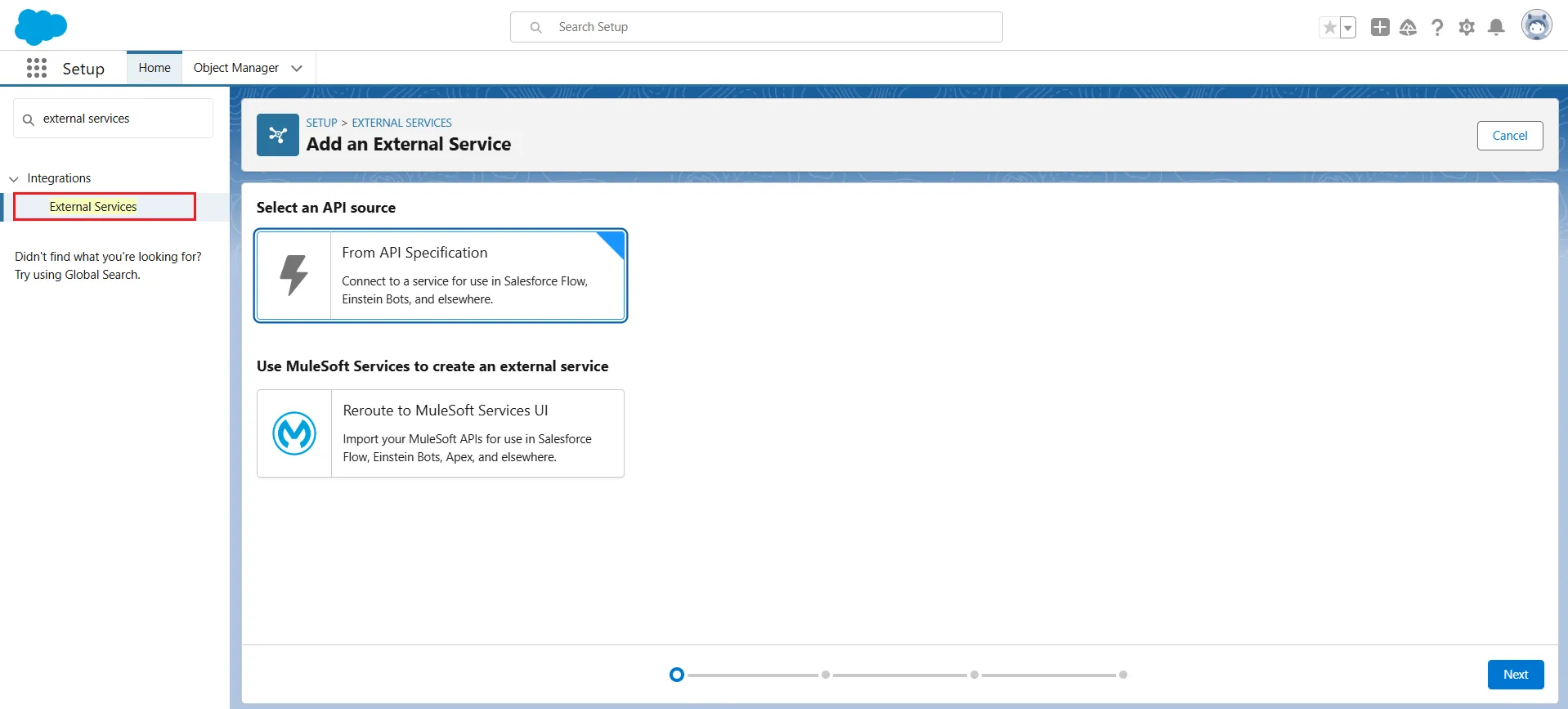
- In the Enter an Existing Service page, enter the given details under Modify Exiting Registration Details:
- External Service Name: enter an identifying name for your external service
- Description: enter a description of your external service (not a mandatory field)
- Service Schema: Relative URL
- Select a Named Credential: OpenAPI
- URL: copy the OpenAPI URL from Connect AI and remove https://www.cdata.com and keep the rest of the URL. Make sure the URL starts with a forward slash "/api...".
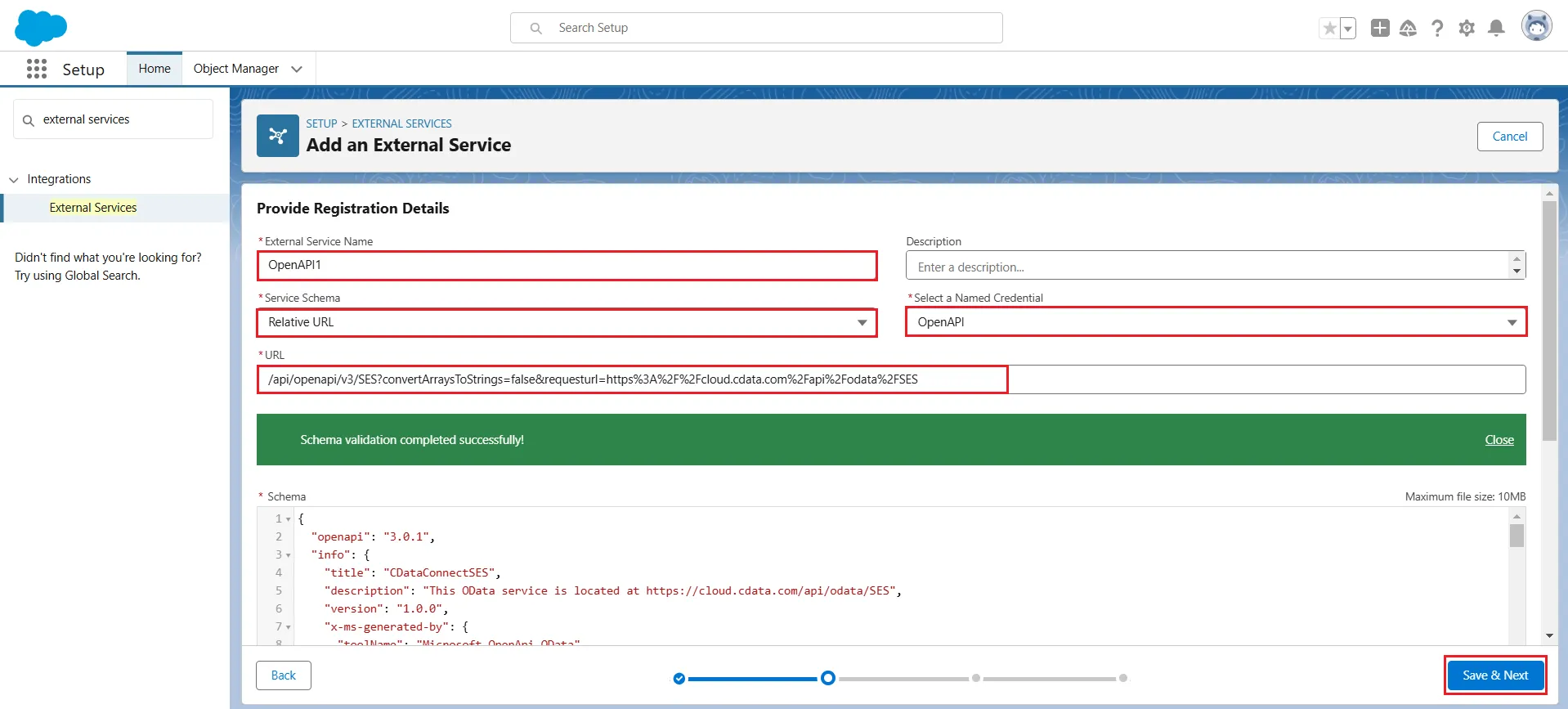
If the connection is successful, the message "Schema validation completed successfully!" will be displayed on the screen. Click Save & Next
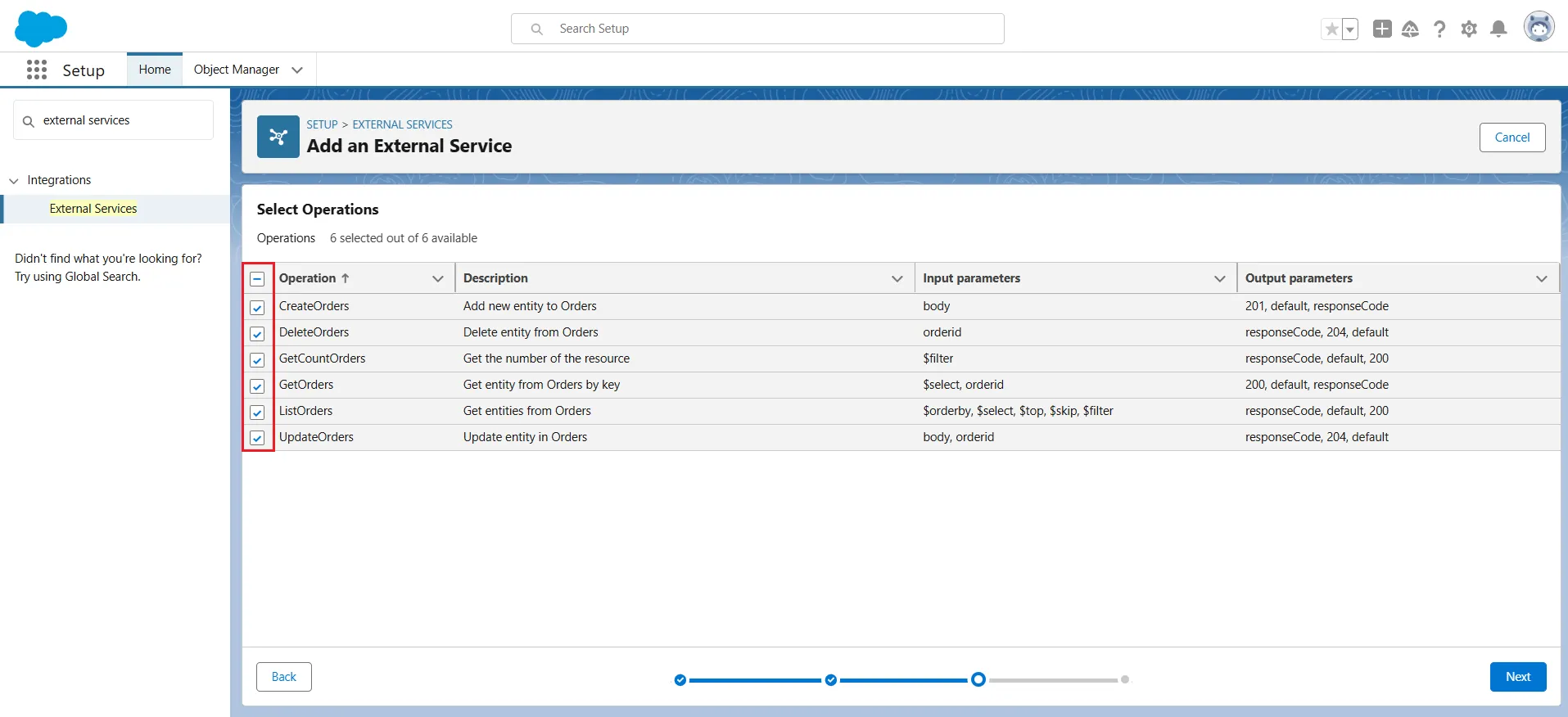
- Select all the entities in the Select Operations screen. Click Next.
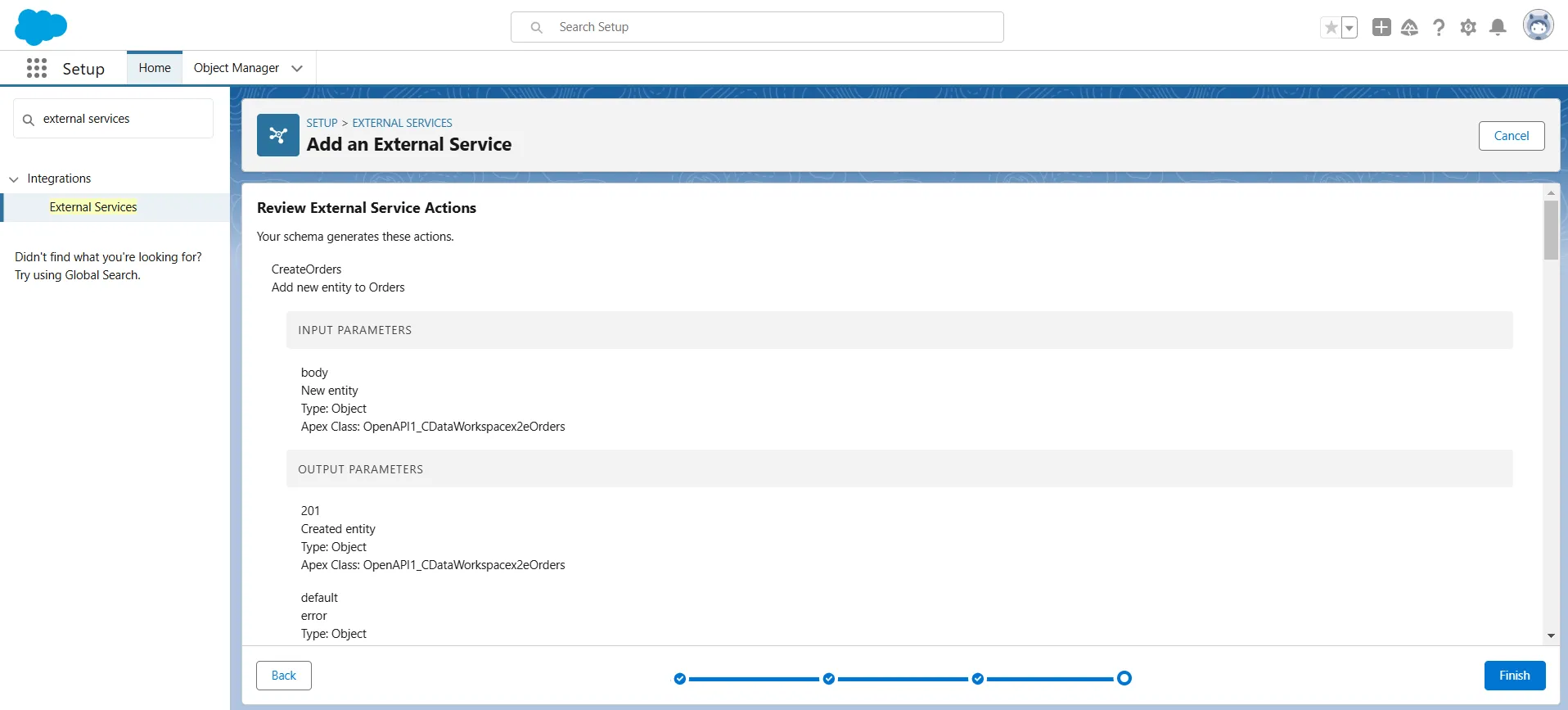
- All the schema-generated actions are displayed in the Review External Services Actions screen. Click Finish.
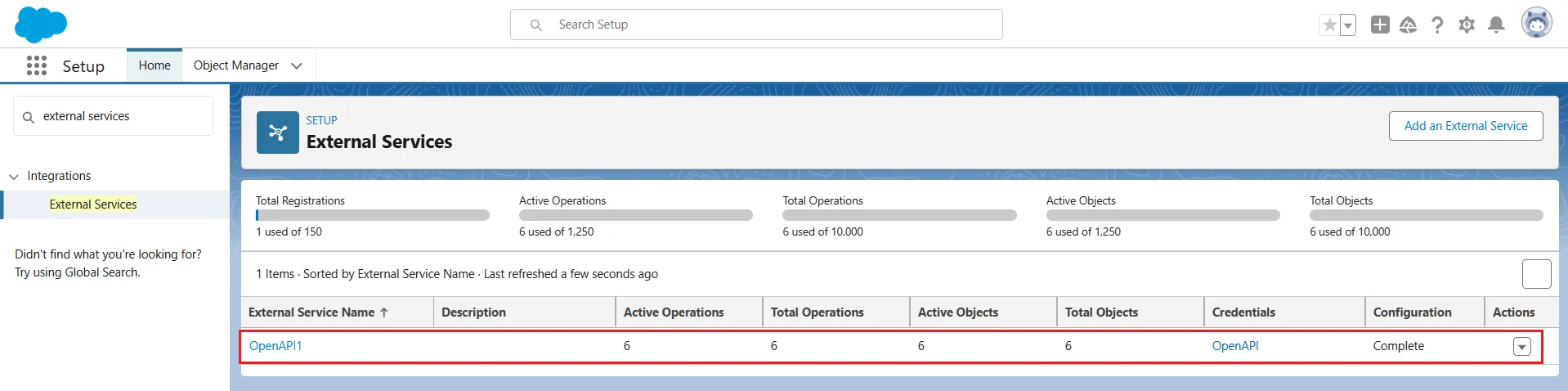
- The External Services page will display all the external services created.
Create a new Flow
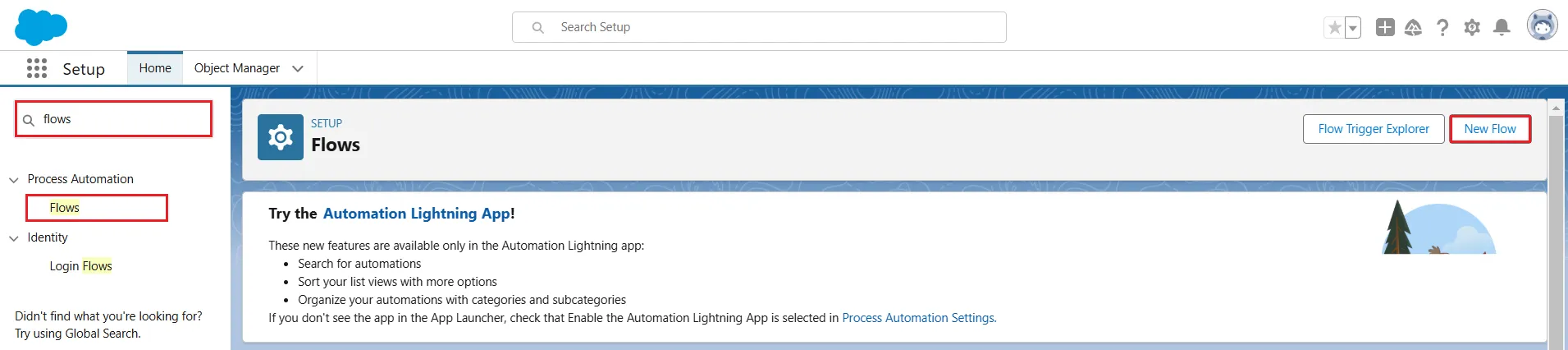
- Search for Flows in the search bar and click on it.
- Click New Flow.
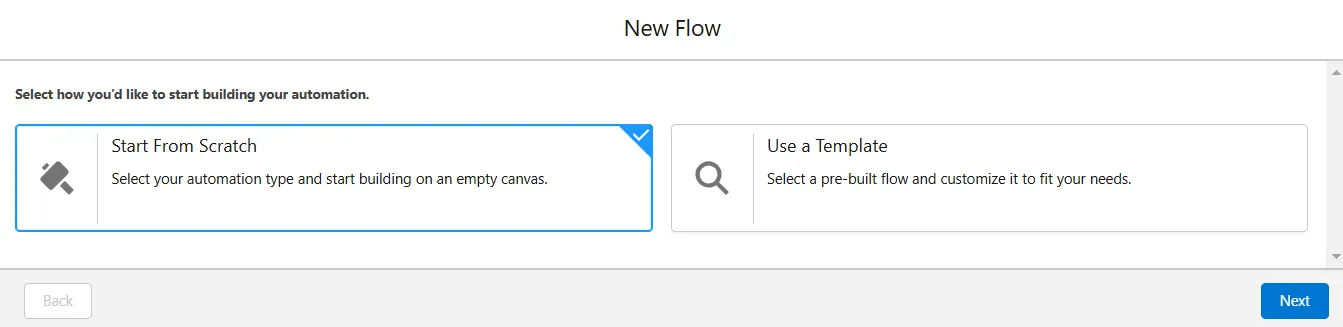
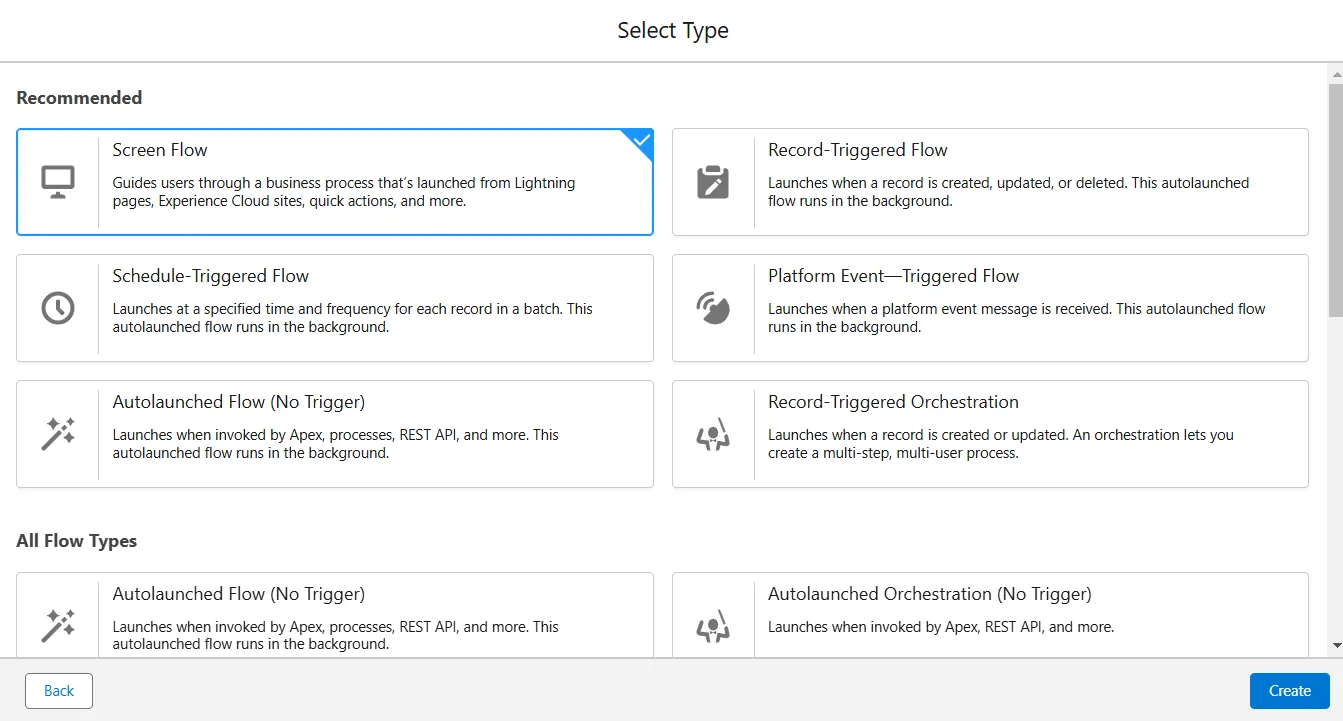
- Select Start From Scratch option and click Screen Flow.
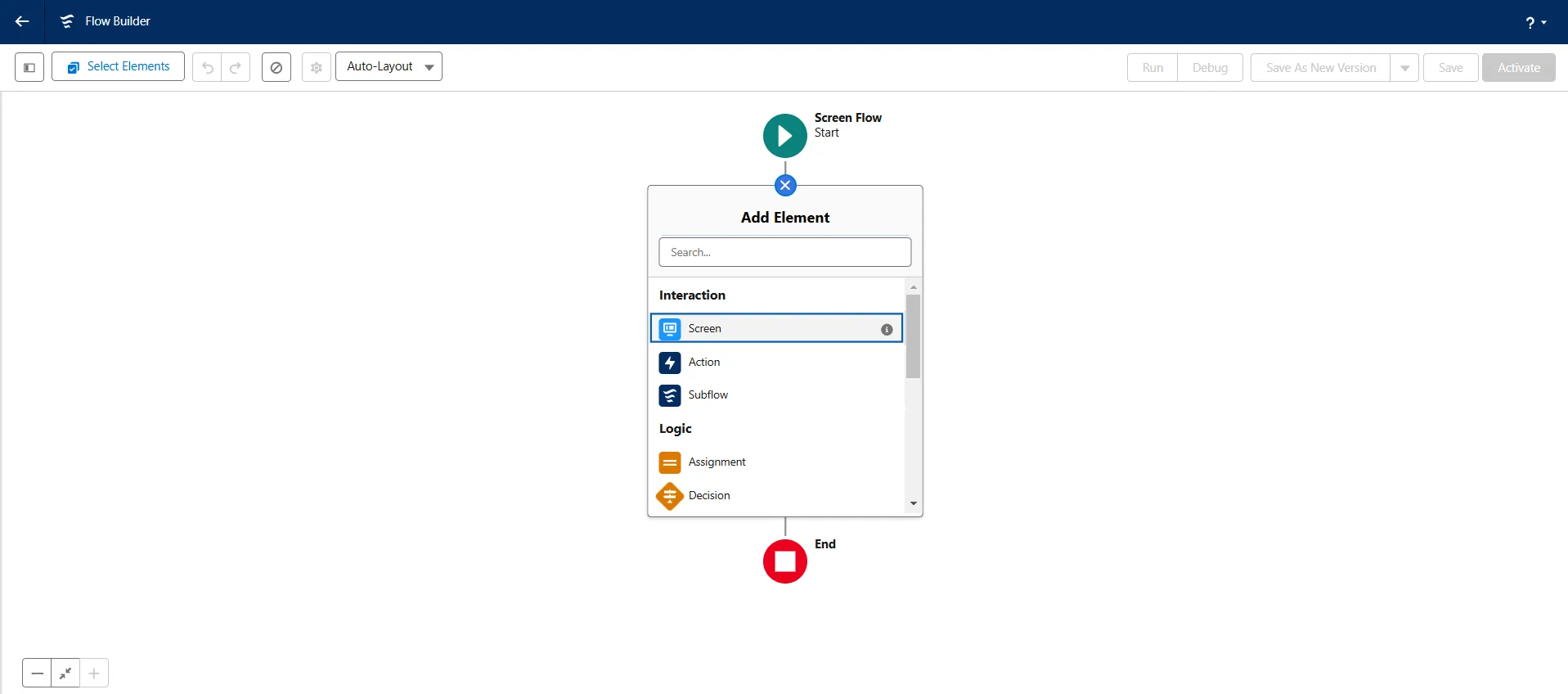
- In the Flow Builder screen, click on the "" between Screen Flow and End.
- Select Screen from Add Element.
- In the New Screen window, enter "Input Screen" in Label and the API Name will be auto-filled accordingly.
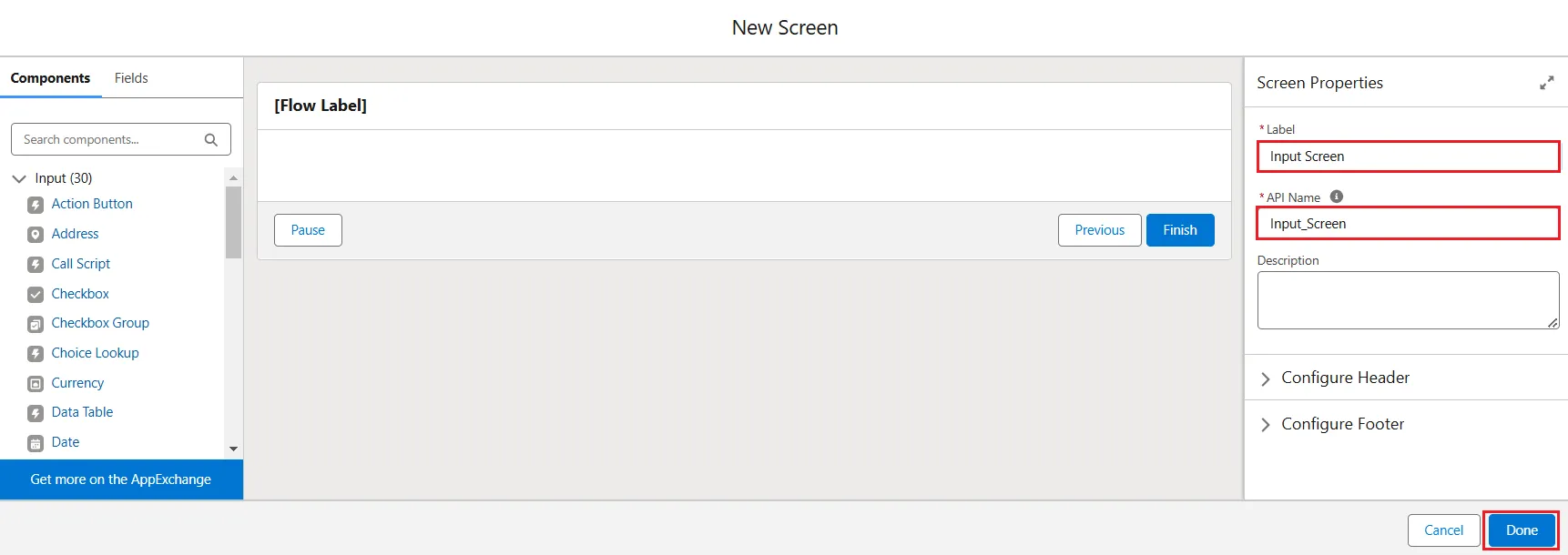
- Next, based on the table you want to update, note the column data types to add the components to the flow.
- Now, for the orderid column, search for the "Number" component in the Components search bar and click on it. Enter Label as "Enter Order ID" and again API Name will be auto-filled accordingly. Enable the Require checkbox and apply this for steps 9 and 10.
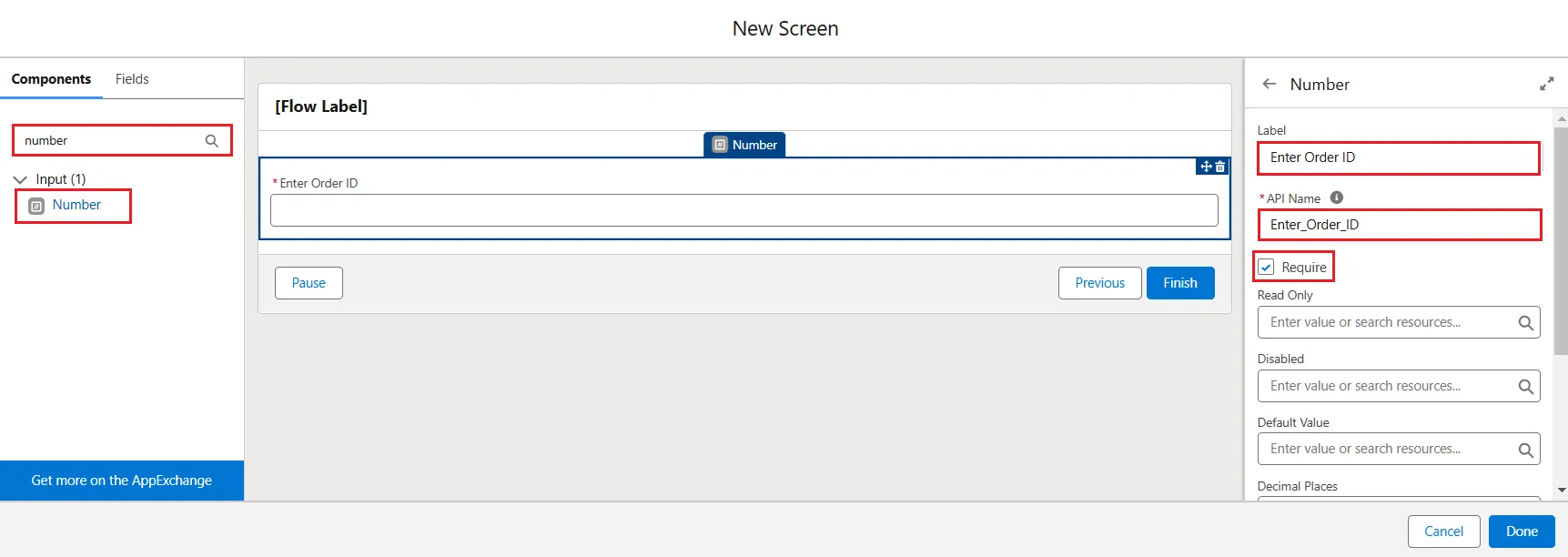
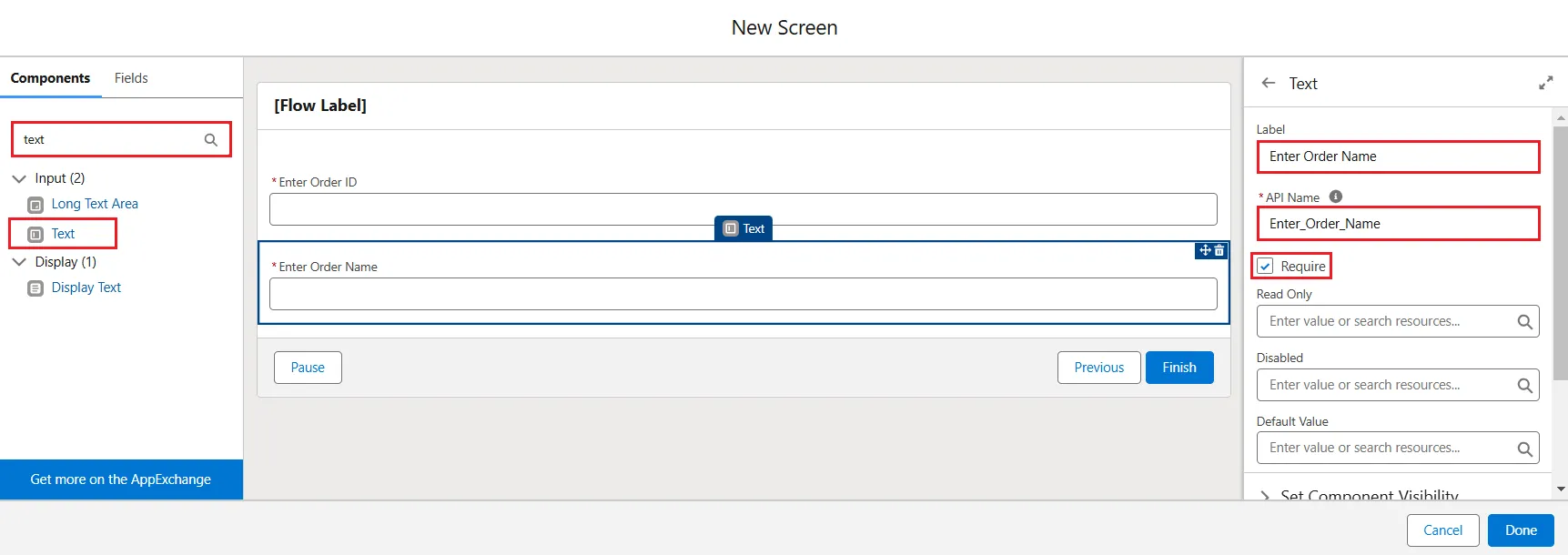
- For the ordername column, search for the "Text" component in the Components search bar and click on it. Enter Label as "Enter Order Name".
- For the personid column, search for the "Number" component in the Components search bar and click on it. Enter Label as "Enter Person ID".
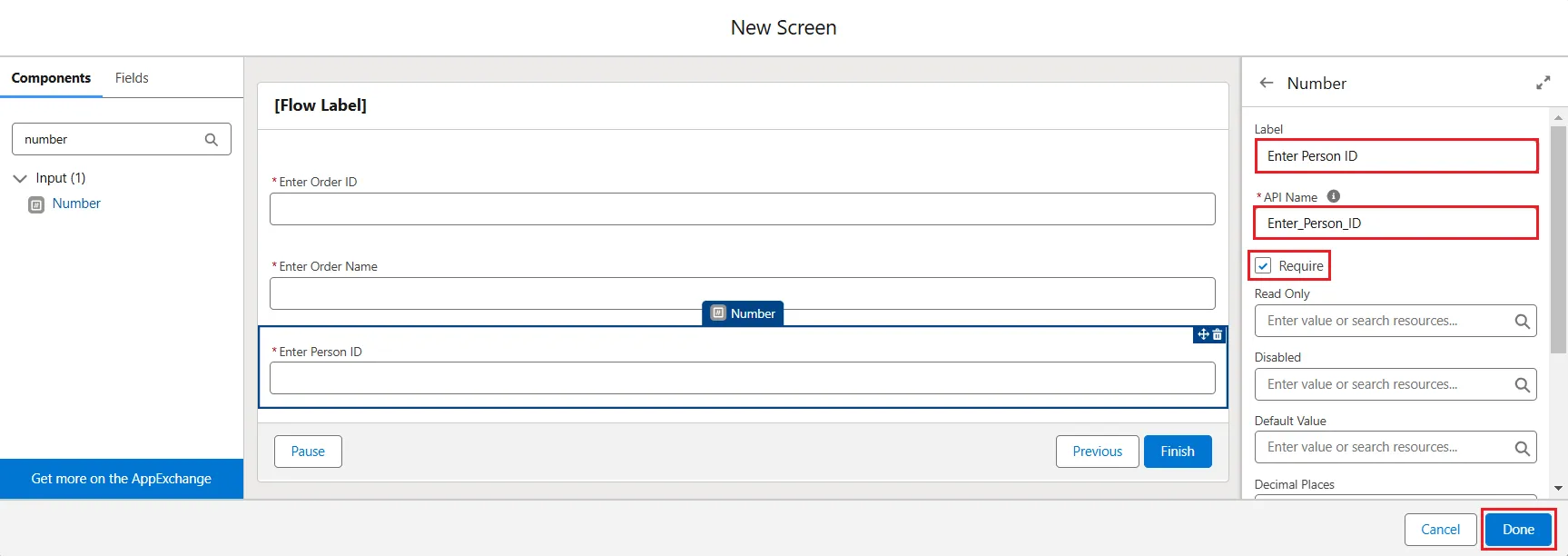
- Click Done and Input Screen will be added in the Flow Builder.
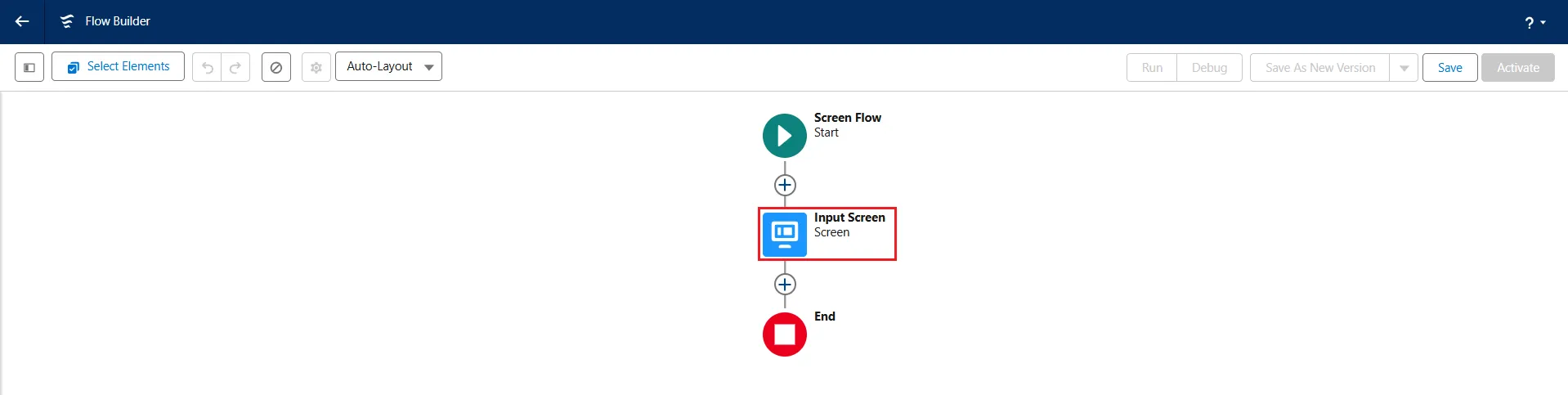
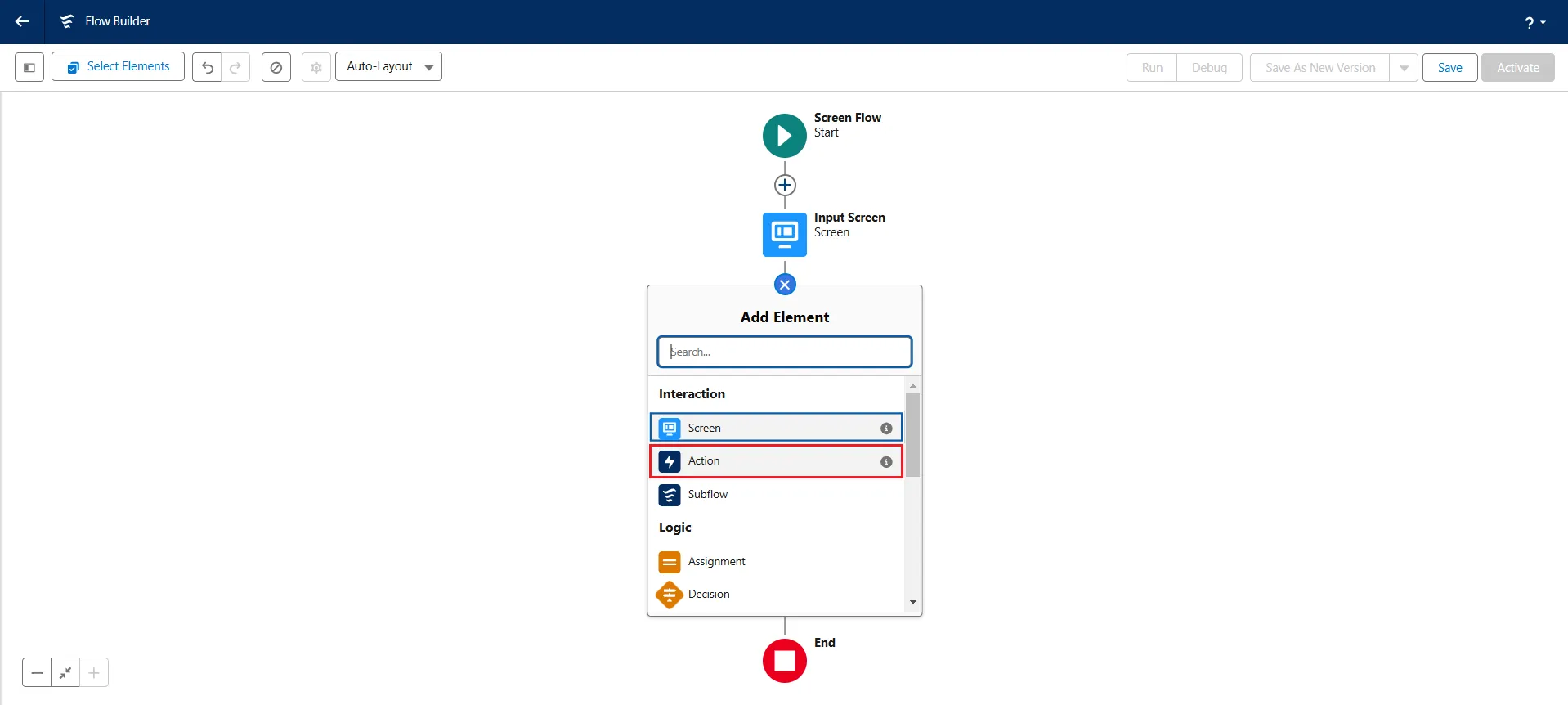
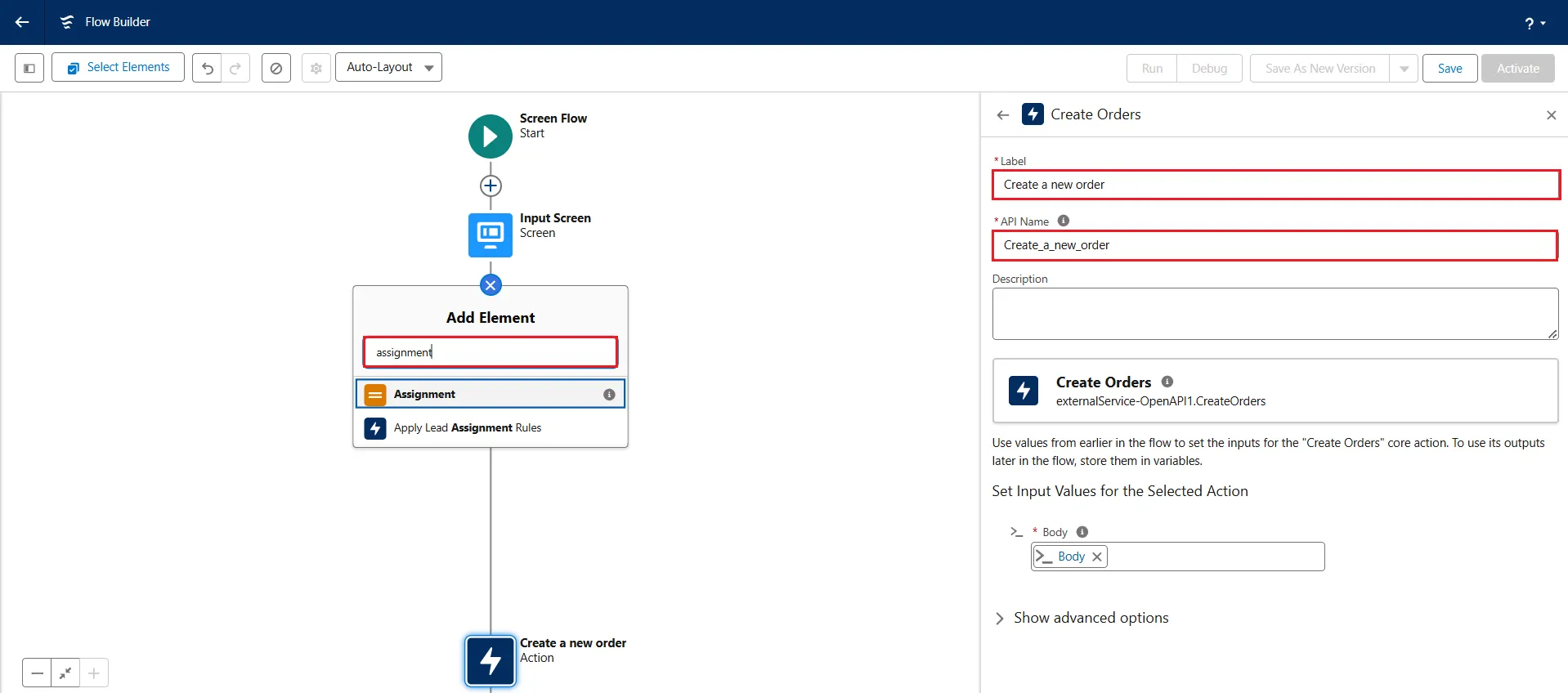
- Now, add an element Action below the input screen in the flow.
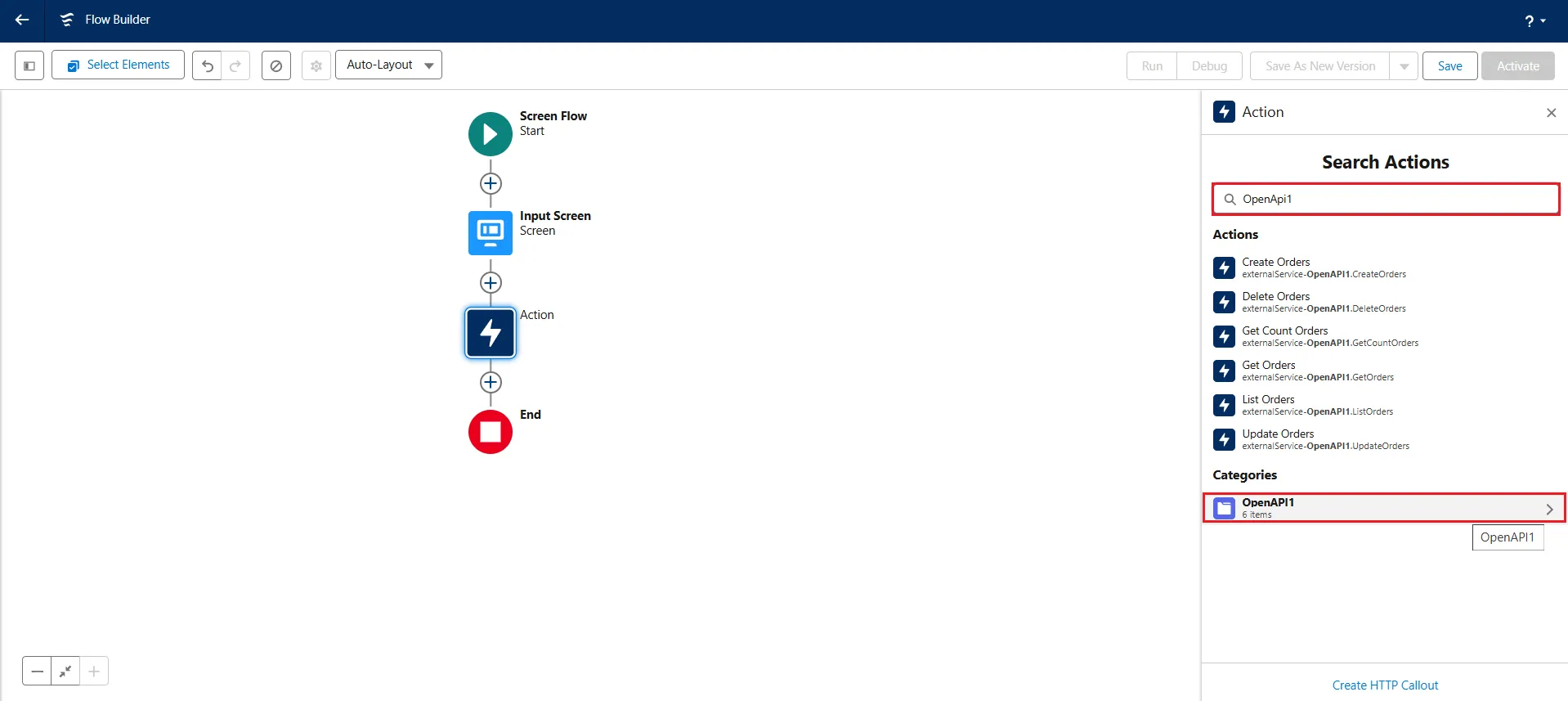
- Under Search Actions, search and click the newly created external service, in this case, OpenAPI1.
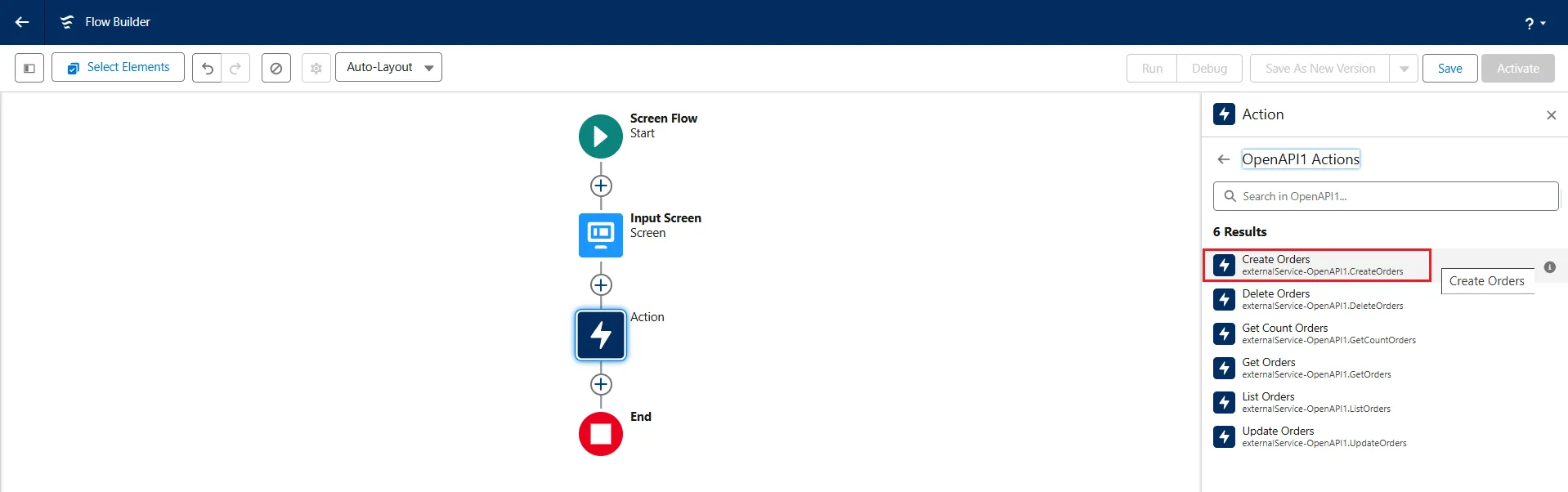
- Click Create Orders.
- Enter a name in Label, the API Name gets auto filled.
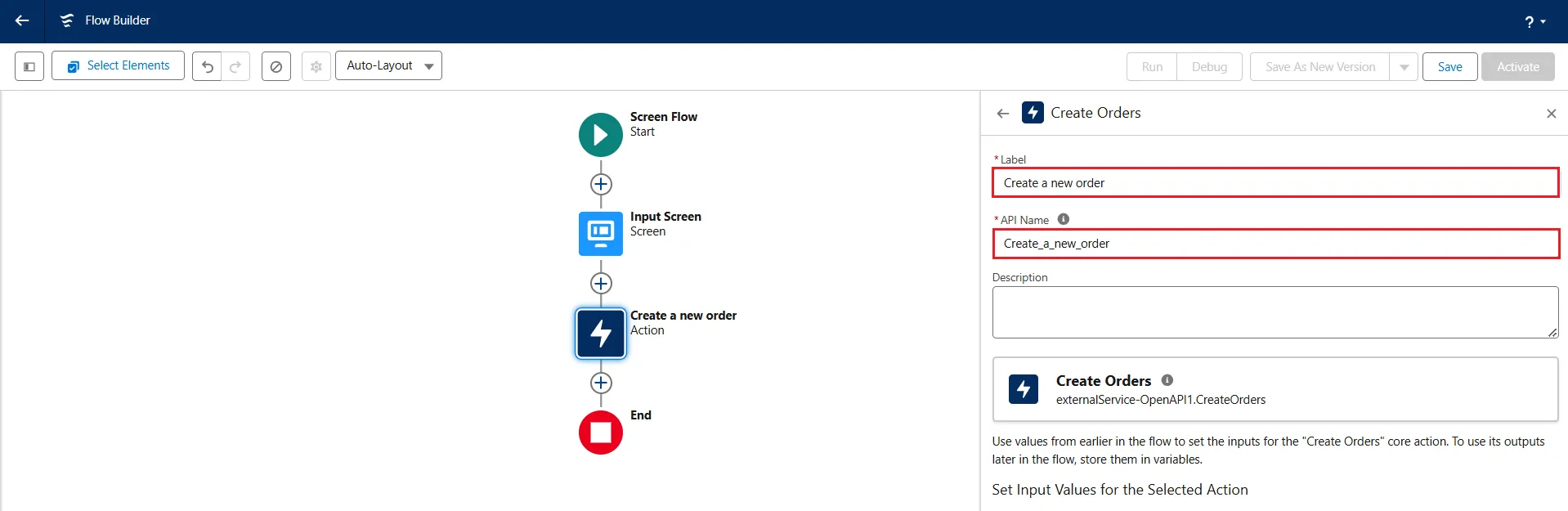
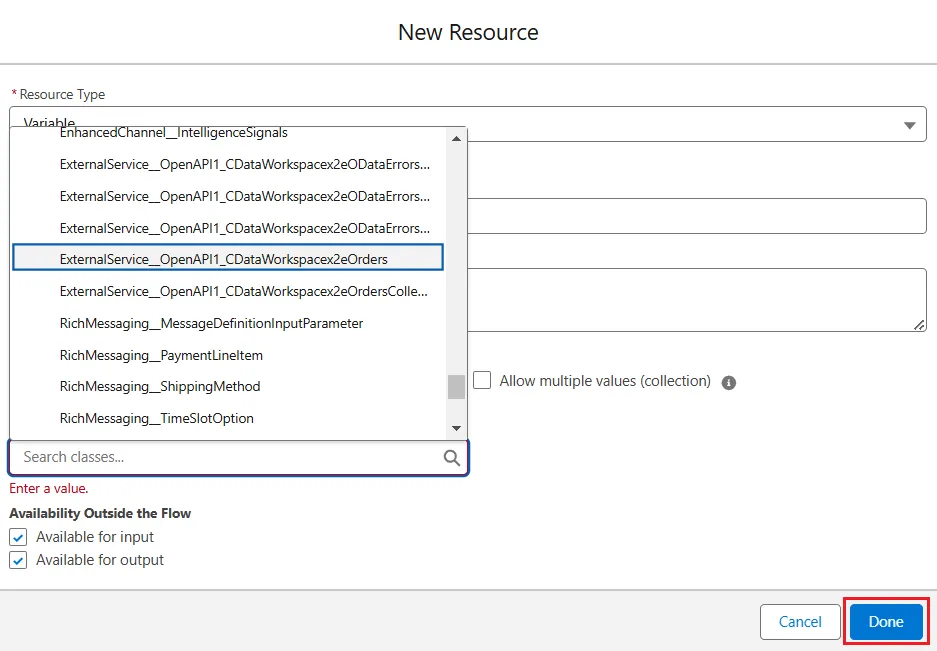
- Click on the search bar under Set Input Values for the Selected Action and select New Resource -> Variable.
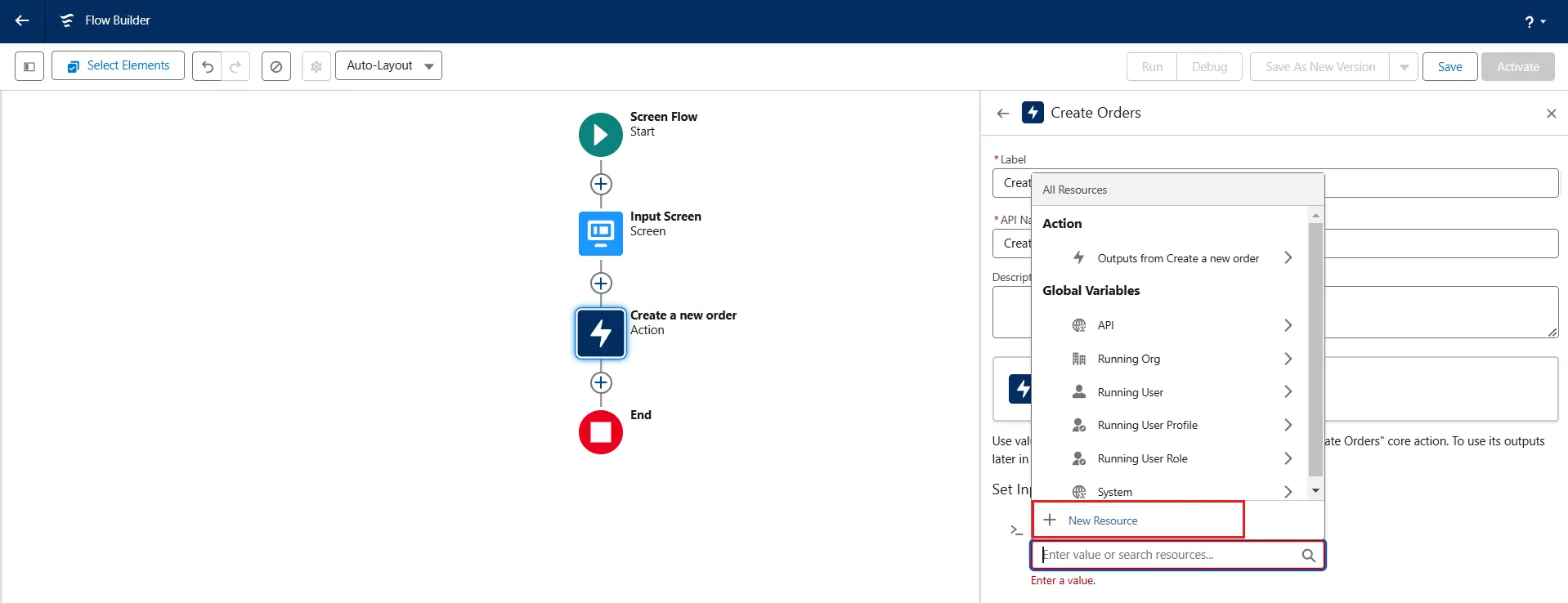
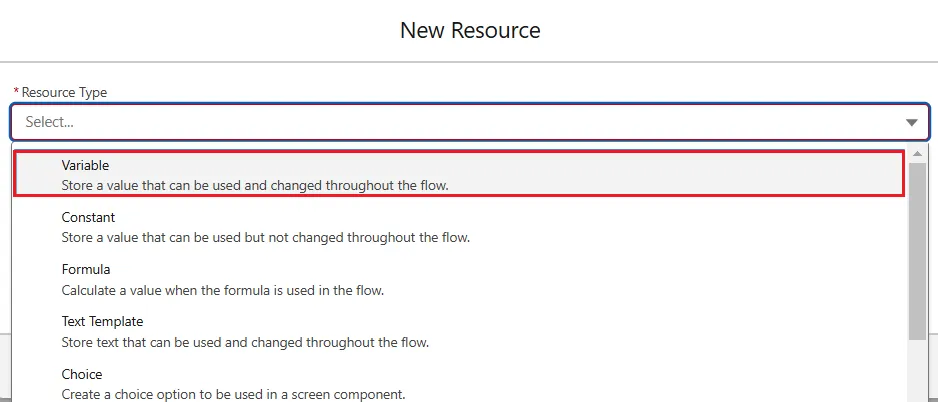
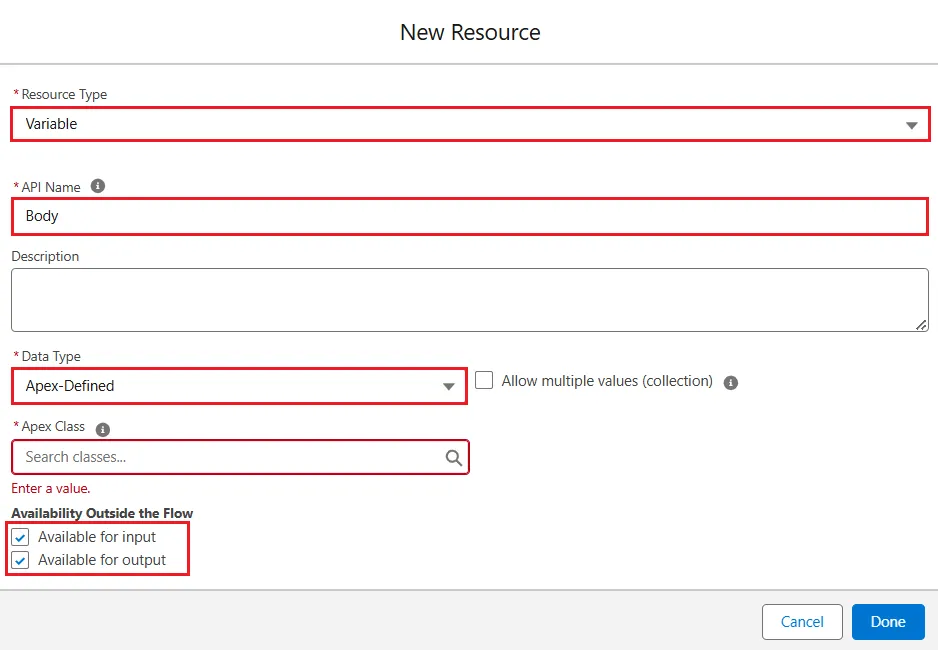
- In the New Resource window, enter the following details:
- Resource Type: Variable
- API Name: Body
- Data Type: Apex-Defined
- Apex Class: ExternalService_
_CDataWorkspace2e - Availability Outside the Flow:
- Available for input: enable checkbox
- Available for output: enable checkbox
- Availability Outside the Flow:
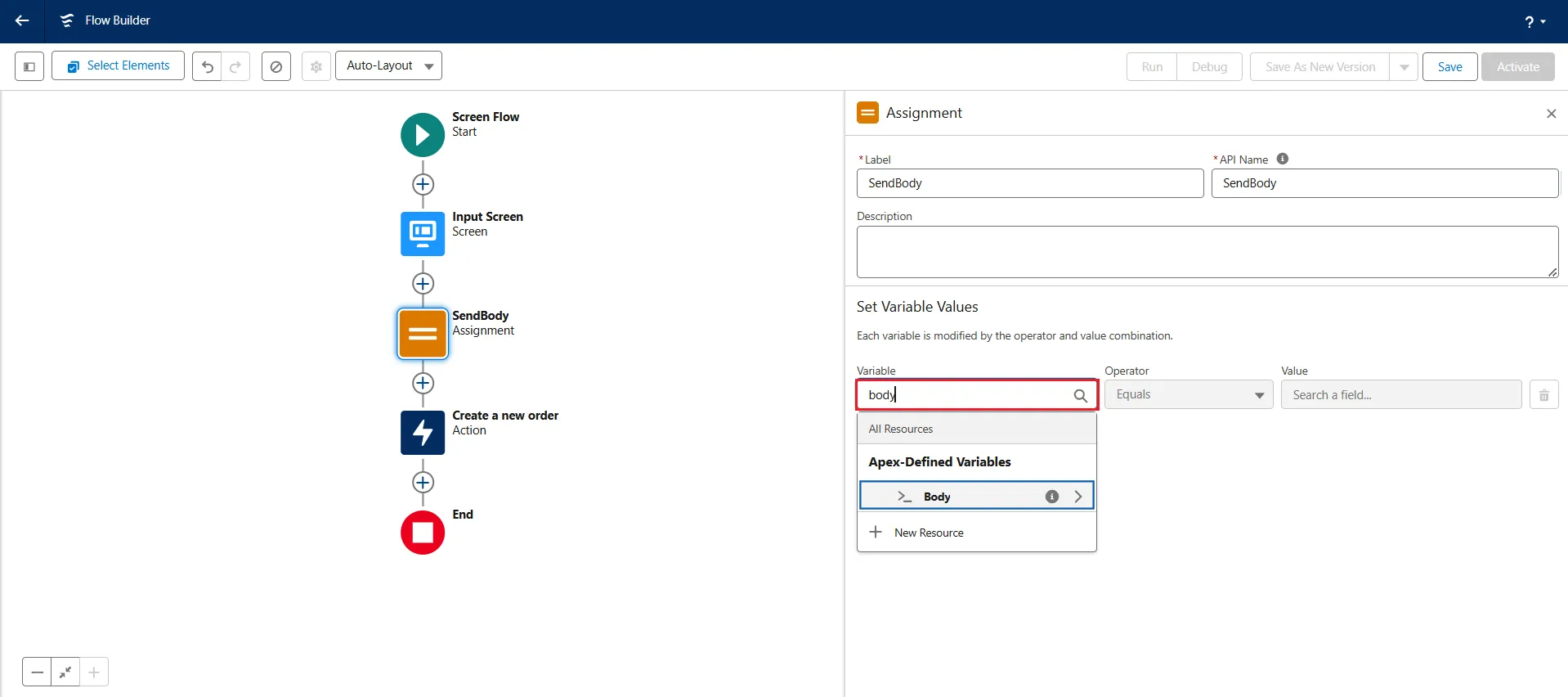
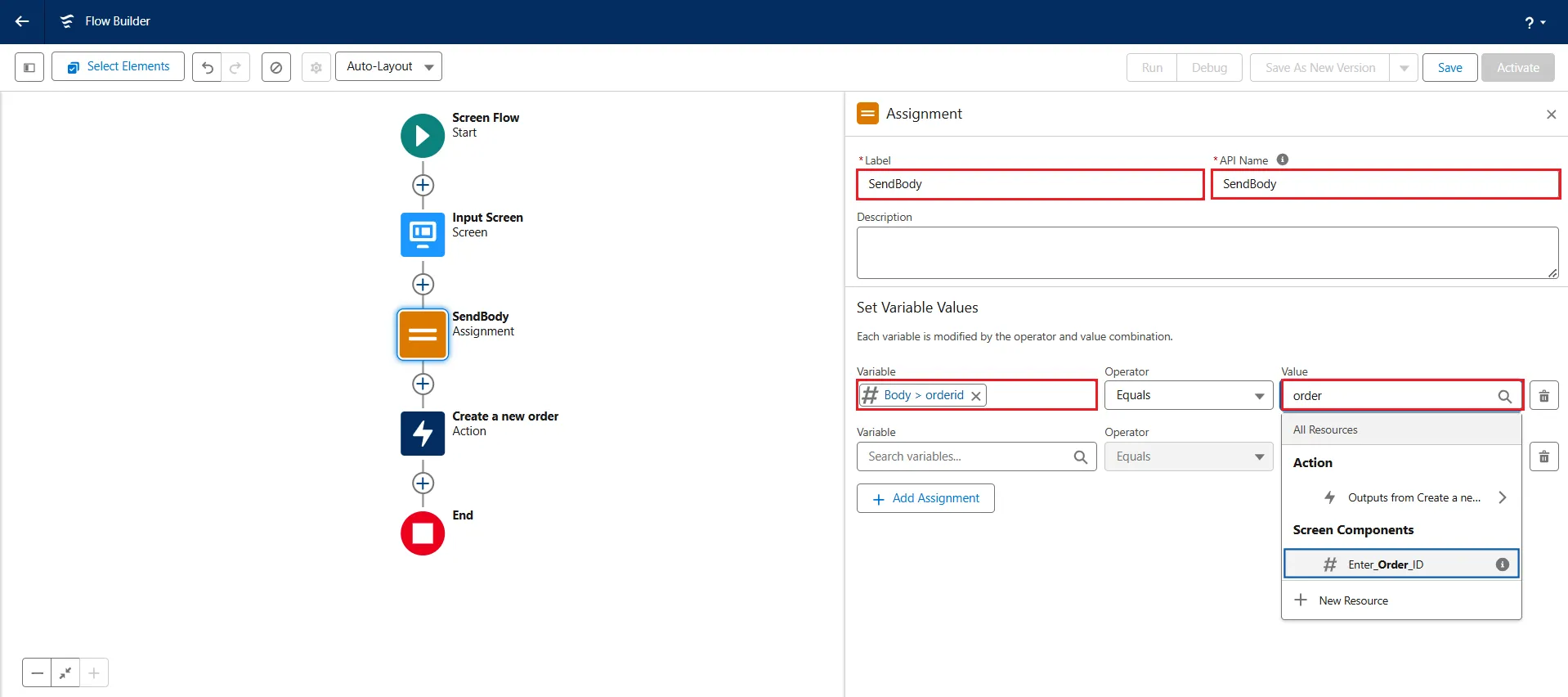
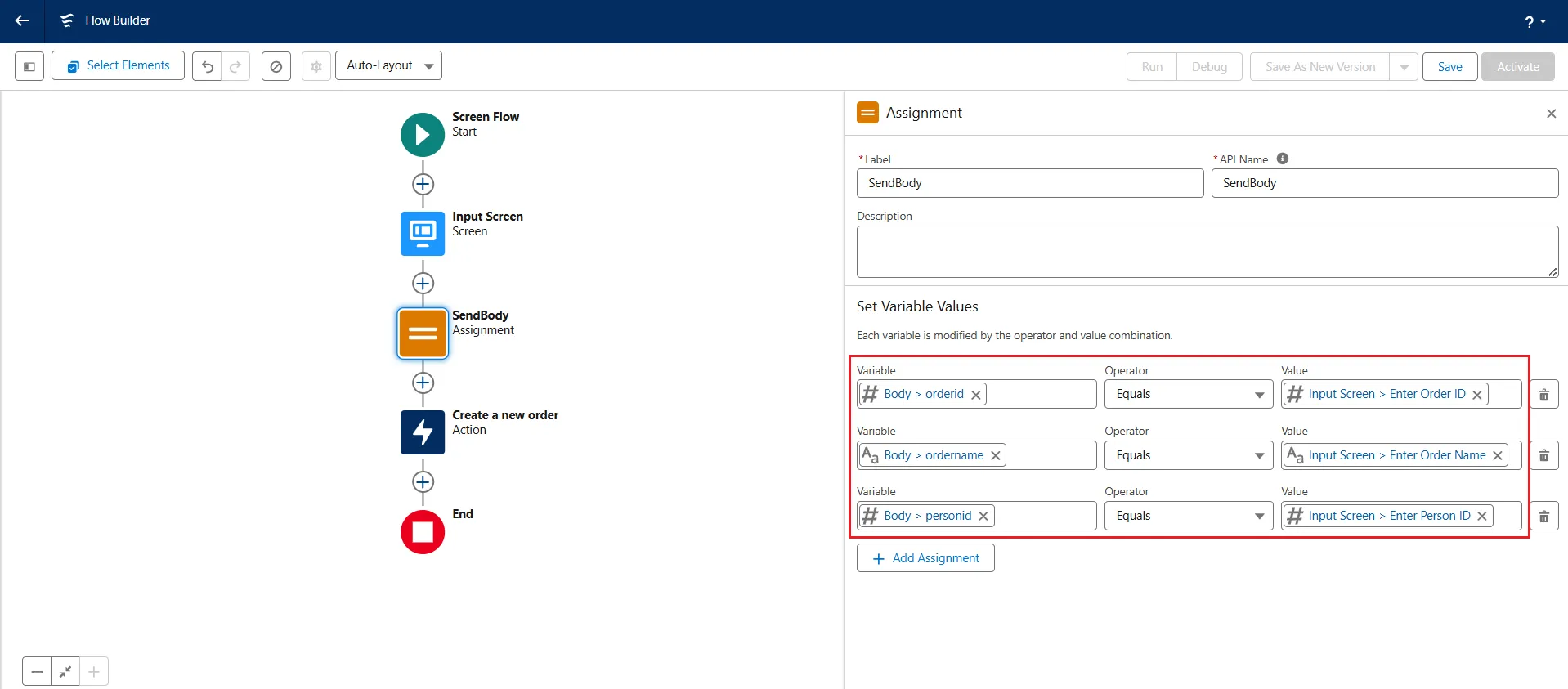
- Add a new element Assignment and add the Label name as "SendBody". Again, the API Name gets auto-filled.
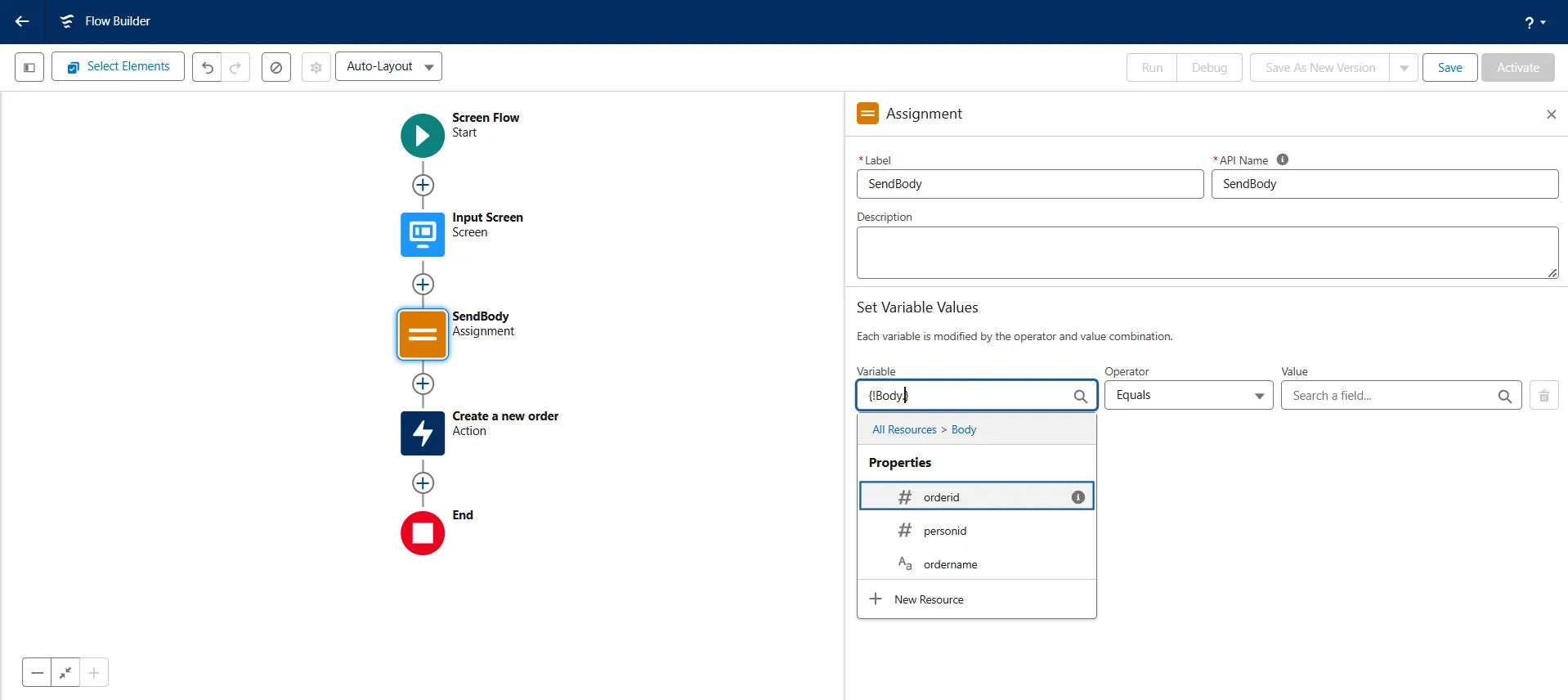
- Set the given values under Set Variable Values:
- Variable: Body>orderid; Operator: Equals; Value: Input Screen>Enter Order ID
- Variable: Body>ordername; Operator: Equals; Value: Input Screen>Enter Order Name
- Variable: Body>personid; Operator: Equals; Value: Input Screen>Enter Person ID
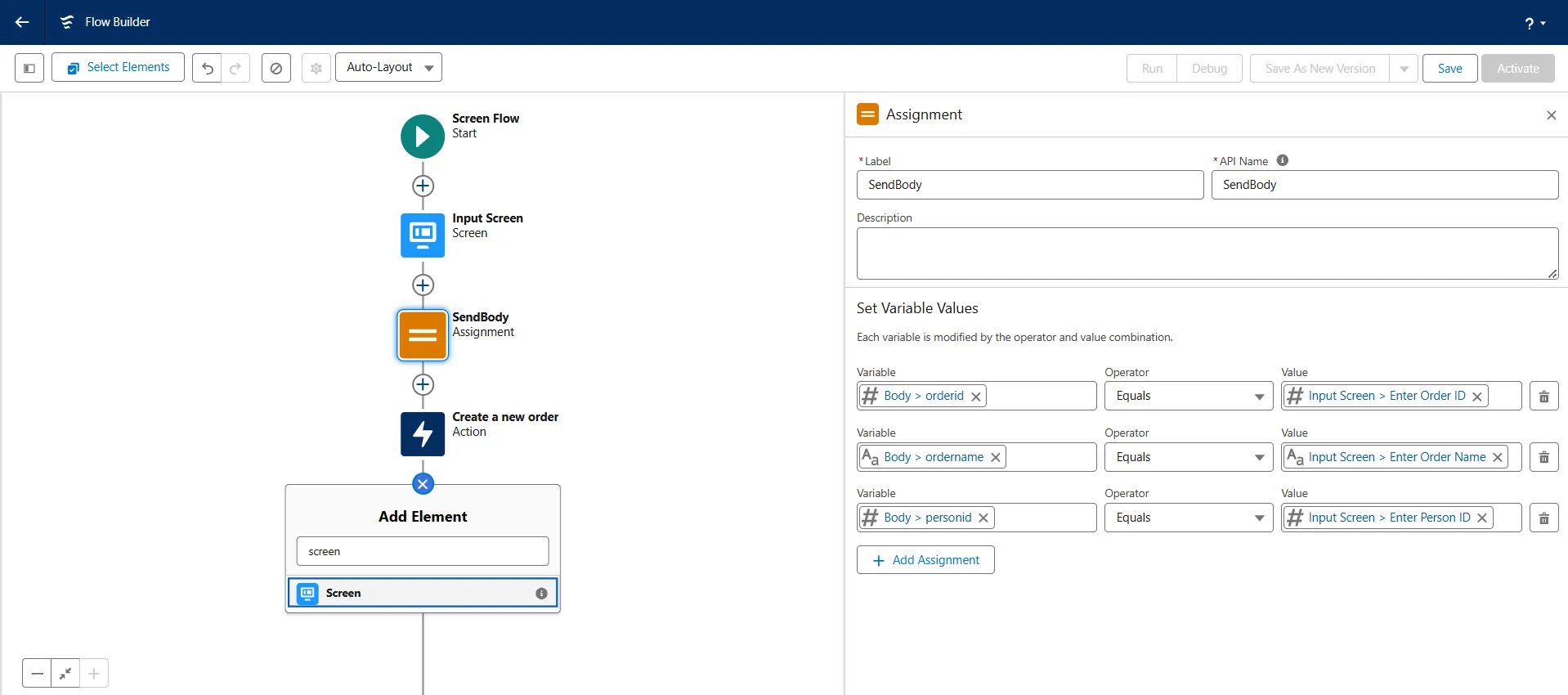
- Add another Screen element below the Action element.
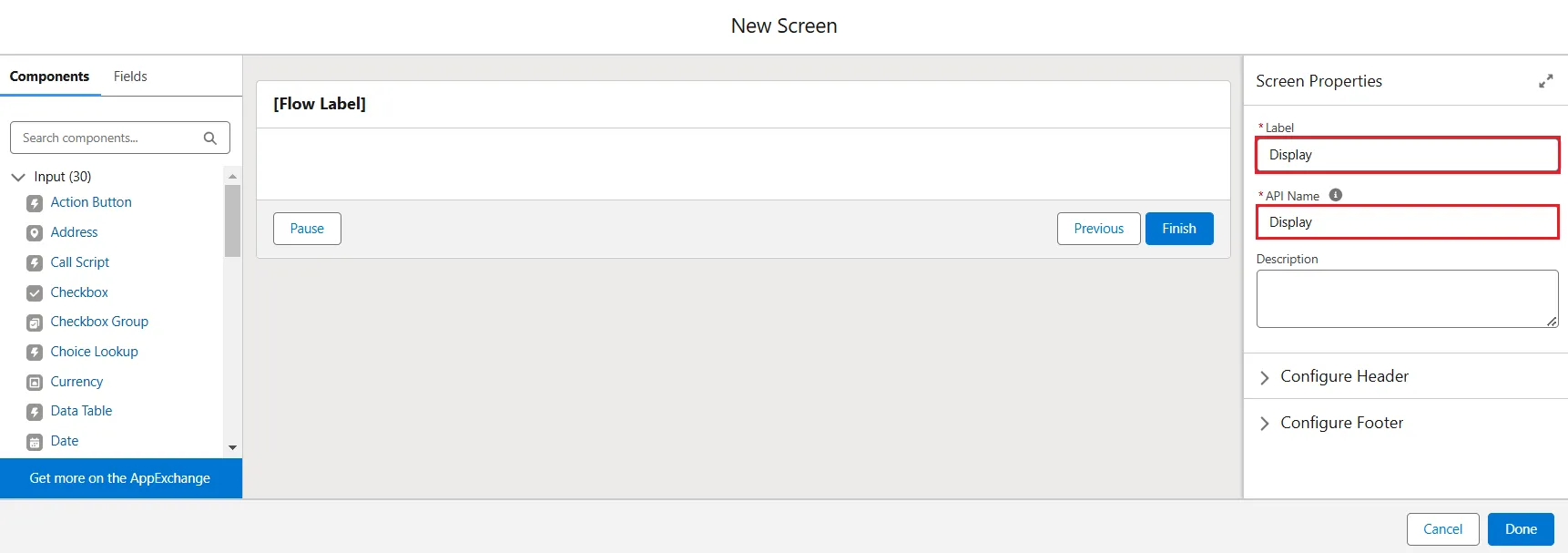
- Name the Label as "Display".
- Under Components, search for the "Display Text" component and click on it.
- Set the API Name as "Display_Result" and in the Inside a resource search bar, select Create a new order -> response code. Click Done.
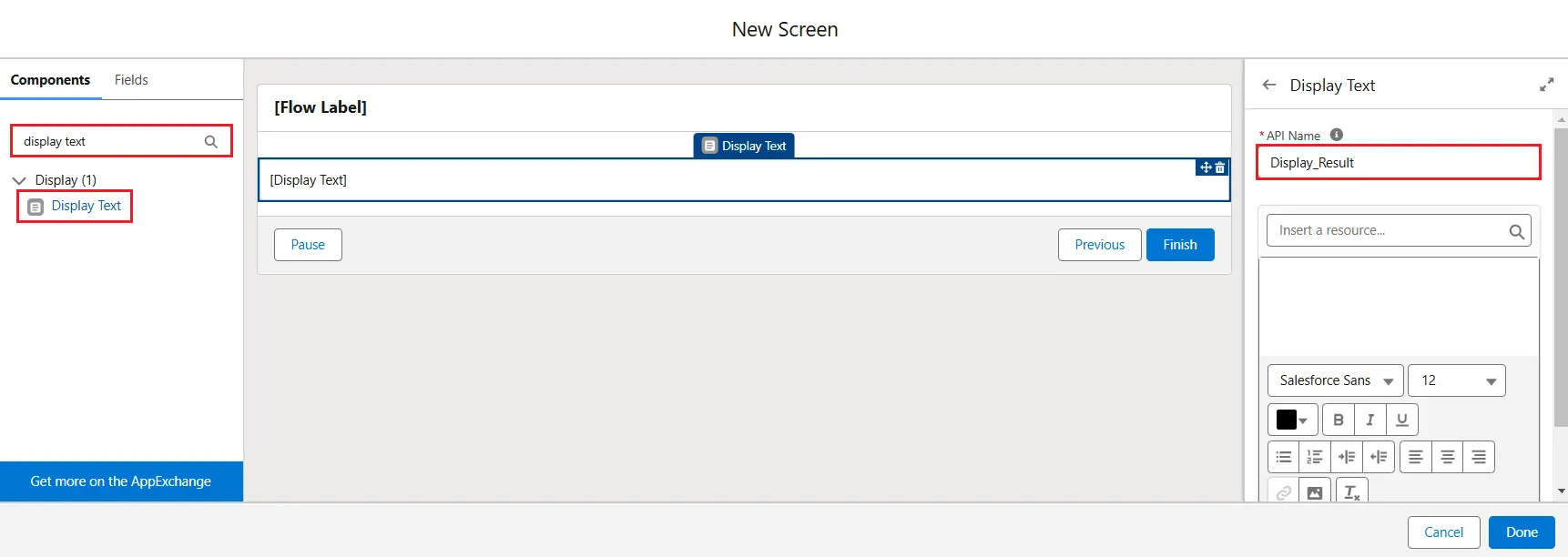
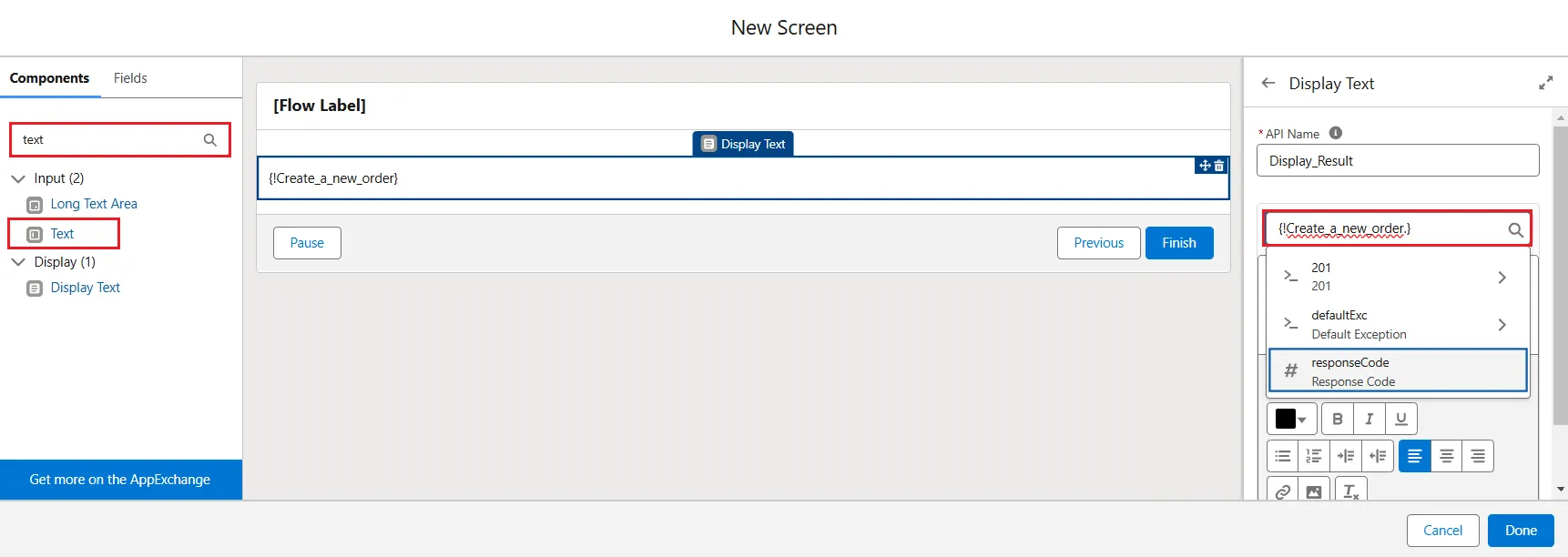
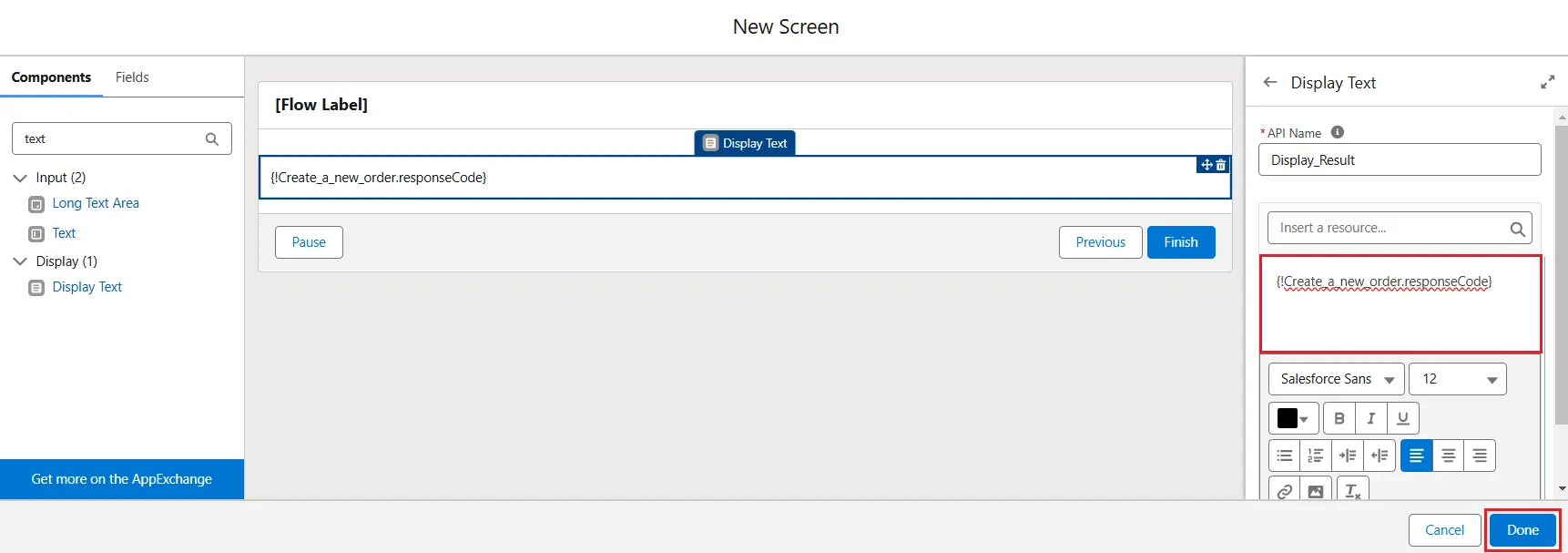
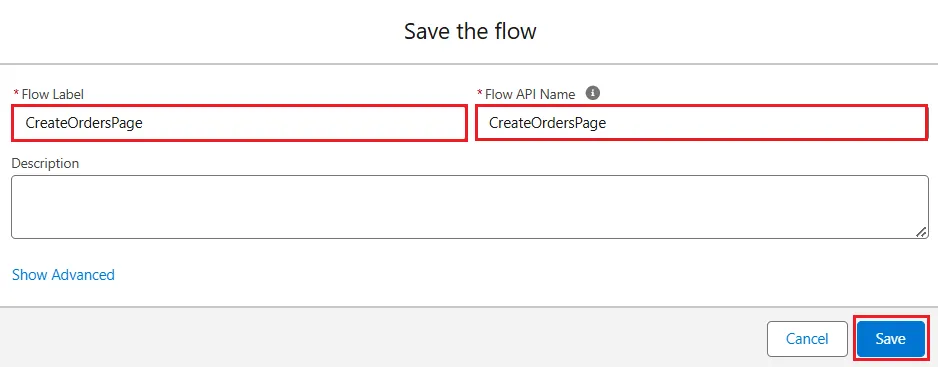
- The flow is now ready. Click Save to save the flow and add a name to the Label as the flow name, in this case, "CreateOrdersPage". Click Save.
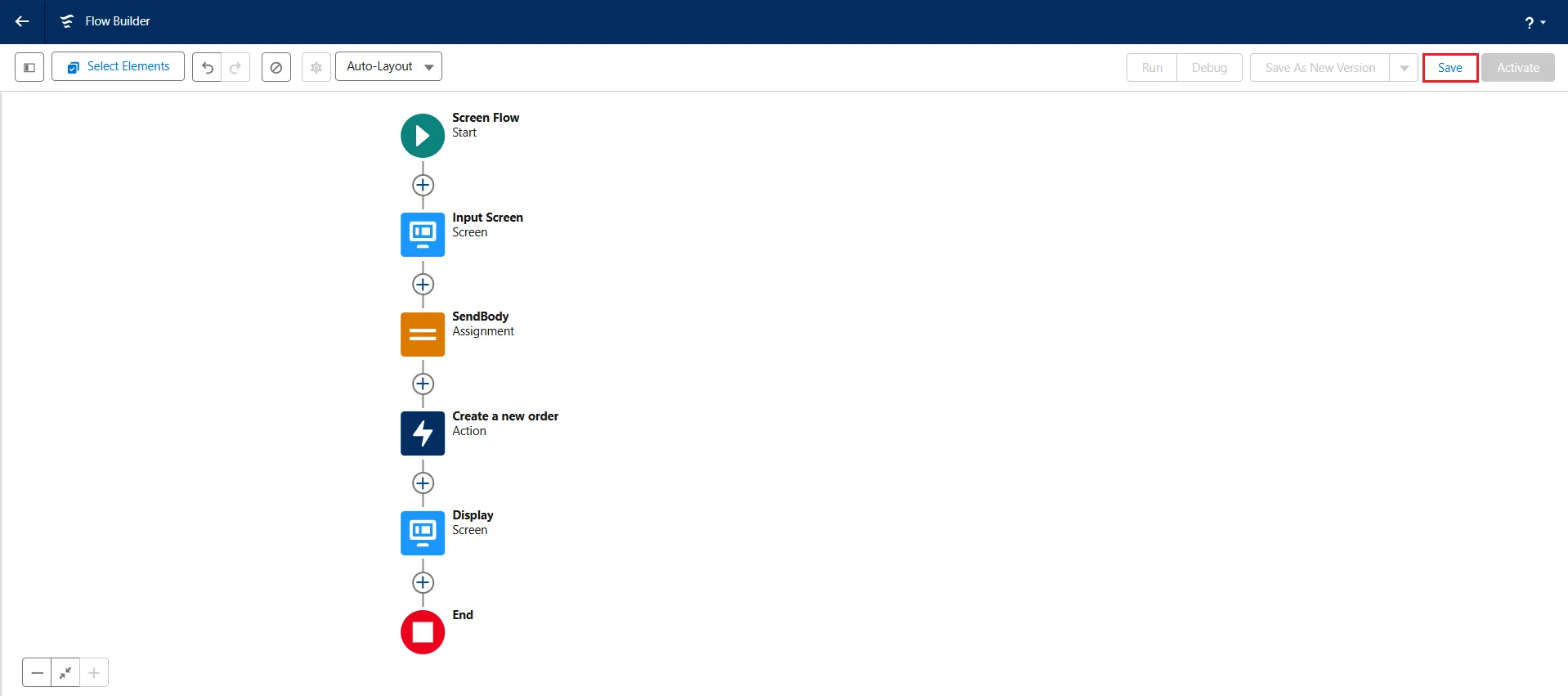
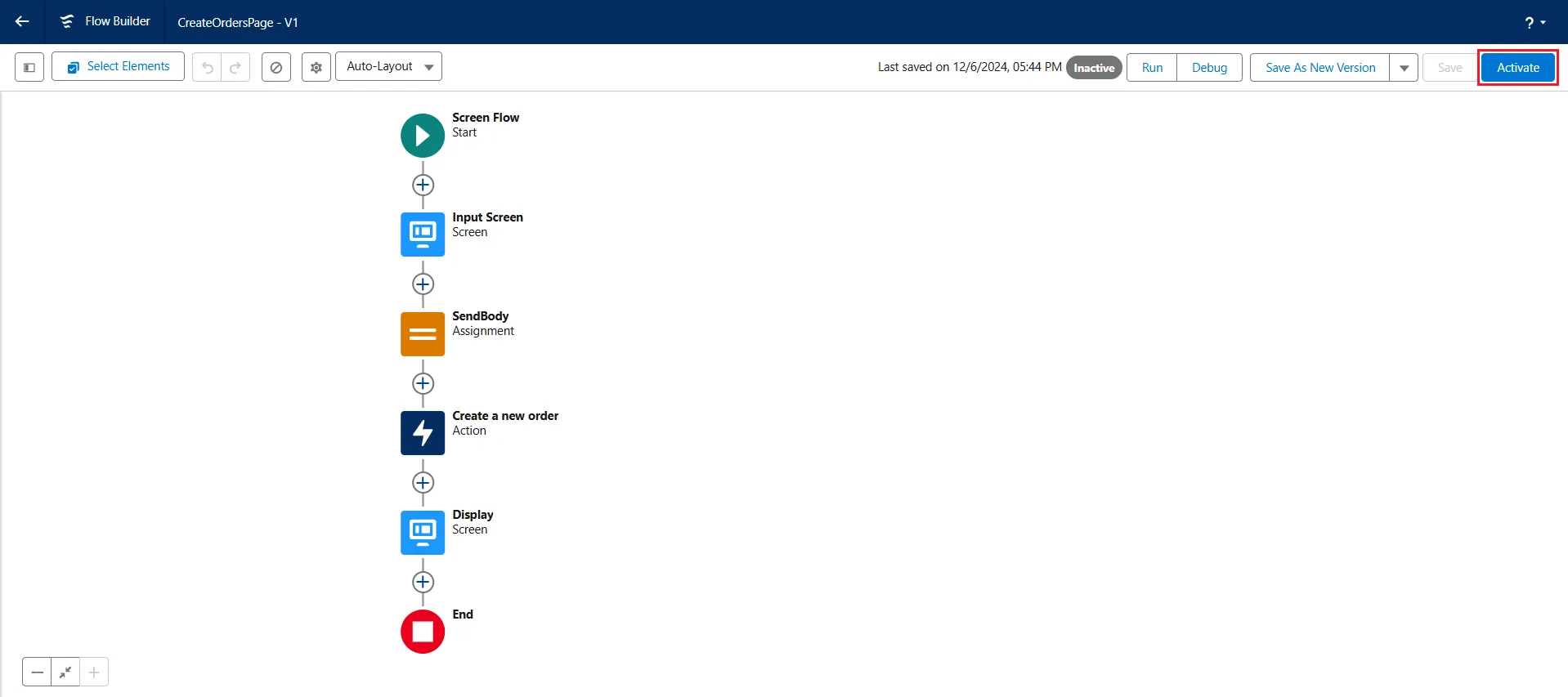
- The flow is displayed on the Flow Builder screen. Click on Activate to activate the flow.
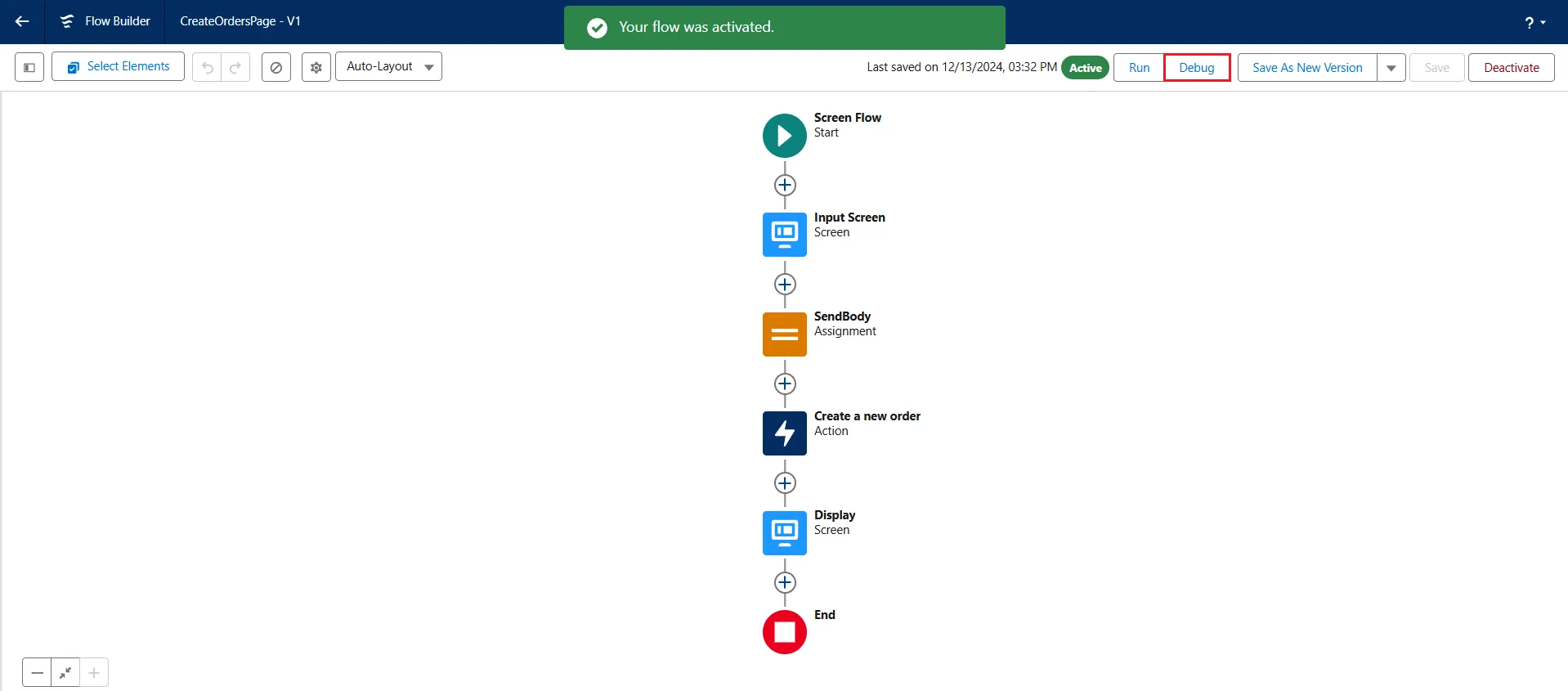
Check the flow and verify the updated details in Connect AI
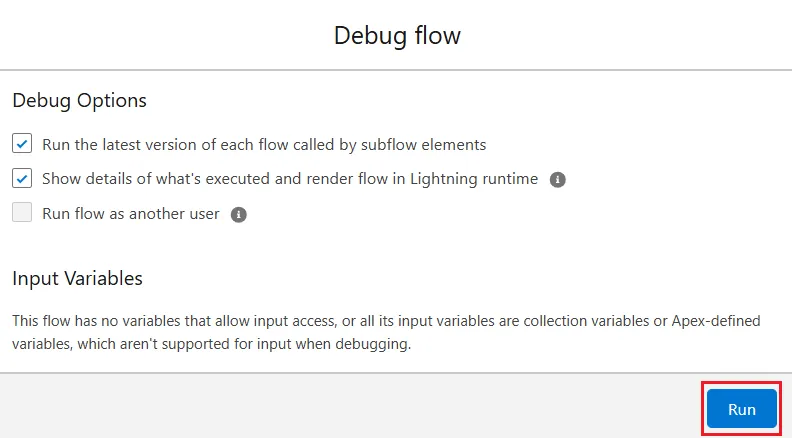
- Click Debug. The Debug flow window opens. Click Run.
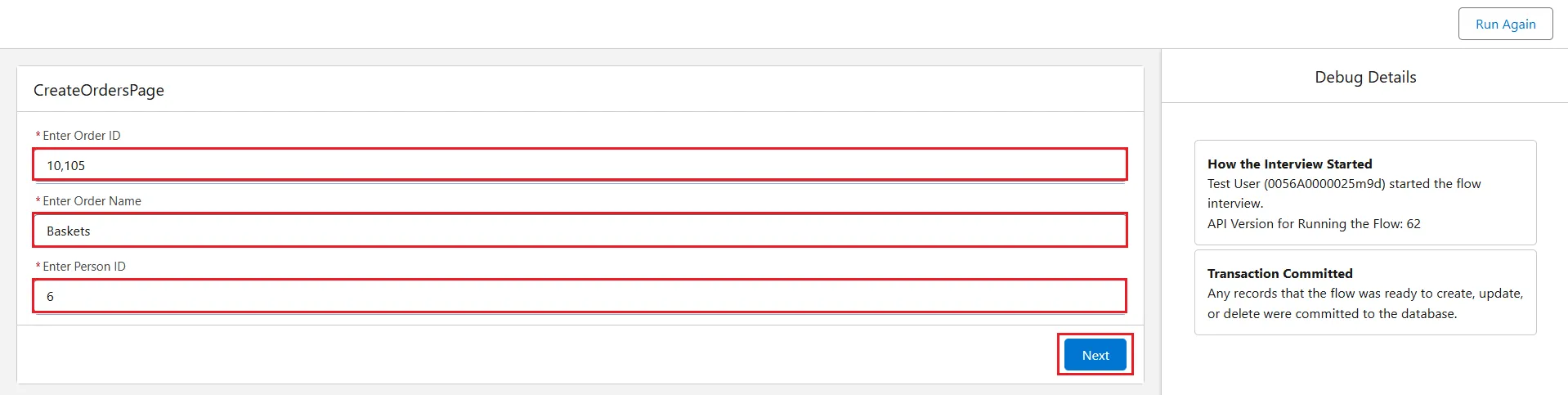
- In the details input page, in this case, "CreateOrdersPage", enter the details (Orders ID, Orders Name, and Person ID) and click Next.
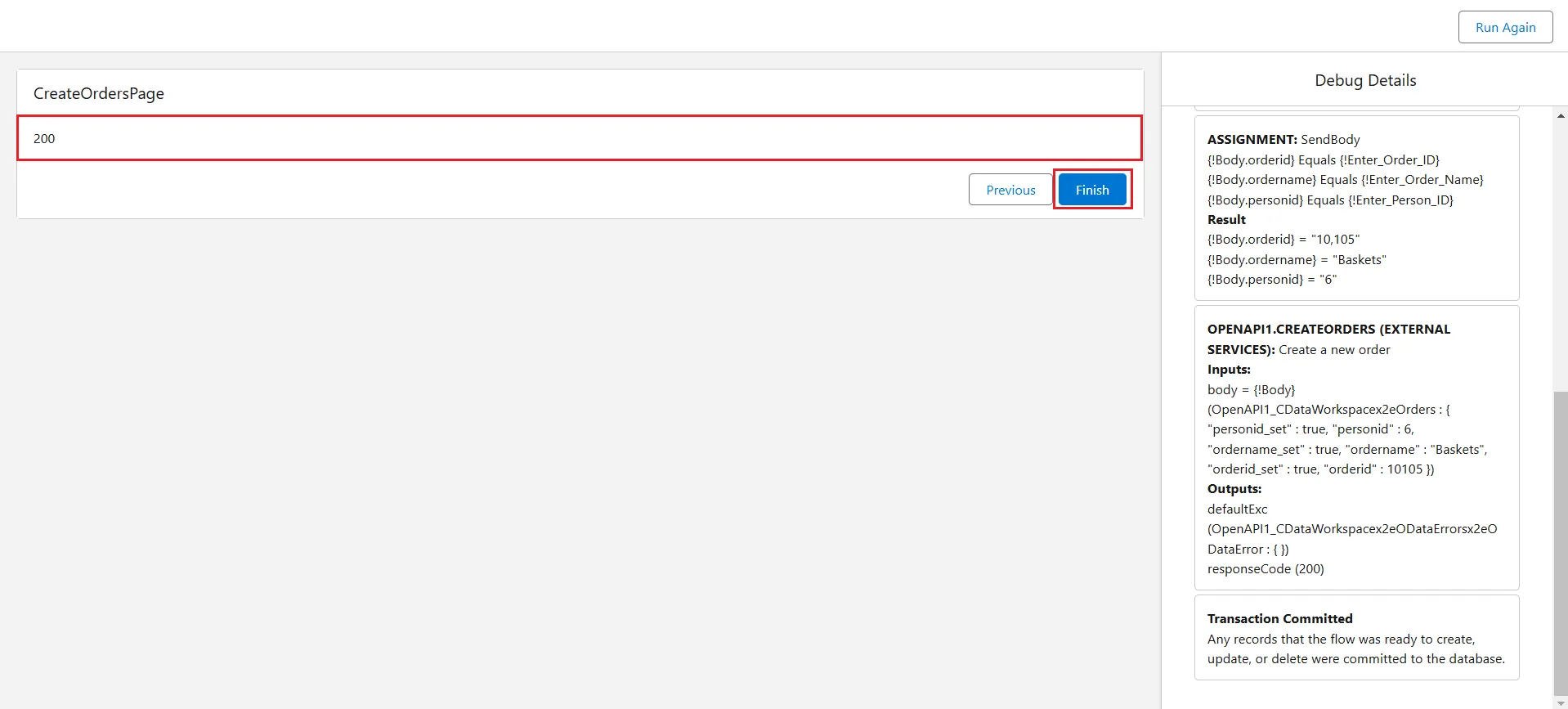
- The next page displays the message "200" (HTTP 200 - OK) and the right pane displays the debug details. Click Next.
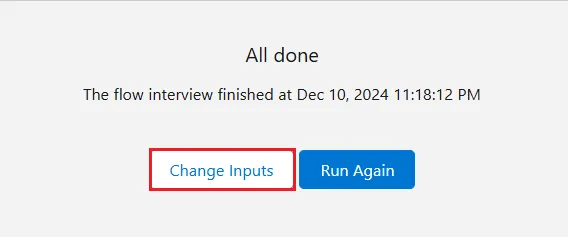
- You can change the inputs or run the process again to enter new details.
- Check in Connect AI if the new details are updated in the "Orders" table, as this article outlines. This completes the process.
Simplified access to CSV data from cloud applications
At this point, you have a direct, cloud-to-cloud connection to live CSV data from Salesforce. For more details on accessing live data from over 100 SaaS, Big Data, and NoSQL sources through cloud applications, visit our CData Connect AI page.
Reach out to our Support Team if you have any questions.