







Build Cvent-Connected Apps in Mendix

Mendix is a high-productivity app platform that allows you to build and maintain both mobile and web applications at-scale. When paired with CData Connect AI, Mendix provides instant, cloud-to-cloud access to Cvent data for applications. This article demonstrates how to connect to a CData Connect AI data source from within Mendix.
CData Connect AI provides a pure cloud-to-cloud interface for Cvent, allowing you to import data from live Cvent data in Mendix — without replicating the data to a natively supported database. As you build web and mobile applications from within Mendix, CData Connect AI pushes all supported SQL operations (filters, JOINs, etc.) directly to Cvent, leveraging server-side processing to return the requested Cvent data quickly.
Configure Cvent Connectivity for Mendix
To work with Cvent data from Mendix, we need to connect to Cvent from Connect AI, provide user access to the connection, and create a Workspace for the Cvent data.
Connect to Cvent from Connect AI
CData Connect AI uses a straightforward, point-and-click interface to connect to data sources.
- Log into Connect AI, click Sources, and then click Add Connection
- Select "Cvent" from the Add Connection panel
-
Enter the necessary authentication properties to connect to Cvent.
Before you can authenticate to Cvent, you must create a workspace and an OAuth application.
Creating a Workspace
To create a workspace:
- Sign into Cvent and navigate to App Switcher (the blue button in the upper right corner of the page) >> Admin.
- In the Admin menu, navigate to Integrations >> REST API.
- A new tab launches for Developer Management. Click on Manage API Access in the new tab.
- Create a Workspace and name it. Select the scopes you would like your developers to have access to. Scopes control what data domains the developer can access.
- Choose All to allow developers to choose any scope, and any future scopes added to the REST API.
- Choose Custom to limit the scopes developers can choose for their OAuth apps to selected scopes. To access all tables exposed by the driver, you need to set the following scopes:
event/attendees:read event/attendees:write event/contacts:read event/contacts:write event/custom-fields:read event/custom-fields:write event/events:read event/events:write event/sessions:delete event/sessions:read event/sessions:write event/speakers:delete event/speakers:read event/speakers:write budget/budget-items:read budget/budget-items:write exhibitor/exhibitors:read exhibitor/exhibitors:write survey/surveys:read survey/surveys:write
Creating an OAuth Application
After you have set up a Workspace and invited them, developers can sign up and create a custom OAuth app. See the Creating a Custom OAuth Application section in the Help documentation for more information.
Connecting to Cvent
After creating an OAuth application, set the following connection properties to connect to Cvent:
- InitiateOAuth: GETANDREFRESH. Used to automatically get and refresh the OAuthAccessToken.
- OAuthClientId: The Client ID associated with the OAuth application. You can find this on the Applications page in the Cvent Developer Portal.
- OAuthClientSecret: The Client secret associated with the OAuth application. You can find this on the Applications page in the Cvent Developer Portal.

- Click Save & Test
-
Navigate to the Permissions tab in the Add Cvent Connection page and update the User-based permissions.



Add a Personal Access Token
When connecting to Connect AI through the REST API, the OData API, or the Virtual SQL Server, a Personal Access Token (PAT) is used to authenticate the connection to Connect AI. It is best practice to create a separate PAT for each service to maintain granularity of access.
- Click on the Gear icon () at the top right of the Connect AI app to open the settings page.
- On the Settings page, go to the Access Tokens section and click Create PAT.
-
Give the PAT a name and click Create.

- The personal access token is only visible at creation, so be sure to copy it and store it securely for future use.
Configure Cvent Endpoints for Mendix
After connecting to Cvent, create a workspace for your desired table(s).
-
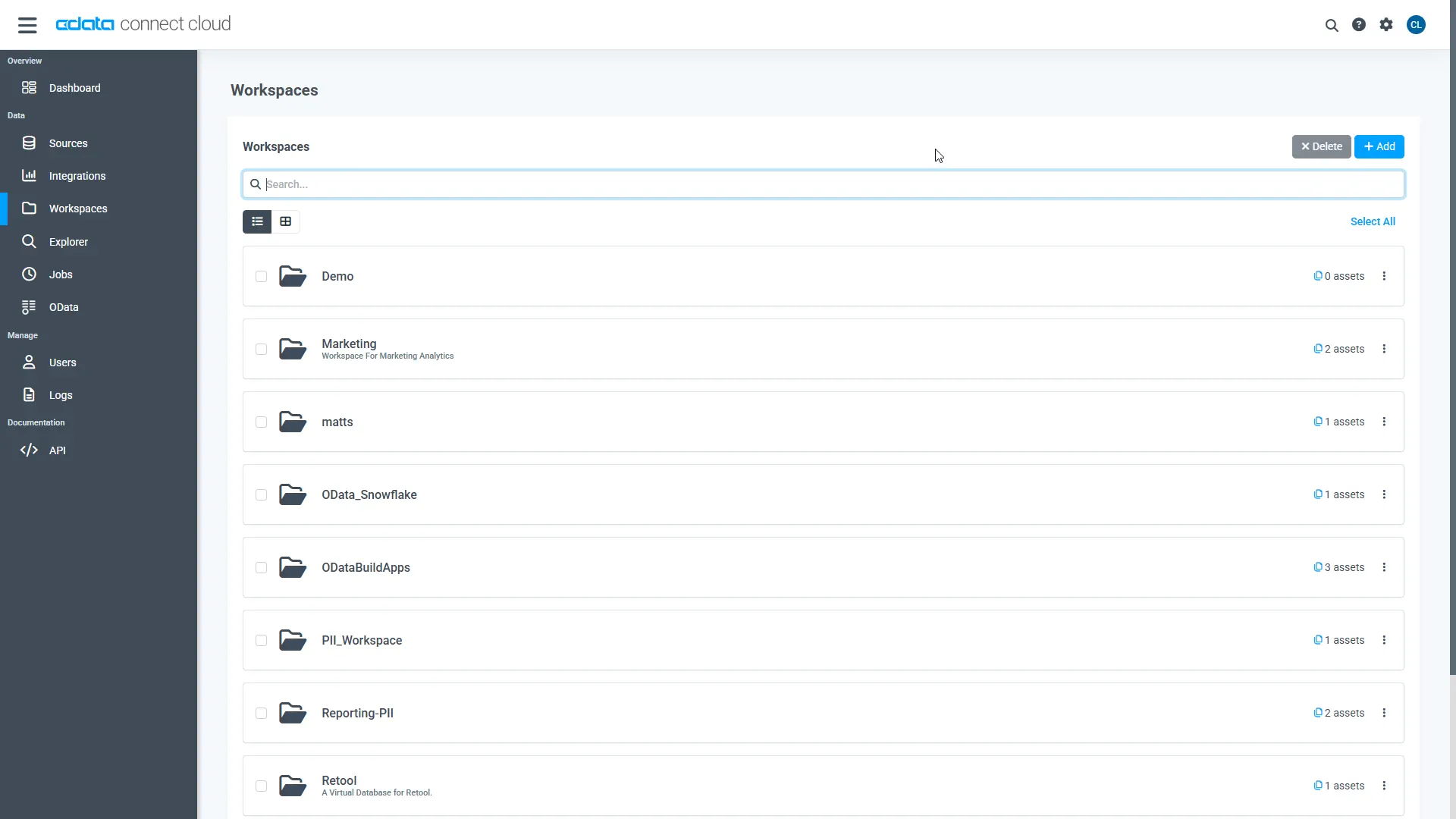
Navigate to the Workspaces page and click Add to create a new Workspace (or select an existing workspace).
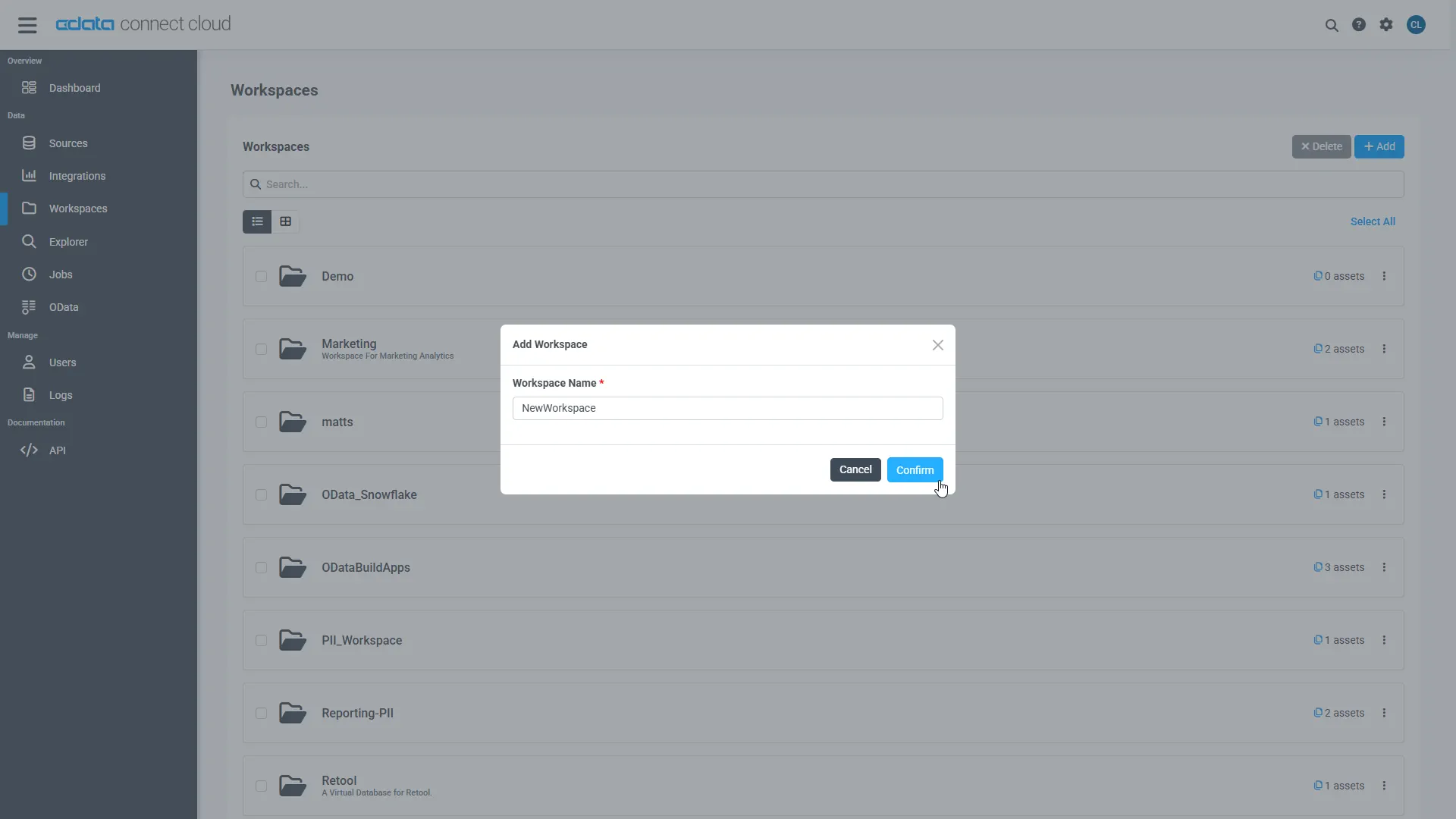
- Click Add to add new assets to the Workspace.
-
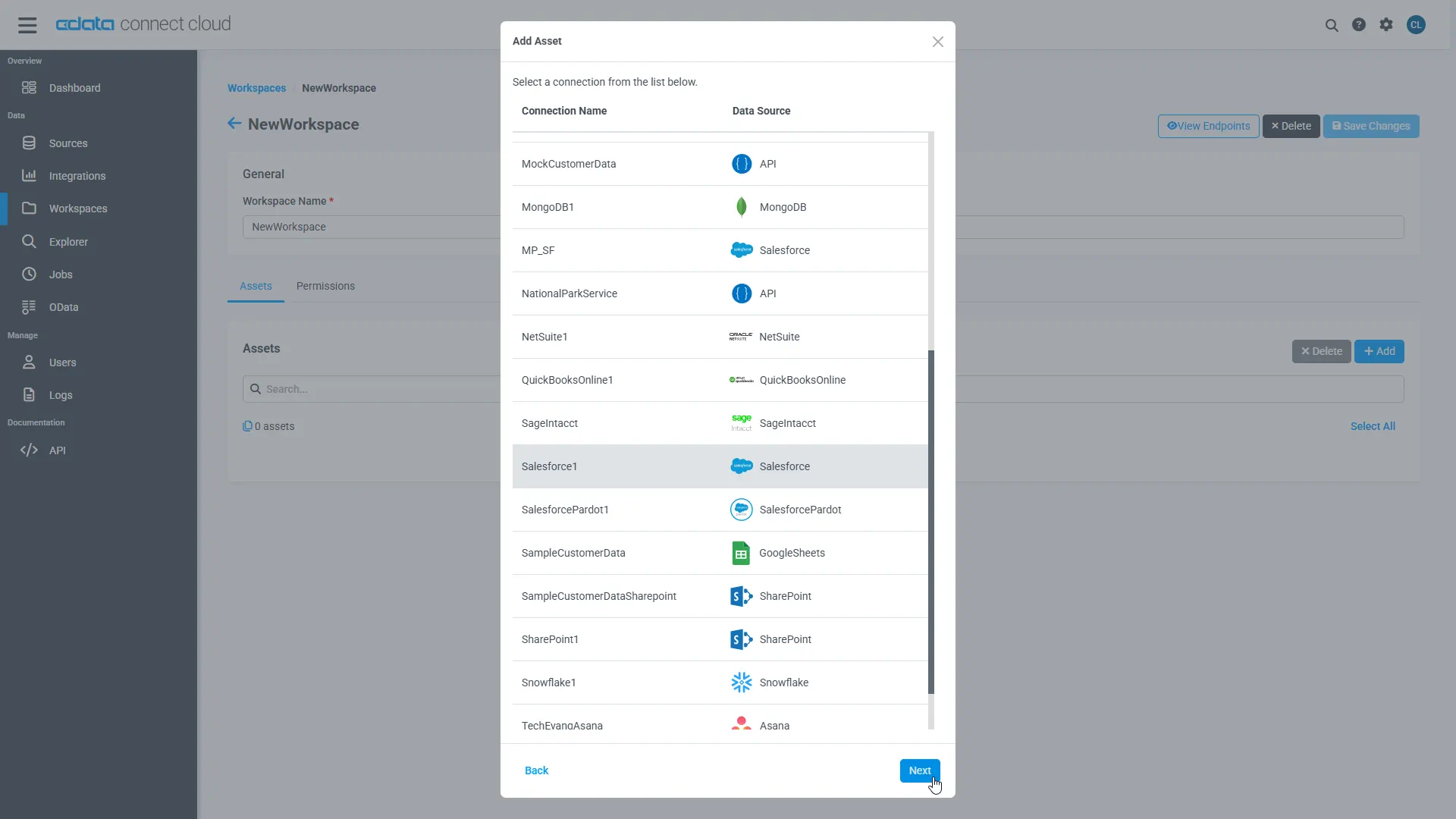
Select the Cvent connection (e.g. Cvent1) and click Next.
-
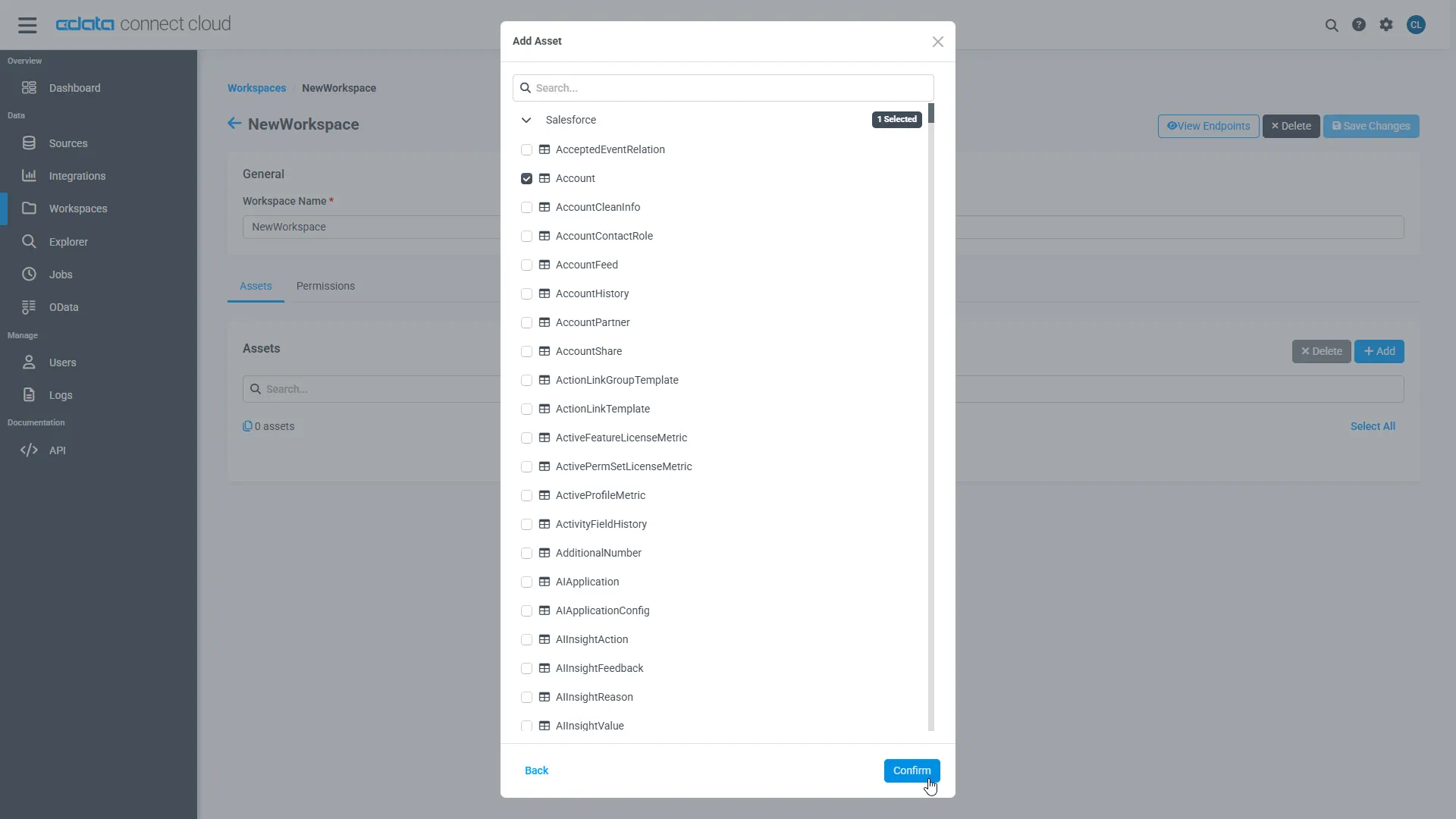
Select the table(s) you wish to work with and click Confirm.
- Make note of the OData Service URL for your workspace, e.g. https://cloud.cdata.com/api/odata/{workspace_name}
With the connection, PAT, and Workspace configured, you are ready to connect to Cvent data from Mendix.
Build a Cvent-Connected App
Downloading the OData Metadata File
When creating a connection in Mendix, the connection flow requires a Data Source Contract File. Follow these steps to download the OData metadata file for CData Connect AI using curl, a command line tool:
- Open a command-line window for your operating system. On Windows, open the start menu, type cmd, and press the Enter key to open a command prompt. On macOS and Linux, open a Terminal window.
- To check if curl is installed on your system, type curl -help and press the enter key. If it is not installed, install it from the curl website.
-
Issue the following curl command, replacing USER with your CData Connect AI username and PAT with the PAT you generated above:
curl -u USER:PAT https://cloud.cdata.com/api/odata/{workspace_name}/$metadata -o metadata.xml - Locate the metadata.xml file that the curl command created and move it to an accessible location.
Connecting to CData Connect AI in Mendix
Follow these steps to establish a connection from Mendix to CData Connect AI:
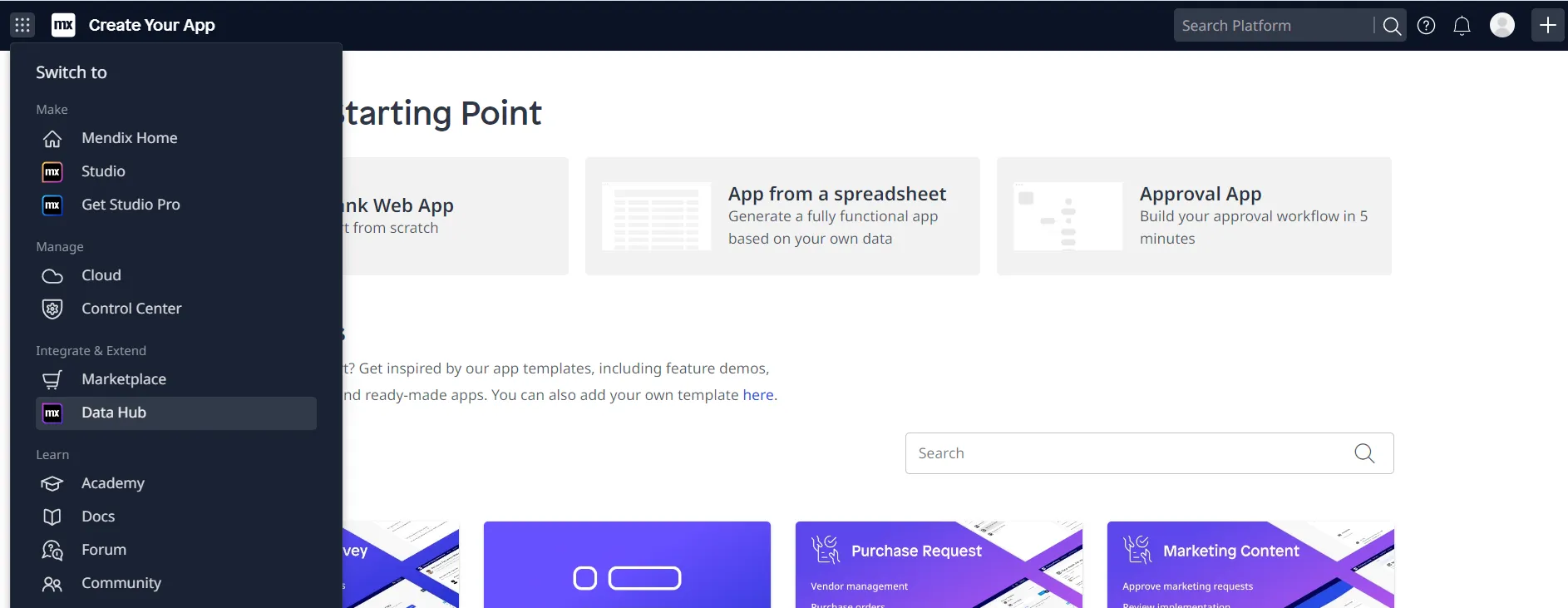
- Login to Mendix and open the Data Hub page.
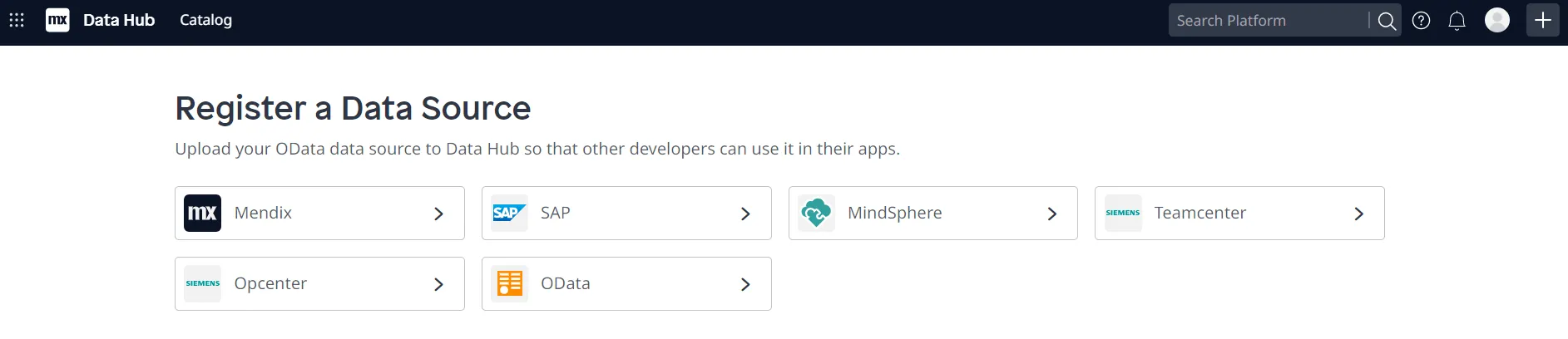
- In the Register a Data Source section, select OData.
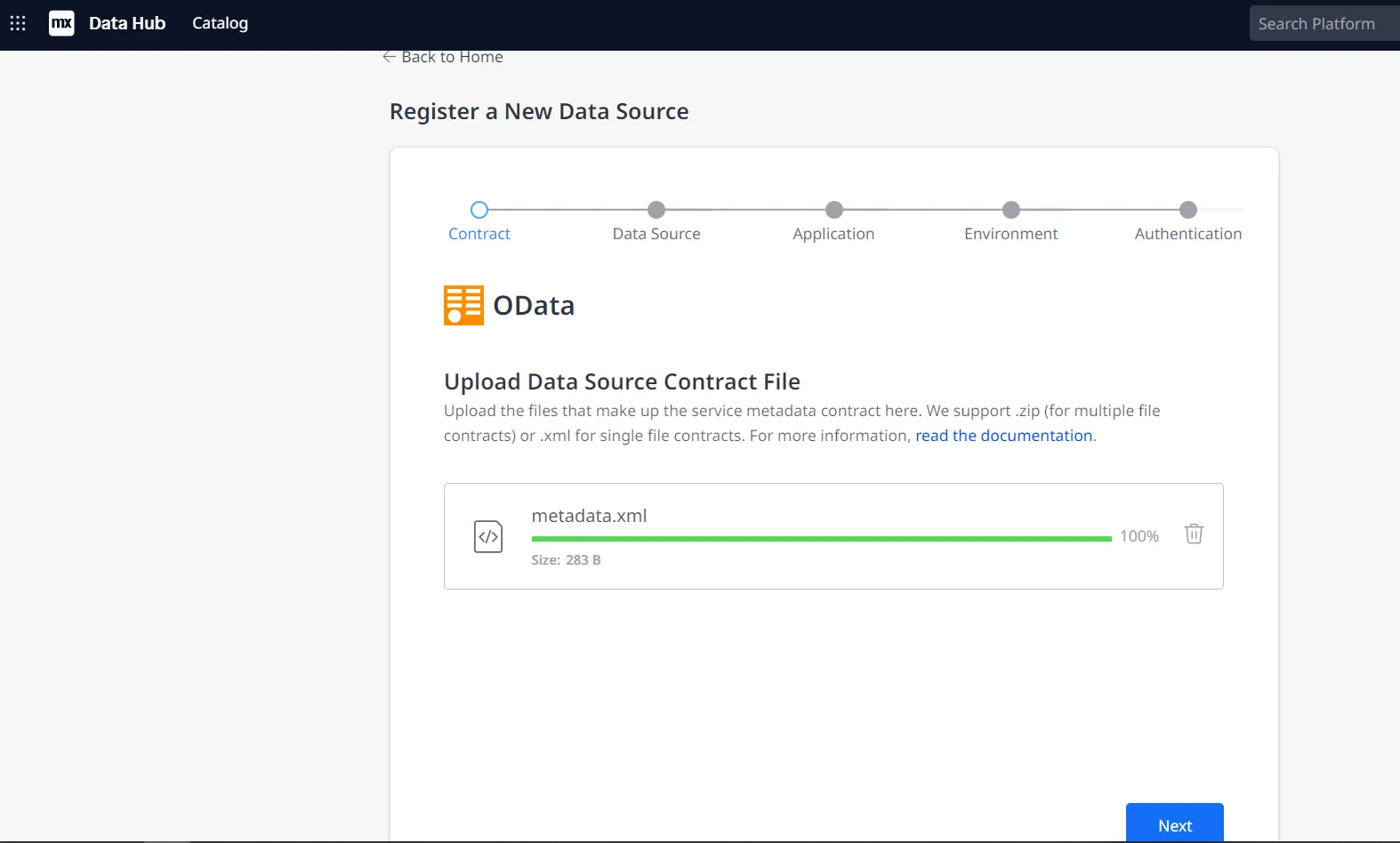
- Upload the metadata.xml file from the steps above and click Next.
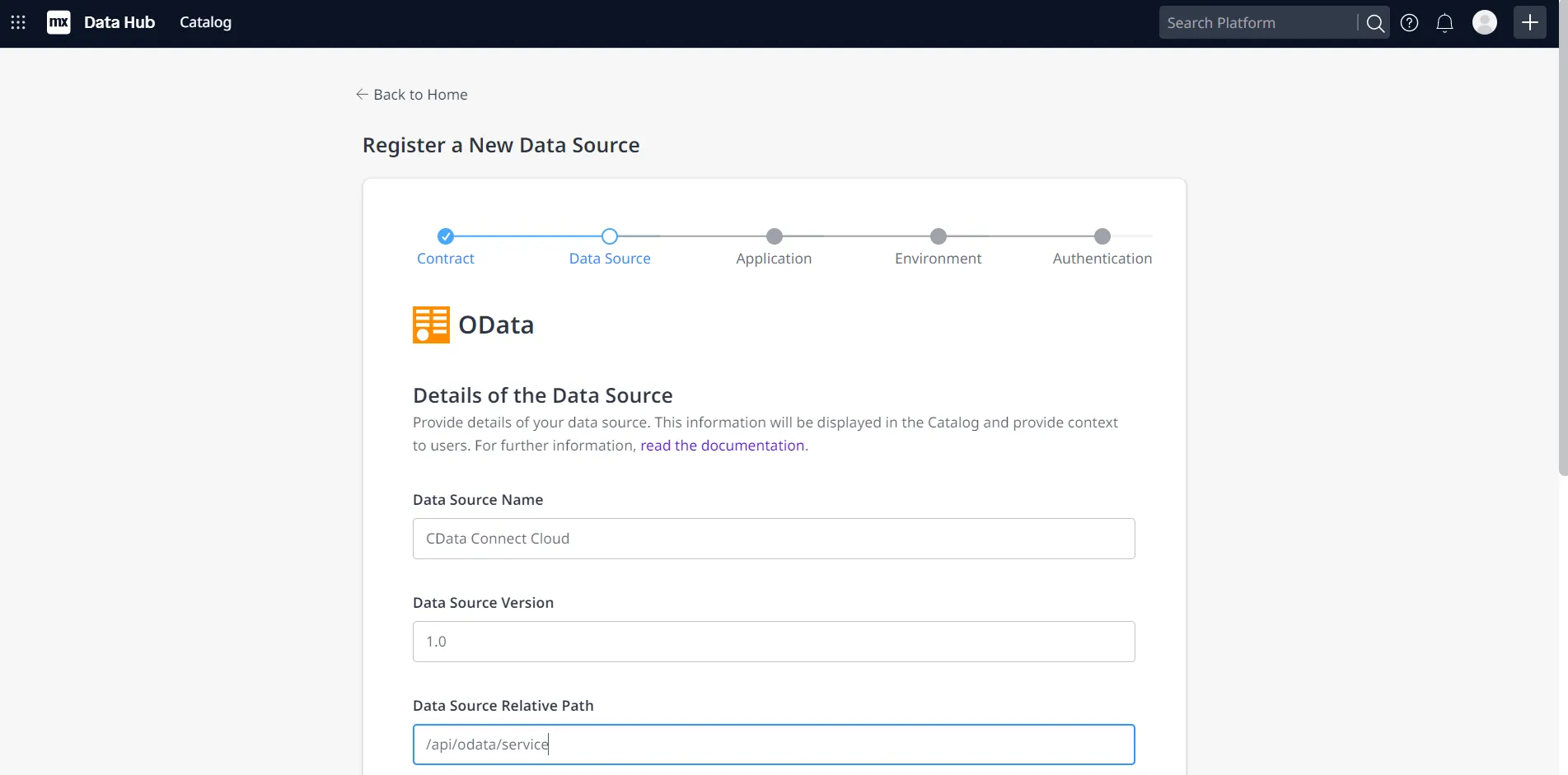
- Enter your desired values for Data Source Name and Data Source Version. In the Data Source Relative Path field, enter /api/odata/{workspace_name} and click Next.
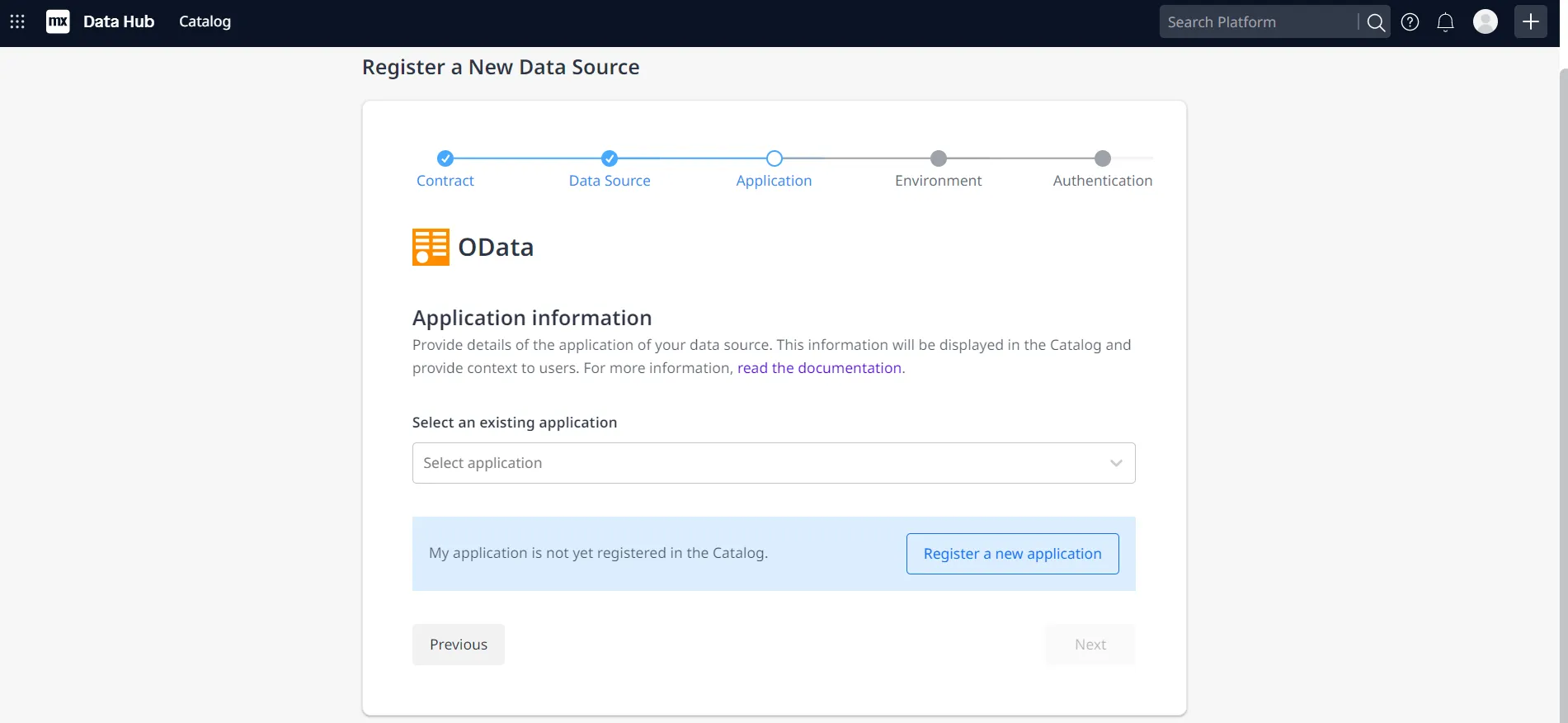
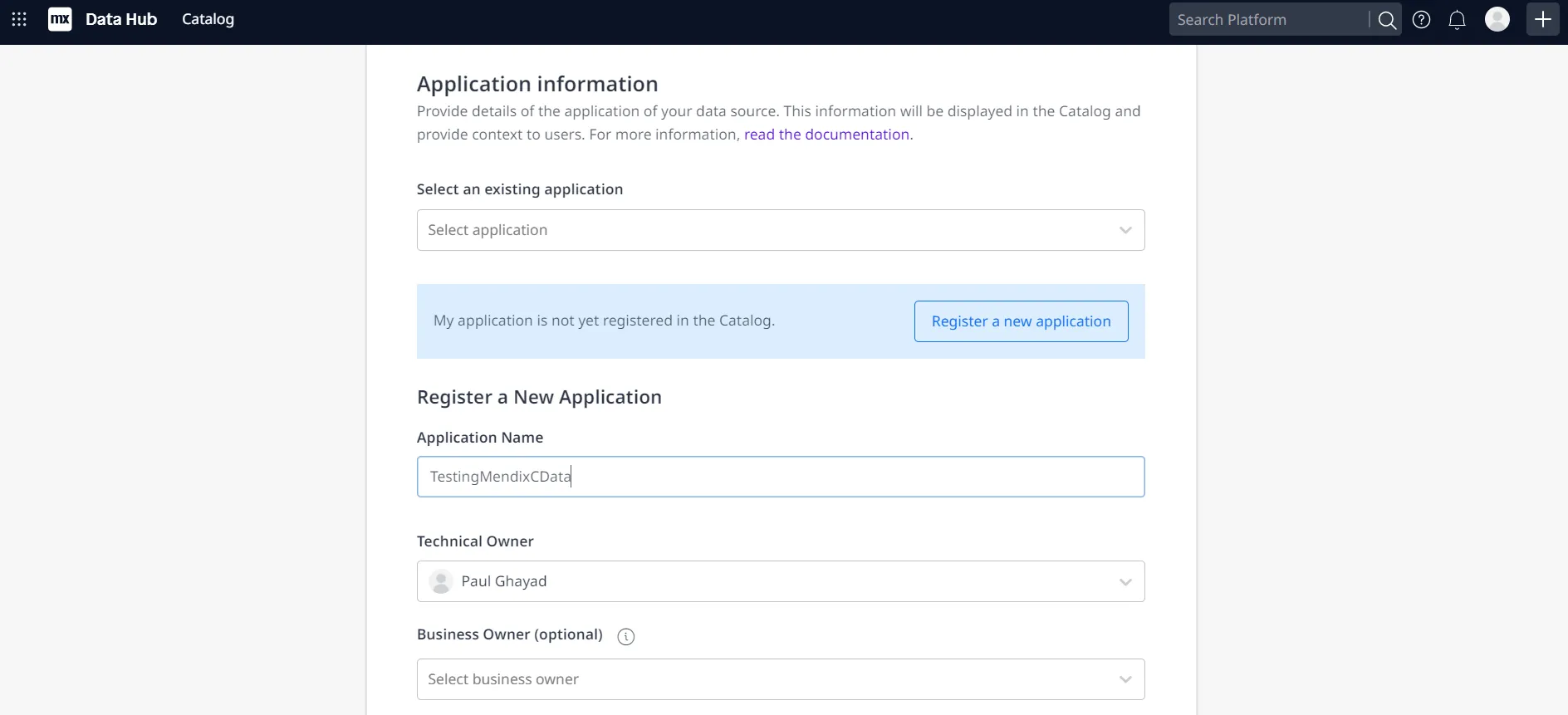
- On the Application information page, click Register a new application.
- Enter a name in Application Name and select a technical owner (by default, this is the user who is currently logged in).
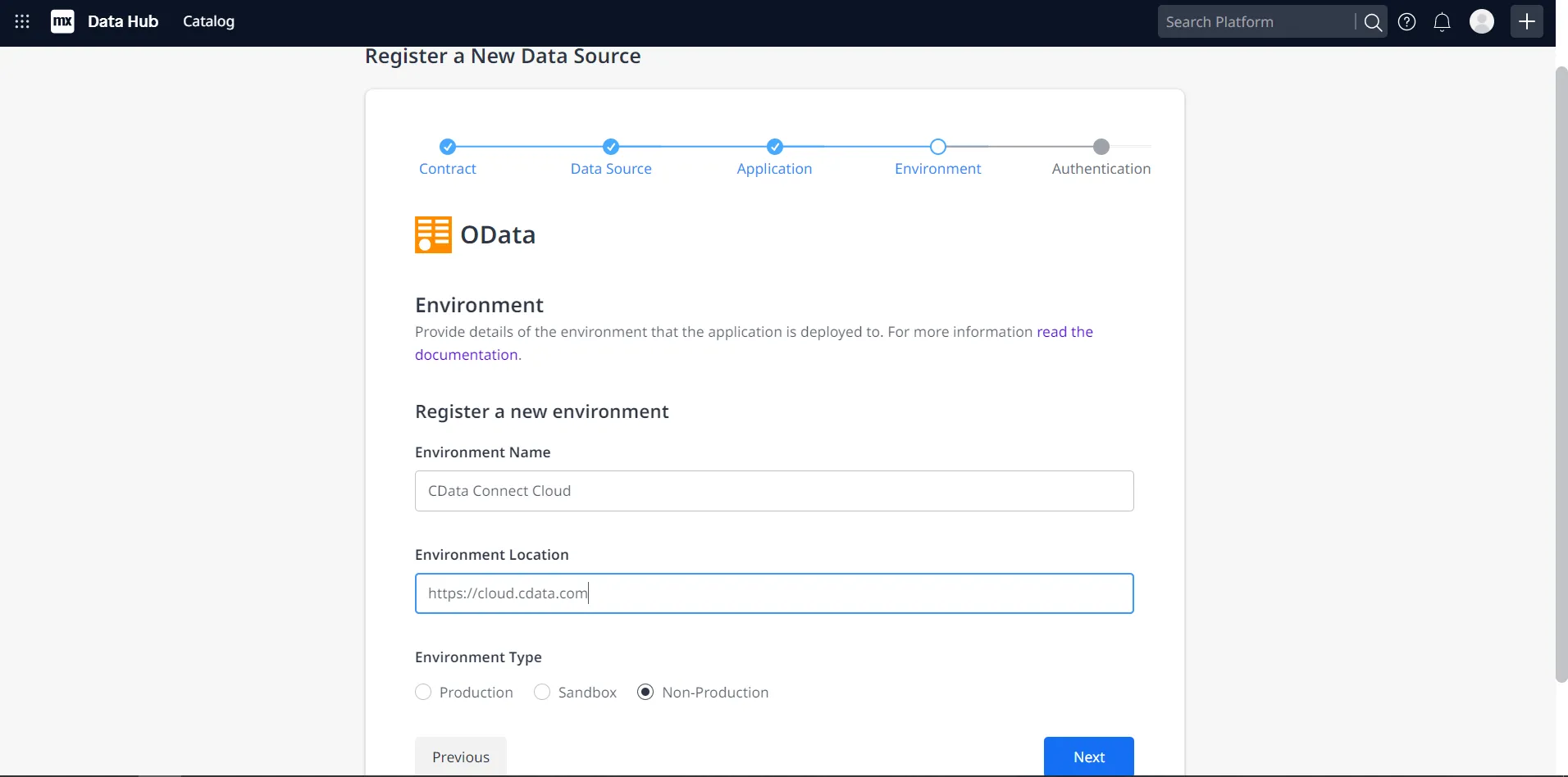
- Click Next. In the Environment Name field, enter a desired name (for example, CData Connect AI). In the Environment Location field, enter https://cloud.cdata.com and select the appropriate Environment Type (e.g. Production), depending on what is needed.
- Click Done! to create your connection.
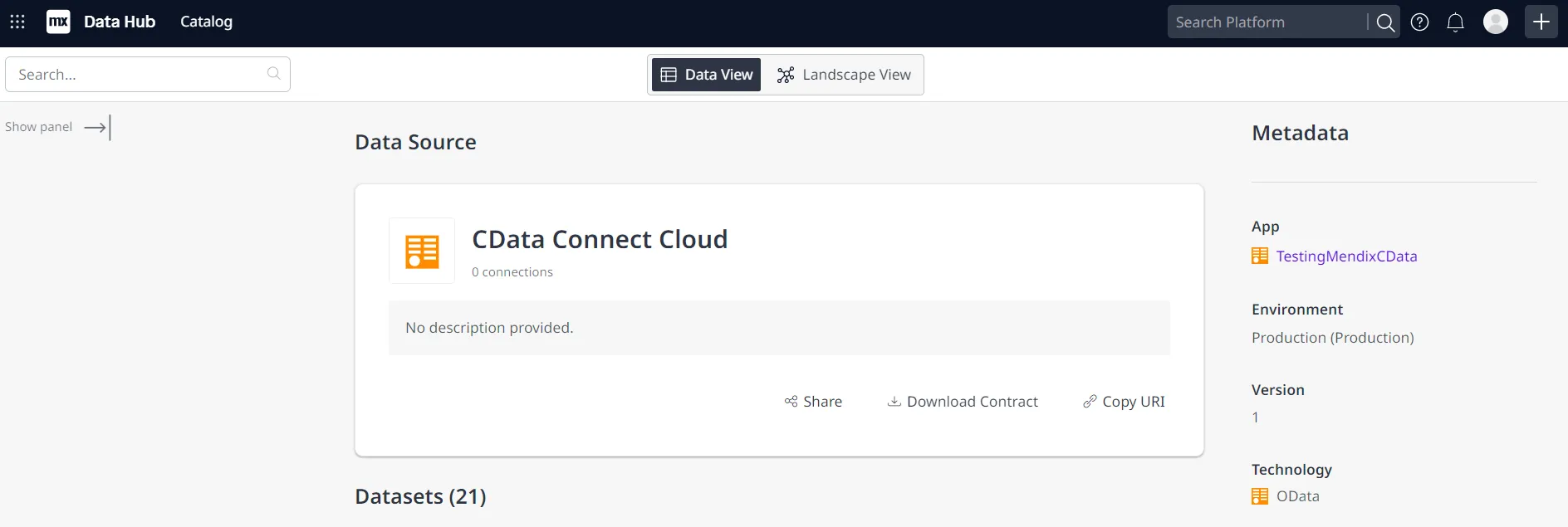
You can now use your connection in Mendix Studio Pro to easily create applications with access to live Cvent data.
Get CData Connect AI
To get live data access to hundreds of SaaS, Big Data, and NoSQL sources directly from your cloud applications, try CData Connect AI today!