







Build Agents in Relevance AI with Access to Live Cvent Data via CData Connect AI

Relevance AI is an AI automation and agent-building platform that enables organizations to create autonomous workflows powered by natural language reasoning. Users can visually design agents that interact with APIs, databases, and third-party systems to complete everyday business tasks or data operations.
By integrating Relevance AI with CData Connect AI through the built-in MCP (Model Context Protocol) Server, your agents can query, summarize, and act on live Cvent data in real time. This connection bridges Relevance AI intelligent workflow engine with the governed enterprise connectivity of CData Connect AI ensuring every query runs securely against authorized sources without manual data export.
This article outlines the steps to configure Cvent connectivity in Connect AI, register Connect AI in Relevance AI, and build an agent that interacts with live Cvent data.
Step 1: Configure Cvent Connectivity for Relevance AI
Connectivity to Cvent from Relevance AI is made possible through CData Connect AI's Remote MCP Server. To interact with Cvent data from Relevance AI, we start by creating and configuring a Cvent connection in CData Connect AI.
- Log into Connect AI, click Sources, and then click Add Connection
- Select Cvent from the Add Connection panel
-
Enter the necessary authentication properties to connect to Cvent.
Before you can authenticate to Cvent, you must create a workspace and an OAuth application.
Creating a Workspace
To create a workspace:
- Sign into Cvent and navigate to App Switcher (the blue button in the upper right corner of the page) >> Admin.
- In the Admin menu, navigate to Integrations >> REST API.
- A new tab launches for Developer Management. Click on Manage API Access in the new tab.
- Create a Workspace and name it. Select the scopes you would like your developers to have access to. Scopes control what data domains the developer can access.
- Choose All to allow developers to choose any scope, and any future scopes added to the REST API.
- Choose Custom to limit the scopes developers can choose for their OAuth apps to selected scopes. To access all tables exposed by the driver, you need to set the following scopes:
event/attendees:read event/attendees:write event/contacts:read event/contacts:write event/custom-fields:read event/custom-fields:write event/events:read event/events:write event/sessions:delete event/sessions:read event/sessions:write event/speakers:delete event/speakers:read event/speakers:write budget/budget-items:read budget/budget-items:write exhibitor/exhibitors:read exhibitor/exhibitors:write survey/surveys:read survey/surveys:write
Creating an OAuth Application
After you have set up a Workspace and invited them, developers can sign up and create a custom OAuth app. See the Creating a Custom OAuth Application section in the Help documentation for more information.
Connecting to Cvent
After creating an OAuth application, set the following connection properties to connect to Cvent:
- InitiateOAuth: GETANDREFRESH. Used to automatically get and refresh the OAuthAccessToken.
- OAuthClientId: The Client ID associated with the OAuth application. You can find this on the Applications page in the Cvent Developer Portal.
- OAuthClientSecret: The Client secret associated with the OAuth application. You can find this on the Applications page in the Cvent Developer Portal.

- Click Save & Test
- Navigate to the Permissions tab and update user-based permissions



Add a Personal Access Token
A Personal Access Token (PAT) is used to authenticate the connection to Connect AI from Relevance AI. It is best practice to create a separate PAT for each integration to maintain granular access control.
- Click the gear icon () at the top right of the Connect AI app to open Settings
- On the Settings page, go to the Access Tokens section and click Create PAT
- Give the PAT a descriptive name and click Create
- Copy the token when displayed and store it securely. It will not be shown again

With the Cvent connection configured and a PAT generated, Relevance AI can now connect to Cvent data through Connect AI.
Step 2: Configure Connectivity in Relevance AI
The CData Connect AI MCP endpoint and authorization details are registered within Relevance AI so that agents can call live data from Connect AI.
- Sign in to Relevance AI and create an account if you do not already have one
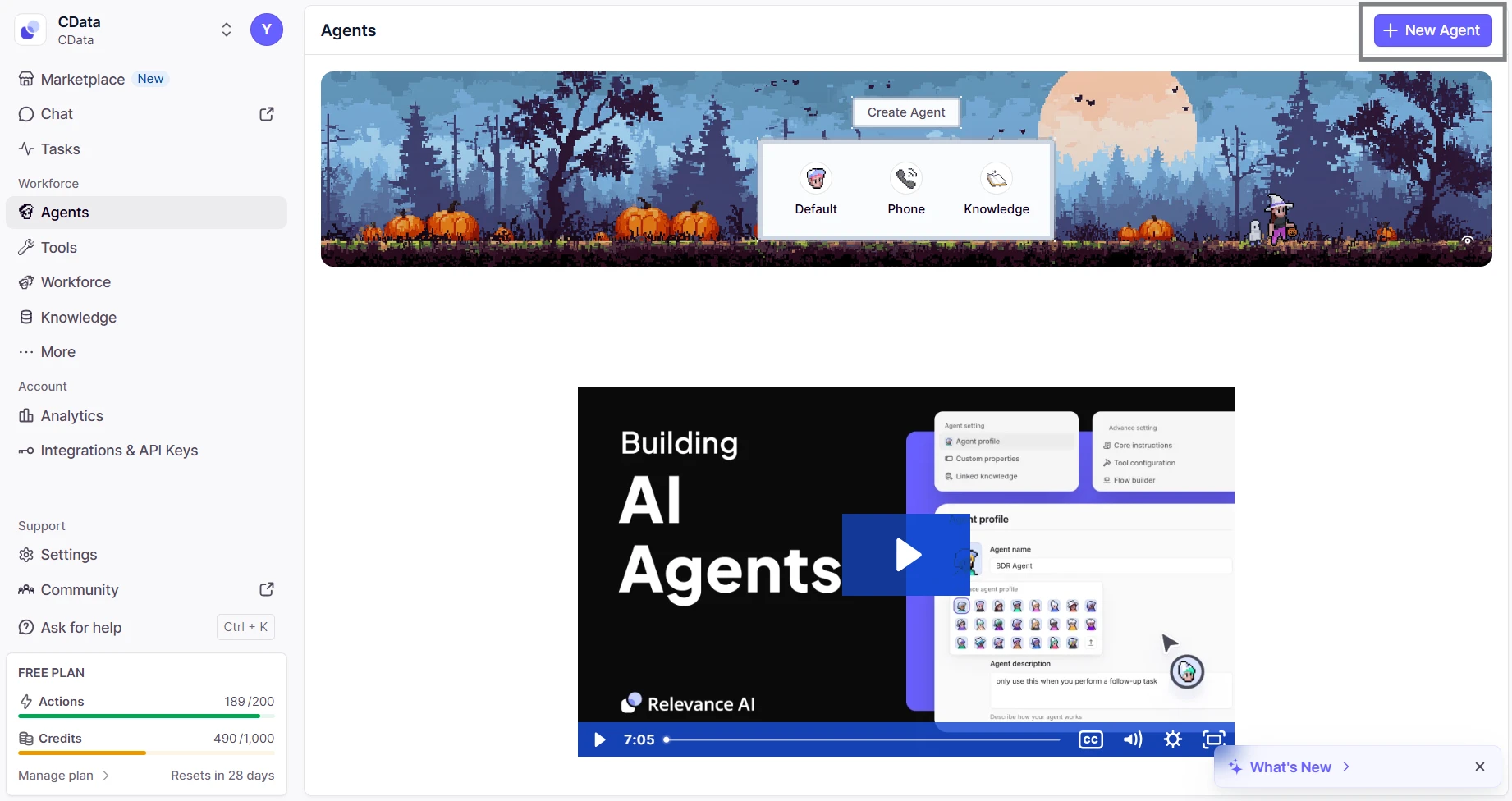
- From the sidebar, navigate to Agents and then click on New Agent
- Select Build from scratch and name the agent (eg; CData MCP Server)
- Inside the agent editor, select Advanced and then switch to the MCP Server tab
- Click + Add Remote MCP Tools
- In the dialog that appears, fill out the fields as follows:
- URL: https://mcp.cloud.cdata.com/mcp
- Label: Any custom label (eg; cdata_mcp_server)
- Authentication: Select Custom headers
- Add header key:value pair. Combine your email and PAT as email:PAT and encode that string in Base64 and then prefix with the word Basic
- Key: Authorization
- Value: Basic base64(email:PAT)


Click Connect to establish the connection. Relevance AI will verify your credentials and register the CData Connect AI MCP Server for use in agents.
Step 3: Build and Run a Relevance AI Agent with Live Cvent Data
- Switch to the Run tab for your agent
- Enter a task for example, "List the five most recent incidents from ServiceNow"
- The agent will query Connect AI via the MCP endpoint and display live results from Cvent data


With the connection complete, Relevance AI agents can now issue queries, retrieve records, and perform AI-driven tasks over live Cvent data through CData Connect AI MCP Server.
Get CData Connect AI
To access hundreds of SaaS, Big Data, and NoSQL sources directly from your cloud applications, try CData Connect AI today!