







Access Live Cvent Data in Excel for the Web (Excel 365/Online) through Connect Spreadsheets

Looking for Connect AI instructions?
Your Connect AI account includes Connect Spreadsheets, so you can use the instructions below. You can expect minor differences when referencing the Connect Spreadsheet platform, but the principles still apply!
Microsoft Excel for the web represents a cloud-native iteration of Microsoft Excel. When combined with Connect Spreadsheets by CData, you gain immediate access to Cvent data directly within Excel, facilitating data analysis, collaboration, calculations, and more. This article shows how to connect to Cvent in Connect Spreadsheets and access and update live Cvent data in Excel spreadsheets online.
Connect Spreadsheets is the easiest way to get all your live data into Microsoft Excel and Google Sheets - no more downloading, wrangling, and uploading files again. Just connect to your data, select the dataset you'd like to see, and import it into your spreadsheet.
This setup requires a Connect Spreadsheets instance and the Connect Spreadsheets Add-In for Excel. To get started, sign up a free trial of Connect Spreadsheets and install the free Connect Spreadsheets Excel Add-In.
Configure Cvent Connectivity for Excel
Connectivity to Cvent from Excel is made possible through Connect Spreadsheets . To work with Cvent data from Excel, we start by creating and configuring a Cvent connection.
- Log into Connect Spreadsheets, click Sources and click Add Connection
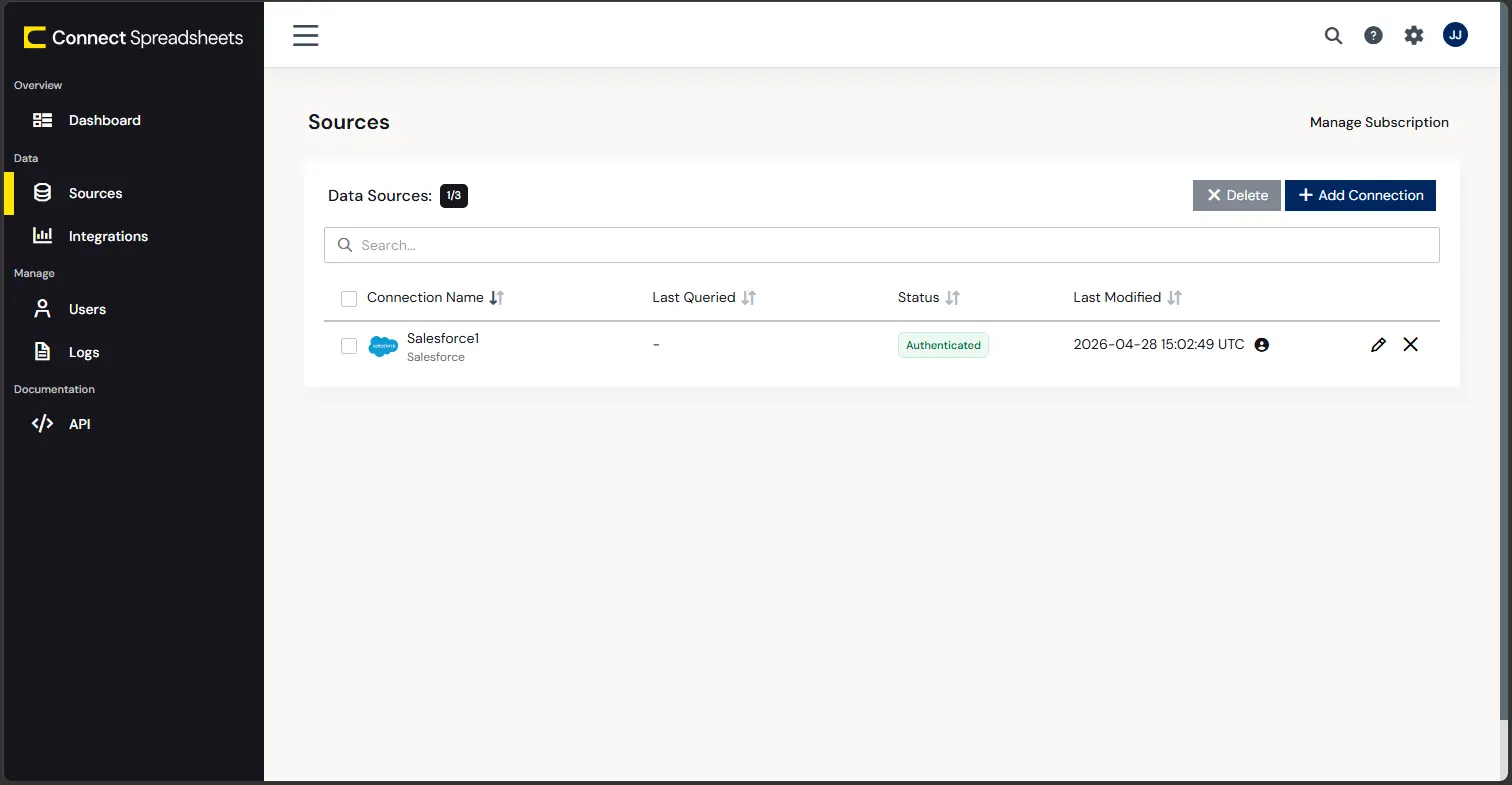
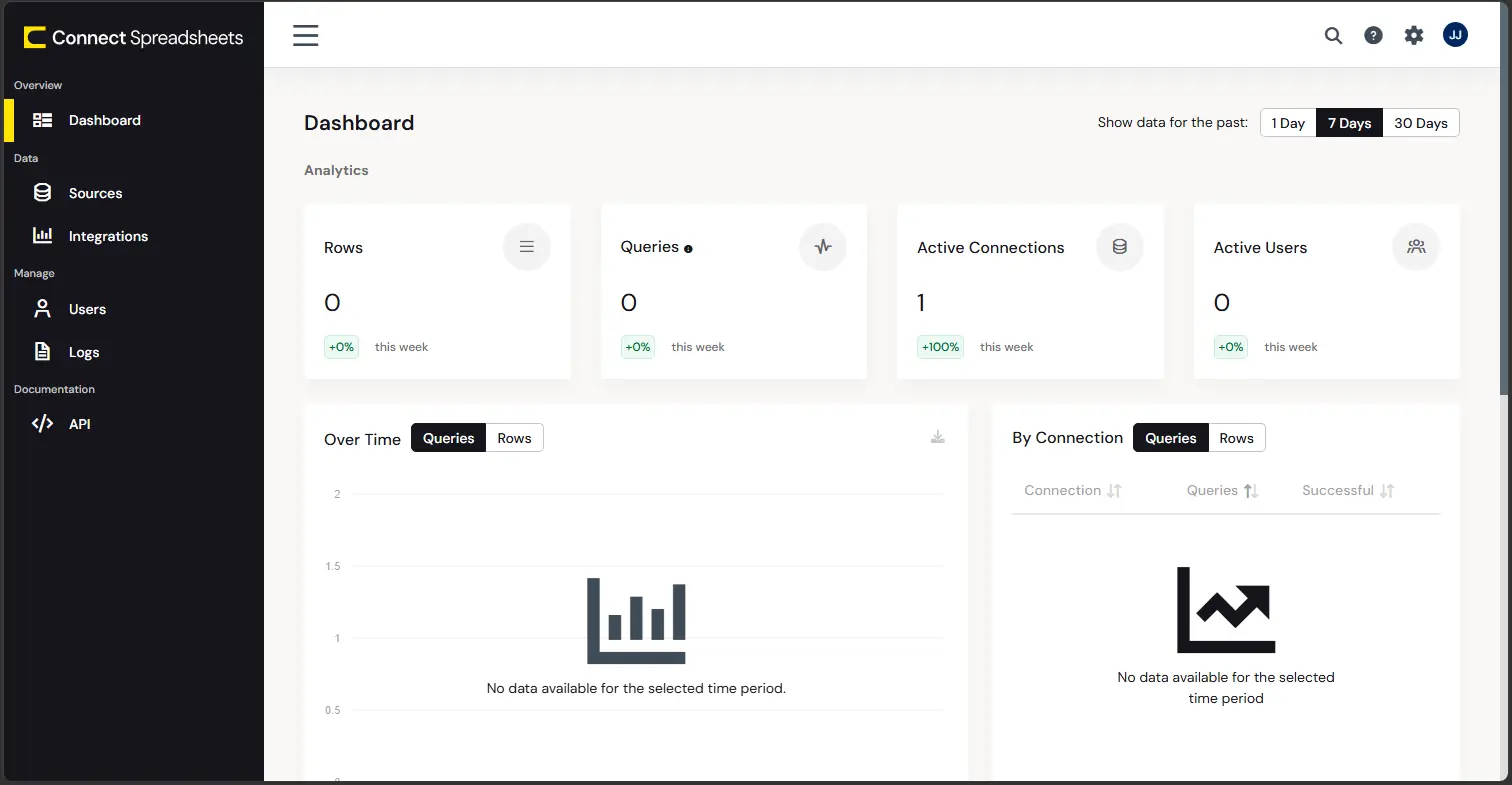
- Select "Cvent" from the Add Connection panel
-
Enter the necessary authentication properties to connect to Cvent.
Before you can authenticate to Cvent, you must create a workspace and an OAuth application.
Creating a Workspace
To create a workspace:
- Sign into Cvent and navigate to App Switcher (the blue button in the upper right corner of the page) >> Admin.
- In the Admin menu, navigate to Integrations >> REST API.
- A new tab launches for Developer Management. Click on Manage API Access in the new tab.
- Create a Workspace and name it. Select the scopes you would like your developers to have access to. Scopes control what data domains the developer can access.
- Choose All to allow developers to choose any scope, and any future scopes added to the REST API.
- Choose Custom to limit the scopes developers can choose for their OAuth apps to selected scopes. To access all tables exposed by the driver, you need to set the following scopes:
event/attendees:read event/attendees:write event/contacts:read event/contacts:write event/custom-fields:read event/custom-fields:write event/events:read event/events:write event/sessions:delete event/sessions:read event/sessions:write event/speakers:delete event/speakers:read event/speakers:write budget/budget-items:read budget/budget-items:write exhibitor/exhibitors:read exhibitor/exhibitors:write survey/surveys:read survey/surveys:write
Creating an OAuth Application
After you have set up a Workspace and invited them, developers can sign up and create a custom OAuth app. See the Creating a Custom OAuth Application section in the Help documentation for more information.
Connecting to Cvent
After creating an OAuth application, set the following connection properties to connect to Cvent:
- InitiateOAuth: GETANDREFRESH. Used to automatically get and refresh the OAuthAccessToken.
- OAuthClientId: The Client ID associated with the OAuth application. You can find this on the Applications page in the Cvent Developer Portal.
- OAuthClientSecret: The Client secret associated with the OAuth application. You can find this on the Applications page in the Cvent Developer Portal.
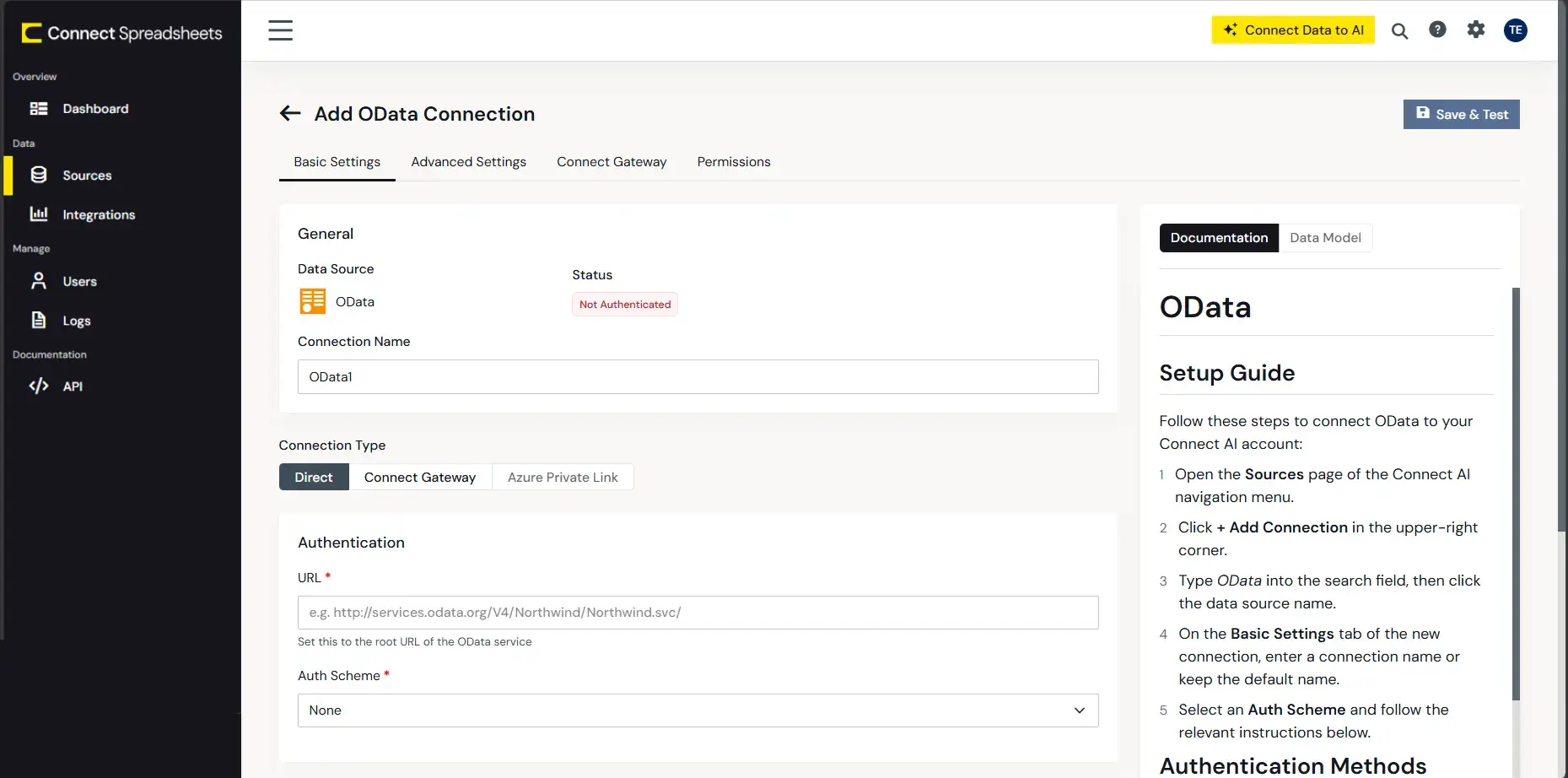
- Click Create & Test
With the connection configured, you are ready to connect to Cvent data from Excel for the web.
Access Live Cvent Data in Excel for the web
The steps below outline connecting to Connect Spreadsheets from Excel to access live Cvent data.
- Log into Excel, create a new sheet (or open an existing one).
- Click Insert and click Office Add-ins. (If you have already installed the Add-In, jump to step 4.)
- Search for Connect Spreadsheets and click "Get it now" to install the Add-in.
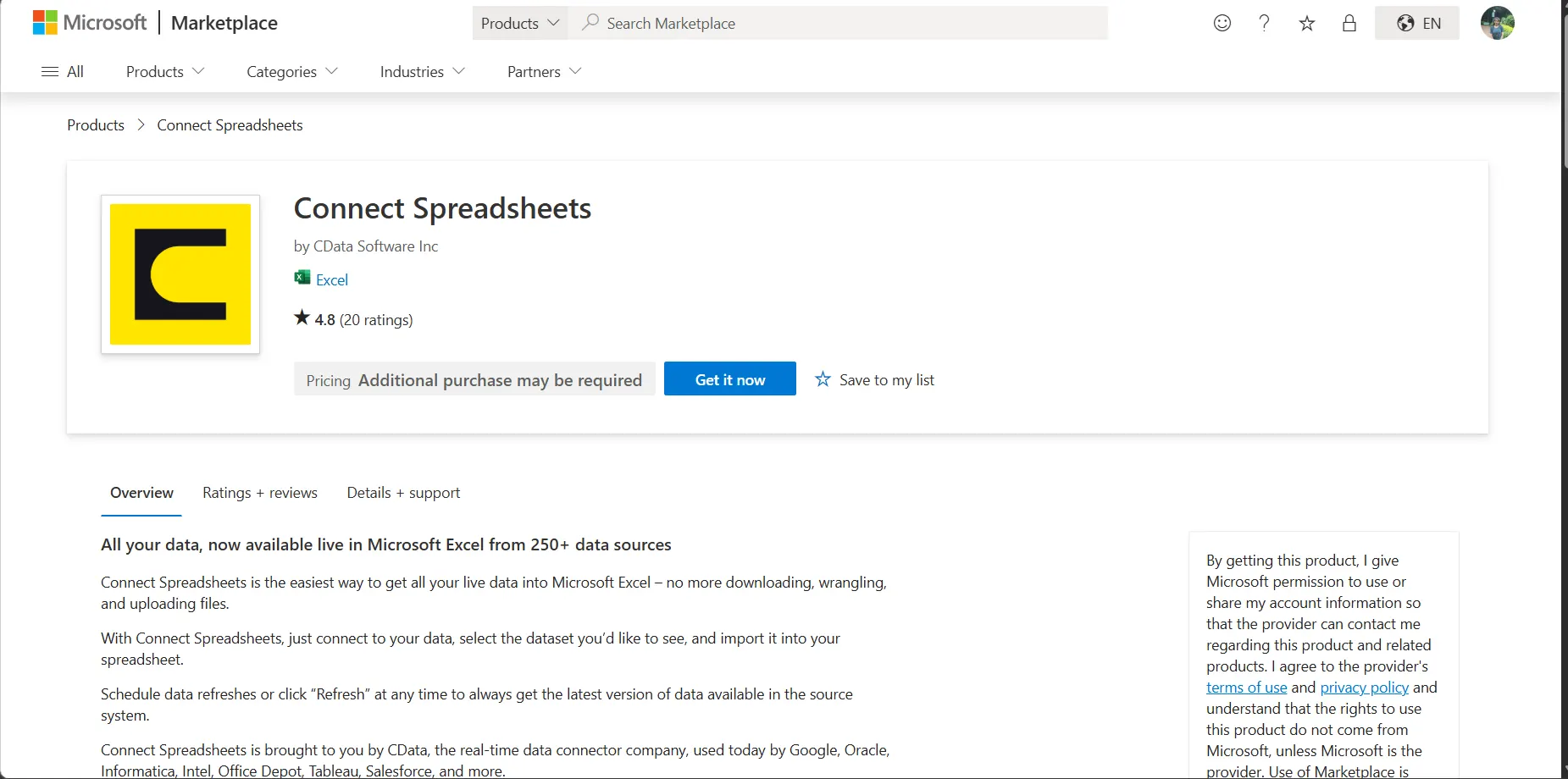
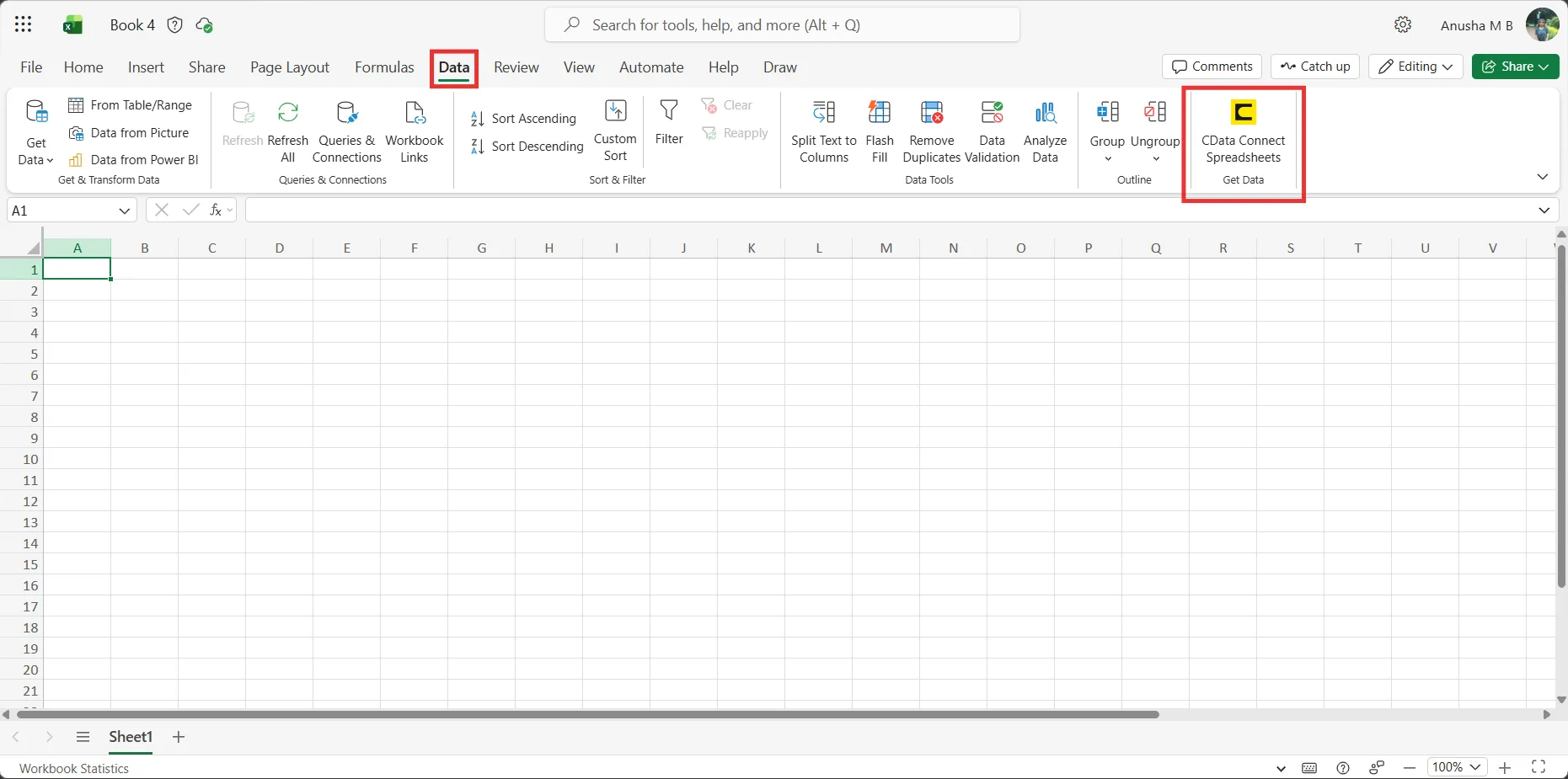
- Back in Excel, open the Data ribbon select and click the CData Connect Spreadsheets "Get Data" button.
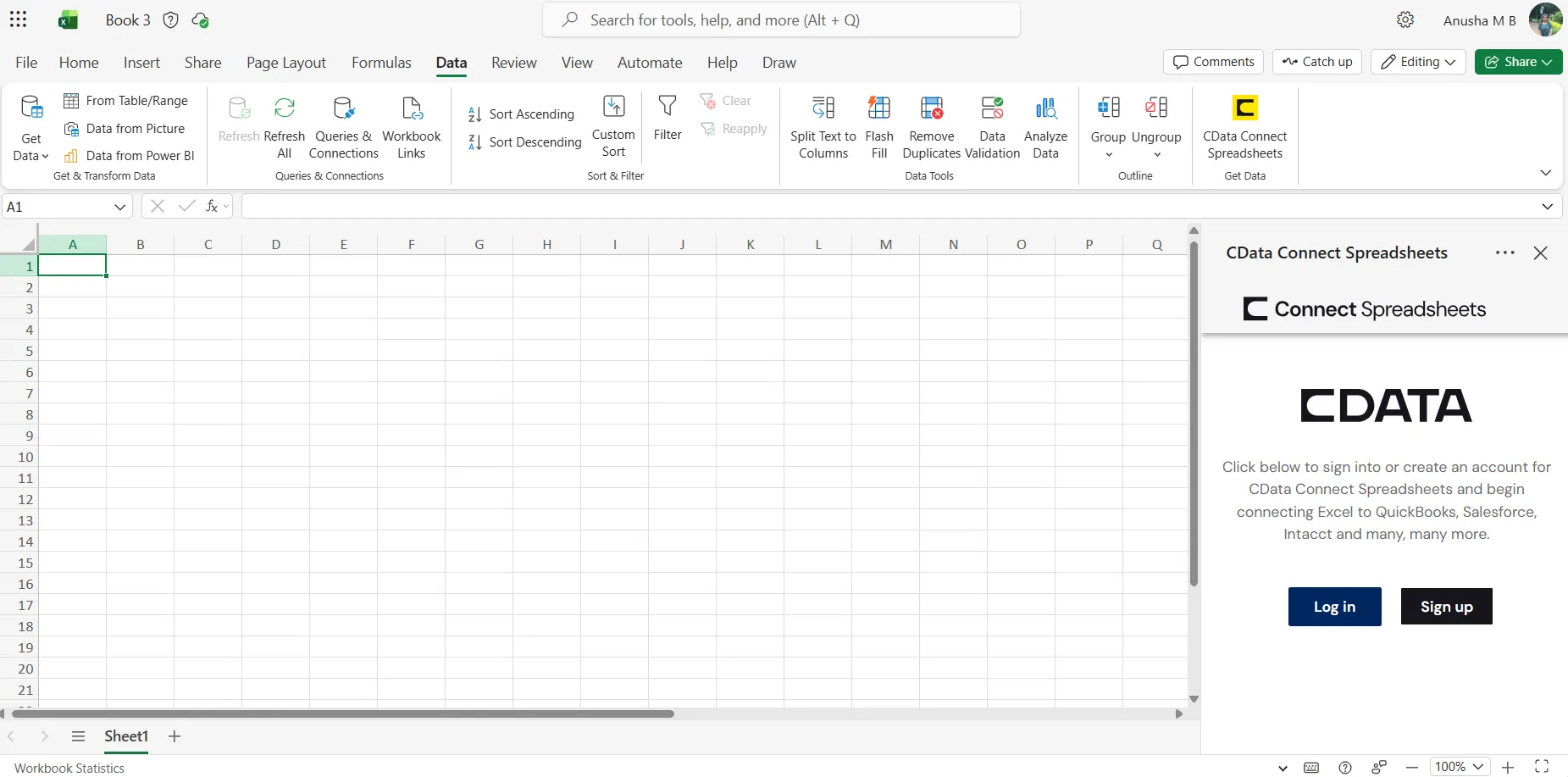
- In the Add-In panel, click "Log in" to sign into and authenticate with your Connect Spreadsheets account
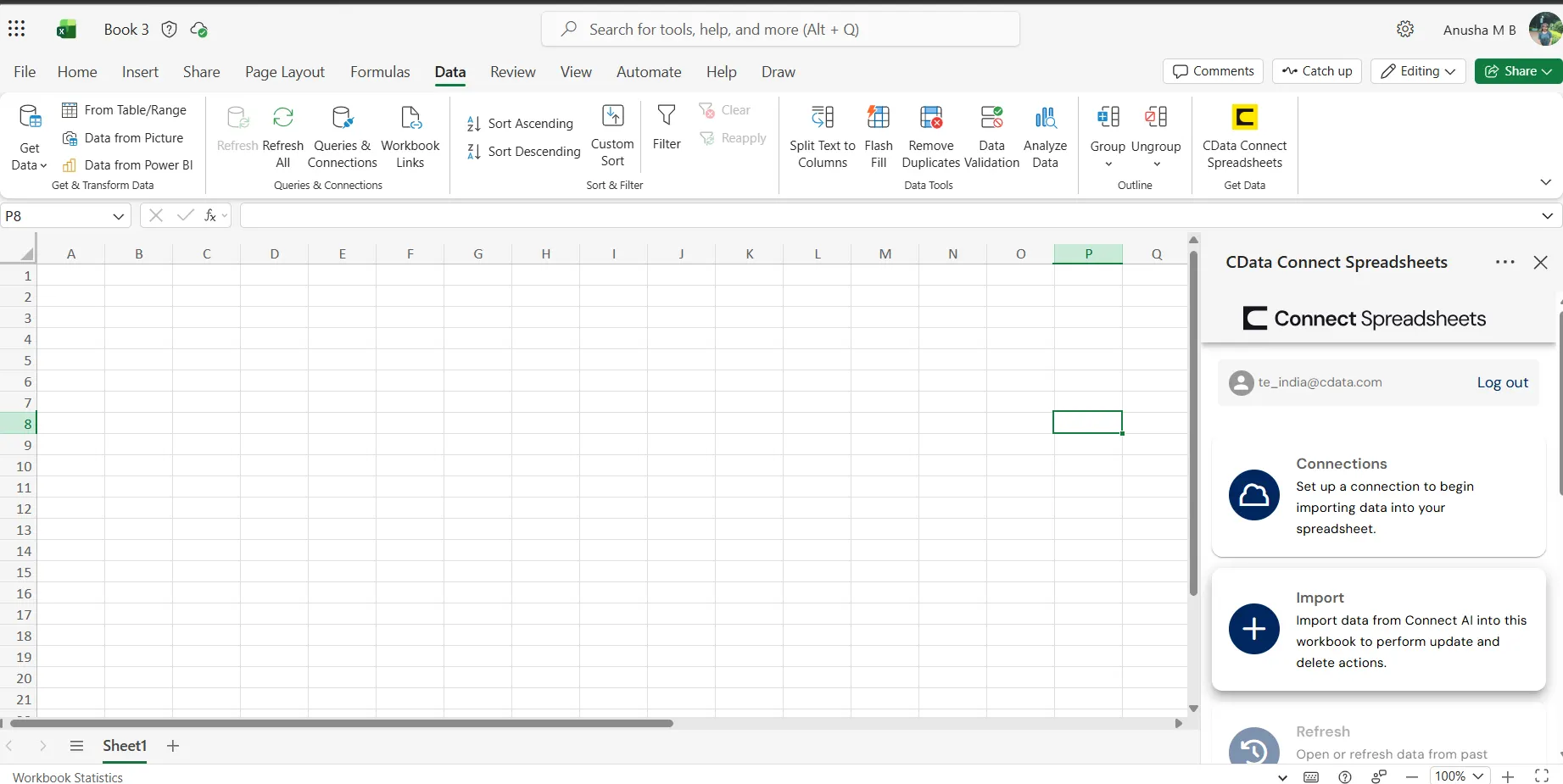
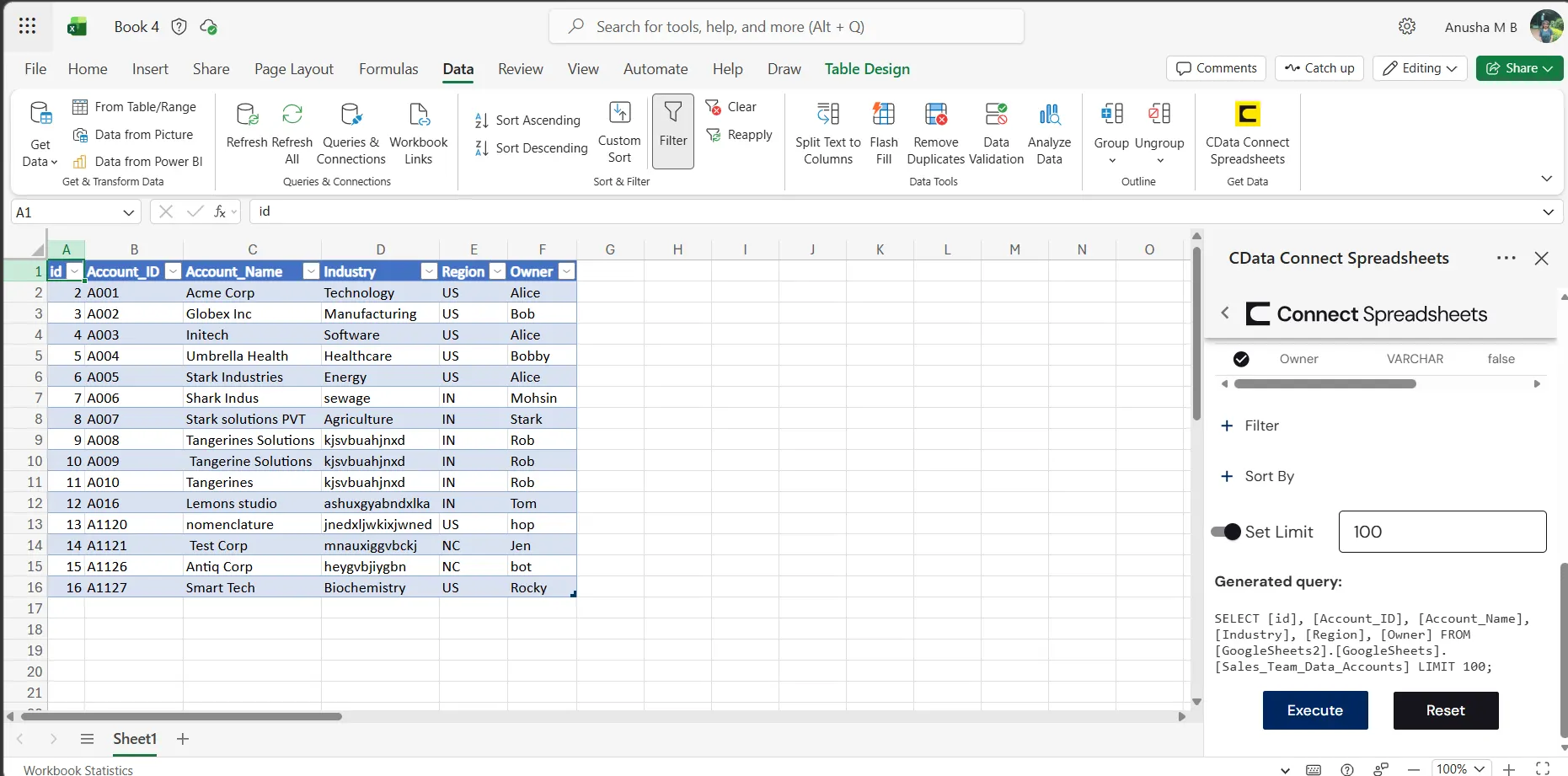
- In the Connect Spreadsheets panel in Excel, click Import
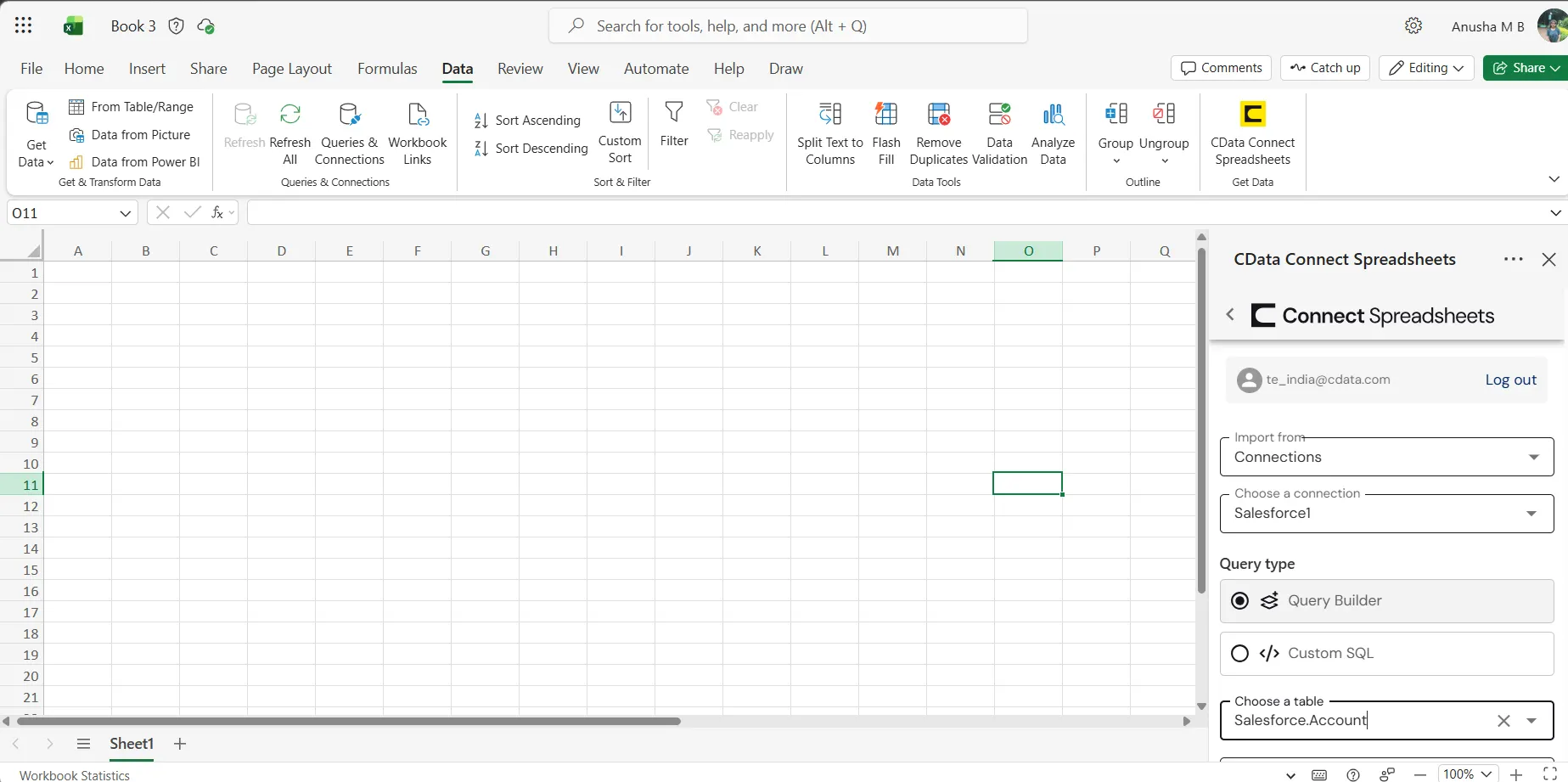
- Choose a Connection (e.g. Cvent1), Table (e.g. Events), and Columns to import
- Optionally add Filters, Sorting, and a Limit
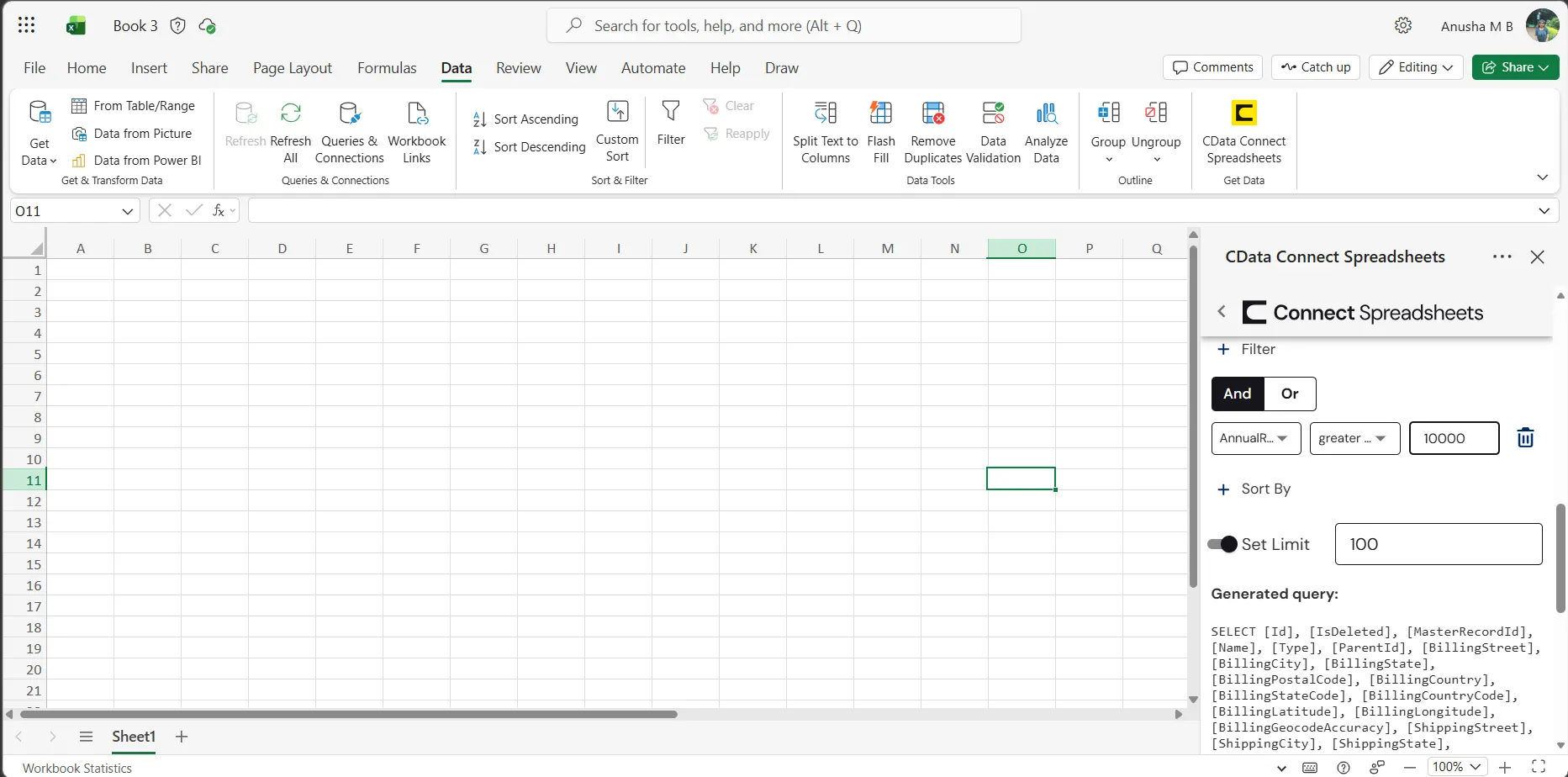
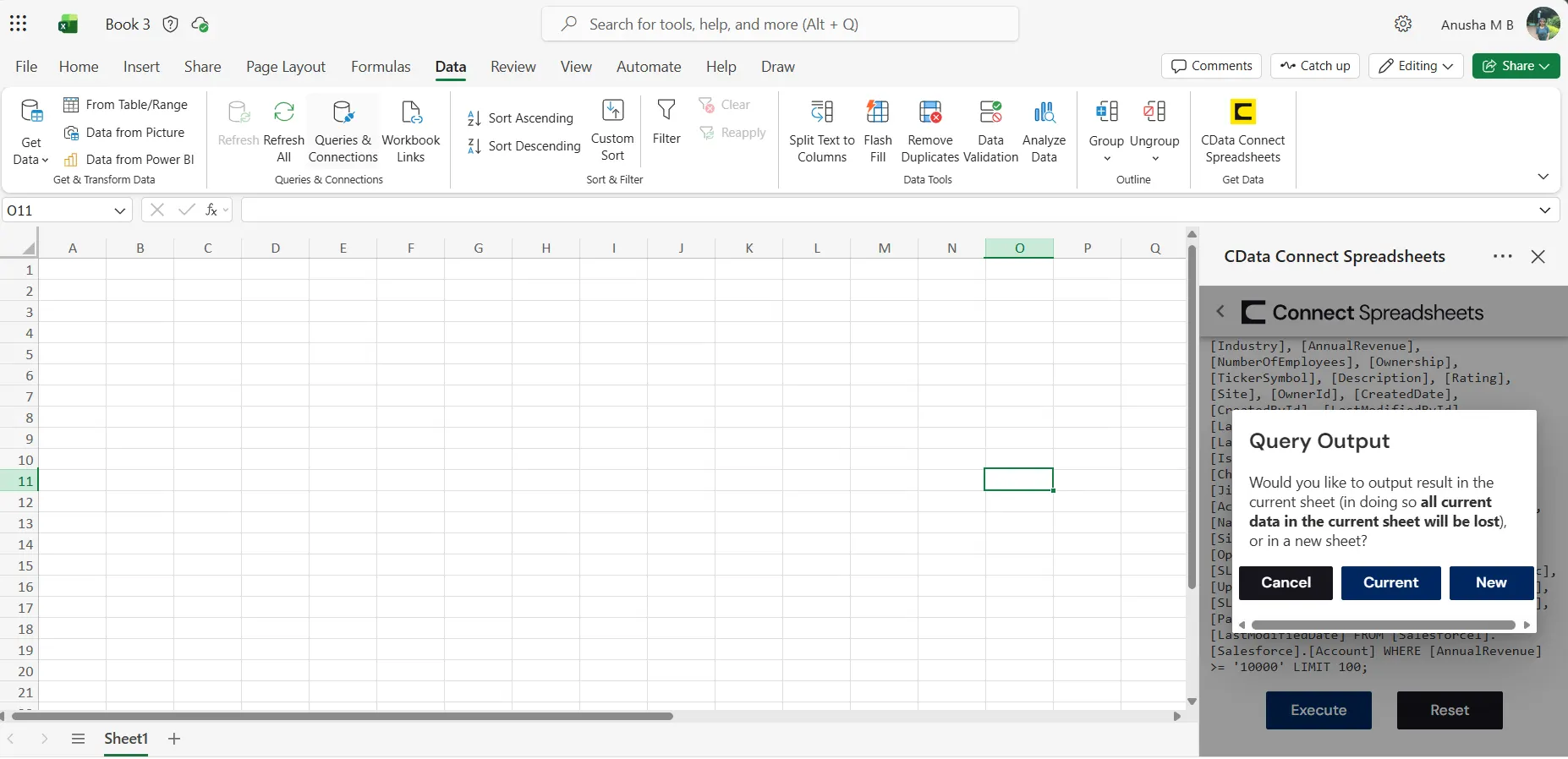
- Click Execute to import the data
Update Cvent Data from Excel
In addition to viewing Cvent data in Excel, Connect Spreadsheets also lets you update and delete Cvent data. Begin by importing data (as described above).
- Update any cell or cells with changes you want to push to Cvent
- In the Connect Spreadsheets Add-In panel, select Update
- Optionally highlight the cell(s) you wish to update and select an update option ("Update All" or "Update Selected")
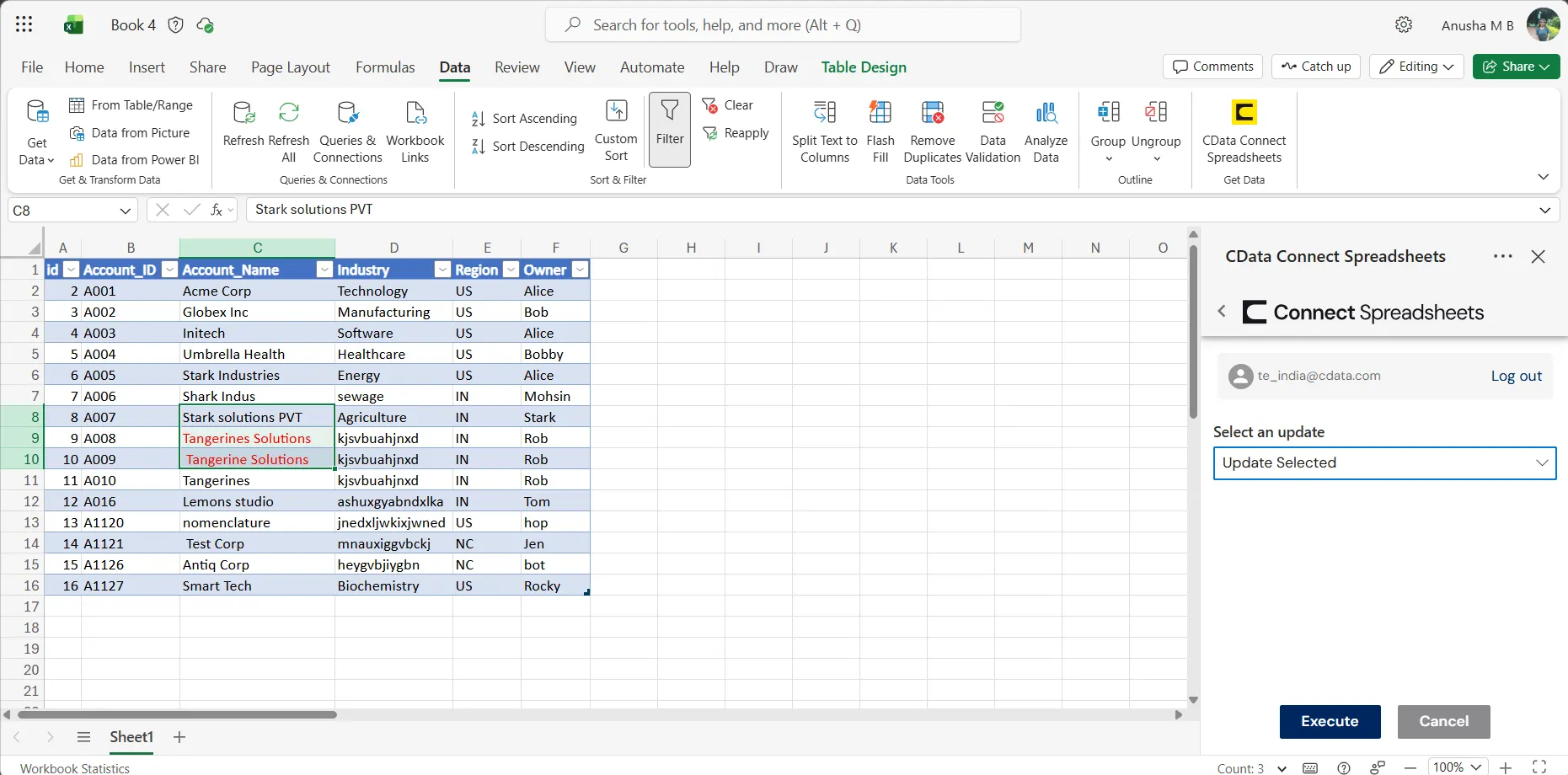
- Click Execute to push the updates to Cvent
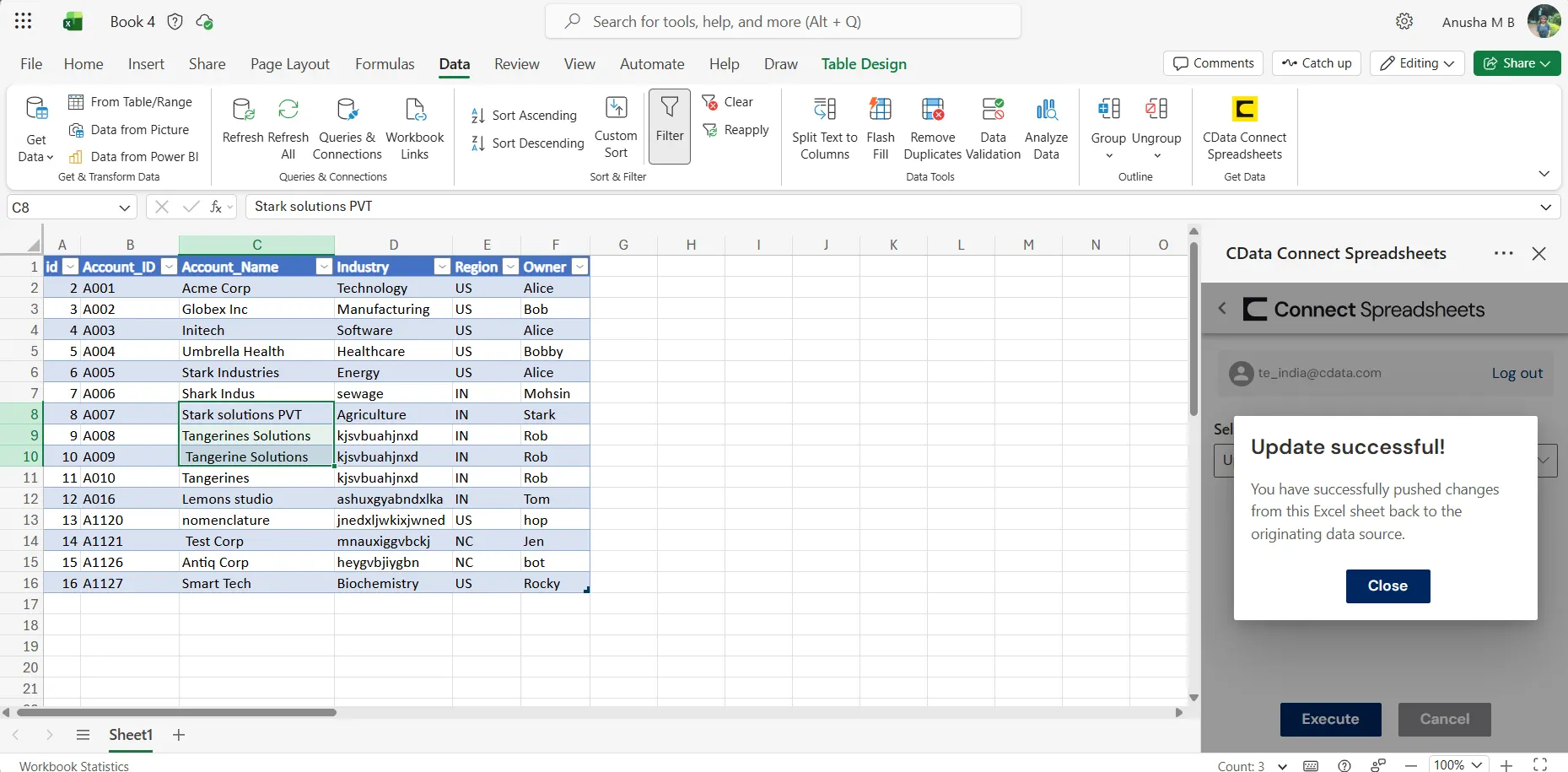
A notification will appear when the update is complete.
Live Access to Cvent Data from Spreadsheets
New, you have a direct, cloud-to-cloud connection to live Cvent data from your Excel workbook. You can add more data to your workbook for calculations, aggregations, collaboration, and more.
Try Connect Spreadsheets and get real-time data access to hundreds of SaaS, Big Data, and NoSQL sources directly from your spreadsheet apps.