







Use Dash to Build Web Apps on Microsoft Dataverse Data via CData Connect AI

The rich ecosystem of Python modules lets you get to work quickly and integrate your systems more effectively. With the CData Connect AI Python SDK, the pandas module, and the Dash framework, you can build Microsoft Dataverse-connected web applications for Microsoft Dataverse data. This article shows how to connect to Connect AI and use pandas and Dash to build a simple web app for visualizing Microsoft Dataverse data.
The Connect AI Python SDK (cdata-connect-ai) is a DB-API 2.0 (PEP 249) compliant client, so pandas can read query results directly from the SDK connection object. There is no driver to install per source: connect with a Personal Access Token and build your app.
About Microsoft Dataverse Data Integration
CData provides the easiest way to access and integrate live data from Microsoft Dataverse (formerly the Common Data Service). Customers use CData connectivity to:
- Access both Dataverse Entities and Dataverse system tables to work with exactly the data they need.
- Authenticate securely with Microsoft Dataverse in a variety of ways, including Microsoft Entra ID, Azure Managed Service Identity credentials, and Azure Service Principal using either a client secret or a certificate.
- Use SQL stored procedures to manage Microsoft Dataverse entities - listing, creating, and removing associations between entities.
CData customers use our Dataverse connectivity solutions for a variety of reasons, whether they're looking to replicate their data into a data warehouse (alongside other data sources)or analyze live Dataverse data from their preferred data tools inside the Microsoft ecosystem (Power BI, Excel, etc.) or with external tools (Tableau, Looker, etc.).
Getting Started
Connect to Microsoft Dataverse in Connect AI
CData Connect AI uses a straightforward, point-and-click interface to connect to data sources.
- Log into Connect AI, click Sources, and then click Add Connection
- Select "Microsoft Dataverse" from the Add Connection panel
-
Enter the necessary authentication properties to connect to Microsoft Dataverse.
You can connect without setting any connection properties for your user credentials. Below are the minimum connection properties required to connect.
- InitiateOAuth: Set this to GETANDREFRESH. You can use InitiateOAuth to avoid repeating the OAuth exchange and manually setting the OAuthAccessToken.
- OrganizationUrl: Set this to the organization URL you are connecting to, such as https://myorganization.crm.dynamics.com.
- Tenant (optional): Set this if you wish to authenticate to a different tenant than your default. This is required to work with an organization not on your default Tenant.
When you connect the Common Data Service OAuth endpoint opens in your default browser. Log in and grant permissions. The OAuth process completes automatically.

- Click Save & Test
- Navigate to the Permissions tab and update the user-based permissions.



Generate a Personal Access Token (PAT)
The Python SDK authenticates to Connect AI with your account email and a Personal Access Token (PAT). It is best practice to create a separate PAT for each application to maintain granularity of access.
- Click the Gear icon () at the top right of the Connect AI app to open the Settings page.
- On the Settings page, go to the Access Tokens section and click Create PAT.
- Give the PAT a name and click Create.

- The PAT is only visible at creation, so copy it and store it securely.
Install Required Modules
Install the SDK (with the pandas extra), Dash, and Plotly using the pip utility:
pip install "cdata-connect-ai[full]"
pip install dash
pip install plotly
Build a Web App on Microsoft Dataverse Data in Python
Once the required modules are installed, you are ready to build the web app. Code snippets follow, but the full source code is available at the end of the article.
First, import the modules, then connect to Connect AI with your account email and PAT and read Microsoft Dataverse data into a DataFrame. Identifiers are three-part: <Connection>.<Schema>.<Table>, where the connection name defaults to the source name (for example, CDS1).
import dash
from dash import dcc, html
import pandas as pd
import plotly.graph_objs as go
import cdata_connect_ai

conn = cdata_connect_ai.connect(
    username="[email protected]",
    password="<your_pat>",
)

df = pd.read_sql(
    "SELECT AccountId, Name "
    "FROM [CDS1].[CDS].[Accounts] "
    "WHERE Name = 'MyAccount'",
    conn,
)

conn.close()
Configure the App and Layout
With the query results stored in a DataFrame, build a bar graph from the Microsoft Dataverse data and configure the app layout.
app = dash.Dash(__name__)
app.title = 'CData Connect AI + Dash'

trace = go.Bar(x=df['AccountId'], y=df['Name'], name='AccountId')

app.layout = html.Div(
    children=[
        html.H1("CData Connect AI + Dash", style={'textAlign': 'center'}),
        dcc.Graph(
            id='example-graph',
            figure={
                'data': [trace],
                'layout': go.Layout(title='Microsoft Dataverse Accounts Data', barmode='stack'),
            },
        ),
    ],
    className="container",
)
Set the App to Run
With the connection, app, and layout configured, you are ready to run the app.
if __name__ == '__main__':
    app.run(debug=True)
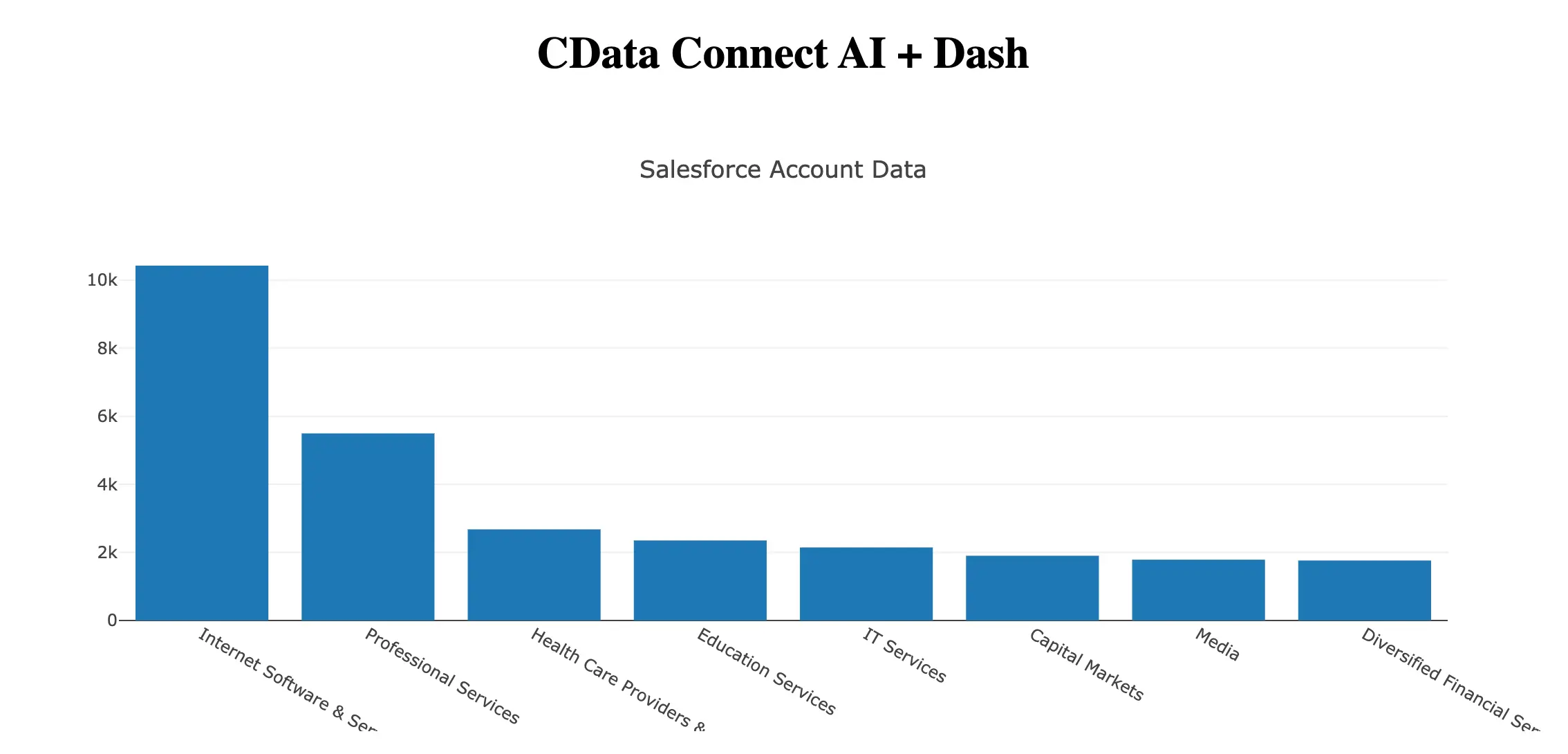
Now, use Python to run the web app and a browser to view the Microsoft Dataverse data.
python cds-dash.py
More Information and Free Trial
Now you can build interactive Dash web apps on live Microsoft Dataverse data using the CData Connect AI Python SDK. For more information on connecting to Microsoft Dataverse (and hundreds of other data sources), visit the Connect AI page. Sign up for a free trial and start building web apps on live Microsoft Dataverse data in Python.
Full Source Code
import dash
from dash import dcc, html
import pandas as pd
import plotly.graph_objs as go
import cdata_connect_ai

conn = cdata_connect_ai.connect(
    username="[email protected]",
    password="<your_pat>",
)

df = pd.read_sql(
    "SELECT AccountId, Name "
    "FROM [CDS1].[CDS].[Accounts] "
    "WHERE Name = 'MyAccount'",
    conn,
)

conn.close()

app = dash.Dash(__name__)
app.title = 'CData Connect AI + Dash'

trace = go.Bar(x=df['AccountId'], y=df['Name'], name='AccountId')

app.layout = html.Div(
    children=[
        html.H1("CData Connect AI + Dash", style={'textAlign': 'center'}),
        dcc.Graph(
            id='example-graph',
            figure={
                'data': [trace],
                'layout': go.Layout(title='Microsoft Dataverse Accounts Data', barmode='stack'),
            },
        ),
    ],
    className="container",
)

if __name__ == '__main__':
    app.run(debug=True)