







Connect to EnterpriseDB Data in ACL Analytics

ACL Analytics, part of Diligent HighBond, is a powerful data analysis software primarily used for audit, risk management, and compliance. It enables professionals to examine and analyze large volumes of data to identify anomalies, trends, and potential risks or fraudulent activities.
CData Connect AI offers a dedicated cloud-to-cloud interface for EnterpriseDB, enabling analytics directly from live EnterpriseDB data within ACL Analytics, all without the need for data replication to a native database. With its inherent optimized data processing capabilities, CData Connect AI efficiently channels all supported SQL operations, including filters and JOINs, directly to EnterpriseDB. This leverages server-side processing to swiftly deliver the requested EnterpriseDB data.
Configure EnterpriseDB Connectivity for ACL Analytics
Connectivity to EnterpriseDB from ACL Analytics is made possible through CData Connect AI. To work with EnterpriseDB data from ACL Analytics, we start by creating and configuring a EnterpriseDB connection in CData Connect AI.
- Log into Connect AI, click Sources, and then click Add Connection
- Select "EnterpriseDB" from the Add Connection panel
- Enter the necessary authentication properties to connect to EnterpriseDB.
Enter the necessary authentication properties to connect to EnterpriseDB.
The following connection properties are required in order to connect to data.
- Server: The host name or IP of the server hosting the EnterpriseDB database.
- Port: The port of the server hosting the EnterpriseDB database.
You can also optionally set the following:
- Database: The default database to connect to when connecting to the EnterpriseDB Server. If this is not set, the user's default database will be used.
Connect Using Standard Authentication
To authenticate using standard authentication, set the following:
- User: The user which will be used to authenticate with the EnterpriseDB server.
- Password: The password which will be used to authenticate with the EnterpriseDB server.
Connect Using SSL Authentication
You can leverage SSL authentication to connect to EnterpriseDB data via a secure session. Configure the following connection properties to connect to data:
- SSLClientCert: Set this to the name of the certificate store for the client certificate. Used in the case of 2-way SSL, where truststore and keystore are kept on both the client and server machines.
- SSLClientCertPassword: If a client certificate store is password-protected, set this value to the store's password.
- SSLClientCertSubject: The subject of the TLS/SSL client certificate. Used to locate the certificate in the store.
- SSLClientCertType: The certificate type of the client store.
- SSLServerCert: The certificate to be accepted from the server.

- Click Save & Test
-
Navigate to the Permissions tab in the Add EnterpriseDB Connection page and update the User-based permissions.



Add a Personal Access Token
When connecting to Connect AI through the REST API, the OData API, or the Virtual SQL Server, a Personal Access Token (PAT) is used to authenticate the connection to Connect AI. It is best practice to create a separate PAT for each service to maintain granularity of access.
- Click on the Gear icon () at the top right of the Connect AI app to open the settings page.
- On the Settings page, go to the Access Tokens section and click Create PAT.
-
Give the PAT a name and click Create.

- The personal access token is only visible at creation, so be sure to copy it and store it securely for future use.
With the connection configured and a PAT generated, you are ready to connect to EnterpriseDB data from ACL Analytics.
Connect to EnterpriseDB from ACL Analytics
The steps below outline connecting to CData Connect AI from ACL Analytics to create a new EnterpriseDB data source. The CData Connect AI Virtual SQL Server allows you to establish a connection to your data from integration tools that support connections to SQL servers. The Virtual SQL Server mimics the behavior of a traditional SQL server, and it supports a range of query options.
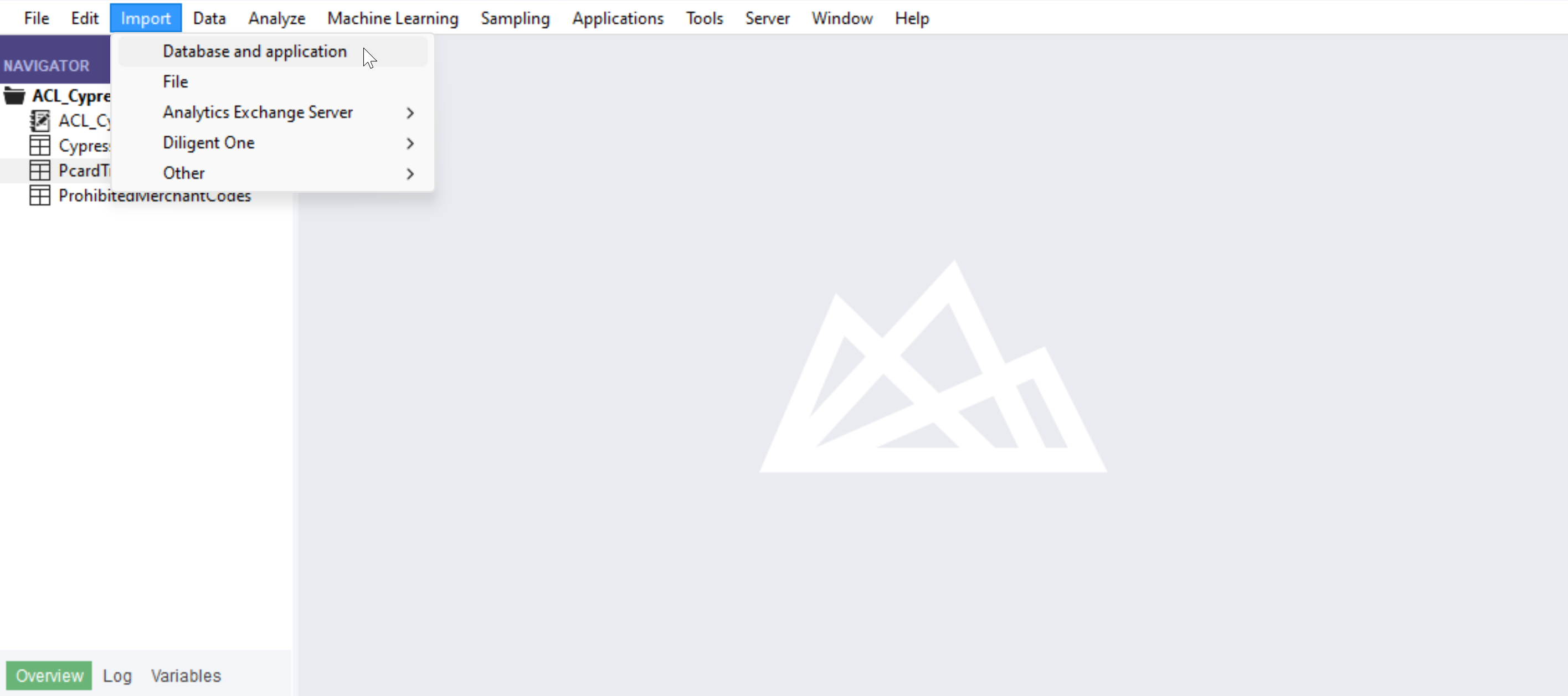
- With your Analytics File open, select 'Import' --> 'Database and application'
- Create a new SQL Server connection
- Set the connection information
- Server: tds.cdata.com
- Port: 14333
- Auth Scheme: Password
- Username: a Connect AI user, for example, [email protected]
- Password: the PAT for the above Connect AI user
- Database: the name of your EnterpriseDB connection, for example, EnterpriseDB1
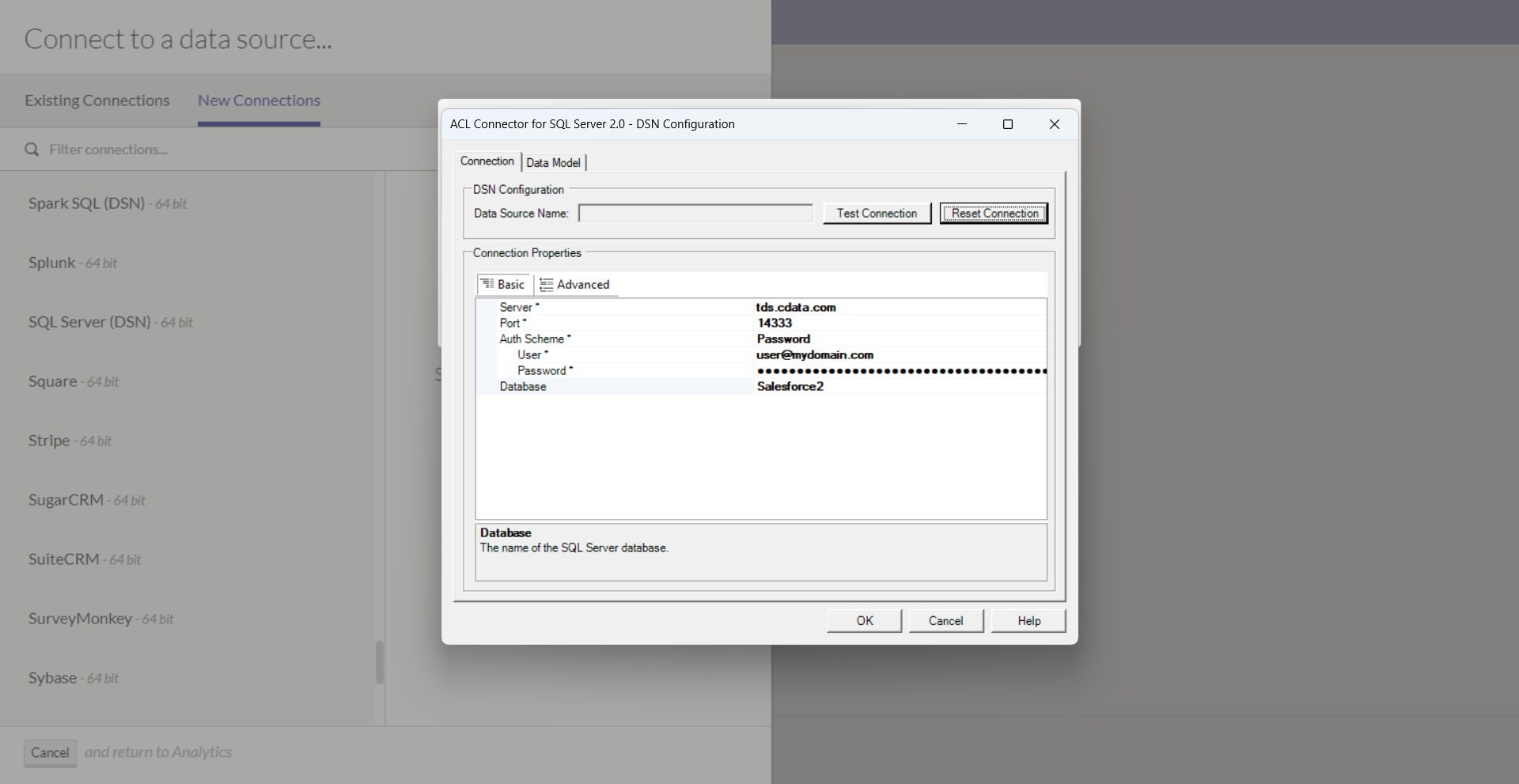
- Click "Test Connection"
- Click "OK"
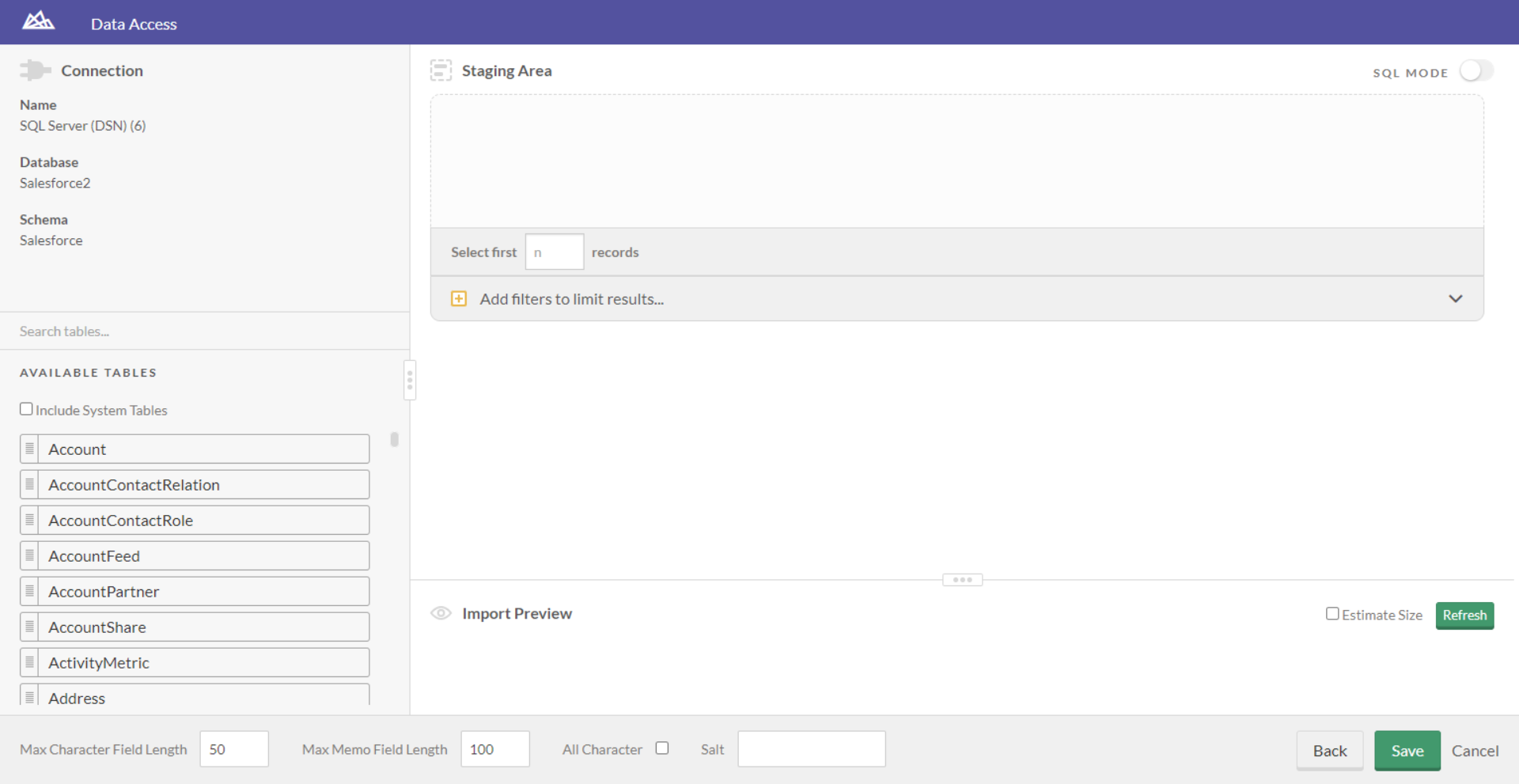
- You are now ready to work with your EnterpriseDB data in ACL Analytics!
Live connections to EnterpriseDB data from your applications
ACL Analytics can now connect to live EnterpriseDB data directly through Connect AI, allowing you to analyze EnterpriseDB data without duplicating it.
To get live data access to hundreds of SaaS, Big Data, and NoSQL sources directly from your applications, try CData Connect AI today!