







Integrate Live EnterpriseDB Data in the Windsurf IDE via CData Connect AI

Windsurf is an AI-native IDE built around Cascade, an autonomous coding agent that understands project context and executes multi-step tasks directly inside the editor. Cascade supports the Model Context Protocol (MCP), allowing the agent to discover and call external tools and data sources without leaving the development environment.
By integrating Windsurf with CData Connect AI through the built-in MCP server, the Cascade agent gains governed, real-time access to live EnterpriseDB data. This enables developers to list catalogs, inspect schemas, and query records from EnterpriseDB data within the IDE using natural language prompts.
This article explains how to configure EnterpriseDB connectivity in Connect AI, generate the required personal access token, configure the Connect AI MCP Server in Windsurf, and verify the integration by querying live EnterpriseDB data from the Cascade chat.
Step 1: Configure EnterpriseDB connectivity for Windsurf
Connectivity to EnterpriseDB from Windsurf is made possible through Connect AI's Remote MCP Server. To interact with EnterpriseDB data from Windsurf, start by creating and configuring a EnterpriseDB connection in Connect AI.
- Log into Connect AI, click Sources, and then click Add Connection
- Select EnterpriseDB from the Add Connection panel
-
Enter the necessary authentication properties to connect to EnterpriseDB.
The following connection properties are required in order to connect to data.
- Server: The host name or IP of the server hosting the EnterpriseDB database.
- Port: The port of the server hosting the EnterpriseDB database.
You can also optionally set the following:
- Database: The default database to connect to when connecting to the EnterpriseDB Server. If this is not set, the user's default database will be used.
Connect Using Standard Authentication
To authenticate using standard authentication, set the following:
- User: The user which will be used to authenticate with the EnterpriseDB server.
- Password: The password which will be used to authenticate with the EnterpriseDB server.
Connect Using SSL Authentication
You can leverage SSL authentication to connect to EnterpriseDB data via a secure session. Configure the following connection properties to connect to data:
- SSLClientCert: Set this to the name of the certificate store for the client certificate. Used in the case of 2-way SSL, where truststore and keystore are kept on both the client and server machines.
- SSLClientCertPassword: If a client certificate store is password-protected, set this value to the store's password.
- SSLClientCertSubject: The subject of the TLS/SSL client certificate. Used to locate the certificate in the store.
- SSLClientCertType: The certificate type of the client store.
- SSLServerCert: The certificate to be accepted from the server.

- Click Save & Test
- Navigate to the Permissions tab and update user-based permissions



Add a Personal Access Token
A Personal Access Token (PAT) is used to authenticate the connection to Connect AI from Windsurf. It is best practice to create a separate PAT for each integration to maintain granular access control.
- Click the gear icon () at the top right of the Connect AI app to open Settings
- On the Settings page, go to the Access Tokens section and click Create PAT
- Give the PAT a descriptive name and click Create
- Copy the token when displayed and store it securely. It will not be shown again

With the EnterpriseDB connection configured and a PAT generated, Windsurf can now connect to EnterpriseDB data.
Step 2: Configure Connect AI MCP in Windsurf
Next, configure the Connect AI Remote MCP Server in Windsurf so that the Cascade agent can discover and call live data tools through Connect AI.
- Download and install the Windsurf IDE
-
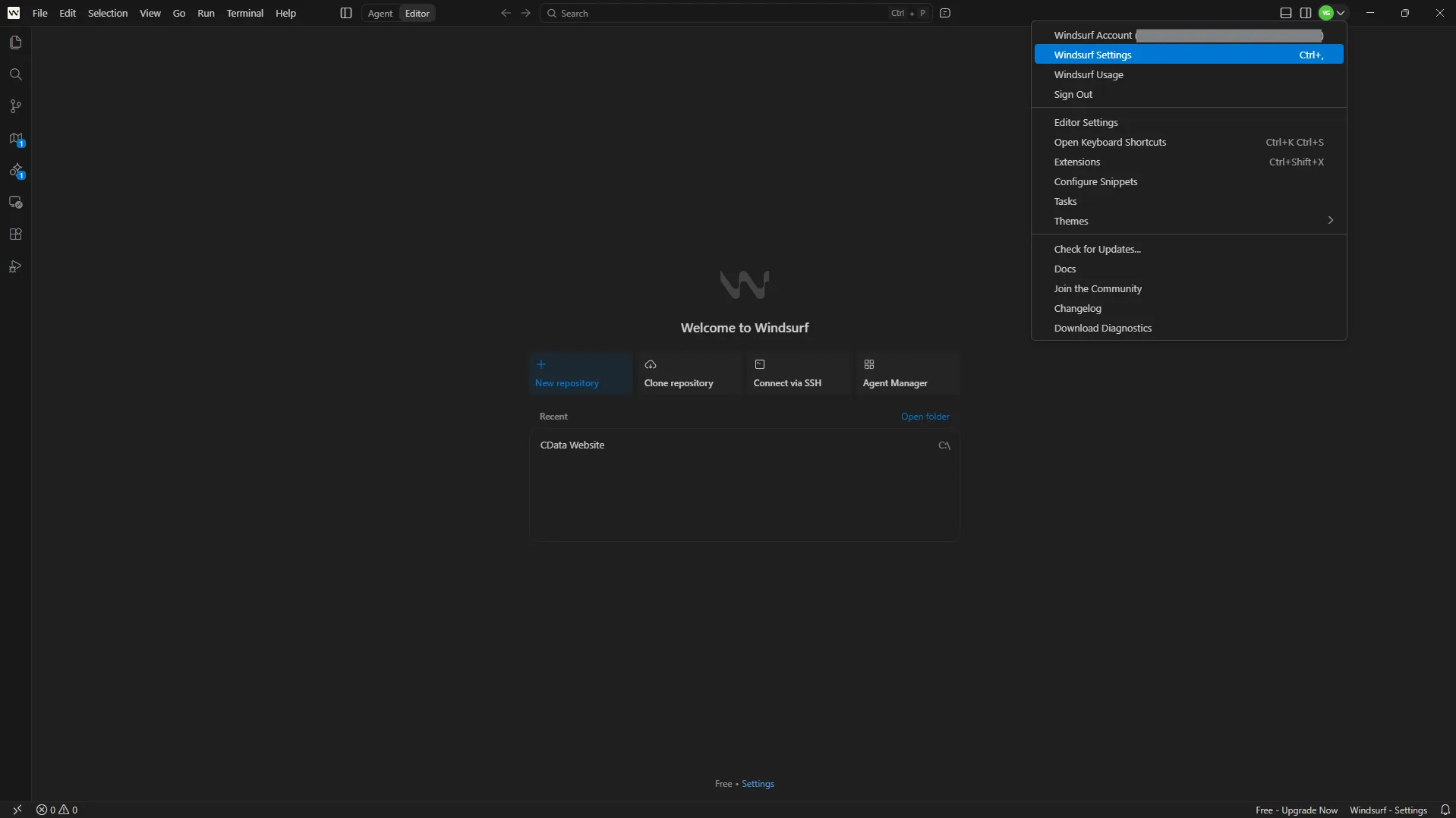
Open Windsurf, click your profile icon in the top right, and select Windsurf Settings
-
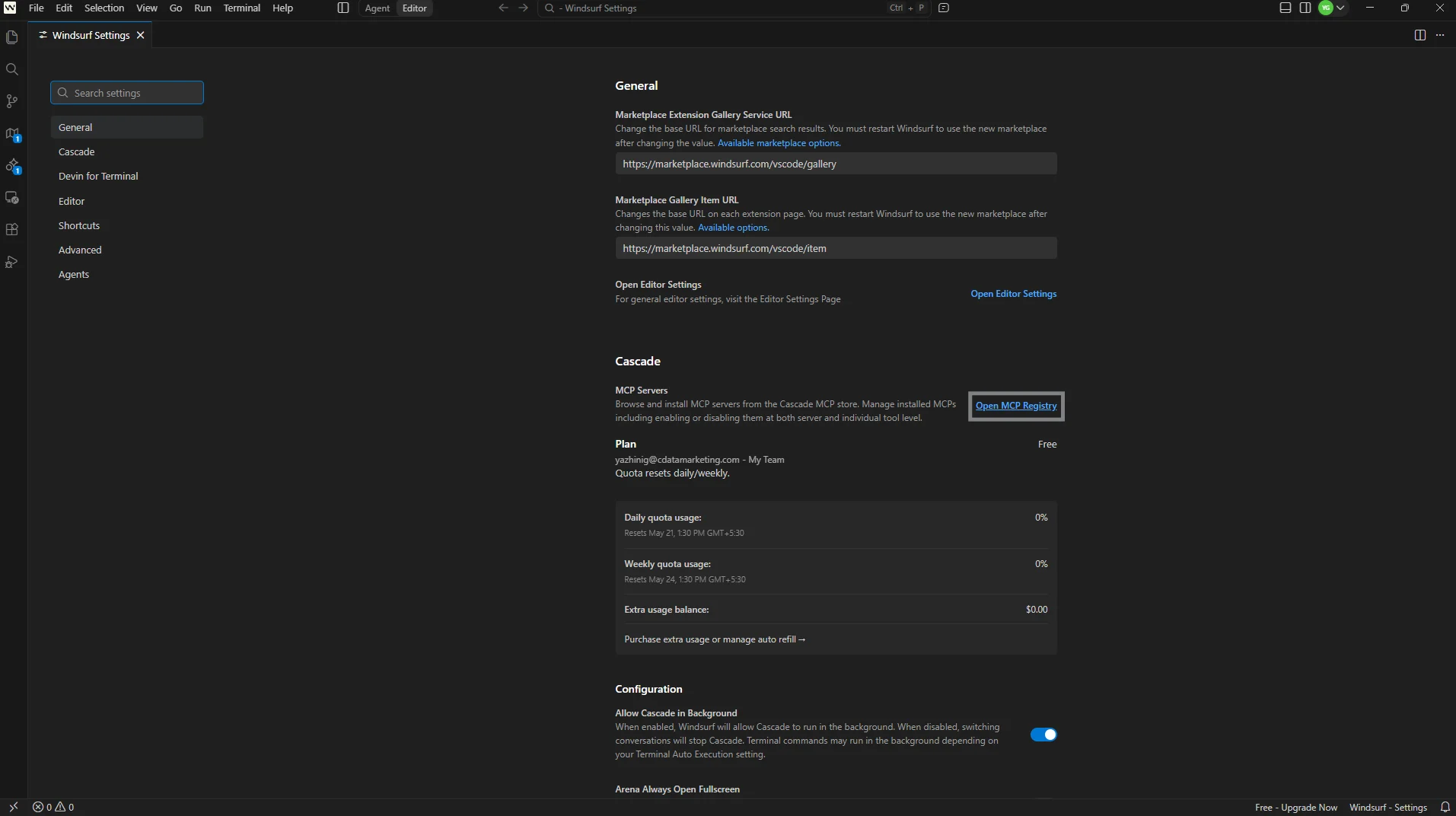
Under the Cascade section, locate MCP Servers and click Open MCP Registry
-
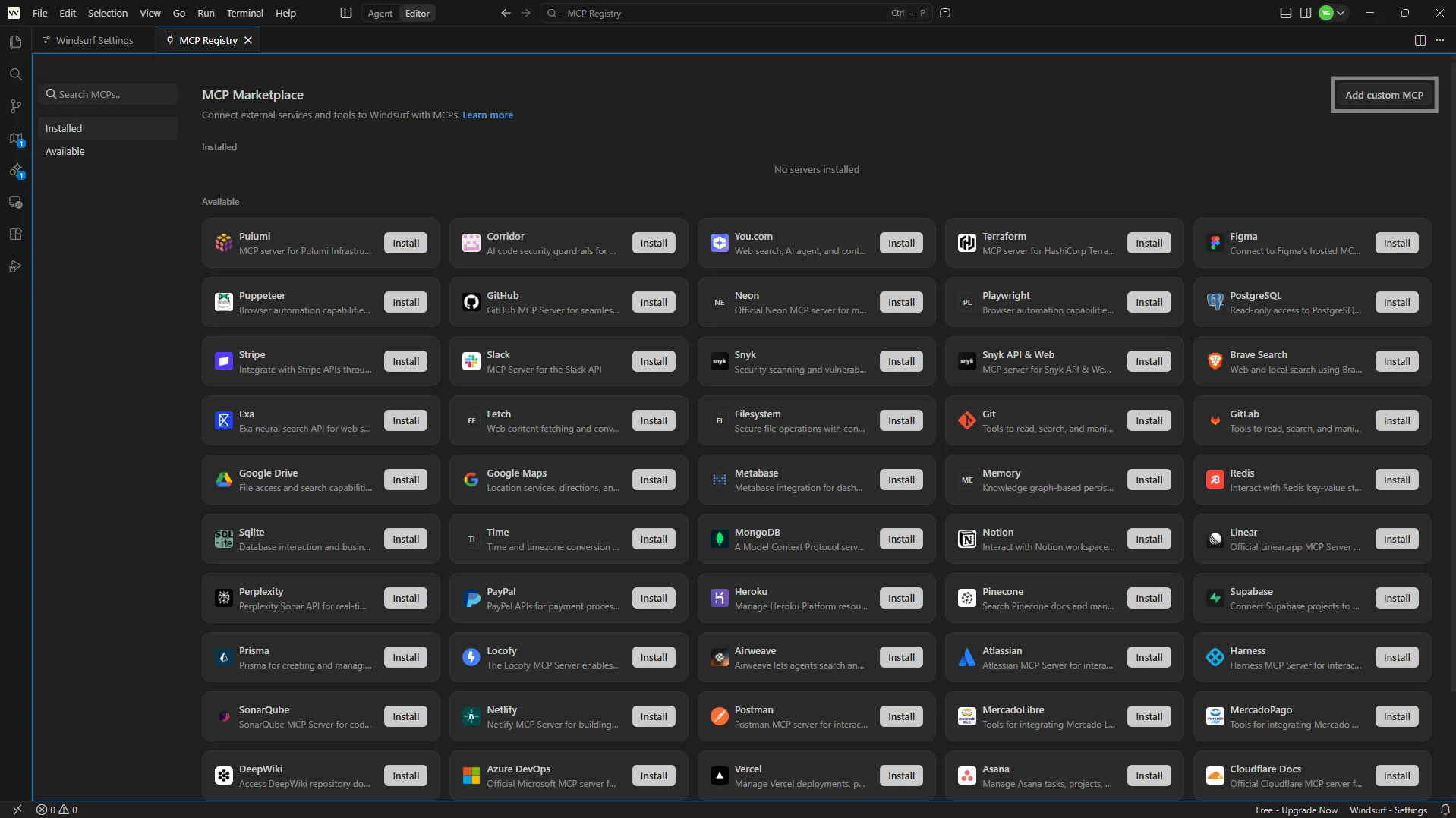
In the MCP Marketplace, click Add custom MCP in the top right
-
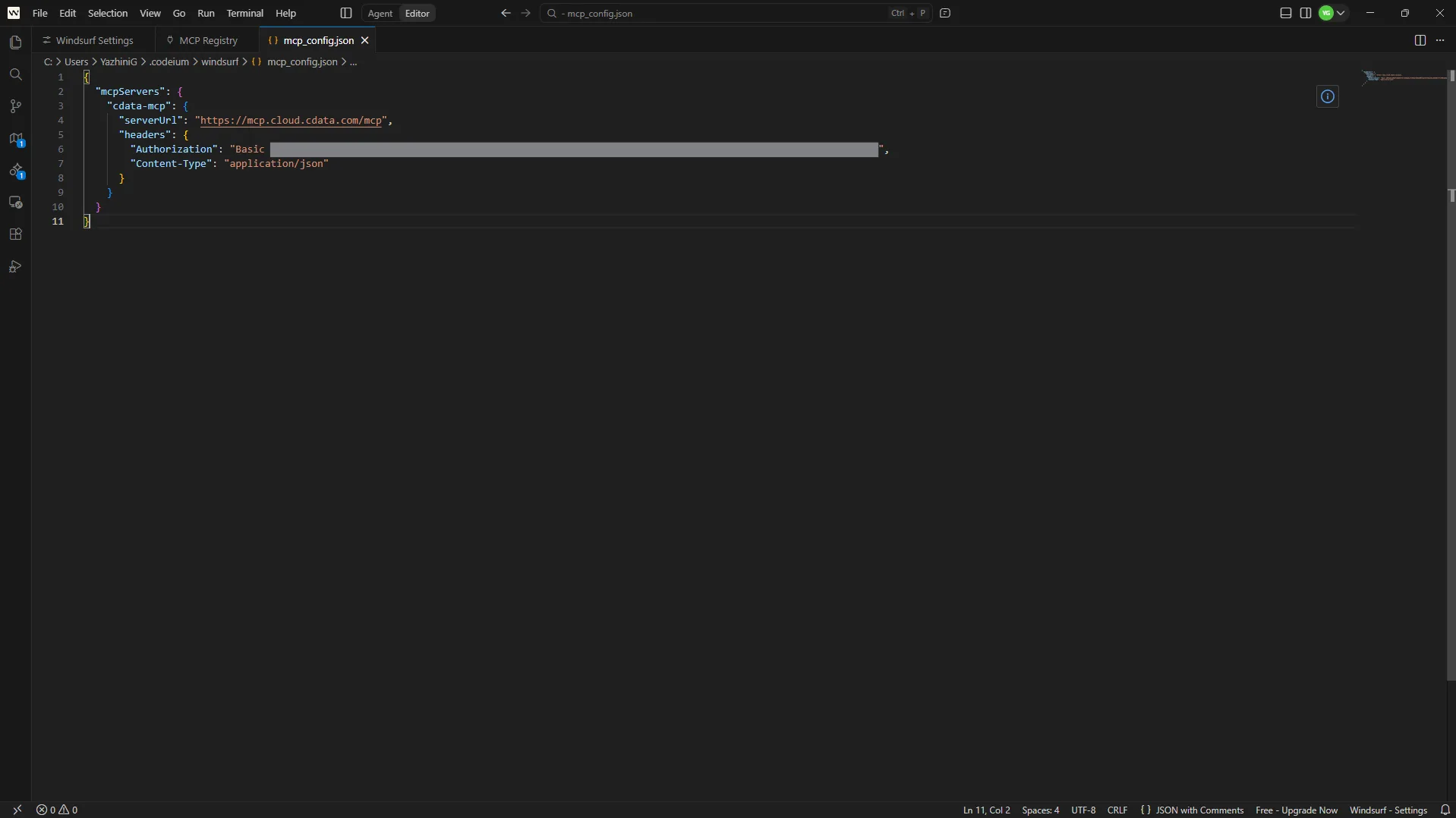
This opens the mcp_config.json file. Paste the following JSON:
{
    "mcpServers": {
        "cdata-mcp": {
            "serverUrl": "https://mcp.cloud.cdata.com/mcp",
            "headers": {
                "Authorization": "Basic your_base64_encoded_email_PAT",
                "Content-Type": "application/json"
            }
        }
    }
}
Note: Windsurf will use Basic authentication with Connect AI. Combine your Connect AI user email and the PAT you created earlier in the format email:PAT, base64 encode the combined string, and prefix it with Basic. For example, given [email protected]:ABC123...XYZ789, the Authorization header value becomes something like: Basic dXNlckBkb21haW4uY29tOkFCQzEyMy4uLlhZWjc4OQ==
- Save the mcp_config.json file and return to the MCP Registry
-
Under Installed, confirm that cdata-mcp is listed and marked as Enabled
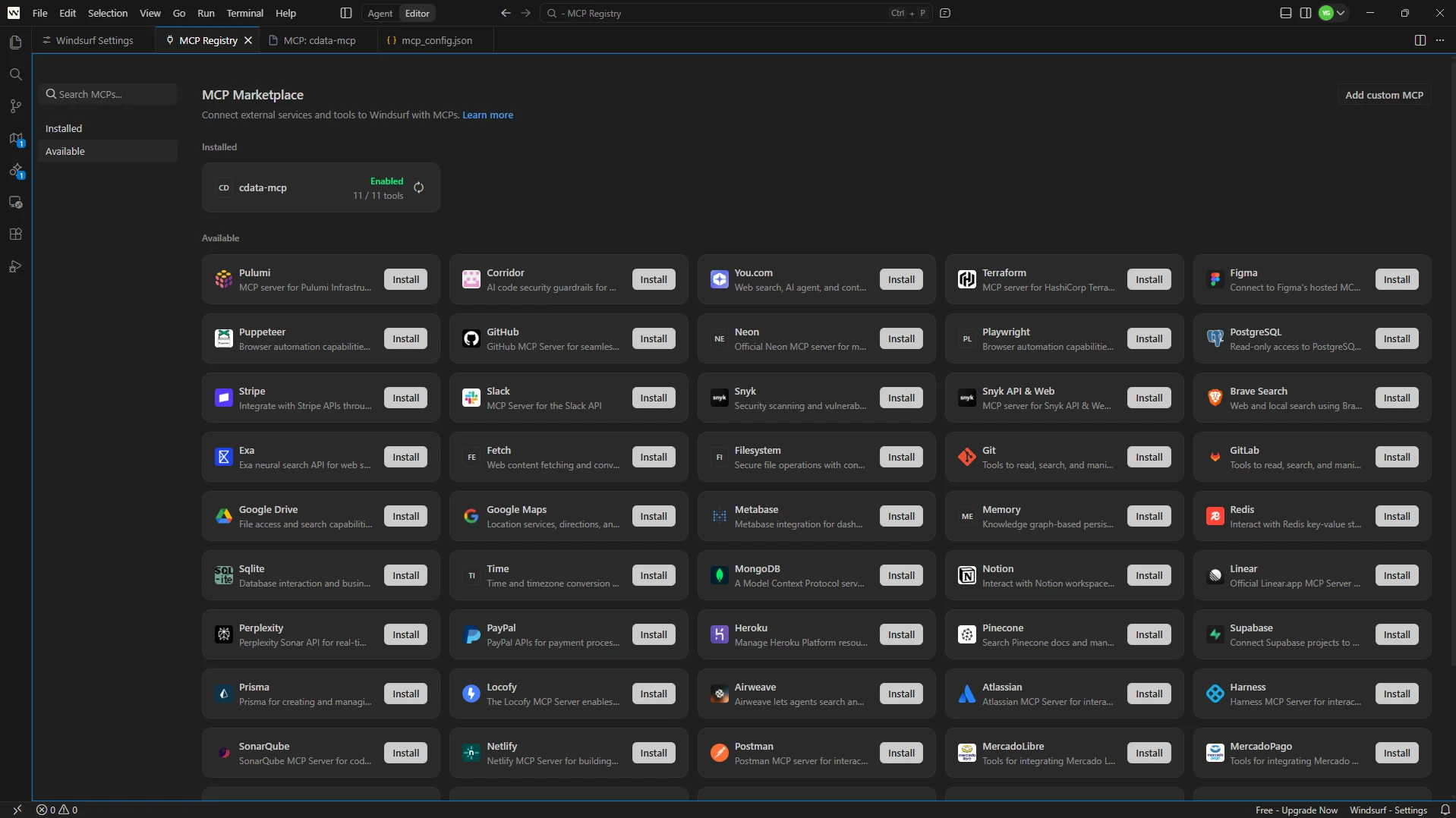
With the MCP server registered and enabled, Windsurf is ready to query live EnterpriseDB data through Connect AI.
Step 3: Query live EnterpriseDB data from Windsurf
With the integration complete, use the Cascade chat panel in Windsurf to interact with live EnterpriseDB data through natural language prompts.
- On the top bar of Windsurf, switch from Editor to Agent to open a new Cascade chat
-
At the bottom of the chat panel, confirm that the cdata-mcp server is listed and the toggle is enabled
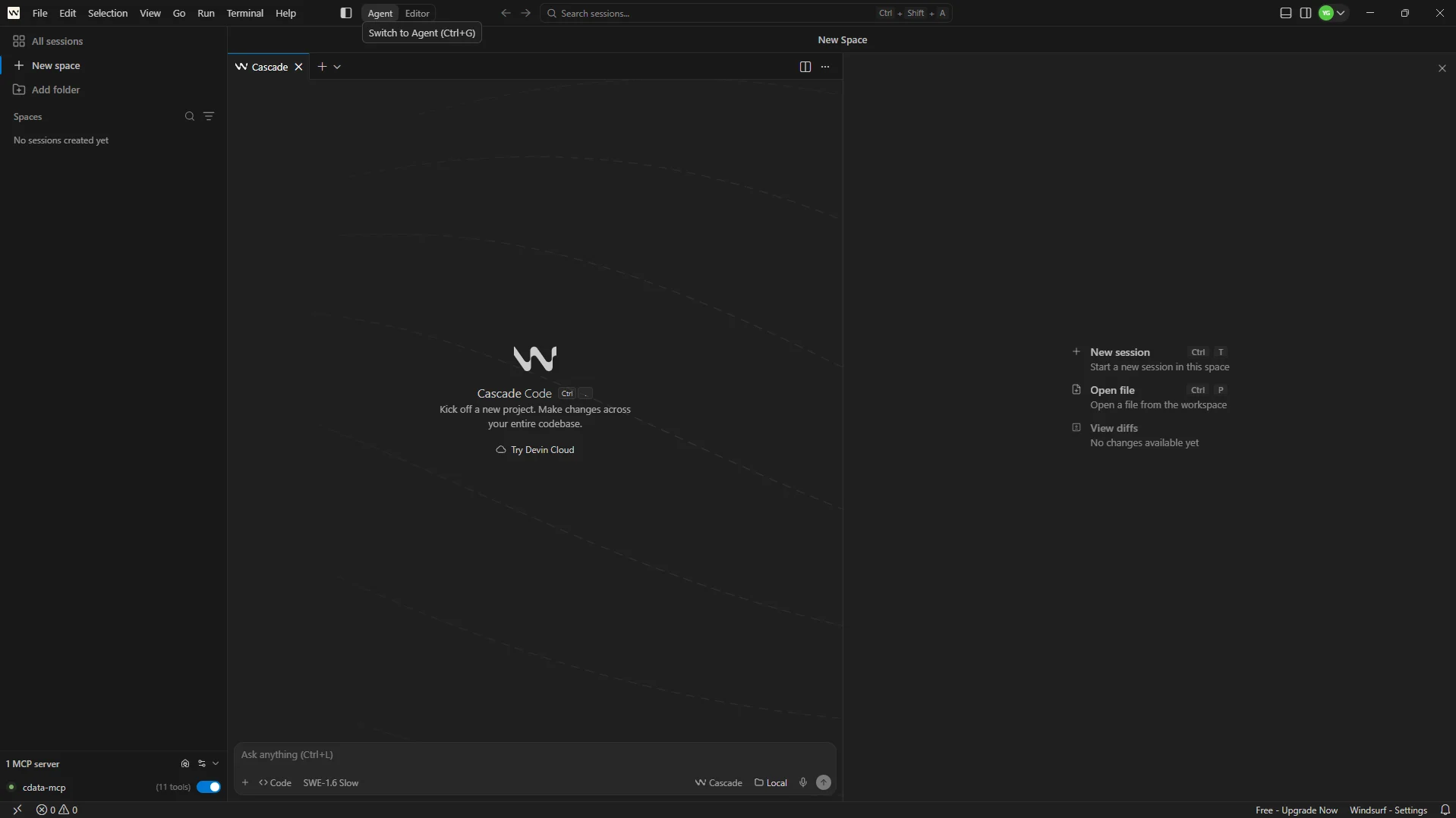
-
Start interacting with the agent by entering prompts like:
- List all catalogs in my cdata-mcp connection
- Show the available schemas and tables for EnterpriseDB
- Query the top 5 records from a table in EnterpriseDB data
-
The Cascade agent calls the Connect AI MCP Server and returns live results from EnterpriseDB data
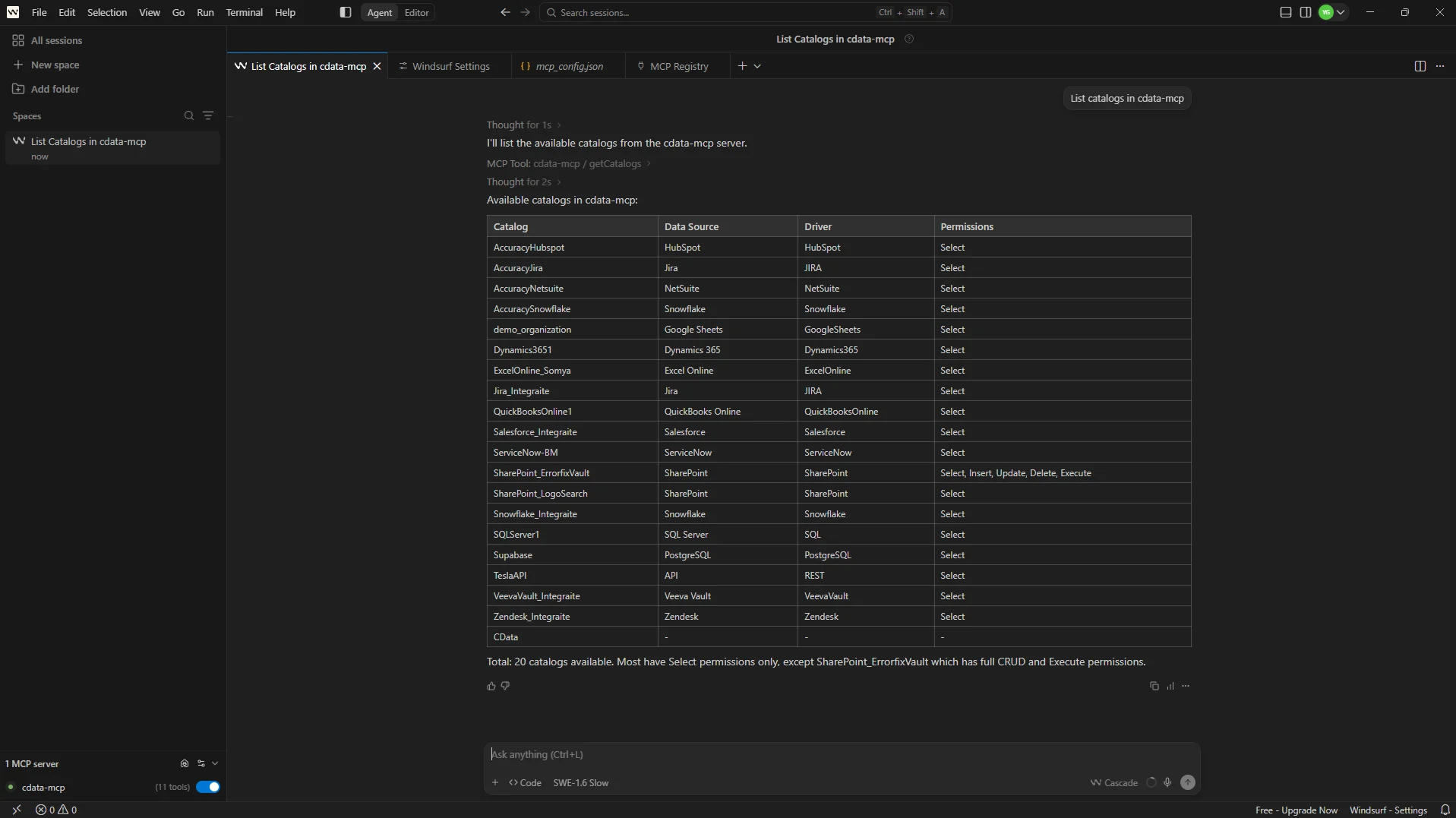
At this point, your Windsurf IDE communicates with the Connect AI MCP Server and retrieves live EnterpriseDB data through remote MCP directly from the editor.
Get CData Connect AI
To access hundreds of SaaS, Big Data, and NoSQL sources directly from your cloud applications, try CData Connect AI today! Download a free 14-day trial of CData Connect AI today, and as always, our Support Team is available to assist you with any questions you may have.