







Connect to FTP Data from Filemaker Pro (Mac)

FileMaker Pro is a cross-platform relational database application that allows users to visually modify a database. When paired with CData Connect AI, FileMaker Pro gets access to live FTP data. This article demonstrates how to connect to FTP using Connect AI and query FTP data in FileMaker Pro.
CData Connect AI provides a pure SQL Server interface for FTP, allowing you to query data from FTP without replicating the data to a natively supported database. Using optimized data processing out of the box, CData Connect AI pushes all supported SQL operations (filters, JOINs, etc.) directly to FTP, leveraging server-side processing to return the requested FTP data quickly.
Configure FTP Connectivity for FileMaker Pro
Connectivity to FTP from FileMaker Pro is made possible through CData Connect AI. To work with FTP data from FileMaker Pro, we start by creating and configuring a FTP connection.
- Log into Connect AI, click Sources, and then click Add Connection
- Select "FTP" from the Add Connection panel
-
Enter the necessary authentication properties to connect to FTP.
To connect to FTP or SFTP servers, specify at least RemoteHost and FileProtocol. Specify the port with RemotePort.
Set User and Password to perform Basic authentication. Set SSHAuthMode to use SSH authentication. See the Getting Started section of the data provider help documentation for more information on authenticating via SSH.
Set SSLMode and SSLServerCert to secure connections with SSL.
The data provider lists the tables based on the available folders in your FTP server. Set the following connection properties to control the relational view of the file system:
- RemotePath: Set this to the current working directory.
- TableDepth: Set this to control the depth of folders to list as views.
- FileRetrievalDepth: Set this to retrieve and list files recursively from the root table.
Stored Procedures are available to download files, upload files, and send protocol commands. See the Data Model chapter of the FTP data provider documentation for more information.

- Click Save & Test
-
Navigate to the Permissions tab in the Add FTP Connection page and update the User-based permissions.



Add a Personal Access Token
When connecting to Connect AI through the REST API, the OData API, or the Virtual SQL Server, a Personal Access Token (PAT) is used to authenticate the connection to Connect AI. It is best practice to create a separate PAT for each service to maintain granularity of access.
- Click on the Gear icon () at the top right of the Connect AI app to open the settings page.
- On the Settings page, go to the Access Tokens section and click Create PAT.
-
Give the PAT a name and click Create.

- The personal access token is only visible at creation, so be sure to copy it and store it securely for future use.
With the connection configured and a PAT generated, you are ready to connect to FTP data from Filemaker Pro.
Connect to FTP from FileMaker Pro using Connect AI
To establish a connection from FileMaker Pro to the CData Connect AI Virtual SQL Server API, follow these steps.
Configure the ODBC Connection to CData Connect AI
- Download and install the Actual ODBC Driver for SQL Server (actualtech.com)
- Configure a DSN for the Actual ODBC driver by setting the following properties:
- URL: tds.cdata.com
- Port: Change the port from 1433 to 14333
- Username: Your Connect AI email address
- Password: the PAT you created earlier
Query FTP from FileMaker Pro
- In the SQL Query Builder "SELECT" tab, select the columns to include as part of the query.
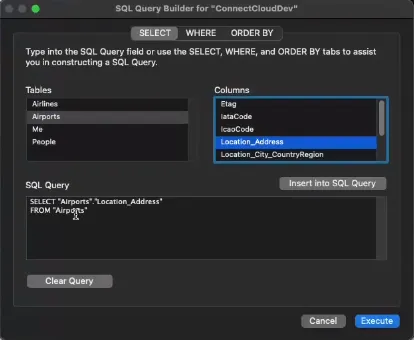
- Open the "WHERE" tab of the SQL Query Builder and select "Show only selected columns."
- In "Table.Column,"" select a table and a column name.
- Set the "Operator" to =.
- Select "Column," and then select the same table and column name as "Table.Column."
- Click "Insert into SQL Query."
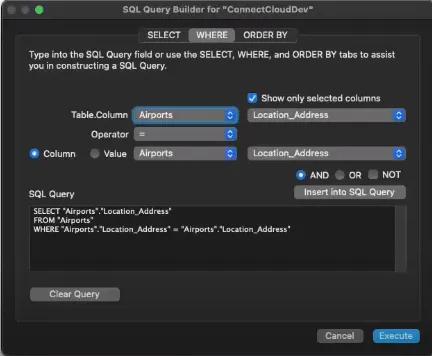
- If no other modifications to the SQL query are required, click "Execute."
Get CData Connect AI
To get live data access to hundreds of SaaS, Big Data, and NoSQL sources directly from your SQL Server database, try CData Connect AI today!