







Import Google Cloud Storage Data Using Azure Data Factory

Microsoft Azure Data Factory (ADF) is a completely managed, serverless data integration service. When combined with CData Connect AI, ADF enables immediate cloud-to-cloud access to Google Cloud Storage data within data flows. This article outlines the process of connecting to Google Cloud Storage through Connect AI and accessing Google Cloud Storage data within ADF.
CData Connect AI offers a cloud-to-cloud interface tailored for Google Cloud Storage, granting you the ability to access live data from Google Cloud Storage data within Azure Data Factory without the need for data replication to a natively supported database. Equipped with optimized data processing capabilities by default, CData Connect AI seamlessly channels all supported SQL operations, including filters and JOINs, directly to Google Cloud Storage. This harnesses server-side processing to expedite the retrieval of the desired Google Cloud Storage data.
Configure Google Cloud Storage Connectivity for ADF
Connectivity to Google Cloud Storage from Azure Data Factory is made possible through CData Connect AI. To work with Google Cloud Storage data from Azure Data Factory, we start by creating and configuring a Google Cloud Storage connection.
CData Connect AI uses a straightforward, point-and-click interface to connect to data sources.
- Log into Connect AI, click Sources, and then click Add Connection
- Select "Google Cloud Storage" from the Add Connection panel
-
Enter the necessary authentication properties to connect to Google Cloud Storage.
Authenticate with a User Account
You can connect without setting any connection properties for your user credentials. After setting InitiateOAuth to GETANDREFRESH, you are ready to connect.
When you connect, the Google Cloud Storage OAuth endpoint opens in your default browser. Log in and grant permissions, then the OAuth process completes
Authenticate with a Service Account
Service accounts have silent authentication, without user authentication in the browser. You can also use a service account to delegate enterprise-wide access scopes.
You need to create an OAuth application in this flow. See the Help documentation for more information. After setting the following connection properties, you are ready to connect:
- InitiateOAuth: Set this to GETANDREFRESH.
- OAuthJWTCertType: Set this to "PFXFILE".
- OAuthJWTCert: Set this to the path to the .p12 file you generated.
- OAuthJWTCertPassword: Set this to the password of the .p12 file.
- OAuthJWTCertSubject: Set this to "*" to pick the first certificate in the certificate store.
- OAuthJWTIssuer: In the service accounts section, click Manage Service Accounts and set this field to the email address displayed in the service account Id field.
- OAuthJWTSubject: Set this to your enterprise Id if your subject type is set to "enterprise" or your app user Id if your subject type is set to "user".
- ProjectId: Set this to the Id of the project you want to connect to.
The OAuth flow for a service account then completes.

- Click Save & Test
-
Navigate to the Permissions tab in the Add Google Cloud Storage Connection page and update the User-based permissions.



Add a Personal Access Token
When connecting to Connect AI through the REST API, the OData API, or the Virtual SQL Server, a Personal Access Token (PAT) is used to authenticate the connection to Connect AI. It is best practice to create a separate PAT for each service to maintain granularity of access.
- Click on the Gear icon () at the top right of the Connect AI app to open the settings page.
- On the Settings page, go to the Access Tokens section and click Create PAT.
-
Give the PAT a name and click Create.

- The personal access token is only visible at creation, so be sure to copy it and store it securely for future use.
With the connection configured and a PAT generated, you are ready to connect to Google Cloud Storage data from Azure Data Factory.
Access Live Google Cloud Storage Data in Azure Data Factory
To establish a connection from Azure Data Factory to the CData Connect AI Virtual SQL Server API, follow these steps.
- Login to Azure Data Factory.
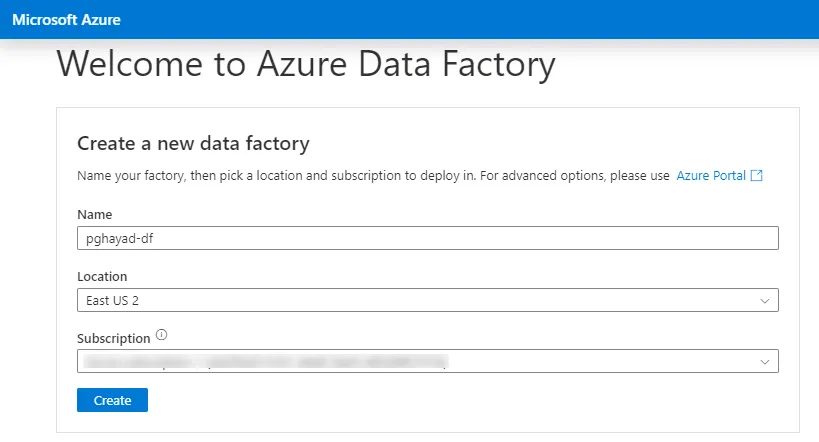
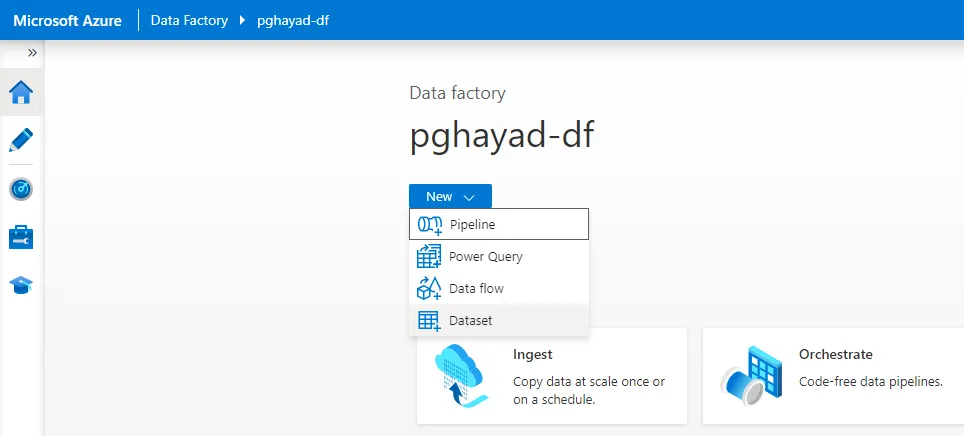
- If you have not yet created a Data Factory, Click New -> Dataset.
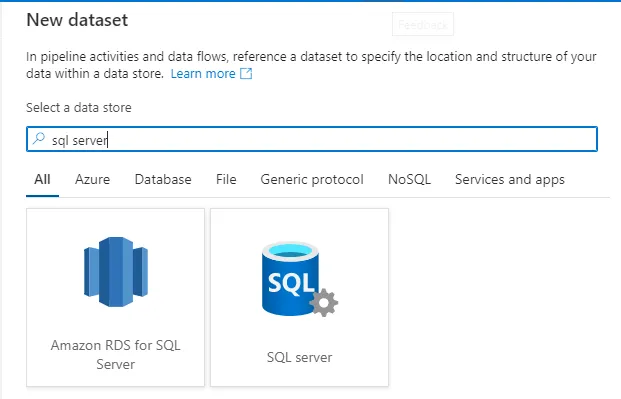
- In the search bar, enter SQL Server and select it when it appears. On the following screen, enter a name for the server. In the Linked service field, select New.
-
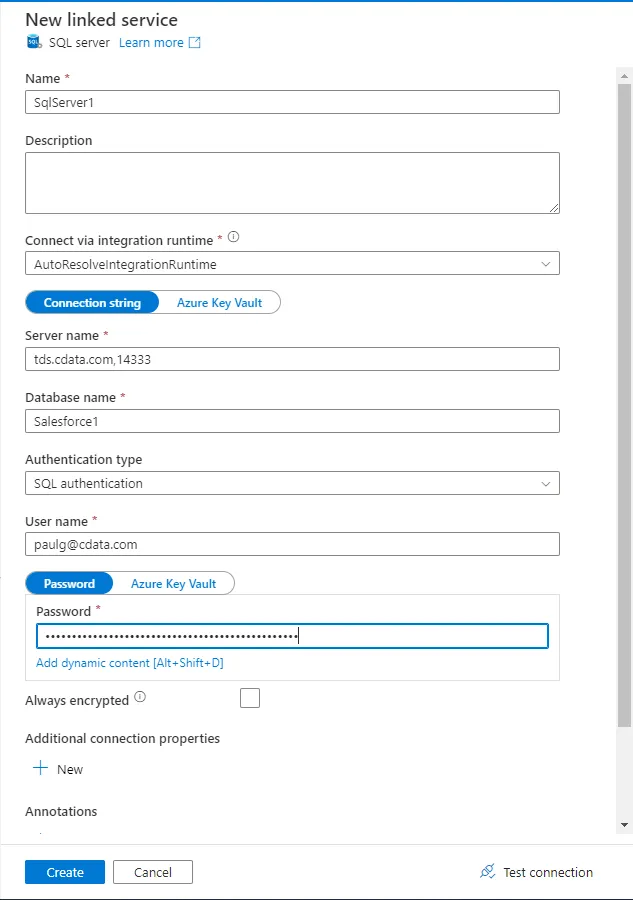
Enter the connection settings.
- Name - enter a name of your choice.
- Server name - enter the Virtual SQL Server endpoint and port separated by a comma: tds.cdata.com,14333
- Database name - enter the Connection Name of the CData Connect AI data source you want to connect to (for example, GoogleCloudStorage1).
- User Name - enter your CData Connect AI username. This is displayed in the top-right corner of the CData Connect AI interface. For example, [email protected].
- Password - select Password (not Azure Key Vault) and enter the PAT you generated on the Settings page.
- Click Create.
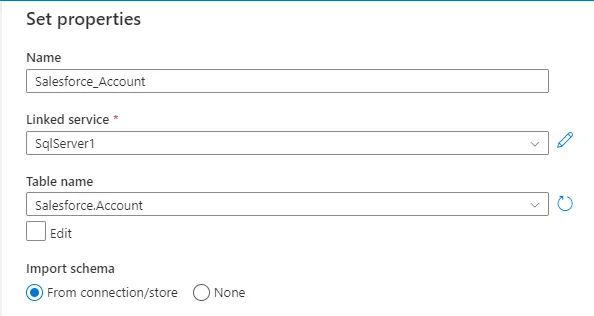
- In Set properties, set the Name, choose the Linked service we just created, select a Table name from those available, and Import schema from connection/store. Click OK.
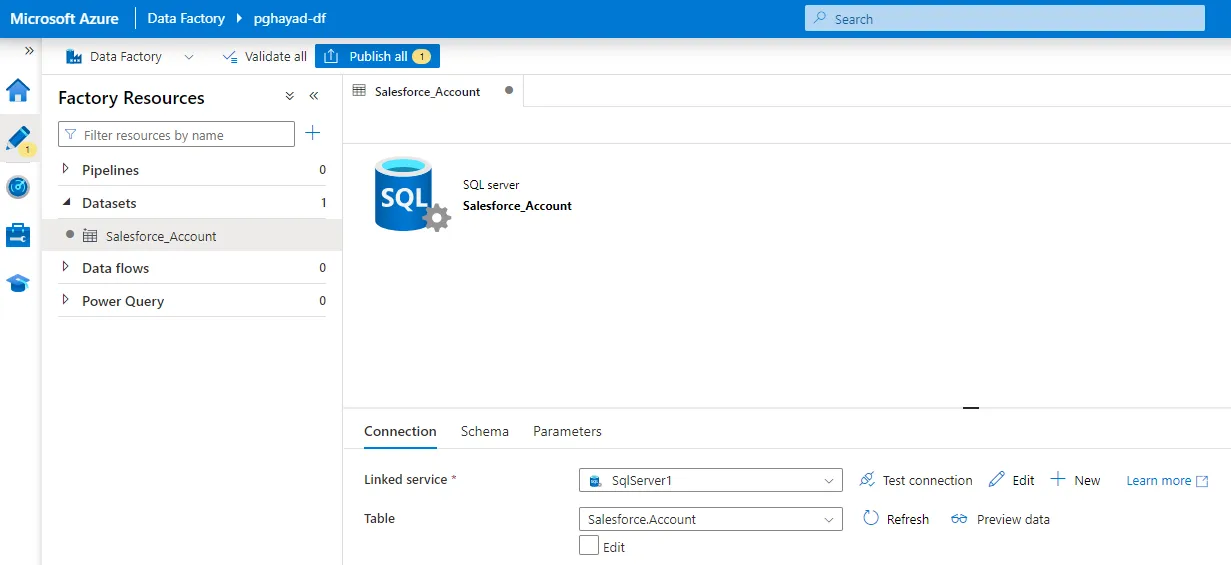
- After creating the linked service, the following screen should appear:
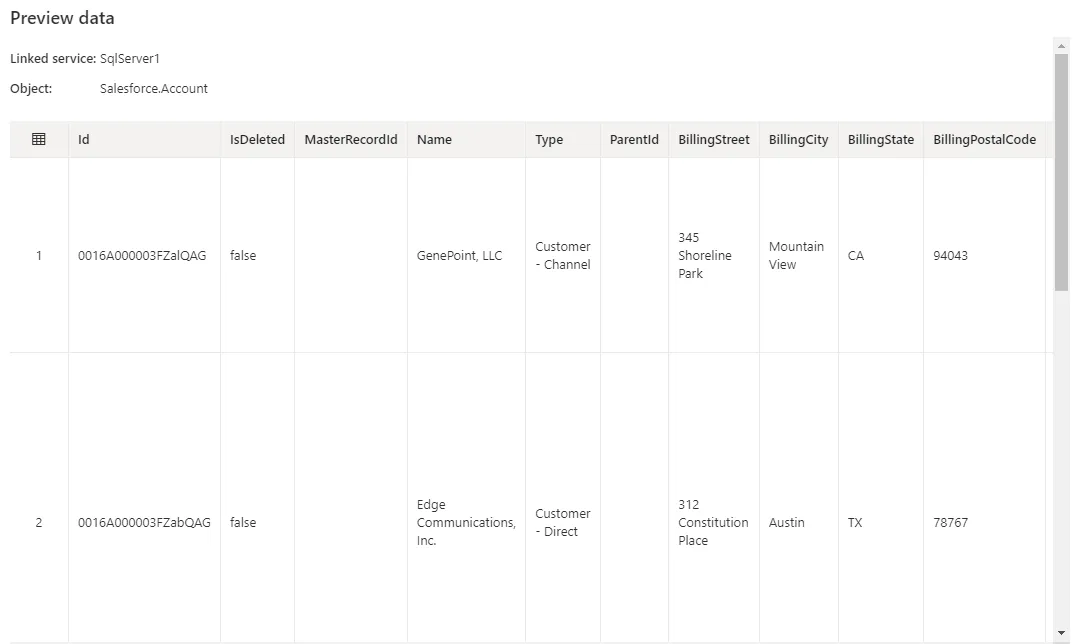
- Click preview data to see the imported Google Cloud Storage table.
 You can now use this dataset when creating data flows in Azure Data Factory.
Get CData Connect AI
To get live data access to hundreds of SaaS, Big Data, and NoSQL sources directly from your cloud applications, try CData Connect AI today!