







Use Microsoft Copilot Studio to talk to your Google Cloud Storage Data via CData Connect AI

Microsoft Copilot Studio is a no-code/low-code platform for creating AI Agents that can automate tasks, answer questions, and assist with various business processes. When combined with CData Connect AI Remote MCP, you can leverage Copilot Studio to interact with your Google Cloud Storage data in real-time. This article outlines the process of connecting to Google Cloud Storage using Connect AI Remote MCP and creating a connection in Copilot Studio to interact with your Google Cloud Storage data.
CData Connect AI offers a dedicated cloud-to-cloud interface for connecting to Google Cloud Storage data. The CData Connect AI Remote MCP Server enables secure communication between Microsoft Copilot Studio and Google Cloud Storage. This allows you to ask questions and take actions on your Google Cloud Storage data using Microsoft Copilot Studio, all without the need for data replication to a natively supported database. With its inherent optimized data processing capabilities, CData Connect AI efficiently channels all supported SQL operations, including filters and JOINs, directly to Google Cloud Storage. This leverages server-side processing to swiftly deliver the requested Google Cloud Storage data.
In this article, we show how to build a agent in Microsoft Copilot Studio to conversational explore (or Vibe Query) your data. The connectivity principals apply to any Copilot agent. With Connect AI you can build workflows and agents with access to live Google Cloud Storage data, plus hundreds of other sources.
Step 1: Configure Google Cloud Storage Connectivity for Microsoft Copilot Studio
Connectivity to Google Cloud Storage from Microsoft Copilot Studio is made possible through CData Connect AI Remote MCP. To interact with Google Cloud Storage data from Microsoft Copilot Studio, we start by creating and configuring a Google Cloud Storage connection in CData Connect AI.
-
Log into Connect AI, click Connections and click Add Connection

-
Select "Google Cloud Storage" from the Add Connection panel

-
Enter the necessary authentication properties to connect to Google Cloud Storage.
Authenticate with a User Account
You can connect without setting any connection properties for your user credentials. After setting InitiateOAuth to GETANDREFRESH, you are ready to connect.
When you connect, the Google Cloud Storage OAuth endpoint opens in your default browser. Log in and grant permissions, then the OAuth process completes
Authenticate with a Service Account
Service accounts have silent authentication, without user authentication in the browser. You can also use a service account to delegate enterprise-wide access scopes.
You need to create an OAuth application in this flow. See the Help documentation for more information. After setting the following connection properties, you are ready to connect:
- InitiateOAuth: Set this to GETANDREFRESH.
- OAuthJWTCertType: Set this to "PFXFILE".
- OAuthJWTCert: Set this to the path to the .p12 file you generated.
- OAuthJWTCertPassword: Set this to the password of the .p12 file.
- OAuthJWTCertSubject: Set this to "*" to pick the first certificate in the certificate store.
- OAuthJWTIssuer: In the service accounts section, click Manage Service Accounts and set this field to the email address displayed in the service account Id field.
- OAuthJWTSubject: Set this to your enterprise Id if your subject type is set to "enterprise" or your app user Id if your subject type is set to "user".
- ProjectId: Set this to the Id of the project you want to connect to.
The OAuth flow for a service account then completes.
 Click Save & Test
-
Navigate to the Permissions tab in the Add Google Cloud Storage Connection page and update the User-based permissions.

With the connection configured, we are ready to connect to Google Cloud Storage data from Microsoft Copilot Studio.
Step 2: Connect Microsoft Copilot Studio to CData Connect AI
Follow these steps to add a CData Connect AI MCP connection in Microsoft Copilot Studio:
-
Under Tools, click Add tool, then click + New Tool.

-
In the Add Tool window, search for and click CData Connect AI.

-
In the Connect to CData Connect AI window, click Create to authenticate your connection CData Connect AI using OAuth authentication.

-
Click Add and configure to add the CData Connect AI Tool to your agent.

Optional: Give the AI Agent context
This step establishes the AI Agent's role and provides context for the conversation through the Instructions property in the Agent. By providing instructions that explicitly informs the agent about its role as an MCP Server expert and lists the available tools, you can enhance the agent's understanding and response accuracy. For example, you can set the System Message to:
You are an expert at using the MCP Client tool connected which is the CData Connect AI MCP Server. Always search thoroughly and use the most relevant MCP Client tool for each query. Below are the available tools and a description of each:
queryData: Execute SQL queries against connected data sources and retrieve results. When you use the queryData tool, ensure you use the following format for the table name: catalog.schema.tableName
getCatalogs: Retrieve a list of available connections from CData Connect AI. The connection names should be used as catalog names in other tools and in any queries to CData Connect AI. Use the `getSchemas` tool to get a list of available schemas for a specific catalog.
getSchemas: Retrieve a list of available database schemas from CData Connect AI for a specific catalog. Use the `getTables` tool to get a list of available tables for a specific catalog and schema.
getTables: Retrieve a list of available database tables from CData Connect AI for a specific catalog and schema. Use the `getColumns` tool to get a list of available columns for a specific table.
getColumns: Retrieve a list of available database columns from CData Connect AI for a specific catalog, schema, and table.
getProcedures: Retrieve a list of stored procedures from CData Connect AI for a specific catalog and schema
getProcedureParameters: Retrieve a list of stored procedure parameters from CData Connect AI for a specific catalog, schema, and procedure.
executeProcedure: Execute stored procedures with parameters against connected data sources
Step 3: Explore Live Google Cloud Storage Data with Microsoft Copilot Studio
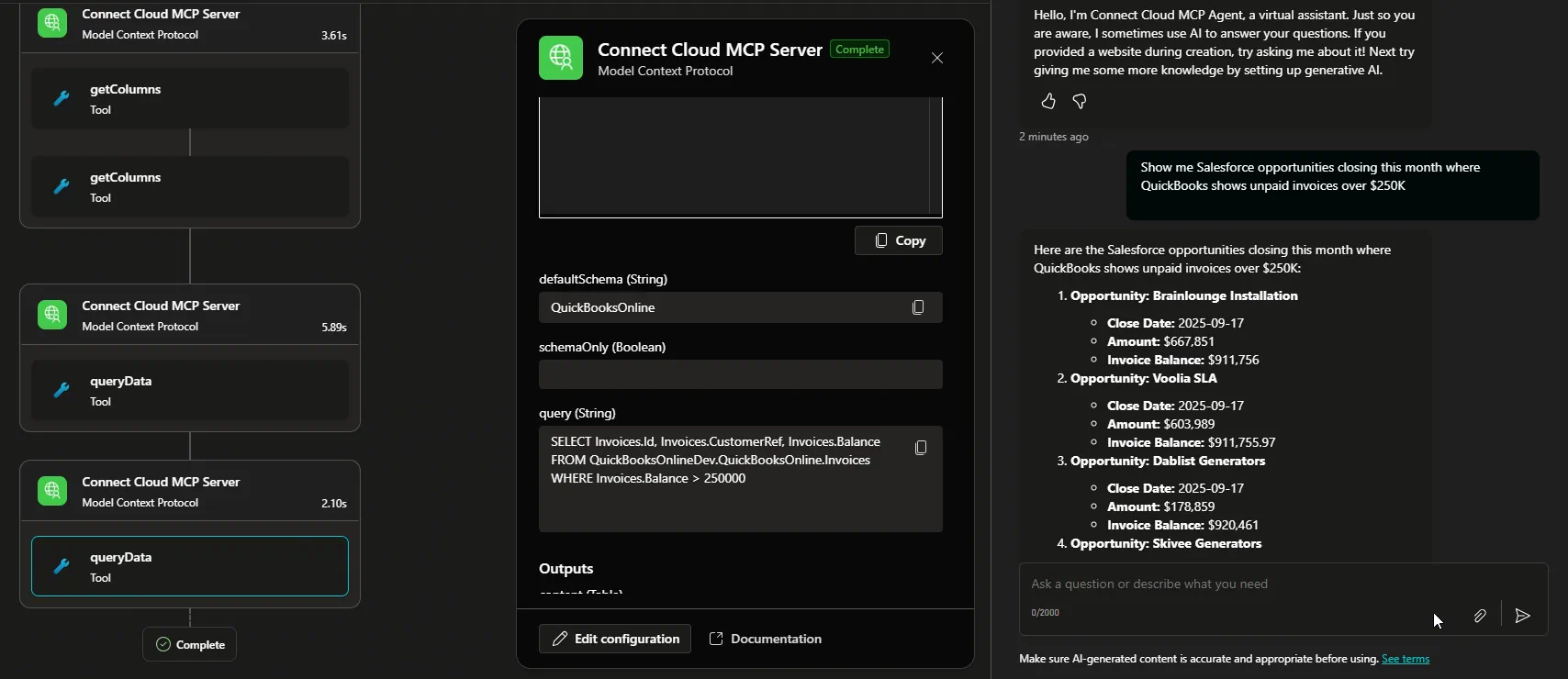
With the Agent created in Microsoft Copilot Studio and the MCP tool connected, you can now interact with your Google Cloud Storage data using Microsoft Copilot Studio. The MCP tool allows you to send queries and receive responses from the Google Cloud Storage data source in real-time.
Open the chat window in your Microsoft Copilot Studio Agent to begin interacting with your Google Cloud Storage data. You can ask questions, retrieve data, and perform actions on your Google Cloud Storage data using the MCP tool:
Get CData Connect AI
To get live data access to hundreds of SaaS, Big Data, and NoSQL sources directly from your cloud applications, try CData Connect AI today!