







Integrating Dataiku with Google Cloud Storage Data via CData Connect AI

Dataiku is a collaborative data science and AI platform that enables teams to design, deploy, and manage machine learning and generative AI projects within a governed environment. It's Agent and GenAI framework allows users to build intelligent agents that can analyze, generate, and act on data through custom workflows and model orchestration.
By integrating Dataiku with CData Connect AI through the built-in MCP (Model Context Protocol) Server, these agents gain secure, real-time access to live Google Cloud Storage data. The integration bridges Dataiku's agent execution environment with CData's governed enterprise connectivity layer, allowing every query or instruction to run safely against authorized data sources without manual exports or staging.
This article demonstrates how to configure Google Cloud Storage connectivity in Connect AI, prepare a Python code environment in Dataiku with MCP support, and create an agent that queries and interacts with live Google Cloud Storage data directly from within Dataiku.
Step 1: Configure Google Cloud Storage Connectivity for Dataiku
Connectivity to Google Cloud Storage from Dataiku is made possible through CData Connect AI's Remote MCP Server. To interact with Google Cloud Storage data from Dataiku, you start by creating and configuring a Google Cloud Storage connection in CData Connect AI.
- Log into Connect AI, click Sources, then click Add Connection
- Select "Google Cloud Storage" from the Add Connection panel
-
Enter the necessary authentication properties to connect to Google Cloud Storage.
Authenticate with a User Account
You can connect without setting any connection properties for your user credentials. After setting InitiateOAuth to GETANDREFRESH, you are ready to connect.
When you connect, the Google Cloud Storage OAuth endpoint opens in your default browser. Log in and grant permissions, then the OAuth process completes
Authenticate with a Service Account
Service accounts have silent authentication, without user authentication in the browser. You can also use a service account to delegate enterprise-wide access scopes.
You need to create an OAuth application in this flow. See the Help documentation for more information. After setting the following connection properties, you are ready to connect:
- InitiateOAuth: Set this to GETANDREFRESH.
- OAuthJWTCertType: Set this to "PFXFILE".
- OAuthJWTCert: Set this to the path to the .p12 file you generated.
- OAuthJWTCertPassword: Set this to the password of the .p12 file.
- OAuthJWTCertSubject: Set this to "*" to pick the first certificate in the certificate store.
- OAuthJWTIssuer: In the service accounts section, click Manage Service Accounts and set this field to the email address displayed in the service account Id field.
- OAuthJWTSubject: Set this to your enterprise Id if your subject type is set to "enterprise" or your app user Id if your subject type is set to "user".
- ProjectId: Set this to the Id of the project you want to connect to.
The OAuth flow for a service account then completes.

- Click Save & Test
- Open the Permissions tab and set user-based permissions



Add a Personal Access Token
A Personal Access Token (PAT) is used to authenticate the connection to Connect AI from Dataiku. It is best practice to create a separate PAT for each integration to maintain granular access control
- Click the gear icon () at the top right of the Connect AI app to open Settings
- On the Settings page, go to the Access Tokens section and click Create PAT
- Give the PAT a descriptive name and click Create
- Copy the token when displayed and store it securely. It will not be shown again

With the Google Cloud Storage connection configured and a PAT generated, Dataiku can now connect to Google Cloud Storage data through the Connect AI.
Step 2: Prepare Dataiku and the Code Environment
A dedicated python code environment in Dataiku provides the runtime support needed for MCP-based communication. To enable Dataiku Agents to connect to CData Connect AI, create a Python environment and install the MCP client dependencies required for agent-to-server interaction.
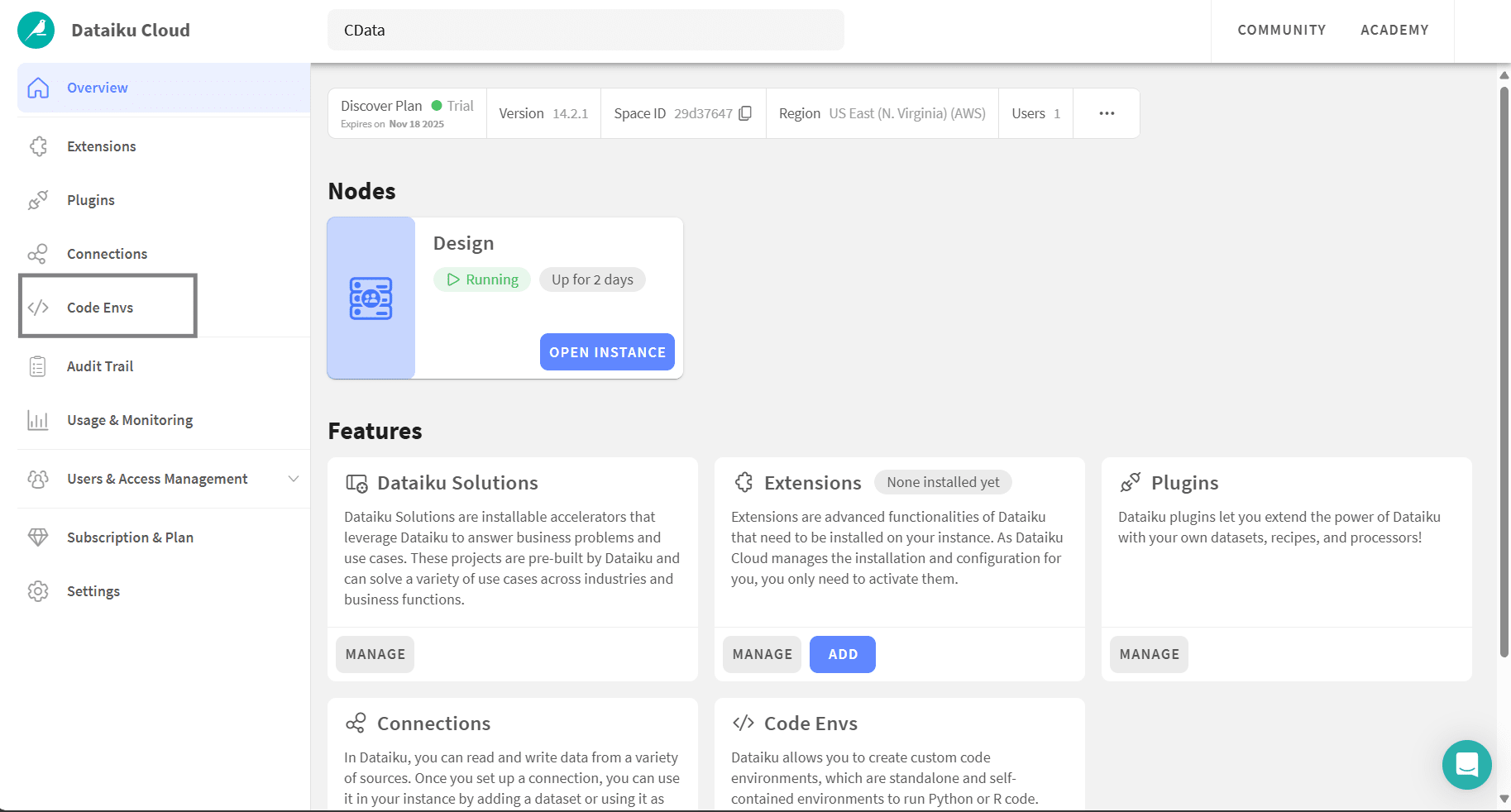
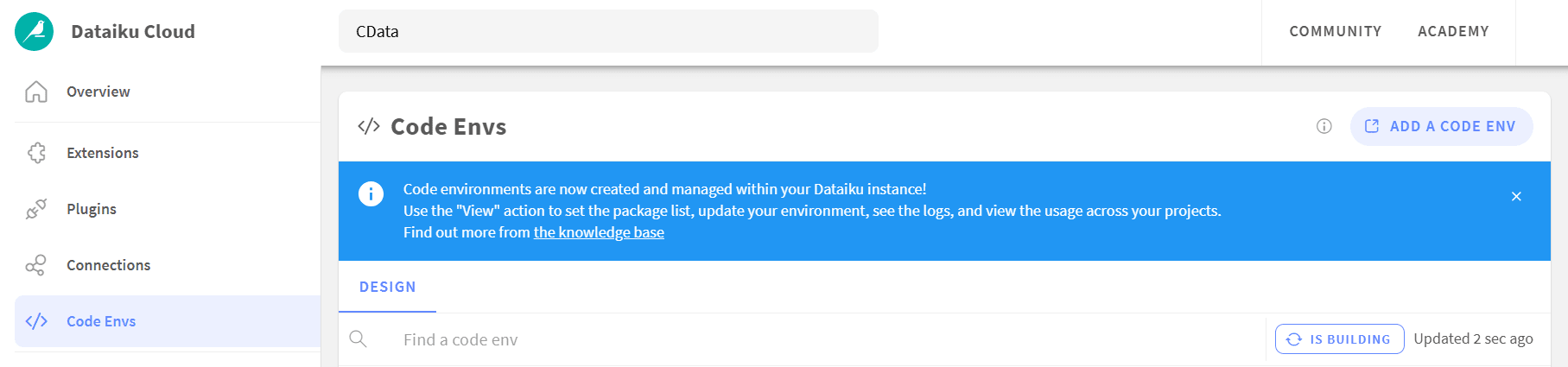
- In Dataiku Cloud, open Code Envs
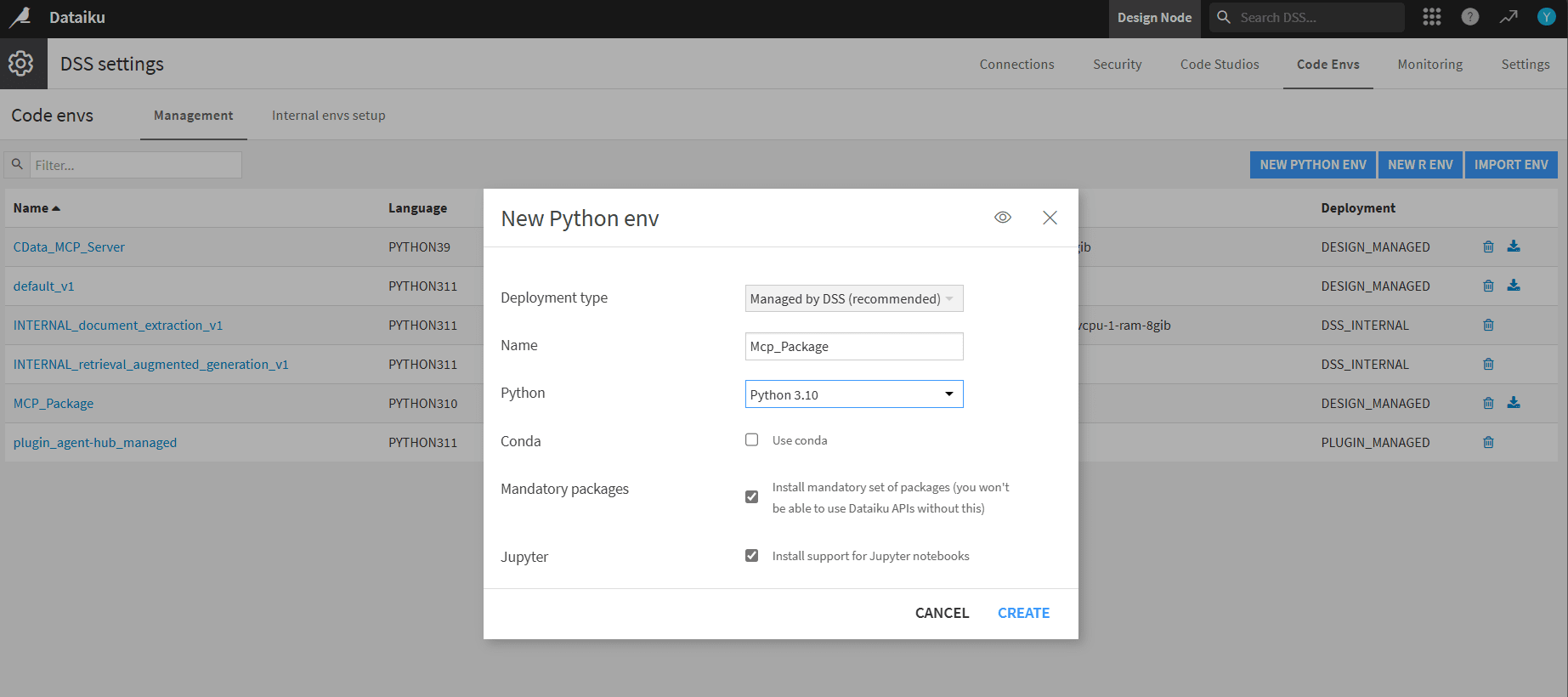
- Click Add a code env to open the DSS settings window
- In DSS, click New Python env. Name it (for example, MCP_Package) and choose Python 3.10 (3.10 to 3.13 supported)
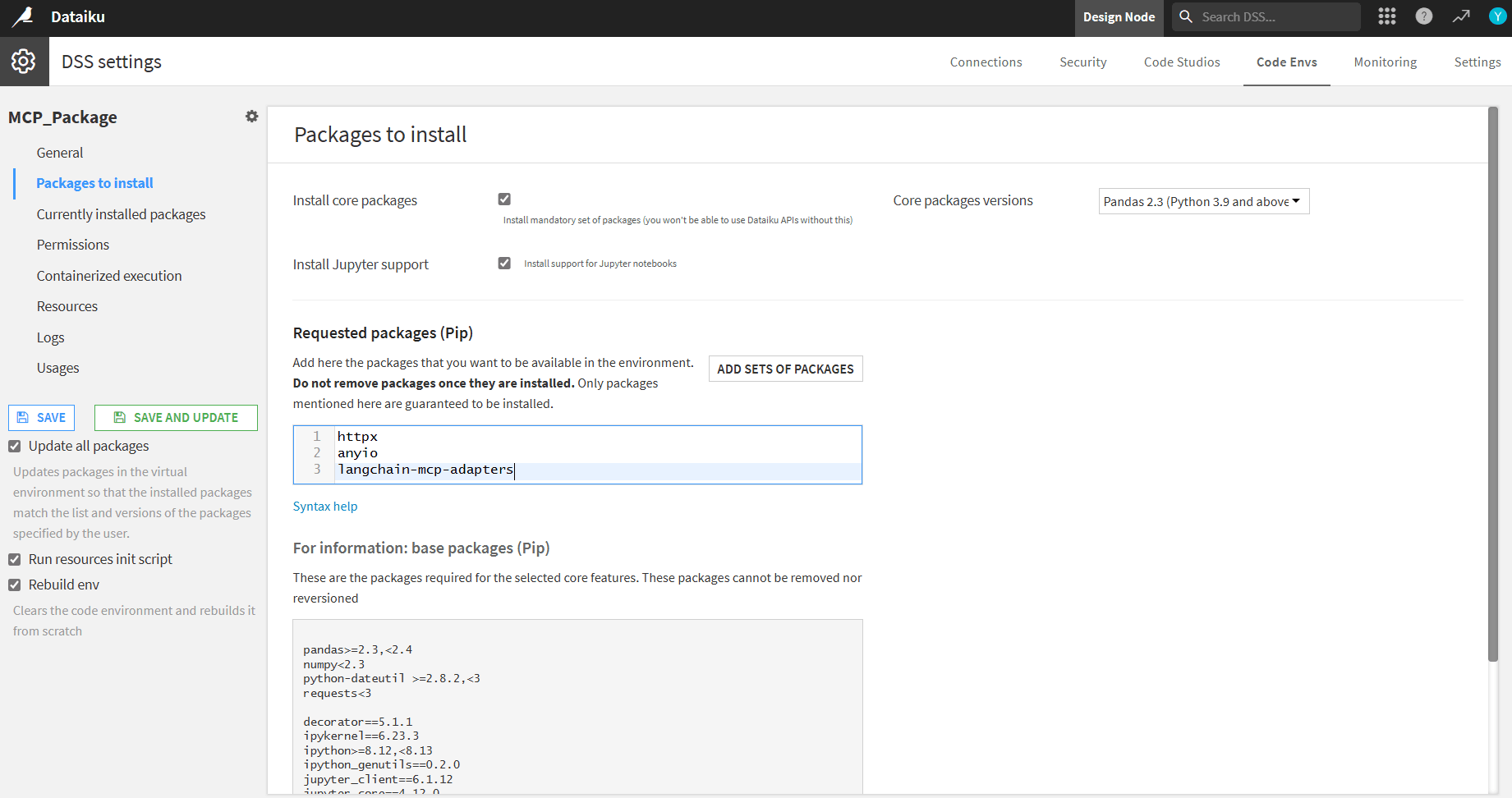
- Open Packages to install and add the following pip packages:
- httpx
- anyio
- langchain-mcp-adapters
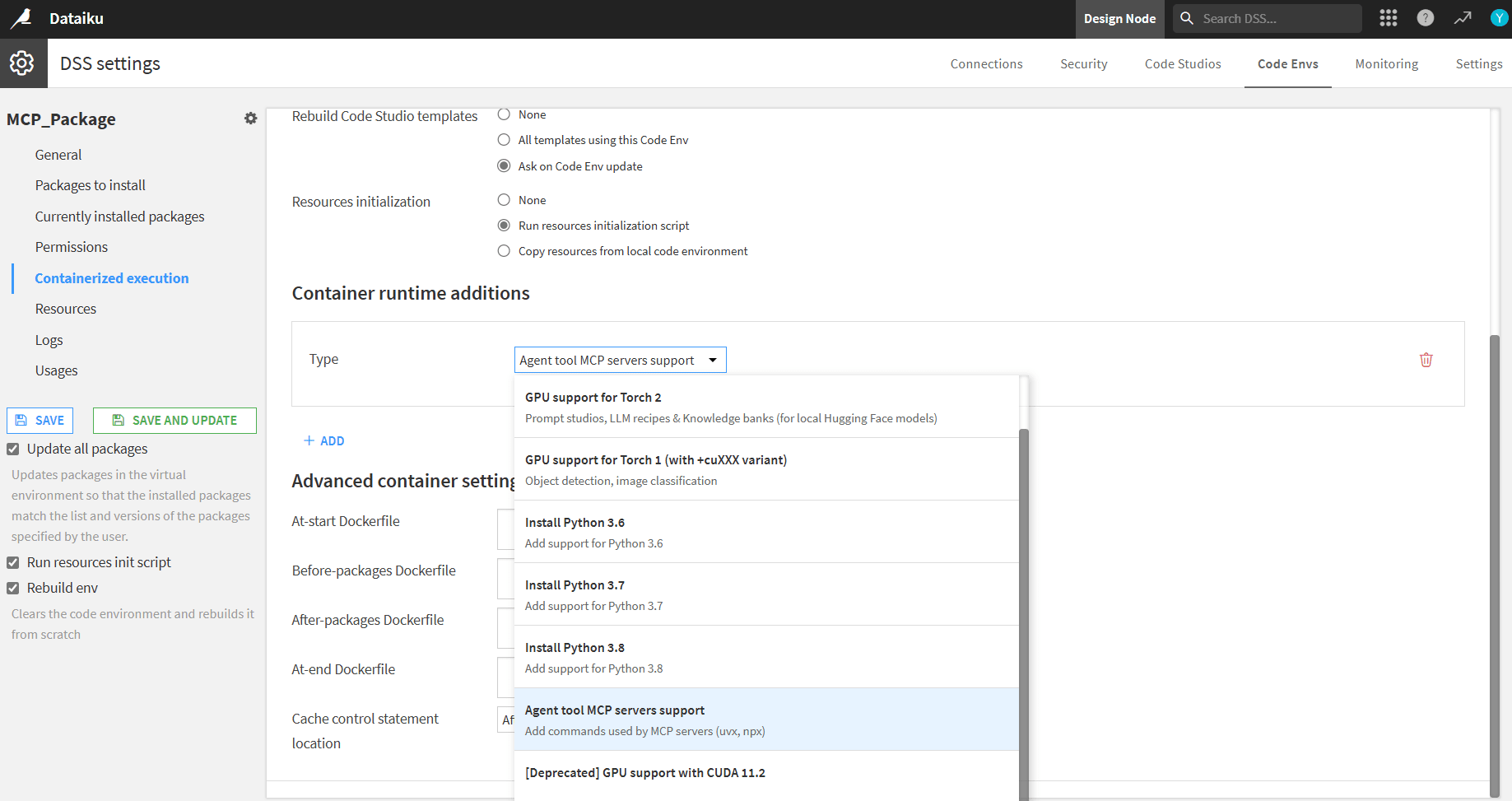
- Open Containerized execution and under Container runtime additions select Agent tool MCP servers support
- Check Rebuild env and click Save and update to install packages
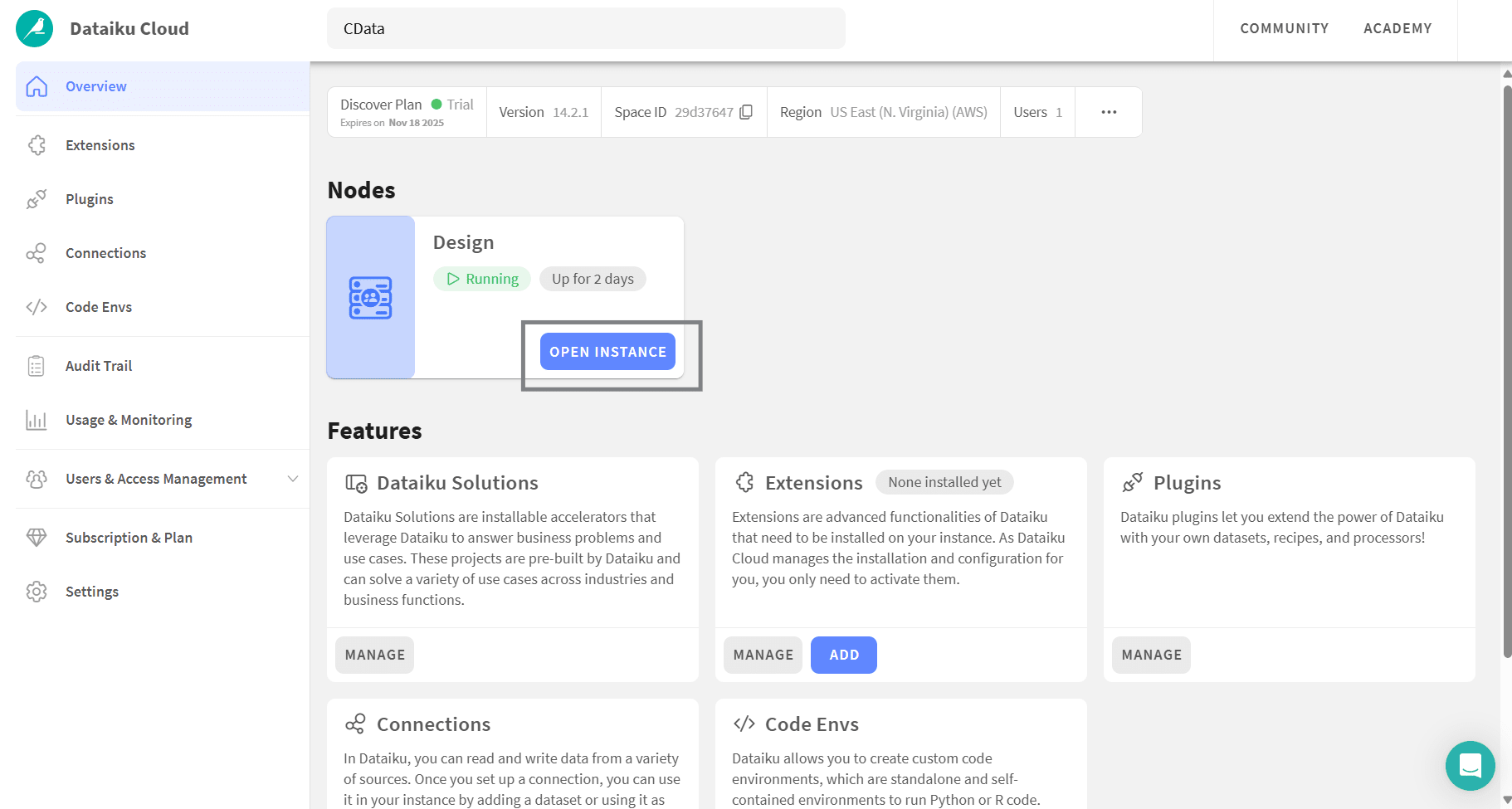
- Back in Dataiku Cloud, open Overview and click Open instance
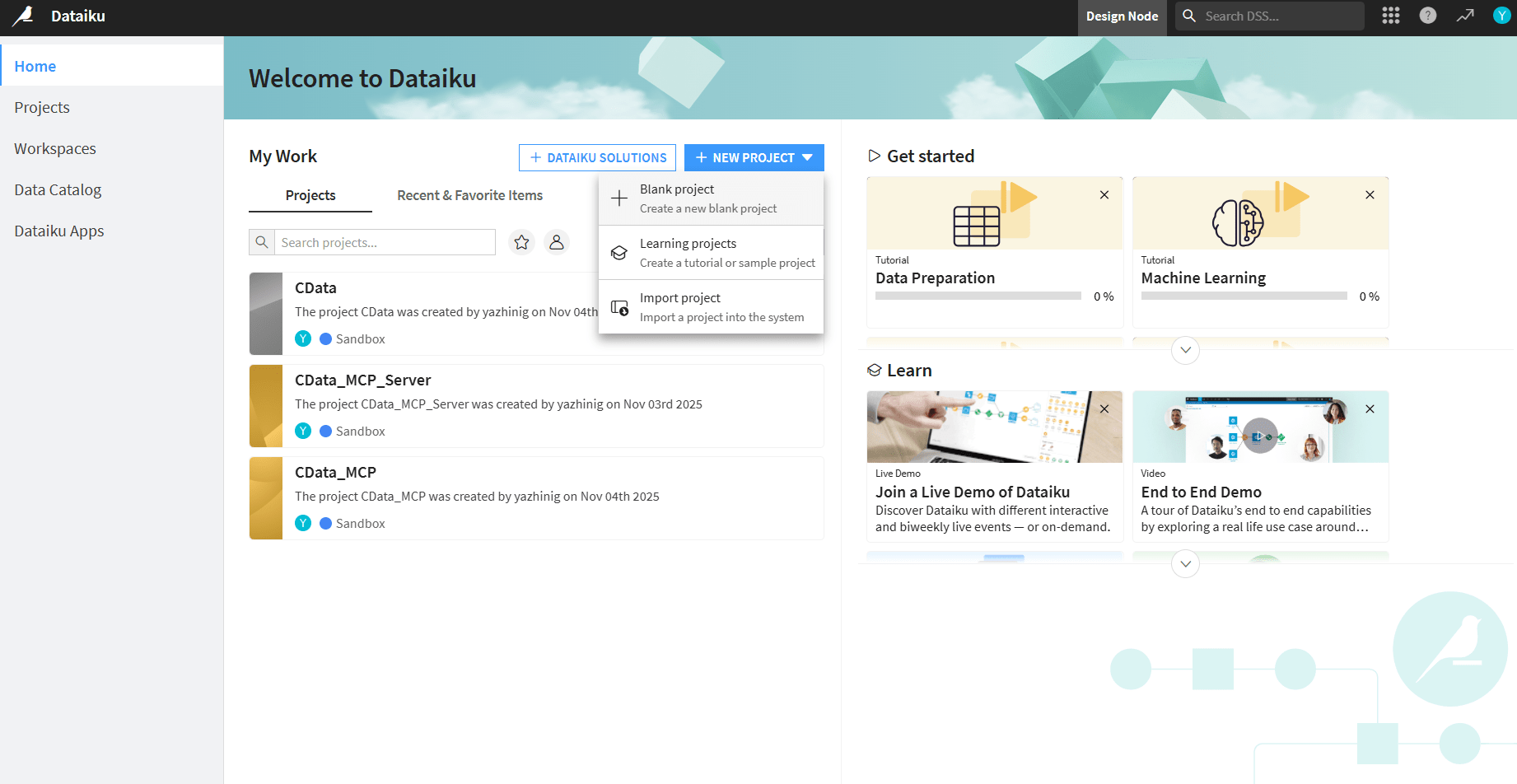
- Click + New project and select Blank project. Name the project
Step 3: Create a Dataiku Agent and connect to the MCP server
The Dataiku Agent serves as the bridge between the Dataiku workspace and Connect AI. To enable this connection, create a custom code-based agent, assign it the configured Python environment, and embed your Connect AI credentials to allow the agent to query and interact with live Google Cloud Storage data.
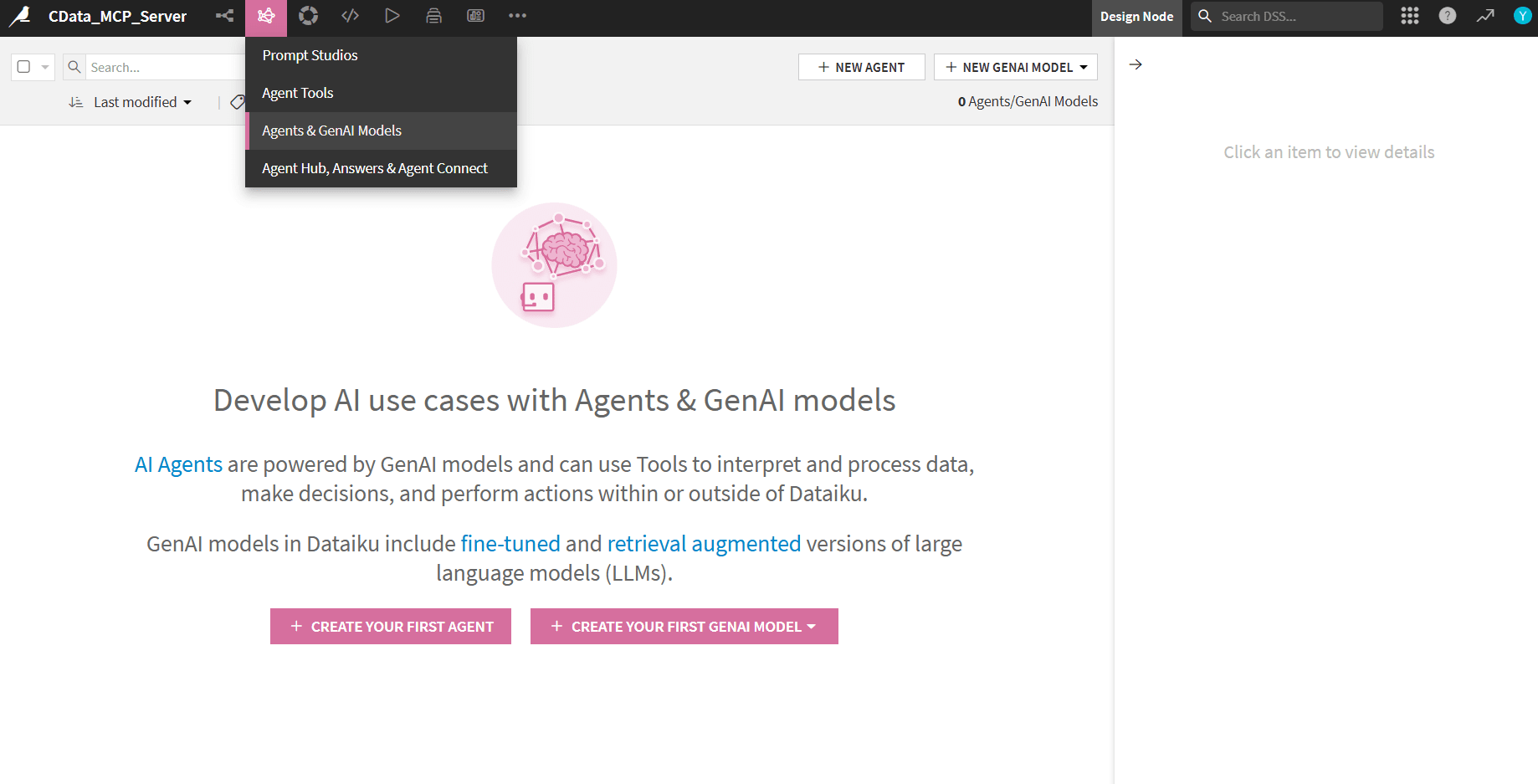
- Go to Agents & GenAI Models and click Create your first agent
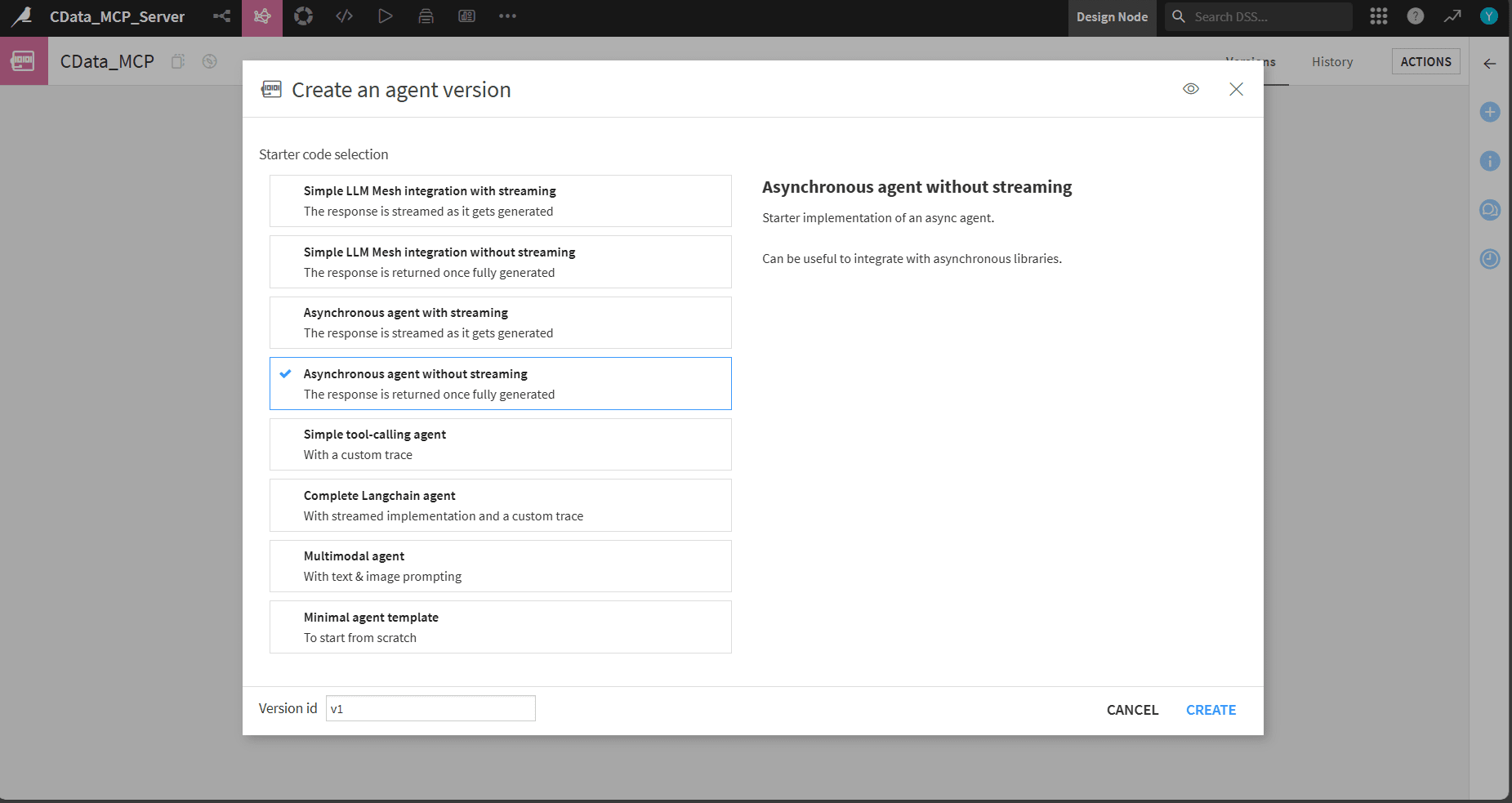
- Choose Code agent, name it, and for Agent version select Asynchronous agent without streaming
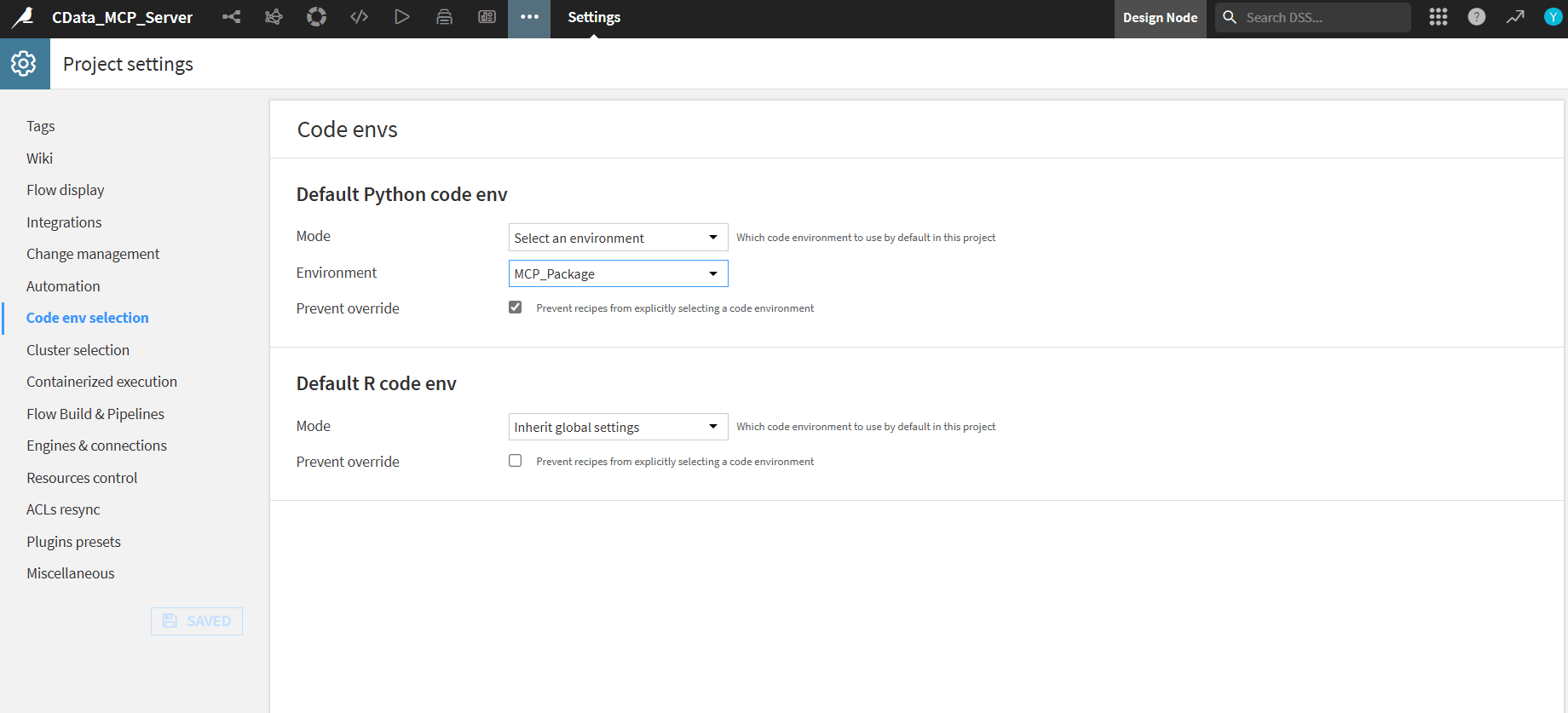
- From the tab above select Settings. In Code env selection set Default Python code env to the environment you created (for example, MCP_Package)
- Return to the Agent Design tab and paste the following code. Replace EMAIL, and PAT with your values
- Open Quick Test on the right side panel
- Paste the JSON code and click Run test
import os
import base64
from typing import Dict, Any, List

from dataiku.llm.python import BaseLLM
from langchain_mcp_adapters.client import MultiServerMCPClient

# ---------- Persistent MCP client (cached between calls) ----------
_MCP_CLIENT = None

def _get_mcp_client() -> MultiServerMCPClient:
    """Create (or reuse) a MultiServerMCPClient to CData Cloud MCP."""
    global _MCP_CLIENT
    if _MCP_CLIENT is not None:
        return _MCP_CLIENT

    # Set creds via env/project variables ideally
    EMAIL = os.getenv("CDATA_EMAIL", "YOUR_EMAIL")
    PAT   = os.getenv("CDATA_PAT",   "YOUR_PAT")
    BASE_URL = "https://mcp.cloud.cdata.com/mcp"

    if not EMAIL or PAT == "YOUR_PAT":
        raise ValueError("Set CDATA_EMAIL and CDATA_PAT as env variables or inline in the code.")

    token = base64.b64encode(f"{EMAIL}:{PAT}".encode()).decode()
    headers = {"Authorization": f"Basic {token}"}

    _MCP_CLIENT = MultiServerMCPClient(
        connections={
            "cdata": {
                "transport": "streamable_http",
                "url": BASE_URL,
                "headers": headers,
            }
        }
    )
    return _MCP_CLIENT


def _pick_tool(tools, names: List[str]):
    L = [n.lower() for n in names]
    return next((t for t in tools if t.name.lower() in L), None)


async def _route(prompt: str) -> str:
    """
    Simple intent router:
      - 'list connections' / 'list catalogs' -> getCatalogs
      - 'sql: ...' or 'query: ...' -> queryData
      - otherwise -> help text
    """
    client = _get_mcp_client()
    tools = await client.get_tools()

    p = prompt.strip()
    low = p.lower()

    # 1) List connections (catalogs)
    if "list connections" in low or "list catalogs" in low:
        t = _pick_tool(tools, ["getCatalogs", "listCatalogs"])
        if not t:
            return "No 'getCatalogs' tool found on the MCP server."
        res = await t.ainvoke({})
        return str(res)[:4000]

    # 2) Run SQL
    if low.startswith("sql:") or low.startswith("query:"):
        sql = p.split(":", 1)[1].strip()
        t = _pick_tool(tools, ["queryData", "sqlQuery", "runQuery", "query"])
        if not t:
            return "No query-capable tool (queryData/sqlQuery) found on the MCP server."
        try:
            res = await t.ainvoke({"query": sql})
            return str(res)[:4000]
        except Exception as e:
            return f"Query failed: {e}"

    # 3) Help
    return (
        "Connected to CData MCP

"
        "Say **'list connections'** to view available sources, or run a SQL like:
"
        "  sql: SELECT * FROM [Salesforce1].[SYS].[Connections] LIMIT 5

"
        "Remember to use bracket quoting for catalog/schema/table names."
    )


class MyLLM(BaseLLM):
    async def aprocess(self, query: Dict[str, Any], settings: Dict[str, Any], trace: Any):
        # Extract last user message from the Quick Test payload
        prompt = ""
        try:
            prompt = (query.get("messages") or [])[-1].get("content", "")
        except Exception:
            prompt = ""

        try:
            reply = await _route(prompt)
        except Exception as e:
            reply = f"Error: {e}"

        # The template expects a dict with a 'text' key
        return {"text": reply}
Run a Quick Test
{
   "messages": [
      {
         "role": "user",
         "content": "list connections"
      }
   ],
   "context": {}
}
Chat with your Agent
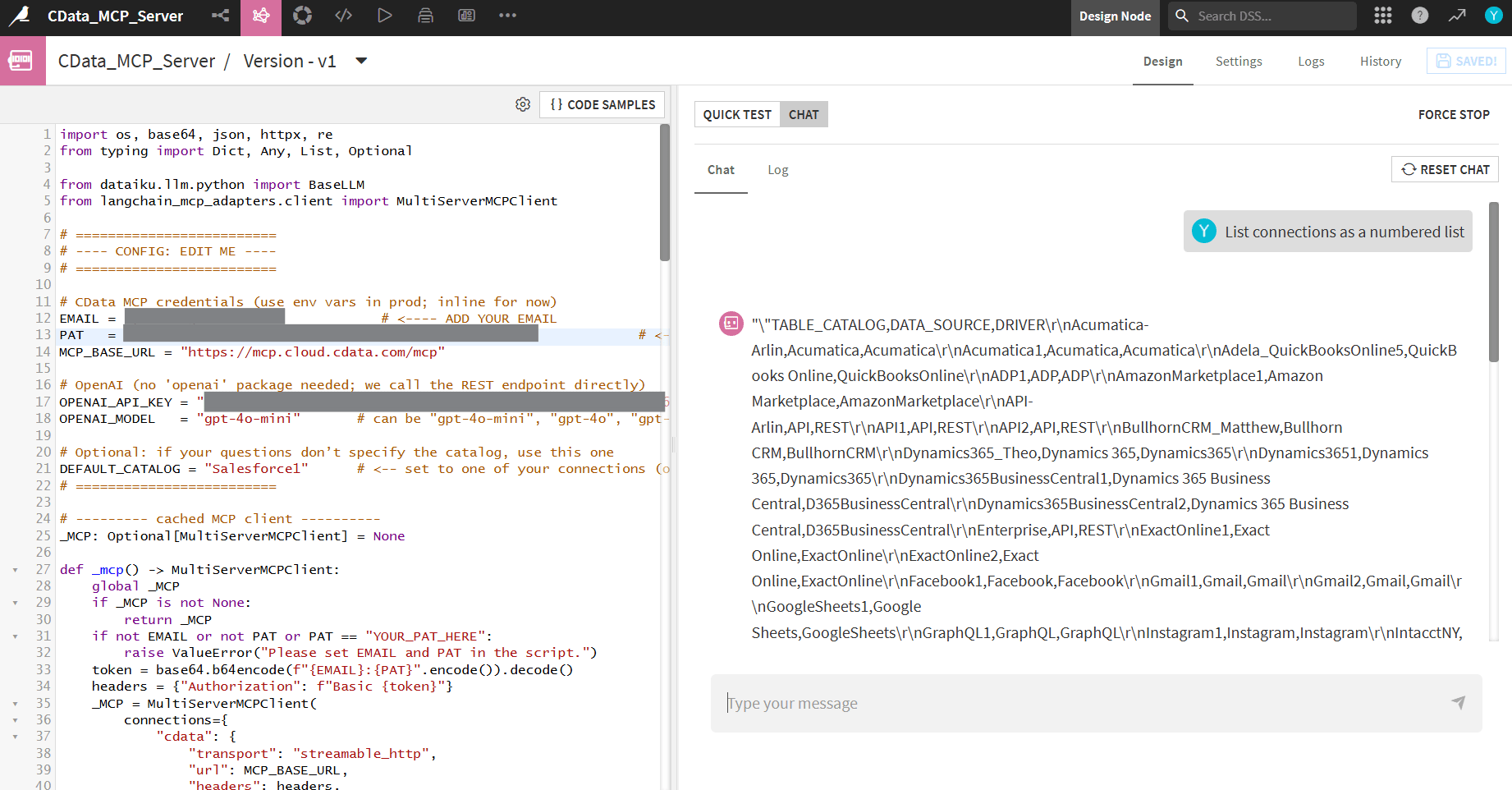
Switch to the Chat tab and try prompting like, "List all connections". The chat output will show a list of connection catalogs.
Get CData Connect AI
To access hundreds of SaaS, Big Data, and NoSQL sources from your AI agents, try CData Connect AI today.