







Use Manus AI to Talk to Your Google Cloud Storage Data via CData Connect AI

Manus AI is an autonomous AI agent platform that helps users accomplish complex tasks through natural language from browsing the web to executing code and interacting with external services. When combined with CData Connect AI remote MCP, users can leverage Manus AI to interact with their Google Cloud Storage data in real-time, without any data replication.
This article explains how to connect to Google Cloud Storage using the CData Connect AI MCP Server and configure Manus AI to conversationally explore (or Vibe Query) their Google Cloud Storage data. With Connect AI, users can build AI agents with access to live Google Cloud Storage data, plus hundreds of other sources.
Step 1: Configure Google Cloud Storage connectivity for Manus AI
Connectivity to Google Cloud Storage from Manus AI is made possible through CData Connect AI Remote MCP. To interact with Google Cloud Storage data from Manus AI, we start by creating and configuring a Google Cloud Storage connection in CData Connect AI.
-
Log into Connect AI, click Connections and click Add Connection

-
Select "Google Cloud Storage" from the Add Connection panel

-
Enter the necessary authentication properties to connect to Google Cloud Storage.
Authenticate with a User Account
You can connect without setting any connection properties for your user credentials. After setting InitiateOAuth to GETANDREFRESH, you are ready to connect.
When you connect, the Google Cloud Storage OAuth endpoint opens in your default browser. Log in and grant permissions, then the OAuth process completes
Authenticate with a Service Account
Service accounts have silent authentication, without user authentication in the browser. You can also use a service account to delegate enterprise-wide access scopes.
You need to create an OAuth application in this flow. See the Help documentation for more information. After setting the following connection properties, you are ready to connect:
- InitiateOAuth: Set this to GETANDREFRESH.
- OAuthJWTCertType: Set this to "PFXFILE".
- OAuthJWTCert: Set this to the path to the .p12 file you generated.
- OAuthJWTCertPassword: Set this to the password of the .p12 file.
- OAuthJWTCertSubject: Set this to "*" to pick the first certificate in the certificate store.
- OAuthJWTIssuer: In the service accounts section, click Manage Service Accounts and set this field to the email address displayed in the service account Id field.
- OAuthJWTSubject: Set this to your enterprise Id if your subject type is set to "enterprise" or your app user Id if your subject type is set to "user".
- ProjectId: Set this to the Id of the project you want to connect to.
The OAuth flow for a service account then completes.
 Click Save & Test
-
Navigate to the Permissions tab in the Add Google Cloud Storage Connection page and update the User-based permissions.

Add a Personal Access Token
A Personal Access Token (PAT) is used to authenticate the connection to Connect AI from Manus AI. It is best practice to create a separate PAT for each service to maintain granularity of access.
- Click on the Gear icon () at the top right of the Connect AI app to open the settings page.
- On the Settings page, go to the Access Tokens section and click Create PAT.
-
Give the PAT a name and click Create.

- The personal access token is only visible at creation, so be sure to copy it and store it securely for future use.
With the connection configured and a PAT generated, we are ready to connect to Google Cloud Storage data from Manus AI.
Step 2: Get started with Manus AI
Navigate to Manus and sign in to your Manus AI account. Once logged in, you are ready to configure the CData Connect AI MCP Server as a custom connector.
Step 3: Add the CData Connect AI MCP Server as a connector
Manus AI supports connecting to external MCP servers via its Connectors settings. There are two methods to add the CData Connect AI MCP Server: Import by JSON or Direct Configuration. Both methods are explained below.
-
In Manus AI, click on the profile icon and navigate to Settings
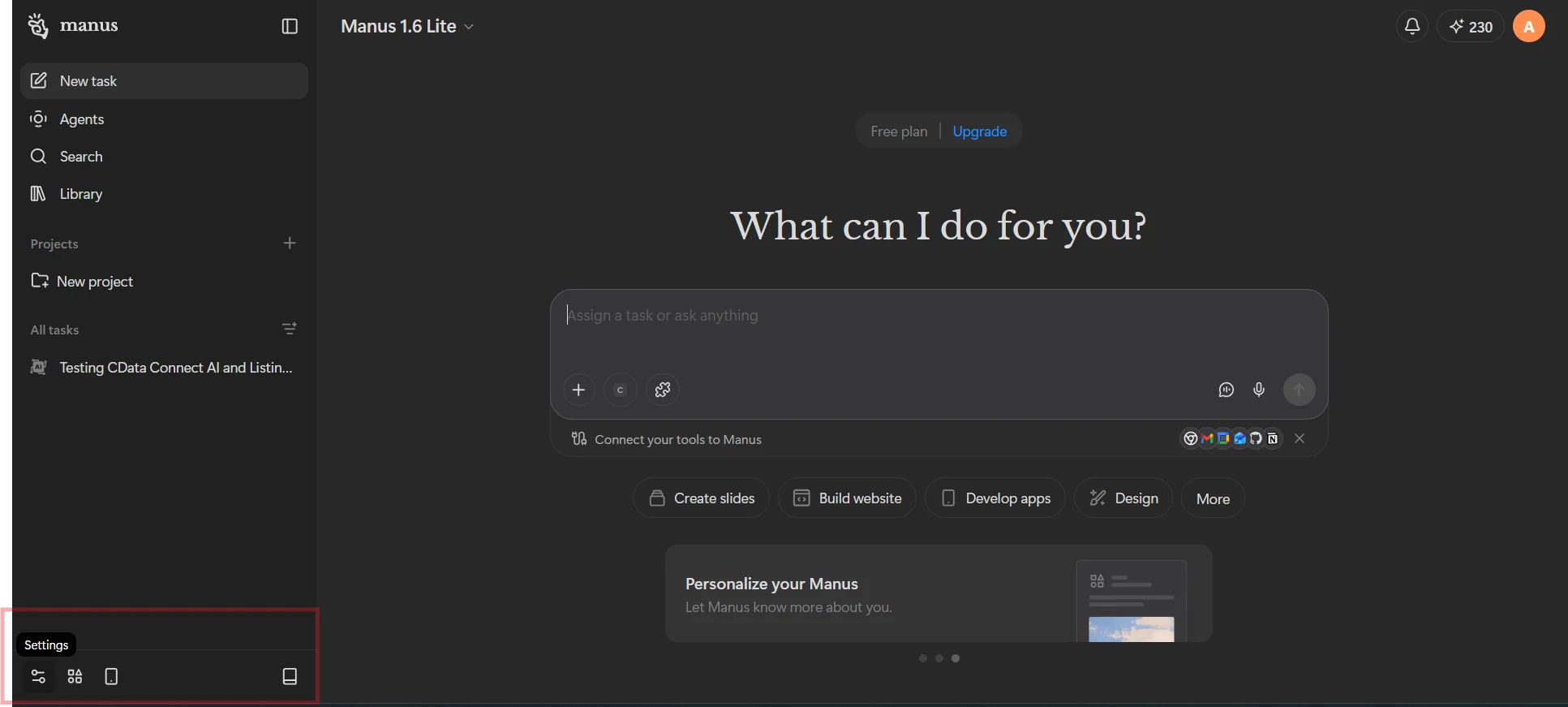
-
Go to the Connectors section and click Add Connectors
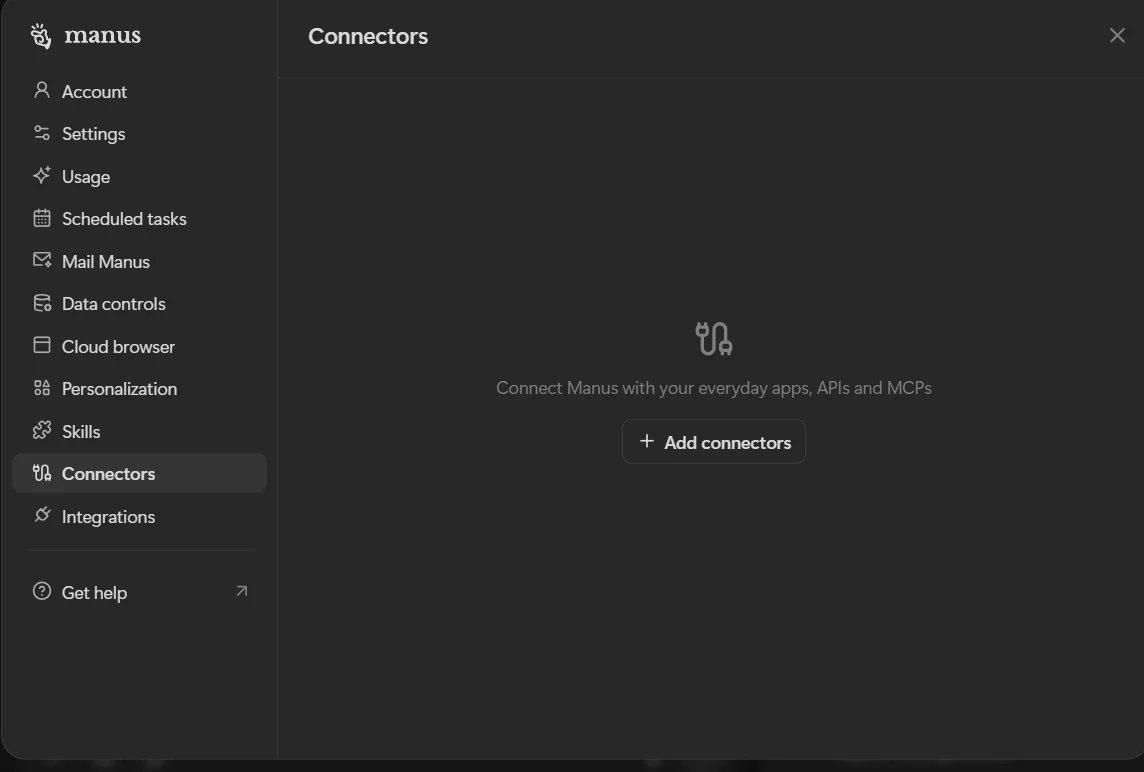
-
Locate Custom MCP
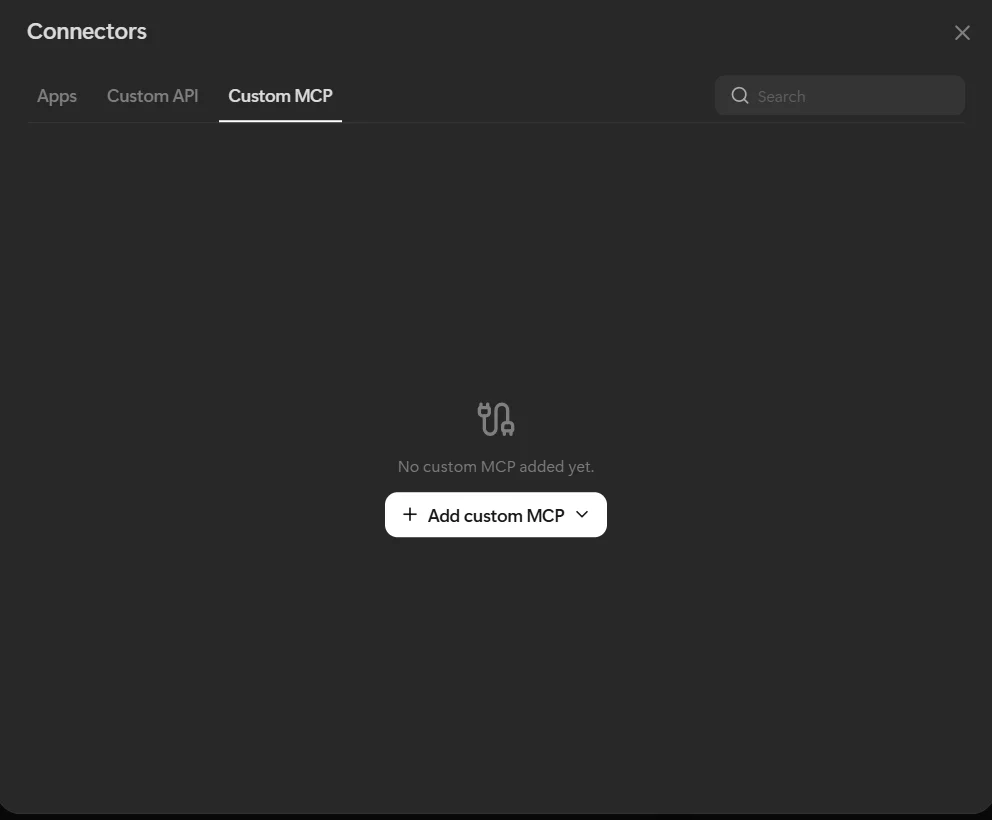
-
Click Add custom MCP to select the configuration options
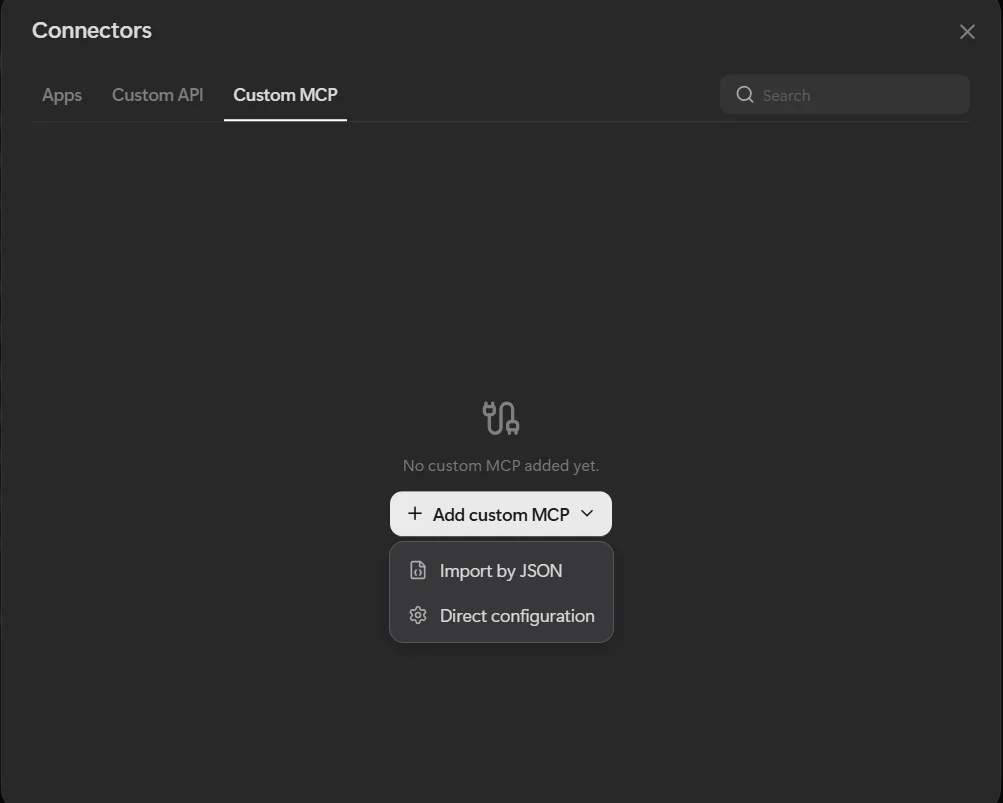
Option A: Import by JSON
Use this method to quickly configure the MCP Server by pasting a JSON configuration snippet.
- Select Import by JSON from the connector setup options.
-
Paste the following JSON into the configuration field, replacing the placeholder values with your Connect AI credentials:
{
  "mcpServers": {
    "cdata-connect-ai": {
      "transport": "sse",
      "url": "https://mcp.cloud.cdata.com/mcp",
      "headers": {
        "Authorization": "Basic USER_NAME:YOUR_CONNECTAI_PAT;"
      }
    }
  }
}
Replace url with the Connect AI MCP URL, USER_NAME with your Connect AI email address, and YOUR_CONNECTAI_PAT with the Personal Access Token created in Step 1.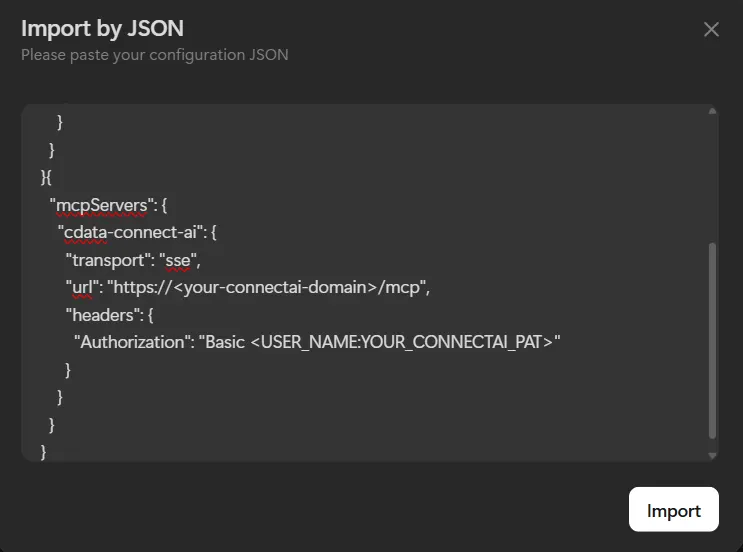
- Click Import to apply the configuration.
Option B: Direct Configuration
Use this method to manually enter the MCP Server connection properties through the Manus AI interface.
- Select Direct Configuration from the connector setup options.
-
Fill in the following fields:
- Server Name: CData Connect AI
- Transport Type: HTTP
- Server URL: https://mcp.cloud.cdata.com/mcp
- Custom Headers: Add a header with the name Authorization and the value Basic Base64Encoded(username:pat), replacing the placeholder with your Base64-encoded Connect AI email and PAT combination.
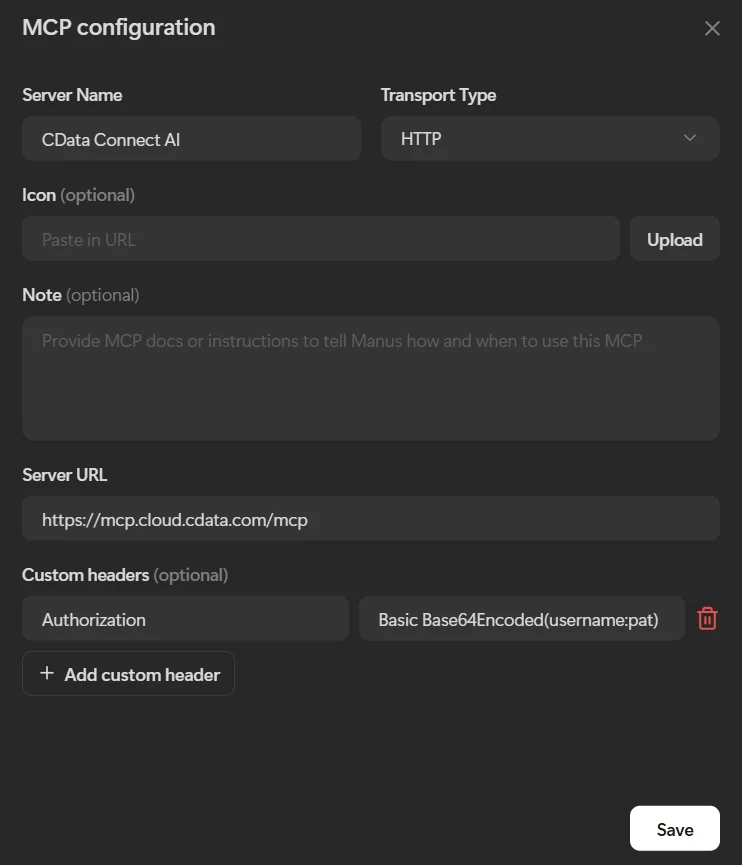
- Optionally, enter a Note to provide Manus AI with instructions on how and when to use this MCP connector.
- Click Save to establish the connection to the CData Connect AI MCP Server. Once saved, the connector will appear as active in your Connectors list.
Step 4: Query your Google Cloud Storage data using natural language
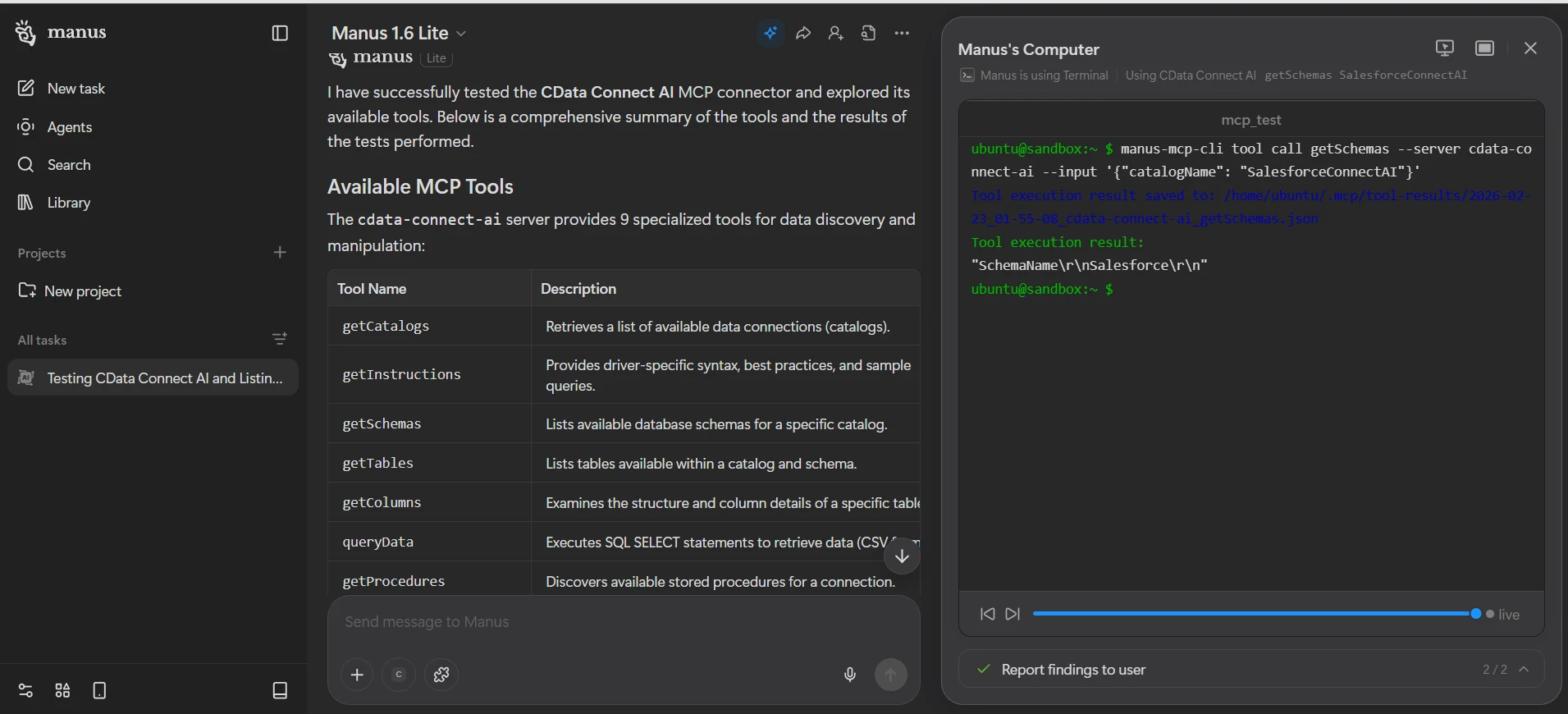
With the CData Connect AI MCP configured in Manus AI, users can now interact with their Google Cloud Storage data using natural language in any new Manus AI chat session.
- Open a new chat in Manus AI.
-
Start asking questions about the Google Cloud Storage data. For example:
- Show me all customers from the last 30 days
- What are my top performing products?
- Analyze sales trends for Q4
- List all active projects with their current status
-
Manus AI will use the CData Connect AI MCP Server to query your Google Cloud Storage data in real-time and provide responses based on live data.
Get CData Connect AI
To get live data access to hundreds of SaaS, big data, and NoSQL sources directly from your cloud applications, try CData Connect AI today!