







Seamlessly Bring Google Cloud Storage Data into Retool Using CData Connect AI

Retool enables the rapid creation of custom internal tools using a low-code or no-code approach. By integrating Google Cloud Storage into Retool with CData Connect AI, you can access live data from Google Cloud Storage in real time, enabling you to build more efficient apps and streamline workflows.
This guide walks you through the simple steps to connect Google Cloud Storage to Retool via CData Connect AI using OpenAPI or the Virtual SQL Server API. You can securely connect to your Google Cloud Storage data, ensuring seamless integration and real-time updates, empowering you to create smarter apps and enhance operational efficiency. Let's get started!
Configure the Google Cloud Storage Connectivity for Retool (in CData Connect AI)
Overview
Here is an overview of the steps:
- Configure: (Optional) Set up your Google Cloud Storage data source in CData Connect AI, add a Workspace, add assets to your Workspace, and generate a Personal Access Token (PAT).
- Connect: Link Retool to CData Connect AI using OpenAPI or the Virtual SQL Server API.
- Explore: Use your connected data to build smarter apps and explore advanced integrations.
Prerequisites
Ensure you have the following before starting:
- An active Google Cloud Storage account and credentials.
- A CData Connect AI account. Log in or sign up for a free trial here.
- A Retool account. Sign up here.
Connect to Google Cloud Storage from Connect AI
CData Connect AI uses a straightforward, point-and-click interface to connect to data sources.
- Log into Connect AI, click Sources, and then click Add Connection
- Select "Google Cloud Storage" from the Add Connection panel
-
Enter the necessary authentication properties to connect to Google Cloud Storage.
Authenticate with a User Account
You can connect without setting any connection properties for your user credentials. After setting InitiateOAuth to GETANDREFRESH, you are ready to connect.
When you connect, the Google Cloud Storage OAuth endpoint opens in your default browser. Log in and grant permissions, then the OAuth process completes
Authenticate with a Service Account
Service accounts have silent authentication, without user authentication in the browser. You can also use a service account to delegate enterprise-wide access scopes.
You need to create an OAuth application in this flow. See the Help documentation for more information. After setting the following connection properties, you are ready to connect:
- InitiateOAuth: Set this to GETANDREFRESH.
- OAuthJWTCertType: Set this to "PFXFILE".
- OAuthJWTCert: Set this to the path to the .p12 file you generated.
- OAuthJWTCertPassword: Set this to the password of the .p12 file.
- OAuthJWTCertSubject: Set this to "*" to pick the first certificate in the certificate store.
- OAuthJWTIssuer: In the service accounts section, click Manage Service Accounts and set this field to the email address displayed in the service account Id field.
- OAuthJWTSubject: Set this to your enterprise Id if your subject type is set to "enterprise" or your app user Id if your subject type is set to "user".
- ProjectId: Set this to the Id of the project you want to connect to.
The OAuth flow for a service account then completes.

- Click Save & Test
-
Navigate to the Permissions tab in the Add Google Cloud Storage Connection page and update the User-based permissions.



Add a Personal Access Token
When connecting to Connect AI through the REST API, the OData API, or the Virtual SQL Server, a Personal Access Token (PAT) is used to authenticate the connection to Connect AI. It is best practice to create a separate PAT for each service to maintain granularity of access.
- Click on the Gear icon () at the top right of the Connect AI app to open the settings page.
- On the Settings page, go to the Access Tokens section and click Create PAT.
-
Give the PAT a name and click Create.

- The personal access token is only visible at creation, so be sure to copy it and store it securely for future use.
Configure Google Cloud Storage Endpoints for Retool
After connecting to Google Cloud Storage, create a workspace for your desired table(s).
-
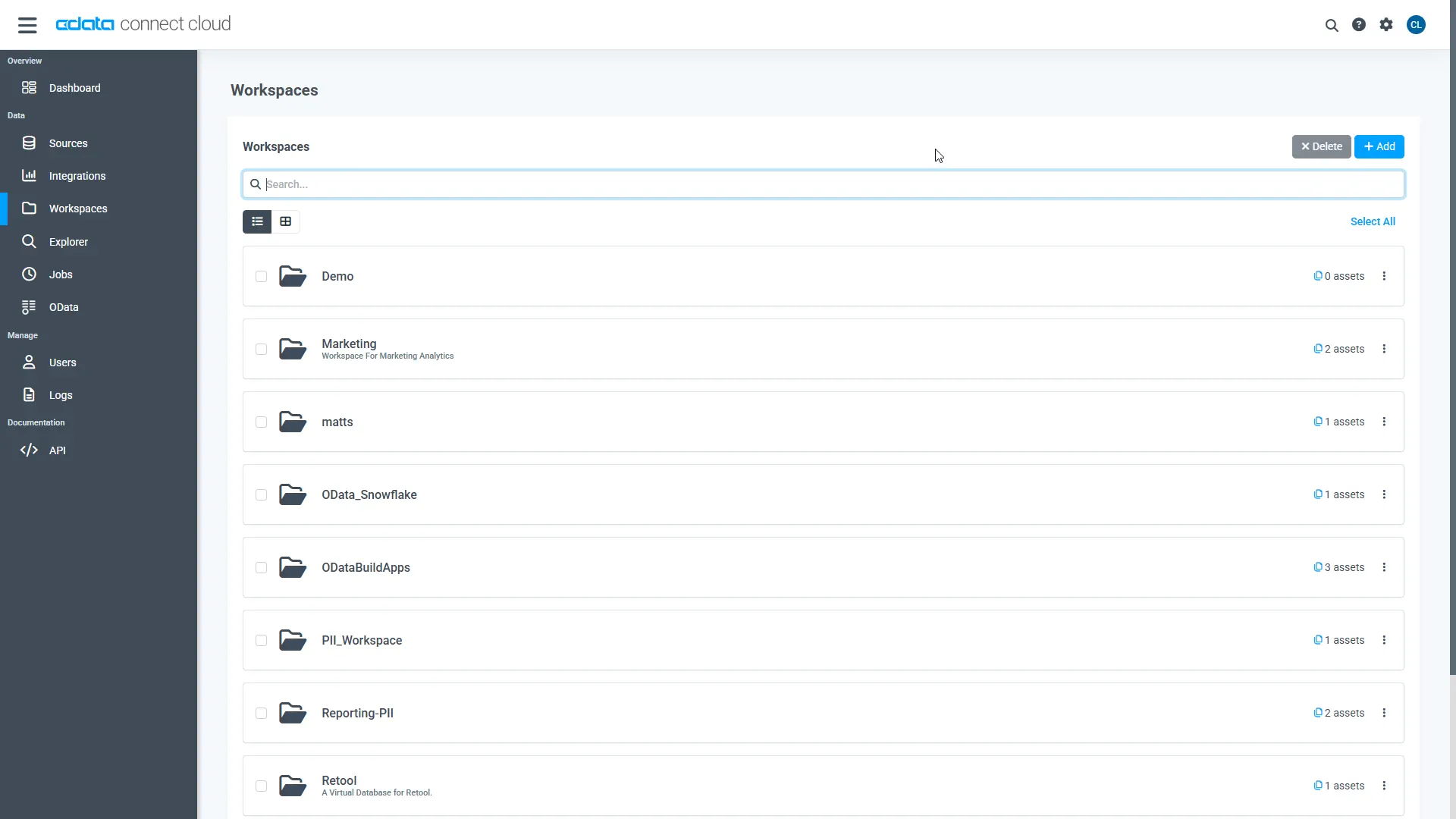
Navigate to the Workspaces page and click Add to create a new Workspace (or select an existing workspace).
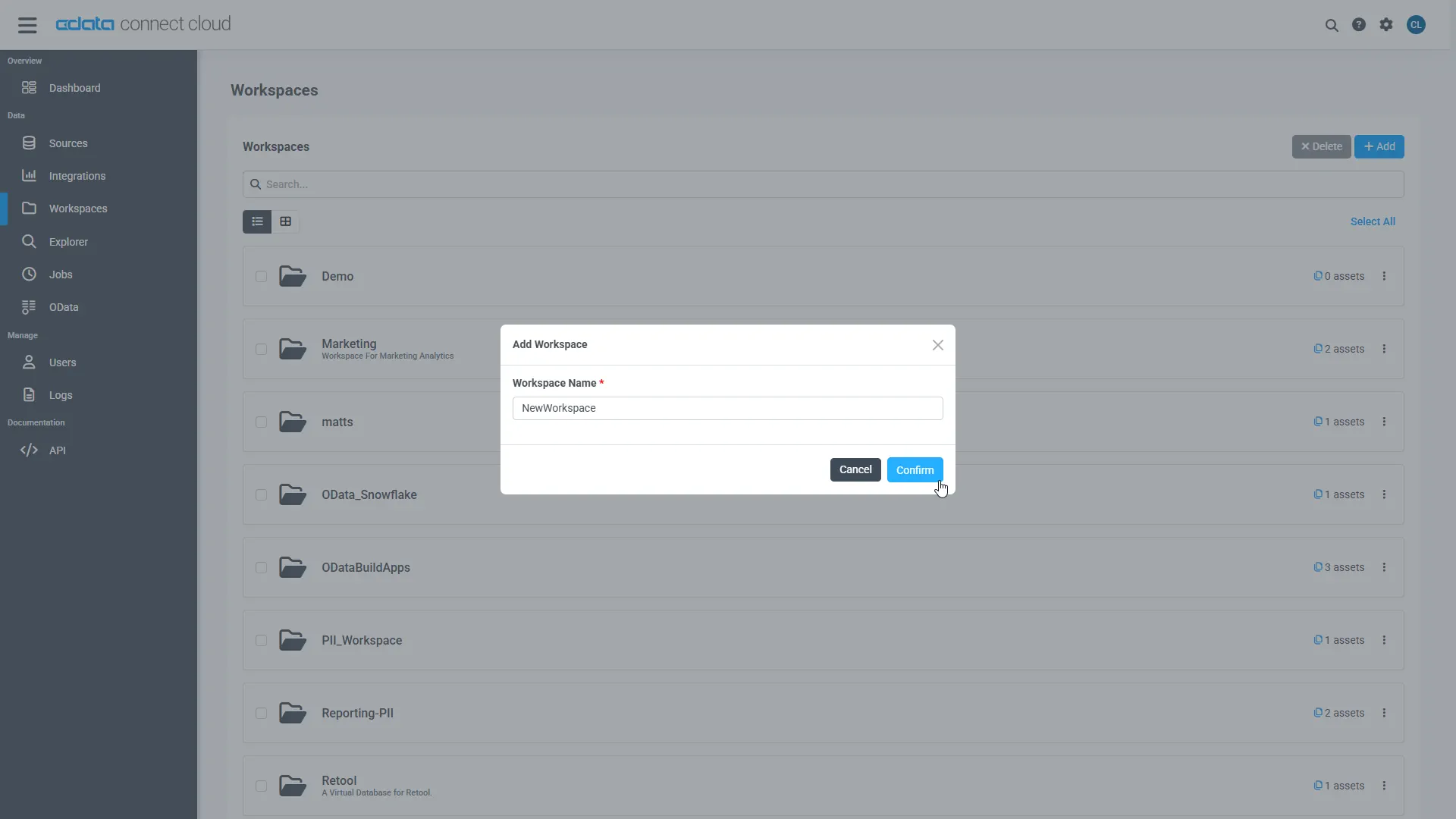
- Click Add to add new assets to the Workspace.
-
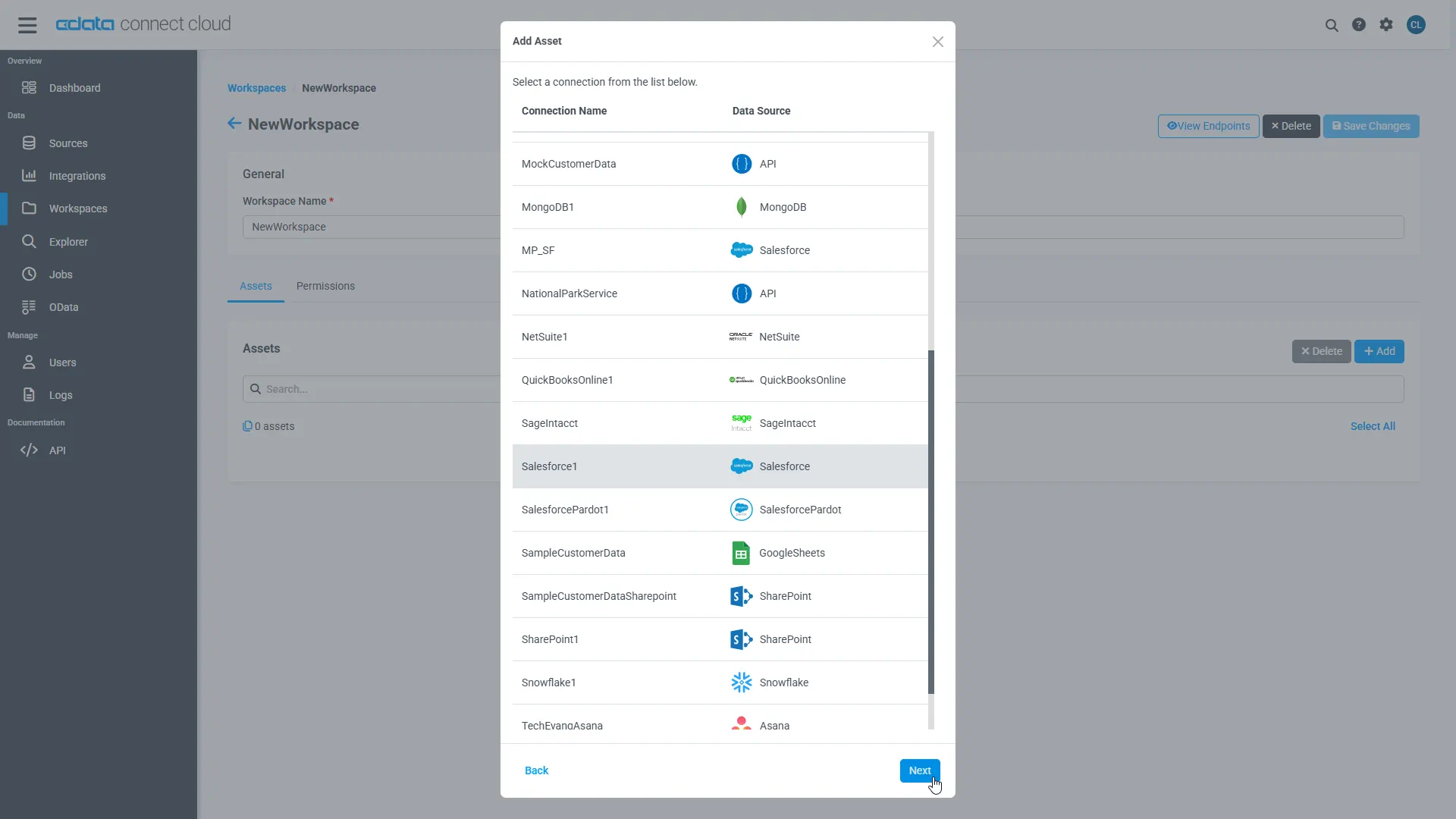
Select the Google Cloud Storage connection (e.g. GoogleCloudStorage1) and click Next.
-
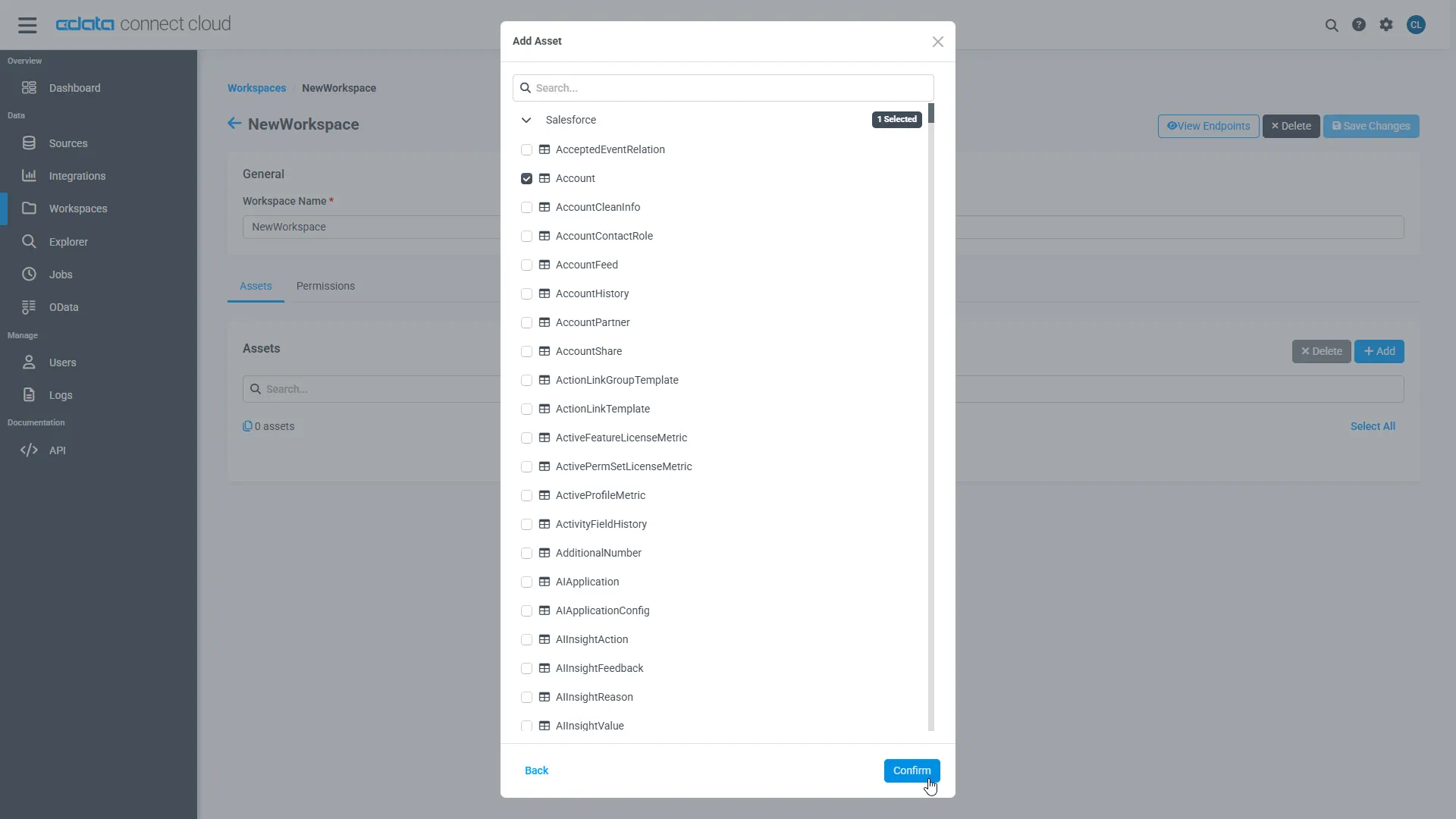
Select the table(s) you wish to work with and click Confirm.
- Make note of the OpenAPI URL or the Virtual SQL Server URL for your workspace, e.g. https://cloud.cdata.com/api/openapi/v3/{workspace_name}...
With the connection, PAT, and Workspace configured, you are ready to connect to Google Cloud Storage data from Retool.
Connect Retool to Google Cloud Storage in CData Connect AI
Now that you've configured your Google Cloud Storage connection in CData Connect AI, it's time to integrate it with Retool.
Retool can be connected to Google Cloud Storage in CData Connect AI via either OpenAPI or the Virtual SQL Server API. Choose the method that best suits your workflow:
Connect via OpenAPI
To connect using the OpenAPI specification, follow these steps:
- On CData Connect AI, from the left-hand side, go to Workspaces then select a Workspace.
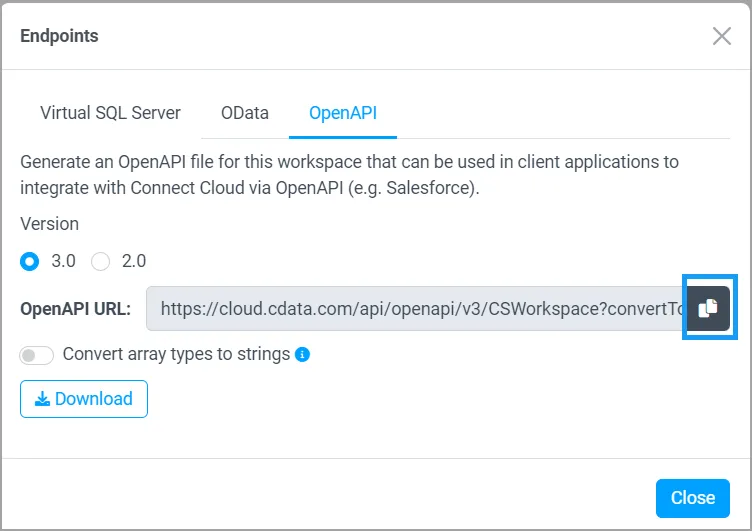
- Click the View Endpoints, and under the OpenAPI, copy the OpenAPI URL for the workspace. Keep the default options. See OpenAPI section for more information.
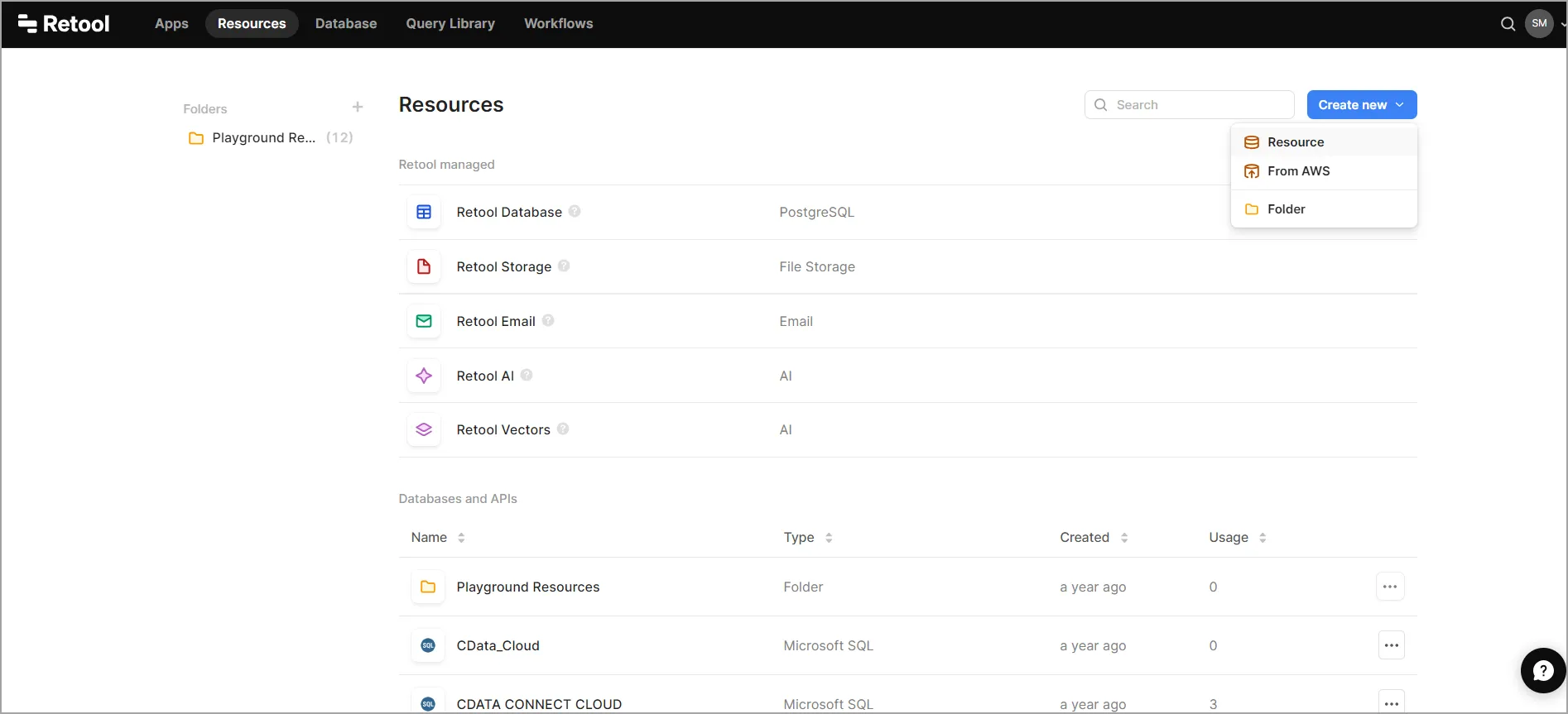
- Login to Retool and then go to the Resources tab, click Create new > Resource.
- In the Select a resource type search bar, and search for OpenAPI.
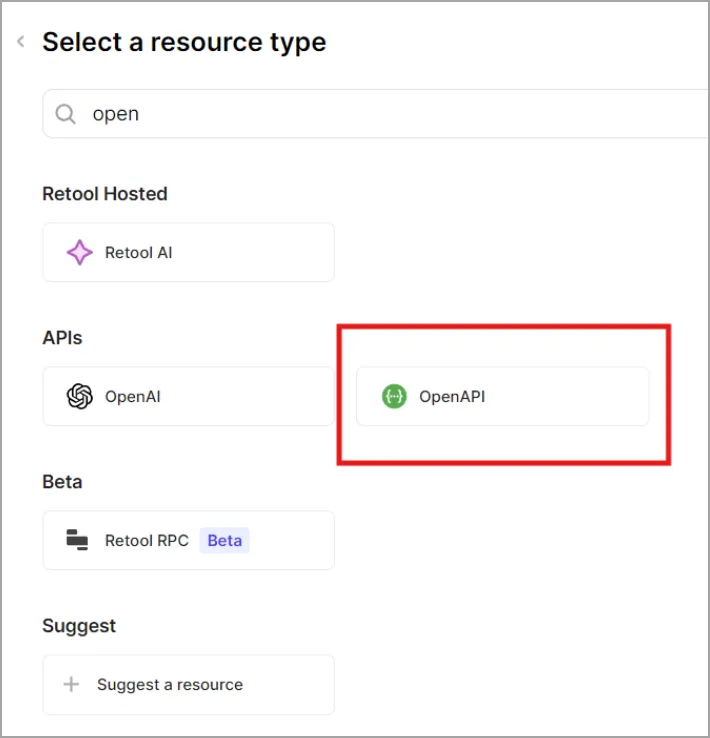
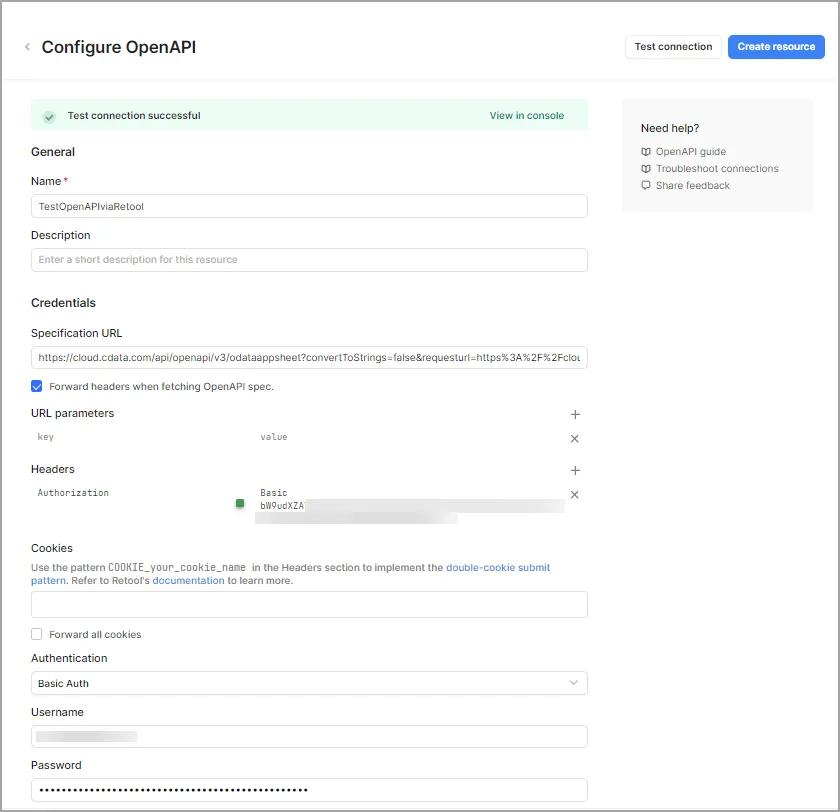
- Click OpenAPI. The Configure OpenAPI screen appears. Enter the following information to configure the OpenAPI connector:
- Name: The Connection Name to identify the connector on Retool.
- Specification URL: The OpenAPI URL you copied from the Workspace in CData Connect AI. Paste the URL here.
- Forward headers when fetching OpenAPI spec: Check this box.
- Under the URL parameters, keep the key-value pair unchanged.
- In the Headers section, write the key as Authorization and in the value, write Basic.
- For the Basic connection value, Retool requires a base64-encoded version of your CData Connect AI username:PAT combination (where PAT is the token you generated earlier). Use a tool like this to encode the value. For example, [email protected]:12345 encodes to dGVzdEBjZGF0YS5TIzNDU=. Copy this encoded value and paste it into the value field after Basic with a space.
- Username: Enter your CData Connect AI username. This is displayed in the top-right corner of the CData Connect AI interface. For example, [email protected].
- Password: Enter the PAT you generated on the Settings page.
- Click Test connection to test your connection configuration. Once you have a successful connection, click Create resource.
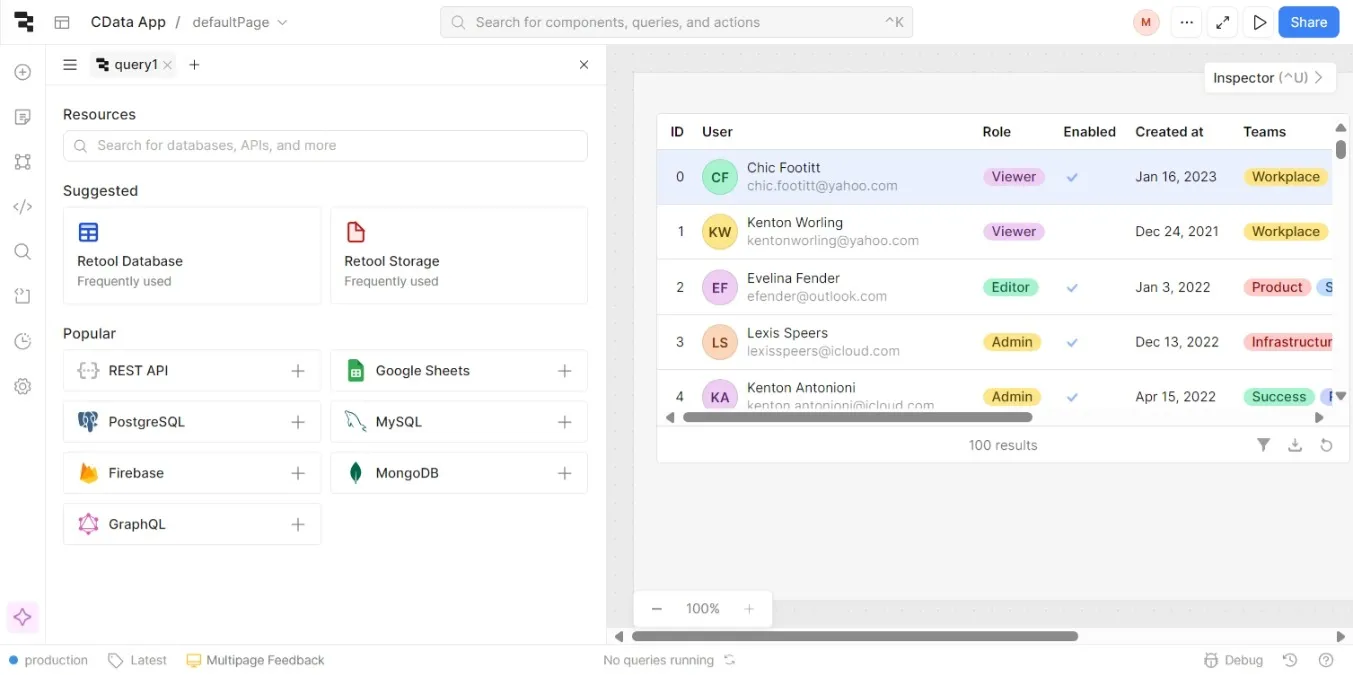
- Create the app in Retool in which to integrate your data.
- Click Create resource query.
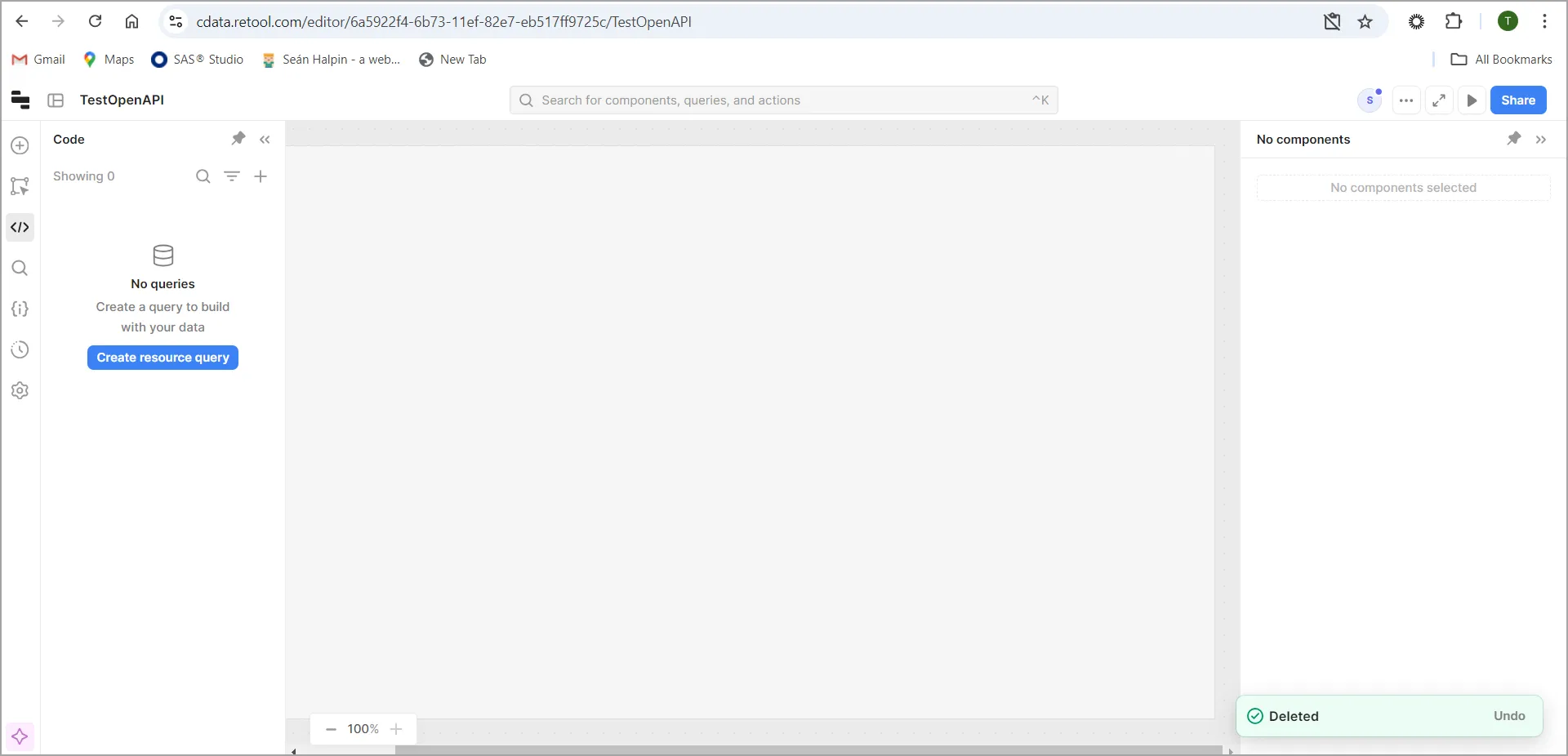
- Select the new resource you created, and view the endpoints that are available.
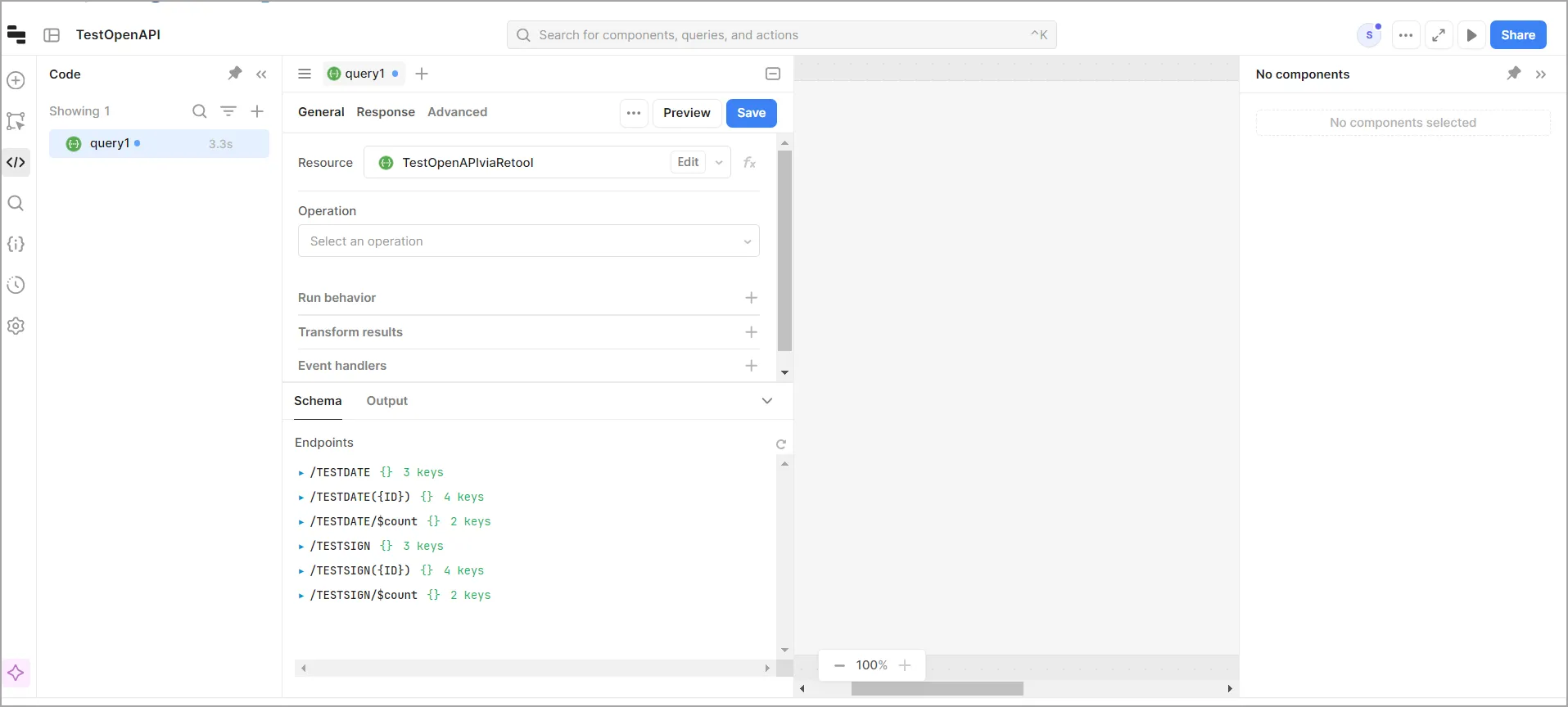
- You can now build your app with your live Google Cloud Storage data.
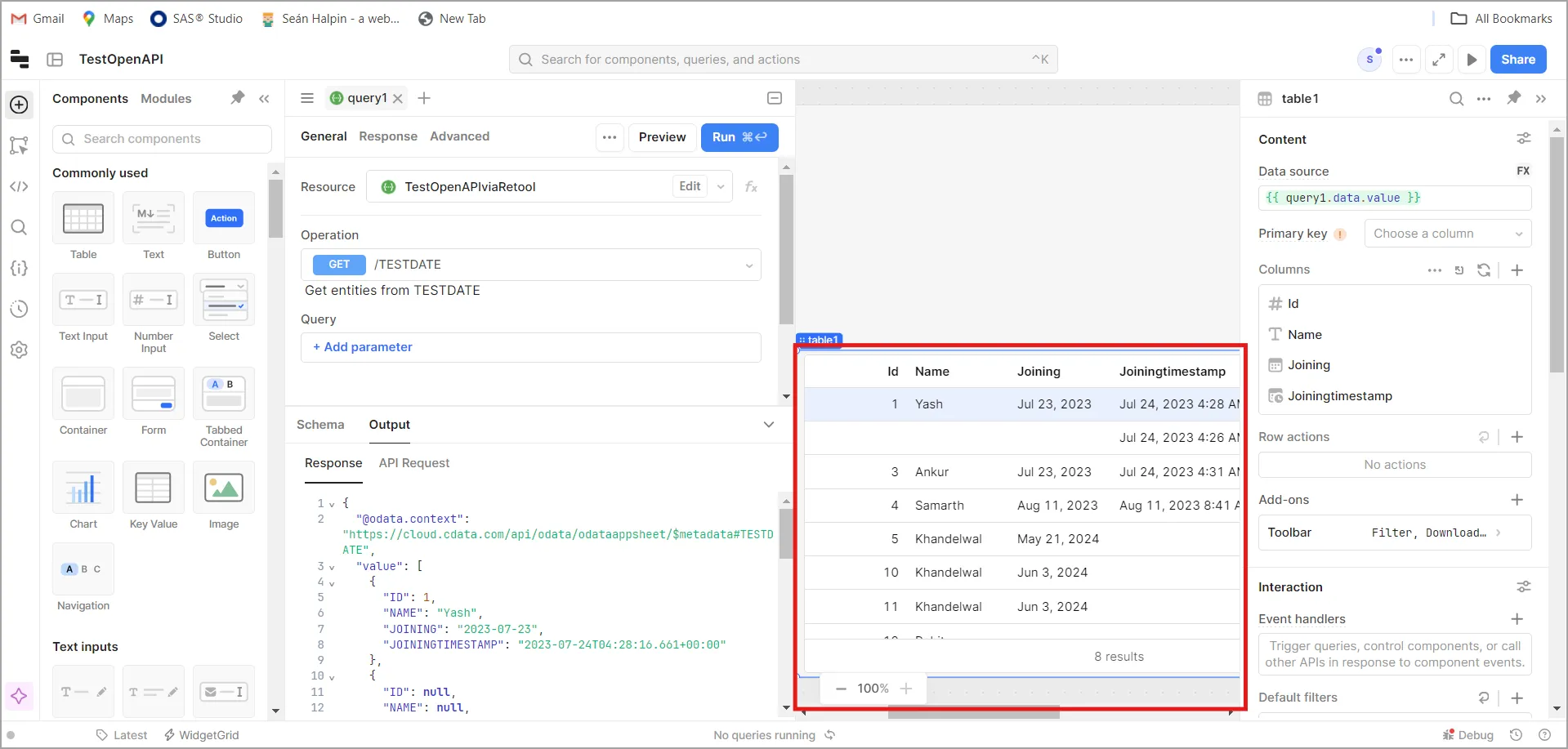
Connect via Virtual SQL Server API
To connect using the Virtual SQL Server API, follow these steps:
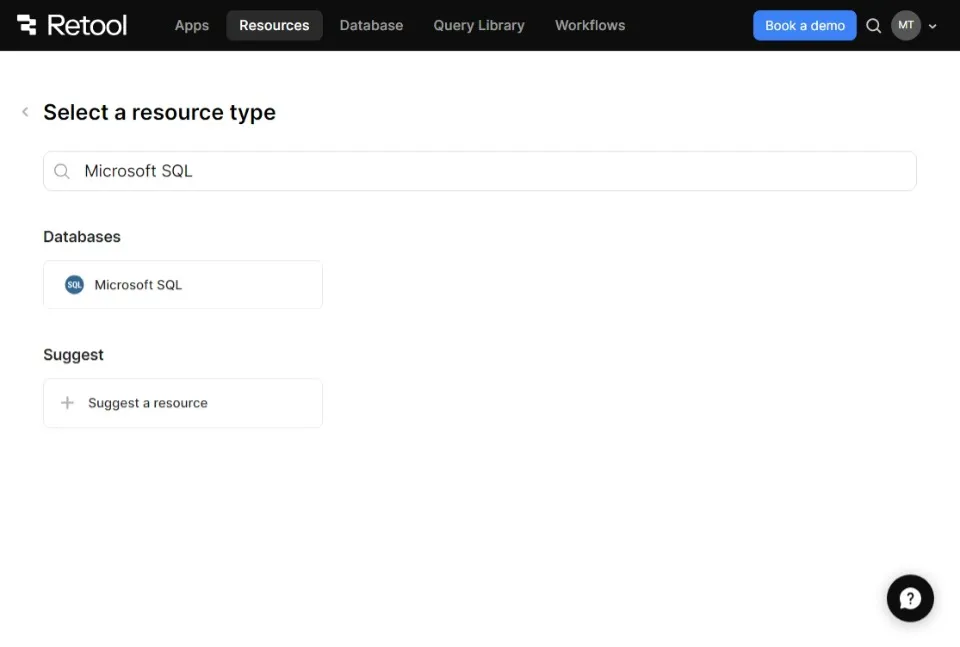
- Login to Retool, then go to Resources. Click Connect New at the top-right and select Resources.
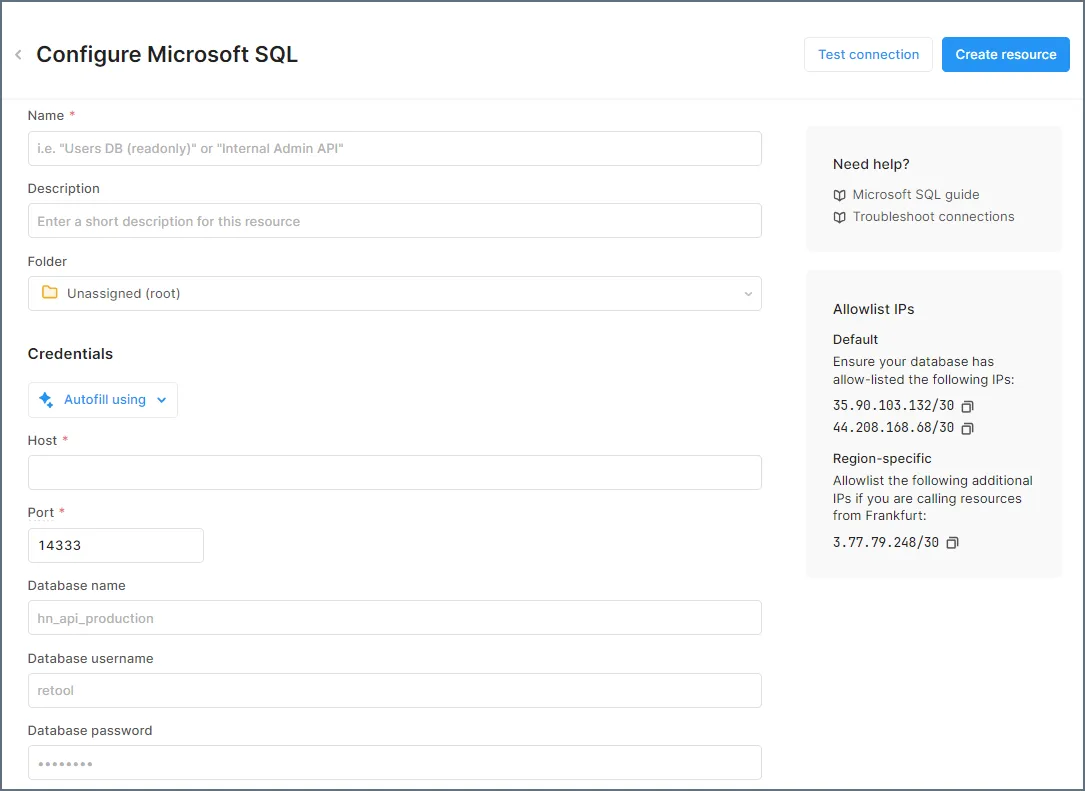
- Enter Microsoft SQL in the search bar, click the resulting option, and enter the following details:
- Name: A name for the connection to CData Connect AI.
- Host: tds.cdata.com.
- Port: 1433.
- Database Name: Enter the Connection Name of the CData Connect AI data source you want to connect to (for example, Salesforce1).
- Database Username: Enter your CData Connect AI username. This is displayed in the top-right corner of the CData Connect AI interface. For example, [email protected].
- Database Password: Enter the PAT you generated on the Settings page.
- Click Test Connection. If the connection fails, you might need to whitelist CData Connect AI IPs for Retool and other data sources. Check out the documentation here.
- If it succeeds, click Create Resource.
- Your connection is now set up, and you can build your app with live Google Cloud Storage data.
Build Retool Apps with Your Live Google Cloud Storage Data
Now that you have integrated Google Cloud Storage with Retool using CData Connect AI, it's time to utilize your live data to its full potential. Let's build a simple app:
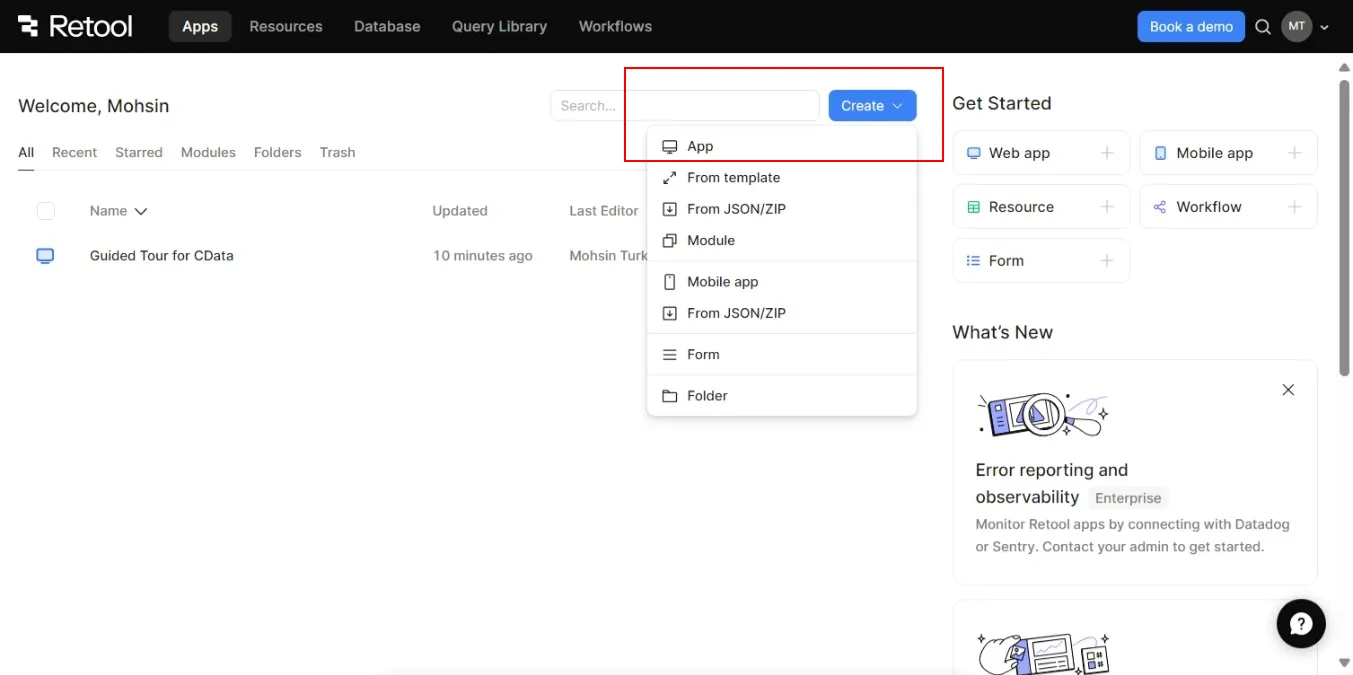
- Step 1: Set Up the Table (on home screen)
- Create a New App in Retool.
- Select your Google Cloud Storage connection.
- Add a Table component and bind it to Google Cloud Storage's data.
- Step 2: Add Filters (on top-right)
- Add a Dropdown to filter by Opportunity Stage.
- Add a Text Input for searching Account Name.
- Step 3: Display Key Metrics (below Table)
- Add a Text component to show Total Amount of filtered opportunities.
- Use a query to sum the Amount for filtered data.
- Step 4: Add Visuals (top-right or side panel)
- Add a Bar Chart to visualize opportunities by Stage.
- Add a Line Chart to show Expected Revenue over time.
- Step 5: Test and Deploy (top-right)
- Test filters, search, and charts.
- Deploy the app and share the link for access.
With these steps, you've successfully created a dynamic app to manage and visualize your Salesforce opportunities. Enjoy exploring your live data and leveraging it for better insights!
Try CData Connect AI Free for 14 Days
Experience real-time Google Cloud Storage data access and enhanced app development with CData Connect AI in Retool. Start your free trial today!