







Edit and Search External Highrise Objects in Salesforce Connect

CData Connect AI, enables you to access Highrise data from cloud-based applications like the Salesforce console and mobile applications like the Salesforce Mobile App. In this article, you will use CData Connect AI and Salesforce Connect to access external Highrise objects alongside standard Salesforce objects.
Connect to Highrise from Salesforce
To work with live Highrise data in Salesforce Connect, we need to connect to Highrise from Connect AI, provide user access to the connection, and create a Workspace for the Highrise data.
Connect to Highrise from Connect AI
CData Connect AI uses a straightforward, point-and-click interface to connect to data sources.
- Log into Connect AI, click Sources, and then click Add Connection
- Select "Highrise" from the Add Connection panel
-
Enter the necessary authentication properties to connect to Highrise.
Highrise uses the OAuth authentication standard. To authenticate to Highrise, obtain the OAuthClientId, OAuthClientSecret, and CallbackURL by registering an app with Highrise. You will also need to set the AccountId to connect to data.
See the "Getting Started" section in the help documentation for a guide to using OAuth.

- Click Save & Test
-
Navigate to the Permissions tab in the Add Highrise Connection page and update the User-based permissions.



Add a Personal Access Token
When connecting to Connect AI through the REST API, the OData API, or the Virtual SQL Server, a Personal Access Token (PAT) is used to authenticate the connection to Connect AI. It is best practice to create a separate PAT for each service to maintain granularity of access.
- Click on the Gear icon () at the top right of the Connect AI app to open the settings page.
- On the Settings page, go to the Access Tokens section and click Create PAT.
-
Give the PAT a name and click Create.

- The personal access token is only visible at creation, so be sure to copy it and store it securely for future use.
Configure Highrise Endpoints for Salesforce Connect
After connecting to Highrise, create a workspace for your desired table(s).
-
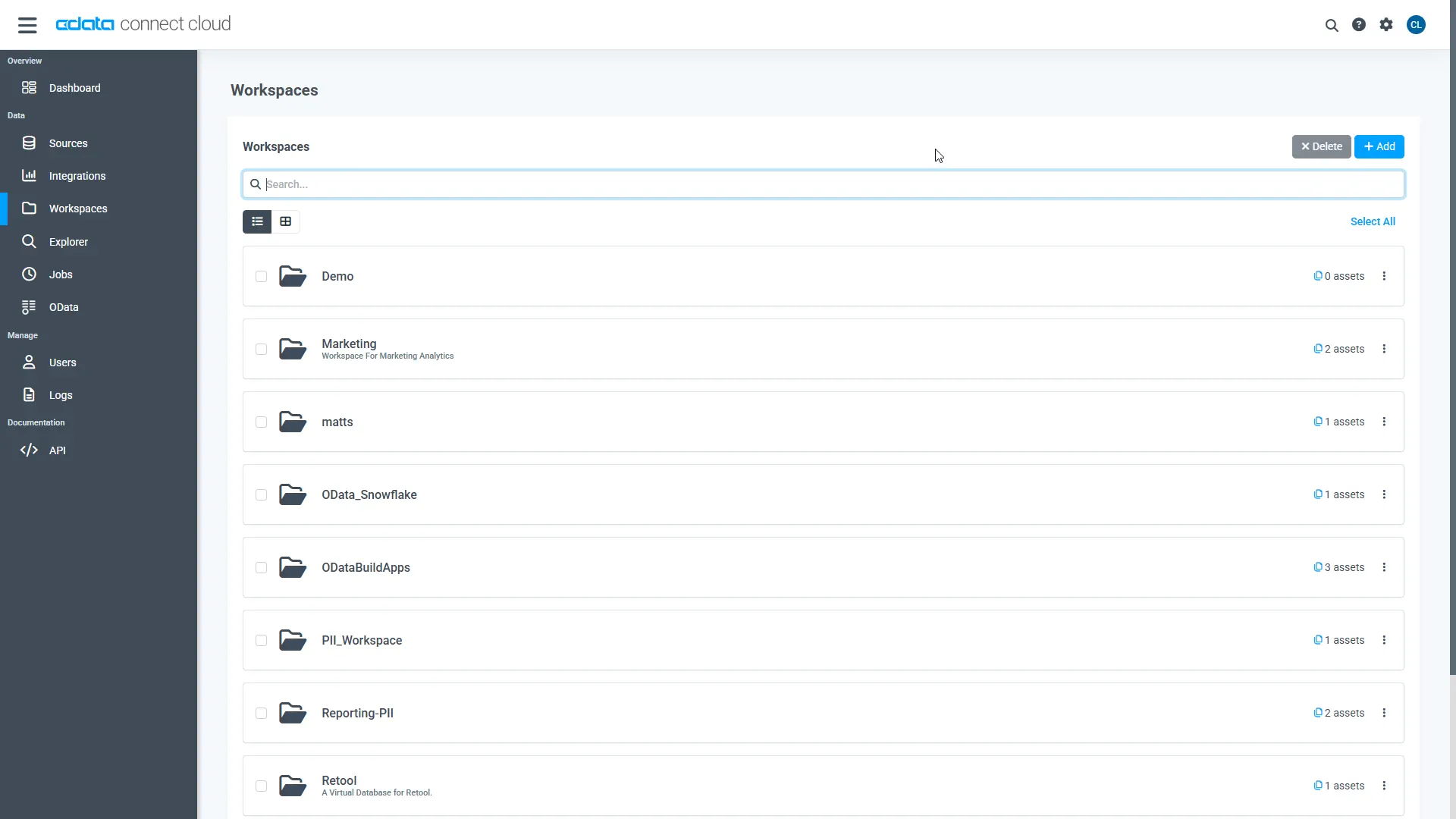
Navigate to the Workspaces page and click Add to create a new Workspace (or select an existing workspace).
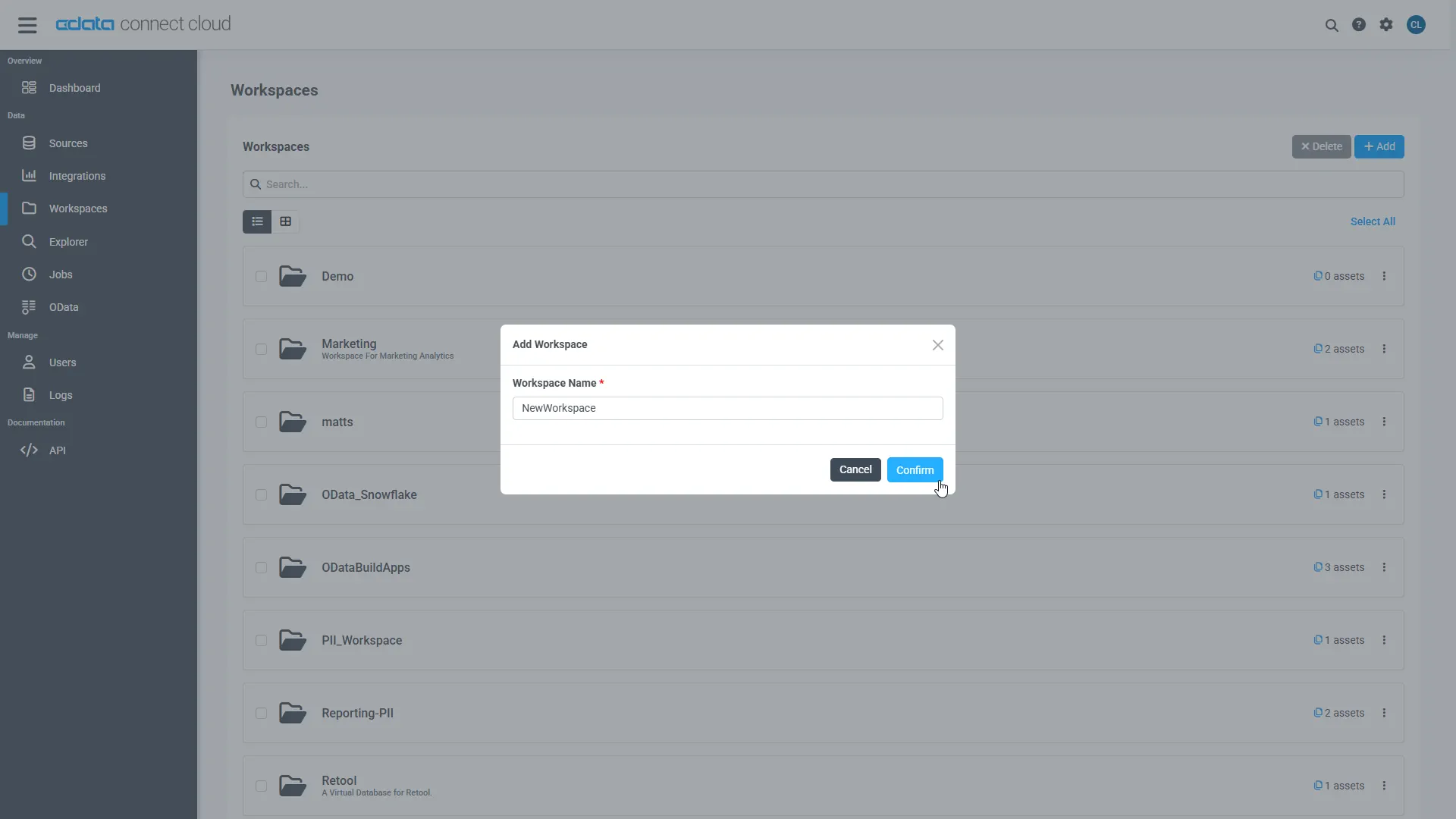
- Click Add to add new assets to the Workspace.
-
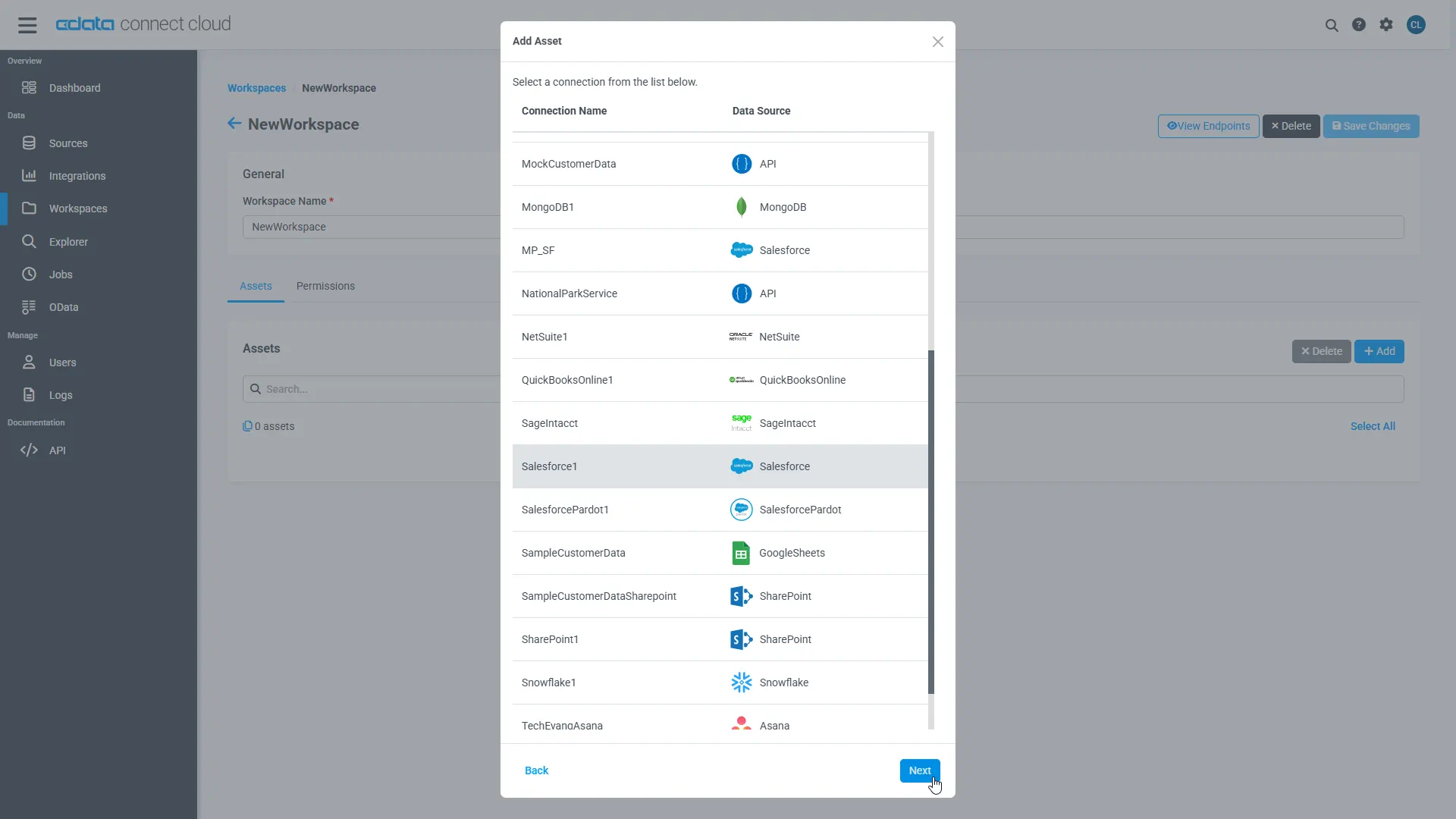
Select the Highrise connection (e.g. Highrise1) and click Next.
-
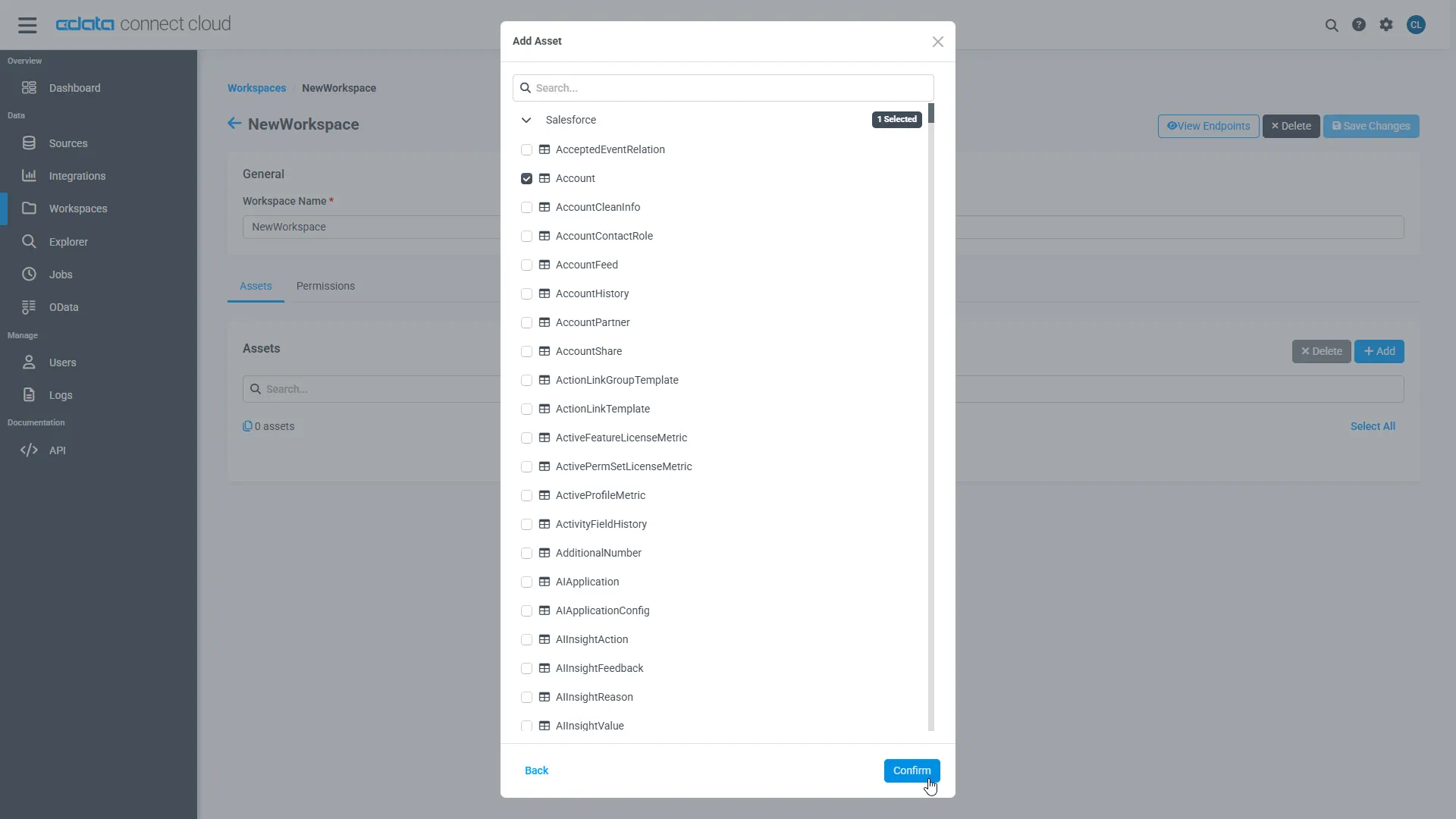
Select the table(s) you wish to work with and click Confirm.
- Make note of the OData Service URL for your workspace, e.g. https://cloud.cdata.com/api/odata/{workspace_name}
With the connection, PAT, and Workspace configured, you are ready to connect to Highrise data from Salesforce Connect.
Connect to Highrise Data as an External Data Sources
Follow the steps below to connect to the feed produced by Connect AI.
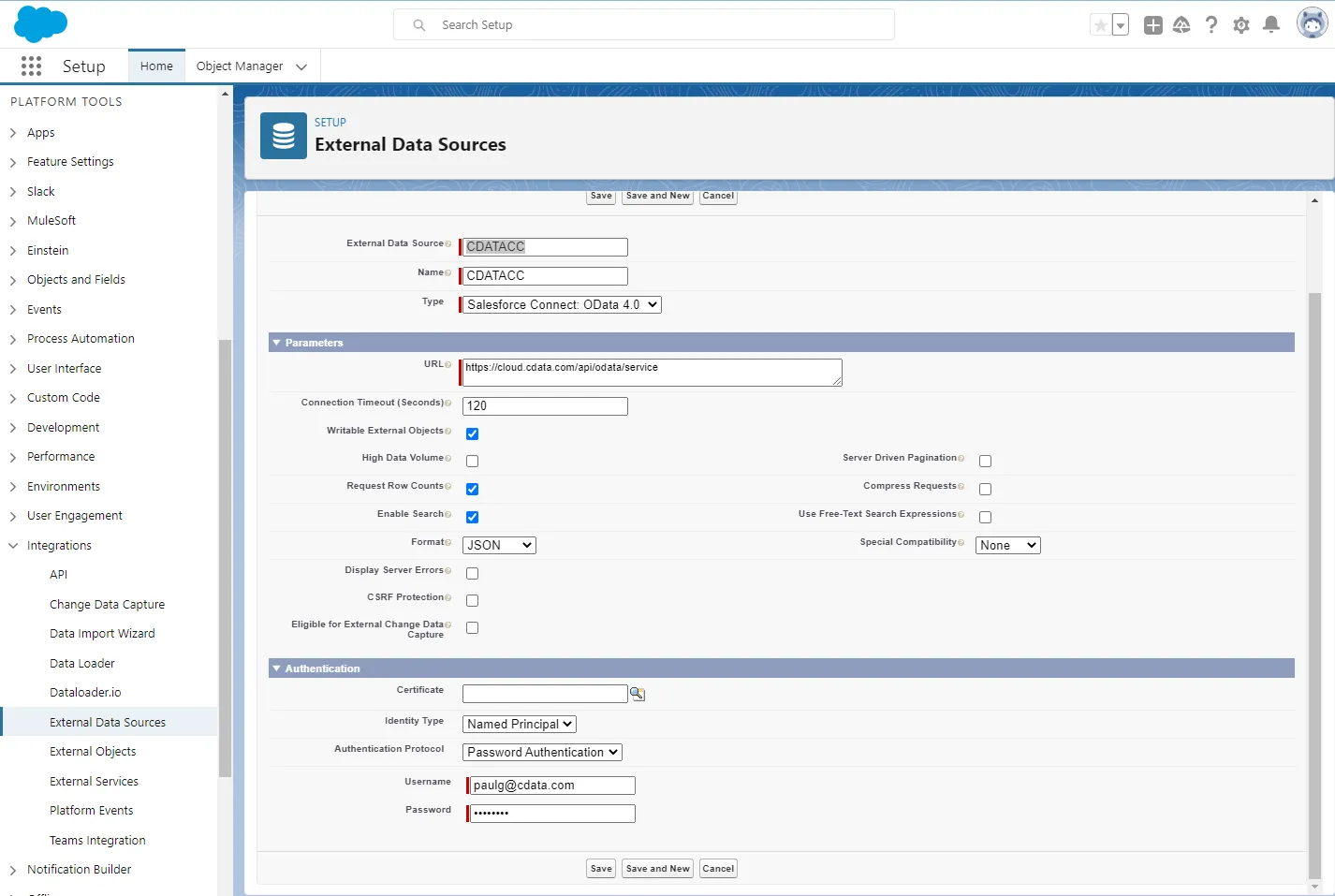
- Log into Salesforce and click Setup -> Integrations -> External Data Sources.
- Click Now External Data Sources.
- Enter values for the following properties:
- External Data Sources: Enter a label to be used in list views and reports.
- Name: Enter a unique identifier.
- Type: Select the option "Salesforce Connect: OData 4.0".
- URL: Enter the URL to the OData endpoint of Connect AI: https://cloud.cdata.com/api/odata/{workspace_name}
- Select the Writable External Objects option.
- Select JSON in the Format menu.
- In the Authentication section, set the following properties:
- Identity Type: If all members of your organization will use the same credentials to access Connect AI, select "Named Principal". If the members of your organization will connect with their own credentials, select "Per User".
- Authentication Protocol: Select Password Authentication to use basic authentication.
- Certificate: Enter or browse to the certificate to be used to encrypt and authenticate communications from Salesforce to your server.
- Username: Enter a CData Connect AI username (e.g. [email protected]).
- Password: Enter the user's PAT.
Synchronize Highrise Objects
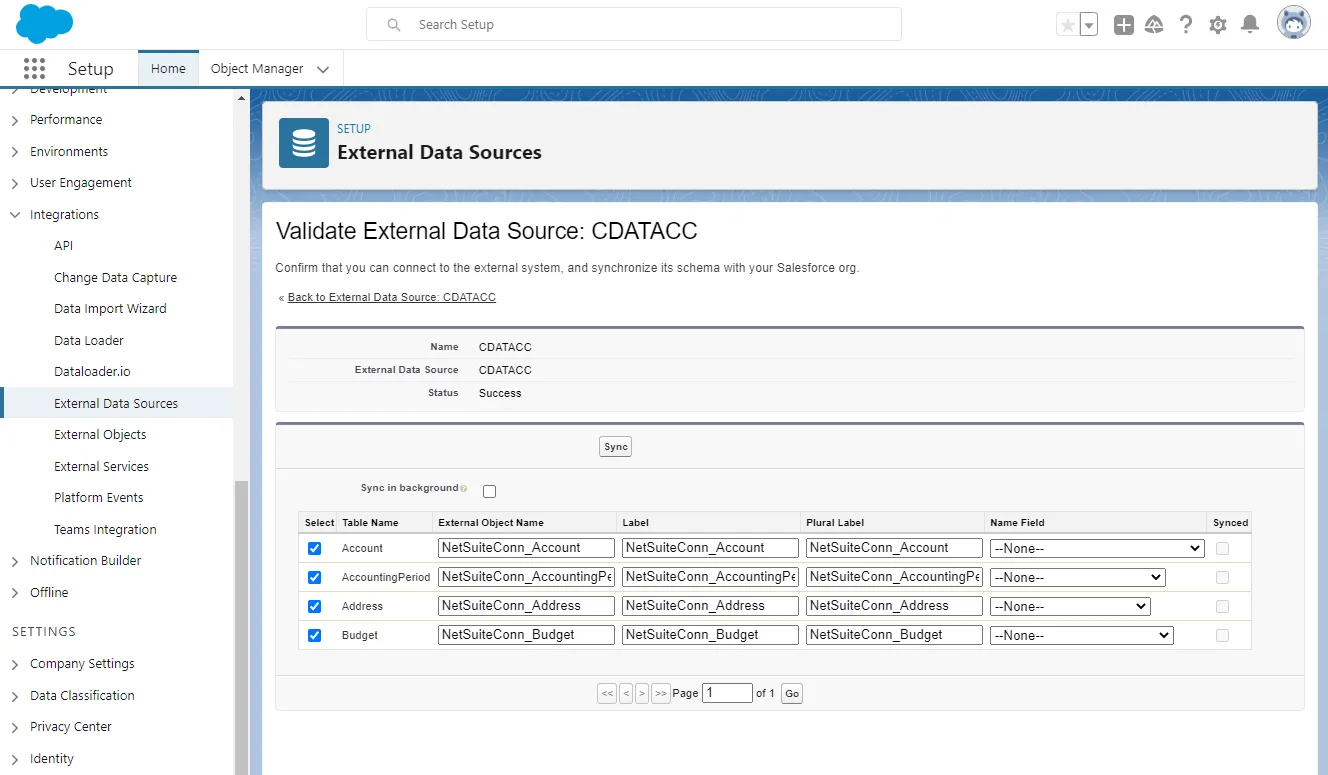
After you have created the external data source, follow the steps below to create Highrise external objects that reflect any changes in the data source. You will synchronize the definitions for the Highrise external objects with the definitions for Highrise tables.
- Click the link for the external data source you created.
- Click Validate and Scan.
- Select the Highrise tables you want to work with as external objects.
Access Highrise Data as Salesforce Objects
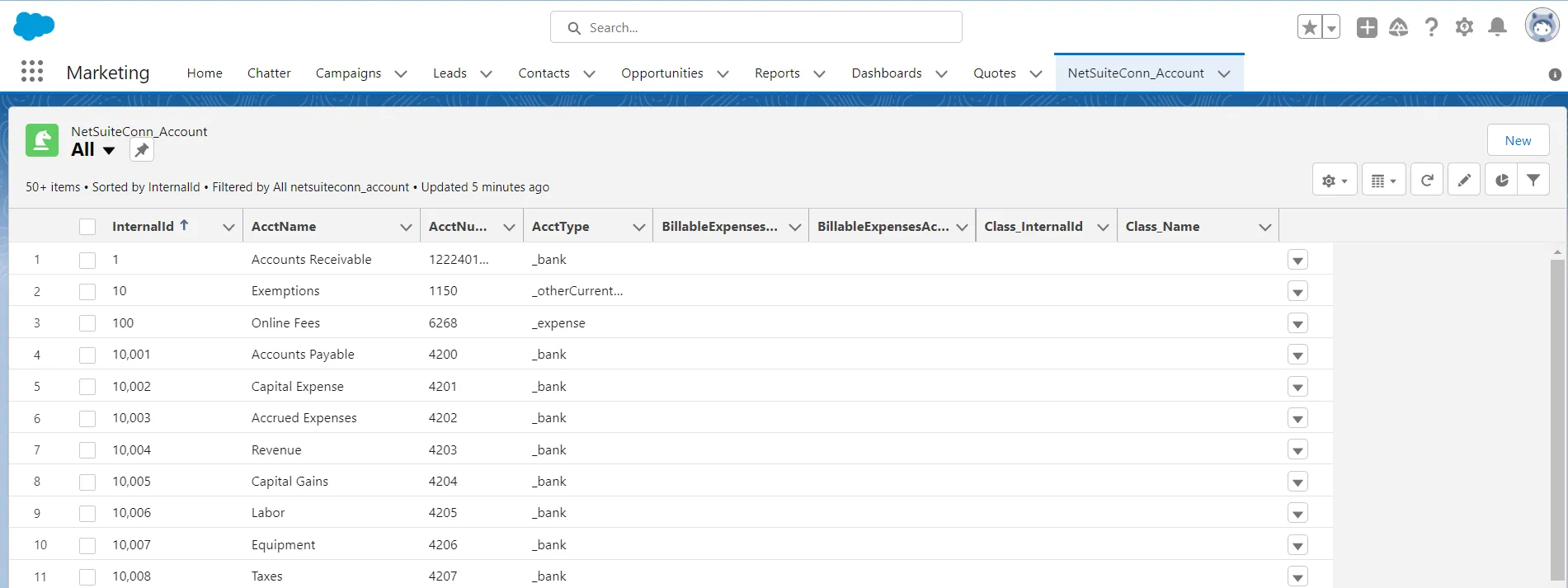
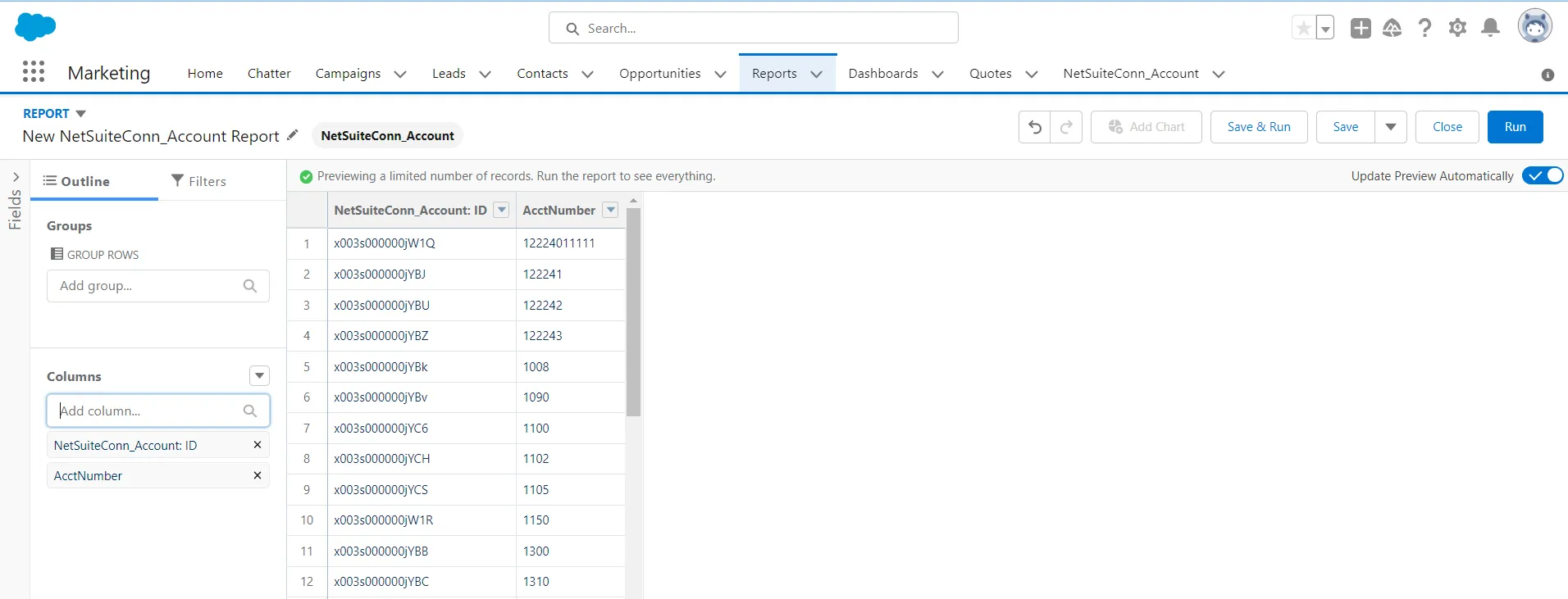
After adding Highrise data as an external data source and syncing Highrise tables as external objects, you can use the external Highrise objects just as you would standard Salesforce objects.
-
Create a new tab with a filter list view:
-
Create reports of external objects:
-
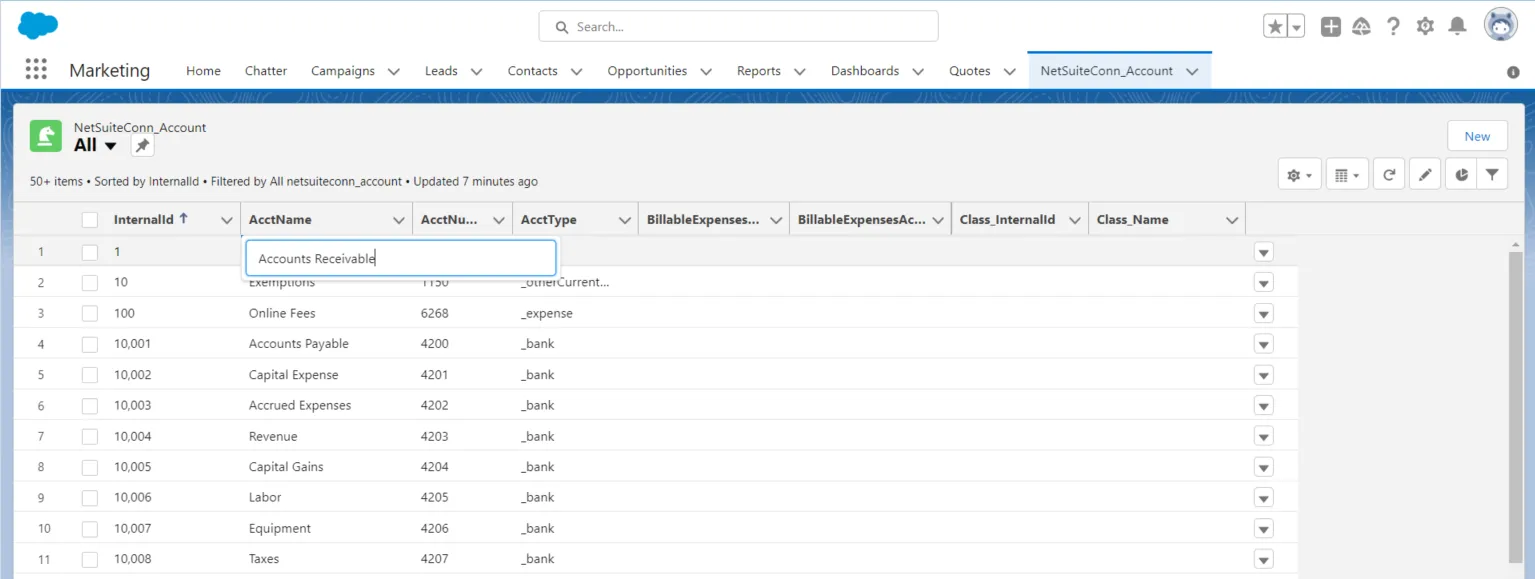
Create, update, and delete Highrise objects from the Salesforce dashboard:
Simplified Access to Highrise Data from Cloud Applications
At this point, you have a direct, cloud-to-cloud connection to live Highrise data from Salesforce. For more information on gaining simplified access to data from more than 100 SaaS, Big Data, and NoSQL sources in cloud applications like Salesforce, refer to our Connect AI page.