







Build Semantic Layer Views for IBM Cloud Object Storage Data in APOS Live Data Gateway

APOS Live Data Gateway (LDG) serves as a data connection and data transformation solution, facilitating live data connectivity and broadening data source possibilities for SAP Analytics Cloud and other SAP solutions. When integrated with CData Connect AI, users have the capability to construct semantic layer views for real-time access to IBM Cloud Object Storage data, enabling real-time analytics on IBM Cloud Object Storage in a manner akin to working with a relational database.
CData Connect AI offers a dedicated SQL Server interface for IBM Cloud Object Storage, enabling data querying directly from IBM Cloud Object Storage without the need to replicate data to a native database. With pre-optimized data processing capabilities, CData Connect AI efficiently directs all supported SQL operations, including filters and JOINs, directly to IBM Cloud Object Storage. This harnesses server-side processing to swiftly retrieve the requested IBM Cloud Object Storage data.
Configure IBM Cloud Object Storage Connectivity for APOS Live Data Gateway
Connectivity to IBM Cloud Object Storage from APOS Live Data Gateway is made possible through CData Connect AI. To work with IBM Cloud Object Storage data from APOS Live Data Gateway, we start by creating and configuring a IBM Cloud Object Storage connection.
- Log into Connect AI, click Sources, and then click Add Connection
- Select "IBM Cloud Object Storage" from the Add Connection panel
-
Enter the necessary authentication properties to connect to IBM Cloud Object Storage.
Register a New Instance of Cloud Object Storage
If you do not already have Cloud Object Storage in your IBM Cloud account, follow the procedure below to install an instance of SQL Query in your account:
- Log in to your IBM Cloud account.
- Navigate to the page, choose a name for your instance and click Create. You will be redirected to the instance of Cloud Object Storage you just created.
Connecting using OAuth Authentication
There are certain connection properties you need to set before you can connect. You can obtain these as follows:
API Key
To connect with IBM Cloud Object Storage, you need an API Key. You can obtain this as follows:
- Log in to your IBM Cloud account.
- Navigate to the Platform API Keys page.
- On the middle-right corner click "Create an IBM Cloud API Key" to create a new API Key.
- In the pop-up window, specify the API Key name and click "Create". Note the API Key as you can never access it again from the dashboard.
Cloud Object Storage CRN
If you have multiple accounts, specify the CloudObjectStorageCRN explicitly. To find the appropriate value, you can:
- Query the Services view. This will list your IBM Cloud Object Storage instances along with the CRN for each.
- Locate the CRN directly in IBM Cloud. To do so, navigate to your IBM Cloud Dashboard. In the Resource List, Under Storage, select your Cloud Object Storage resource to get its CRN.
Connecting to Data
You can now set the following to connect to data:
- InitiateOAuth: Set this to GETANDREFRESH. You can use InitiateOAuth to avoid repeating the OAuth exchange and manually setting the OAuthAccessToken.
- ApiKey: Set this to your API key which was noted during setup.
- CloudObjectStorageCRN (Optional): Set this to the cloud object storage CRN you want to work with. While the connector attempts to retrieve this automatically, specifying this explicitly is recommended if you have more than Cloud Object Storage account.
When you connect, the connector completes the OAuth process.
- Extracts the access token and authenticates requests.
- Saves OAuth values in OAuthSettingsLocation to be persisted across connections.

- Click Save & Test
-
Navigate to the Permissions tab in the Add IBM Cloud Object Storage Connection page and update the User-based permissions.



Add a Personal Access Token
When connecting to Connect AI through the REST API, the OData API, or the Virtual SQL Server, a Personal Access Token (PAT) is used to authenticate the connection to Connect AI. It is best practice to create a separate PAT for each service to maintain granularity of access.
- Click on the Gear icon () at the top right of the Connect AI app to open the settings page.
- On the Settings page, go to the Access Tokens section and click Create PAT.
-
Give the PAT a name and click Create.

- The personal access token is only visible at creation, so be sure to copy it and store it securely for future use.
With the connection configured and a PAT generated, you are ready to connect to IBM Cloud Object Storage data in the APOS Live Data Gateway.
Connecting to IBM Cloud Object Storage & Creating a Semantic Layer View
After configuring the connection in CData Connect AI you are ready to connect to IBM Cloud Object Storage in the Live Data Gateway Admin tool and build a semantic layer view in the Live Data Gateway Web UI.
Configuring the Connection to IBM Cloud Object Storage
- Log into your APOS Live Data Gateway Manager
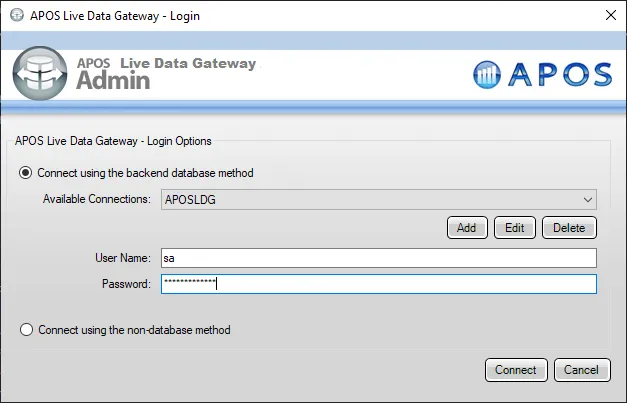
- If you haven't already, update your APOS LDG license file
- Click File -> Configurations
- Click on the "..." Menu for the License
- Select the license file from the APOS team that includes your CData Connect AI license
- In the APOS Live Data Gateway Manager, click "Add"
- In the APOS Live Data Gateway On the Connection tab, configure the connection:
- Set Data Source to "Database"
- Set Database to "JDBC Generic"
- Set Connection String to a connection string similar to the following, using the name of the connection you configured earlier, e.g.
jdbc:sqlserver://tds.cdata.com:14333;databaseName=IBMCloudObjectStorage1
- Set Driver Class to "com.CData.connect.Driver" (this should be set by default)
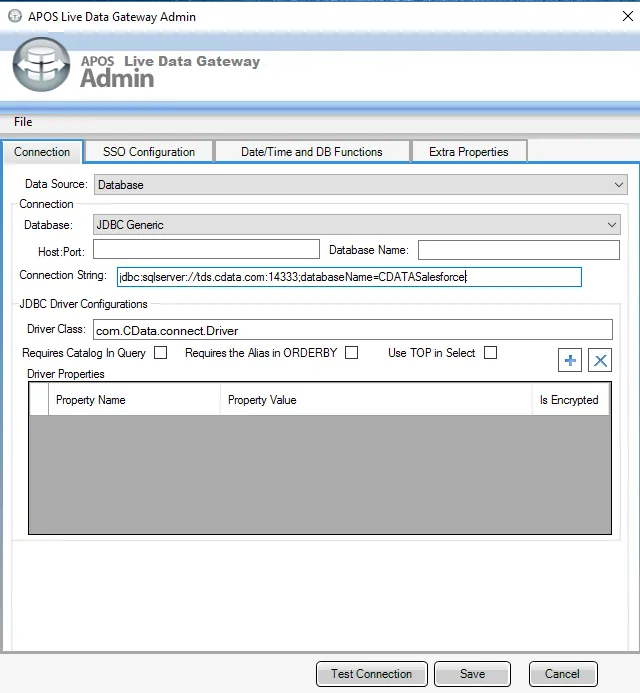
- Click Test Connection
- Click Save
- Give your connection a unique prefix (e.g. "ibmcloudobjectstorage")
- Highlight the newly created connection and click File -> "Approve Users For Web UI"
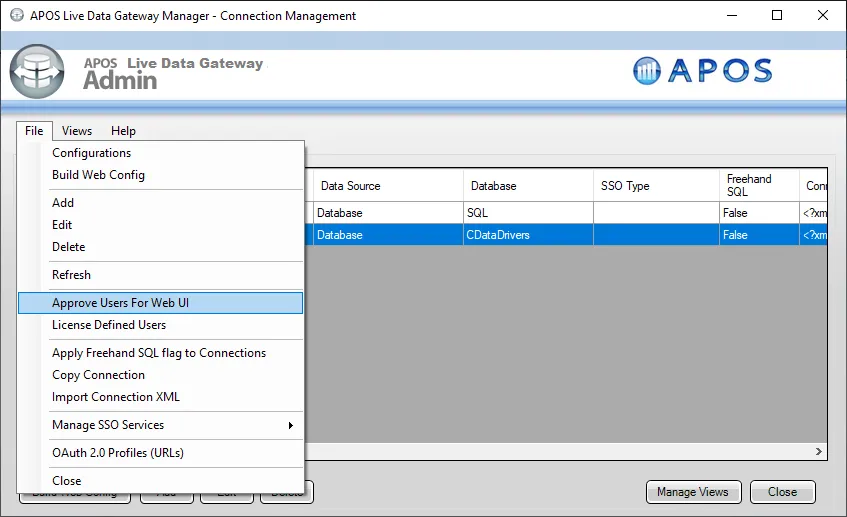
- Approve the appropriate DB users to create views and click "Save"
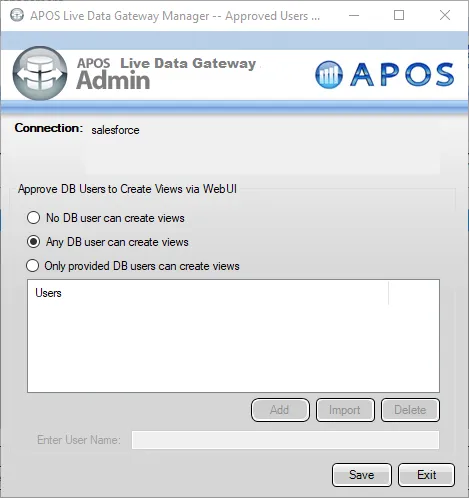
At this point, we are ready to build our semantic layer view in the Live Data Gateway Web UI.
Creating a Semantic Layer View
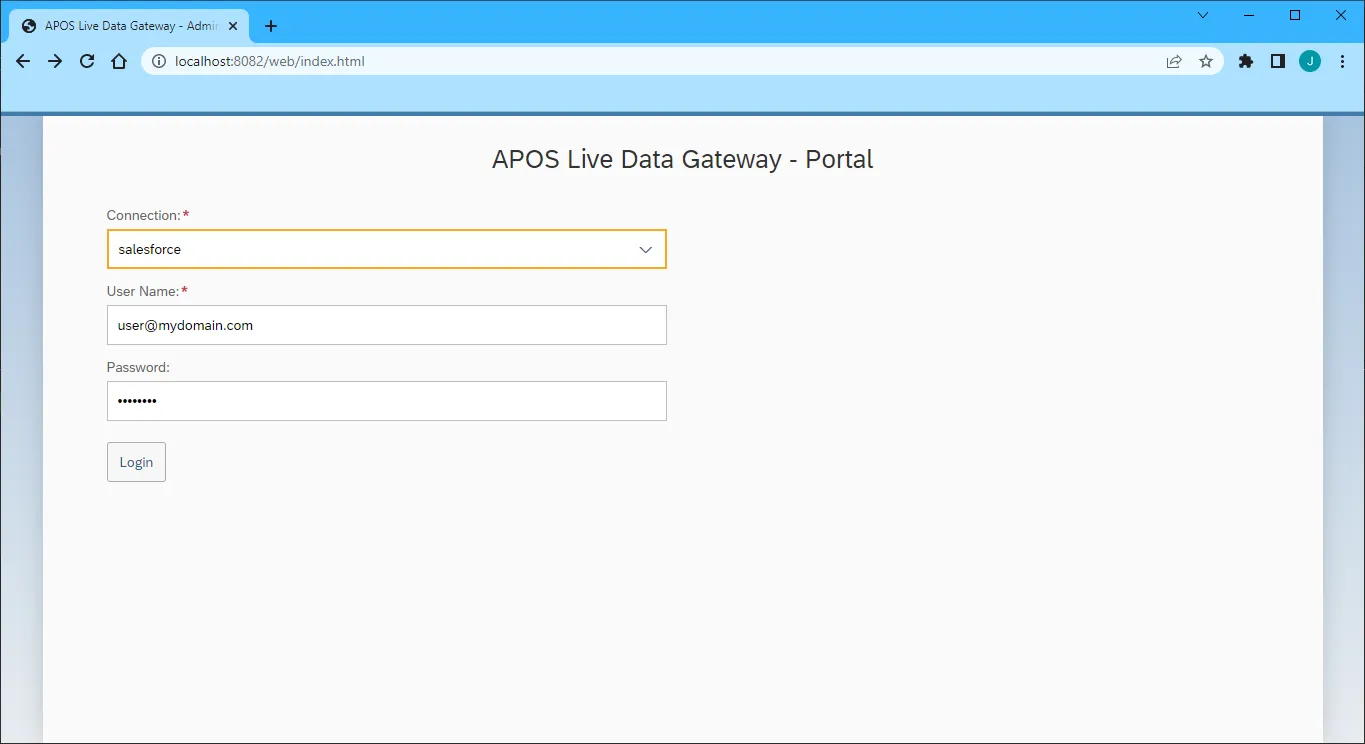
- In your browser, navigate to the APOS Live Data Gateway Portal
- Select a Connection (e.g. "ibmcloudobjectstorage")
- Set User Name and Password to your Connect AI username and PAT .
- Click "Login"
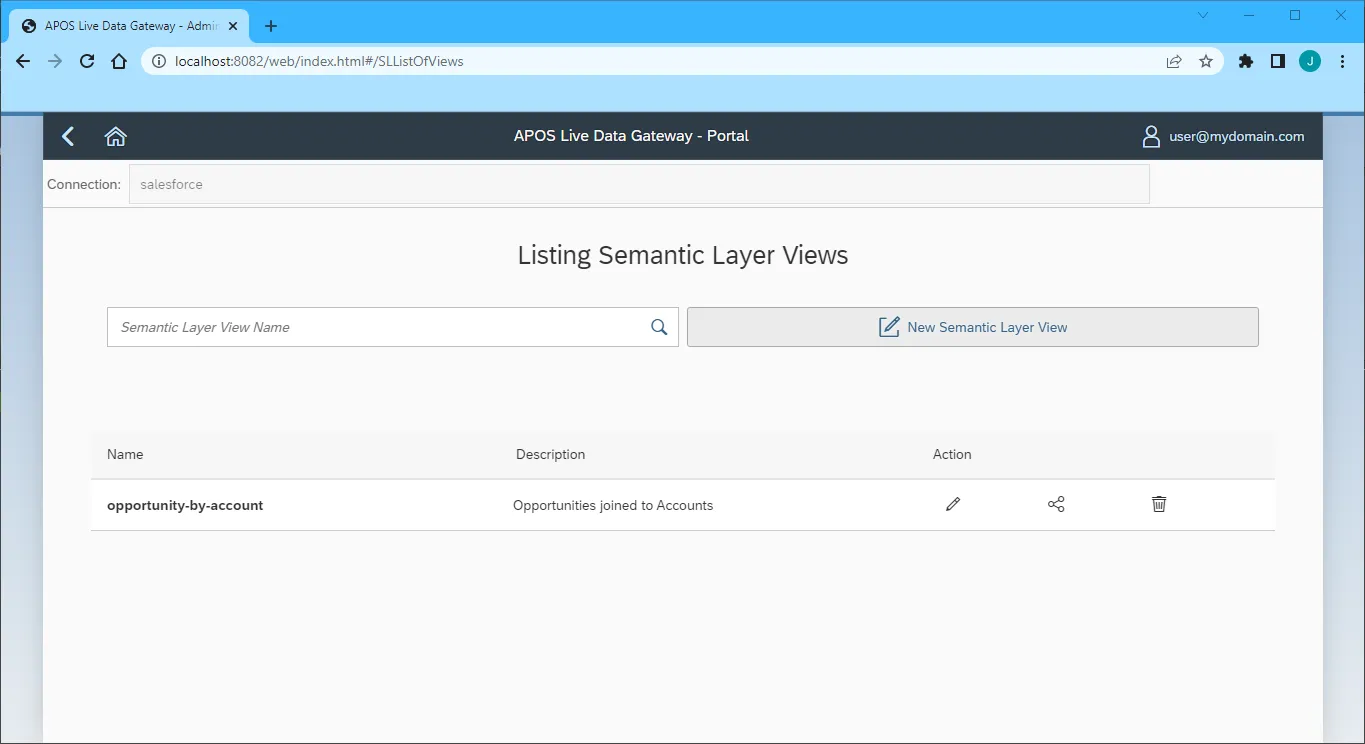
- Once connected, click "Semantic Layer" to create a new semantic layer view
- Click "New Semantic Layer View"
- Set the Semantic Layer View Prefix and Semantic Layer View Name
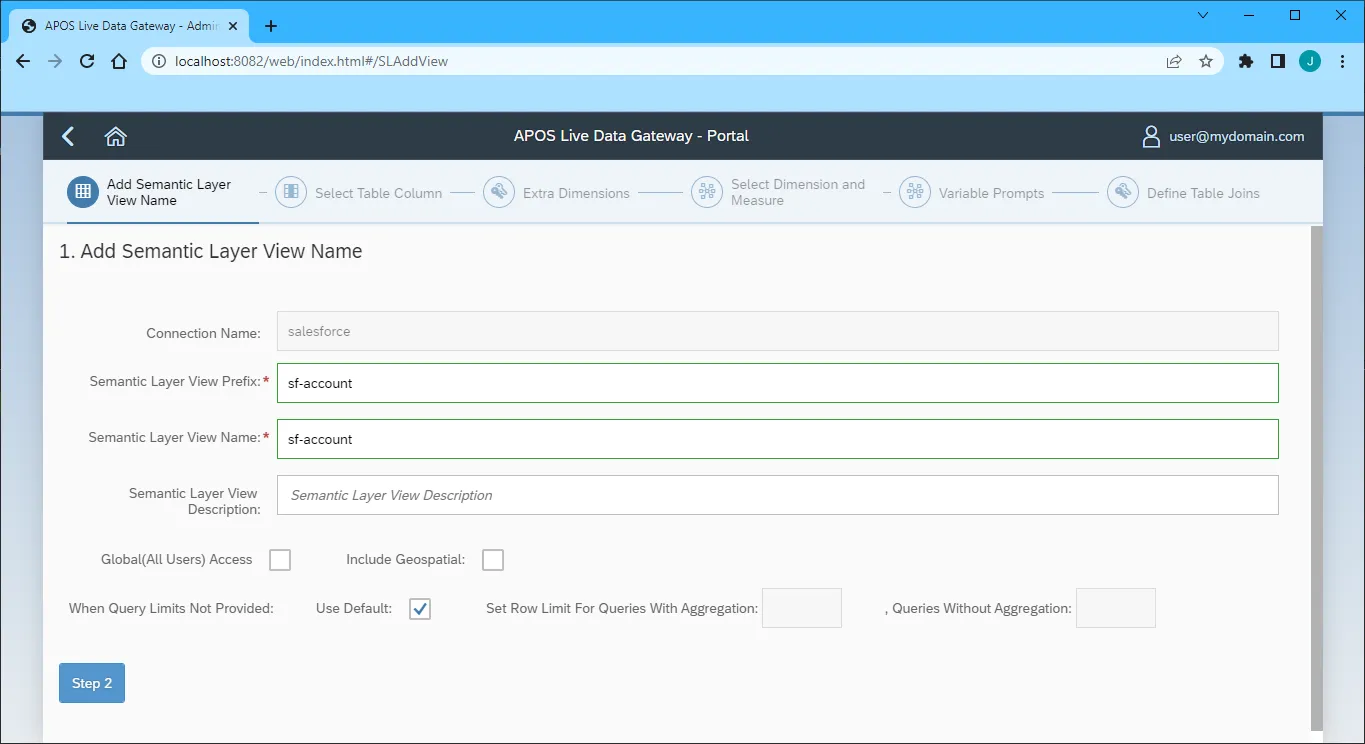
- Click "Step 2"
- Select the table(s) and column(s) you wish to include in your view
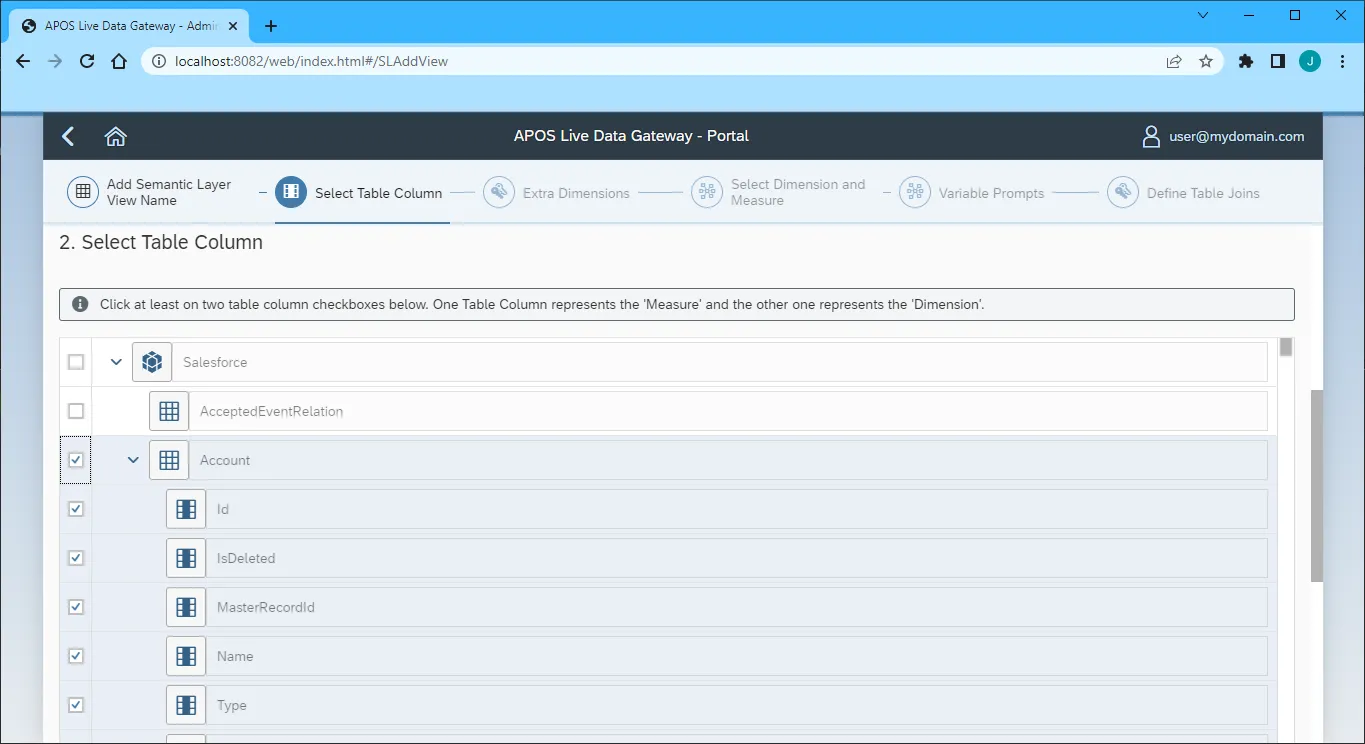
- Click "Step 3"
- Select the Measures from the available table columns
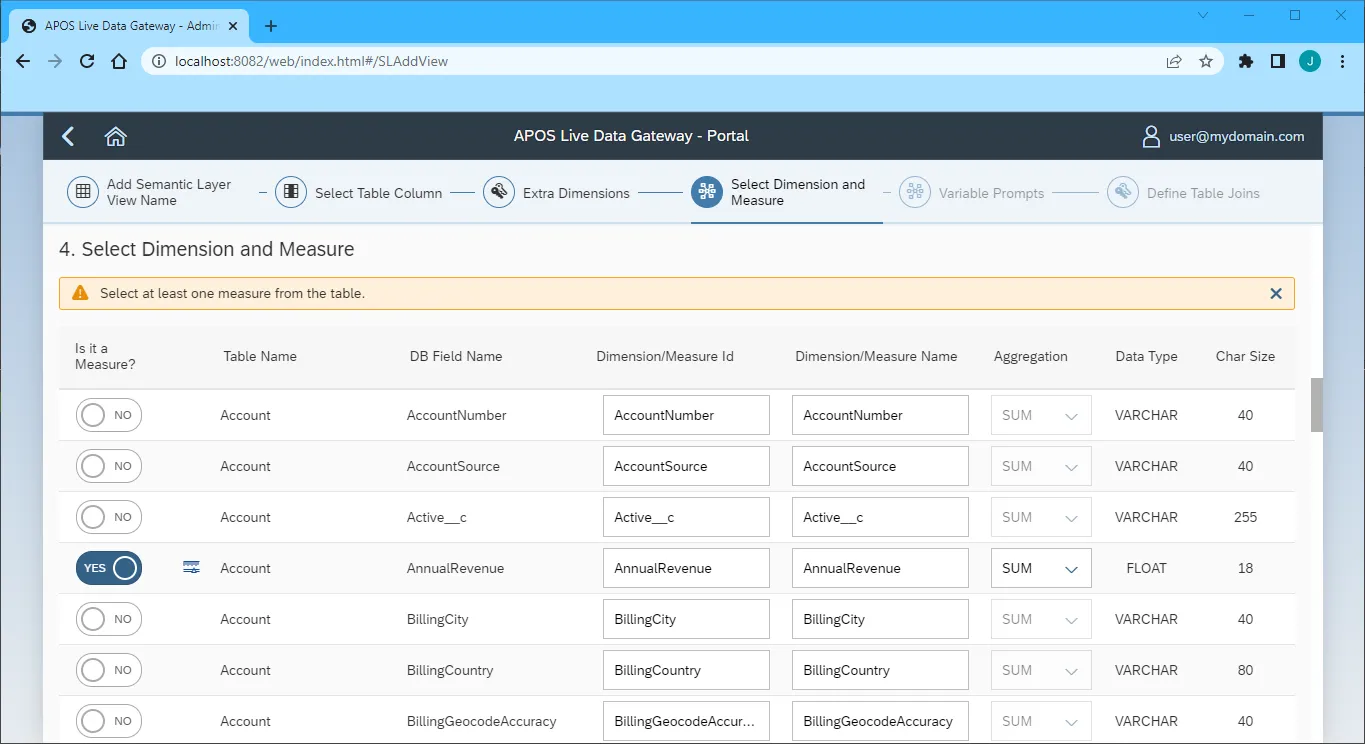
- Click "Step 5" (we skipped the "Extra Dimensions" step)
- Add any Variable Prompts
- Click "Step 6"
- Define any Table Joins
- Click "Review"
- Review you semantic layer view and click "Save"
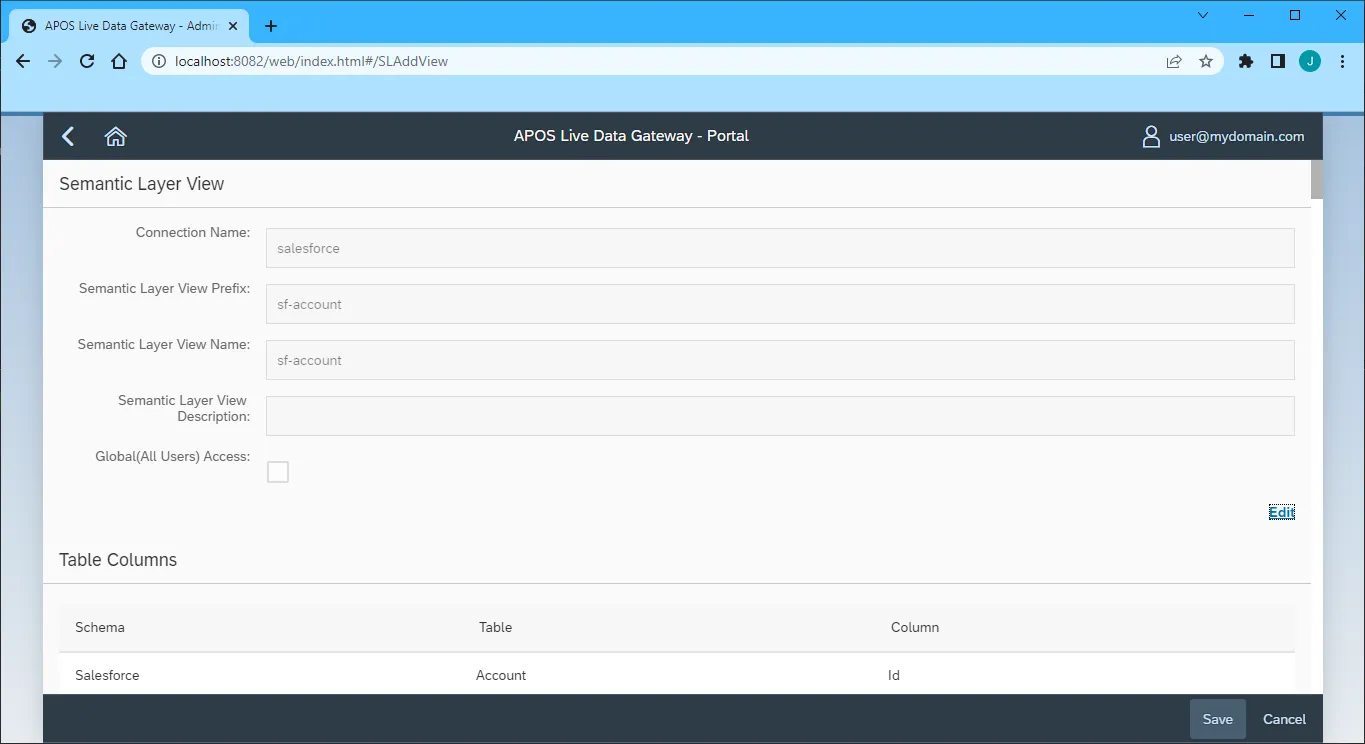
With the Semantic Layer View created, you are ready to access your IBM Cloud Object Storage data through the APOS Live Data Gateway, enabling real-time data connectivity to IBM Cloud Object Storage data from SAP Analytics Cloud and other SAP solutions.
Get CData Connect AI
To get live data access to hundreds of SaaS, Big Data, and NoSQL sources directly from your SQL Server database, try CData Connect AI today!