







Integrating LangChain with IBM Cloud Object Storage Data via CData Connect AI

LangChain is a framework used by developers, data engineers, and AI practitioners for building AI-powered applications and workflows by combining reasoning models (LLMs), tools, APIs, and data connectors. By integrating LangChain with CData Connect AI through the built-in MCP Server, workflows can effortlessly access and interact with live IBM Cloud Object Storage data in real time.
CData Connect AI offers a secure, low-code environment to connect IBM Cloud Object Storage and other data sources, removing the need for complex ETL and enabling seamless automation across business applications with live data.
This article outlines how to configure IBM Cloud Object Storage connectivity in CData Connect AI, register the MCP server with LangChain, and build a workflow that queries IBM Cloud Object Storage data in real time.
Prerequisites
- An account in CData Connect AI
- Python version 3.10 or higher, to install the LangChain and LangGraph packages
- Generate and save an OpenAI API key
- Install Visual Studio Code in your system
Step 1: Configure IBM Cloud Object Storage Connectivity for LangChain
Before LangChain can access IBM Cloud Object Storage, a IBM Cloud Object Storage connection must be created in CData Connect AI. This connection is then exposed to LangChain through the remote MCP server.
- Log in to Connect AI click Sources, and then click + Add Connection

- From the available data sources, choose IBM Cloud Object Storage

-
Enter the necessary authentication properties to connect to IBM Cloud Object Storage
Register a New Instance of Cloud Object Storage
If you do not already have Cloud Object Storage in your IBM Cloud account, follow the procedure below to install an instance of SQL Query in your account:
- Log in to your IBM Cloud account.
- Navigate to the page, choose a name for your instance and click Create. You will be redirected to the instance of Cloud Object Storage you just created.
Connecting using OAuth Authentication
There are certain connection properties you need to set before you can connect. You can obtain these as follows:
API Key
To connect with IBM Cloud Object Storage, you need an API Key. You can obtain this as follows:
- Log in to your IBM Cloud account.
- Navigate to the Platform API Keys page.
- On the middle-right corner click "Create an IBM Cloud API Key" to create a new API Key.
- In the pop-up window, specify the API Key name and click "Create". Note the API Key as you can never access it again from the dashboard.
Cloud Object Storage CRN
If you have multiple accounts, specify the CloudObjectStorageCRN explicitly. To find the appropriate value, you can:
- Query the Services view. This will list your IBM Cloud Object Storage instances along with the CRN for each.
- Locate the CRN directly in IBM Cloud. To do so, navigate to your IBM Cloud Dashboard. In the Resource List, Under Storage, select your Cloud Object Storage resource to get its CRN.
Connecting to Data
You can now set the following to connect to data:
- InitiateOAuth: Set this to GETANDREFRESH. You can use InitiateOAuth to avoid repeating the OAuth exchange and manually setting the OAuthAccessToken.
- ApiKey: Set this to your API key which was noted during setup.
- CloudObjectStorageCRN (Optional): Set this to the cloud object storage CRN you want to work with. While the connector attempts to retrieve this automatically, specifying this explicitly is recommended if you have more than Cloud Object Storage account.
When you connect, the connector completes the OAuth process.
- Extracts the access token and authenticates requests.
- Saves OAuth values in OAuthSettingsLocation to be persisted across connections.

- Click Save & Test
- Once authenticated, open the Permissions tab in the IBM Cloud Object Storage connection and configure user-based permissions as required

Generate a Personal Access Token (PAT)
LangChain authenticates to Connect AI using an account email and a Personal Access Token (PAT). Creating separate PATs for each integration is recommended to maintain access control granularity.
- In Connect AI, select the Gear icon in the top-right to open Settings
- Under Access Tokens, select Create PAT
- Provide a descriptive name for the token and select Create

- Copy the token and store it securely. The PAT will only be visible during creation
With the IBM Cloud Object Storage connection configured and a PAT generated, LangChain is prepared to connect to IBM Cloud Object Storage data through the CData MCP server.
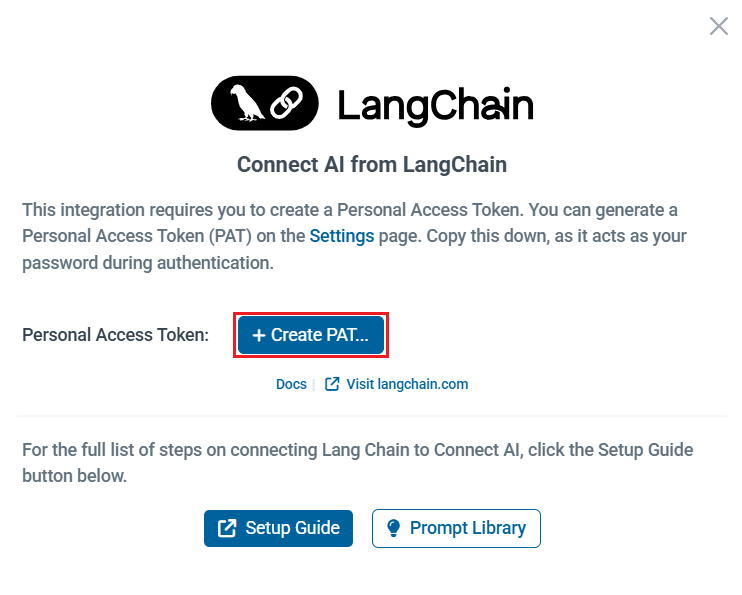
Note: You can also generate a PAT from LangChain in the Integrations section of Connect AI. Simply click Connect --> Create PAT to generate it.

Step 2: Connect to the MCP server in LangChain
To connect LangChain with CData Connect AI Remote MCP Server and use OpenAI (ChatGPT) for reasoning, you need to configure your MCP server endpoint and authentication values in a config.py file. These values allow LangChain to call the MCP server tools, while OpenAI handles the natural language reasoning.
- Create a folder for LangChain MCP
- Create two Python files within the folder: config.py and langchain.py
- In config.py, create a class Config to define your MCP server authentication and URL. You need to provide your Base64-encoded CData Connect AI username and PAT (obtained in the prerequisites):
class Config: MCP_BASE_URL = "https://mcp.cloud.cdata.com/mcp" #MCP Server URL MCP_AUTH = "base64encoded(EMAIL:PAT)" #Base64 encoded Connect AI Email:PATNote: You can create the base64 encoded version of MCP_AUTH using any Base64 encoding tool.
- In langchain.py, set up your MCP server and MCP client to call the tools and prompts:
"""
Integrates a LangChain ReAct agent with CData Connect AI MCP server.
The script demonstrates fetching, filtering, and using tools with an LLM for agent-based reasoning.
"""

import asyncio
from langchain_mcp_adapters.client import MultiServerMCPClient
from langchain_openai import ChatOpenAI
from langgraph.prebuilt import create_react_agent
from config import Config

async def main():

# Initialize MCP client with one or more server URLs
mcp_client = MultiServerMCPClient(
  connections={
    "default": { # you can name this anything
    "transport": "streamable_http",
    "url": Config.MCP_BASE_URL,
    "headers": {"Authorization": f"Basic {Config.MCP_AUTH}"},
    }
  }
)

# Load remote MCP tools exposed by the server
all_mcp_tools = await mcp_client.get_tools()
print("Discovered MCP tools:", [tool.name for tool in all_mcp_tools])

# Create and run the ReAct style agent
llm = ChatOpenAI(
  model="gpt-4o",
  temperature=0.2,
  api_key="YOUR_OPEN_API_KEY" #Use your OpenAI API Key here, this can be found here: https://platform.openai.com/
)

agent = create_react_agent(llm, all_mcp_tools)

user_prompt = "How many tables are available in IBMCloudObjectStorage1?" #Change prompts as per need
print(f"
User prompt: {user_prompt}")

# Send a prompt asking the agent to use the MCP tools
response = await agent.ainvoke(
  { "messages": [{ "role": "user", "content": (user_prompt),}]}
)

# Print out the agent's final response
final_msg = response["messages"][-1].content
print("Agent final response:", final_msg)

if __name__ == "__main__":

asyncio.run(main())
Step 3: Install the LangChain and LangGraph packages
Since this workflow uses LangChain together with CData Connect AI MCP and integrates OpenAI for reasoning, you need to install the required Python packages.
Run the following command in your project terminal:
pip install langchain-mcp-adapters langchain-openai langgraph
Step 4: Prompt IBM Cloud Object Storage using LangChain (via the MCP server)
- When the installation finishes, run python langchain.py to execute the script
- The script connects to the MCP server and discovers the CData Connect AI MCP tools available for querying your connected data
- Supply a prompt (e.g., "How many tables are available in IBM Cloud Object Storage?")
- Accordingly, the agent responds with the results

Get CData Connect AI
To get live data access to hundreds of SaaS, Big Data, and NoSQL sources directly from your cloud applications, try CData Connect AI today!