







Create IBM Cloud Object Storage-Connected Nintex Workflows

Nintex Workflow Cloud is a cloud-based platform where you can design workflows to automate simple or complex processes using drag-and-drop interactions — without writing any code. When paired with CData Connect AI, you get instant, cloud-to-cloud access to IBM Cloud Object Storage data for business applications. This article shows how to create a virtual database for IBM Cloud Object Storage in Connect AI and build a simple workflow from IBM Cloud Object Storage data in Nintex.
CData Connect AI provides a pure, cloud-to-cloud interface for IBM Cloud Object Storage, allowing you to build workflows from live IBM Cloud Object Storage data in Nintex Workflow Cloud — without replicating the data to a natively supported database. Nintex allows you to access data directly using SQL queries. Using optimized data processing out of the box, CData Connect AI pushes all supported SQL operations (filters, JOINs, etc.) directly to IBM Cloud Object Storage, leveraging server-side processing to quickly return the requested IBM Cloud Object Storage data.
Configure IBM Cloud Object Storage Connectivity for Nintex
Connectivity to IBM Cloud Object Storage from Nintex is made possible through CData Connect AI. To work with IBM Cloud Object Storage data from Nintex, we start by creating and configuring a IBM Cloud Object Storage connection.
- Log into Connect AI, click Sources, and then click Add Connection
- Select "IBM Cloud Object Storage" from the Add Connection panel
-
Enter the necessary authentication properties to connect to IBM Cloud Object Storage.
Register a New Instance of Cloud Object Storage
If you do not already have Cloud Object Storage in your IBM Cloud account, follow the procedure below to install an instance of SQL Query in your account:
- Log in to your IBM Cloud account.
- Navigate to the page, choose a name for your instance and click Create. You will be redirected to the instance of Cloud Object Storage you just created.
Connecting using OAuth Authentication
There are certain connection properties you need to set before you can connect. You can obtain these as follows:
API Key
To connect with IBM Cloud Object Storage, you need an API Key. You can obtain this as follows:
- Log in to your IBM Cloud account.
- Navigate to the Platform API Keys page.
- On the middle-right corner click "Create an IBM Cloud API Key" to create a new API Key.
- In the pop-up window, specify the API Key name and click "Create". Note the API Key as you can never access it again from the dashboard.
Cloud Object Storage CRN
If you have multiple accounts, specify the CloudObjectStorageCRN explicitly. To find the appropriate value, you can:
- Query the Services view. This will list your IBM Cloud Object Storage instances along with the CRN for each.
- Locate the CRN directly in IBM Cloud. To do so, navigate to your IBM Cloud Dashboard. In the Resource List, Under Storage, select your Cloud Object Storage resource to get its CRN.
Connecting to Data
You can now set the following to connect to data:
- InitiateOAuth: Set this to GETANDREFRESH. You can use InitiateOAuth to avoid repeating the OAuth exchange and manually setting the OAuthAccessToken.
- ApiKey: Set this to your API key which was noted during setup.
- CloudObjectStorageCRN (Optional): Set this to the cloud object storage CRN you want to work with. While the connector attempts to retrieve this automatically, specifying this explicitly is recommended if you have more than Cloud Object Storage account.
When you connect, the connector completes the OAuth process.
- Extracts the access token and authenticates requests.
- Saves OAuth values in OAuthSettingsLocation to be persisted across connections.

- Click Save & Test
-
Navigate to the Permissions tab in the Add IBM Cloud Object Storage Connection page and update the User-based permissions.



Add a Personal Access Token
When connecting to Connect AI through the REST API, the OData API, or the Virtual SQL Server, a Personal Access Token (PAT) is used to authenticate the connection to Connect AI. It is best practice to create a separate PAT for each service to maintain granularity of access.
- Click on the Gear icon () at the top right of the Connect AI app to open the settings page.
- On the Settings page, go to the Access Tokens section and click Create PAT.
-
Give the PAT a name and click Create.

- The personal access token is only visible at creation, so be sure to copy it and store it securely for future use.
With the connection configured and a PAT generated, you are ready to connect to IBM Cloud Object Storage data from Nintex Workflow Cloud.
Connect to IBM Cloud Object Storage from Nintex
The steps below outline creating a new connection to IBM Cloud Object Storage data from Nintex (via Connect AI).
- Log into Nintex Workflow Cloud
- In the Connections tab, click "Add new"
- Select "Microsoft SQL Server" as the connector and click "Connect"
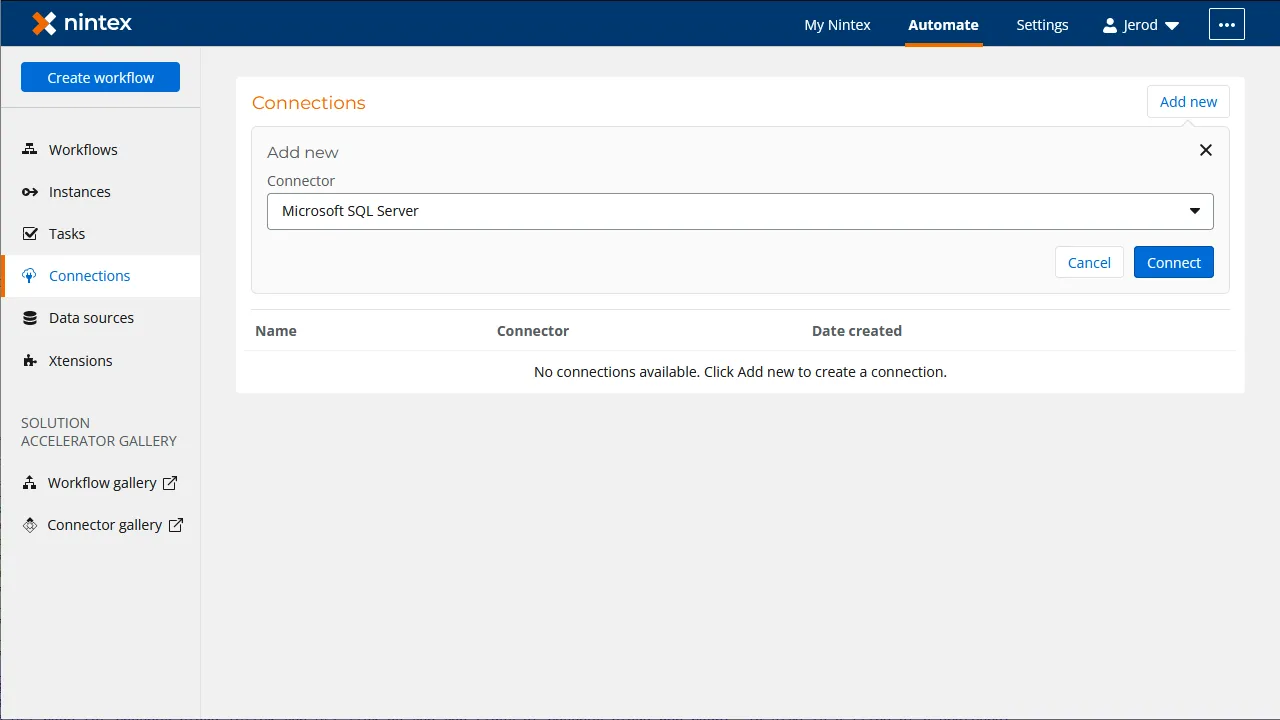
- In the SQL Server connection wizard, set the following properties:
- Connection Name: Connect AI
- Username: a Connect AI username (e.g. [email protected])
- Password: the Connect AI user's PAT
- Database Host: tds.cdata.com:14333
- Database Name: the IBM Cloud Object Storage connection (a.g., IBMCloudObjectStorage1)
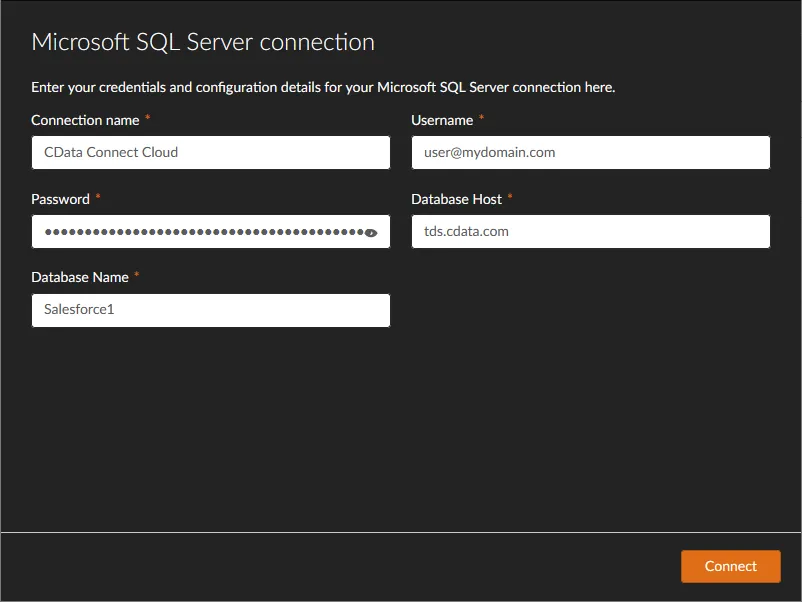
- Click "Connect"
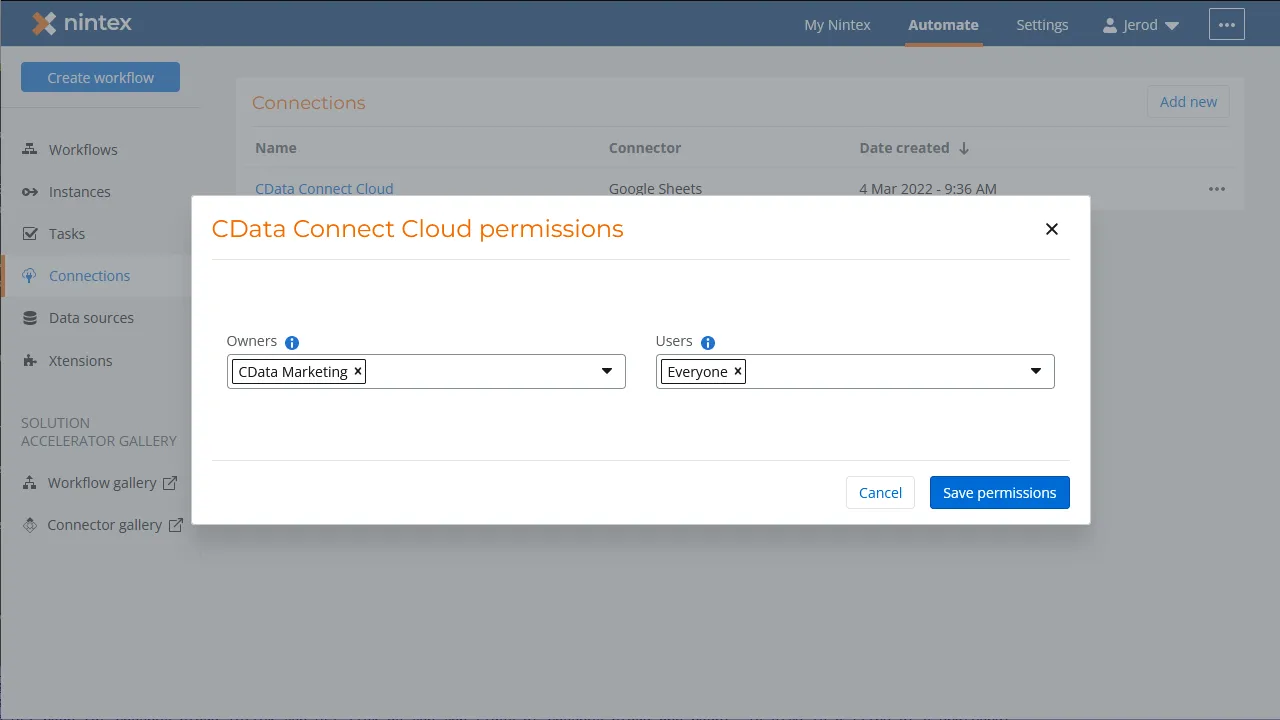
- Configure the connection permissions and click "Save permissions"
Create a Simple IBM Cloud Object Storage Workflow
With the connection to CData Connect AI configured, we are ready to build a simple workflow to access IBM Cloud Object Storage data. Start by clicking the "Create workflow" button.
Configure the Start Event Action
- Click the start event task and select the "Form" event
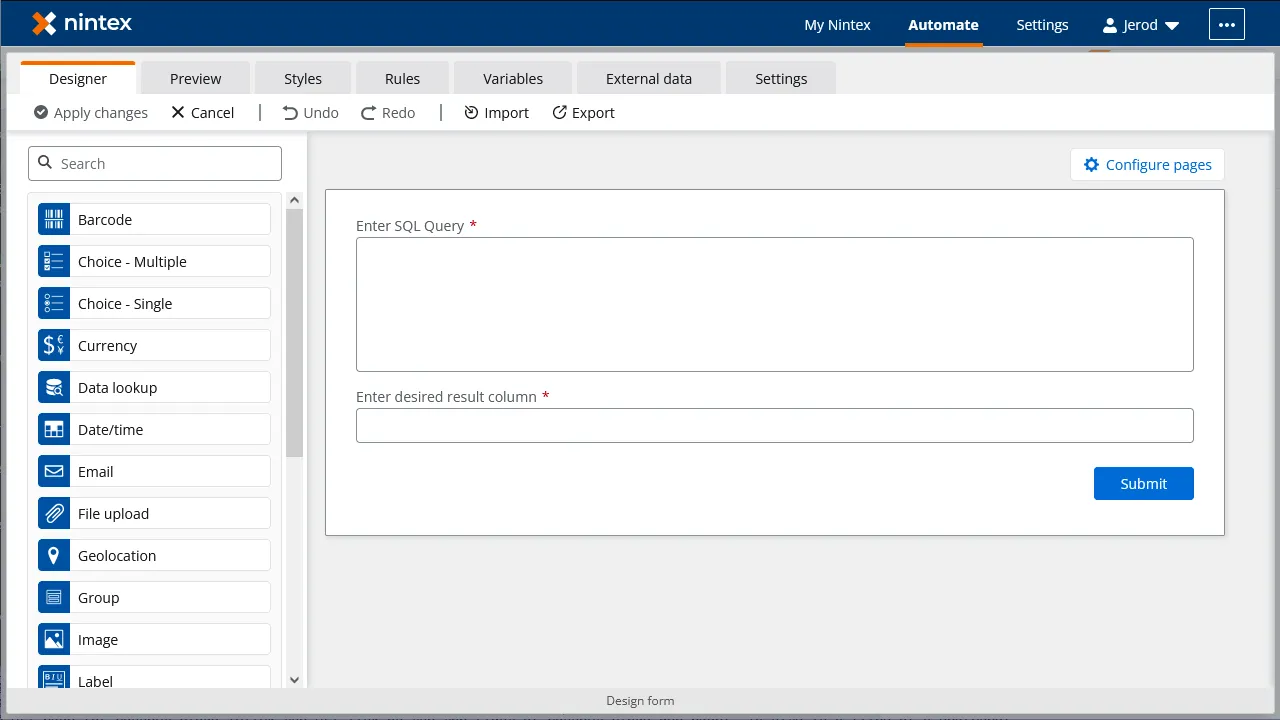
- Click "Design form"
- Drag a "Text - Long" element onto the Form and click the element to configure it
- Set "Title" to "Enter SQL query"
- Set "Required" to true
- Drag a "Text - Short" element onto the Form and click the element to configure it
- Set "Title" to "Enter desired result column"
- Set "Required" to true
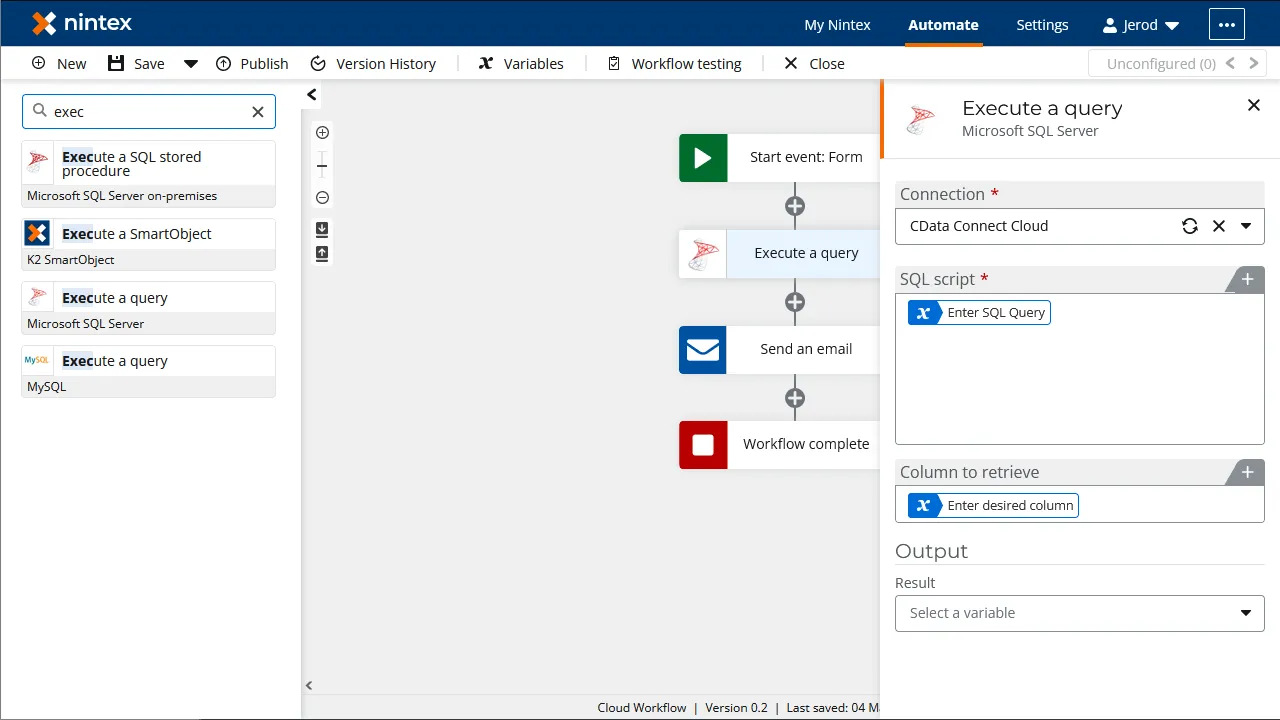
Configure an "Execute a Query" Action
- Add an "Execute a query" action after the "Start event: Form" action and click to configure the action
- Set "SQL Script" to the "Enter SQL Query" variable from the "Start event" action
- Set "Column to retrieve" to the "Enter desired result column" variable from the "Start event" action
- Set "Retrieved column" to a new variable (a.g., "values")
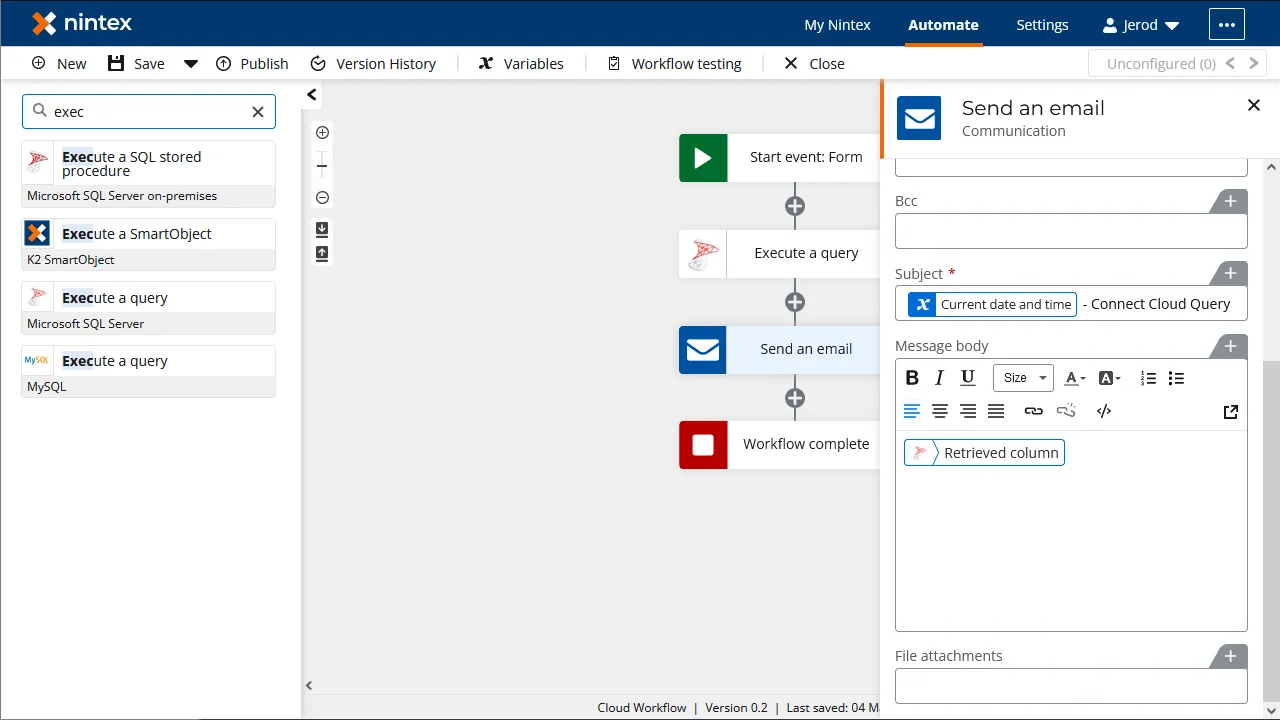
Configure a "Send an Email" Action
- Add a "Send an email" action after the "Execute a query" action and click to configure the action
- Set the "Recipient email address"
- Set the "Subject"
- Set the "Message body" to the variable created for the retrieved column
Once you configure the actions, click "Save," name the Workflow, and click "Save" again. You now have a simple workflow that will query IBM Cloud Object Storage using SQL and sand an email with the results.
To learn more about live data access to hundreds of SaaS, Big Data, and NoSQL sources directly from your cloud applications, check out the CData Connect AI page. Sign up for a free trial and reach out to our Support Team if you have any questions.