







Integrate Cline with Live JSON Data via CData Connect AI

Cline is an autonomous AI coding agent that runs inside modern IDEs such as VS Code and Cursor. It enables developers to build agent-driven workflows that can reason through tasks, execute actions, and interact with external systems directly from the editor using a structured execution model.
By integrating Cline with CData Connect AI through the built-in MCP (Model Context Protocol) Server, the agent gains the ability to query, analyze, and act on live JSON services in real time. This integration bridges Cline's in-IDE agent framework with the governed enterprise connectivity of CData Connect AI, ensuring all data access runs securely against authorized sources without manual data movement.
This article outlines the steps to configure JSON connectivity in Connect AI, generate the required personal access token, register the Connect AI MCP Server in Cline, and verify that the agent can successfully interact with live JSON services from within the IDE.
Step 1: Configure JSON connectivity for Cline
Connectivity to JSON from Cline is made possible through CData Connect AI's Remote MCP Server. To interact with JSON services from Cline, start by creating and configuring a JSON connection in CData Connect AI.
- Log into Connect AI, click Sources, and then click Add Connection
- Select JSON from the Add Connection panel
-
Enter the necessary authentication properties to connect to JSON.
See the Getting Started chapter in the data provider documentation to authenticate to your data source: The data provider models JSON APIs as bidirectional database tables and JSON files as read-only views (local files, files stored on popular cloud services, and FTP servers). The major authentication schemes are supported, including HTTP Basic, Digest, NTLM, OAuth, and FTP. See the Getting Started chapter in the data provider documentation for authentication guides.
After setting the URI and providing any authentication values, set DataModel to more closely match the data representation to the structure of your data.
The DataModel property is the controlling property over how your data is represented into tables and toggles the following basic configurations.
- Document (default): Model a top-level, document view of your JSON data. The data provider returns nested elements as aggregates of data.
- FlattenedDocuments: Implicitly join nested documents and their parents into a single table.
- Relational: Return individual, related tables from hierarchical data. The tables contain a primary key and a foreign key that links to the parent document.
See the Modeling JSON Data chapter for more information on configuring the relational representation. You will also find the sample data used in the following examples. The data includes entries for people, the cars they own, and various maintenance services performed on those cars.

- Click Save & Test
- Navigate to the Permissions tab and update user-based permissions



Add a Personal Access Token
A Personal Access Token (PAT) is used to authenticate the connection to Connect AI from Cline. It is best practice to create a separate PAT for each integration to maintain granular access control.
- Click the gear icon () at the top right of the Connect AI app to open Settings
- On the Settings page, go to the Access Tokens section and click Create PAT
- Give the PAT a descriptive name and click Create
- Copy the token when displayed and store it securely. It will not be shown again

With the JSON connection configured and a PAT generated, Cline can now connect to JSON services through the CData Connect Ai.
Step 2: Install and set up Cline
Cline is distributed as an IDE extension and can be installed in environments such as VS Code or Cursor. In this example, Cursor is used, but the steps are identical for supported IDEs.
-
Open Cursor and install the Cline extension from the Extensions Marketplace
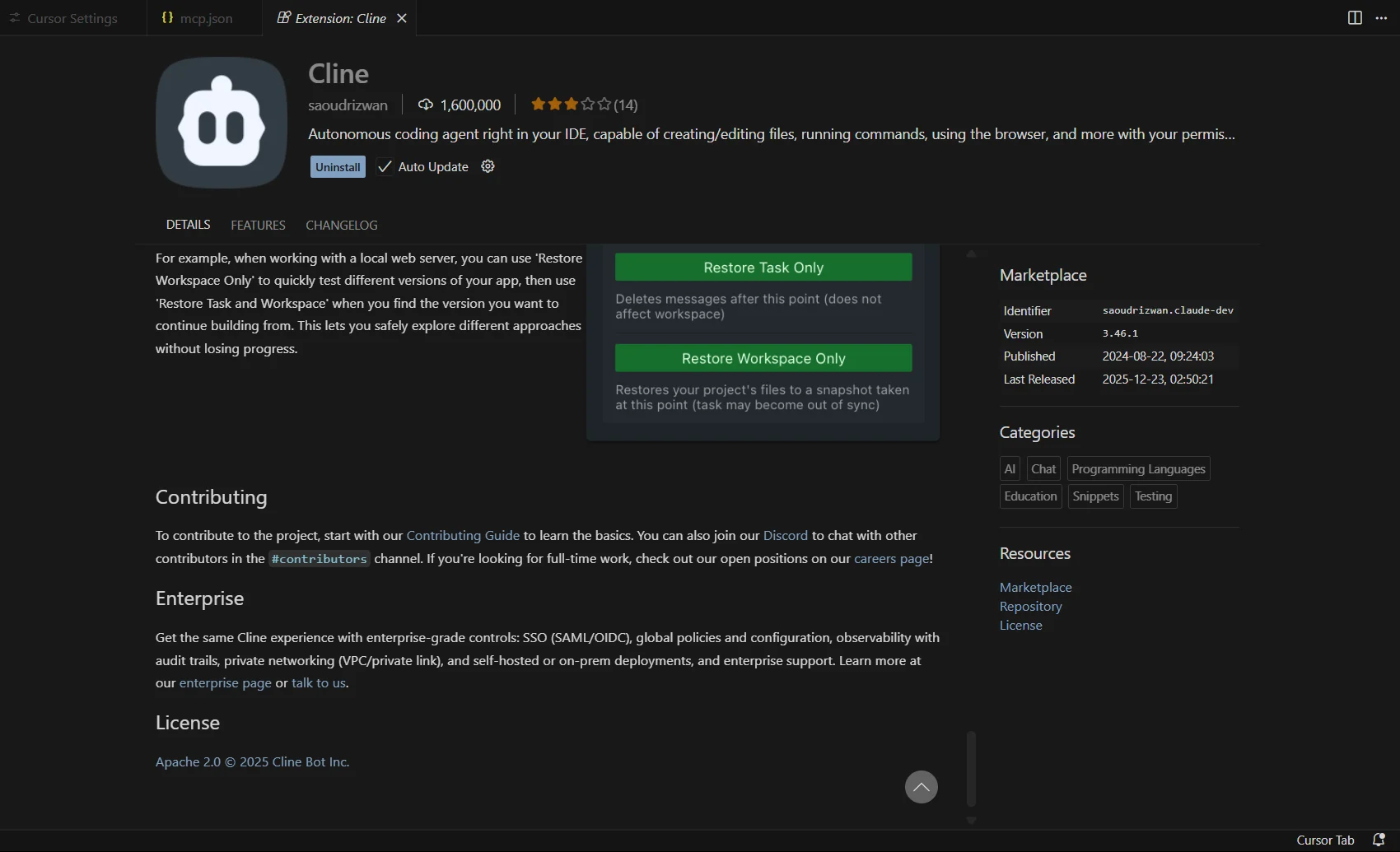
- Complete the initial Cline setup flow, including model selection and permission prompts
- After setup is complete, the Cline agent panel opens automatically inside the IDE
Step 3: Add the Connect AI Remote MCP Server
Once Cline is running, add the CData Connect AI Remote MCP Server so the agent can access live JSON services through Connect AI.
-
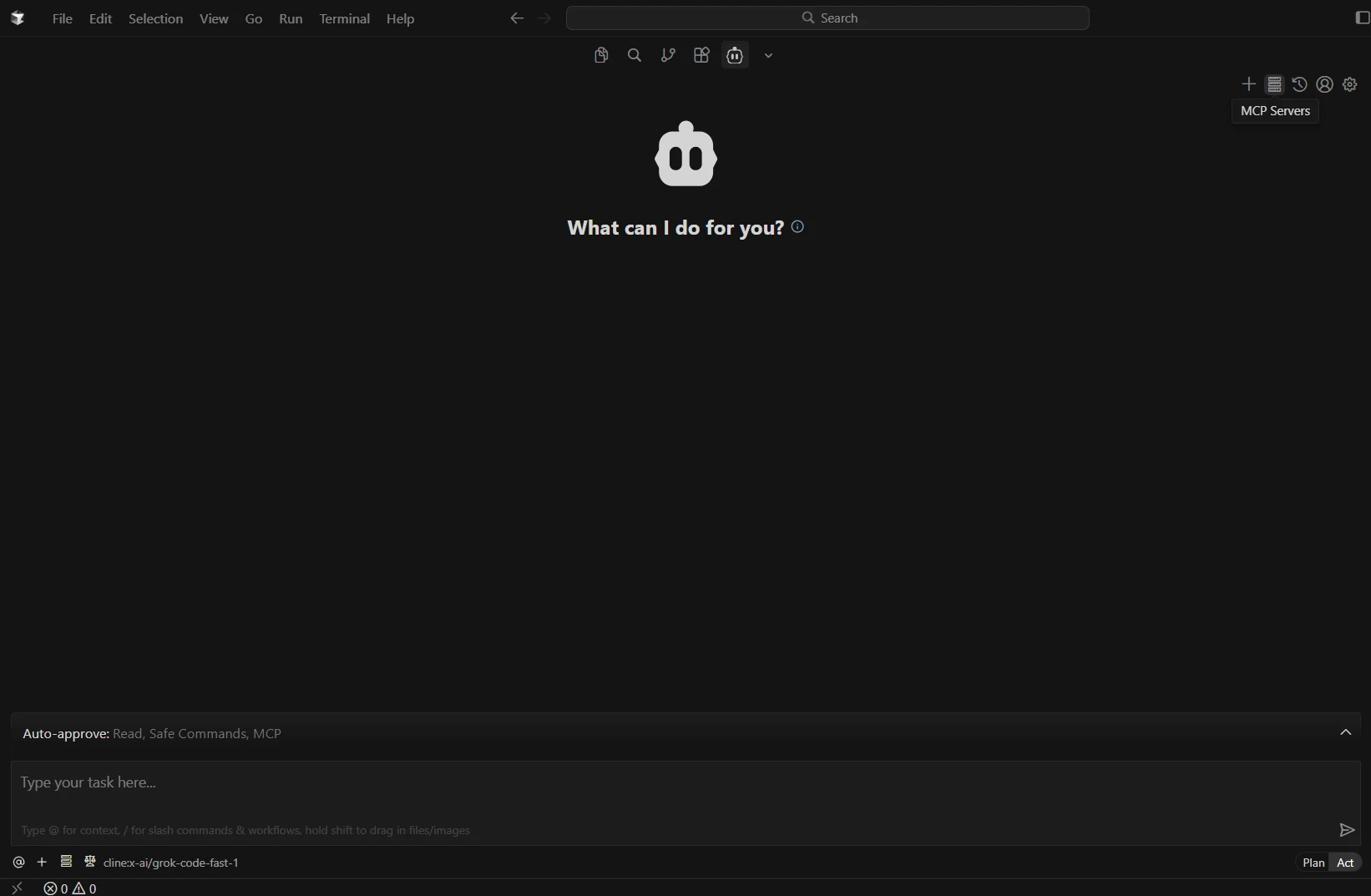
In the Cline panel, click MCP Servers
-
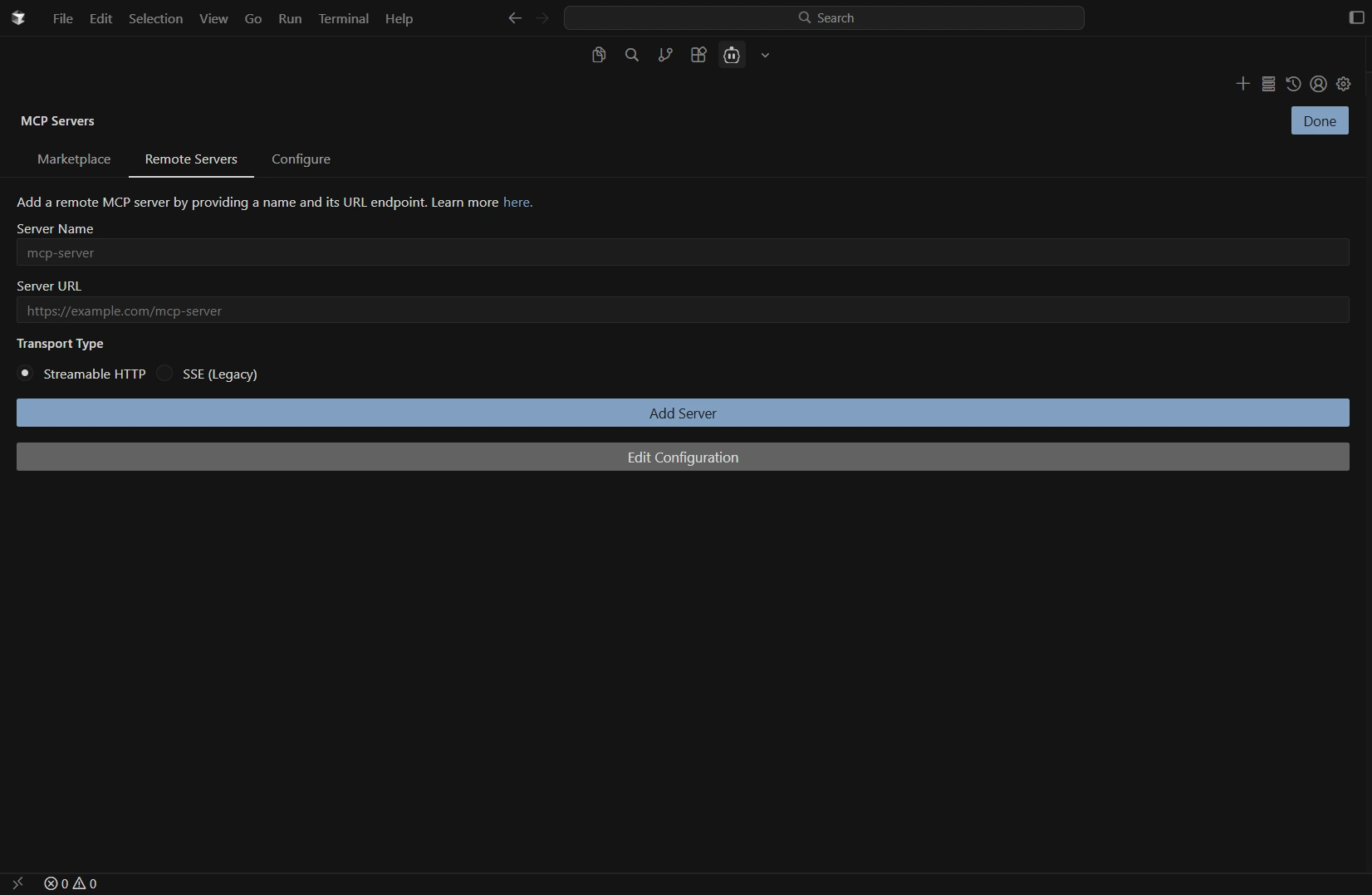
Open Remote Servers and click Edit Configuration
-
This opens a JSON configuration file. Paste the configuration below
{
  "mcpServers": {
    "mcp": {
      "url": "https://mcp.cloud.cdata.com/mcp",
      "type": "streamableHttp",
      "headers": {
        "Authorization": "Basic your_email:your_PAT"
      },
      "disabled": false,
      "autoApprove": []
    }
  }
}
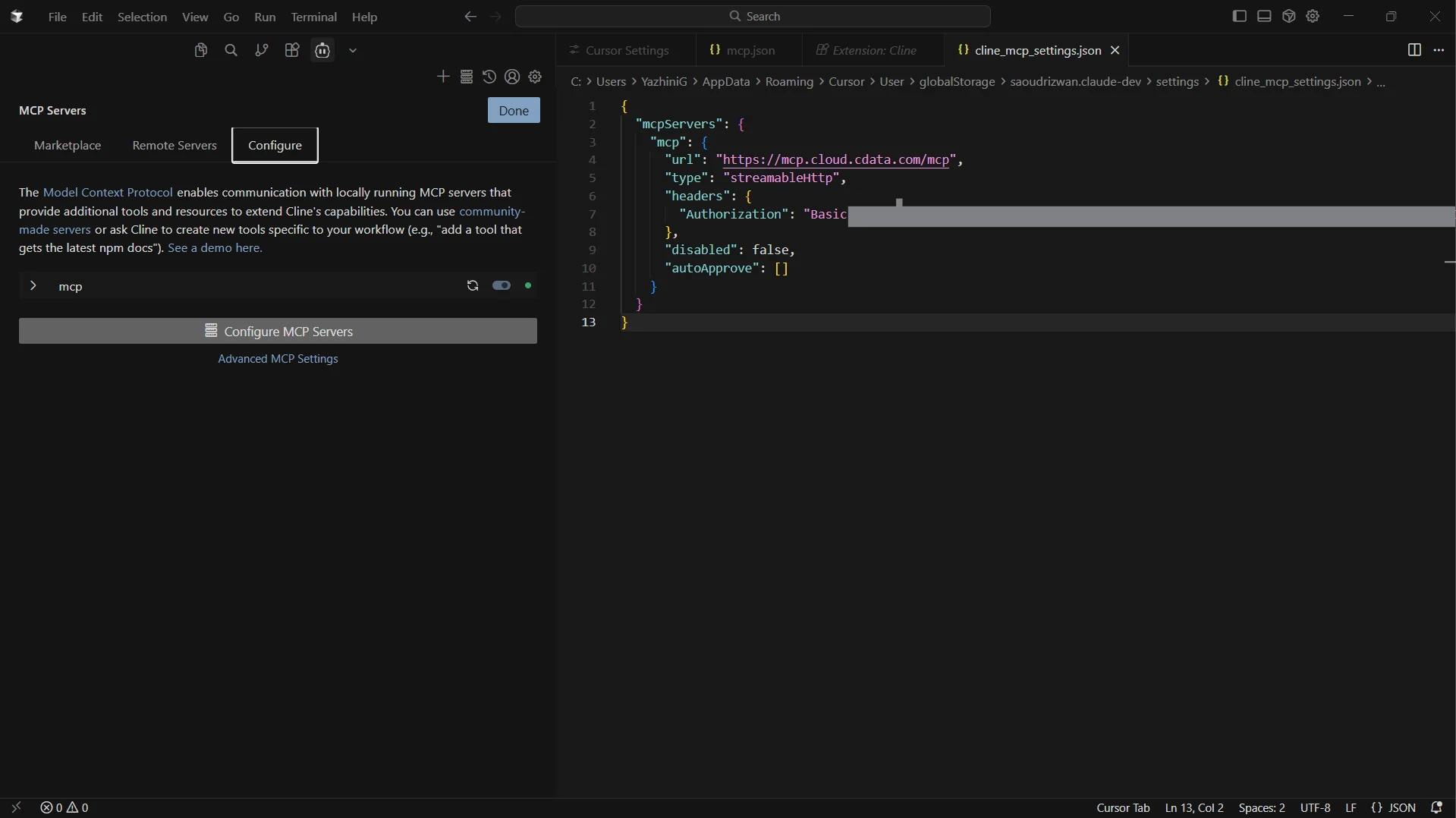
Note: Cline will use Basic authentication with Connect AI. Combine your Connect AI user email and the PAT you created earlier. For example, [email protected]:ABC123...XYZ789 and add the value for the Authorization header like, Basic [email protected]:ABC123...XYZ789.
-
Save the file and return to the MCP Servers screen to confirm the server is listed and enabled
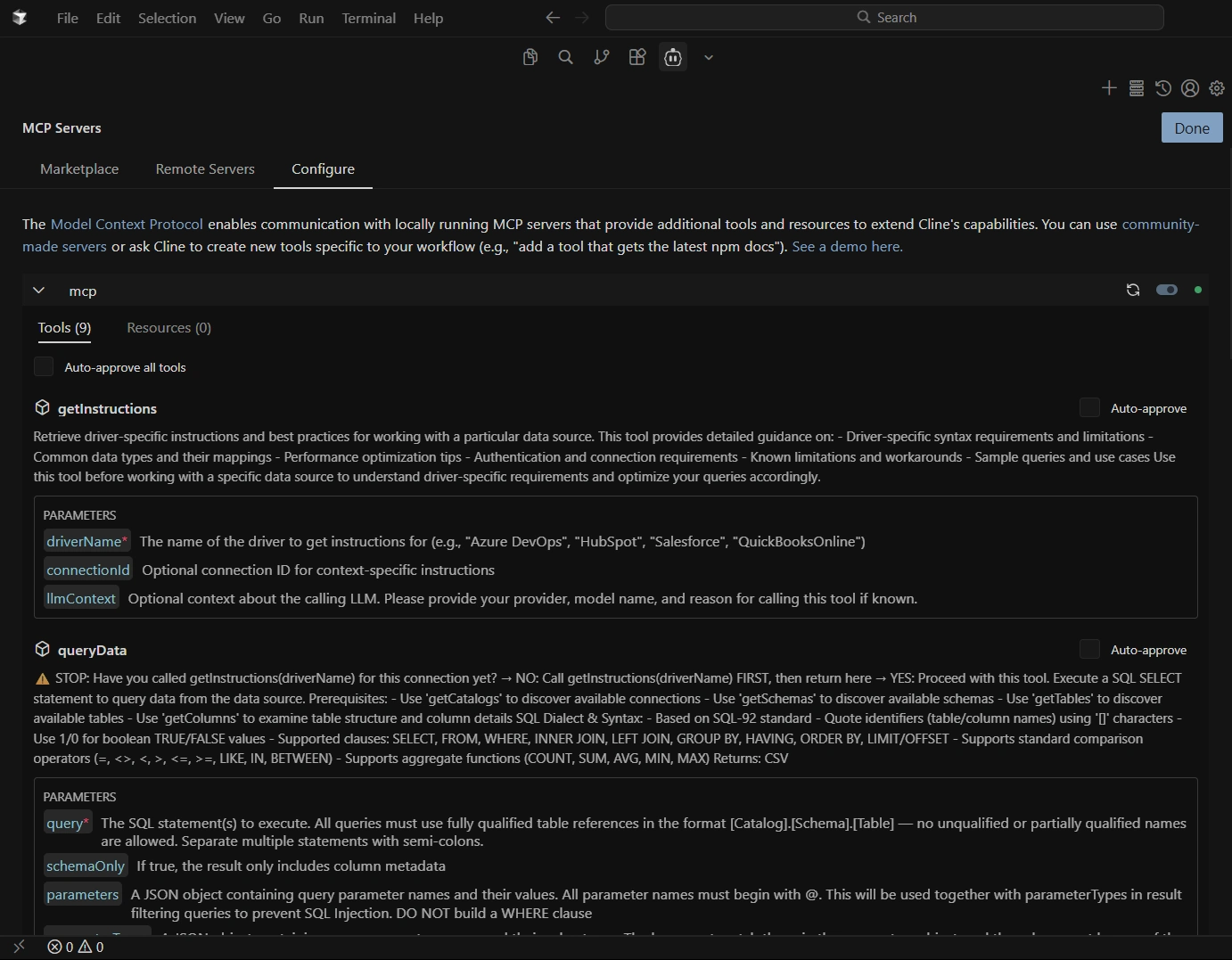
Step 4: Query live data from Cline
With the MCP server registered, Cline can now interact with live data sources exposed by Connect AI.
-
Click the icon in the Cline panel to start a New Task/Chat
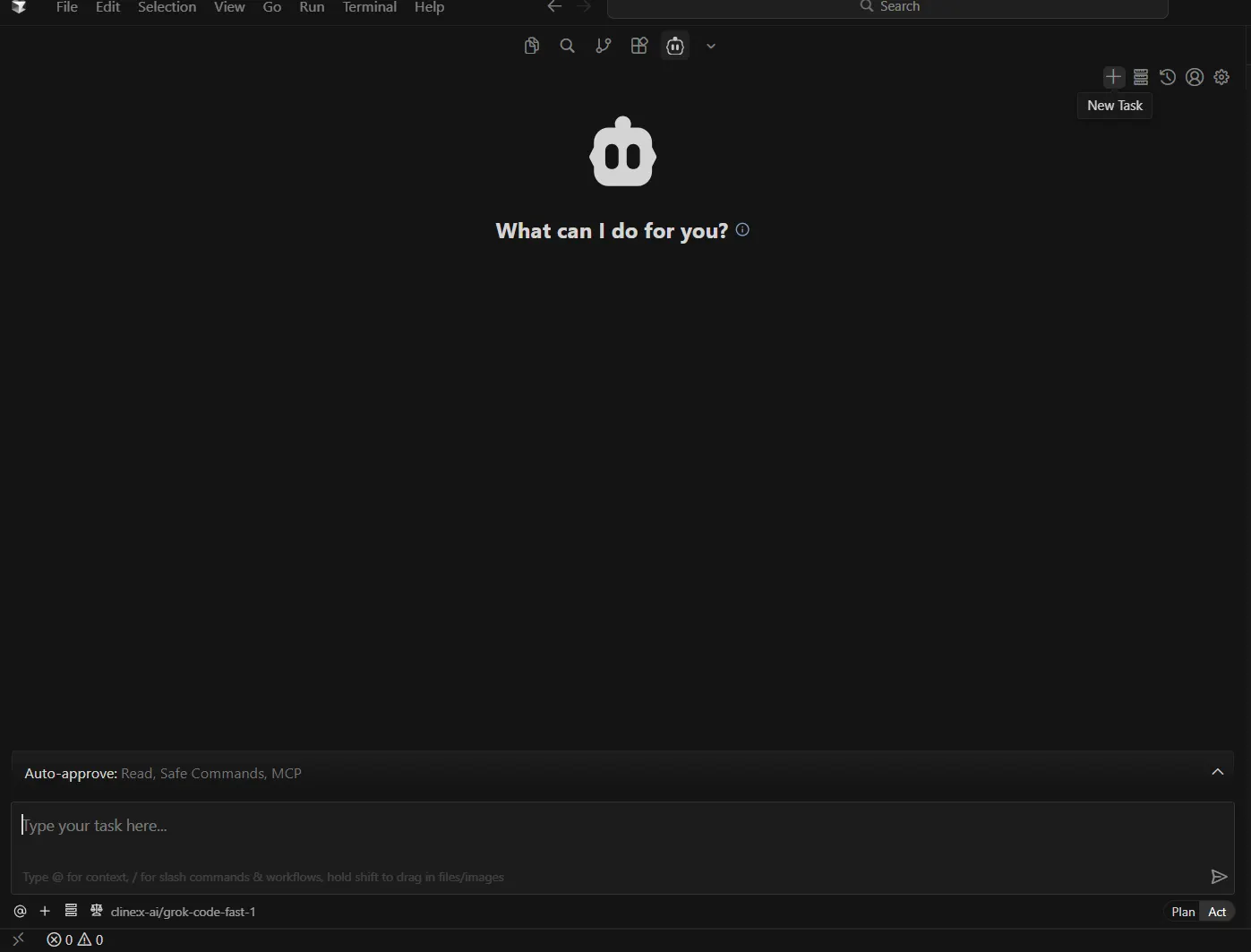
-
At the bottom of the chat window, confirm that the configured MCP server is selected
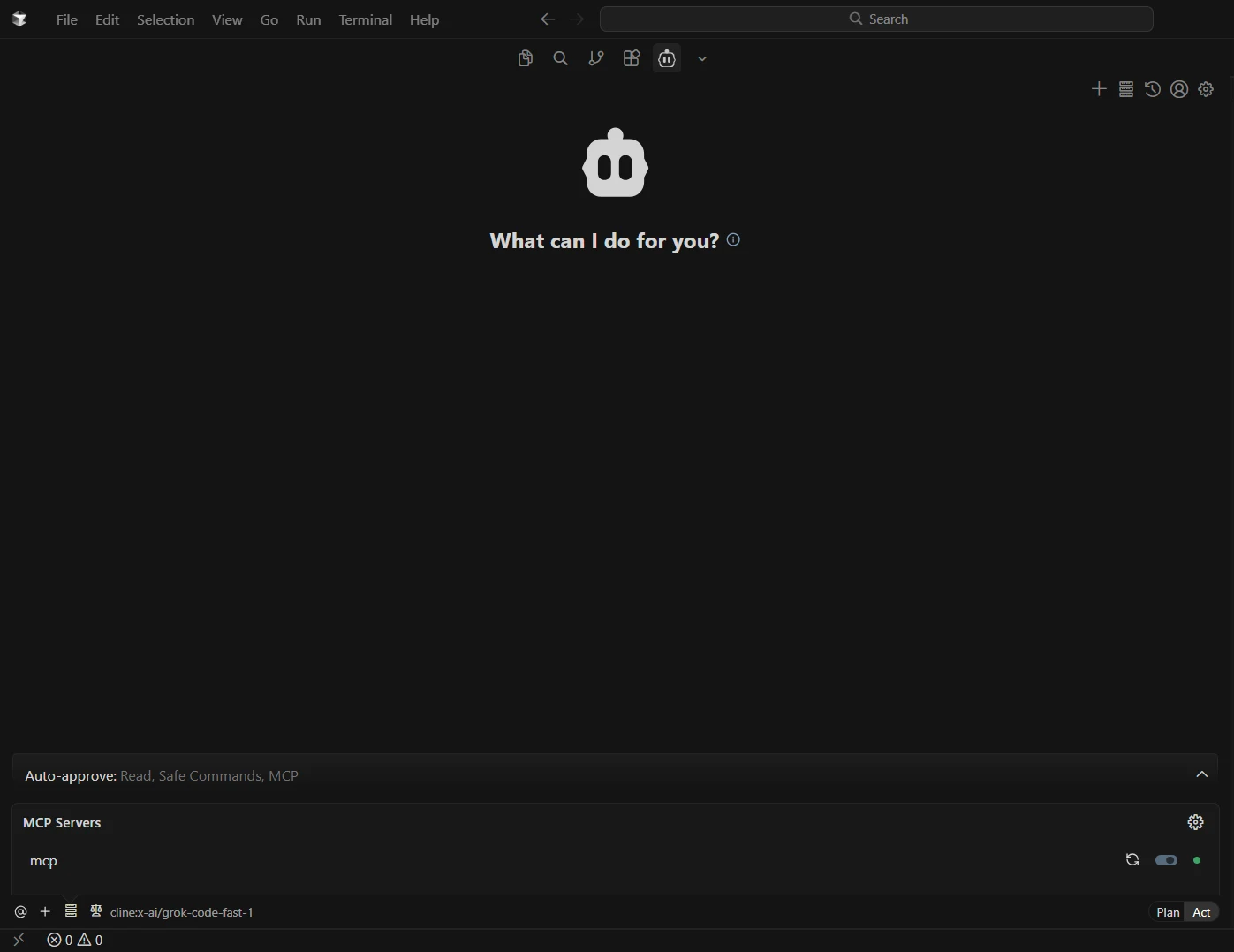
-
Start interacting with the agent by entering prompts such as:
- List connections
- Show schemas for a catalog
- Query recent records from JSON services
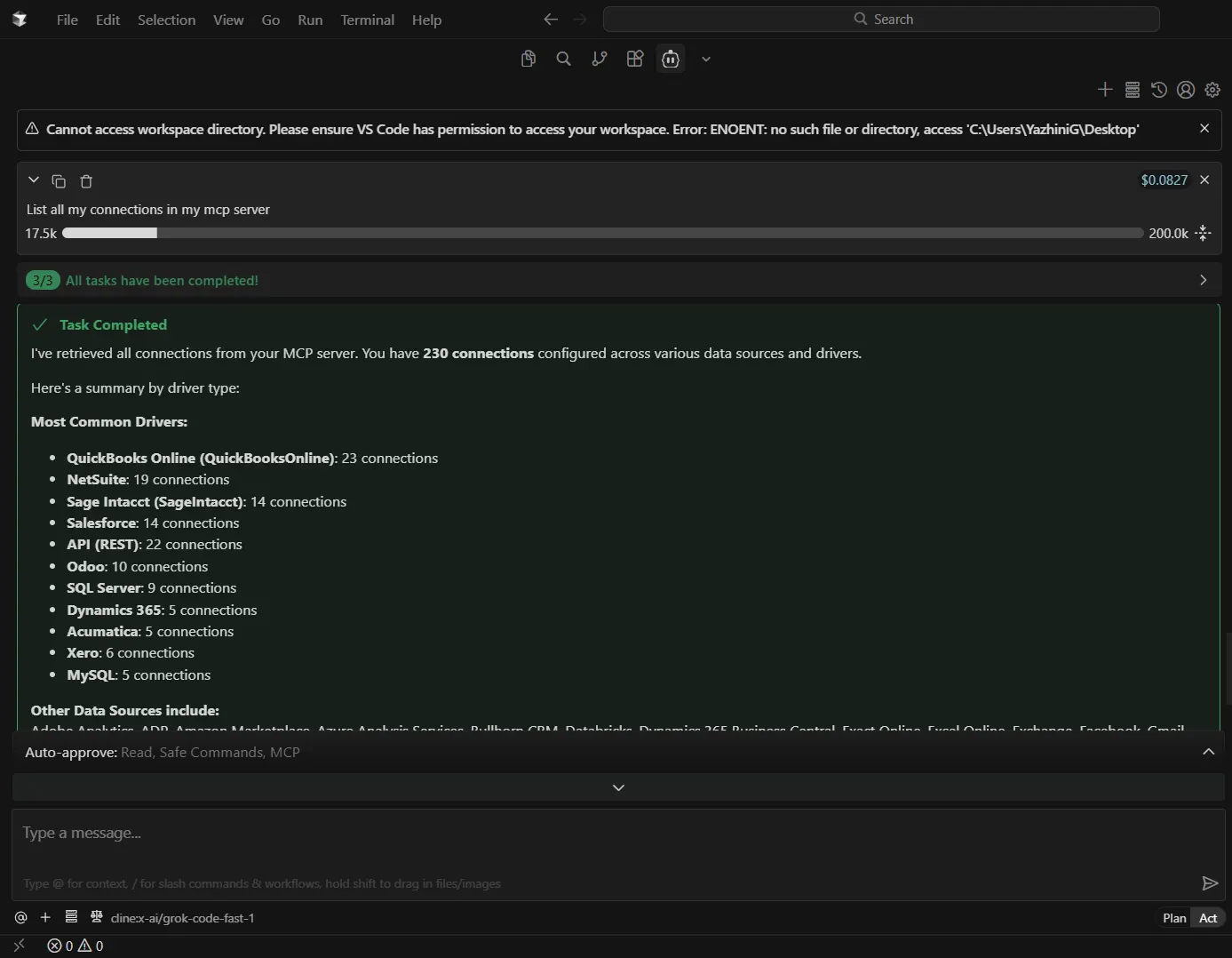
Cline is now fully configured to access and query live JSON services through the CData Connect AI Remote MCP Server, enabling real-time, data-driven workflows directly from your IDE.
Get CData Connect AI
To access hundreds of SaaS, Big Data, and NoSQL sources through secure, AI-ready interfaces, try CData Connect AI today.