







Analyze JSON Services in SAP Analytics Cloud

SAP Analytics Cloud is a cloud-based business intelligence platform. CData Connect AI creates a pure, cloud-to-cloud connection to JSON and can be used to generate an OData API (natively supported in Analytics Cloud) for JSON. By pairing SAP Analytics Cloud with CData Connect AI, you get true cloud-to-cloud connectivity to all of your SaaS and cloud-based Big Data and NoSQL sources — no need to migrate your data or write your integrations. Simply connect to Connect AI as you would any other OData service and get instant, consolidated access to all of your data.
In this article, we walk through connecting to JSON from SAP Analytics Cloud (through CData Connect AI) to create a model and build a simple dashboard.
Connect to JSON from SAP Analytics Cloud
To work with live JSON services in SAP Analytics Cloud, we need to connect to JSON from Connect AI, provide user access to the connection, and create a Workspace for the JSON services.
Connect to JSON from Connect AI
CData Connect AI uses a straightforward, point-and-click interface to connect to data sources.
- Log into Connect AI, click Sources, and then click Add Connection
- Select "JSON" from the Add Connection panel
-
Enter the necessary authentication properties to connect to JSON.
See the Getting Started chapter in the data provider documentation to authenticate to your data source: The data provider models JSON APIs as bidirectional database tables and JSON files as read-only views (local files, files stored on popular cloud services, and FTP servers). The major authentication schemes are supported, including HTTP Basic, Digest, NTLM, OAuth, and FTP. See the Getting Started chapter in the data provider documentation for authentication guides.
After setting the URI and providing any authentication values, set DataModel to more closely match the data representation to the structure of your data.
The DataModel property is the controlling property over how your data is represented into tables and toggles the following basic configurations.
- Document (default): Model a top-level, document view of your JSON data. The data provider returns nested elements as aggregates of data.
- FlattenedDocuments: Implicitly join nested documents and their parents into a single table.
- Relational: Return individual, related tables from hierarchical data. The tables contain a primary key and a foreign key that links to the parent document.
See the Modeling JSON Data chapter for more information on configuring the relational representation. You will also find the sample data used in the following examples. The data includes entries for people, the cars they own, and various maintenance services performed on those cars.

- Click Save & Test
-
Navigate to the Permissions tab in the Add JSON Connection page and update the User-based permissions.



Add a Personal Access Token
When connecting to Connect AI through the REST API, the OData API, or the Virtual SQL Server, a Personal Access Token (PAT) is used to authenticate the connection to Connect AI. It is best practice to create a separate PAT for each service to maintain granularity of access.
- Click on the Gear icon () at the top right of the Connect AI app to open the settings page.
- On the Settings page, go to the Access Tokens section and click Create PAT.
-
Give the PAT a name and click Create.

- The personal access token is only visible at creation, so be sure to copy it and store it securely for future use.
Configure JSON Endpoints for SAP Analytics Cloud
After connecting to JSON, create a workspace for your desired table(s).
-
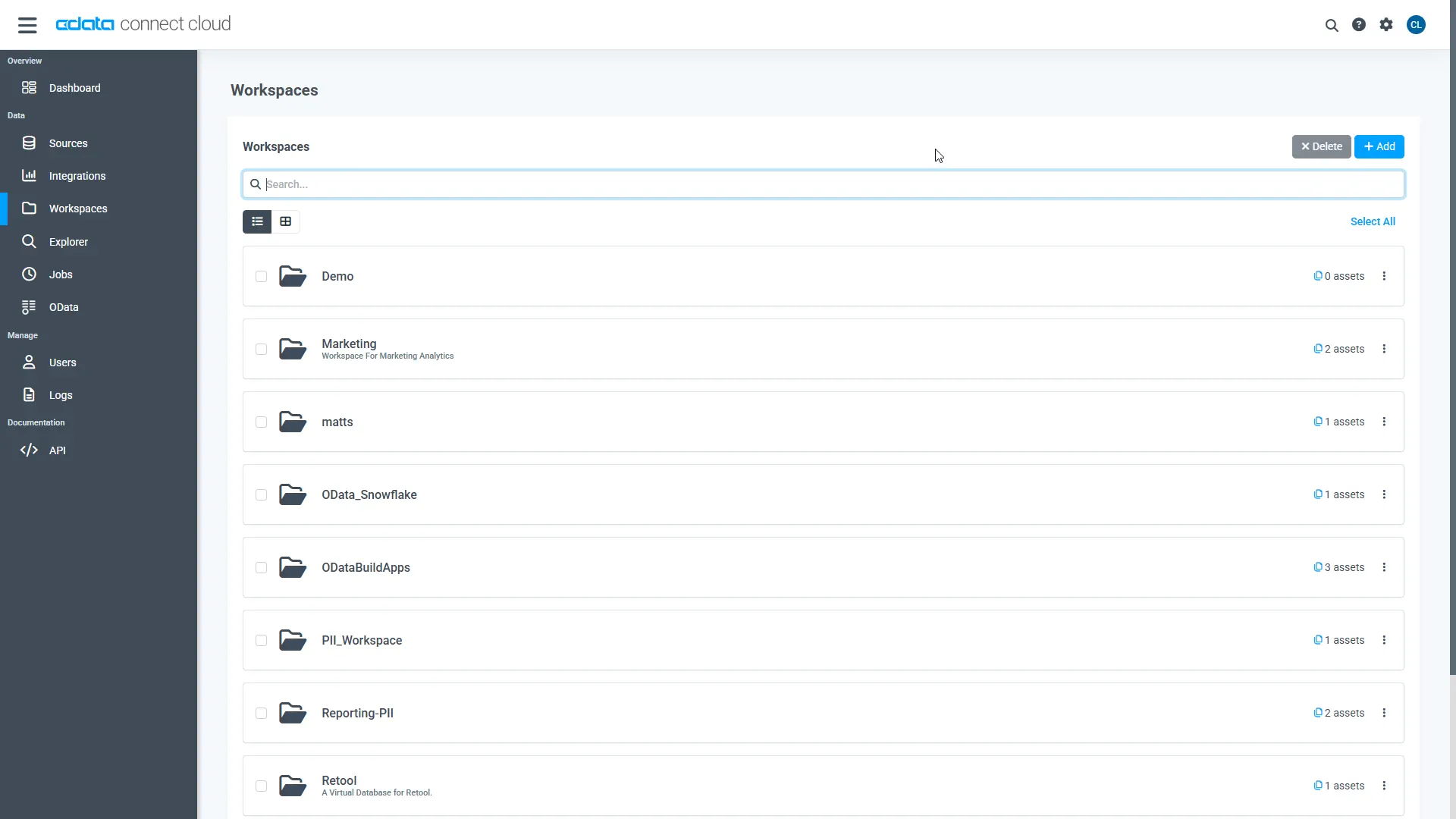
Navigate to the Workspaces page and click Add to create a new Workspace (or select an existing workspace).
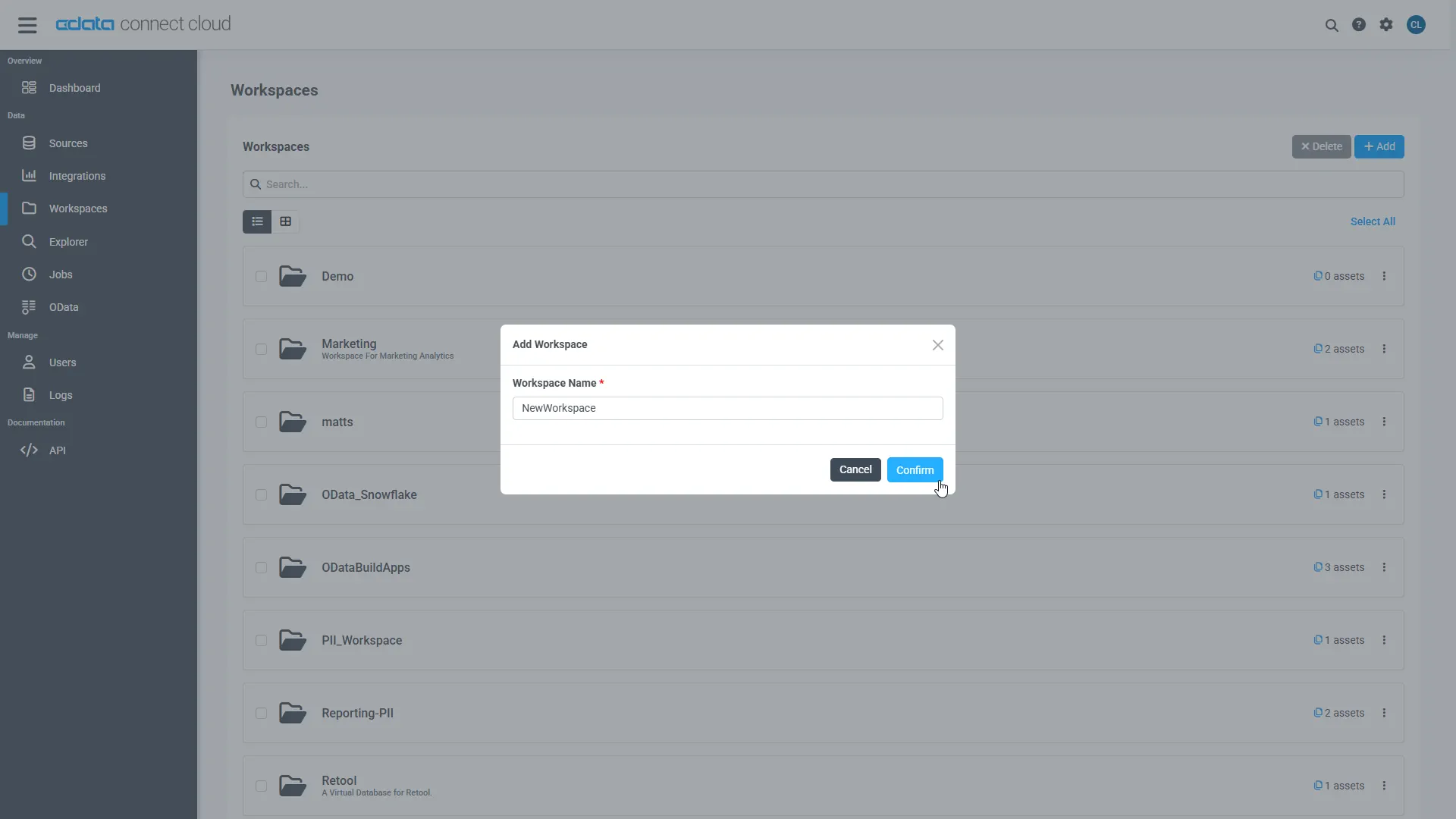
- Click Add to add new assets to the Workspace.
-
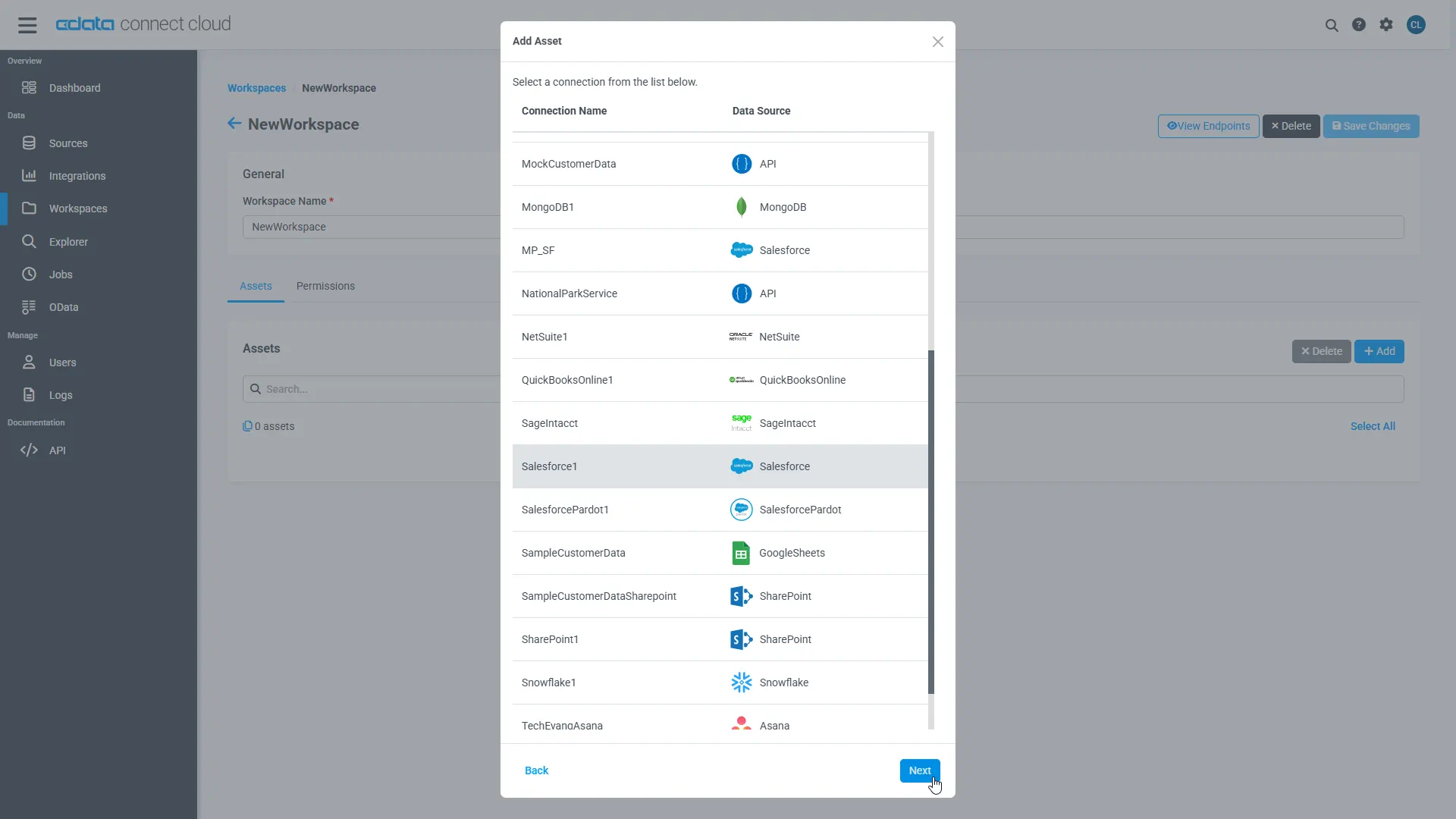
Select the JSON connection (e.g. JSON1) and click Next.
-
Select the table(s) you wish to work with and click Confirm.
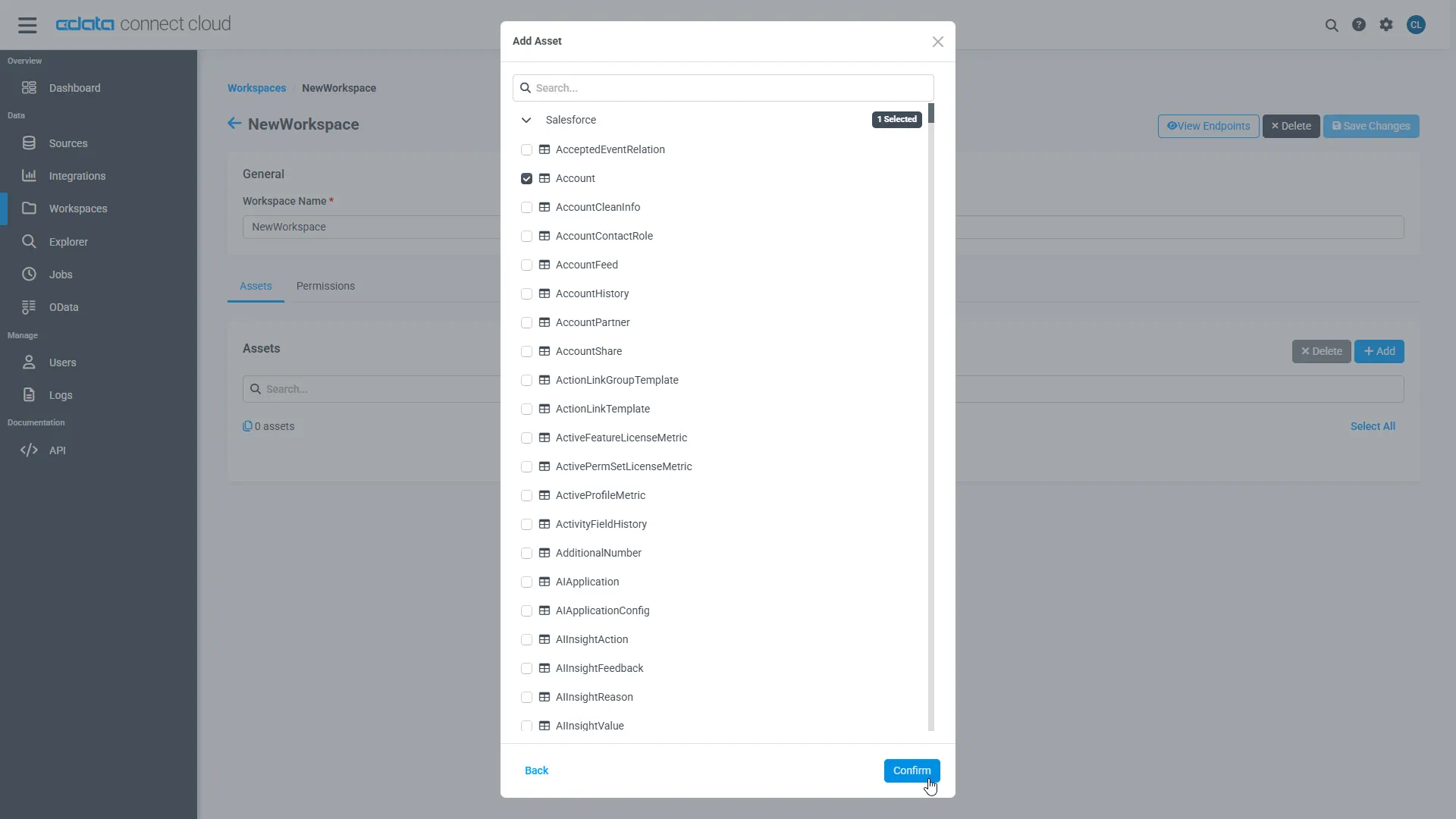
- Make note of the OData Service URL for your workspace, e.g. https://cloud.cdata.com/api/odata/{workspace_name}
With the connection, PAT, and Workspace configured, you are ready to connect to JSON services from SAP Analytics Cloud.
Create a Model of JSON Services in SAP Analytics Cloud
With the connection to JSON configured and the OData endpoint(s) created, we can create a Model for JSON services in SAP Analytics Cloud.
- Log into your Analytics Cloud instance and click Create -> Model from the menu.
- Choose "Get data from a datasource" and select "OData Services"
- Choose an existing connection to your Connect AI OData or Create a new one:
- Set Connection Name
- Set Data Service URL to the Base URL for your OData API: https://cloud.cdata.com/api/odata/{workspace_name}
- Set Authentication Type to Basic Authentication
- Set User Name to the Connect AI user (e.g. [email protected])
- Set Password to the PAT for the above user
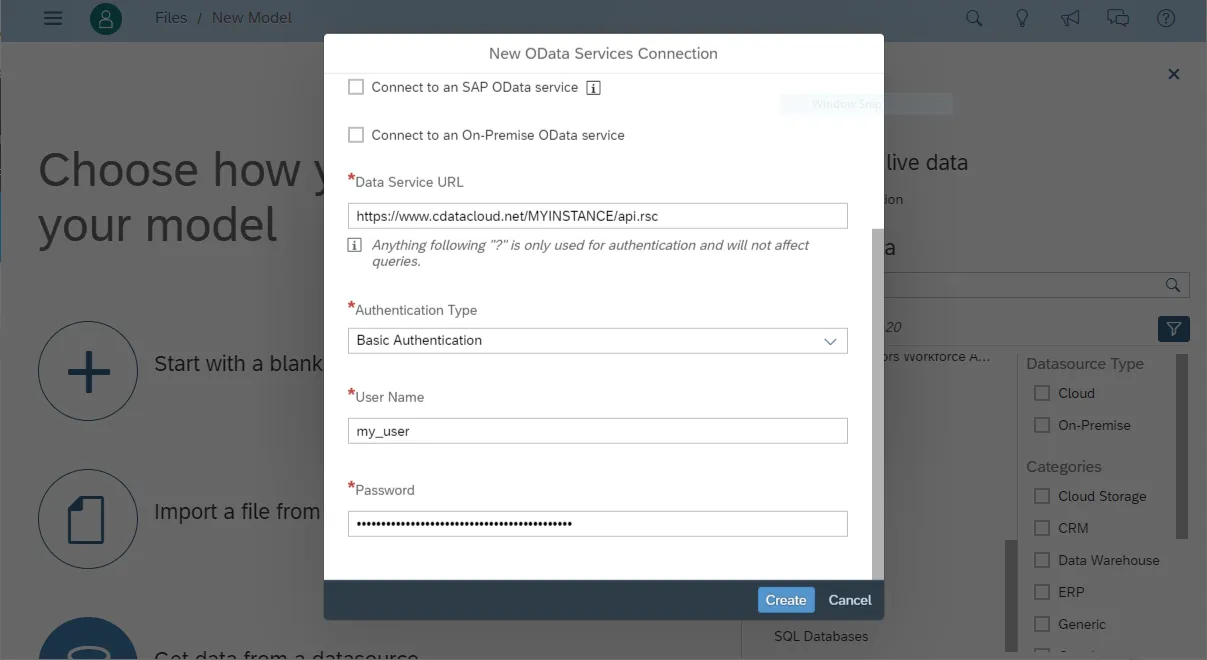
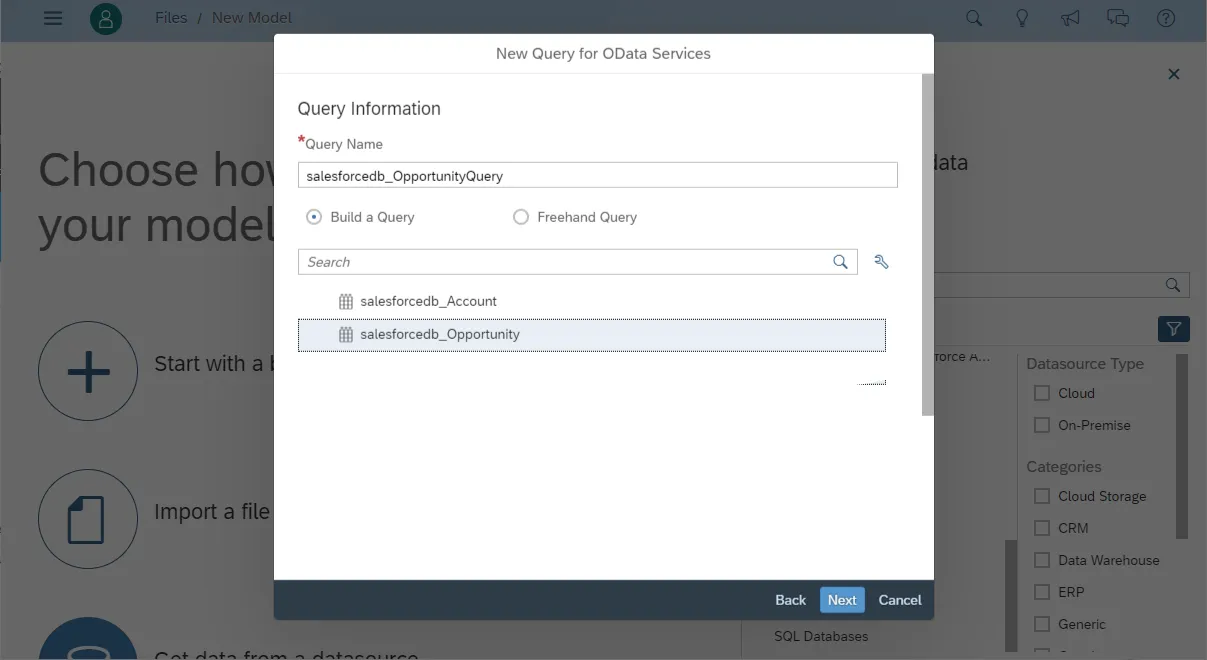
- Choose "Create a new query" and click Next
- Name the Execute, select an OData endpoint (like people) and click Next
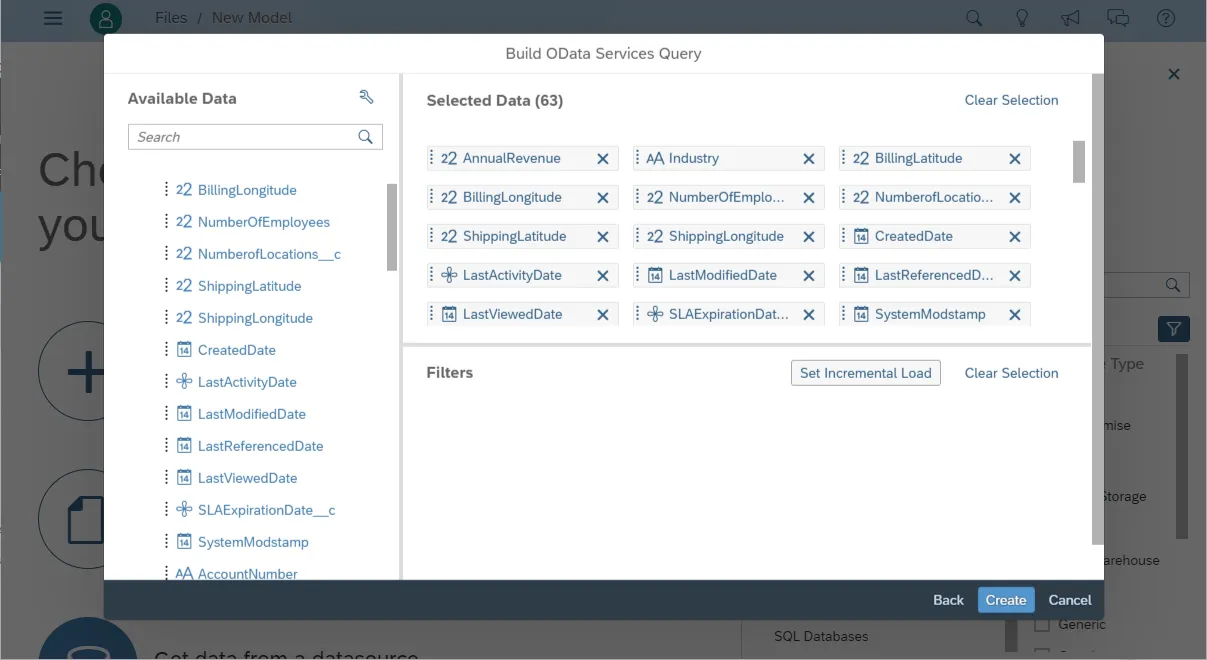
- Drag the columns you wish to work with into the Selected Data workspace and click Create
- At this point, a Draft Data source is created; click the draft to finalize the model
- Perform any transformations, including creating calculated dimensions, location dimensions, and combining data sources, then click Create Model
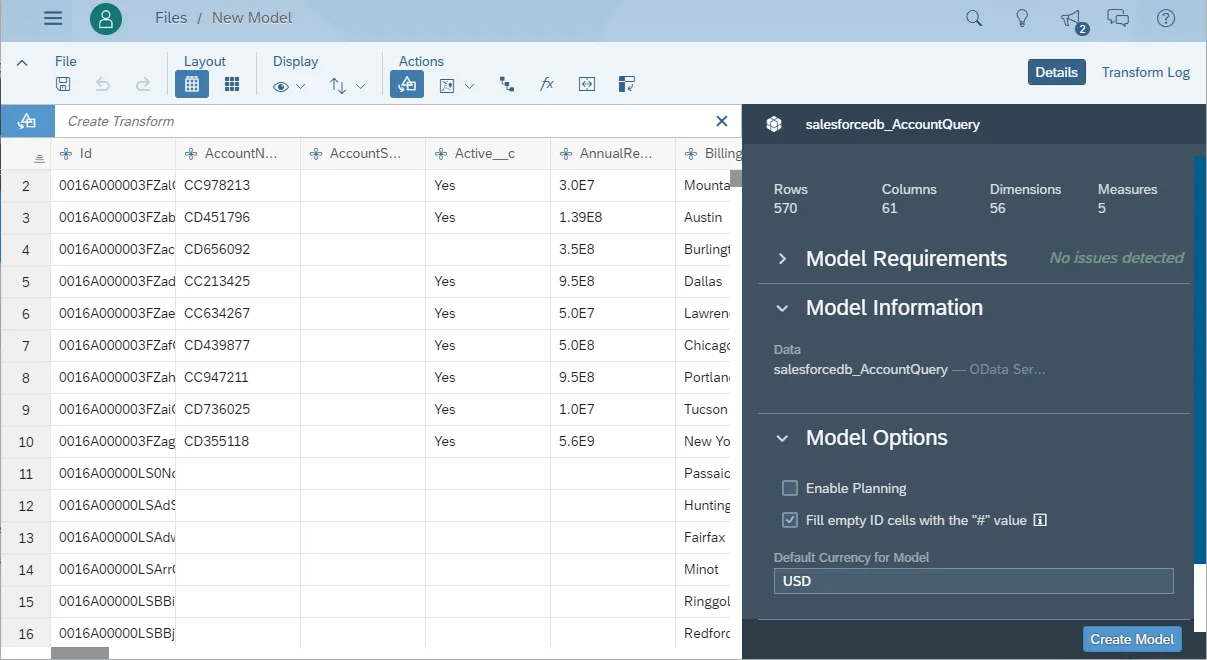
- Name your model and click OK
Build a Dashboard in SAP Analytics Cloud
With the model created, you are ready to create a dashboard in SAP Analytics Cloud based on JSON services.
- From the menu, click Create -> Story
- Click on SAP Analytics Template (this article uses the "Dashboard" template)
- Choose a layout and click Apply
- From the More menu, select a visualization to insert (Chart)
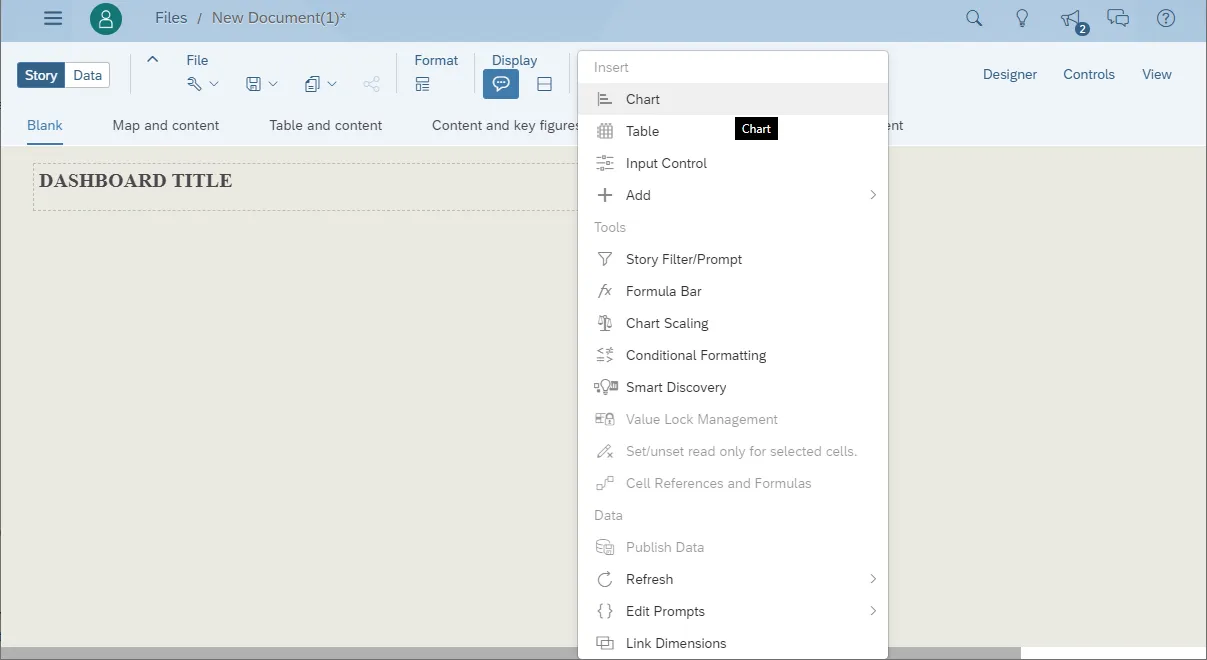
- Select a model to visualize
- Select a structure and the required Measures and Dimensions
- Save the store
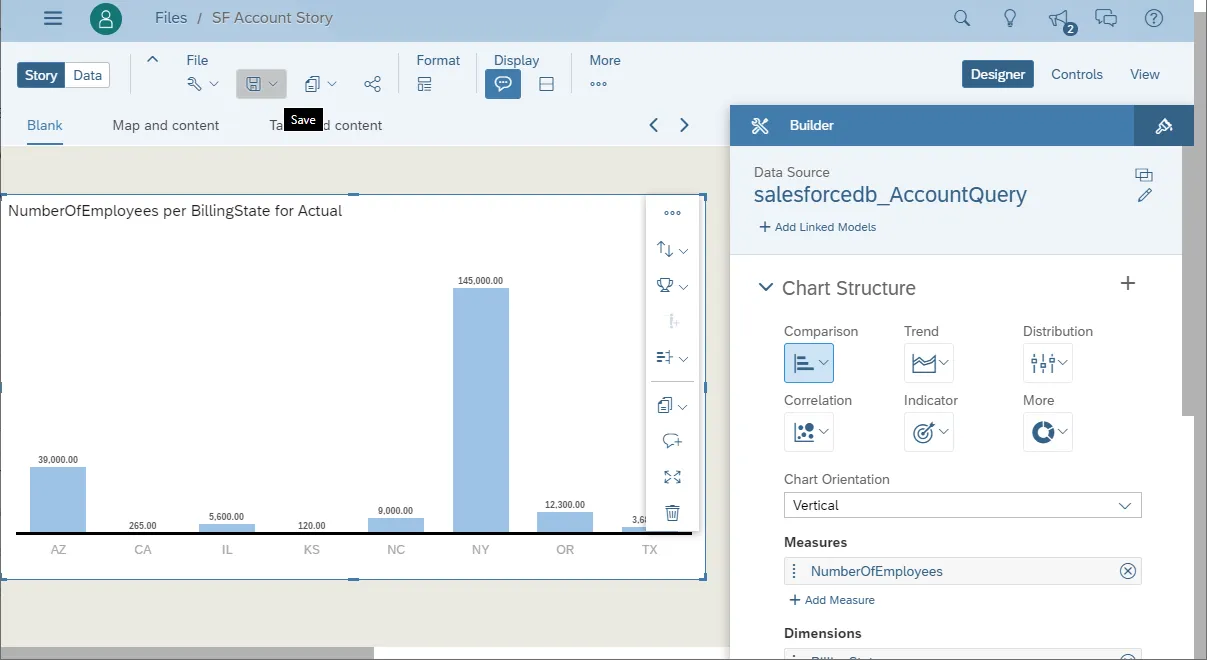
More Information & Free Trial
Now, you have created a simple but powerful dashboard from live JSON services. For more information on creating OData feeds from JSON (and more than 100 other data sources), visit the Connect AI page. Sign up for a free trial and start working with live JSON services in SAP Analytics Cloud.