







Access Live JSON Services in Excel for the Web (Excel 365/Online) through Connect Spreadsheets

Looking for Connect AI instructions?
Your Connect AI account includes Connect Spreadsheets, so you can use the instructions below. You can expect minor differences when referencing the Connect Spreadsheet platform, but the principles still apply!
Microsoft Excel for the web represents a cloud-native iteration of Microsoft Excel. When combined with Connect Spreadsheets by CData, you gain immediate access to JSON services directly within Excel, facilitating data analysis, collaboration, calculations, and more. This article shows how to connect to JSON in Connect Spreadsheets and access and update live JSON services in Excel spreadsheets online.
Connect Spreadsheets is the easiest way to get all your live data into Microsoft Excel and Google Sheets - no more downloading, wrangling, and uploading files again. Just connect to your data, select the dataset you'd like to see, and import it into your spreadsheet.
This setup requires a Connect Spreadsheets instance and the Connect Spreadsheets Add-In for Excel. To get started, sign up a free trial of Connect Spreadsheets and install the free Connect Spreadsheets Excel Add-In.
Configure JSON Connectivity for Excel
Connectivity to JSON from Excel is made possible through Connect Spreadsheets . To work with JSON services from Excel, we start by creating and configuring a JSON connection.
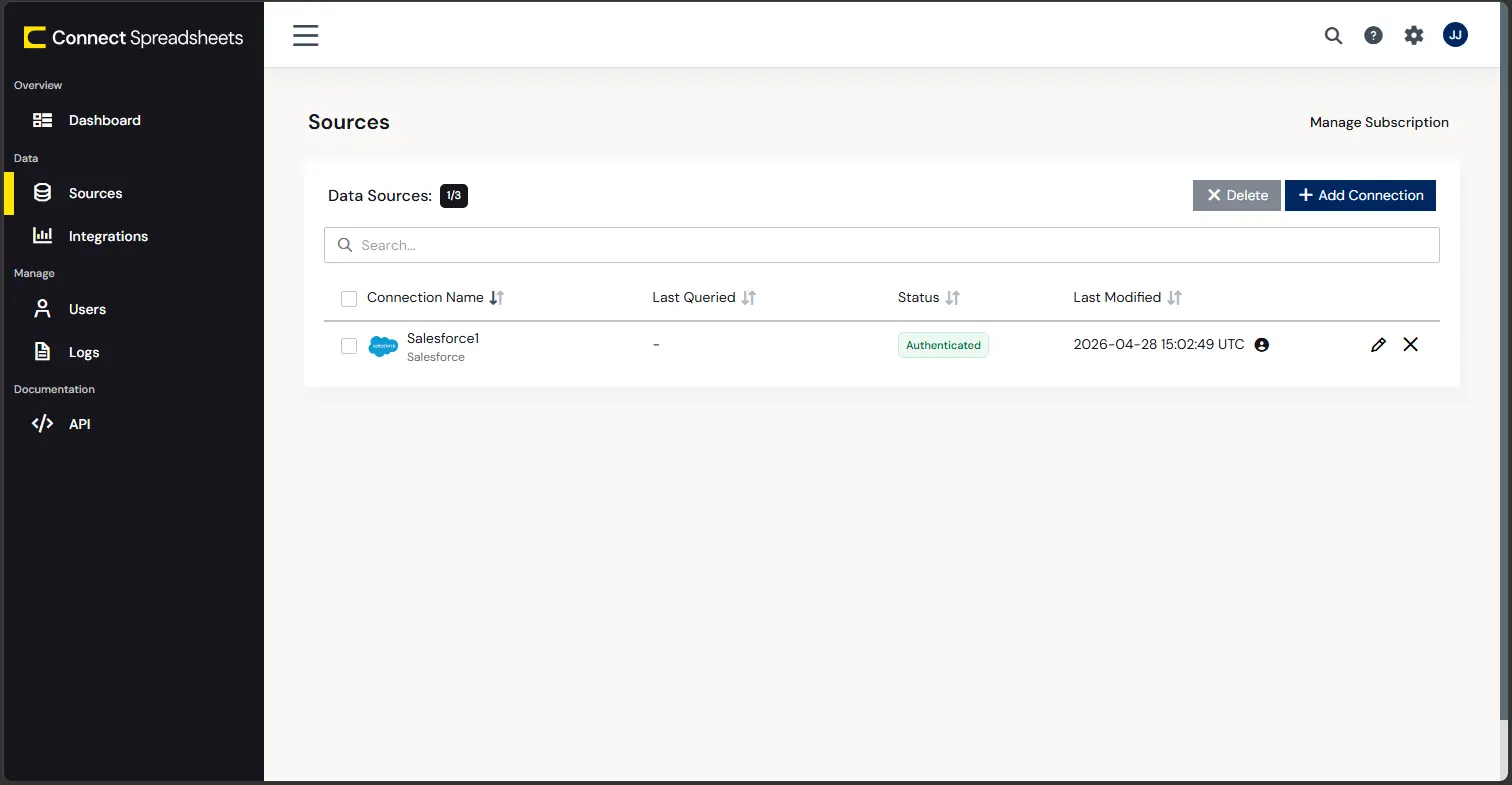
- Log into Connect Spreadsheets, click Sources and click Add Connection
- Select "JSON" from the Add Connection panel
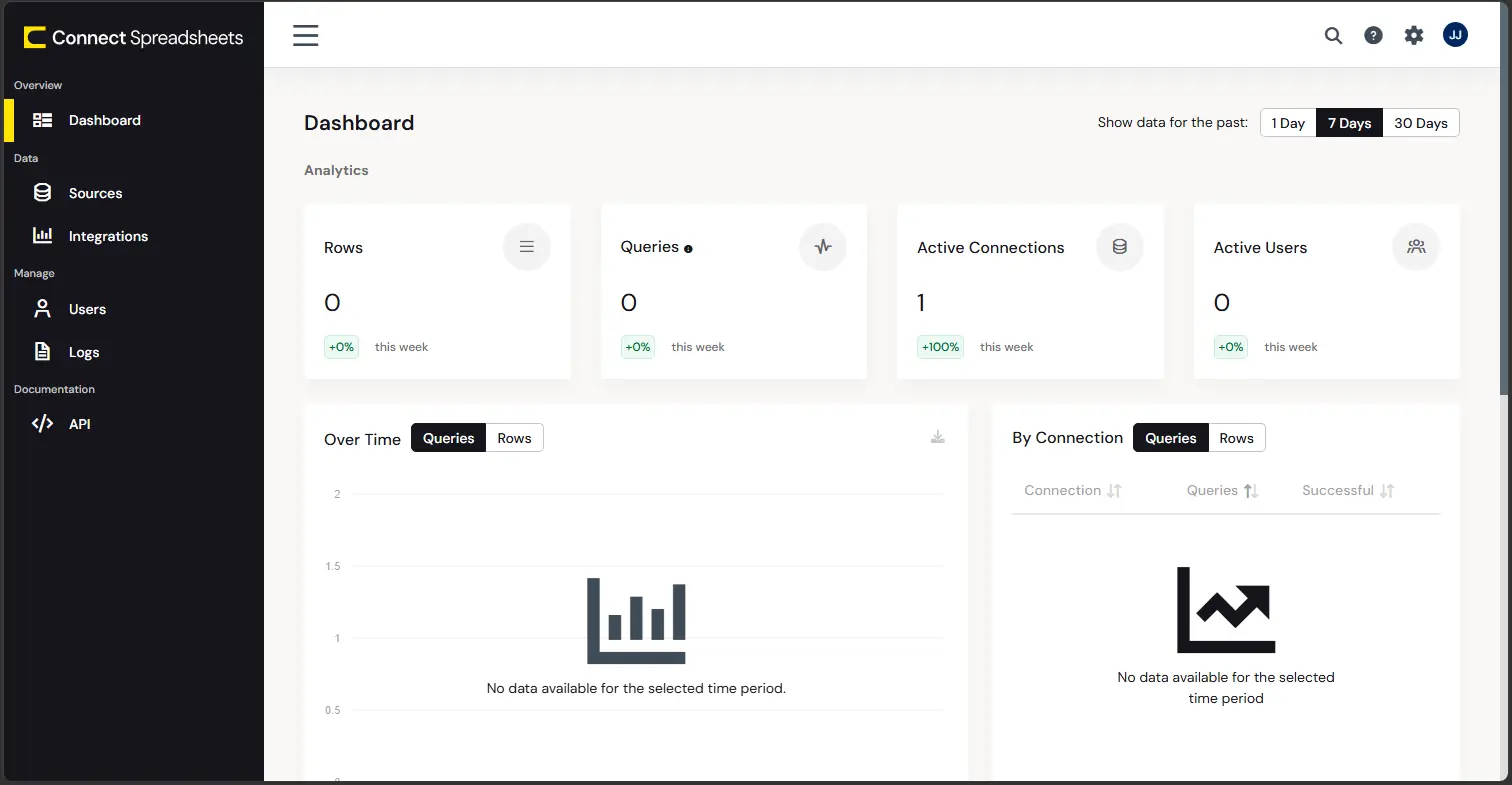
-
Enter the necessary authentication properties to connect to JSON.
See the Getting Started chapter in the data provider documentation to authenticate to your data source: The data provider models JSON APIs as bidirectional database tables and JSON files as read-only views (local files, files stored on popular cloud services, and FTP servers). The major authentication schemes are supported, including HTTP Basic, Digest, NTLM, OAuth, and FTP. See the Getting Started chapter in the data provider documentation for authentication guides.
After setting the URI and providing any authentication values, set DataModel to more closely match the data representation to the structure of your data.
The DataModel property is the controlling property over how your data is represented into tables and toggles the following basic configurations.
- Document (default): Model a top-level, document view of your JSON data. The data provider returns nested elements as aggregates of data.
- FlattenedDocuments: Implicitly join nested documents and their parents into a single table.
- Relational: Return individual, related tables from hierarchical data. The tables contain a primary key and a foreign key that links to the parent document.
See the Modeling JSON Data chapter for more information on configuring the relational representation. You will also find the sample data used in the following examples. The data includes entries for people, the cars they own, and various maintenance services performed on those cars.
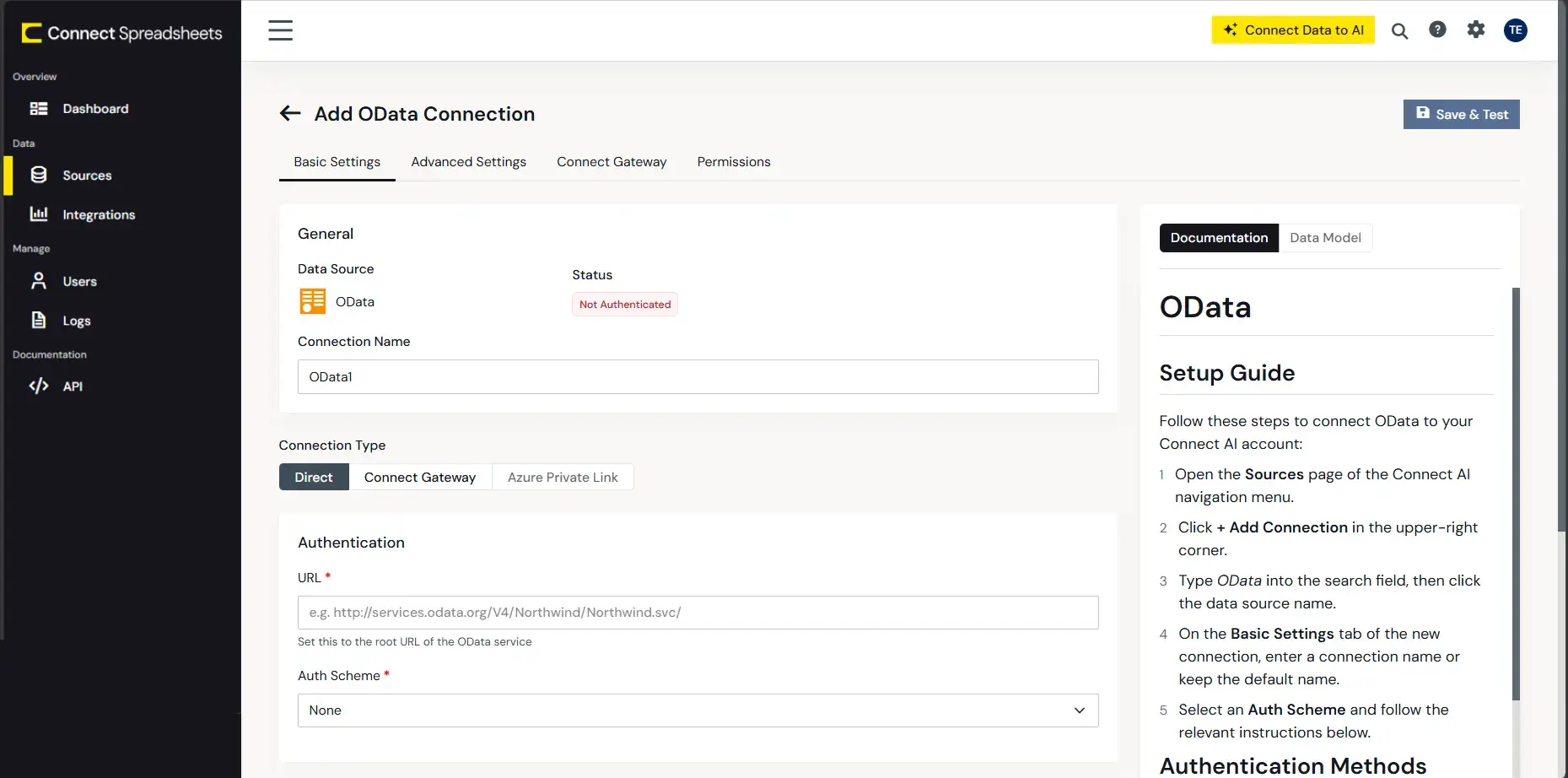
- Click Create & Test
With the connection configured, you are ready to connect to JSON services from Excel for the web.
Access Live JSON Services in Excel for the web
The steps below outline connecting to Connect Spreadsheets from Excel to access live JSON services.
- Log into Excel, create a new sheet (or open an existing one).
- Click Insert and click Office Add-ins. (If you have already installed the Add-In, jump to step 4.)
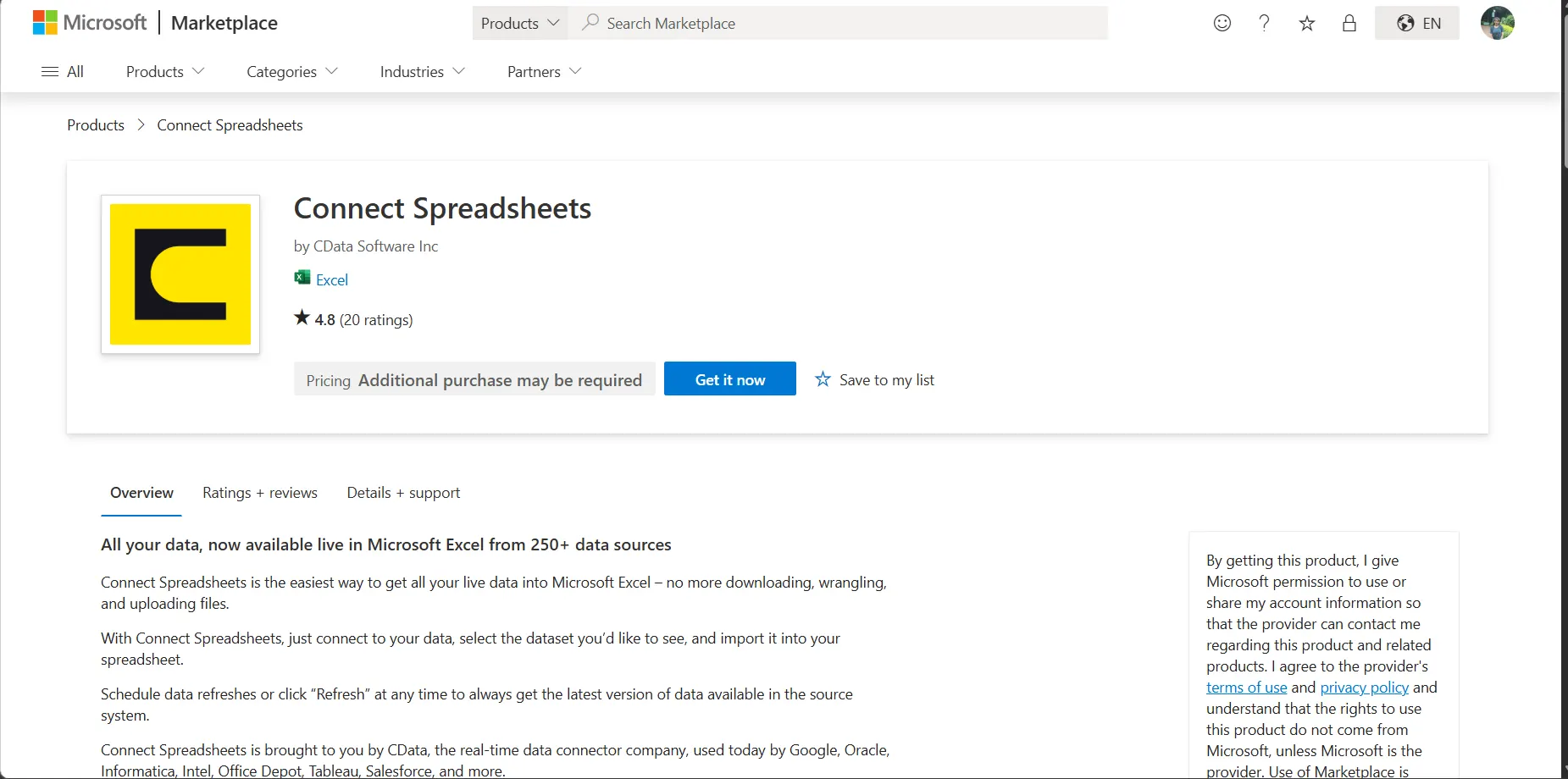
- Search for Connect Spreadsheets and click "Get it now" to install the Add-in.
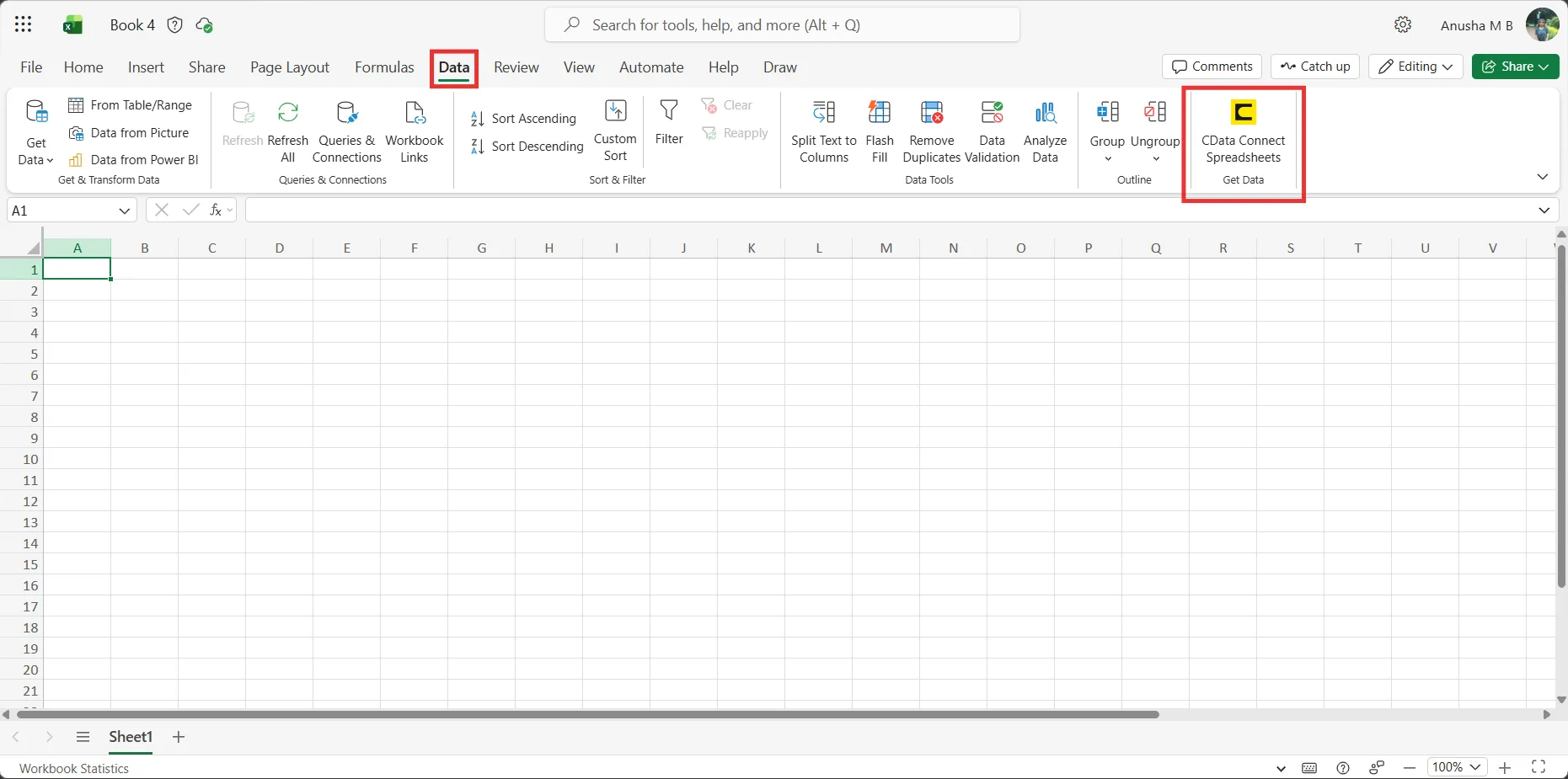
- Back in Excel, open the Data ribbon select and click the CData Connect Spreadsheets "Get Data" button.
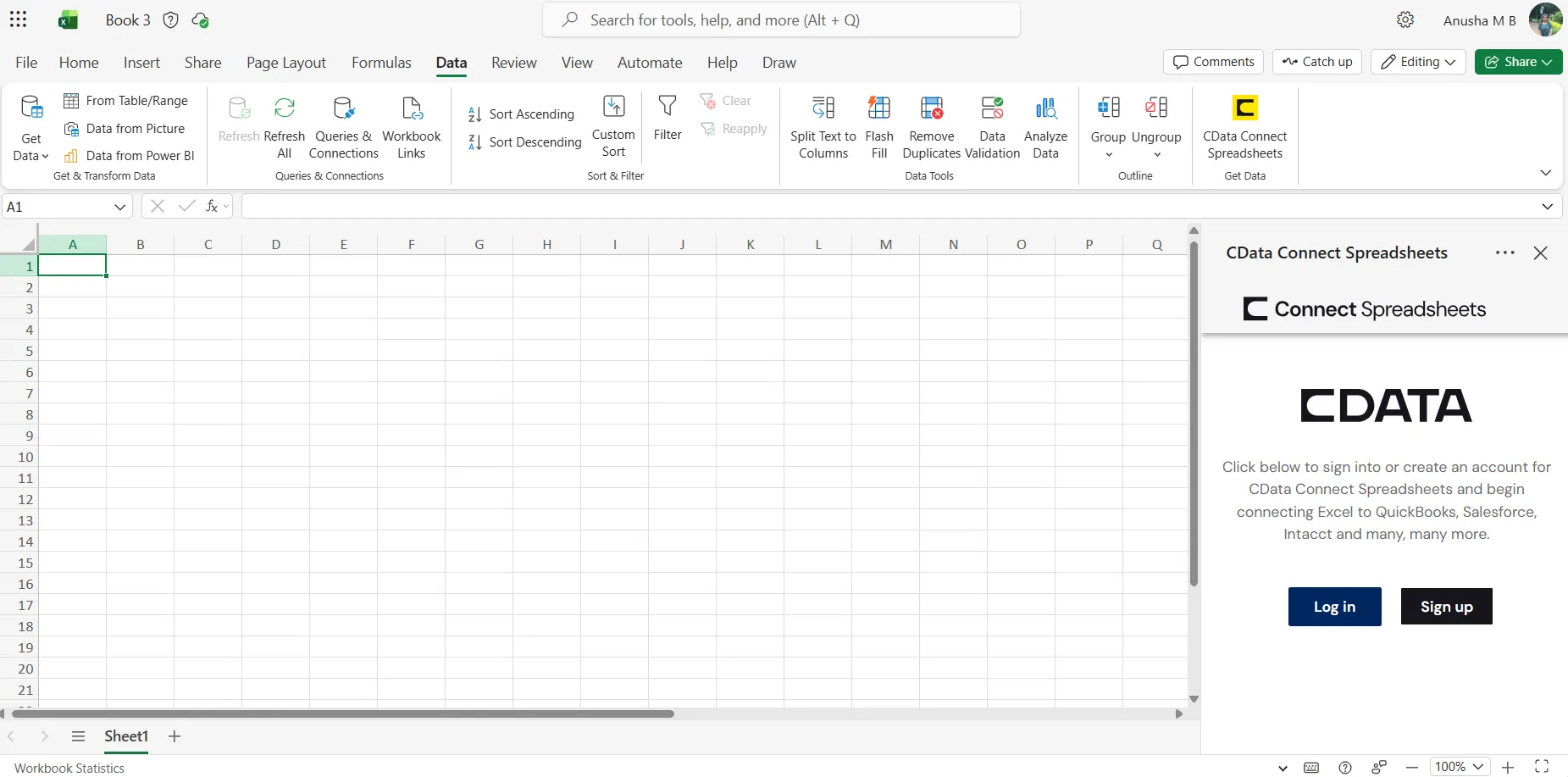
- In the Add-In panel, click "Log in" to sign into and authenticate with your Connect Spreadsheets account
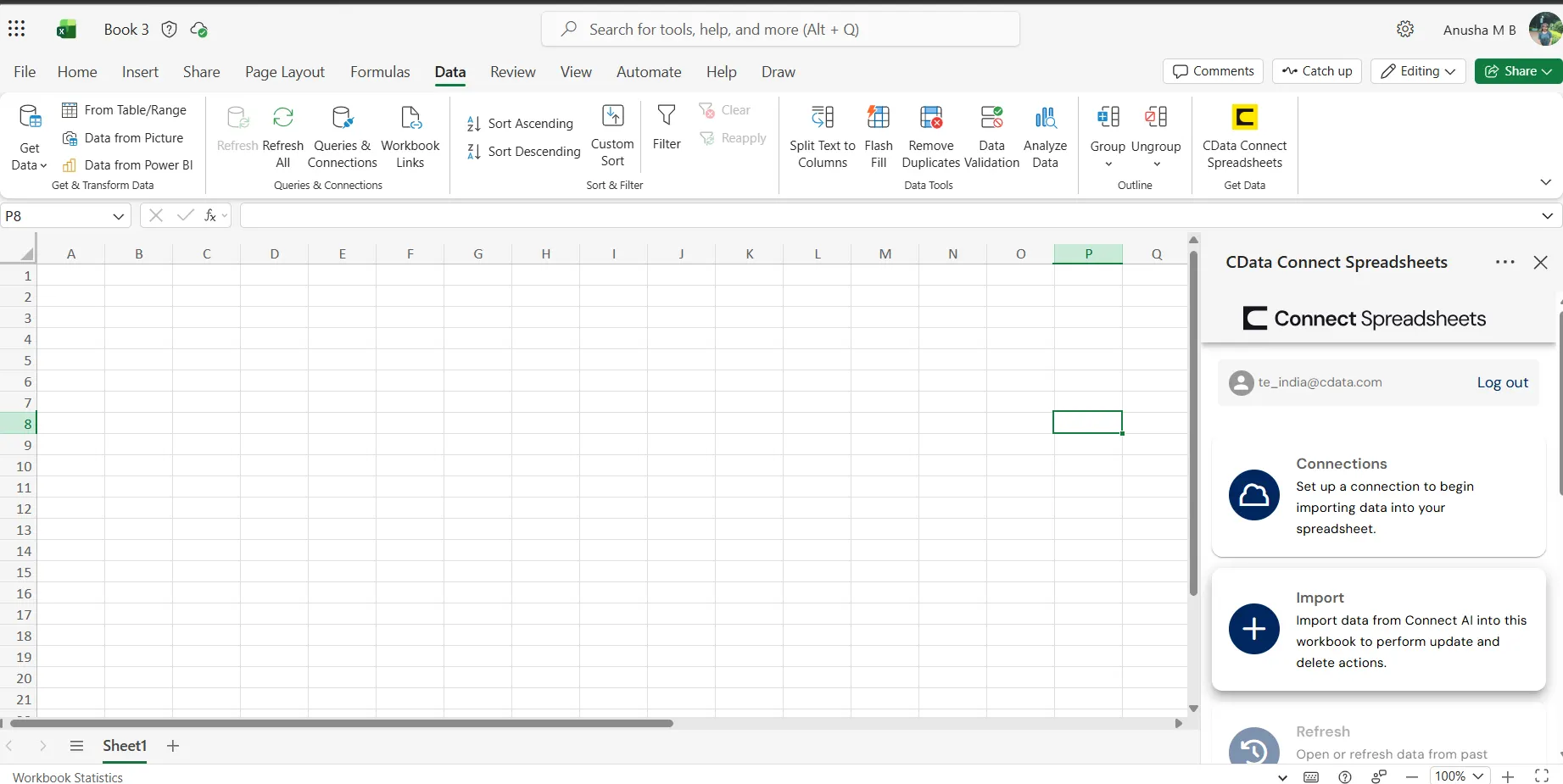
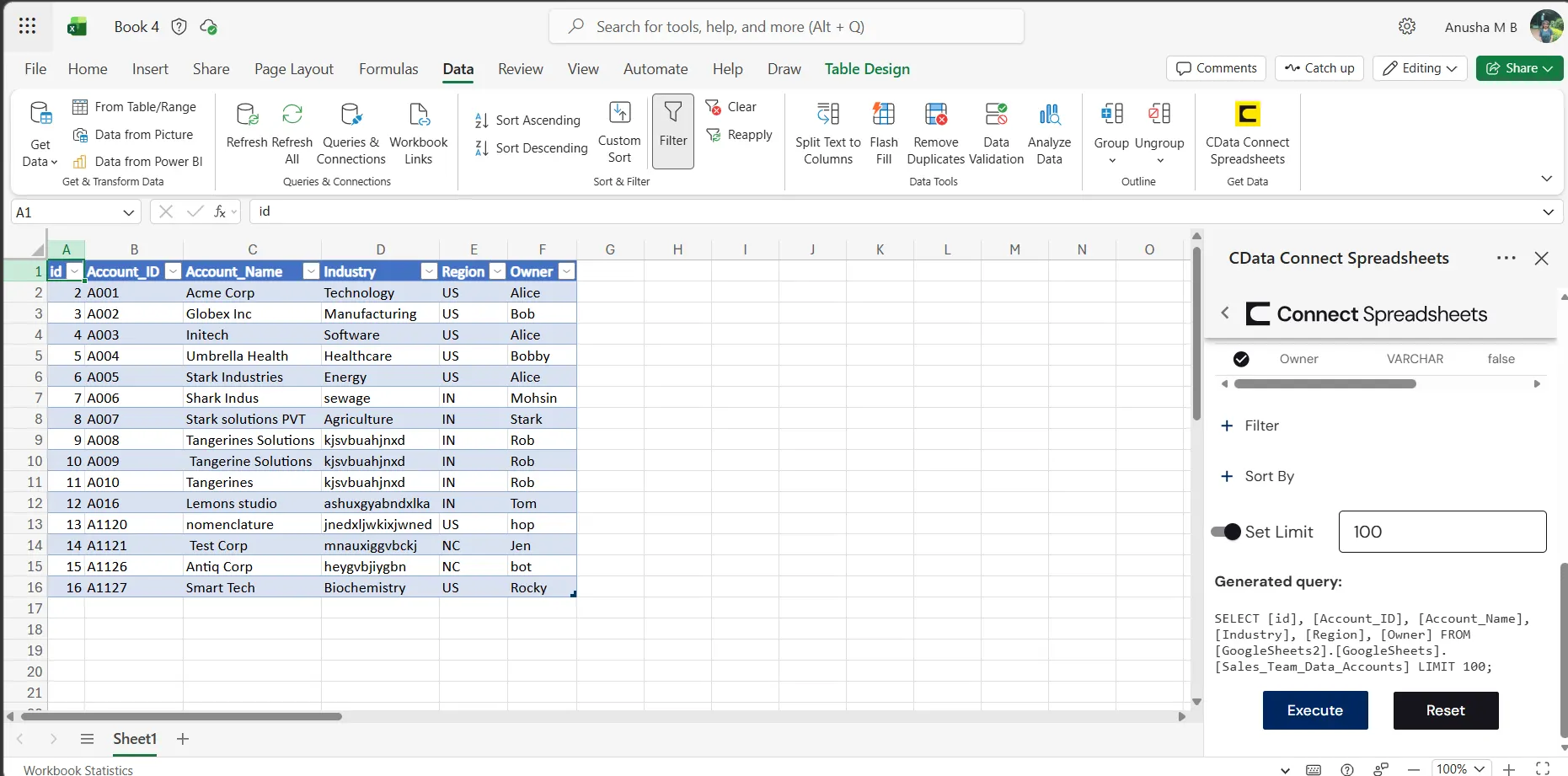
- In the Connect Spreadsheets panel in Excel, click Import
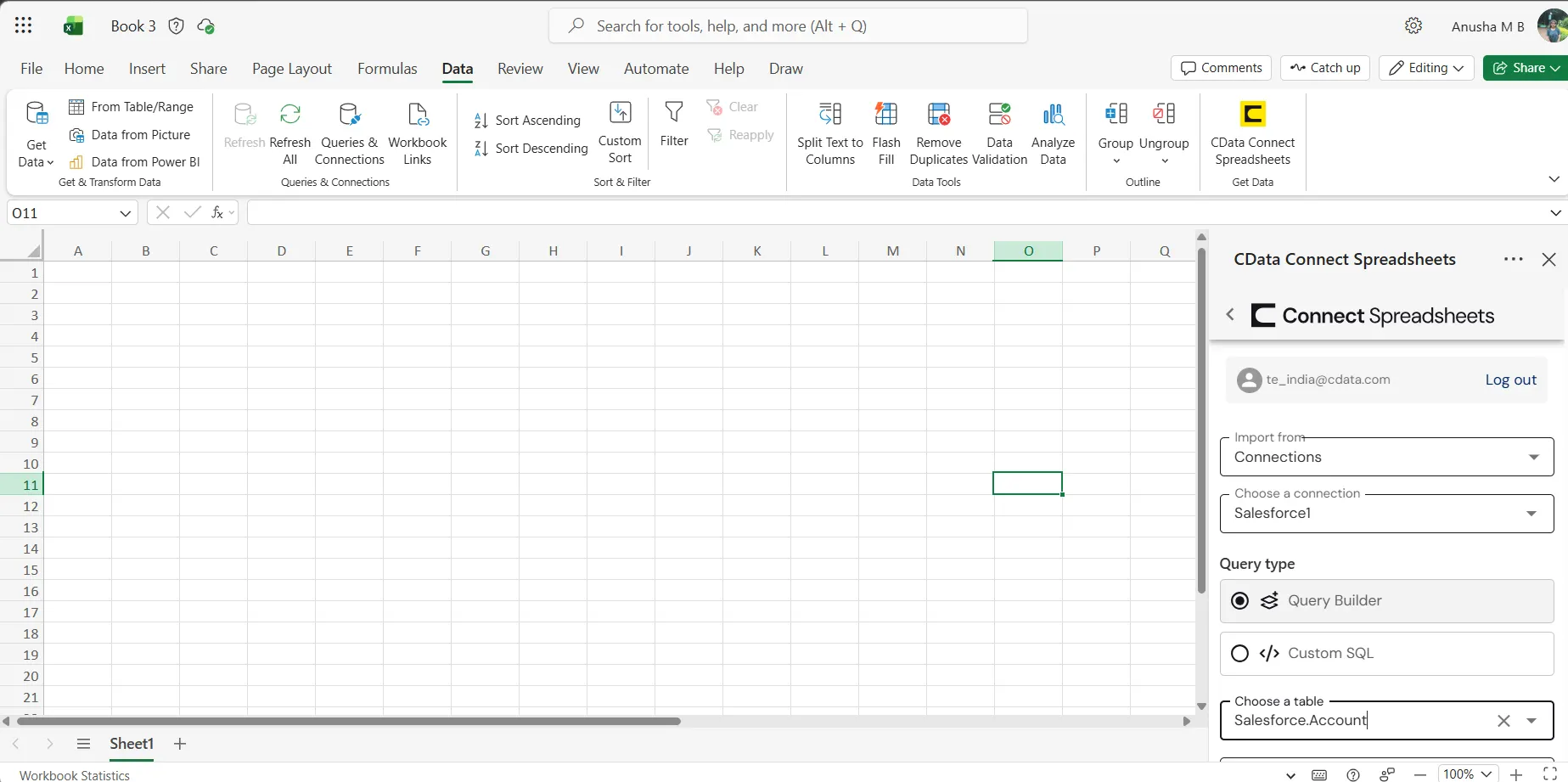
- Choose a Connection (e.g. JSON1), Table (e.g. people), and Columns to import
- Optionally add Filters, Sorting, and a Limit
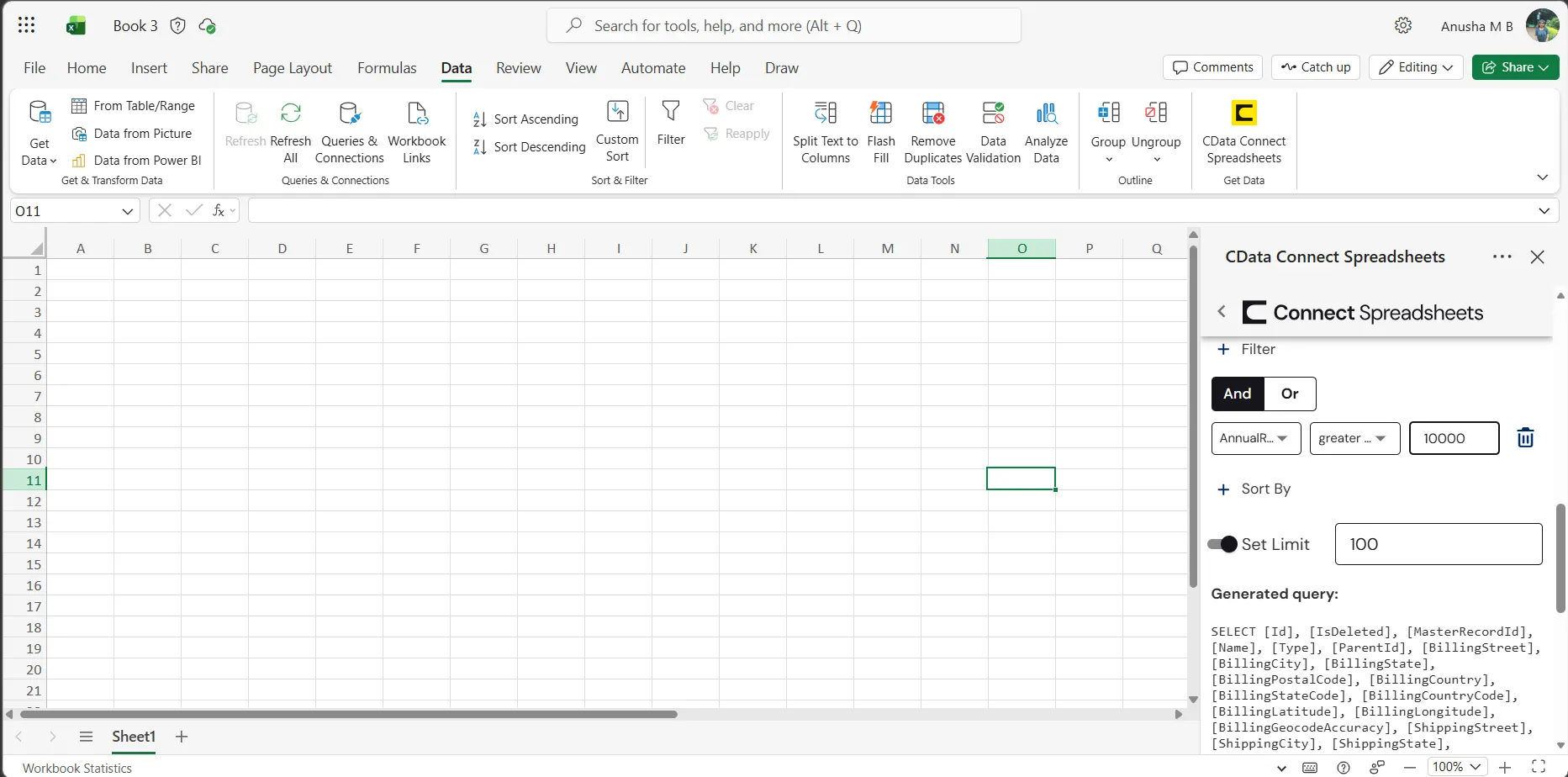
- Click Execute to import the data
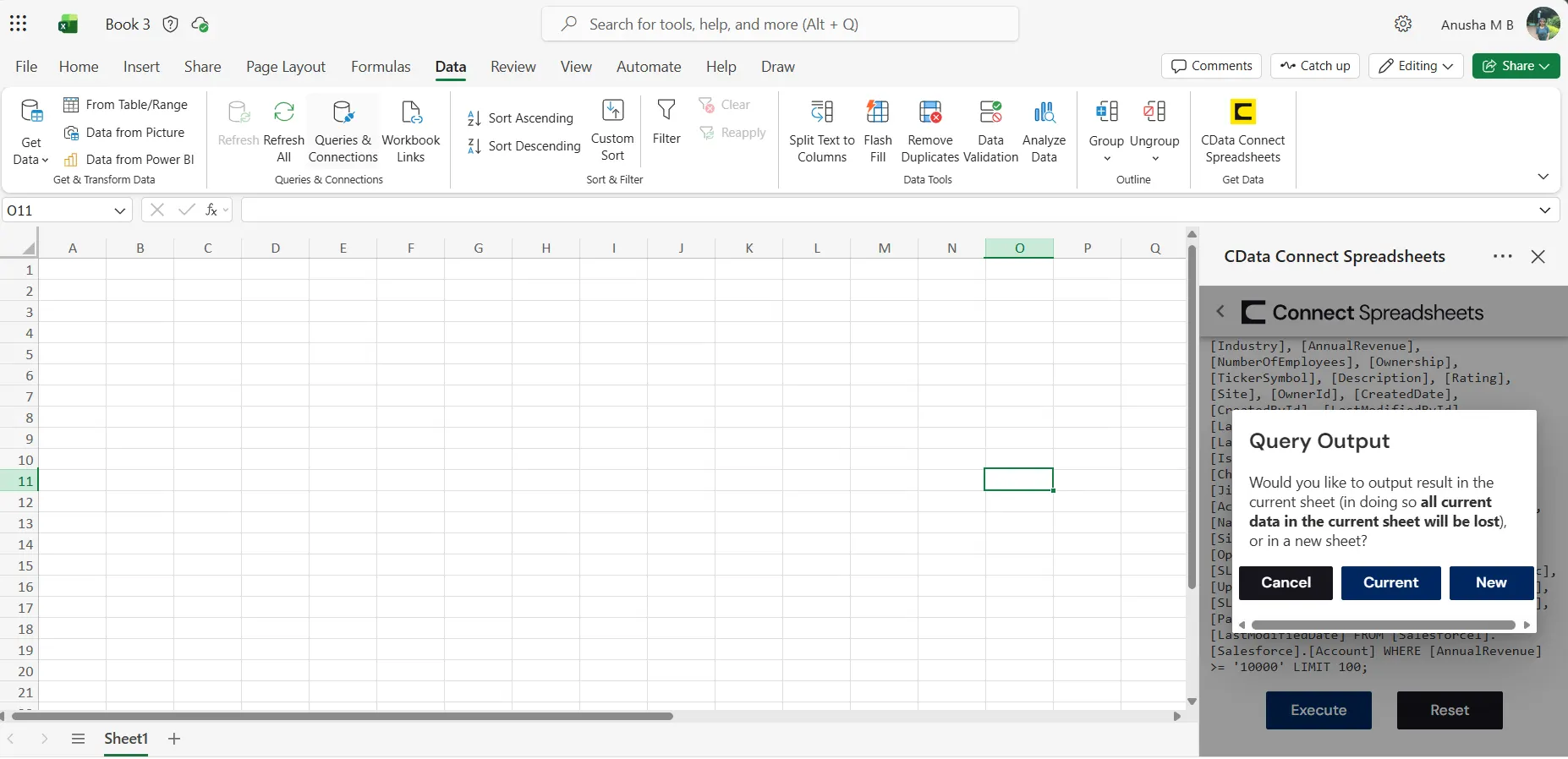
Update JSON Services from Excel
In addition to viewing JSON services in Excel, Connect Spreadsheets also lets you update and delete JSON services. Begin by importing data (as described above).
- Update any cell or cells with changes you want to push to JSON
- In the Connect Spreadsheets Add-In panel, select Update
- Optionally highlight the cell(s) you wish to update and select an update option ("Update All" or "Update Selected")
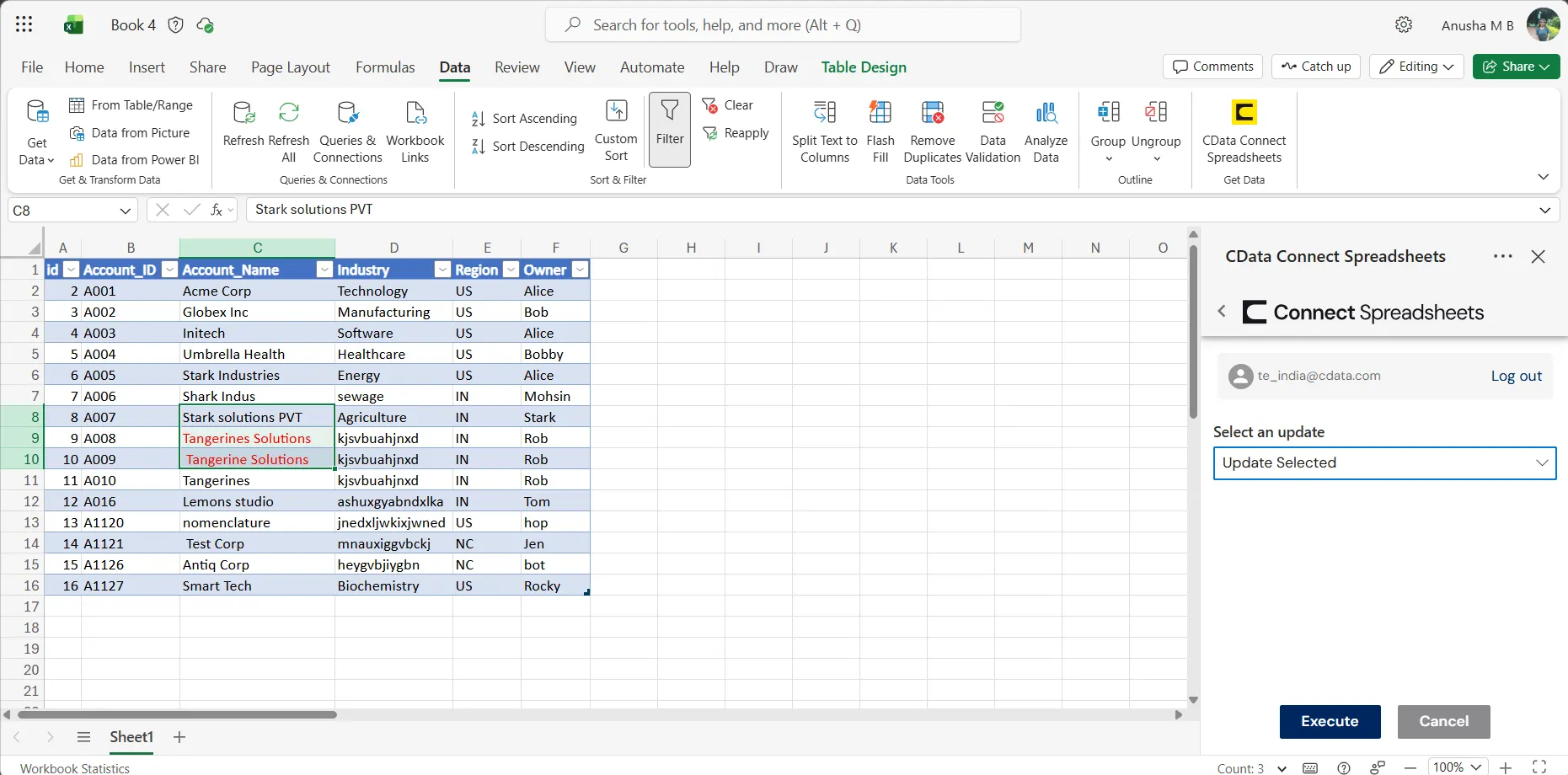
- Click Execute to push the updates to JSON
A notification will appear when the update is complete.
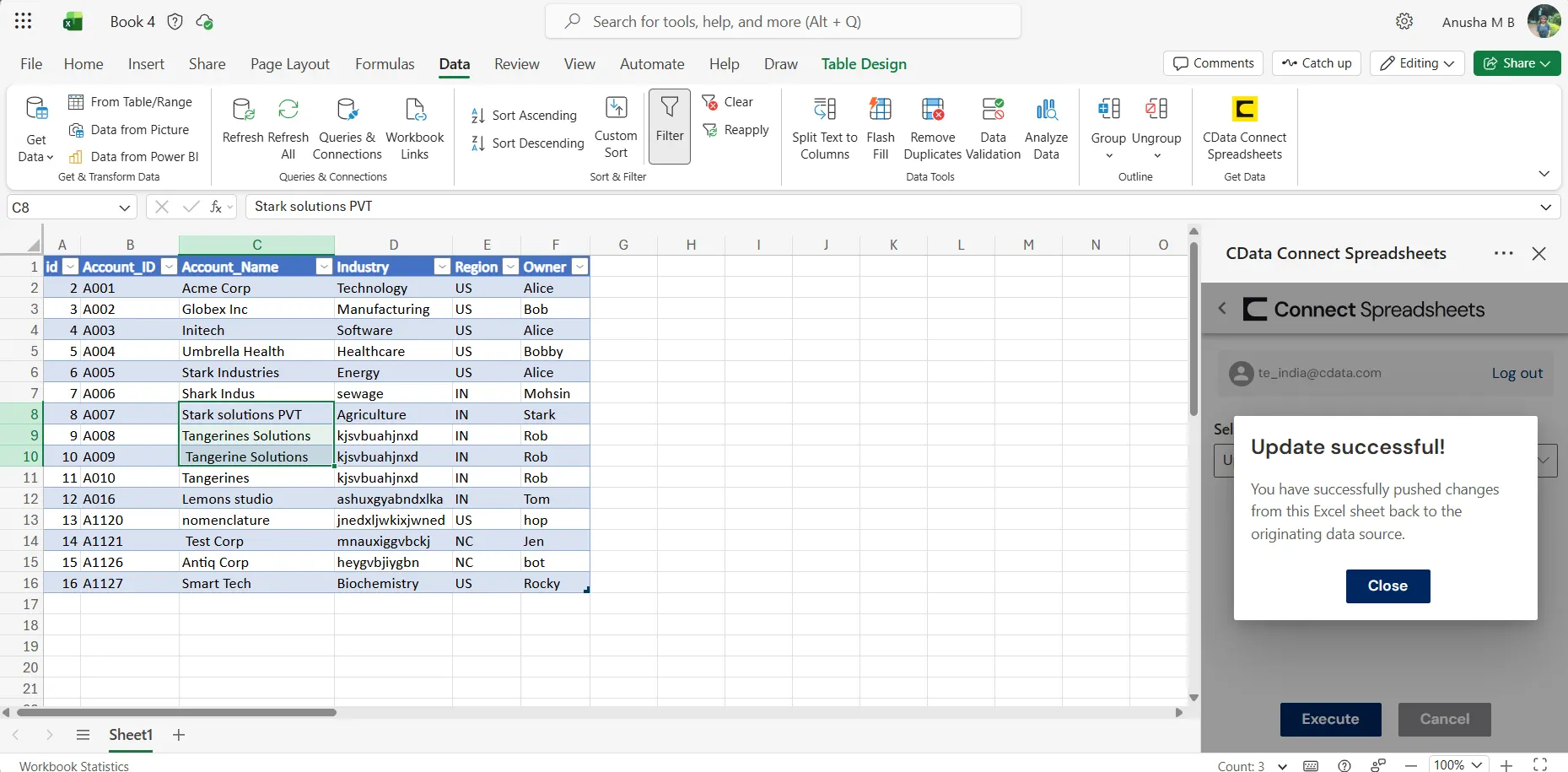
Live Access to JSON Services from Spreadsheets
New, you have a direct, cloud-to-cloud connection to live JSON services from your Excel workbook. You can add more data to your workbook for calculations, aggregations, collaboration, and more.
Try Connect Spreadsheets and get real-time data access to hundreds of SaaS, Big Data, and NoSQL sources directly from your spreadsheet apps.