







Integrate Live Neo4J Data into Amazon SageMaker Canvas with RDS

Amazon SageMaker Canvas is a no-code machine learning platform that lets you generate predictions, prepare data, and build models without writing code. When paired with CData Connect AI, you get instant, cloud-to-cloud access to Neo4J data for building custom machine-learning models, predicting customer churn, generating texts, building chatbots, and more. This article shows how to connect to Connect AI from Amazon SageMaker Canvas using the RDS connector and integrate live Neo4J data into your ML model deployments.
CData Connect AI provides a pure SQL, cloud-to-cloud interface for Neo4J, allowing you to easily integrate with live Neo4J data in Amazon SageMaker Canvas — without replicating the data. CData Connect AI looks exactly like a SQL Server database to Amazon SageMaker Canvas and uses optimized data processing out of the box to push all supported SQL operations (filters, JOINs, etc) directly to Neo4J, leveraging server-side processing to quickly return Neo4J data.
Configure Neo4J Connectivity for Amazon SageMaker Canvas
Connectivity to Neo4J from Amazon SageMaker Canvas is made possible through CData Connect AI. To work with Neo4J data from Amazon SageMaker Canvas, we start by creating and configuring a Neo4J connection.
- Log into Connect AI, click Sources, and then click Add Connection
- Select "Neo4J" from the Add Connection panel
-
Enter the necessary authentication properties to connect to Neo4J.
To connect to Neo4j, set the following connection properties:
- Server: The server hosting the Neo4j instance.
- Port: The port on which the Neo4j service is running. The provider connects to port 7474 by default.
- User: The username of the user using the Neo4j instance.
- Password: The password of the user using the Neo4j instance.

- Click Save & Test
-
Navigate to the Permissions tab in the Add Neo4J Connection page and update the User-based permissions.



Add a Personal Access Token
When connecting to Connect AI through the REST API, the OData API, or the Virtual SQL Server, a Personal Access Token (PAT) is used to authenticate the connection to Connect AI. It is best practice to create a separate PAT for each service to maintain granularity of access.
- Click on the Gear icon () at the top right of the Connect AI app to open the settings page.
- On the Settings page, go to the Access Tokens section and click Create PAT.
-
Give the PAT a name and click Create.

- The personal access token is only visible at creation, so be sure to copy it and store it securely for future use.
With the connection configured and a PAT generated, you are ready to connect to Neo4J data from Amazon SageMaker Canvas.
Connecting to CData Connect AI from Amazon SageMaker Canvas
With the connection in CData Connect AI configured, you are ready to integrate live Neo4J data into Amazon SageMaker Canvas using its RDS connector.
- Select a domain and user profile in Amazon SageMaker Canvas and click on "Open Canvas".
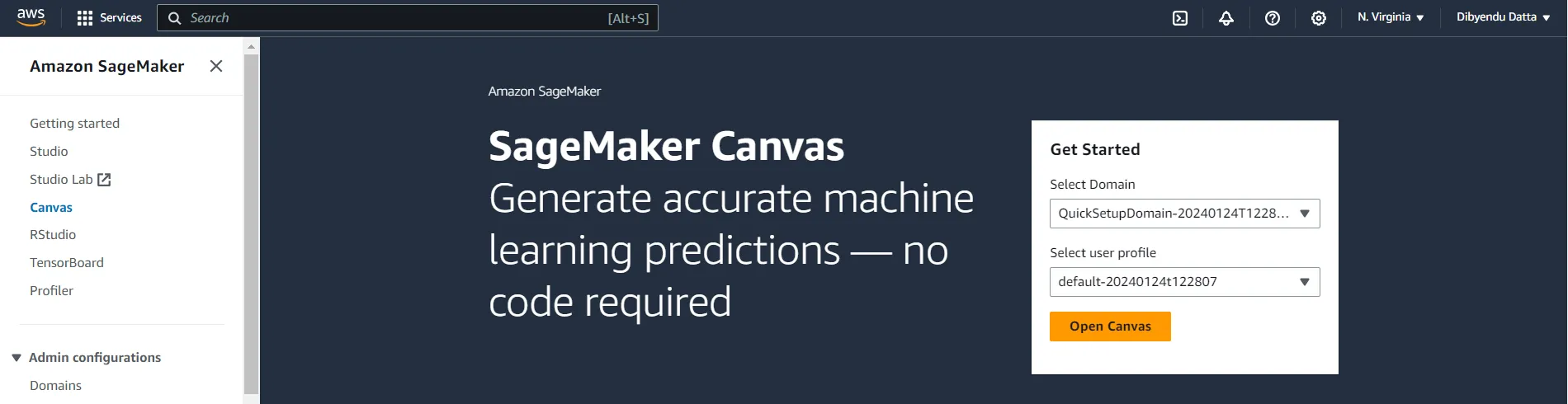
- Once the Canvas application opens, navigate to the left panel, and select "My models".
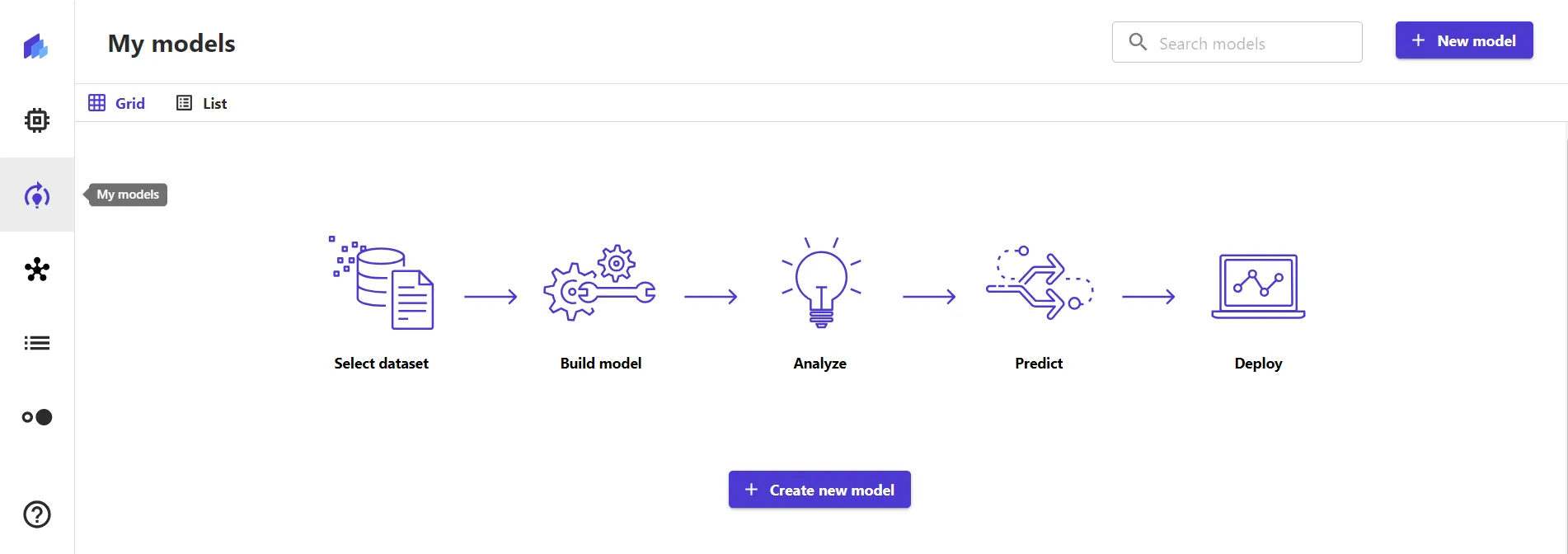
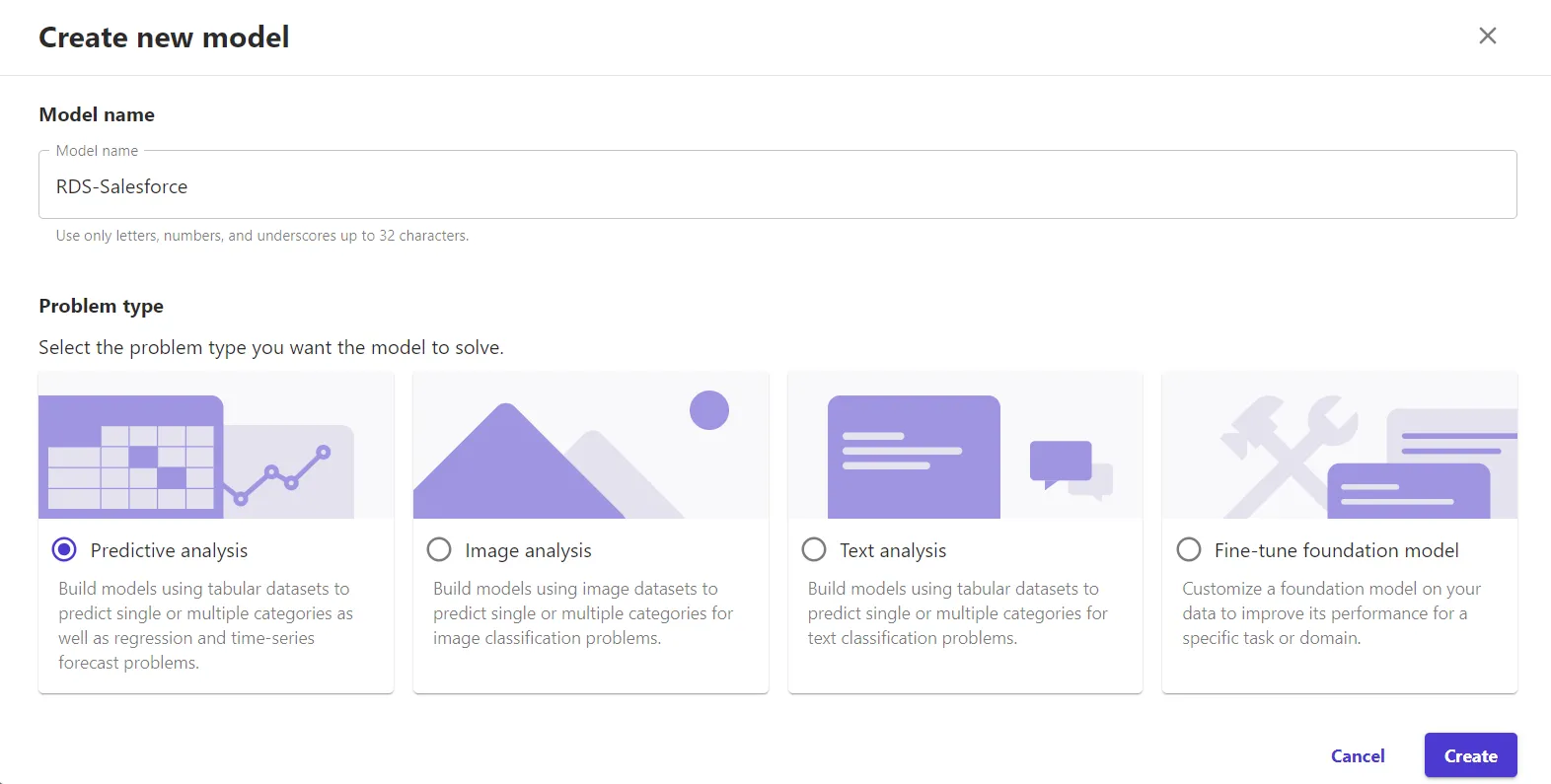
- Click on "Create new model" in the My models screen.
- Specify a Model name in Create new model window and select a Problem type. Click on "Create".
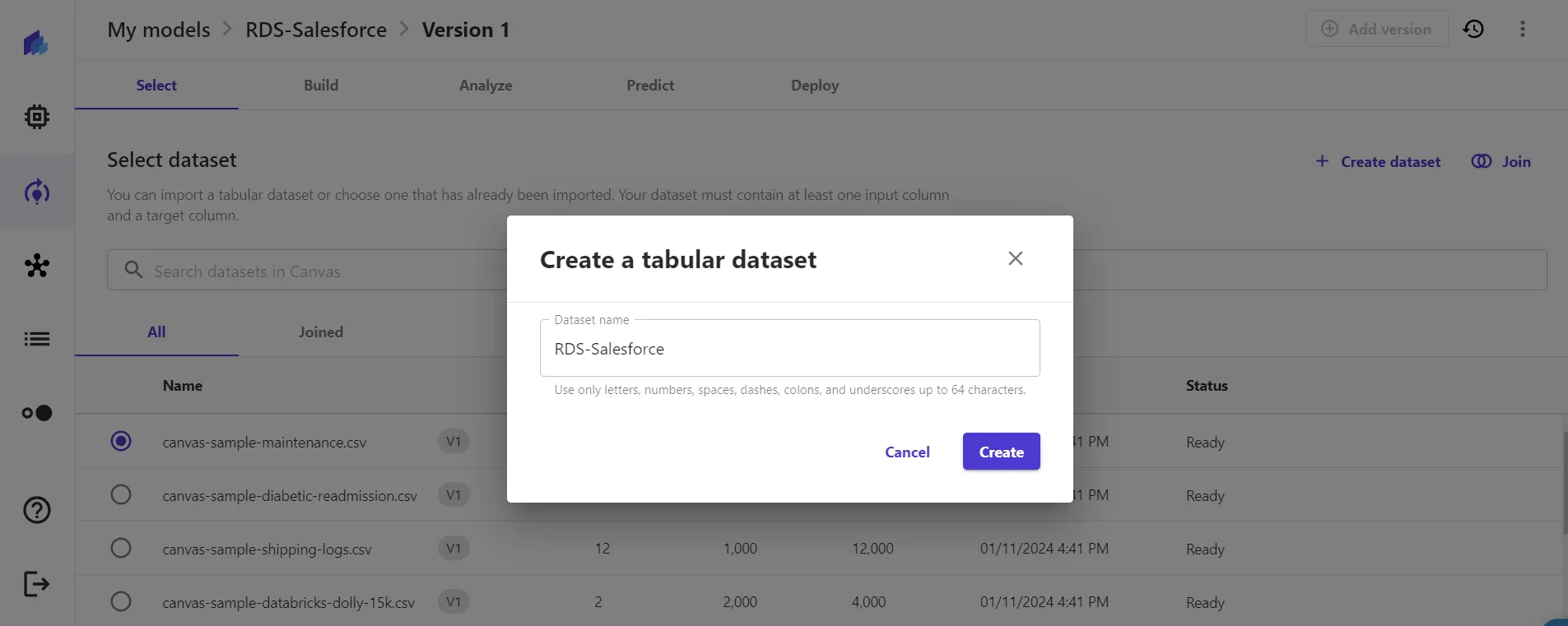
- Once the model version gets created, click on "Create dataset" in the Select dataset tab.

- In the Create a tabular dataset window, add a "Dataset name" and click on "Create".
- Click on the "Data Source" drop-down and search for or navigate to the RDS connector and click on " Add Connection".
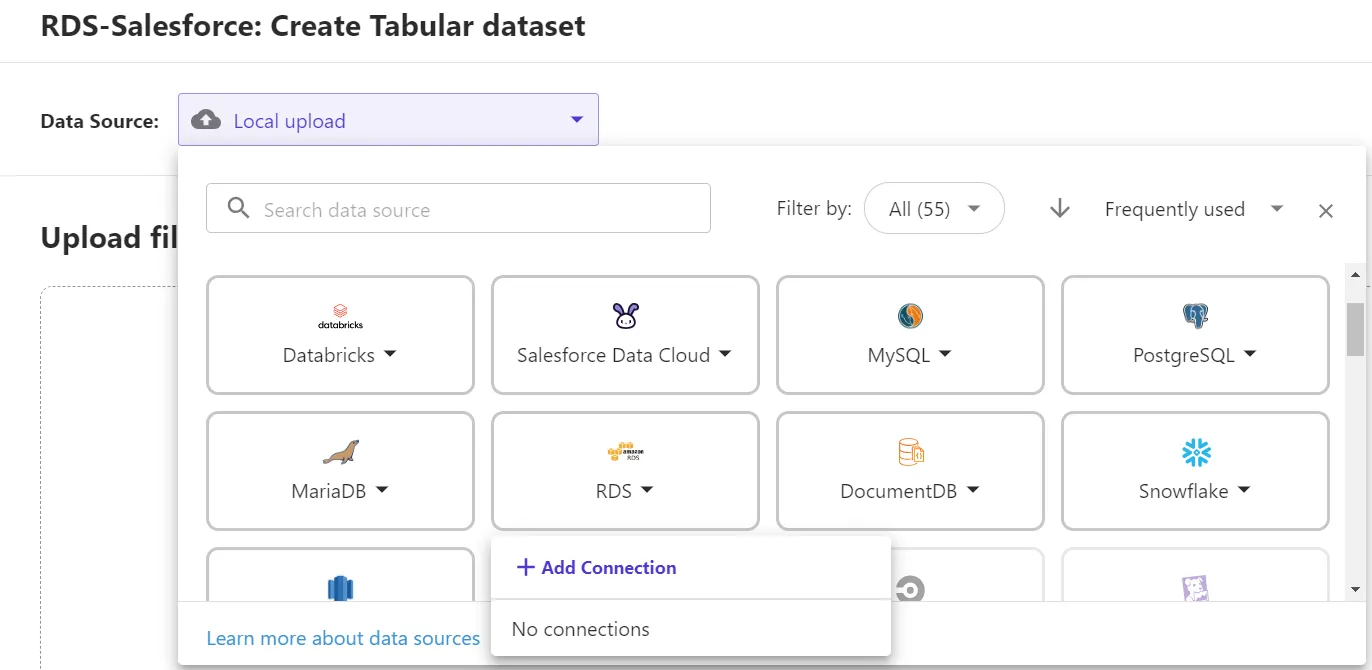
- In the Add a new RDS connection window, set the following properties:
- Connection Name: a relevant connection name
- Set Engine type to sqlserver-web
- Set Port to 14333
- Set Address as tds.cdata.com
- Set Username to a Connect AI user (e.g. [email protected])
- Set Password to the PAT for the above user
- Set Database name the Neo4J connection (e.g., Neo4j1)
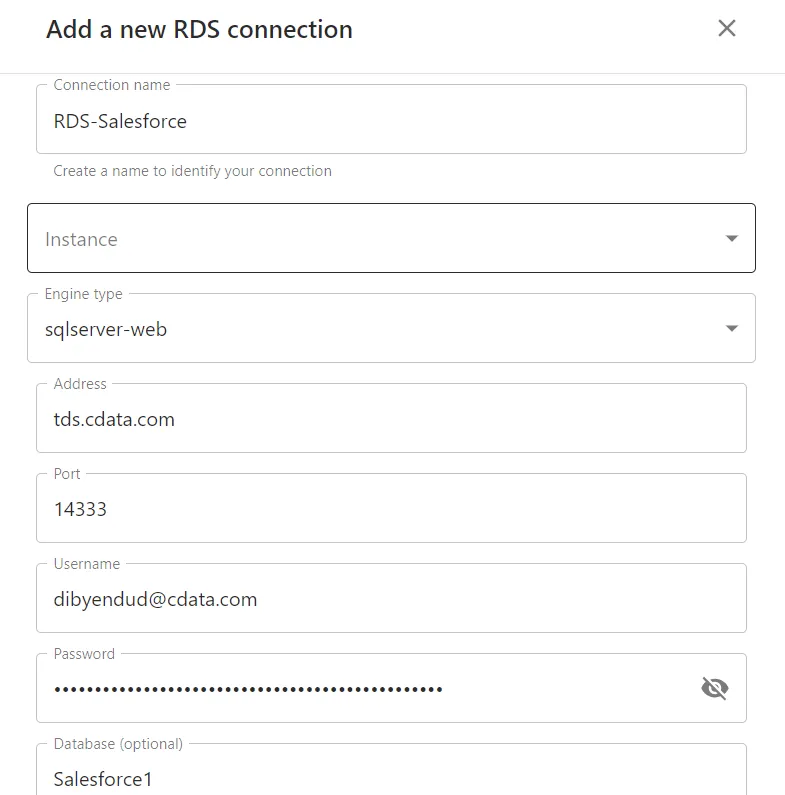
- Click on "Create connection".
Integrating Neo4J Data into Amazon SageMaker Canvas
With the connection to Connect AI configured in the RDS, you are ready to integrate live Neo4J data into your Amazon SageMaker Canvas dataset.
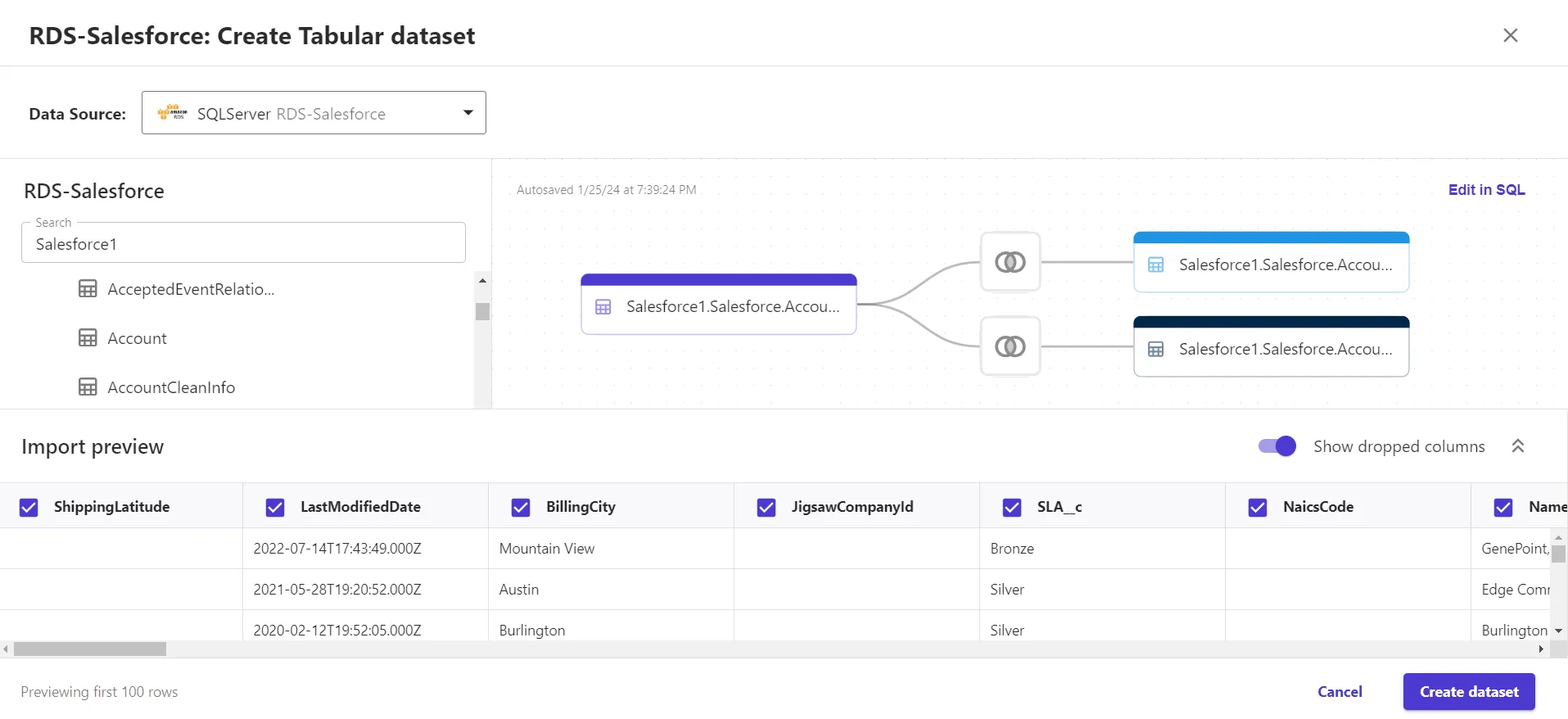
- In the tabular dataset created in RDS with Neo4J data, search for the Neo4J connection configured on Connect AI in the search bar or from the list of connections.
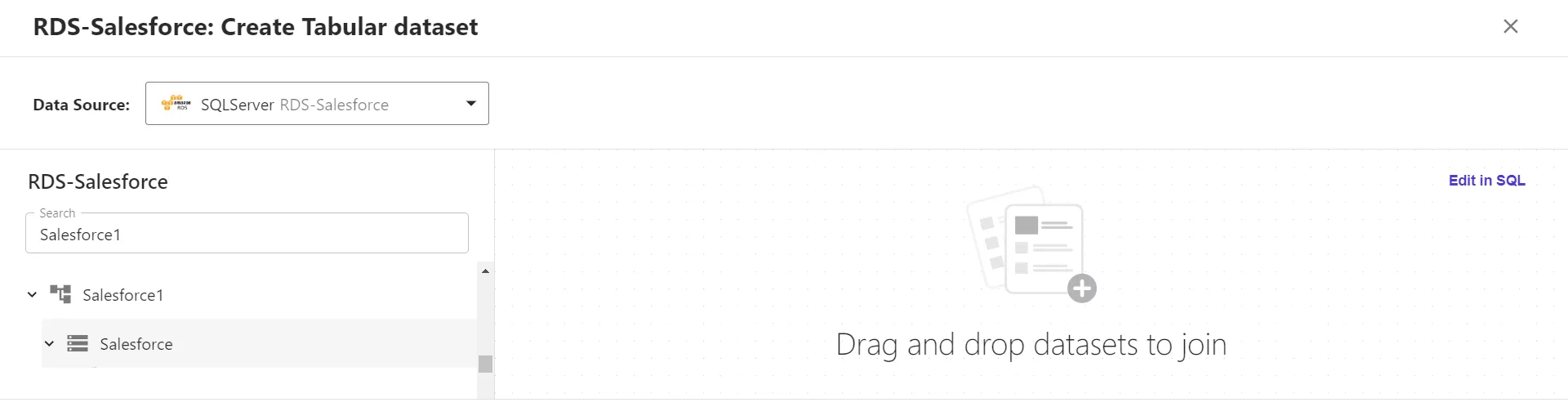
- Select the table of your choice from Neo4J, drag and drop it into the canvas on the right.
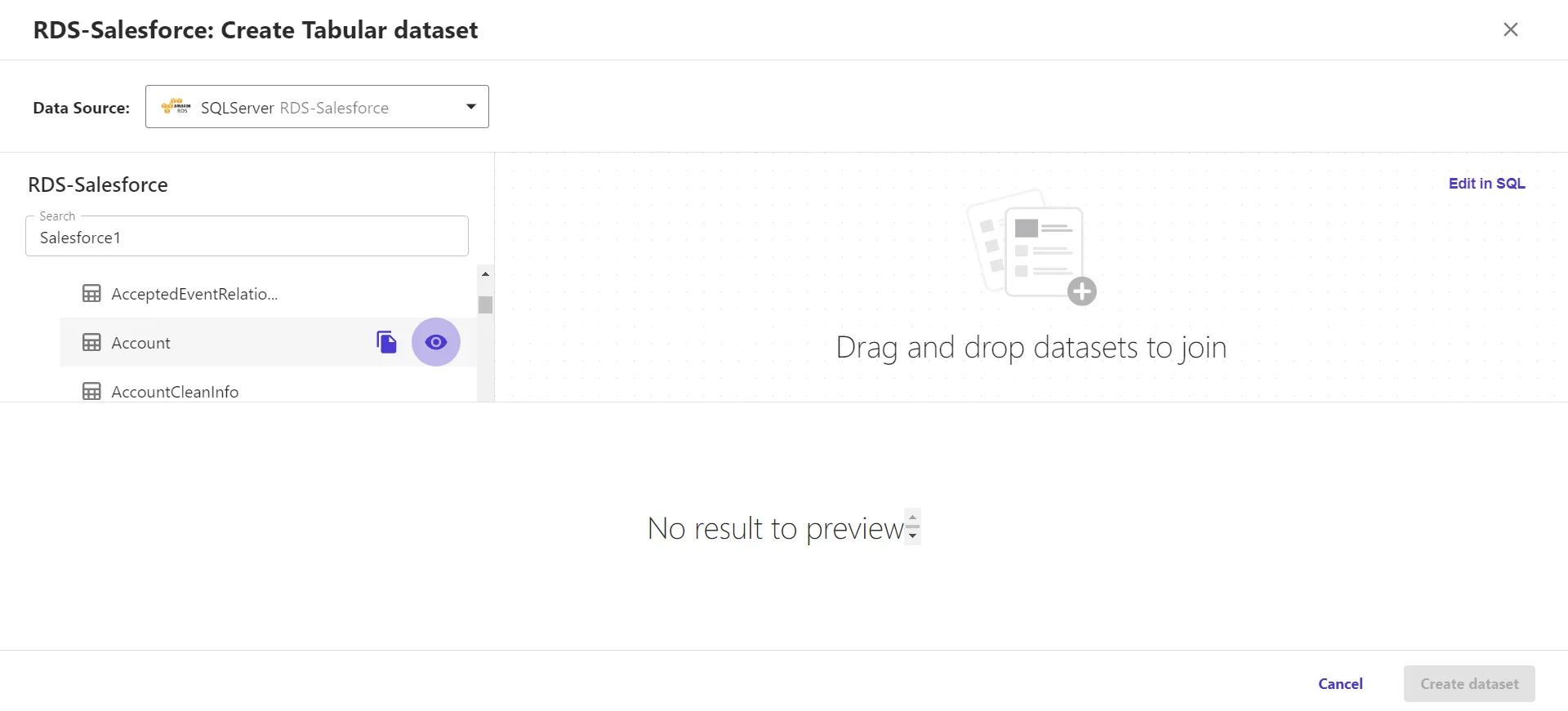
- You can create workflows by joining any number of tables from the Neo4J connection (as shown below). Click on "Create dataset".
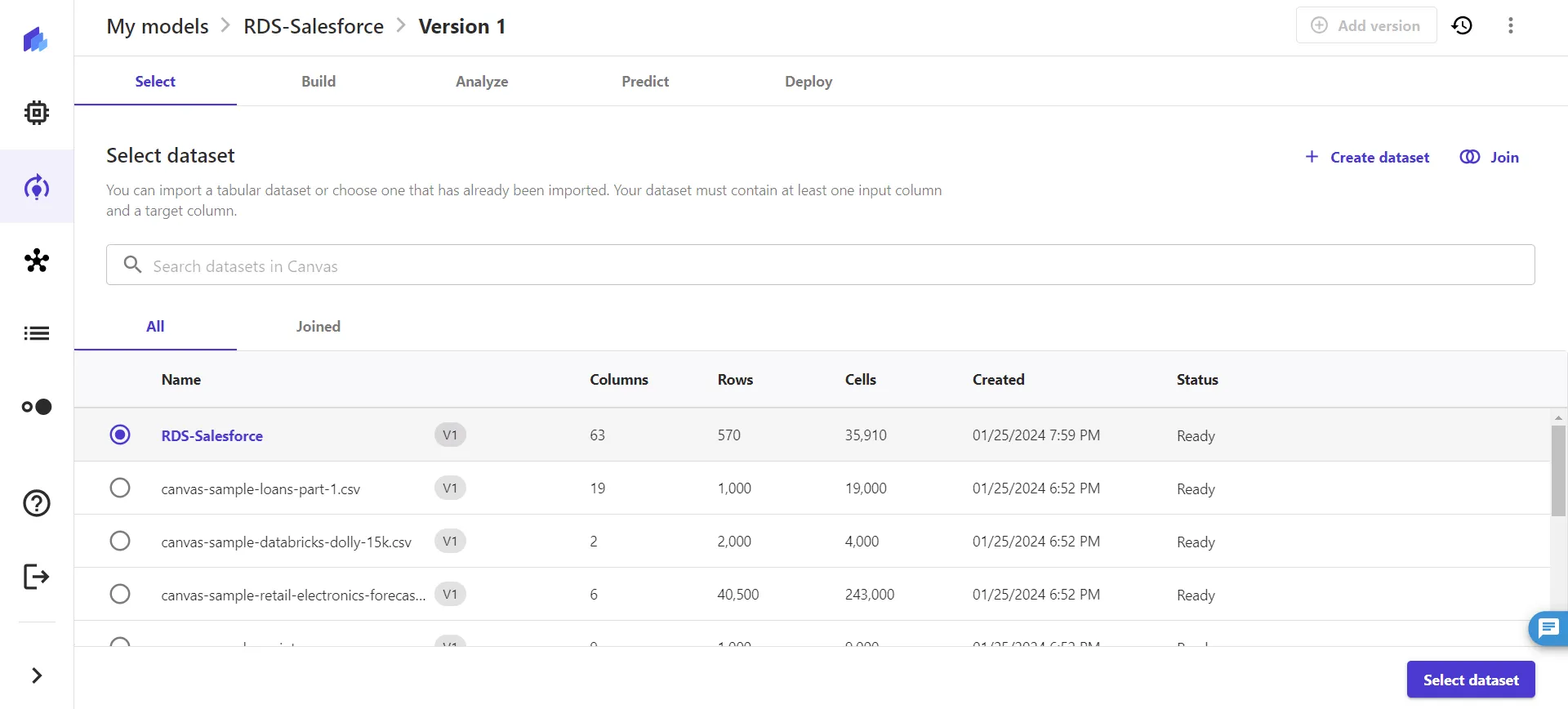
- Once the dataset is created, click on "Select dataset" to build your model.
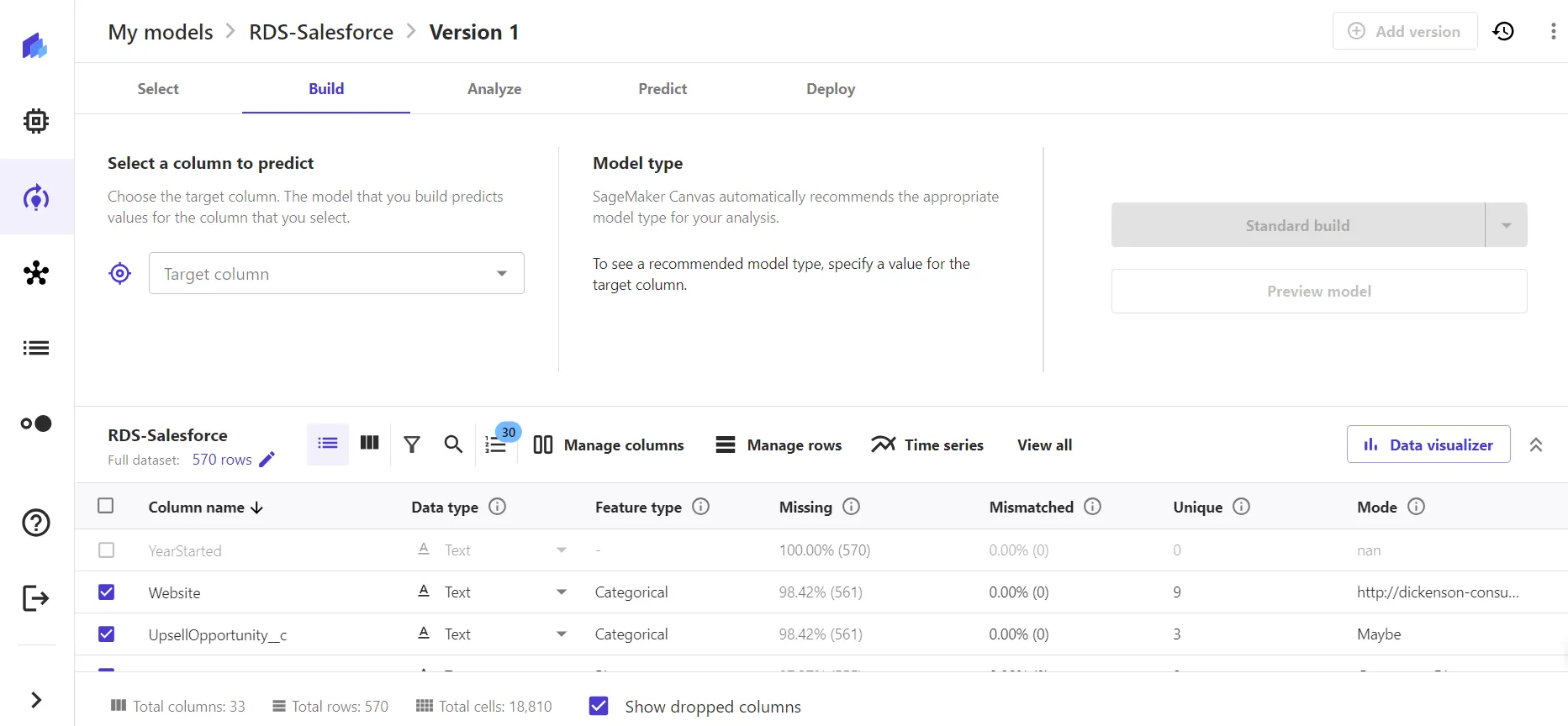
- Perform analysis, generate prediction, and deploy the model.
At this point, you have access to live Neo4J data in Amazon SageMaker that you can utilize to build custom ML models to generate predictive business insights and grow your organization.
SQL Access to Neo4J Data from Cloud Applications
Now you have a direct connection to live Neo4J data from Amazon SageMaker Canvas. You can create more connections, datasets, and predictive models to drive business — all without replicating Neo4J data.
To get real-time data access to hundreds of SaaS, Big Data, and NoSQL sources directly from your cloud applications, see the CData Connect AI.