







Analyze Pipeline CRM Data in Infragistics Reveal

Reveal is a data visualization solution provided by Infragistics and can be paired with the CData API Server to build dynamic dashboards from live Pipeline CRM data. The CData API Server generates an OData API for Pipeline CRM, which is natively consumable in Reveal. In this article, we walk through connecting to Pipeline CRM in API Server and connecting to the API Server from Infragistics Reveal to create a simple dashboard.
Connect to Pipeline CRM from API Server
CData API Server uses a straightforward, point-and-click interface to connect to data sources and generate APIs.
- Open API Server and click Settings -> Connection -> Add Connection
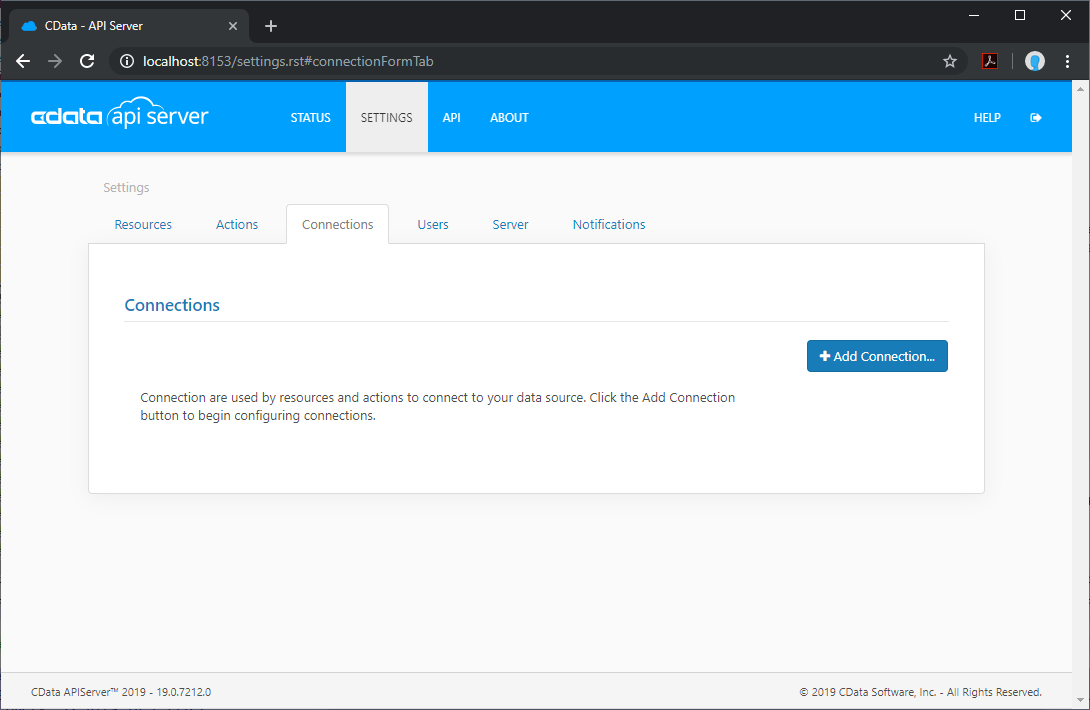
- Select "Pipeline CRM"
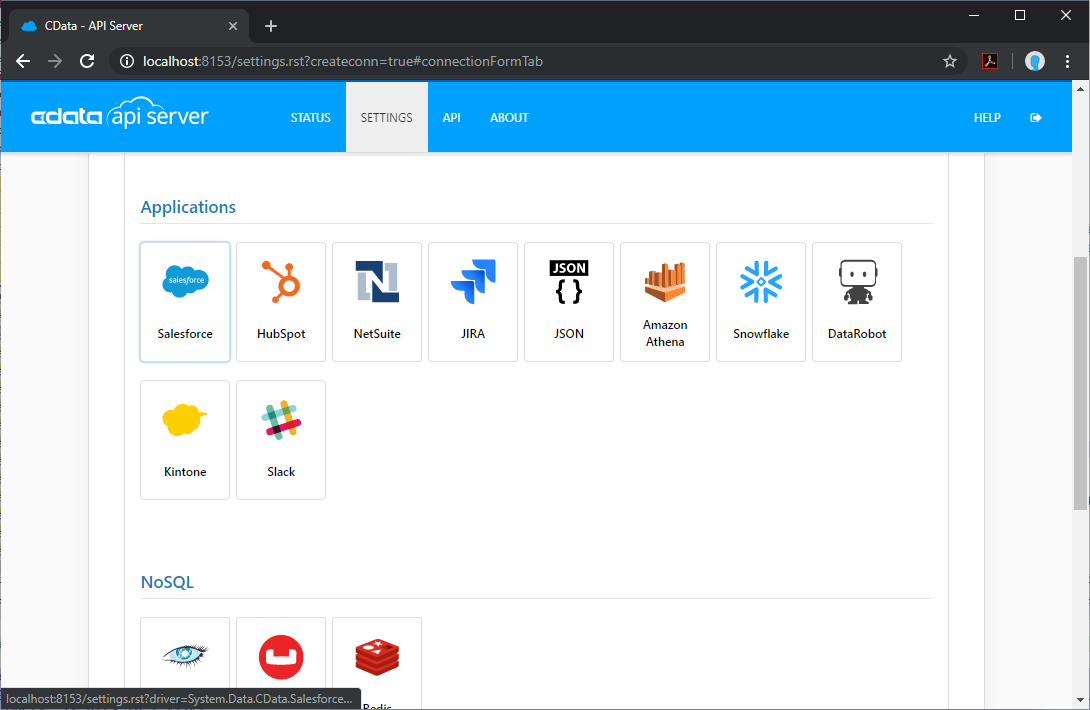
- Enter the necessary authentication properties to connect to Pipeline CRM.
Start by setting the Profile connection property to the location of the Pipeline CRM Profile on disk (e.g. C:\profiles\Pipeline.apip). Next, set the ProfileSettings connection property to the connection string for Pipeline CRM (see below).
Pipeline CRM API Profile Settings
Retrieve your API Key via Account Settings > Pipeline API > Enable API Access > New API Key, and generate an APP Key at https://app.pipelinecrm.com/admin/modern/api by creating a new Integration.
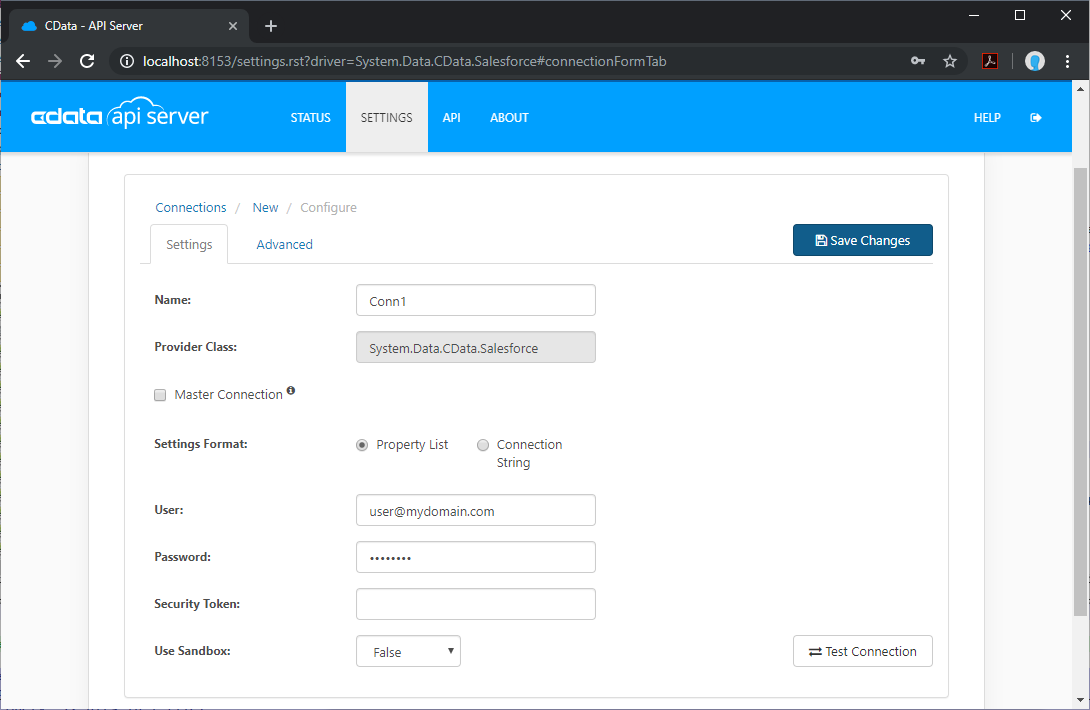
Add Pipeline CRM Resource Definitions in API Server
After connecting to Pipeline CRM, create Resources, which represent API endpoints for Pipeline CRM data.
- Click Settings -> Resources -> Add Resource
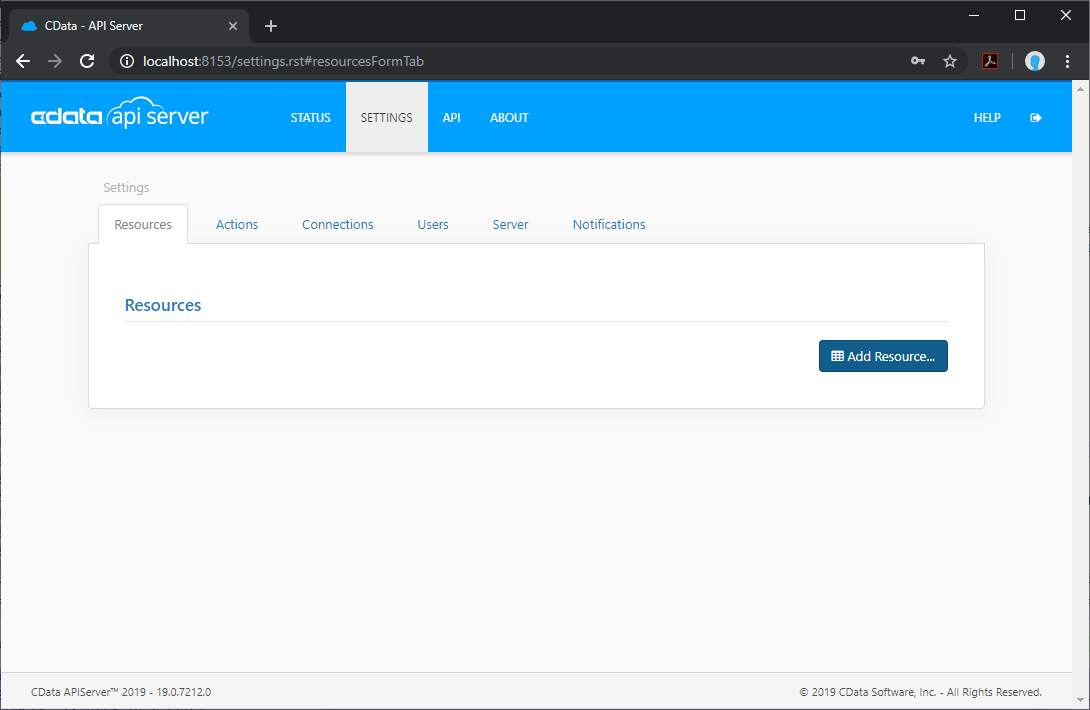
- Select the Pipeline CRM connection
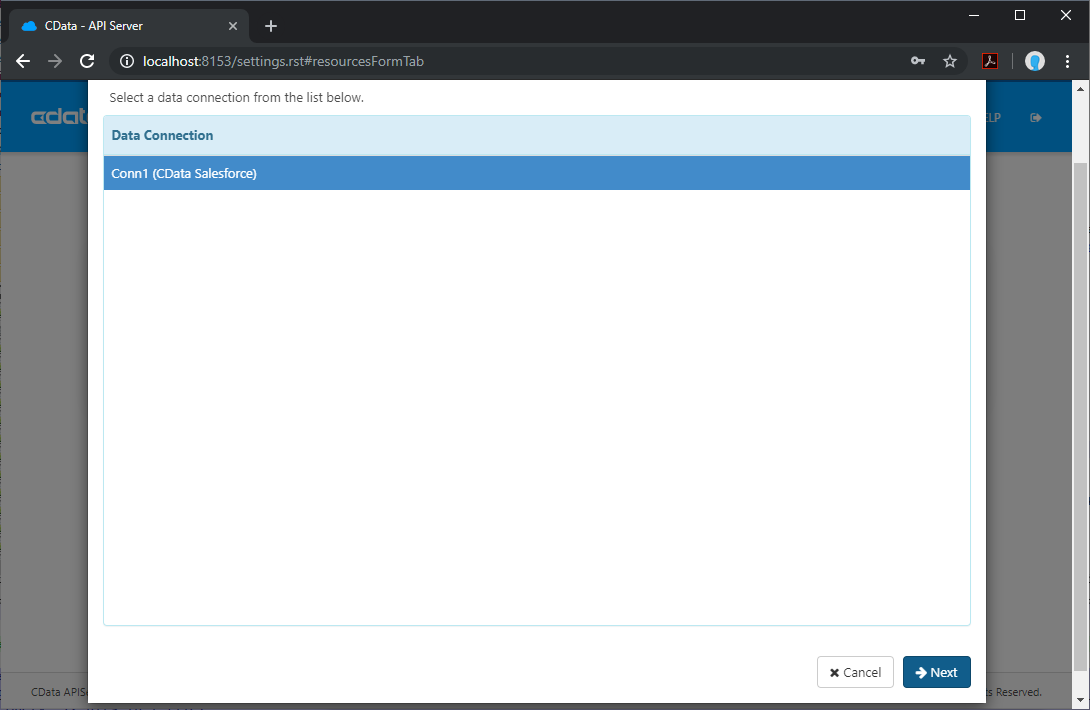
- Select the table you wish to retrieve and click Next
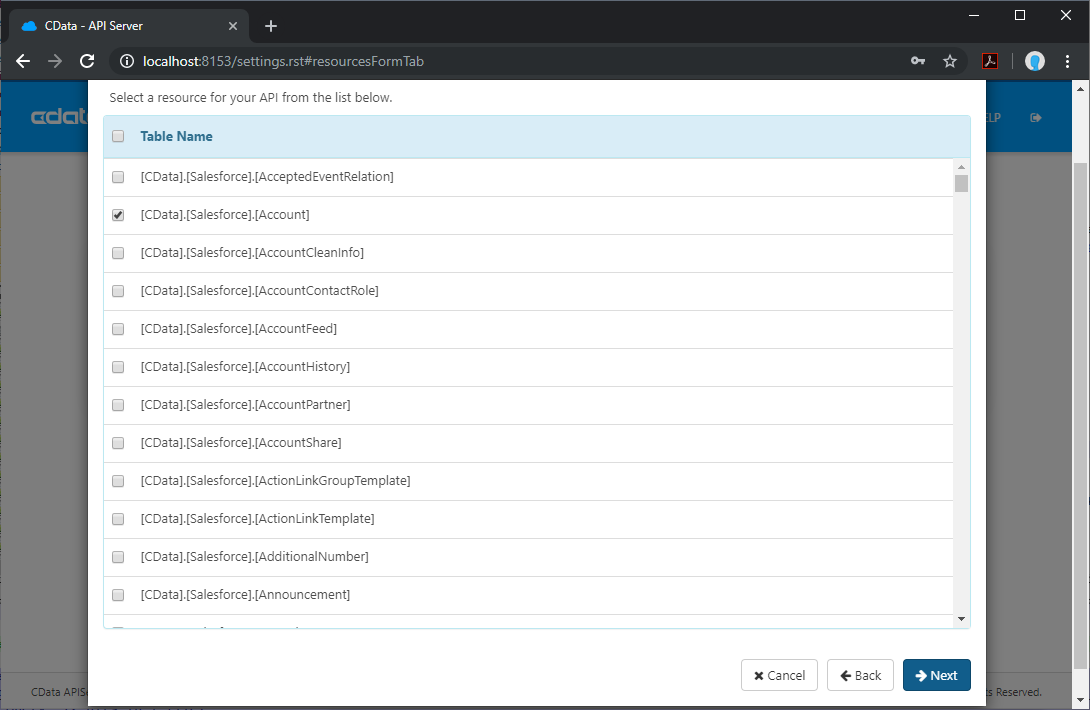
- (Optional) Edit the resource to select specific fields and more
- Save the settings
Add an API Server User
Create a User to connect to Pipeline CRM from Reveal through API Server.
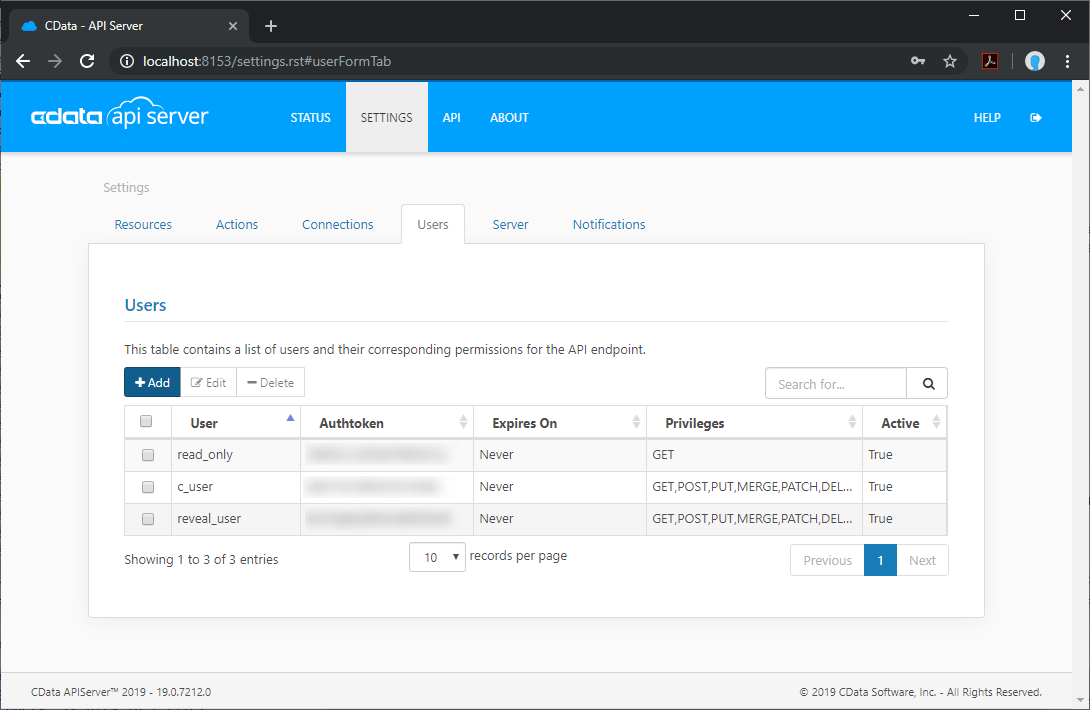
- Click Settings -> Users
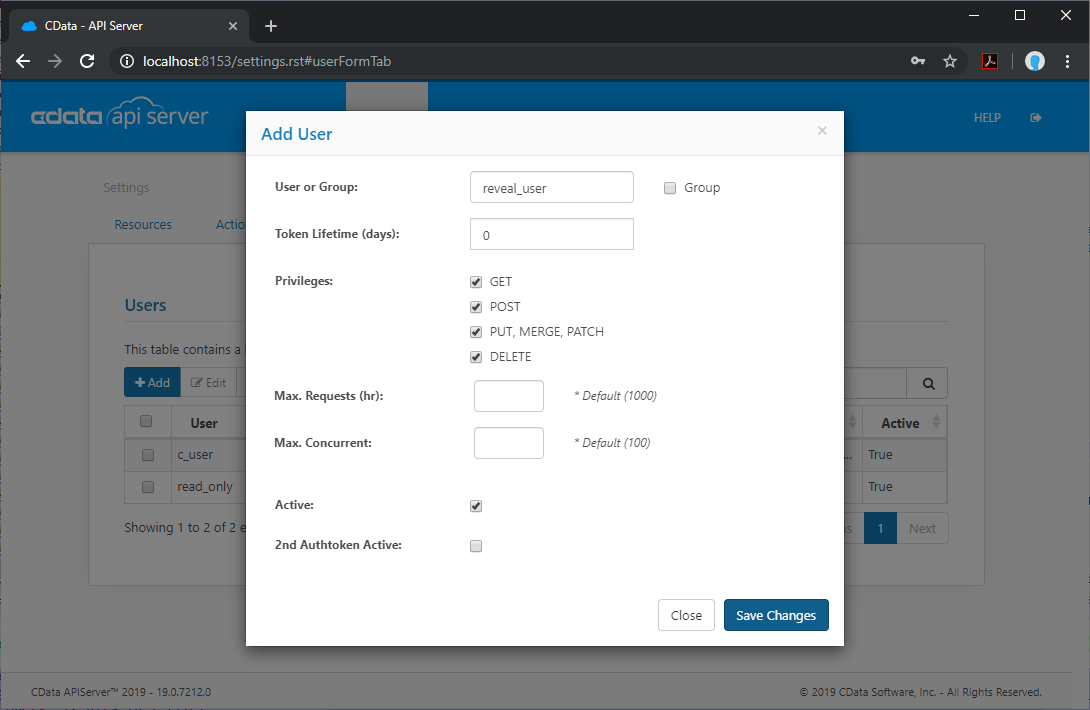
- Click Add
- Configure a User with access to the Pipeline CRM Connection and Resource(s)
(Optional) Configure Cross-Origin Resource Sharing (CORS)
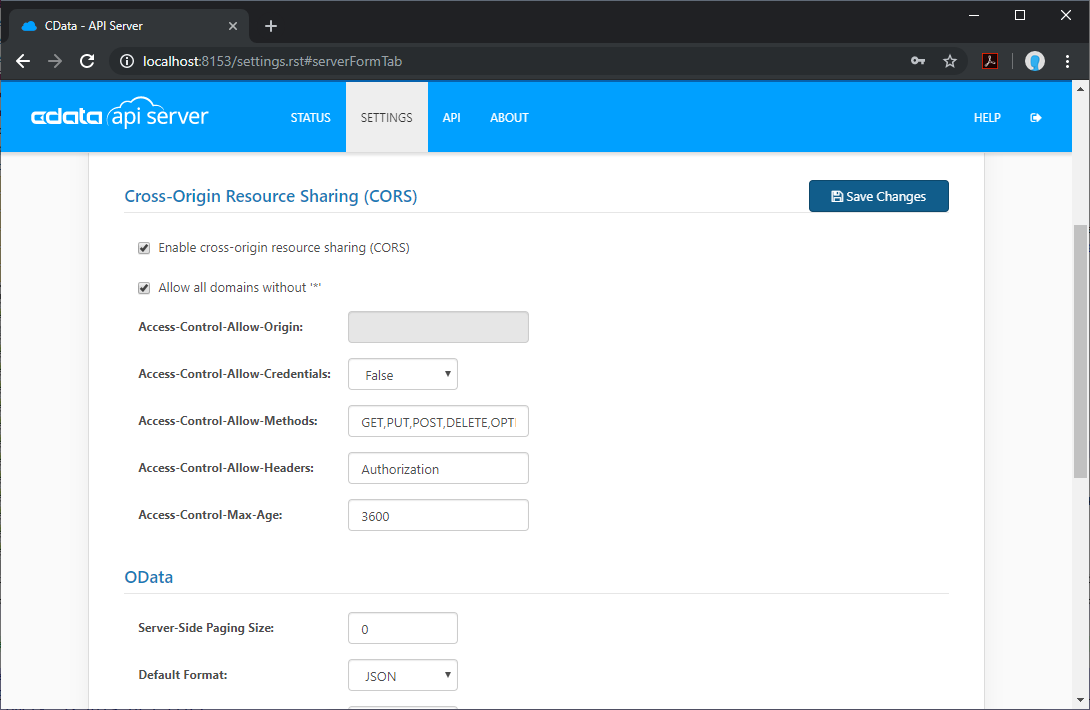
When accessing and connecting to multiple different domains from an application such as Ajax, there is a possibility of violating the limitations of cross-site scripting. In that case, configure the CORS settings in Settings -> Server.
- Enable cross-origin resource sharing (CORS): ON
- Allow all domains without '*': ON
- Access-Control-Allow-Methods: GET, PUT, POST, OPTIONS
- Access-Control-Allow-Headers: Authorization
Save the changes to the settings.
Create a Dashboard in Reveal
With the API Server configured, we can visualize Pipeline CRM data in Reveal.
- Log into Reveal and click Dashboards -> New
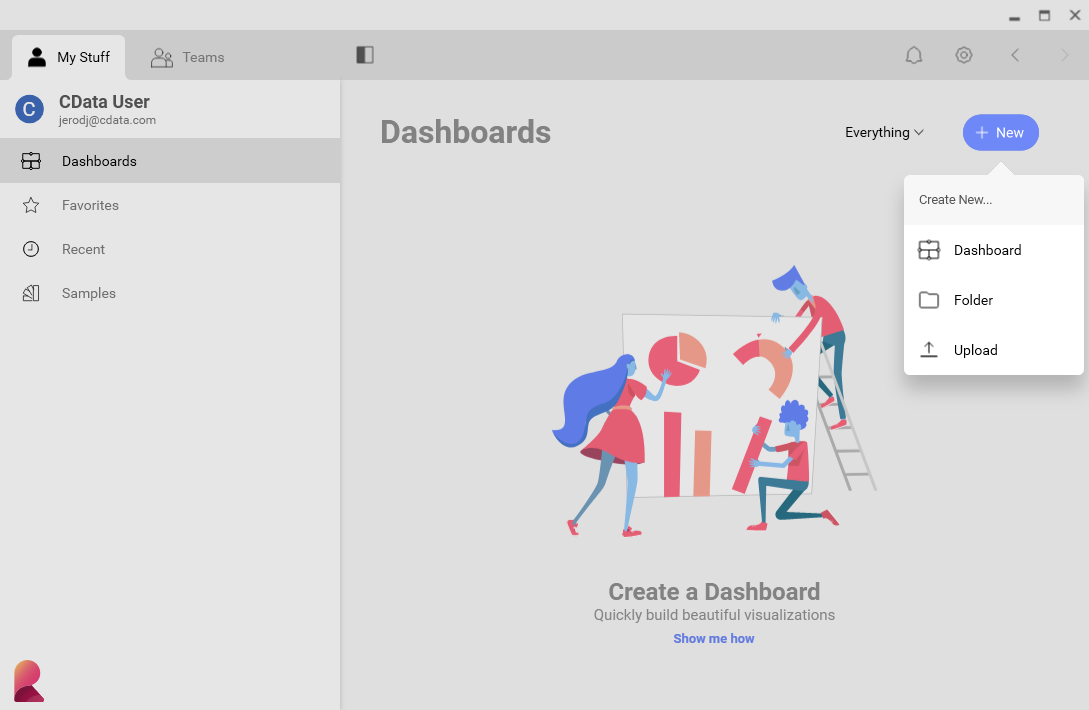
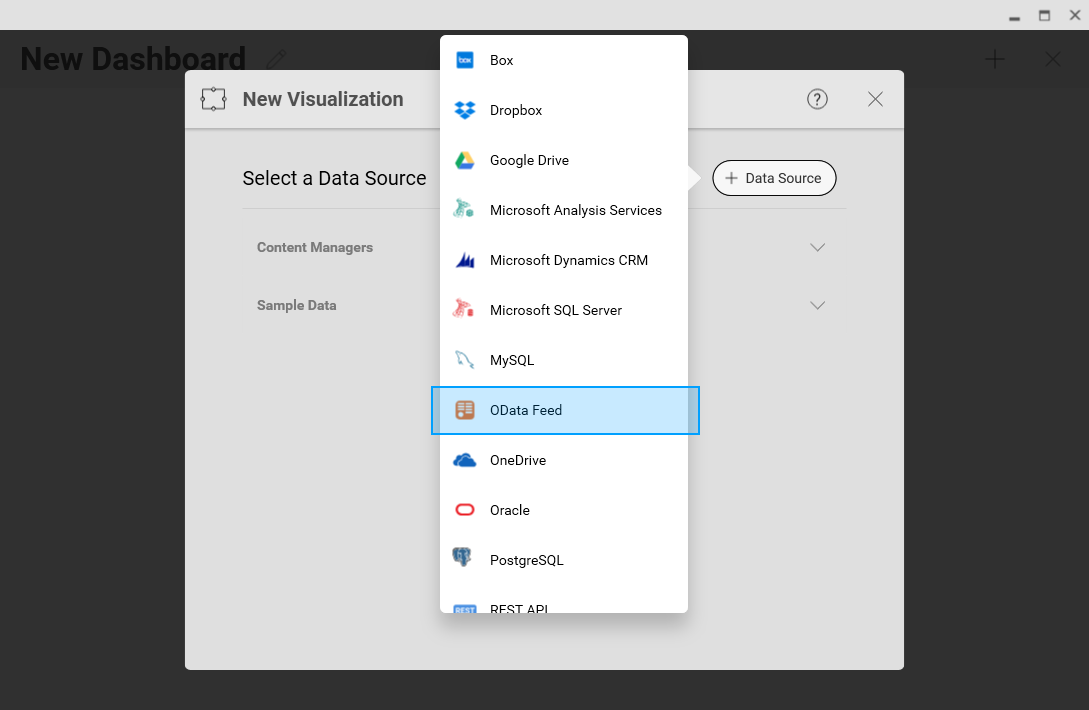
- Click Data Source -> OData Feed
- Specify the API Server API endpoint URL, for example: https://serverurl/api.rsc
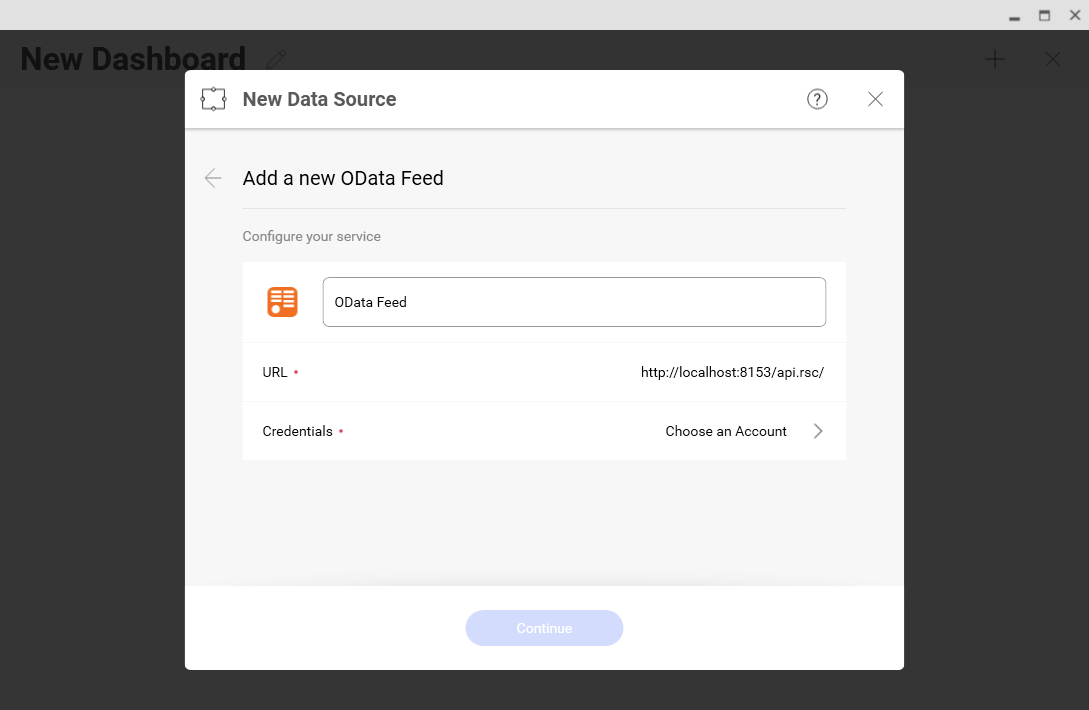
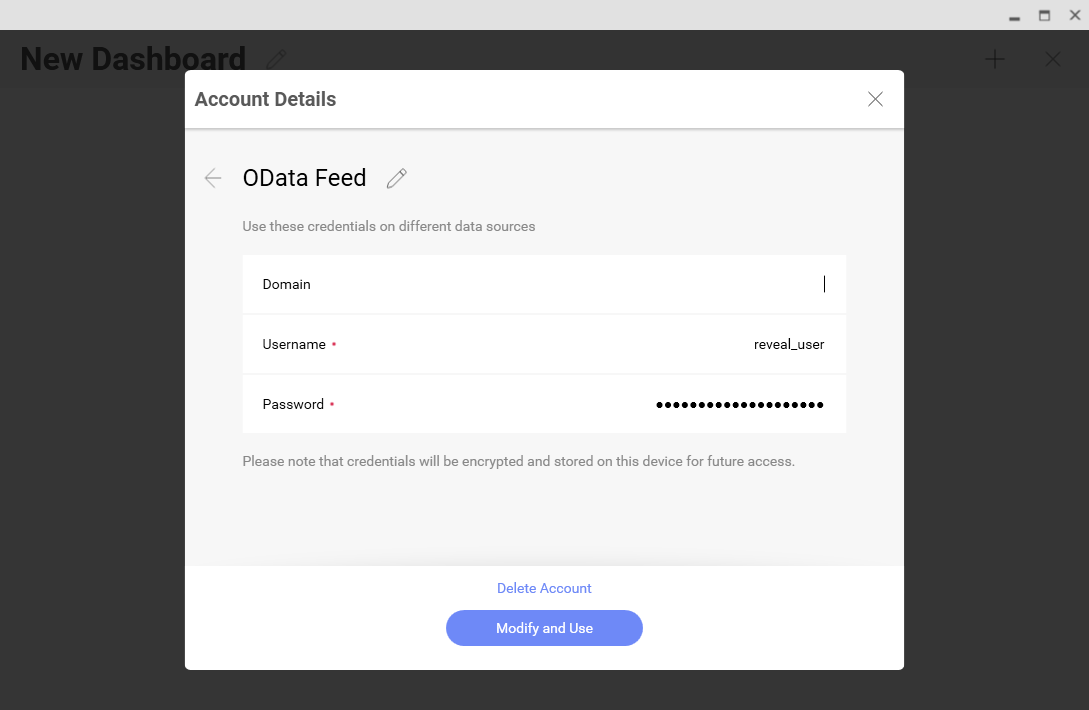
- Select Generic Credentials and specify the API Server username and authentication token
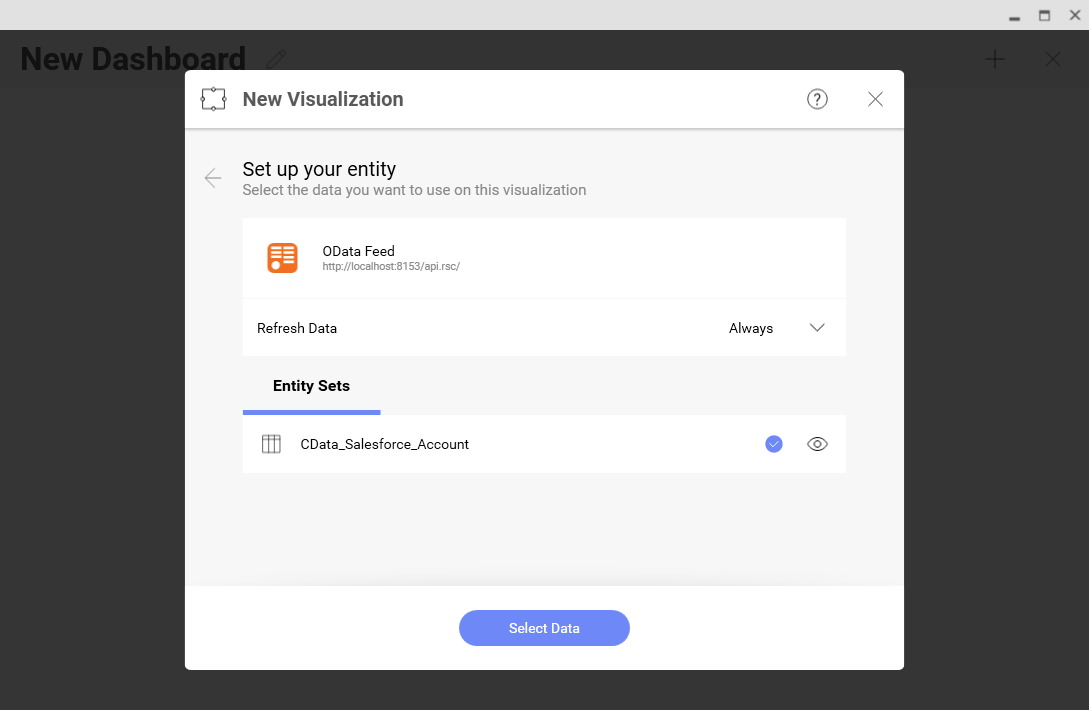
- Select the entity you wish to visualize
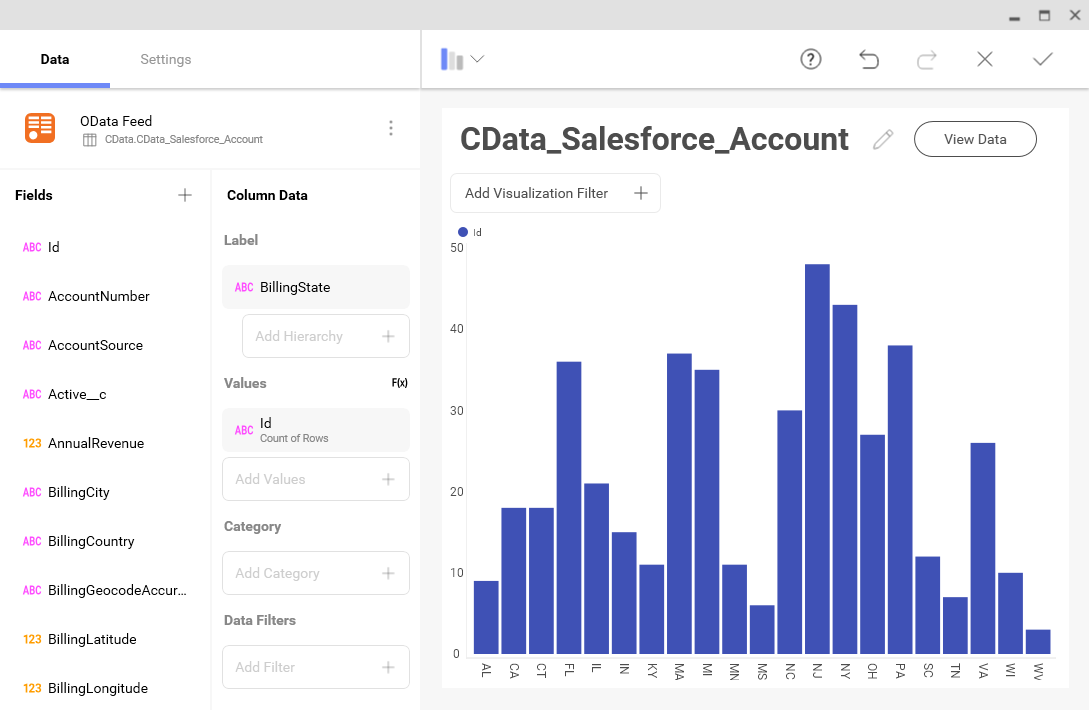
- Select fields and choose a chart type
More Information & Free Trial
At this point, you have created a simple dashboard from live Pipeline CRM data. For more information on creating OData feeds from Pipeline CRM (and more than 150 other sources), visit the API Server page. Download a free, 30-day trial and start working live Pipeline CRM data in tools that consume OData APIs.