







Connect to SAS Data Sets Data in Google Apps Script via Connect AI

Google Apps Script empowers users to build custom functionality within their Google documents, including Google Sheets and Google Docs. Apps Script natively supports SQL Server connectivity via JDBC, providing a powerful extensibility tool for connecting Google cloud applications to external data. Paired with the SQL connectivity offered by CData Connect AI, users can easily access live SAS Data Sets data directly from within their Google documents.
This article shows how to connect to SAS Data Sets in Connect AI and provides sample scripting for processing SAS Data Sets data in a Google Spreadsheet.
Our script only reads data from a specified table, but you can easily extend the script to incorporate update functionality.
Configure SAS Data Sets Connectivity for Google Apps Scripts
Connectivity to SAS Data Sets from Google Apps Scripts is made possible through CData Connect AI. To work with SAS Data Sets data from Google Apps Scripts, we start by creating and configuring a SAS Data Sets connection.
CData Connect AI uses a straightforward, point-and-click interface to connect to data sources.
- Log into Connect AI, click Sources, and then click Add Connection
- Select "SAS Data Sets" from the Add Connection panel
-
Enter the necessary authentication properties to connect to SAS Data Sets.
Set the following connection properties to connect to your SAS DataSet files:
Connecting to Local Files
- Set the Connection Type to "Local." Local files support SELECT, INSERT, and DELETE commands.
- Set the URI to a folder containing SAS files, e.g. C:\PATH\TO\FOLDER\.
Connecting to Cloud-Hosted SAS DataSet Files
While the driver is capable of pulling data from SAS DataSet files hosted on a variety of cloud data stores, INSERT, UPDATE, and DELETE are not supported outside of local files in this driver.
Set the Connection Type to the service hosting your SAS DataSet files. A unique prefix at the beginning of the URI connection property is used to identify the cloud data store and the remainder of the path is a relative path to the desired folder (one table per file) or single file (a single table). For more information, refer to the Getting Started section of the Help documentation.

- Click Save & Test
-
Navigate to the Permissions tab in the Add SAS Data Sets Connection page and update the User-based permissions.



Add a Personal Access Token
When connecting to Connect AI through the REST API, the OData API, or the Virtual SQL Server, a Personal Access Token (PAT) is used to authenticate the connection to Connect AI. It is best practice to create a separate PAT for each service to maintain granularity of access.
- Click on the Gear icon () at the top right of the Connect AI app to open the settings page.
- On the Settings page, go to the Access Tokens section and click Create PAT.
-
Give the PAT a name and click Create.

- The personal access token is only visible at creation, so be sure to copy it and store it securely for future use.
With the connection configured and a PAT generated, you are ready to connect to SAS Data Sets data from Google Apps Script.
Connect to SAS Data Sets Data from Apps Script
At this point, you should have configured a connection SAS Data Sets in Connect AI. All that is left new is to use Google Apps Script to access Connect AI and work with your SAS Data Sets data in Google Sheets.
In this section, you will create a script (with a menu option to call the script) to populate a spreadsheet with SAS Data Sets data. We have created a sample script and explained the different parts. You can view the raw script at the and of the article.
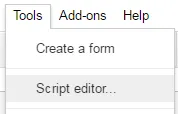
1. Create an Empty Script
To create a script for your Google Sheet, click Tools Script editor from the Google Sheets menu:
2. Declare Class Variables
Create a handful of class variables to be available for any functions created in the script.
//replace the variables in this block with real values as needed
var address = 'tds.cdata.com:14333';
var user = 'CONNECT_USER'; // [email protected]
var userPwd = 'CONNECT_USER_PAT';
var db = 'SASDataSets1';

var dbUrl = 'jdbc:sqlserver://' + address + ';databaseName=' + db;
3. Add a Menu Option
This function adds a menu option to your Google Sheet, allowing you to use the UI to call your function.
function onOpen() {
  var spreadsheet = SpreadsheetApp.getActive();
  var menuItems = [
    {name: 'Write data to a sheet', functionName: 'connectToSASDataSetsData'}
  ];
  spreadsheet.addMenu('SAS Data Sets Data', menuItems);
}

4. Write a Helper Function
This function is used to find the first empty row in a spreadsheet.
/*
 * Finds the first empty row in a spreadsheet by scanning an array of columns
 * @return The row number of the first empty row.
 */
function getFirstEmptyRowByColumnArray(spreadSheet, column) {
  var column = spreadSheet.getRange(column + ":" + column);
  var values = column.getValues(); // get all data in one call
  var ct = 0;
  while ( values[ct] && values[ct][0] != "" ) {
    ct++;
  }
  return (ct+1);
}
5. Write a Function to Write SAS Data Sets Data to a Spreadsheet
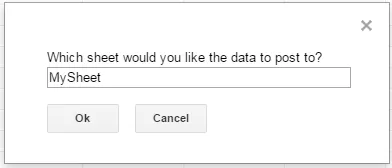
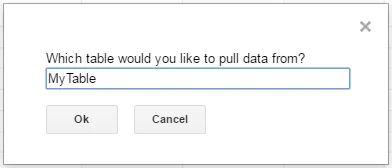
The function below writes the SAS Data Sets data, using the Google Apps Script JDBC functionality to connect to Connect AI, SELECT data, and populate a spreadsheet. When the script is run, two input boxes will appear:
The first one asks the user to input the name of a sheet to hold the data (if the spreadsheet does not exist, the function creates it).
The second asks the user to input the name of a SAS Data Sets table to read. If an invalid table is chosen, an error message appears and the function is exited.
Note, while the function is designed for use as a menu option, you can extend it for use as a spreadsheet formula.
/*
 * Reads data from a specified SAS Data Sets 'table' and writes it to the specified sheet.
 *    (If the specified sheet does not exist, it is created.)
 */
function connectToSASDataSetsData() {
  var thisWorkbook = SpreadsheetApp.getActive();

  //select a sheet and create it if it does not exist
  var selectedSheet = Browser.inputBox('Which sheet would you like the data to post to?',Browser.Buttons.OK_CANCEL);
  if (selectedSheet == 'cancel')
    return;

  if (thisWorkbook.getSheetByName(selectedSheet) == null)
    thisWorkbook.insertSheet(selectedSheet);
  var resultSheet = thisWorkbook.getSheetByName(selectedSheet);
  var rowNum = 2;

  //select a SAS Data Sets 'table'
  var table = Browser.inputBox('Which table would you like to pull data from?',Browser.Buttons.OK_CANCEL);
  if (table == 'cancel')
    return;

  var name = Jdbc.getConnection(dbUrl, {
    user: user,
    password: userPwd
	}
  );

  //confirm that var table is a valid table/view
  var dbMetaData = name.getMetaData();
  var tableSet = dbMetaData.getTables(null, null, table, null);
  var validTable = false;
  while (tableSet.next()) {
    var tempTable = tableSet.getString(3);
    if (table.toUpperCase() == tempTable.toUpperCase()){
      table = tempTable;
      validTable = true;
      break;
    }
  }
  tableSet.close();
  if (!validTable) {
    Browser.msgBox("Invalid table name: " + table, Browser.Buttons.OK);
    return;
  }

  var stmt = name.createStatement();

  var results = stmt.executeQuery('SELECT * FROM ' + table);
  var rsmd = results.getMetaData();
  var numCols = rsmd.getColumnCount();

  //if the sheet is empty, populate the first row with the headers
  var firstEmptyRow = getFirstEmptyRowByColumnArray(resultSheet, "A");
  if (firstEmptyRow == 1) {
    //collect column names
    var headers = new Array(new Array(numCols));
    for (var col = 0; col < numCols; col++){
      headers[0][col] = rsmd.getColumnName(col+1);
    }
    resultSheet.getRange(1, 1, headers.length, headers[0].length).setValues(headers);
  } else {
    rowNum = firstEmptyRow;
  }

  //write rows of SAS Data Sets data to the sheet
  var values = new Array(new Array(numCols));
  while (results.next()) {
    for (var col = 0; col < numCols; col++) {
      values[0][col] = results.getString(col + 1);
    }
    resultSheet.getRange(rowNum, 1, 1, numCols).setValues(values);
    rowNum++;
  }

  results.close();
  stmt.close();
}
When the function is completed, you have a spreadsheet populated with your SAS Data Sets data, and you can now leverage all of the calculating, graphing, and charting functionality of Google Sheets anywhere you have access to the Internet.
Complete Google Apps Script
//replace the variables in this block with real values as needed
var address = 'tds.cdata.com:14333';
var user = 'CONNECT_USER'; // [email protected]
var userPwd = 'CONNECT_USER_PAT';
var db = 'SASDataSets1';

var dbUrl = 'jdbc:sqlserver://' + address + ';databaseName=' + db;

function onOpen() {
  var spreadsheet = SpreadsheetApp.getActive();
  var menuItems = [
    {name: 'Write table data to a sheet', functionName: 'connectToSASDataSetsData'}
  ];
  spreadsheet.addMenu('SAS Data Sets Data', menuItems);
}

/*
 * Finds the first empty row in a spreadsheet by scanning an array of columns
 * @return The row number of the first empty row.
 */
function getFirstEmptyRowByColumnArray(spreadSheet, column) {
  var column = spreadSheet.getRange(column + ":" + column);
  var values = column.getValues(); // get all data in one call
  var ct = 0;
  while ( values[ct] && values[ct][0] != "" ) {
    ct++;
  }
  return (ct+1);
}

/*
 * Reads data from a specified 'table' and writes it to the specified sheet.
 *    (If the specified sheet does not exist, it is created.)
 */
function connectToSASDataSetsData() {
  var thisWorkbook = SpreadsheetApp.getActive();

  //select a sheet and create it if it does not exist
  var selectedSheet = Browser.inputBox('Which sheet would you like the data to post to?',Browser.Buttons.OK_CANCEL);
  if (selectedSheet == 'cancel')
    return;

  if (thisWorkbook.getSheetByName(selectedSheet) == null)
    thisWorkbook.insertSheet(selectedSheet);
  var resultSheet = thisWorkbook.getSheetByName(selectedSheet);
  var rowNum = 2;

  //select a SAS Data Sets 'table'
  var table = Browser.inputBox('Which table would you like to pull data from?',Browser.Buttons.OK_CANCEL);
  if (table == 'cancel')
    return;

  var name = Jdbc.getConnection(dbUrl, {
    user: user,
    password: userPwd
	}
  );

  //confirm that var table is a valid table/view
  var dbMetaData = name.getMetaData();
  var tableSet = dbMetaData.getTables(null, null, table, null);
  var validTable = false;
  while (tableSet.next()) {
    var tempTable = tableSet.getString(3);
    if (table.toUpperCase() == tempTable.toUpperCase()){
      table = tempTable;
      validTable = true;
      break;
    }
  }
  tableSet.close();
  if (!validTable) {
    Browser.msgBox("Invalid table name: " + table, Browser.Buttons.OK);
    return;
  }

  var stmt = name.createStatement();

  var results = stmt.executeQuery('SELECT * FROM ' + table);
  var rsmd = results.getMetaData();
  var numCols = rsmd.getColumnCount();

  //if the sheet is empty, populate the first row with the headers
  var firstEmptyRow = getFirstEmptyRowByColumnArray(resultSheet, "A");
  if (firstEmptyRow == 1) {
    //collect column names
    var headers = new Array(new Array(numCols));
    for (var col = 0; col < numCols; col++){
      headers[0][col] = rsmd.getColumnName(col+1);
    }
    resultSheet.getRange(1, 1, headers.length, headers[0].length).setValues(headers);
  } else {
    rowNum = firstEmptyRow;
  }

  //write rows of SAS Data Sets data to the sheet
  var values = new Array(new Array(numCols));
  while (results.next()) {
    for (var col = 0; col < numCols; col++) {
      values[0][col] = results.getString(col + 1);
    }
    resultSheet.getRange(rowNum, 1, 1, numCols).setValues(values);
    rowNum++;
  }

  results.close();
  stmt.close();
}