







Connect to Live SAS Data Sets Data in MicroStrategy through CData Connect AI

MicroStrategy is an analytics and mobility platform that enables data-driven innovation. When you pair MicroStrategy with CData Connect AI, you gain database-like access to live SAS Data Sets data from MicroStrategy, expanding your reporting and analytics capabilities. In this article, we walk through connecting to SAS Data Sets in Connect AI and connecting to Connect AI in MicroStrategy to create a simple visualization of SAS Data Sets data.
As a cloud-based integration platform, Connect AI is ideal for working with cloud-based BI and analytics tools. With no servers to configure or data proxies to set up, you can simply use the web-based UI to create a live connection to SAS Data Sets and connect from MicroStrategy to start performing analytics based on live SAS Data Sets data.
Configure SAS Data Sets Connectivity for Microstrategy
Connectivity to SAS Data Sets from Microstrategy is made possible through CData Connect AI. To work with SAS Data Sets data from Microstrategy, we start by creating and configuring a SAS Data Sets connection.
- Log into Connect AI, click Sources, and then click Add Connection
- Select "SAS Data Sets" from the Add Connection panel
-
Enter the necessary authentication properties to connect to SAS Data Sets.
Set the following connection properties to connect to your SAS DataSet files:
Connecting to Local Files
- Set the Connection Type to "Local." Local files support SELECT, INSERT, and DELETE commands.
- Set the URI to a folder containing SAS files, e.g. C:\PATH\TO\FOLDER\.
Connecting to Cloud-Hosted SAS DataSet Files
While the driver is capable of pulling data from SAS DataSet files hosted on a variety of cloud data stores, INSERT, UPDATE, and DELETE are not supported outside of local files in this driver.
Set the Connection Type to the service hosting your SAS DataSet files. A unique prefix at the beginning of the URI connection property is used to identify the cloud data store and the remainder of the path is a relative path to the desired folder (one table per file) or single file (a single table). For more information, refer to the Getting Started section of the Help documentation.

- Click Save & Test
-
Navigate to the Permissions tab in the Add SAS Data Sets Connection page and update the User-based permissions.



Add a Personal Access Token
When connecting to Connect AI through the REST API, the OData API, or the Virtual SQL Server, a Personal Access Token (PAT) is used to authenticate the connection to Connect AI. It is best practice to create a separate PAT for each service to maintain granularity of access.
- Click on the Gear icon () at the top right of the Connect AI app to open the settings page.
- On the Settings page, go to the Access Tokens section and click Create PAT.
-
Give the PAT a name and click Create.

- The personal access token is only visible at creation, so be sure to copy it and store it securely for future use.
With the connection configured and a PAT generated, you are ready to connect to SAS Data Sets data from MicroStrategy.
Connect to and Visualize SAS Data Sets Data Using MicroStrategy
You can connect to SAS Data Sets in MicroStrategy by adding a data source based on the native SQL Server functionality. Once you have created a data source, you can build dynamic visualizations of SAS Data Sets data in MicroStrategy.
- Open MicroStrategy and select your account.
- Click Add External Data, select Databases, and use Select Tables as the Import Option.
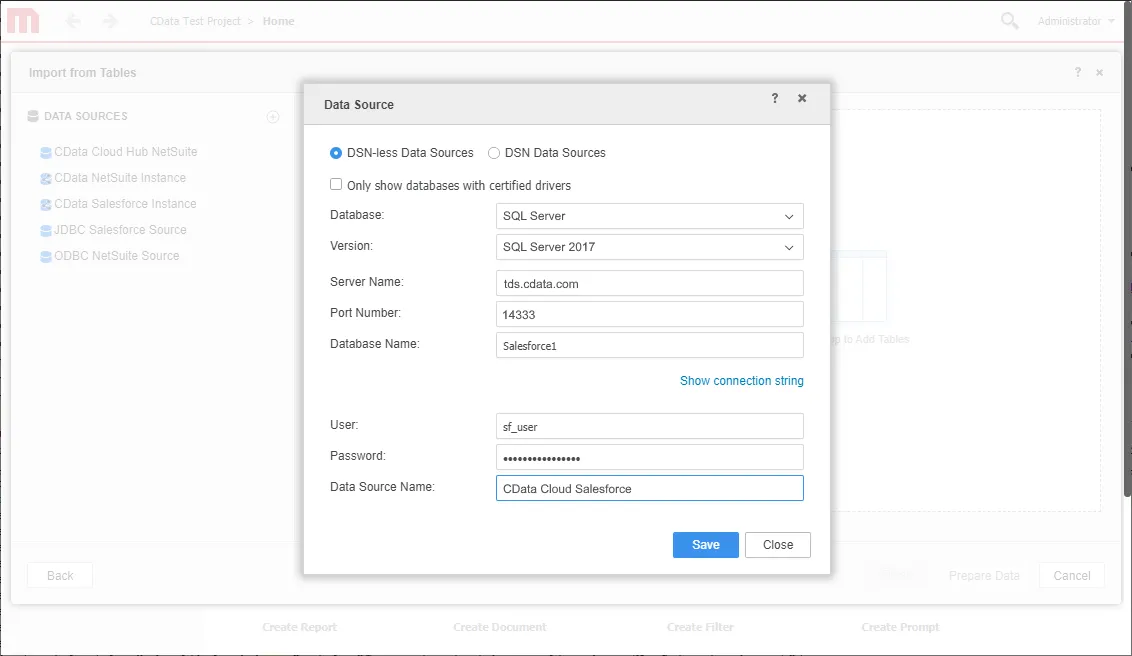
- In the Import from Tables wizard, click to add a new Data Source.
- Select "SQL Server" in the Database menu and select "SQL Server 2017" in the Version menu.
- Sat the connection properties as follows:
- Server Name: tds.cdata.com
- Port Number: 14333
- Database Name: the name of your SAS Data Sets connection (e.g. SASDataSets1)
- User: a Connect AI user
- Password: the PAT for your Connect AI user
- Data Source Name: a name for the new external data source, like "CData Cloud SAS Data Sets"
- Expand the menu for the new data source and choose "Edit Catalog Options"
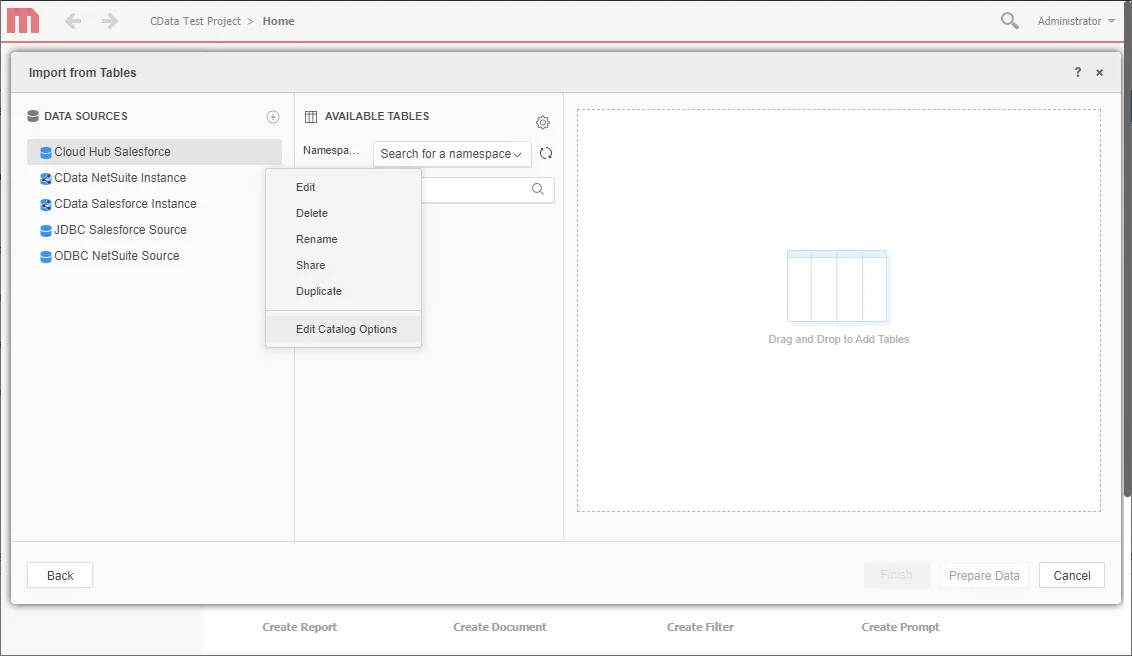
- Edit the "SQL statement retrieve columns ..." query to include TABLE_SCHEMA = '#?Schema_Name?#' in the WHERE clause, and click Apply and then OK (the complete query is below).
SELECT DISTINCT TABLE_SCHEMA NAME_SPACE, TABLE_NAME TAB_NAME, COLUMN_NAME COL_NAME, (CASE WHEN (DATA_TYPE LIKE '%char' AND (CHARACTER_SET_NAME='utf8' OR CHARACTER_SET_NAME='usc2')) THEN CONCAT('a',DATA_TYPE) ELSE DATA_TYPE END) DATA_TYPE, CHARACTER_MAXIMUM_LENGTH DATA_LEN, NUMERIC_PRECISION DATA_PREC, NUMERIC_SCALE DATA_SCALE FROM INFORMATION_SCHEMA.COLUMNS WHERE TABLE_NAME IN (#TABLE_LIST#) AND TABLE_SCHEMA='#?Schema_Name?#' ORDER BY 1,2,3 - Select the new data source and select the Namespace that corresponds to your virtual SAS Data Sets database (like SASDataSets1).
- Drag tables into the pane to insert then.
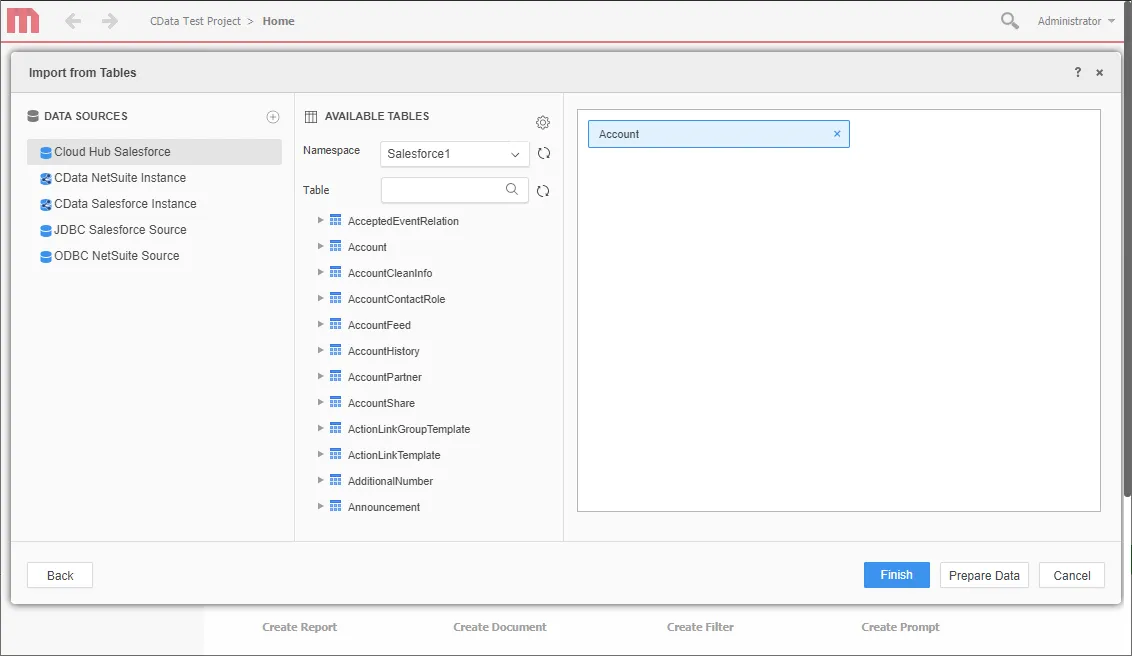 Note: Since we create a live connection, we can insert whole tables and utilize the filtering and aggregation features native to the MicroStrategy products to customize our datasets.
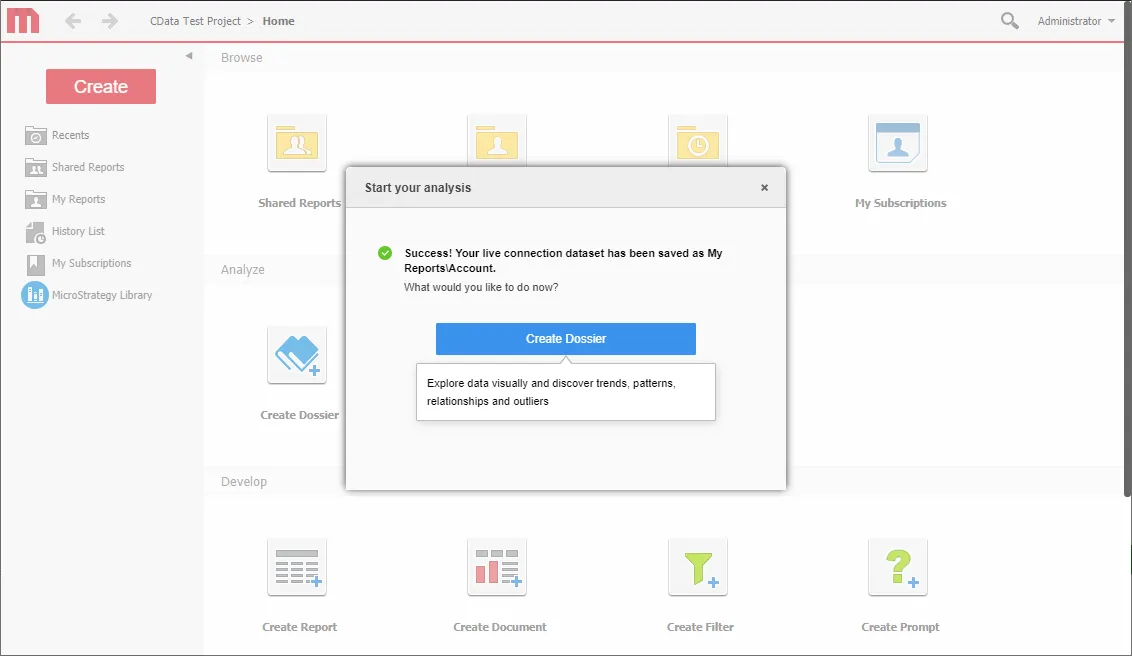
 - Click Finish, choose the option to connect live, save the query, and choose the option to create a new dossier. Live connections are possible and effective, thanks to high-performance data processing native to CData Connect AI.
- Choose a visualization, choose fields to display, and apply any filters to create a new visualization of SAS Data Sets data. Data types are discovered automatically through dynamic metadata discovery. Where possible, the complex queries generated by the filters and aggregations will be pushed down to SAS Data Sets, while any unsupported operations (which can include SQL functions and JOIN operations) will be managed by the CData SQL engine embedded in Connect AI.
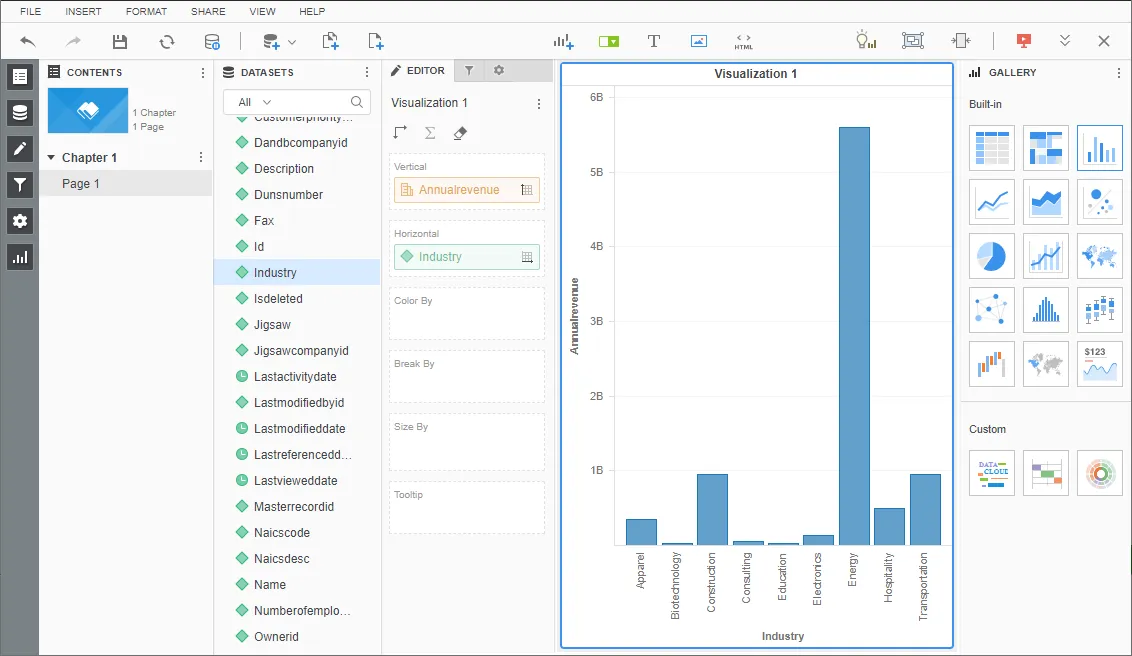
- Once you have finished configuring the dossier, click File -> Save.
Using CData Connect AI with MicroStrategy, you can easily create robust visualizations and reports on SAS Data Sets data. For more information on connecting to SAS Data Sets (and more than 100 other data sources), visit the Connect AI page. Sign up for a free trial and start working with live SAS Data Sets data in MicroStrategy.