







Integrate with SAS Data Sets Data in SnapLogic

SnapLogic's iPaaS platform helps organizations automate application, data and cloud integrations. When paired with CData Connect AI, SnapLogic gets access to live SAS Data Sets data. This article demonstrates how to connect to SAS Data Sets using Connect AI and integrate with SAS Data Sets data in SnapLogic.
CData Connect AI provides a pure SQL Server interface for SAS Data Sets, allowing you to query data from SAS Data Sets without replicating the data to a natively supported database. Using optimized data processing out of the box, CData Connect AI pushes all supported SQL operations (filters, JOINs, etc.) directly to SAS Data Sets, leveraging server-side processing to return the requested SAS Data Sets data quickly.
Configure SAS Data Sets Connectivity for SnapLogic
Connectivity to SAS Data Sets from SnapLogic is made possible through CData Connect AI. To work with SAS Data Sets data from SnapLogic, we start by creating and configuring a SAS Data Sets connection.
- Log into Connect AI, click Sources, and then click Add Connection
- Select "SAS Data Sets" from the Add Connection panel
-
Enter the necessary authentication properties to connect to SAS Data Sets.
Set the following connection properties to connect to your SAS DataSet files:
Connecting to Local Files
- Set the Connection Type to "Local." Local files support SELECT, INSERT, and DELETE commands.
- Set the URI to a folder containing SAS files, e.g. C:\PATH\TO\FOLDER\.
Connecting to Cloud-Hosted SAS DataSet Files
While the driver is capable of pulling data from SAS DataSet files hosted on a variety of cloud data stores, INSERT, UPDATE, and DELETE are not supported outside of local files in this driver.
Set the Connection Type to the service hosting your SAS DataSet files. A unique prefix at the beginning of the URI connection property is used to identify the cloud data store and the remainder of the path is a relative path to the desired folder (one table per file) or single file (a single table). For more information, refer to the Getting Started section of the Help documentation.

- Click Save & Test
-
Navigate to the Permissions tab in the Add SAS Data Sets Connection page and update the User-based permissions.



Add a Personal Access Token
When connecting to Connect AI through the REST API, the OData API, or the Virtual SQL Server, a Personal Access Token (PAT) is used to authenticate the connection to Connect AI. It is best practice to create a separate PAT for each service to maintain granularity of access.
- Click on the Gear icon () at the top right of the Connect AI app to open the settings page.
- On the Settings page, go to the Access Tokens section and click Create PAT.
-
Give the PAT a name and click Create.

- The personal access token is only visible at creation, so be sure to copy it and store it securely for future use.
With the connection configured and a PAT generated, you are ready to connect to SAS Data Sets data from SnapLogic.
Connect to SAS Data Sets from SnapLogic using Connect AI
To establish a connection from SnapLogic to CData Connect AI, you will need to download the CData Connect AI JDBC Driver.
- Open the Integrations page of CData Connect AI.
- Search for and select JDBC.
- Download and run the setup file.
- When the installation is complete, the JAR file can be found in the installation directory (inside the lib folder).
After copying the JDBC CData Connect AI JAR file, you will need to paste it into the SnapLogic installation location and configure the connection to Connect AI.
- Log into SnapLogic.
- Click the Managers tab.
- Select a folder from the Project Spaces to add the JDBC JAR file to.
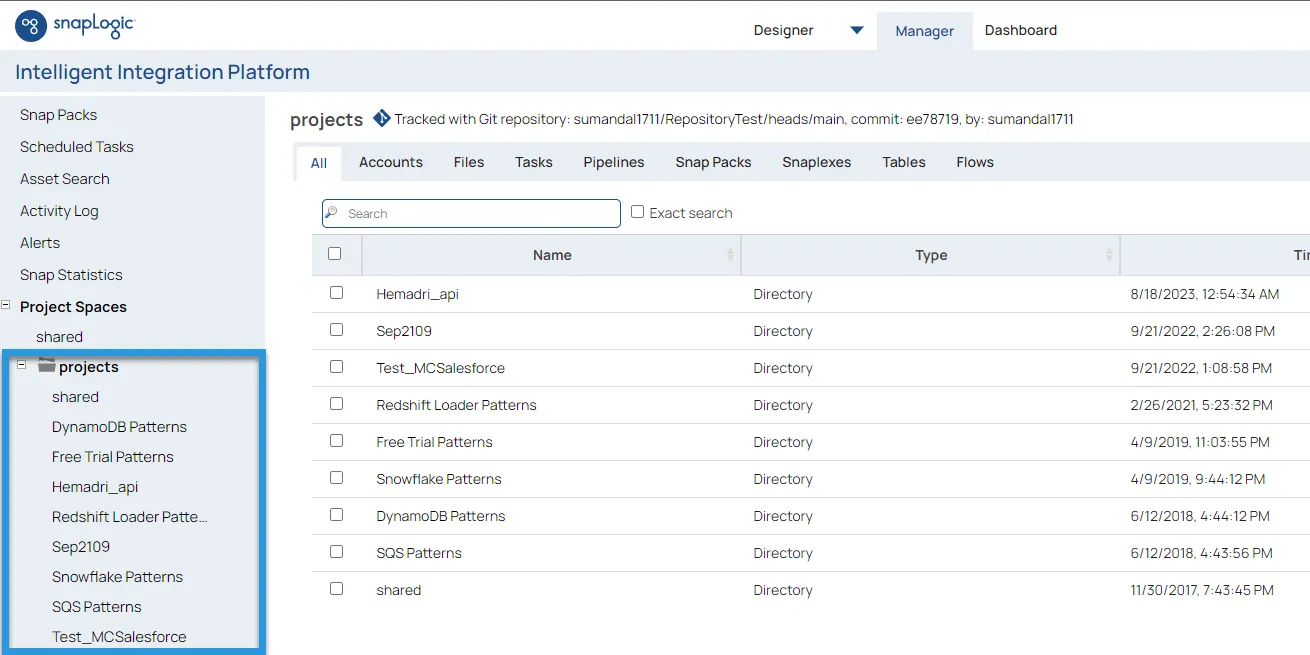
- Click the Files tab.
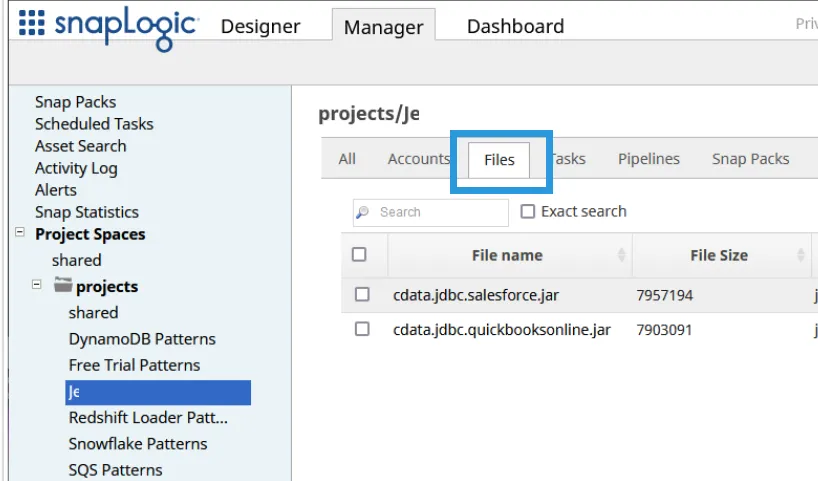
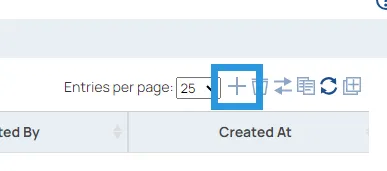
- Click the button in the top right to upload the CData Connect AI JDBC JAR file. It appears as a file once uploaded.
- Click the Designer tab.
- Click JDBC to expand the options for "snaps."
- Click and drag a Generic JDBC - Select "snap" onto the designer.
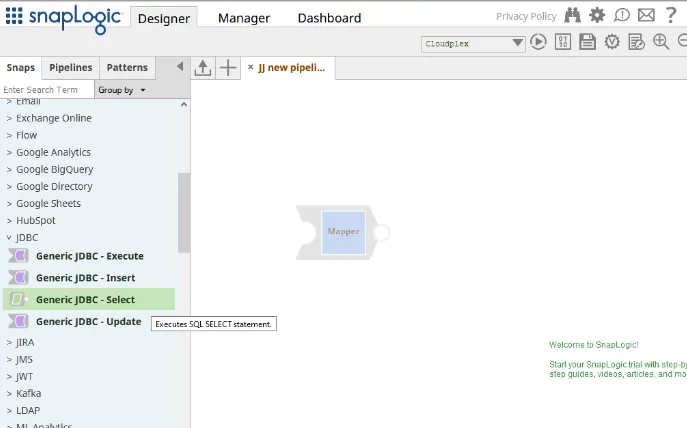
- Click Add Account > Continue.
- Enter the JDBC connection properties.
- JDBC driver: add the CData Connect AI JAR file
- JDBC driver Class: enter cdata.jdbc.connect.ConnectDriver
- JDBC Url: enter a JDBC connection string for the JDBC driver. For example: jdbc:connect:AuthScheme=Basic;User={username};Password={PAT};
- Username: enter your CData Connect AI username. This is displayed in the top-right corner of the CData Connect AI interface. For example, [email protected].
- Password: enter the PAT you generated previously.
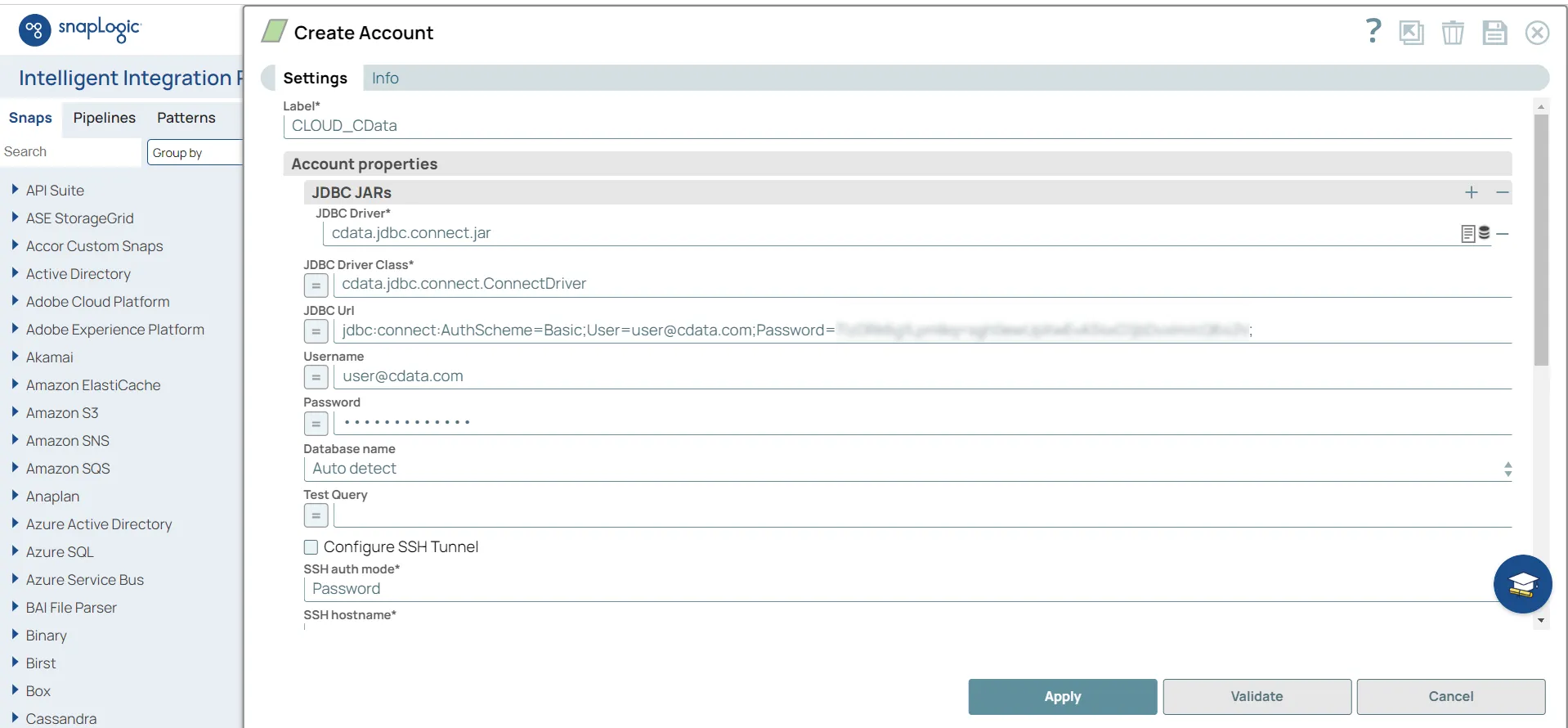
- Click Validate. If the connection succeeds, the "snap" is ready to use.
- Click Apply.
You can now create reports with the connected data.
Get CData Connect AI
To get live data access to hundreds of SaaS, Big Data, and NoSQL sources directly from SnapLogic, try CData Connect AI today!