







Access Live SAS xpt Data in Excel for the Web (Excel 365/Online) through Connect Spreadsheets

Looking for Connect AI instructions?
Your Connect AI account includes Connect Spreadsheets, so you can use the instructions below. You can expect minor differences when referencing the Connect Spreadsheet platform, but the principles still apply!
Microsoft Excel for the web represents a cloud-native iteration of Microsoft Excel. When combined with Connect Spreadsheets by CData, you gain immediate access to SAS xpt data directly within Excel, facilitating data analysis, collaboration, calculations, and more. This article shows how to connect to SAS xpt in Connect Spreadsheets and access live SAS xpt data in Excel spreadsheets online.
Connect Spreadsheets is the easiest way to get all your live data into Microsoft Excel and Google Sheets - no more downloading, wrangling, and uploading files again. Just connect to your data, select the dataset you'd like to see, and import it into your spreadsheet.
This setup requires a Connect Spreadsheets instance and the Connect Spreadsheets Add-In for Excel. To get started, sign up a free trial of Connect Spreadsheets and install the free Connect Spreadsheets Excel Add-In.
Configure SAS xpt Connectivity for Excel
Connectivity to SAS xpt from Excel is made possible through Connect Spreadsheets . To work with SAS xpt data from Excel, we start by creating and configuring a SAS xpt connection.
- Log into Connect Spreadsheets, click Sources and click Add Connection
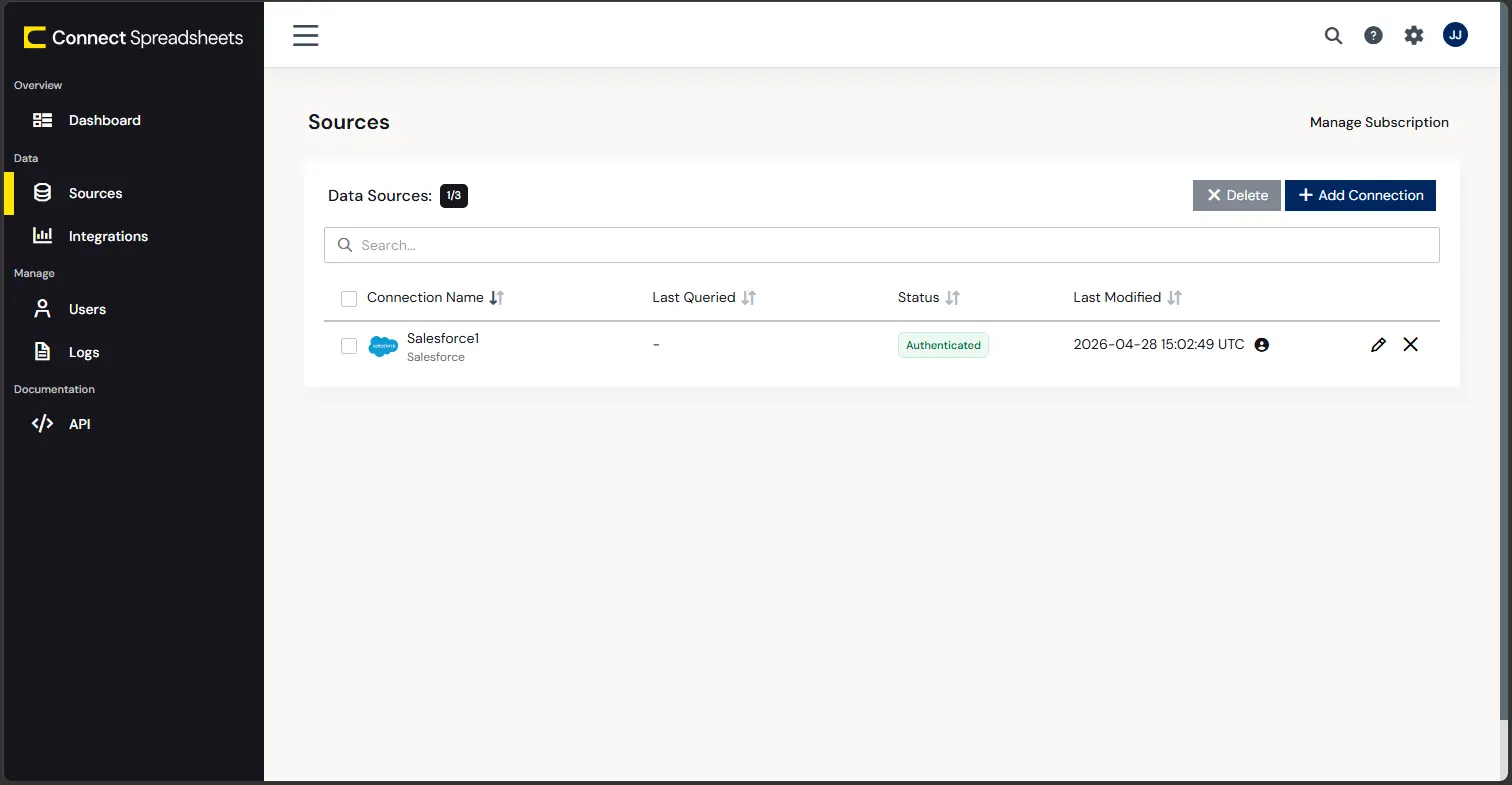
- Select "SAS xpt" from the Add Connection panel
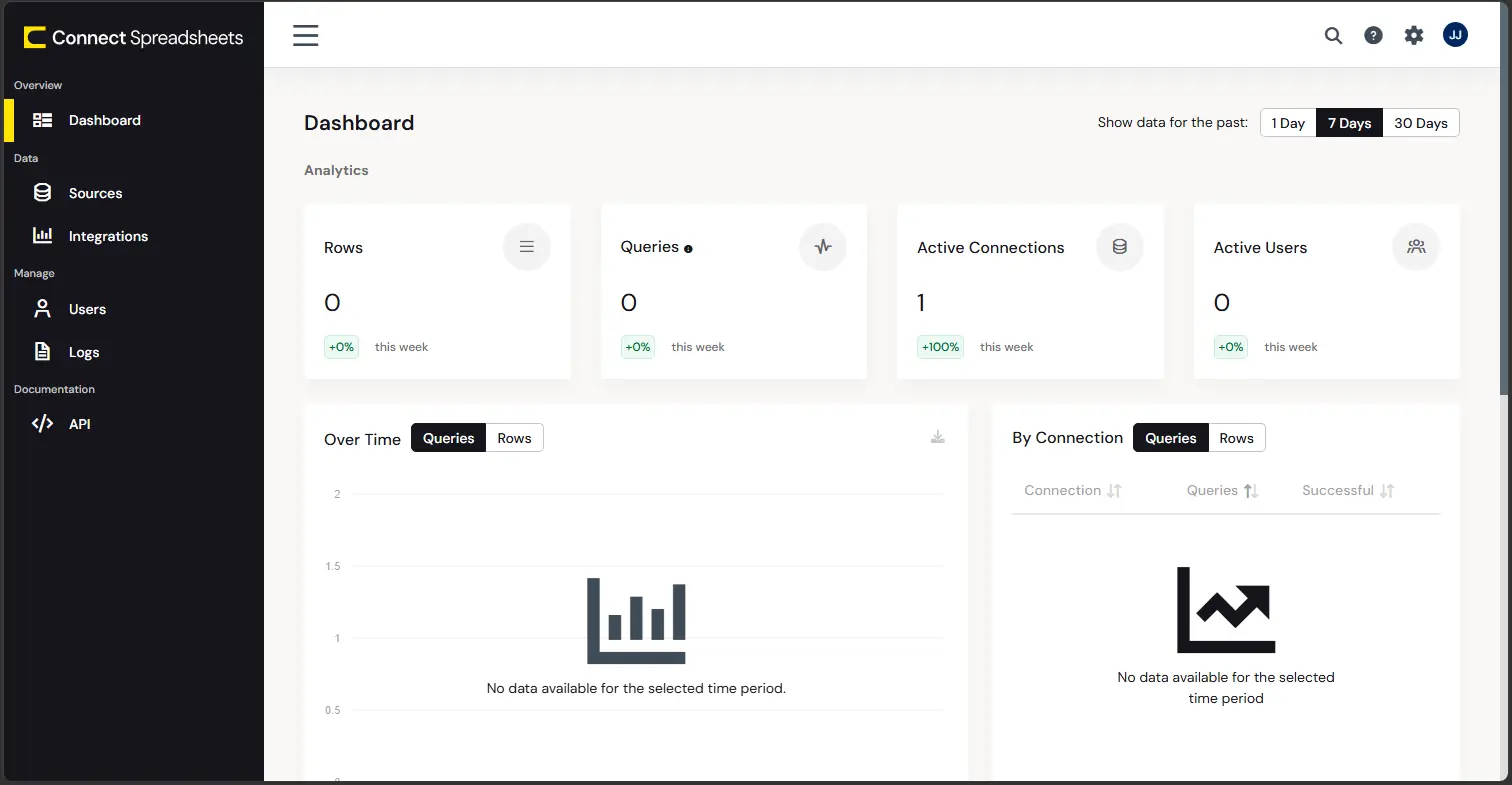
-
Enter the necessary authentication properties to connect to SAS xpt.
Connecting to Local SASXpt Files
You can connect to local SASXpt file by setting the URI to a folder containing SASXpt files.
Connecting to S3 data source
You can connect to Amazon S3 source to read SASXpt files. Set the following properties to connect:
- URI: Set this to the folder within your bucket that you would like to connect to.
- AWSAccessKey: Set this to your AWS account access key.
- AWSSecretKey: Set this to your AWS account secret key.
- TemporaryLocalFolder: Set this to the path, or URI, to the folder that is used to temporarily download SASXpt file(s).
Connecting to Azure Data Lake Storage Gen2
You can connect to ADLS Gen2 to read SASXpt files. Set the following properties to connect:
- URI: Set this to the name of the file system and the name of the folder which contacts your SASXpt files.
- AzureAccount: Set this to the name of the Azure Data Lake storage account.
- AzureAccessKey: Set this to our Azure DataLakeStore Gen 2 storage account access key.
- TemporaryLocalFolder: Set this to the path, or URI, to the folder that is used to temporarily download SASXpt file(s).
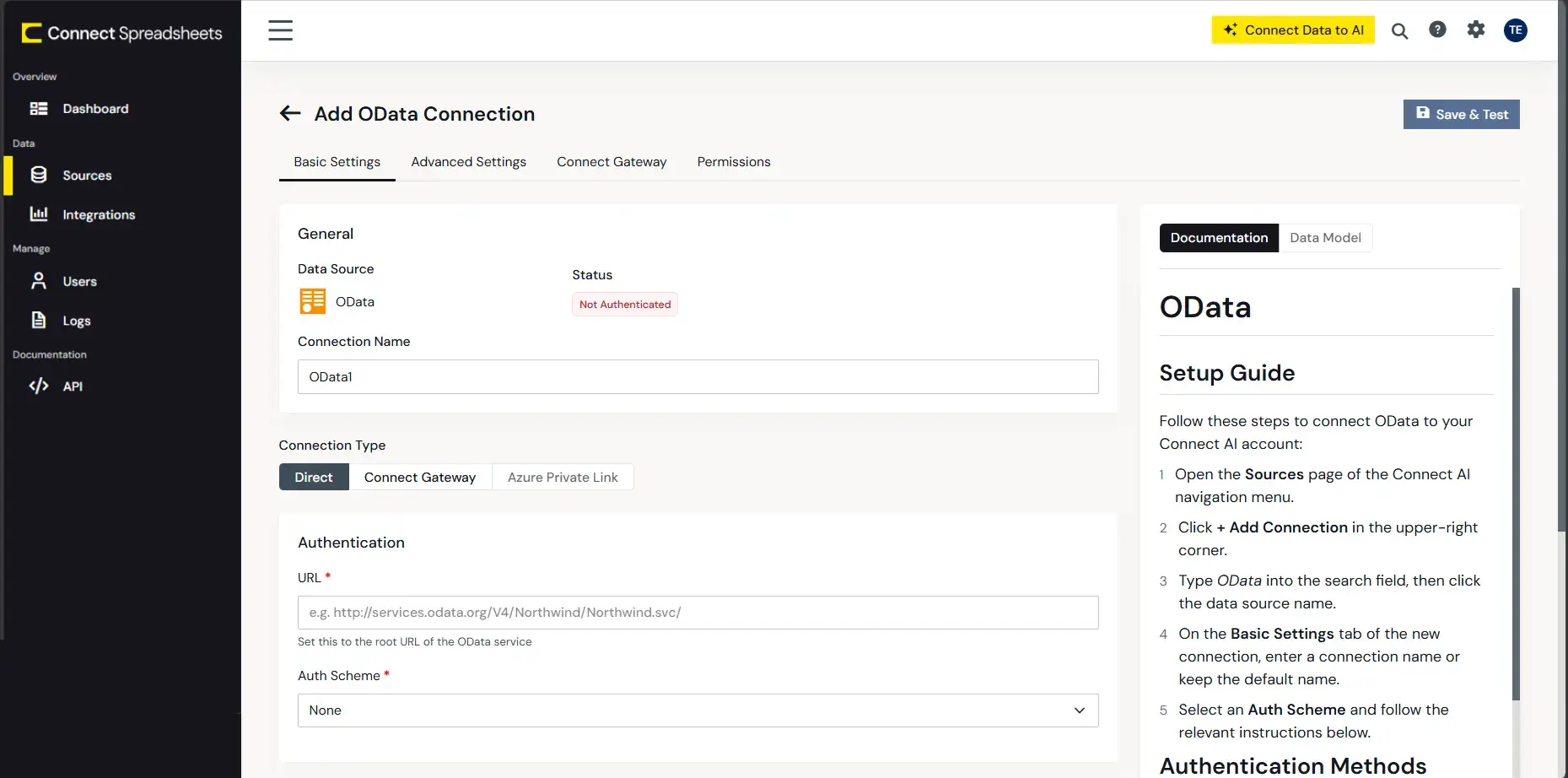
- Click Create & Test
With the connection configured, you are ready to connect to SAS xpt data from Excel for the web.
Access Live SAS xpt Data in Excel for the web
The steps below outline connecting to Connect Spreadsheets from Excel to access live SAS xpt data.
- Log into Excel, create a new sheet (or open an existing one).
- Click Insert and click Office Add-ins. (If you have already installed the Add-In, jump to step 4.)
- Search for Connect Spreadsheets and click "Get it now" to install the Add-in.
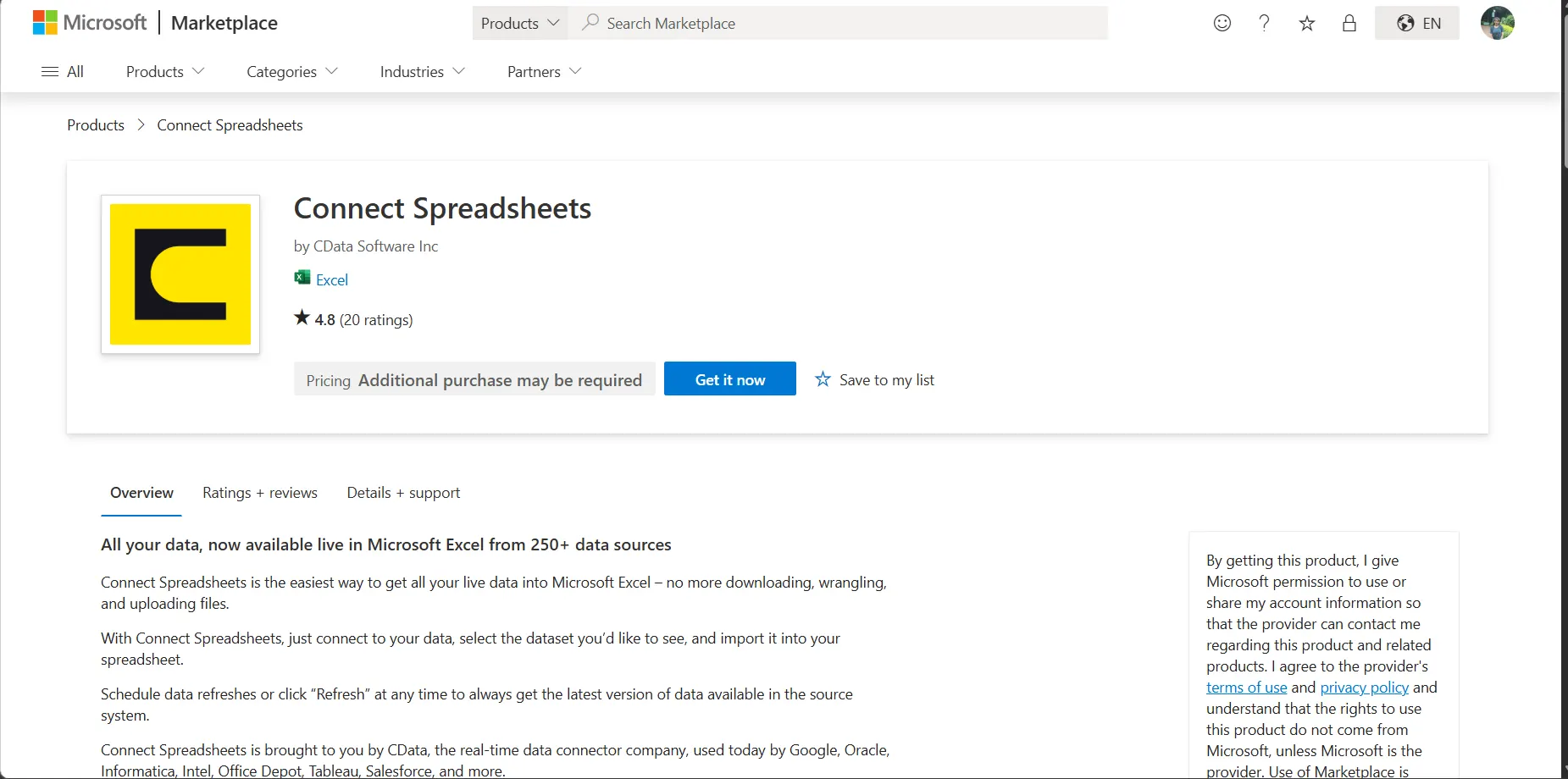
- Back in Excel, open the Data ribbon select and click the CData Connect Spreadsheets "Get Data" button.
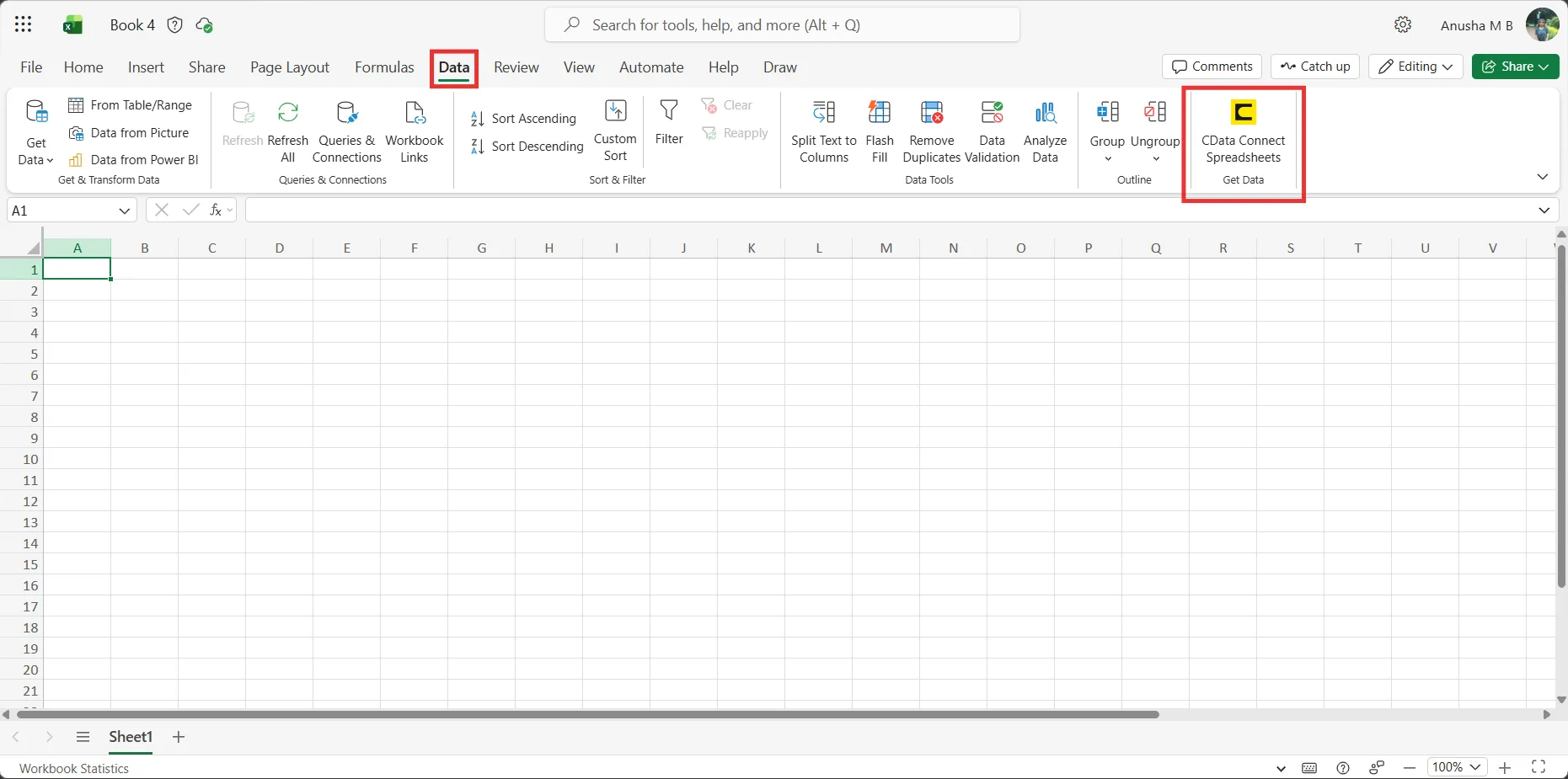
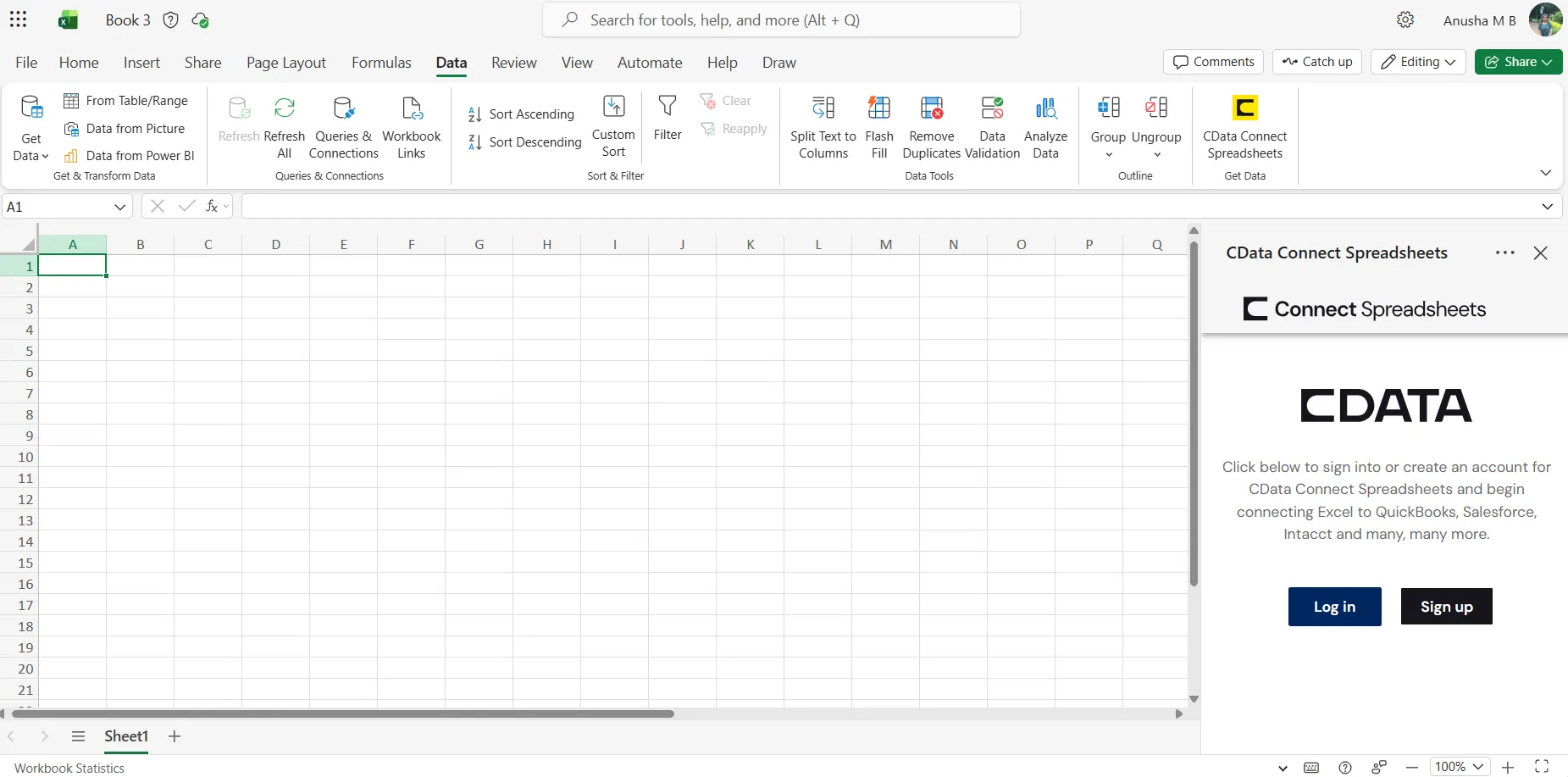
- In the Add-In panel, click "Log in" to sign into and authenticate with your Connect Spreadsheets account
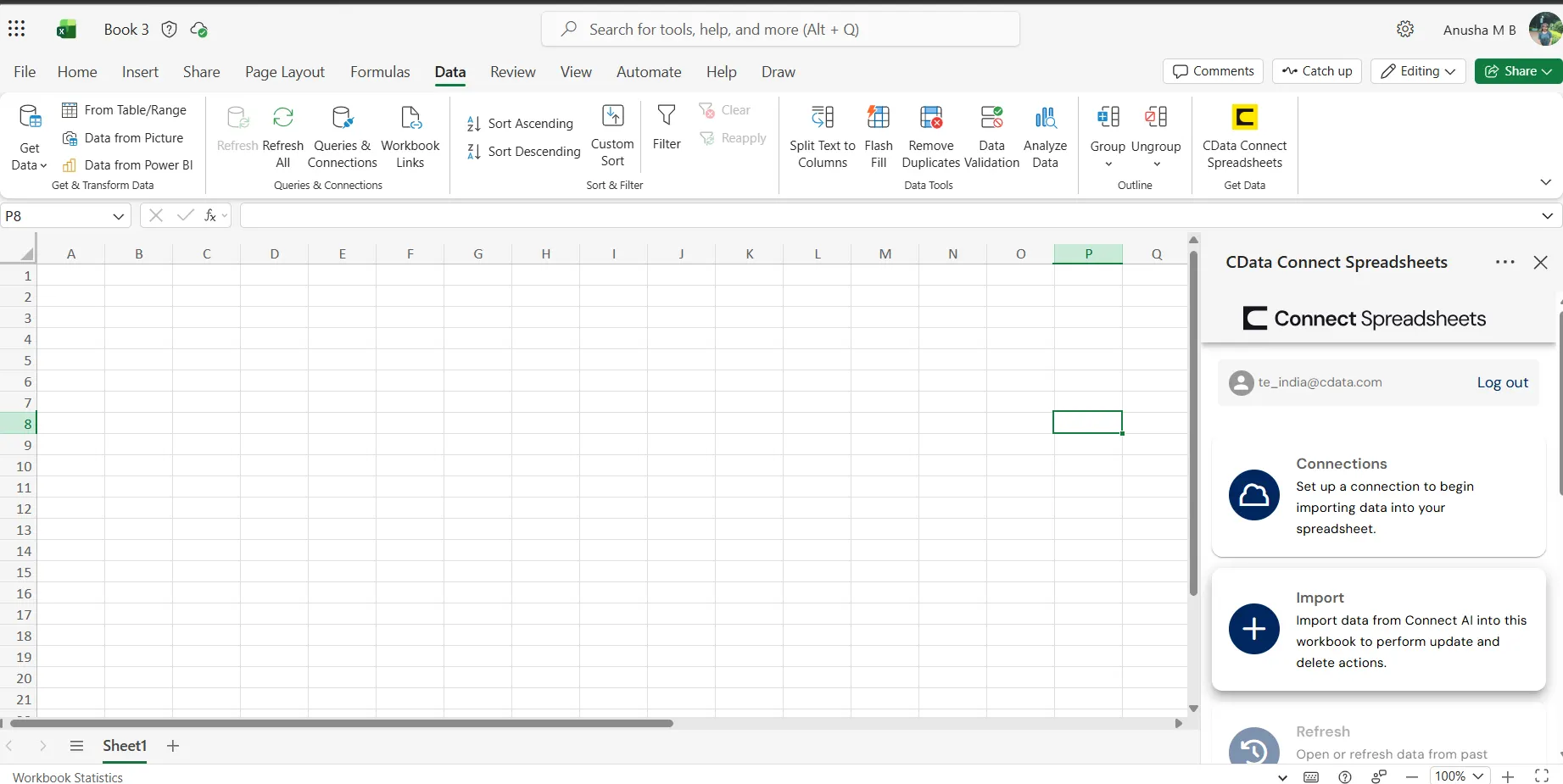
- In the Connect Spreadsheets panel in Excel, click Import
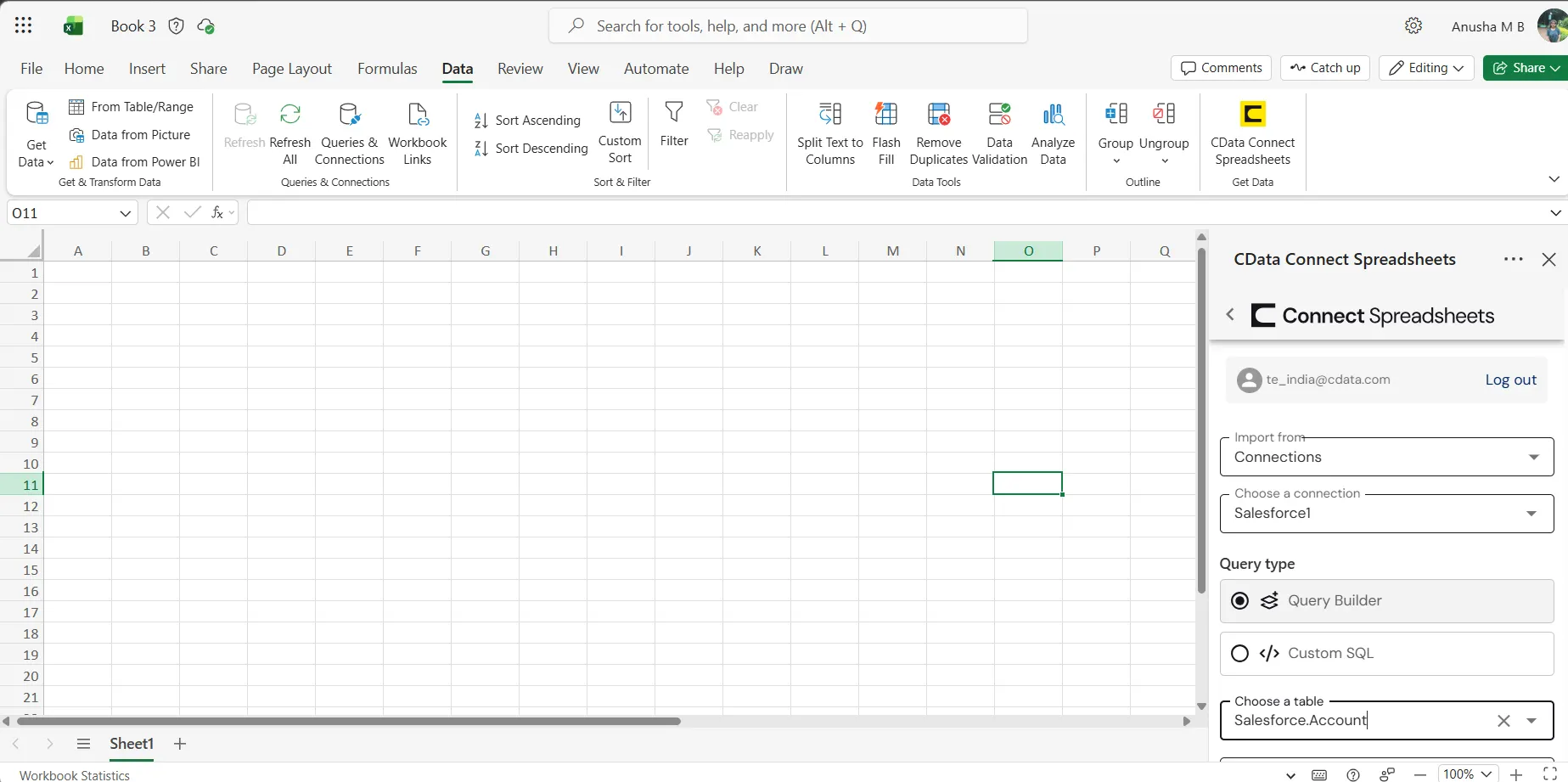
- Choose a Connection (e.g. SASXpt1), Table (e.g. SampleTable_1), and Columns to import
- Optionally add Filters, Sorting, and a Limit
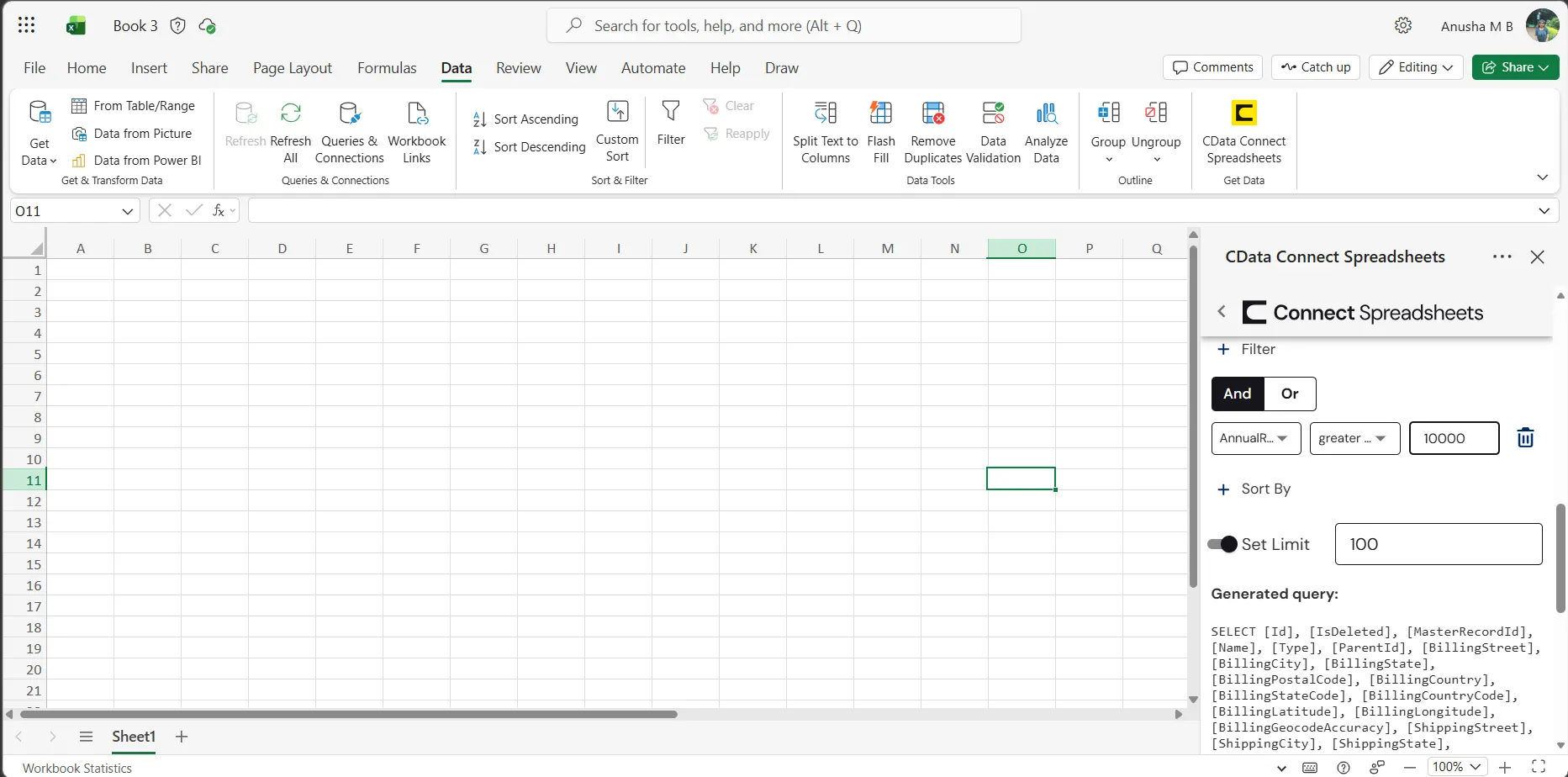
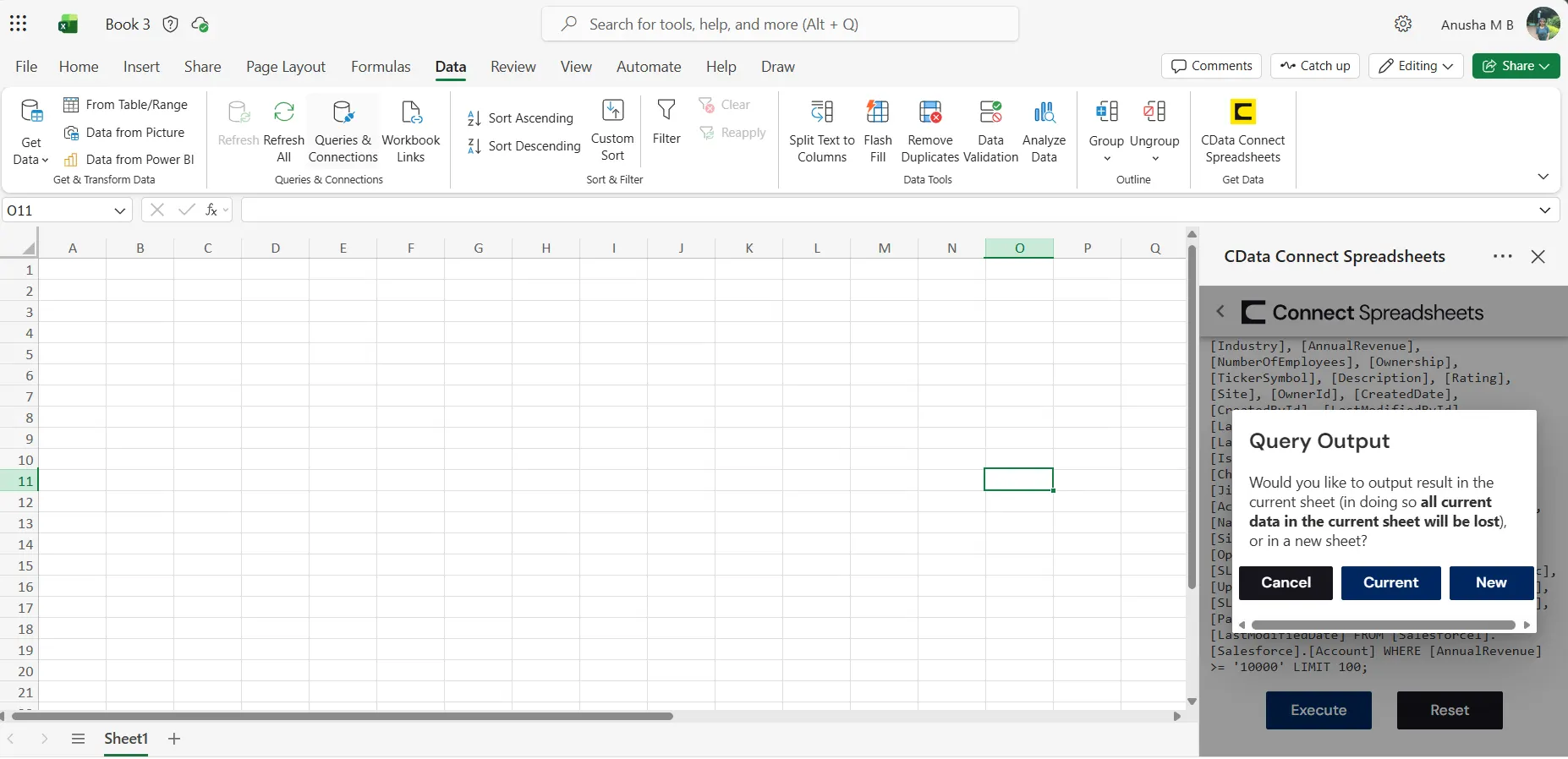
- Click Execute to import the data
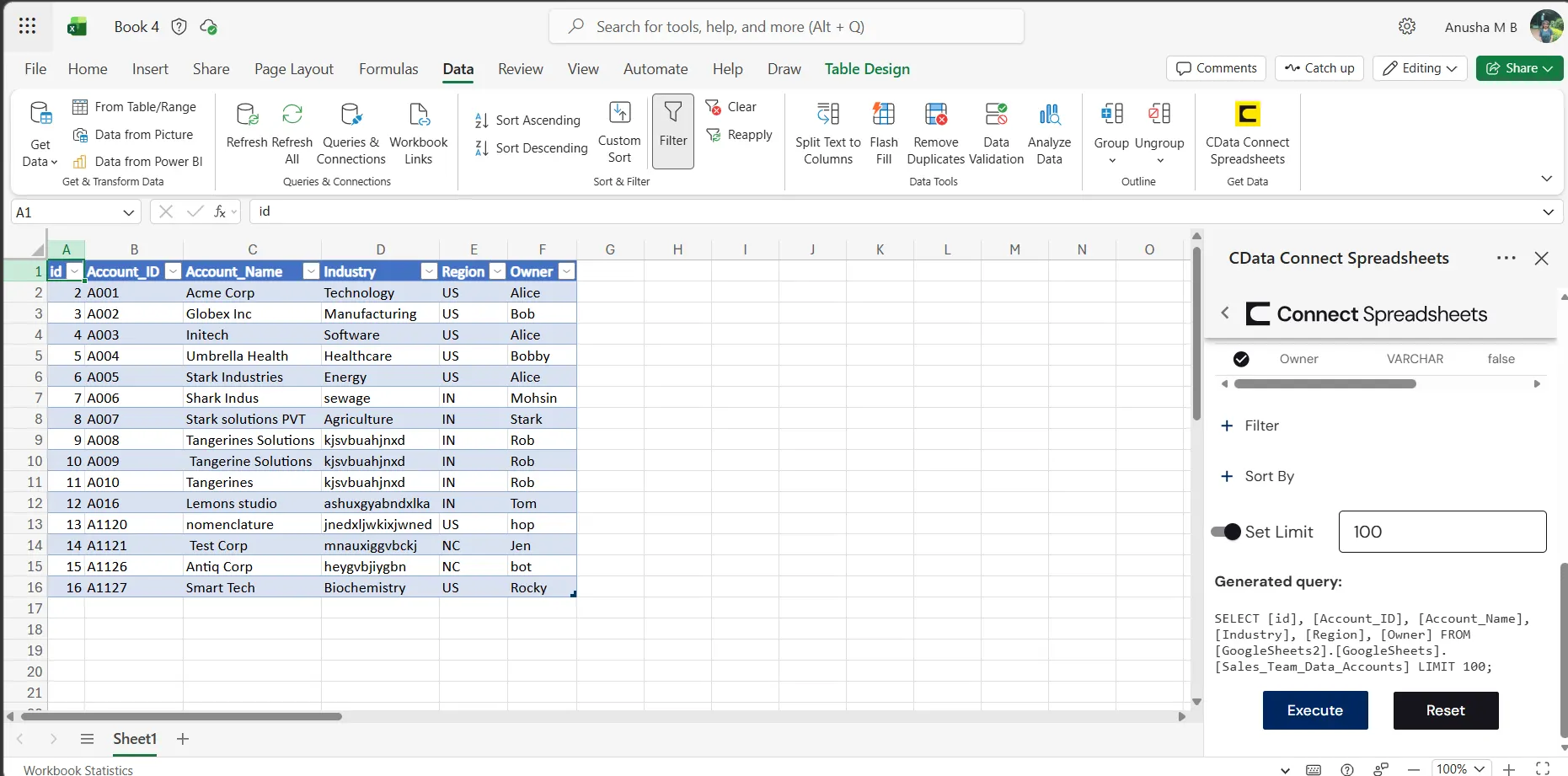
Live Access to SAS xpt Data from Spreadsheets
New, you have a direct, cloud-to-cloud connection to live SAS xpt data from your Excel workbook. You can add more data to your workbook for calculations, aggregations, collaboration, and more.
Try Connect Spreadsheets and get real-time data access to hundreds of SaaS, Big Data, and NoSQL sources directly from your spreadsheet apps.