







Integrate Google's Vertex AI Agent with Live SQL Analysis Services Data via CData Connect AI

Vertex AI provides a development ecosystem for building AI agents using the Agent Development Kit (ADK). ADK enables developers to create tool-augmented agents that can reason, take actions, and interact with external systems through structured tool interfaces. These agents can be tested locally in the ADK Web interface and extended with advanced logic for enterprise workflows.
By integrating Vertex AI ADK with CData Connect AI through the built-in MCP (Model Context Protocol) Server, your agents gain the ability to query, analyze, and act on live SQL Analysis Services data in real time. This connection bridges Google's agent-building framework with the governed enterprise connectivity of CData Connect AI, ensuring every request runs securely against authorized data sources without manual data movement.
This article outlines the steps to configure SQL Analysis Services connectivity in Connect AI, generate the required authentication token, configure the Vertex AI ADK environment, and verify that your agent can successfully communicate with live SQL Analysis Services data through Connect AI.
Step 1: Configure SQL Analysis Services connectivity for Vertex AI
Connectivity to SQL Analysis Services from Vertex AI is made possible through CData Connect AI's Remote MCP Server. To interact with SQL Analysis Services data from Vertex AI, start by creating and configuring a SQL Analysis Services connection in CData Connect AI.
- Log into Connect AI, click Sources, and then click Add Connection
- Select SQL Analysis Services from the Add Connection panel
-
Enter the necessary authentication properties to connect to SQL Analysis Services.
To connect, provide authentication and set the Url property to a valid SQL Server Analysis Services endpoint. You can connect to SQL Server Analysis Services instances hosted over HTTP with XMLA access. See the Microsoft documentation to configure HTTP access to SQL Server Analysis Services.
To secure connections and authenticate, set the corresponding connection properties, below. The data provider supports the major authentication schemes, including HTTP and Windows, as well as SSL/TLS.
-
HTTP Authentication
Set AuthScheme to "Basic" or "Digest" and set User and Password. Specify other authentication values in CustomHeaders.
-
Windows (NTLM)
Set the Windows User and Password and set AuthScheme to "NTLM".
-
Kerberos and Kerberos Delegation
To authenticate with Kerberos, set AuthScheme to NEGOTIATE. To use Kerberos delegation, set AuthScheme to KERBEROSDELEGATION. If needed, provide the User, Password, and KerberosSPN. By default, the data provider attempts to communicate with the SPN at the specified Url.
-
SSL/TLS:
By default, the data provider attempts to negotiate SSL/TLS by checking the server's certificate against the system's trusted certificate store. To specify another certificate, see the SSLServerCert property for the available formats.
You can then access any cube as a relational table: When you connect the data provider retrieves SSAS metadata and dynamically updates the table schemas. Instead of retrieving metadata every connection, you can set the CacheLocation property to automatically cache to a simple file-based store.
See the Getting Started section of the CData documentation, under Retrieving Analysis Services Data, to execute SQL-92 queries to the cubes.

-
HTTP Authentication
- Click Save & Test
- Navigate to the Permissions tab and update user-based permissions



Add a Personal Access Token
A Personal Access Token (PAT) is used to authenticate the connection to Connect AI from Vertex AI. It is best practice to create a separate PAT for each integration to maintain granular access control.
- Click the gear icon () at the top right of the Connect AI app to open Settings
- On the Settings page, go to the Access Tokens section and click Create PAT
- Give the PAT a descriptive name and click Create
- Copy the token when displayed and store it securely. It will not be shown again

With the SQL Analysis Services connection configured and a PAT generated, Vertex AI can now connect to SQL Analysis Services data through Connect AI.
Step 2: Install required dependencies
Enable the necessary Google Cloud APIs so Vertex AI ADK can run Gemini models, build agent environments, and access supporting services inside your Google Cloud project. These APIs provide the backend capabilities that ADK relies on during development and execution.
- Visit the Google Cloud Console
- Click the Project Picker at the top of the page and choose New Project
- Create the project and note the Project ID. Save this ID later for environment configuration
- From the left navigation menu, open APIs & Services and then choose Enabled APIs & Services
- Click Enable Apis and services
- Enable the following APIs:
- Vertex AI API
- Cloud Build API
- Artifact Registry API
- Service Networking API
- Cloud Logging API

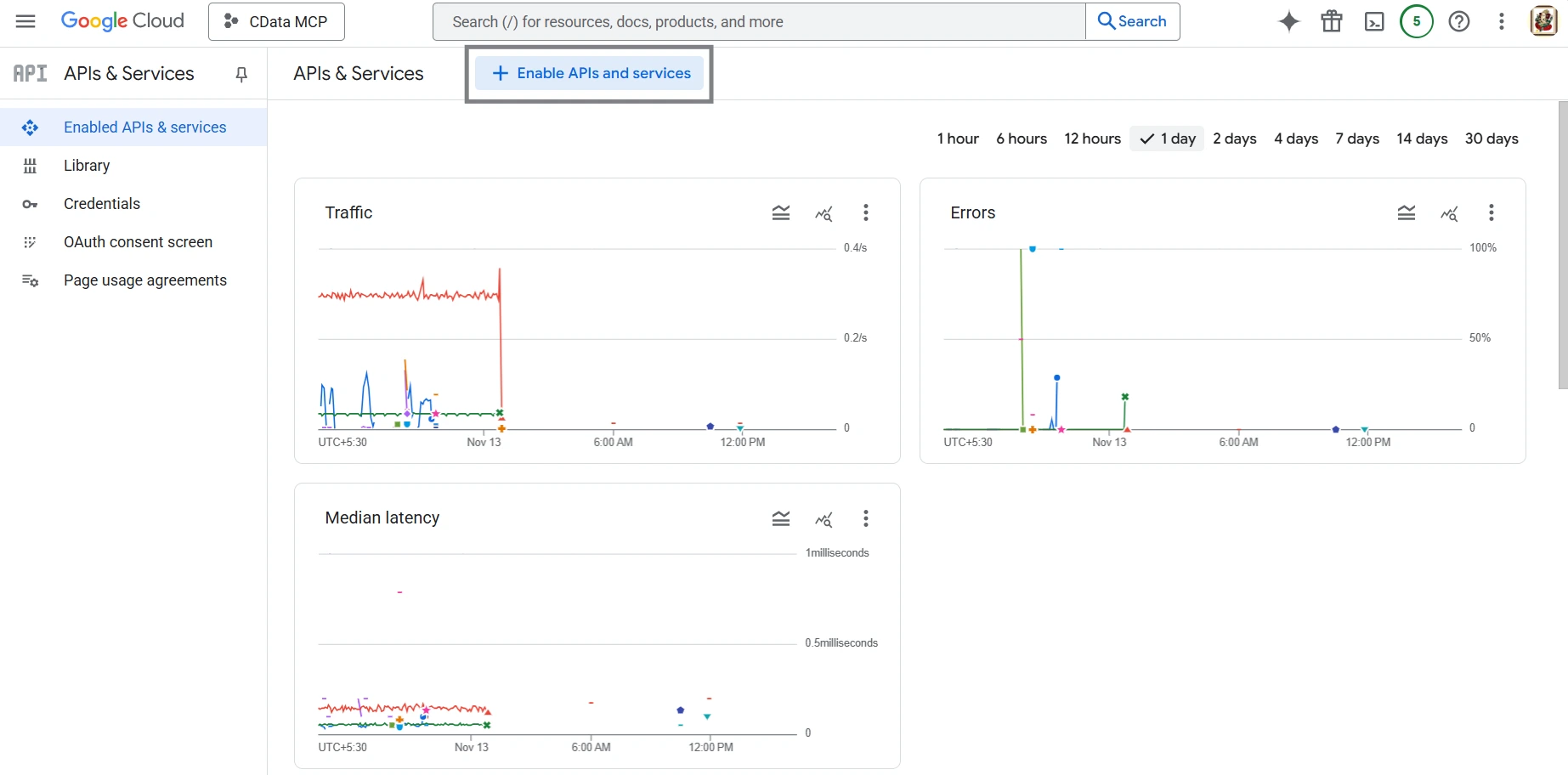
With these services enabled, your Google Cloud project is prepared for Vertex AI ADK development and local tool execution.
Prepare the Vertex AI ADK project folder
Create the project directory and set up the Python environment. This step prepares a clean workspace where ADK installs correctly and loads your agent without dependency conflicts.
- Open Google Cloud console and select the Cloud Shell. Make sure to select the project you created from the project picker.
- Create the ADK project directories:
- Create and activate a Python virtual environment:
- Install the required ADK and MCP packages:

				mkdir -p ~/adk_agents/cdata_mcp_agent
				cd ~/adk_agents/cdata_mcp_agent
		python3 -m venv .venv
		source .venv/bin/activate
				python -m pip install --upgrade pip
				python -m pip install google-adk
				python -m pip install mcp
				python -m pip install --upgrade "google-cloud-aiplatform[agent_engines]"
Step 3: Create the ADK Agent files
Define the agent modules so ADK recognizes your agent. This structure allows Vertex AI to load your MCP configuration and register the tools exposed by Connect AI.
- Create agent.py file and paste the code below in it
- Create another file __int__.py and paste the code below in it
import os
import base64
import logging

from google.adk.agents import LlmAgent
from google.adk.tools.mcp_tool.mcp_toolset import MCPToolset
from google.adk.tools.mcp_tool.mcp_session_manager import StreamableHTTPConnectionParams

# ---------- Logging ----------
logging.basicConfig(level=logging.INFO)
logger = logging.getLogger(__name__)

# ---------- CData MCP config ----------
CDATA_MCP_URL = os.environ.get("CDATA_MCP_URL", "https://mcp.cloud.cdata.com/mcp")
CDATA_USER_ID = os.environ.get("CDATA_USER_ID")
CDATA_PAT = os.environ.get("CDATA_PAT")

tools = []

if not (CDATA_USER_ID and CDATA_PAT):
    logger.warning(
        "CData MCP credentials not set (CDATA_USER_ID or CDATA_PAT missing); "
        "starting agent WITHOUT MCP tools."
    )
else:
    # Basic auth header: base64("user:pat")
    basic_auth_bytes = f"{CDATA_USER_ID}:{CDATA_PAT}".encode("utf-8")
    basic_auth_header = base64.b64encode(basic_auth_bytes).decode("utf-8")

    try:
        logger.info("Initializing CData MCPToolset against %s", CDATA_MCP_URL)

        tools.append(
            MCPToolset(
                connection_params=StreamableHTTPConnectionParams(
                    url=CDATA_MCP_URL,
                    headers={
                        "Authorization": f"Basic {basic_auth_header}",
                        # ADK handles content-type etc. internally;
                        # we just pass auth headers.
                    },
                ),
            )
        )

        logger.info("CData MCPToolset initialized successfully.")
    except Exception as e:
        logger.exception("Failed to initialize CData MCPToolset")

# ---------- Root agent ----------
root_agent = LlmAgent(
    model="gemini-2.0-flash",
    name="cdata_mcp_agent",
    instruction=(
        "You are a data assistant. Use the CData MCP tools (if available) to "
        "list connections, list catalogs/schemas/tables, and run SQL-style queries."
    ),
    tools=tools,
)
		from .agent import root_agent
		__all__ = ["root_agent"]
Export environment variables
Export the required environment variables to authenticate to Connect AI. These values enable the agent to initialize the MCP toolset and communicate with Connect AI. Before you do that obtain a Google API key so ADK can authenticate to Gemini models. This key enables the agent to run LLM reasoning and route tool calls correctly inside the Vertex AI ADK environment.
- Visit the Google AI Studio API Key page
- Click Create API Key. Provide a name for the api-key and choose or create a project if you do not have one
- Click on Create a key and then copy the API key
- Return to the Google Cloud Shell page and run the environment variable exports. Replace "your_cdata_email", "your_pat", "your-project-id", and "your_google_api_key" with your values

		export CDATA_MCP_URL="https://mcp.cloud.cdata.com/mcp"
		export CDATA_USER_ID="your_cdata_email"
		export CDATA_PAT="your_pat"
		export GOOGLE_API_KEY="your_google_api_key"
		export VERTEXAI_PROJECT="your-project-id"
		export VERTEXAI_LOCATION="us-central1"
Step 4: Launch the ADK web interface
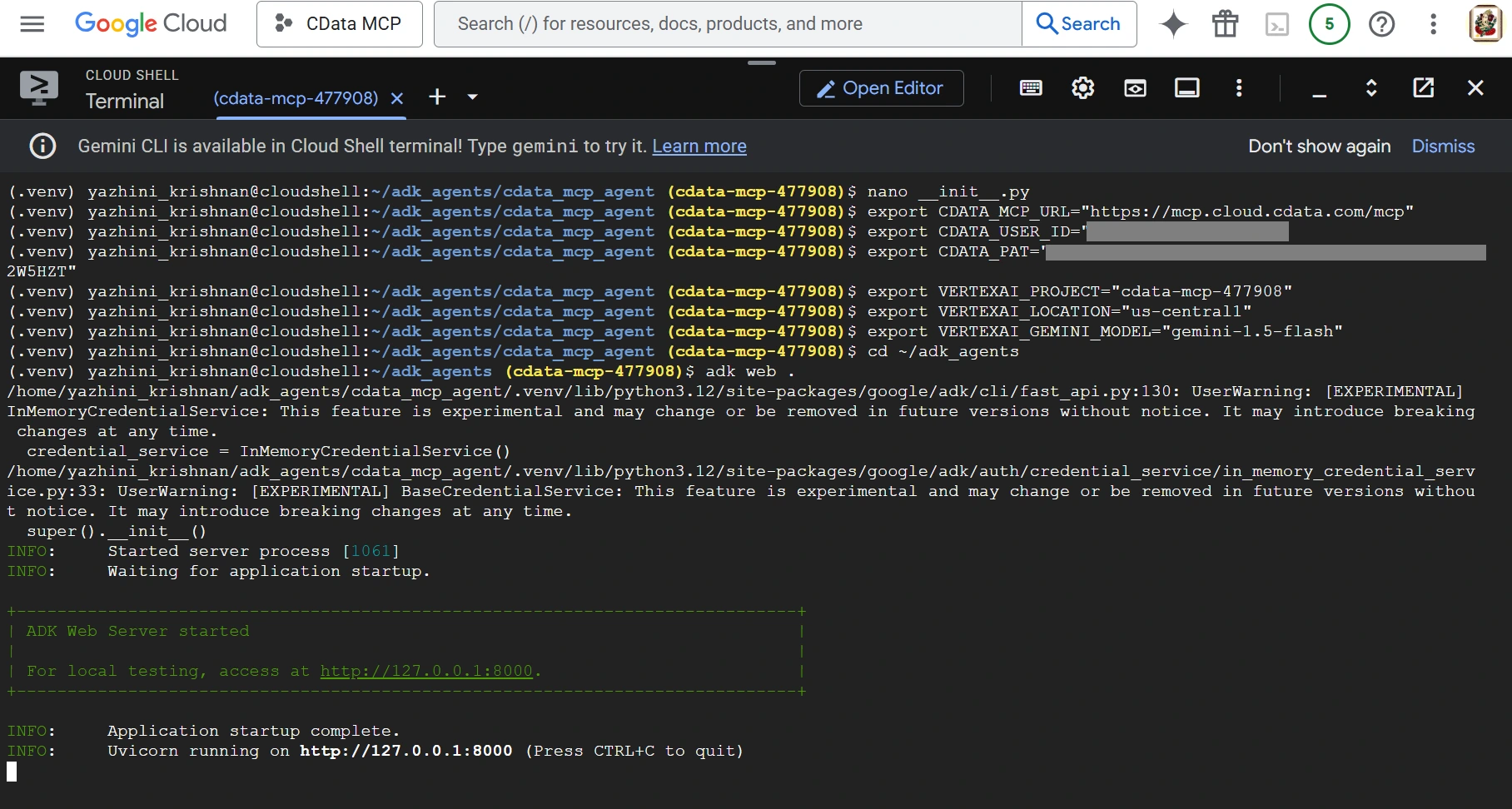
Start the ADK Web interface to load your agent. The interface initializes the runtime and makes your MCP-enabled agent available for interactive testing.
- Move to the parent folder:
- Launch ADK Web:
cd ~/adk_agents
adk web .
Step 5: Select your agent and test MCP connectivity
Select your agent from the ADK Web interface. ADK loads the MCP tools and prepares the environment so you issue live MCP queries.
- Open the ADK Web UI from the browser tab
- Select cdata_mcp_agent from the agent dropdown
- Enter list catalogs in the chat panel. ADK returns a live list of your Connect AI connections


At this point, your Vertex AI ADK agent communicates with the CData Connect AI MCP Server and retrieves live SQL Analysis Services data metadata through remote MCP tools.
Get CData Connect AI
To access hundreds of SaaS, Big Data, and NoSQL sources directly from your cloud applications, try CData Connect AI today!