







How to connect Amazon QuickSight to SQL Analysis Services Data

Amazon QuickSight allows users to build interactive dashboards in the cloud. When paired with CData Connect AI, you get cloud-to-cloud access to SQL Analysis Services data for visualizations, dashboards, and more. This article shows how to connect to SQL Analysis Services in Connect AI and build dashboards in Amazon QuickSight with access to SQL Analysis Services data.
CData Connect AI provides a pure cloud-to-cloud interface for SQL Analysis Services, allowing you to allowing build visualizations from SQL Analysis Services data in Amazon QuickSight. By importing your SQL Analysis Services data into the Amazon QuickSight "Super-fast, Parallel, In-memory Calculation Engine" (SPICE), you can leverage the powerful data processing features of the Amazon ecosystem to build responsive dashboards. And with the ability to schedule refreshes of the data stored in SPICE, you control how up-to-date your dashboards are.
Configure SQL Analysis Services Connectivity for Amazon QuickSight
Connectivity to SQL Analysis Services from Amazon QuickSight is made possible through CData Connect AI. To work with SQL Analysis Services data from Amazon QuickSight, we start by creating and configuring a SQL Analysis Services connection.
- Log into Connect AI, click Sources, and then click Add Connection
- Select "SQL Analysis Services" from the Add Connection panel
-
Enter the necessary authentication properties to connect to SQL Analysis Services.
To connect, provide authentication and set the Url property to a valid SQL Server Analysis Services endpoint. You can connect to SQL Server Analysis Services instances hosted over HTTP with XMLA access. See the Microsoft documentation to configure HTTP access to SQL Server Analysis Services.
To secure connections and authenticate, set the corresponding connection properties, below. The data provider supports the major authentication schemes, including HTTP and Windows, as well as SSL/TLS.
-
HTTP Authentication
Set AuthScheme to "Basic" or "Digest" and set User and Password. Specify other authentication values in CustomHeaders.
-
Windows (NTLM)
Set the Windows User and Password and set AuthScheme to "NTLM".
-
Kerberos and Kerberos Delegation
To authenticate with Kerberos, set AuthScheme to NEGOTIATE. To use Kerberos delegation, set AuthScheme to KERBEROSDELEGATION. If needed, provide the User, Password, and KerberosSPN. By default, the data provider attempts to communicate with the SPN at the specified Url.
-
SSL/TLS:
By default, the data provider attempts to negotiate SSL/TLS by checking the server's certificate against the system's trusted certificate store. To specify another certificate, see the SSLServerCert property for the available formats.
You can then access any cube as a relational table: When you connect the data provider retrieves SSAS metadata and dynamically updates the table schemas. Instead of retrieving metadata every connection, you can set the CacheLocation property to automatically cache to a simple file-based store.
See the Getting Started section of the CData documentation, under Retrieving Analysis Services Data, to execute SQL-92 queries to the cubes.

-
HTTP Authentication
- Click Save & Test
-
Navigate to the Permissions tab in the Add SQL Analysis Services Connection page and update the User-based permissions.



Add a Personal Access Token
When connecting to Connect AI through the REST API, the OData API, or the Virtual SQL Server, a Personal Access Token (PAT) is used to authenticate the connection to Connect AI. It is best practice to create a separate PAT for each service to maintain granularity of access.
- Click on the Gear icon () at the top right of the Connect AI app to open the settings page.
- On the Settings page, go to the Access Tokens section and click Create PAT.
-
Give the PAT a name and click Create.

- The personal access token is only visible at creation, so be sure to copy it and store it securely for future use.
With the connection configured and a PAT generated, you are ready to connect to SQL Analysis Services data from Amazon QuickSight.
Import SQL Analysis Services Data into SPICE and Create Interactive Dashboards
The steps below outline creating a new data set based on the connection to SQL Analysis Services in Connect AI, importing the dataset into SPICE, and building a simple visualization from the data.
- Log into Amazon QuickSight and click "Manage data."
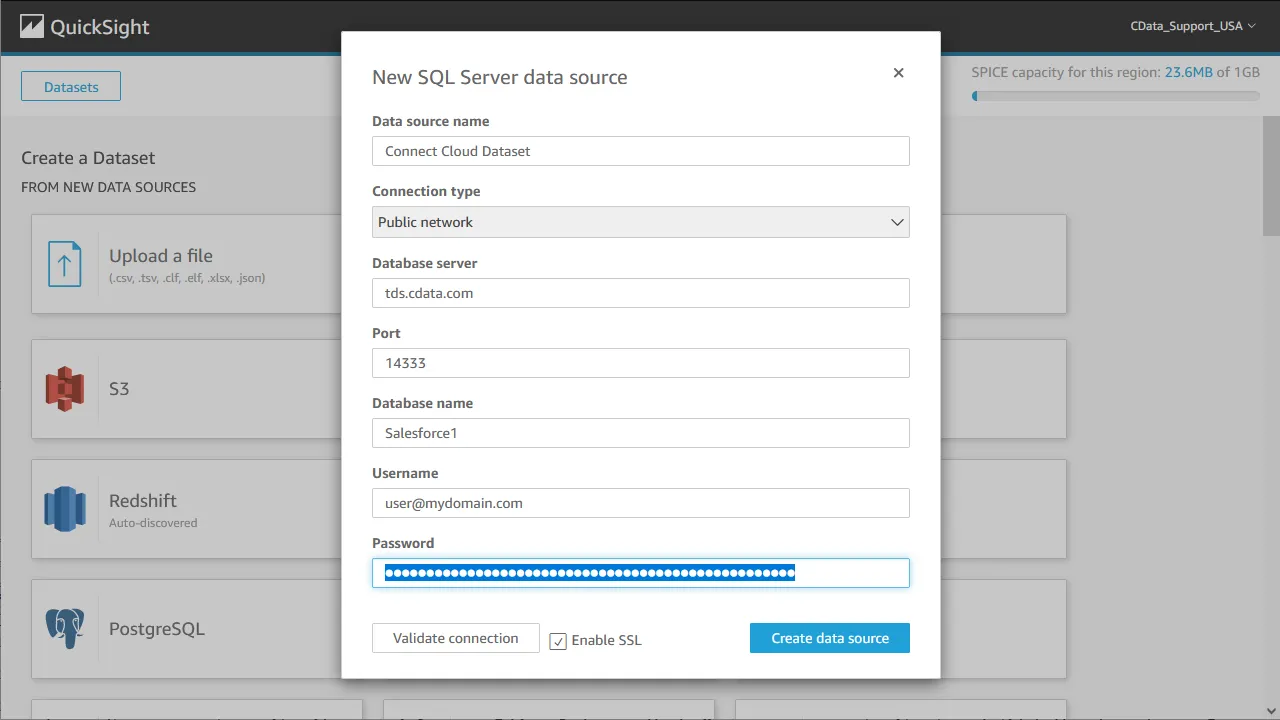
- Click "Now data set," select SQL Server as the data source, configure the connection to your Connect AI instance, and click "Create data source."
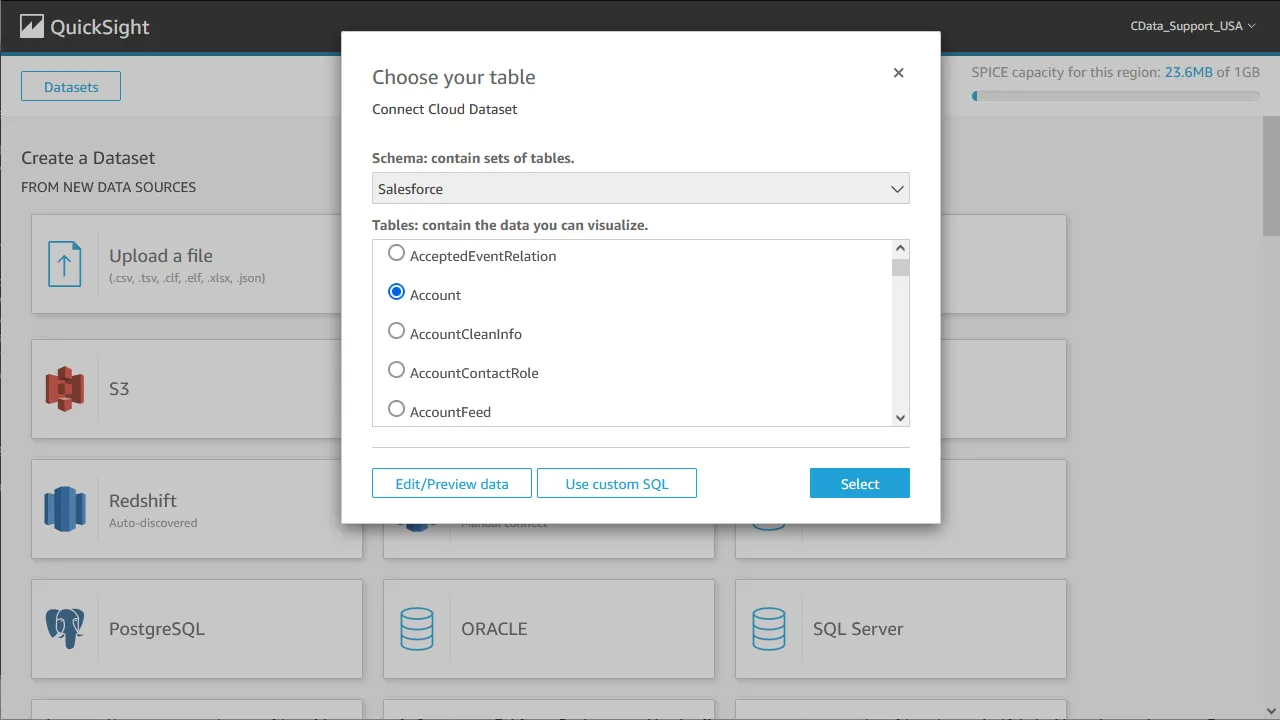
- Select a table to visualize (or subait a custom SQL query for your data).
- Click "Edit/Preview data" to customize the data set.
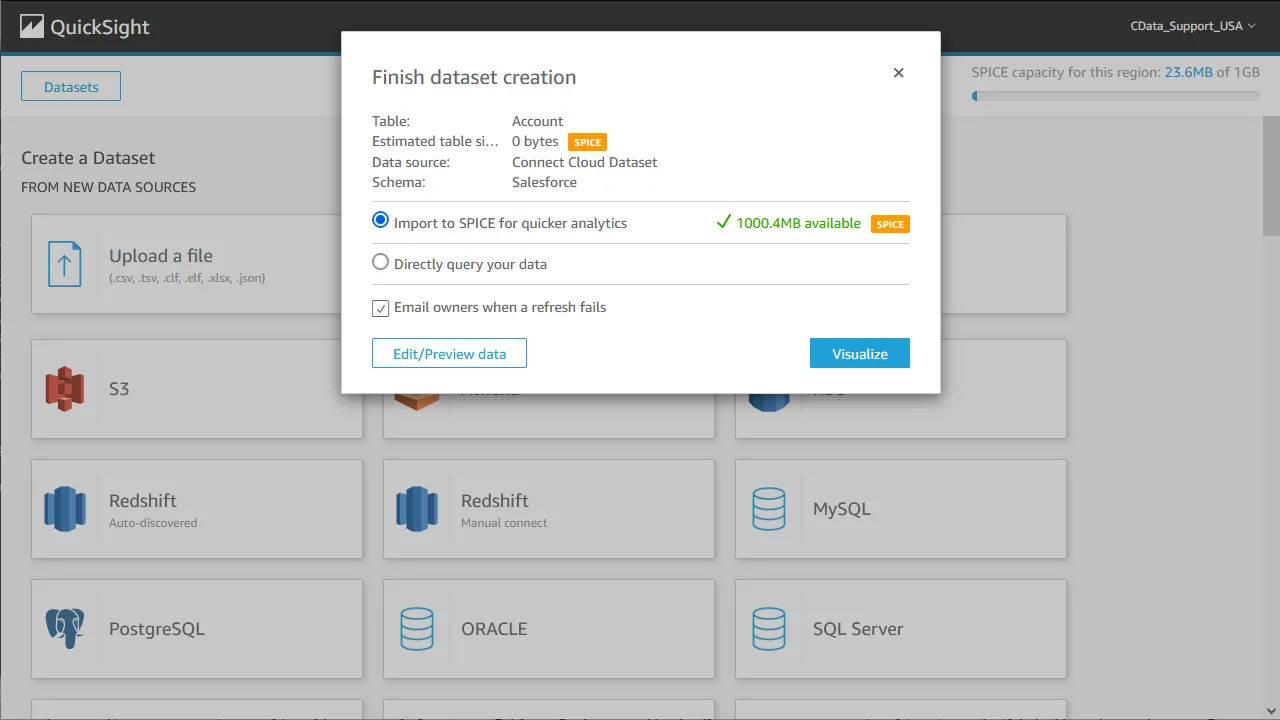
- Select "Import to SPICE for quicker analytics" and click "Visualize."
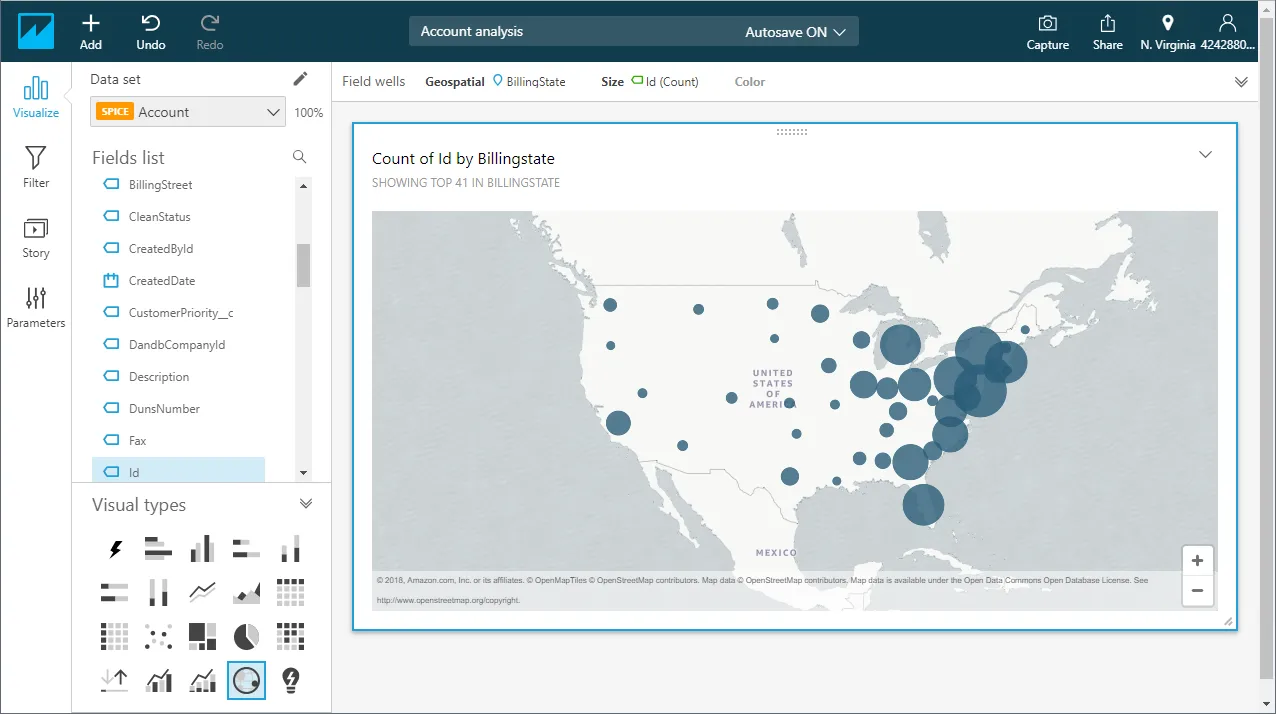
- Select fields to visualize and a visual type.
Schedule Refreshes for SPICE Data Sets
QuickSight users can schedule refreshes for data sets that are imported into SPICE, ensuring that data being analyzed is only as old as the most recent refresh.
- Navigate to the QuickSight home page.
- Click "Manage data."
- Select the data set you wish to refresh.
- Click "Schedule refresh."
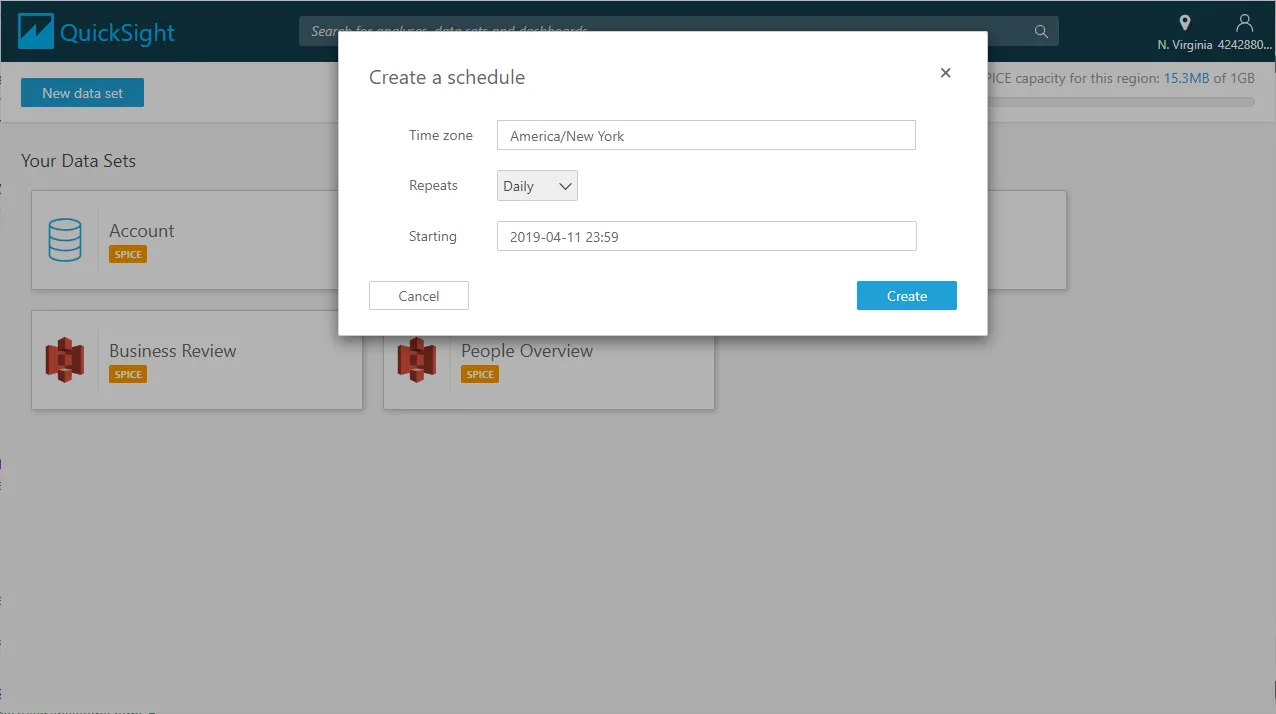
- Click Create, configure the refresh settings (time zone, repeat frequency, and starting datetime), and click Create.
Live Access to SQL Analysis Services Data from Cloud Applications
At this point, you have a direct, cloud-to-cloud connection to SQL Analysis Services data from your Amazon QuickSight dashboard. You can create new visualizations, build interactive dashboards, and more. For more information on gaining live access to data from more than 100 SaaS, Big Data, and NoSQL sources from cloud applications like Amazon QuickSight, refer to our Connect AI page.