







Access Live SQL Analysis Services Data in Excel (Desktop) through Connect Spreadsheets

Looking for Connect AI instructions?
Your Connect AI account includes Connect Spreadsheets, so you can use the instructions below. You can expect minor differences when referencing the Connect Spreadsheet platform, but the principles still apply!
Microsoft Excel is a widely used spreadsheet software application, primarily used for tasks related to data management, analysis, and visualization. When combined with Connect Spreadsheets by CData, you gain immediate access to SQL Analysis Services data directly within Excel, facilitating data analysis, collaboration, calculations, and more. This article shows how to connect to SQL Analysis Services in Connect Spreadsheets and access live SQL Analysis Services data in Excel spreadsheets.
Connect Spreadsheets is the easiest way to get all your live data into Microsoft Excel and Google Sheets - no more downloading, wrangling, and uploading files again. Just connect to your data, select the dataset you'd like to see, and import it into your spreadsheet.
This setup requires a Connect Spreadsheets account and the Connect Spreadsheets Add-In for Excel. To get started, sign up a free trial of Connect Spreadsheets and install the free Connect Spreadsheets Excel Add-In.
Configure SQL Analysis Services Connectivity for Excel
Connectivity to SQL Analysis Services from Excel is made possible through Connect Spreadsheets. To work with SQL Analysis Services data from Excel, we start by creating and configuring a SQL Analysis Services connection.
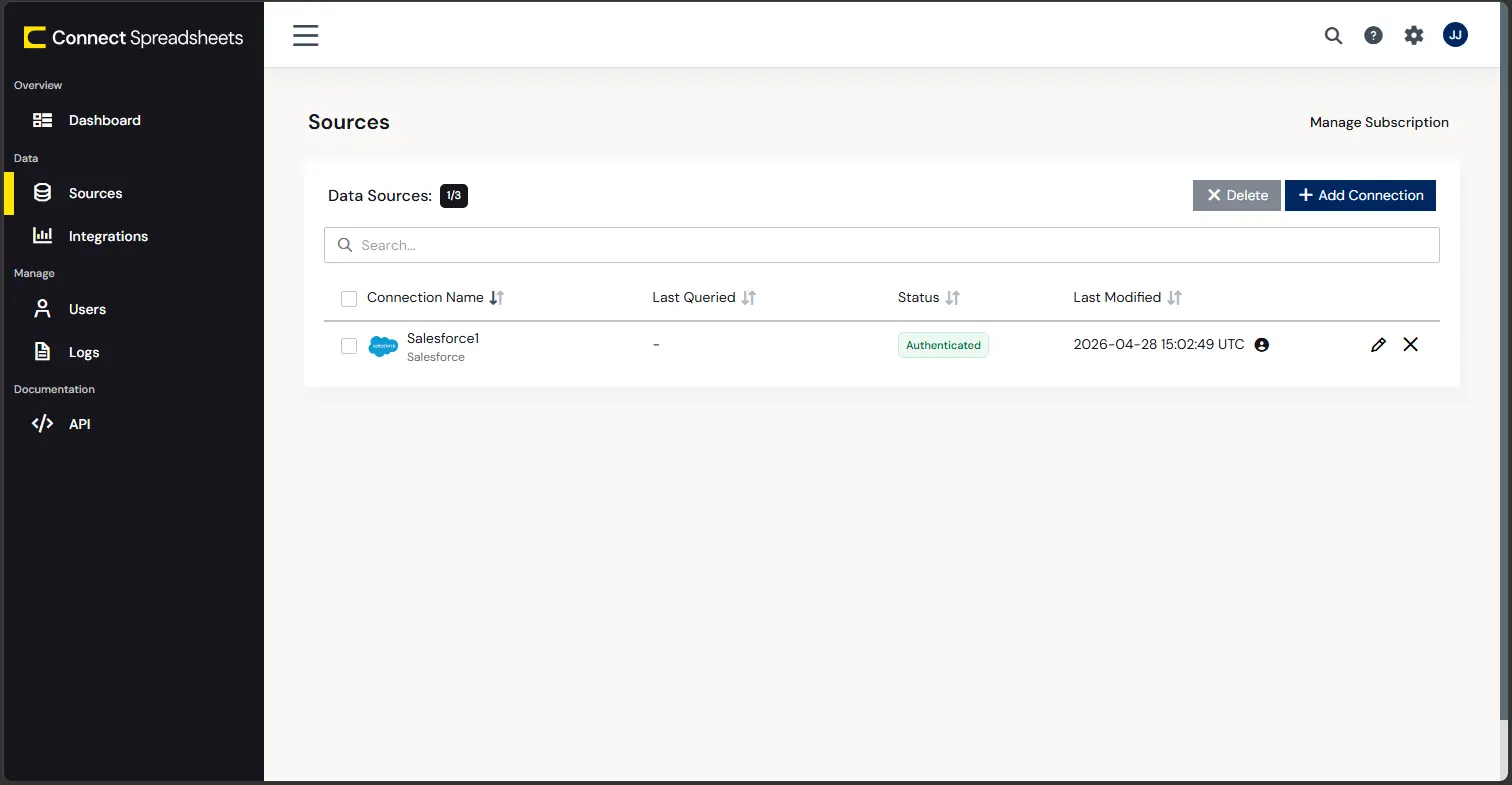
- Log into Connect Spreadsheets, click Connections and click Add Connection
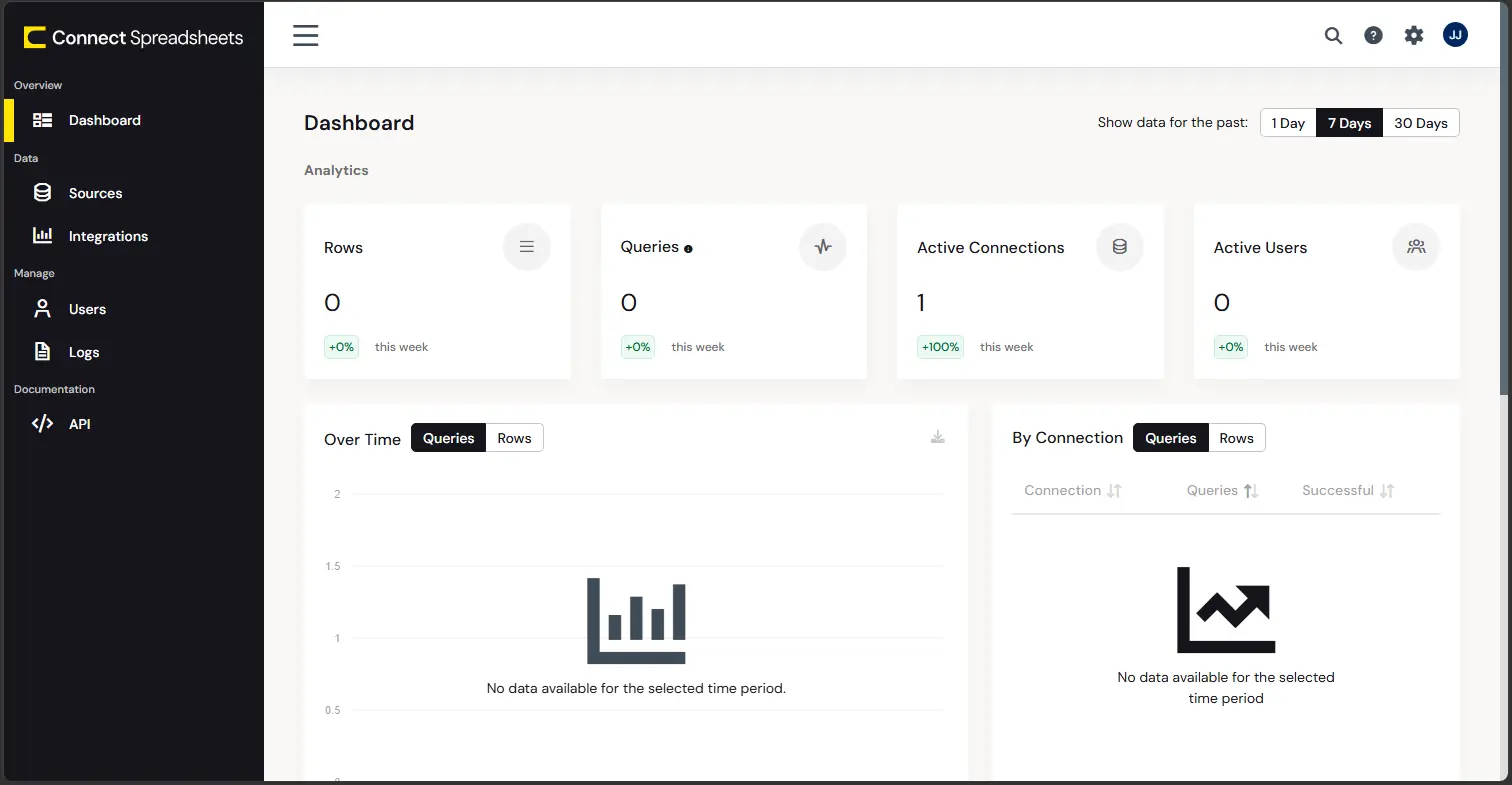
- Select "SQL Analysis Services" from the Add Connection panel
-
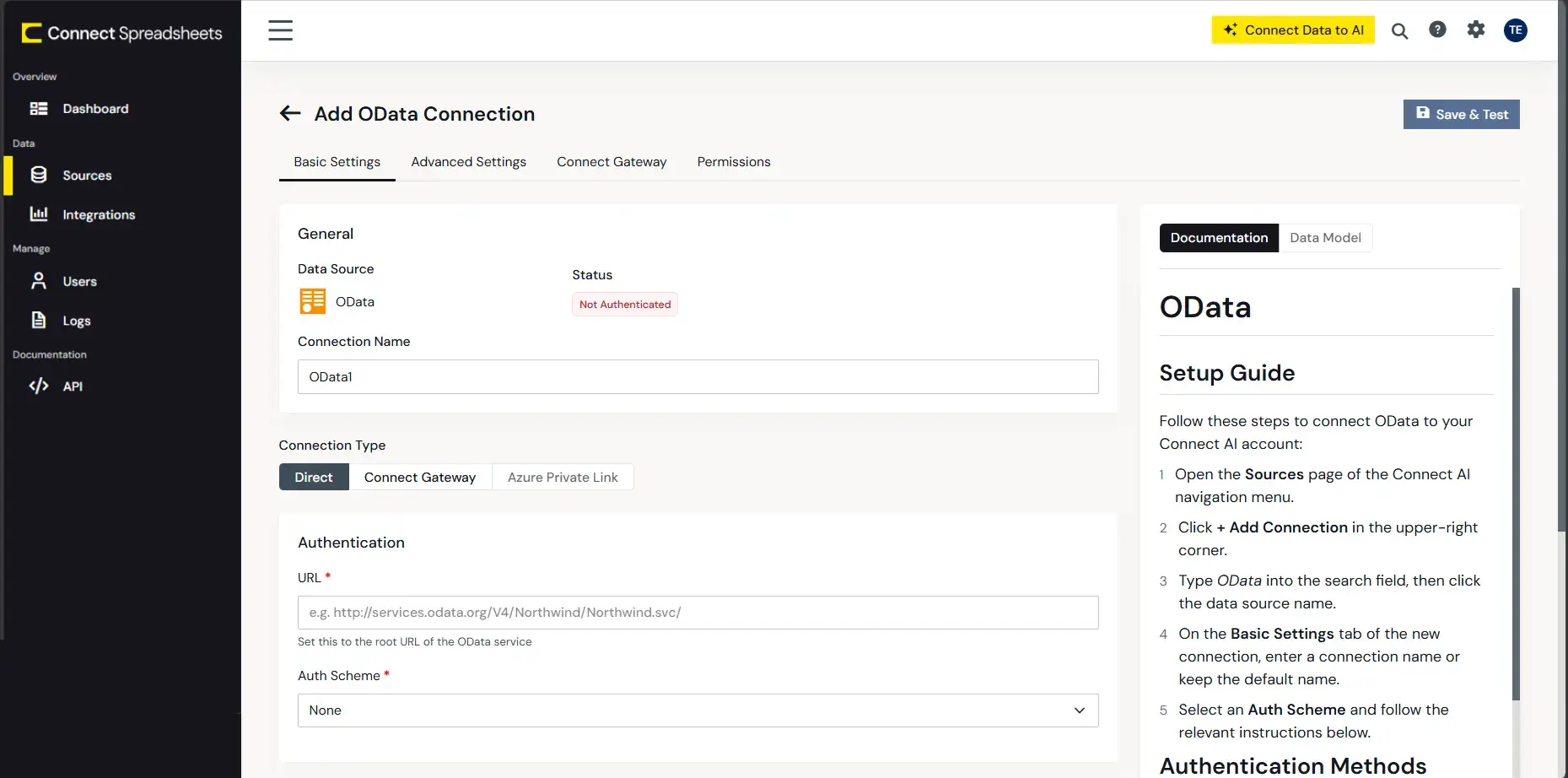
Enter the necessary authentication properties to connect to SQL Analysis Services.
To connect, provide authentication and set the Url property to a valid SQL Server Analysis Services endpoint. You can connect to SQL Server Analysis Services instances hosted over HTTP with XMLA access. See the Microsoft documentation to configure HTTP access to SQL Server Analysis Services.
To secure connections and authenticate, set the corresponding connection properties, below. The data provider supports the major authentication schemes, including HTTP and Windows, as well as SSL/TLS.
-
HTTP Authentication
Set AuthScheme to "Basic" or "Digest" and set User and Password. Specify other authentication values in CustomHeaders.
-
Windows (NTLM)
Set the Windows User and Password and set AuthScheme to "NTLM".
-
Kerberos and Kerberos Delegation
To authenticate with Kerberos, set AuthScheme to NEGOTIATE. To use Kerberos delegation, set AuthScheme to KERBEROSDELEGATION. If needed, provide the User, Password, and KerberosSPN. By default, the data provider attempts to communicate with the SPN at the specified Url.
-
SSL/TLS:
By default, the data provider attempts to negotiate SSL/TLS by checking the server's certificate against the system's trusted certificate store. To specify another certificate, see the SSLServerCert property for the available formats.
You can then access any cube as a relational table: When you connect the data provider retrieves SSAS metadata and dynamically updates the table schemas. Instead of retrieving metadata every connection, you can set the CacheLocation property to automatically cache to a simple file-based store.
See the Getting Started section of the CData documentation, under Retrieving Analysis Services Data, to execute SQL-92 queries to the cubes.
-
HTTP Authentication
- Click Create & Test
- Navigate to the Permissions tab in the Add SQL Analysis Services Connection page and update the User-based permissions.
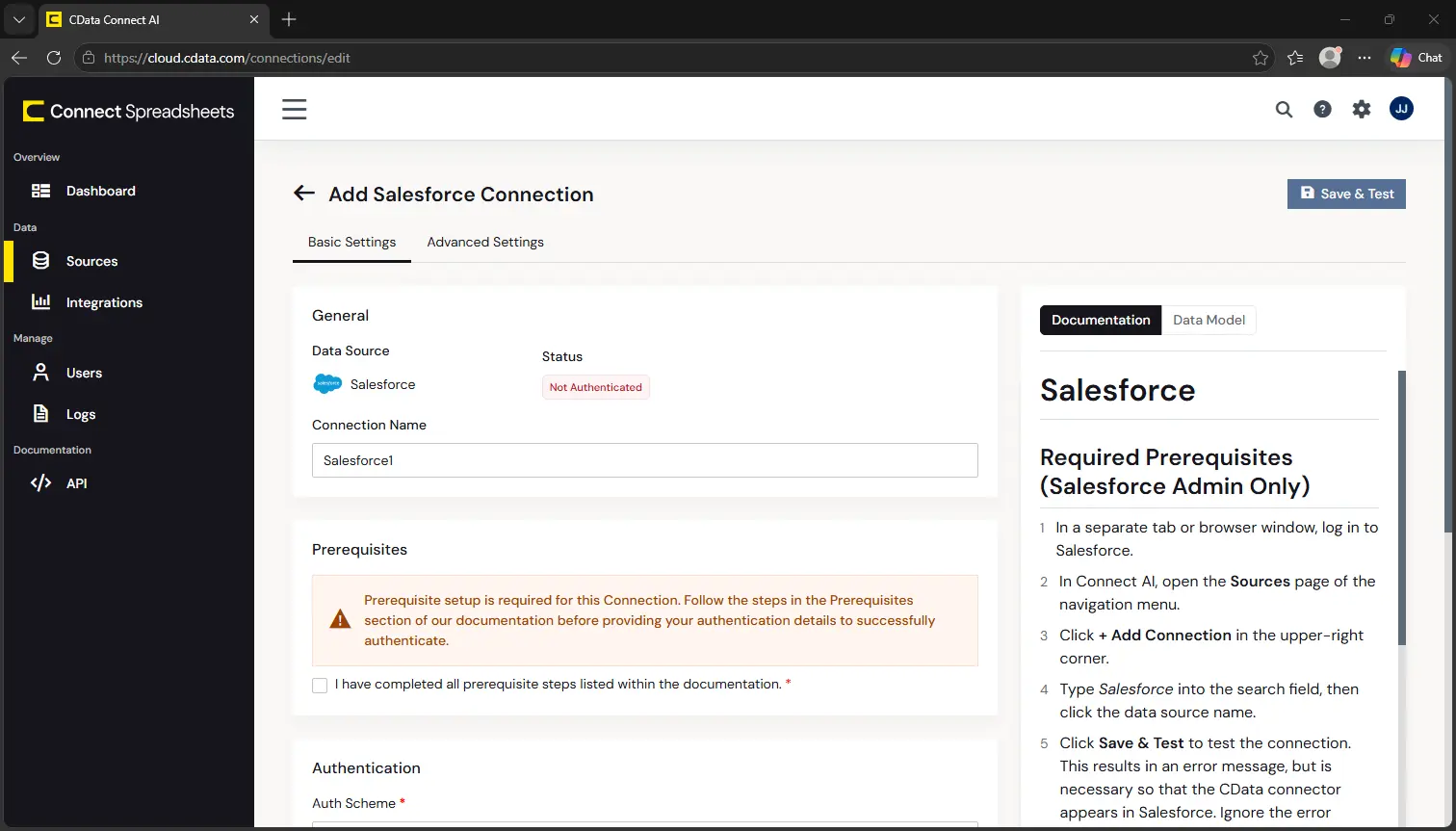
With the connection configured, you are ready to connect to SQL Analysis Services data from Excel.
Access Live SQL Analysis Services Data in Excel
The steps below outline connecting to Connect Spreadsheets from Excel to access live SQL Analysis Services data.
- Open Excel, create a new sheet (or open an existing one).
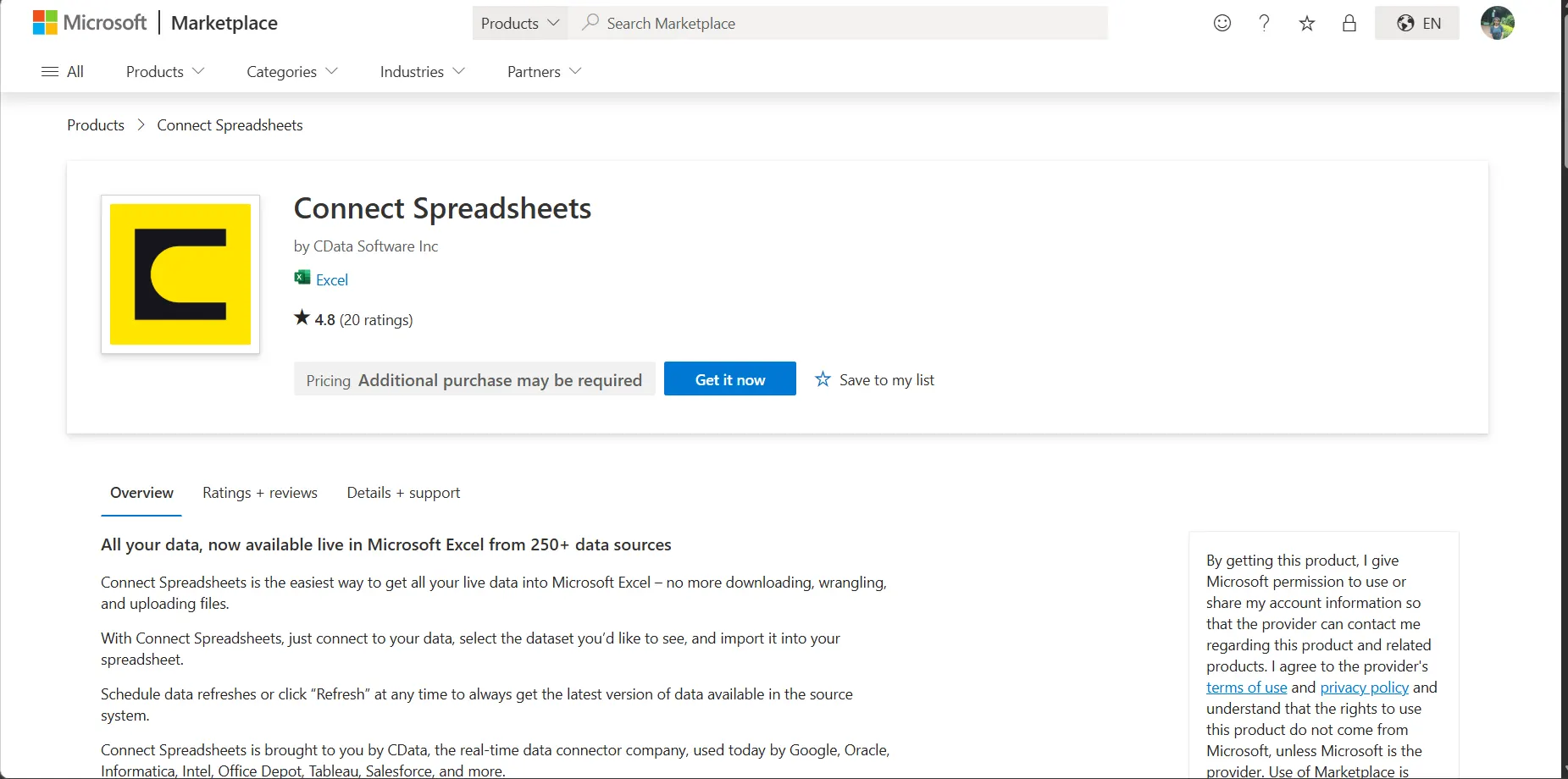
- Click Insert and click Get Add-ins. (if you have already installed the Add-In, jump to step 4).
- Search for Connect Spreadsheets and install the Add-in.
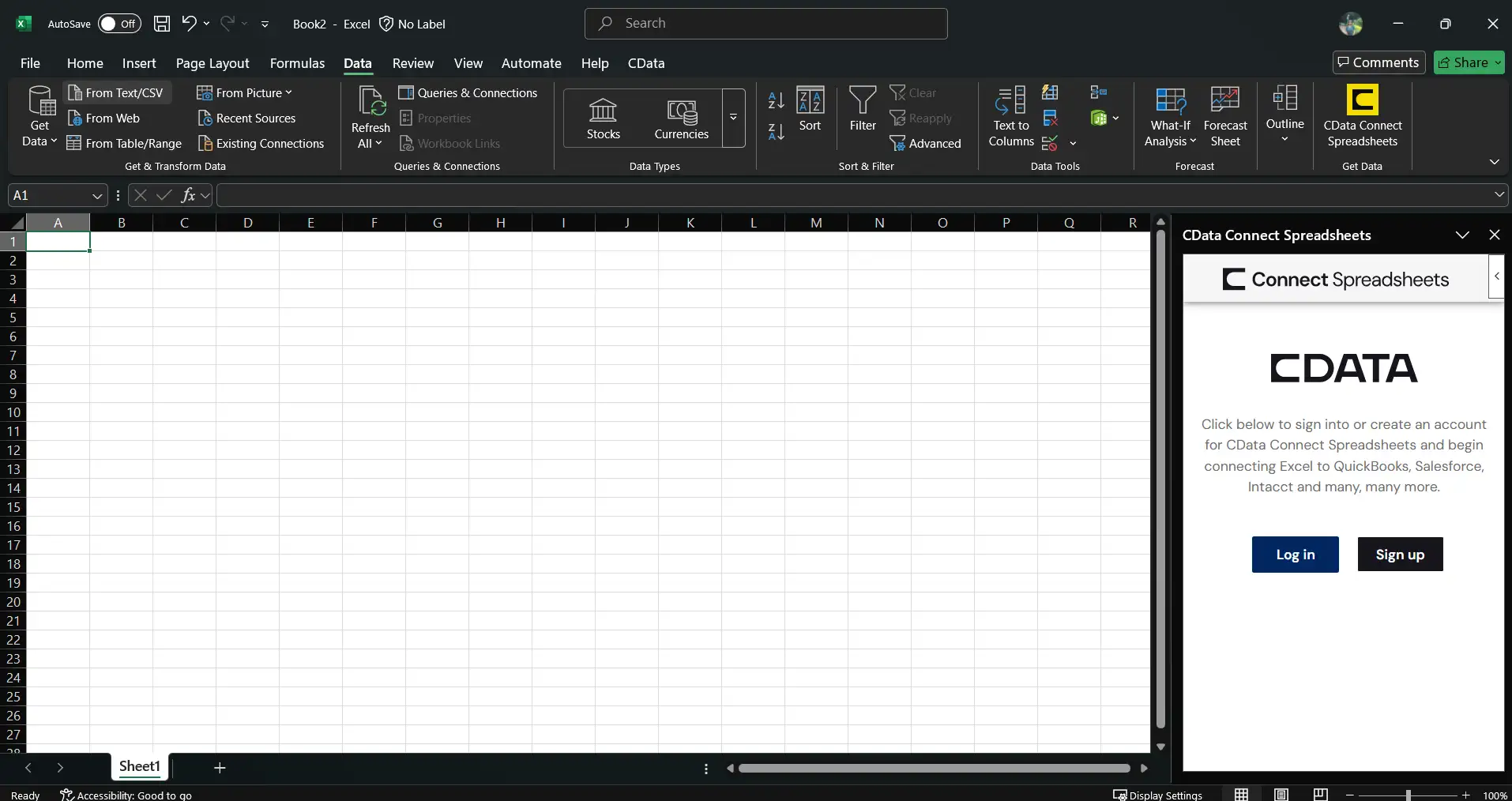
- Click Data and open the CData Connect Spreadsheets Add-In.
- In the Add-In panel, click "Log in" to authenticate with your Connect Spreadsheets account
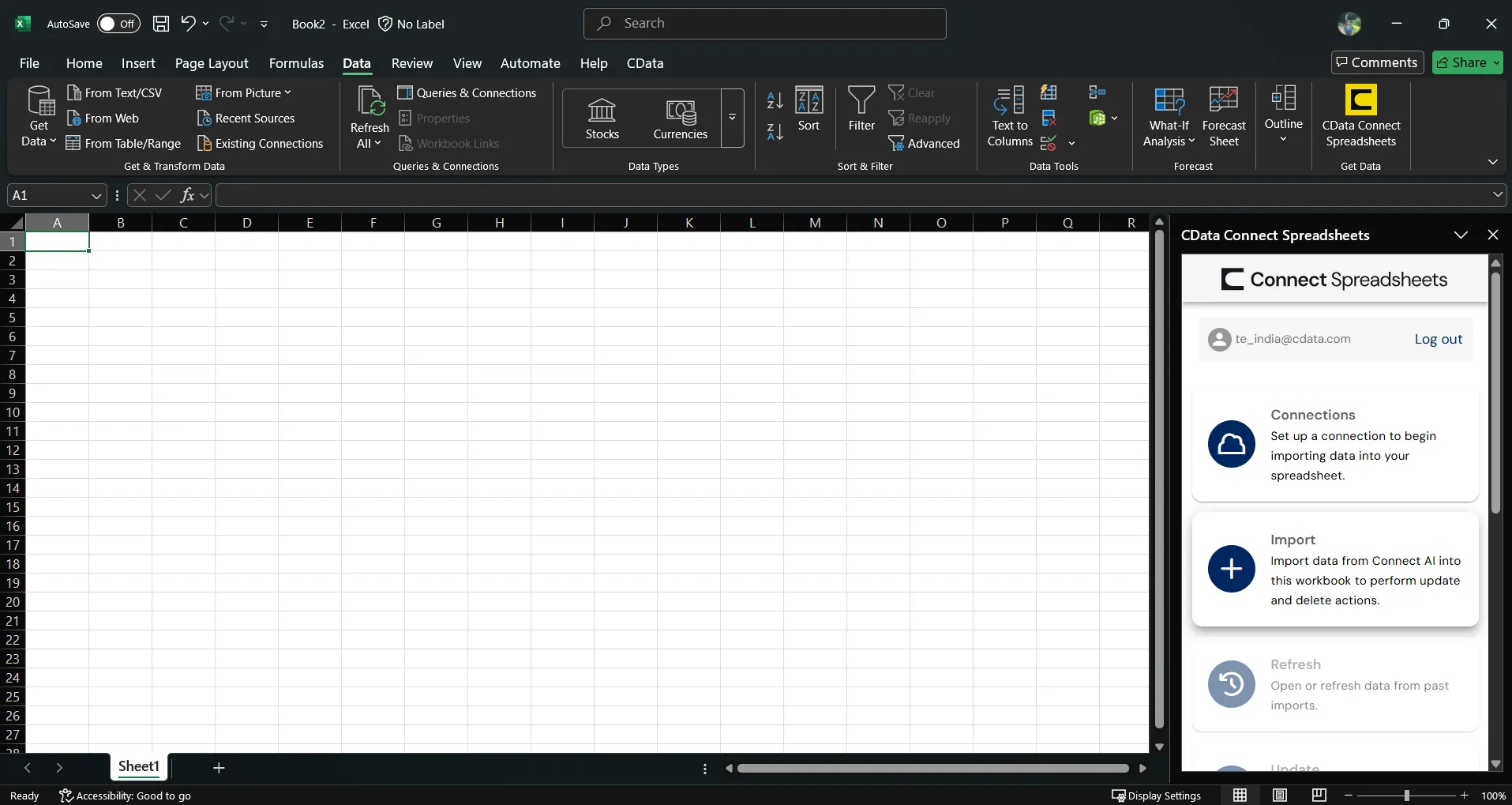
- In the Connect Spreadsheets panel in Excel, click Import
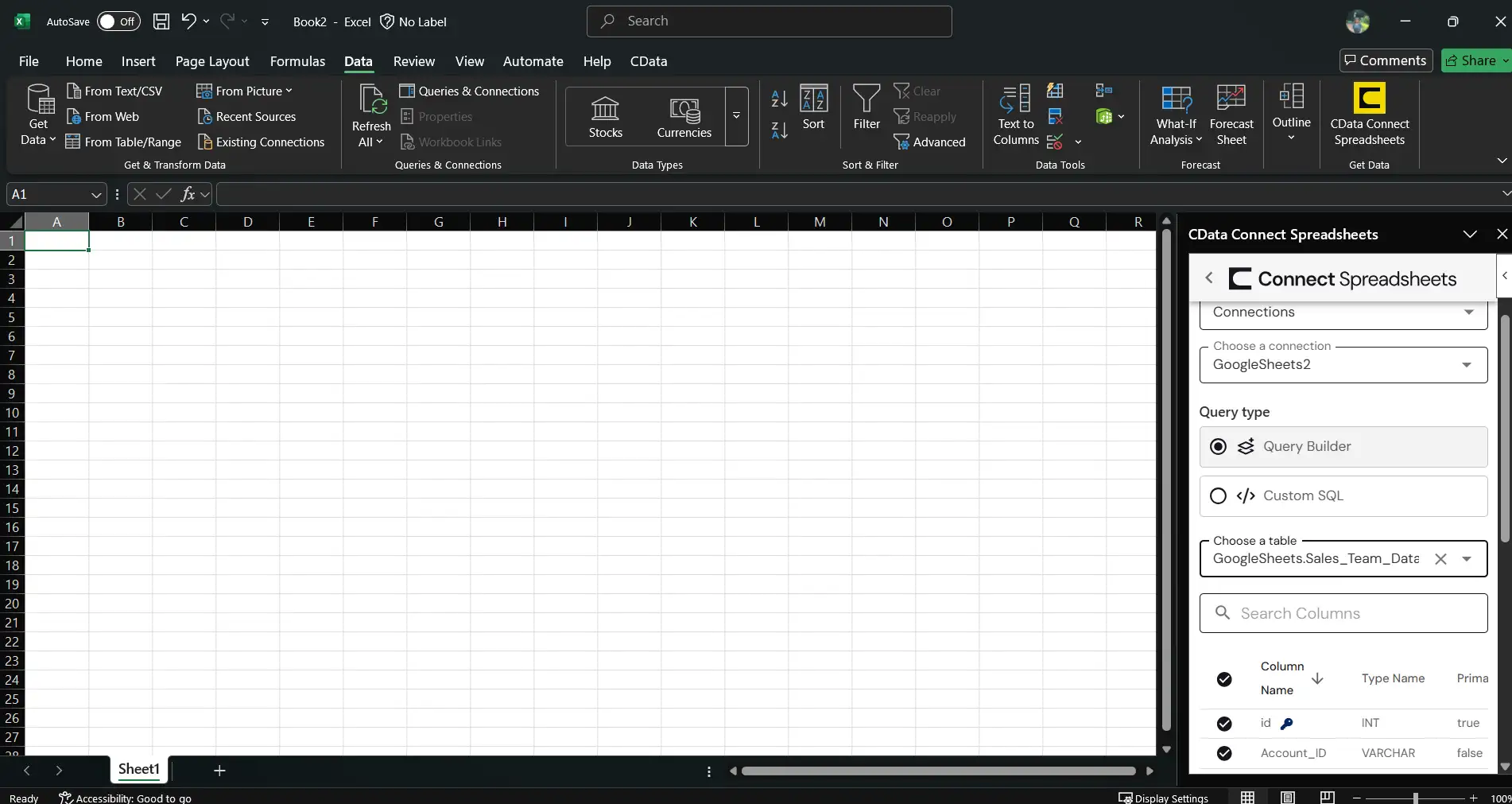
- Choose a Connection (e.g. SSAS1), Table (e.g. Adventure_Works), and Columns to import
- Optionally add Filters, Sorting, and a Limit
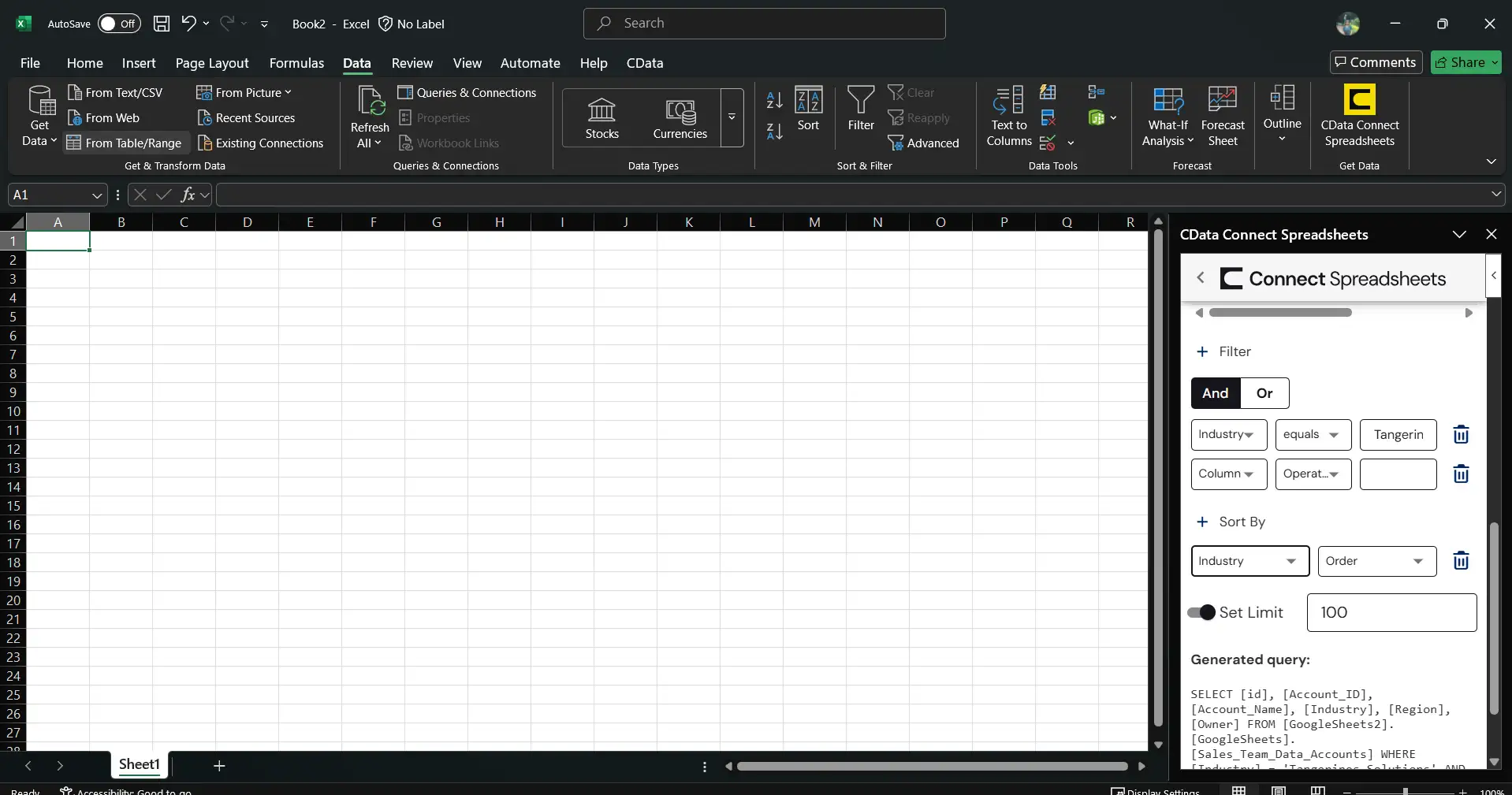
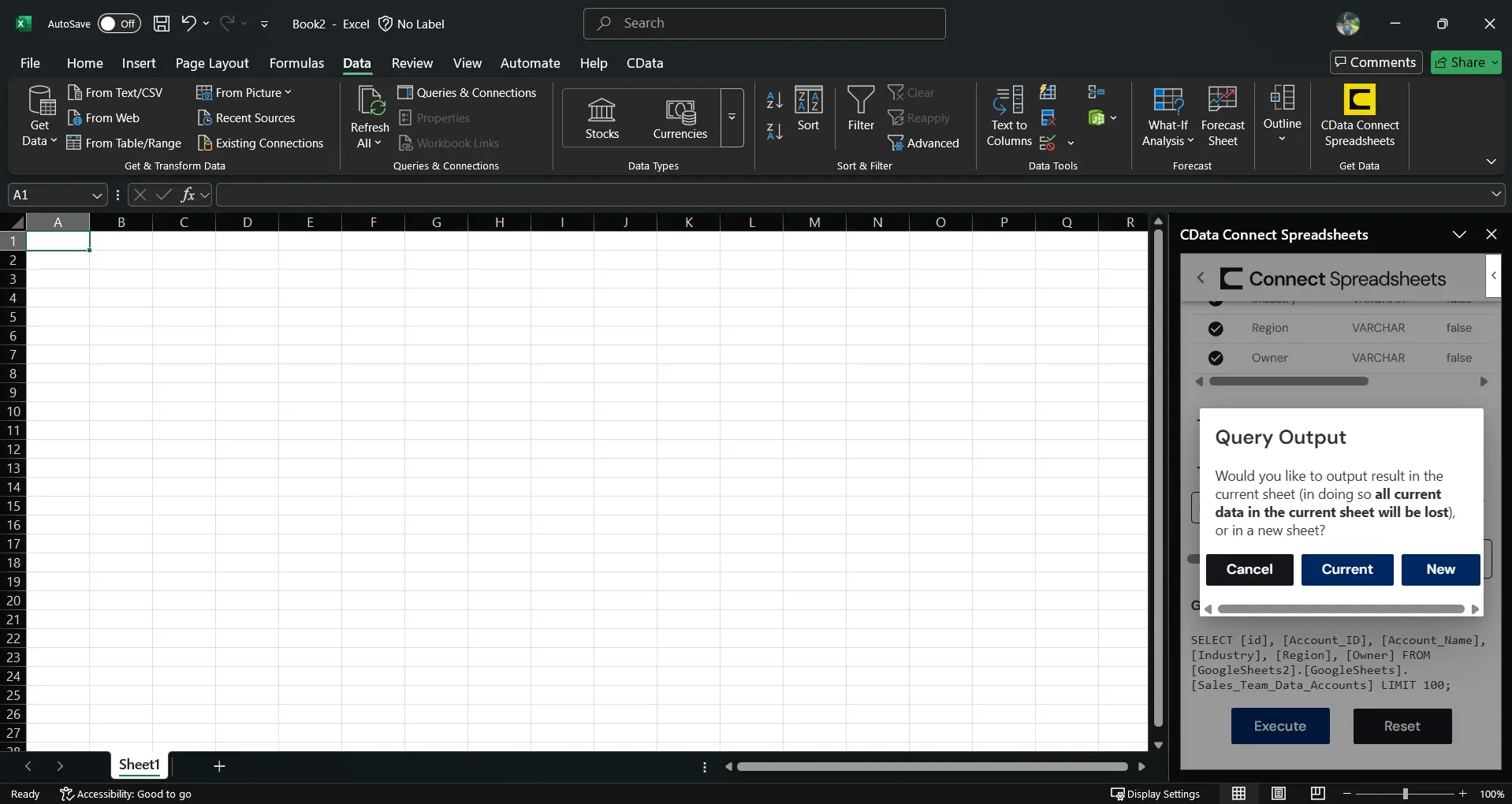
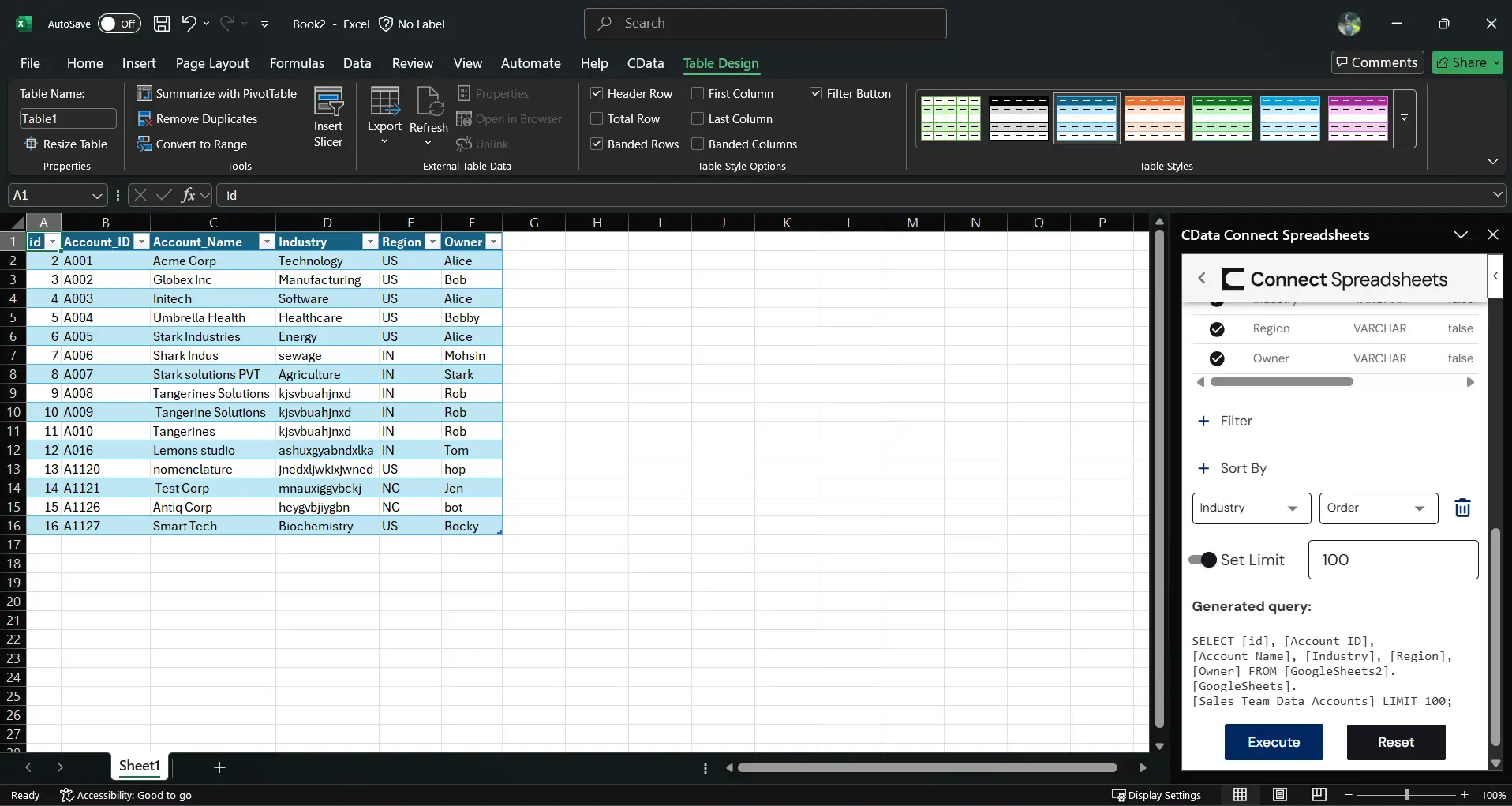
- Click Execute to import the data and opt to overwrite the existing sheet or create a new one.
Live Access to SQL Analysis Services Data from Spreadsheet Apps
New, you have a direct, cloud-to-cloud connection to live SQL Analysis Services data from your Excel workbook. You can add more data to your workbook for calculations, aggregations, collaboration, and more.
Try Connect Spreadsheets and get real-time data access to hundreds of SaaS, Big Data, and NoSQL sources directly from Microsoft Excel.