If you’ve been using Meta Muse as your personal AI agent and you want it to actually reach your work systems (Salesforce, NetSuite, HubSpot, ServiceNow), this post is for you. By the end, you’ll have Muse connected to your enterprise data so you can ask it questions about your pipeline, your customers, or your open support tickets and get answers without switching apps. It takes about 10 minutes and doesn’t require any technical background.
The short version of why this is possible: Muse has a feature called Custom Connectors that lets you add any web service that isn’t already in its built-in list. CData Connect AI is exactly that kind of service. You give Muse one URL and your credentials, and from that point on your Muse agent can reach every enterprise system you’ve set up in Connect AI.
At a glance What is Muse: Meta’s personal AI agent, launched September 8, 2026, that connects to apps and runs tasks on your behalf from inside a secure cloud environment What: Add CData Connect AI as a custom connector in Muse so your AI agent can query any enterprise data source Who: Business users who want Muse to reach enterprise apps, no coding required Time: About 10 minutes Prerequisites: A CData Connect AI account with at least one data source configured, and access to Muse at muse.ai First published: September 22, 2026
What Muse can connect out of the box (and where it stops)
Muse’s built-in connector list targets personal use by design. The apps in there (Gmail, Google Calendar, OpenTable, Peloton, Plaid) reflect what people want a personal agent to handle outside of work. That works well for personal tasks.
Work apps didn’t make the cut. Salesforce, HubSpot, NetSuite, ServiceNow, Dynamics 365: none of those systems are on the list. Meta built a path for this: the Custom Connector feature lets you add any service with a publicly accessible endpoint and API key or OAuth authentication. CData Connect AI’s MCP server fits that description exactly.
It exposes every data source you’ve already set up (Salesforce, NetSuite, BigQuery, SharePoint, and more) through one MCP endpoint. Add it to Muse once and your agent can query them all.
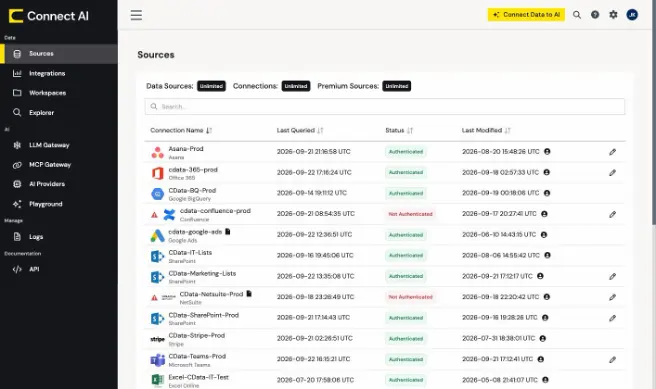
CData Connect AI Sources page showing enterprise connections including Office 365, Google BigQuery, NetSuite, SharePoint, Stripe, and Microsoft Teams, with a mix of Authenticated and Not Authenticated statuses.
What you’ll need before you start
Have these ready before you open Muse:
A CData Connect AI account with at least one data source configured (Salesforce, HubSpot, NetSuite, or whichever system you want Muse to reach). If you don’t have one yet, the quick start guide walks through setup.
The MCP endpoint URL: https://mcp.cloud.cdata.com/mcp
A personal access token (PAT) from your Connect AI Settings > Personal Access Tokens; copy the token value when you create it, because it’s only shown once
Step-by-step: connect enterprise data to Meta Muse via CData Connect AI
If you'd rather watch it done first, this three-minute video walks through the same five steps: creating a personal access token, building your API key, and adding the Connect AI endpoint in a Muse chat. The written steps that follow have every value you'll need to copy and paste.
Step 1: Generate a personal access token in Connect AI
Go to Connect AI Settings > Personal Access Tokens. Click Create PAT, name it something like “muse-connector,” and copy the token immediately. The value is only shown once at creation.
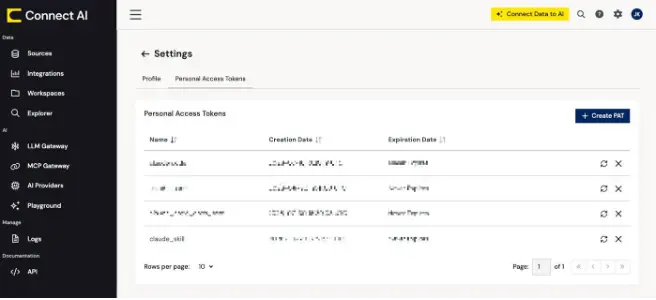
CData Connect AI Settings page with the Personal Access Tokens tab selected, showing a list of named tokens with creation dates and a Create PAT button in the top-right.
Step 2: Generate your API key
Muse authenticates to Connect AI with a single string: the word Basic, a space, then your email and personal access token (PAT) encoded in Base64. Enter your email and PAT below, and the generator builds that string for you.
Copy the string it returns. That's your API key for the next step.
Prefer to build it yourself? You can create the same string in your browser console or a terminal.
In your browser, right-click anywhere on this page, select Inspect (or press F12 on Windows / Cmd+Option+I on Mac), click the Console tab, and paste this, replacing the placeholders with your real email and PAT:
console.log("Basic " + btoa("[email protected]:YOUR_PAT_HERE"))
Press Enter. Copy the string it prints. That’s your API key for the next step.
If you’re comfortable with a terminal, the terminal version is:
echo -n "[email protected]:YOUR_PAT_HERE" | base64
Prefix that output with Basic (capital B, one space) and you have the same string.
Step 3: Note your MCP endpoint URL
Your Connect AI MCP endpoint is always https://mcp.cloud.cdata.com/mcp. You can also confirm it on the MCP Gateway page in Connect AI.
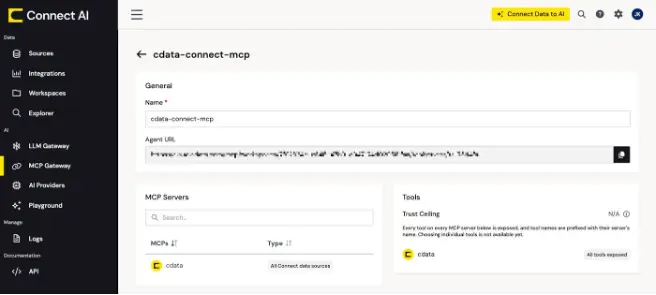
CData Connect AI MCP Gateway detail view showing the cdata-connect-mcp tool server, with the Agent URL field and the cdata MCP server listed as exposing all Connect data sources.
Step 4: Open Muse and ask for a custom connector
Go to muse.ai and start a new chat. Type:
I'd like to connect a custom MCP data server for my enterprise data.
Tell Muse the endpoint URL is https://mcp.cloud.cdata.com/mcp and that it uses API key authentication with the key going in the Authorization header. Muse will create a connector and ask you to connect.
Step 5: Enter your API key and confirm the connection
When Muse shows the connector card with a Connect button, click it. You’ll see the data connector dialog asking for your API key.
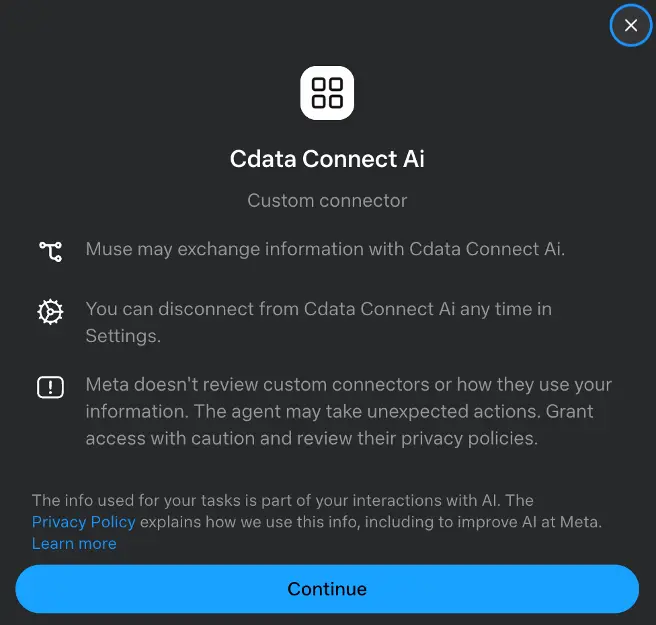
The Muse custom connector dialog for CData Connect AI, showing the API key input field and a Connect button before the user submits credentials.
Paste your full Basic
Muse will test the connection. When it succeeds, you’ll see confirmation that the handshake went through and your server reports 12 tools available.
From that point, Muse can reach every data source you’ve configured in Connect AI through one connector.
What to ask Muse once it’s connected
Once the connector is live, Muse can pull answers from your work data in plain language. The examples below depend on which sources you’ve connected in Connect AI. Each query only works if you have that specific connector set up and authenticated. Starting points by role:
Sales (requires Salesforce)
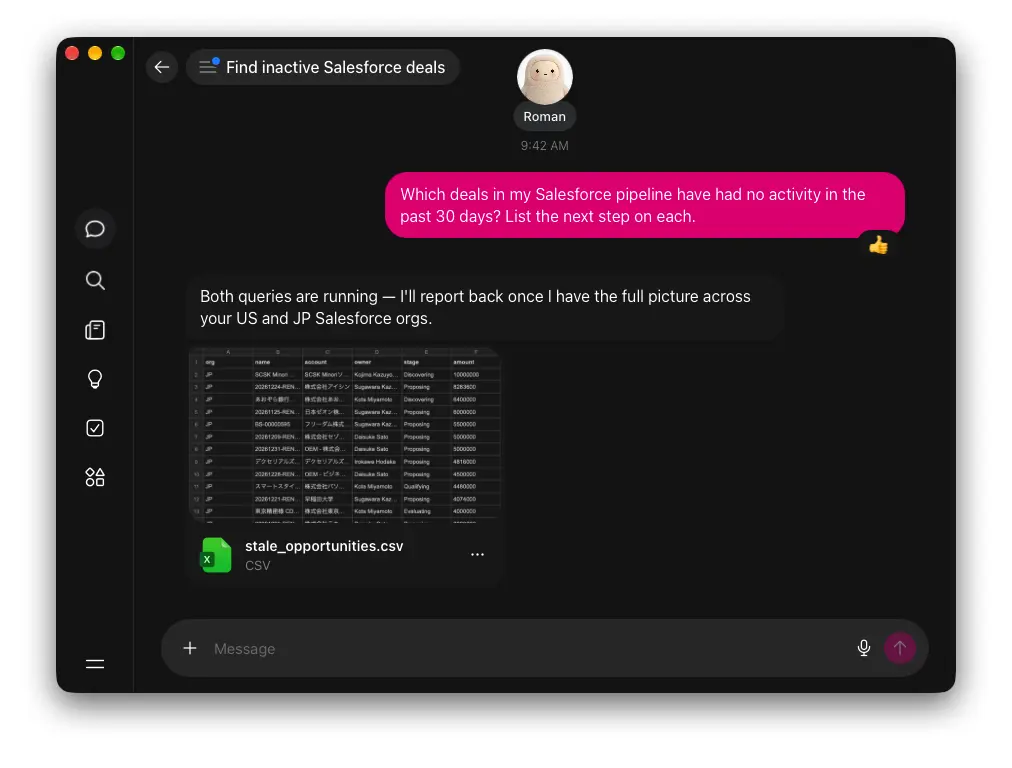
Most sales managers run this check manually every Monday morning. With Muse connected to Salesforce, it’s one question.
Which deals in my Salesforce pipeline have had no activity in the past 30 days? List the next step on each.
Account management (requires HubSpot)
Useful before a customer call when you want context without digging through activity feeds.
Summarize the last three touchpoints with Acme Corp in HubSpot, including any open support tickets.
Operations and procurement (requires NetSuite or another ERP)
Works with NetSuite or any ERP source you’ve configured in Connect AI.
What's our current inventory and lead time for the top five SKUs we reorder from this supplier?
IT and support (requires ServiceNow)
Which P1 incidents in ServiceNow remain open past SLA right now?
Ask this before a standup or status meeting instead of pulling a report manually.
Which enterprise systems work with CData Connect AI
Every source you’ve already connected in Connect AI is available through the same MCP endpoint. One connector in Muse covers them. The systems that come up most for Muse use cases:
Customer relationship management (CRM): Salesforce, HubSpot, Dynamics 365, Zoho CRM
Enterprise resource planning (ERP): NetSuite, SAP, Oracle ERP Cloud
Productivity: SharePoint, Microsoft Teams, OneDrive, Google Workspace
Support: ServiceNow, Zendesk, Jira
Finance: QuickBooks, Stripe, Xero
Data warehouses: BigQuery, Snowflake, Redshift, Databricks
If a system you need isn’t in that list, check the full connector catalog. You can also use custom MCP tools in Connect AI to scope exactly which data Muse can see within each source, down to specific tables or columns, which is useful when you want to give your Muse agent access to pipeline data without exposing the entire CRM schema.
Connect your enterprise data to Muse with Connect AI
Add CData Connect AI as a custom connector in Muse and your agent can reach any enterprise system you've set up, Salesforce, NetSuite, ServiceNow, HubSpot, all from one connector and one conversation.
Start your free trial of Connect AI, then follow the Connect AI quick start guide to set up your first data source and add it to Muse.
Frequently asked questions
Can Muse connect to Salesforce?
Not through a built-in connector as of September 2026. Muse's native connector list covers consumer and personal productivity apps. To connect Salesforce, add CData Connect AI as a custom connector in Muse using the MCP endpoint at https://mcp.cloud.cdata.com/mcp with a personal access token from your Connect AI settings. Once configured, you can query Salesforce data directly in your Muse conversation.
Does this require any technical knowledge?
You're giving Muse an endpoint URL and an API key in a chat conversation. CData Connect AI handles the connection to your data source from its end, and Muse handles the integration from its end.
Is my enterprise data secure?
Yes. On the Connect AI side, every request to the MCP endpoint travels over HTTPS and is authenticated against your personal access token before any data is returned. Your PAT is scoped to your account, never stored in the MCP server itself, and can be revoked or rotated at any time from Connect AI Settings > Personal Access Tokens. On the Muse side, credentials live in Muse's secure credential store, separate from the conversation thread. Your API key is never visible to the agent or included in any response. If you revoke the PAT in Connect AI, the connector stops working immediately with no action required in Muse.
What should my IT team know about this integration?
CData Connect AI uses HTTPS and token-based authentication for every request. Your organization's data never passes through Meta's servers directly. Muse sends a request to the MCP endpoint, Connect AI authenticates it against your personal access token, queries the configured data source, and returns only the rows that answer the question. Personal access tokens are scoped to individual user accounts and can be revoked from the Connect AI admin panel at any time. Connect AI also supports IP allowlisting if your organization requires network-level controls. For a full security overview, see the CData Connect AI security documentation or contact your CData account team.
What if my data source isn't configured in Connect AI yet?
Configure it in Connect AI first. Log in, go to Sources, and add a connection for the system you want (Salesforce, NetSuite, HubSpot, and so on). Connect AI walks through authentication for each source. Once the connection shows as Authenticated, it's available through the MCP endpoint and your Muse connector will reach it automatically.
Does this work on Muse's mobile app?
Yes. Custom connectors configured on the web carry over to the Muse mobile app automatically.
Can one connector give Muse access to multiple data sources?
Yes. Connect AI exposes your configured data sources through one MCP endpoint. After you add the connector in Muse, your agent can query any of them without needing a separate custom connector for each source.





