







Replicate API Data to Multiple Databases via the CData Sync CLI

Always-on applications rely on automatic failover capabilities and real-time access to data. CData Sync for API integrates live API data into your mirrored databases, always-on cloud databases, and other databases such as your reporting server: Automatically synchronize with remote API data from Windows or any machine running Java.
You can use Sync's command-line interface (CLI) to easily control almost all aspects of the replication. You can use the CLI to replicate API data to one or many databases without any need to change your configuration.
Connect to API Data
You can save connection strings and other settings like email notifications in XML configuration files.
The following example shows how to replicate to SQLite.
Windows
<?xml version="1.0" encoding="UTF-8" ?>
<CDataSync><DatabaseType>SQLite</DatabaseType>
  <DatabaseProvider>System.Data.SQLite</DatabaseProvider>
  <ConnectionString></ConnectionString>
  <ReplicateAll>False</ReplicateAll>
  <NotificationUserName></NotificationUserName>
  <DatabaseConnectionString>Data Source=C:\my.db</DatabaseConnectionString>
  <TaskSchedulerStartTime>09:51</TaskSchedulerStartTime>
  <TaskSchedulerInterval>Never</TaskSchedulerInterval>
</CDataSync>
Java
<?xml version="1.0" encoding="UTF-8" ?>
<CDataSync><DatabaseType>SQLite</DatabaseType><DatabaseProvider>org.sqlite.JDBC</DatabaseProvider>
<ConnectionString></ConnectionString>
<ReplicateAll>False</ReplicateAll>
<NotificationUserName></NotificationUserName>
<DatabaseConnectionString>Data Source=C:\my.db</DatabaseConnectionString>
</CDataSync>
To connect to your API, configure the following properties on the Global Settings page:
- In Authentication, select the Type and fill in the required properties
- In Headers, add the required HTTP headers for your API
- In Pagination, select the Type and fill in the required properties
After the configuring the global settings, navigate to the Tables to add tables. For each table you wish to add:
- Click "+ Add"
- Set the Name for the table
- Set Request URL to the API endpoint you wish to work with
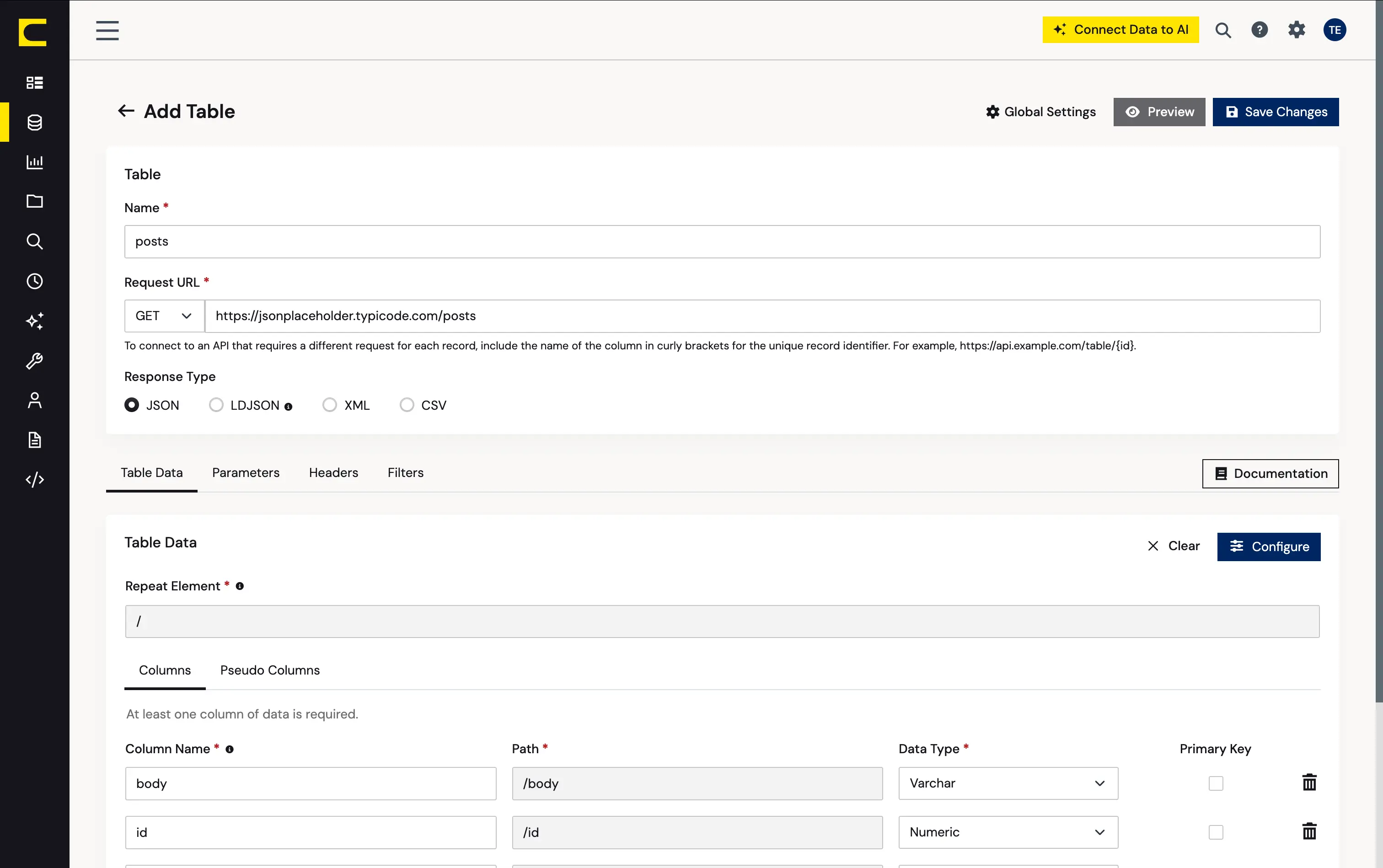
- (Optional) In Parameters, add the required URL Parameters for your API endpoint
- (Optional) In Headers, add the required HTTP headers for the API endpoint
- In Table Data click " Configure"
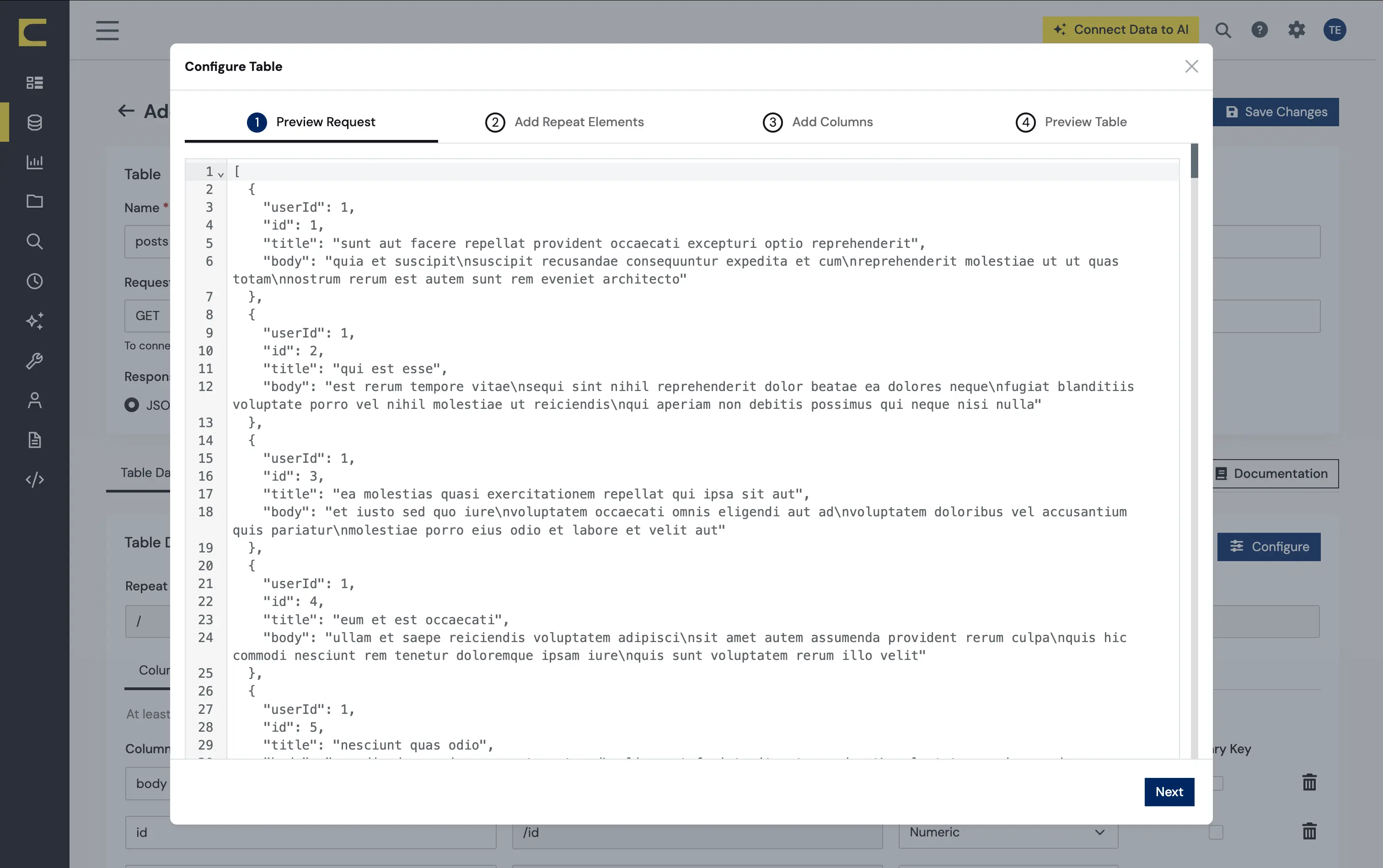
- Review the response from the API and click "Next"
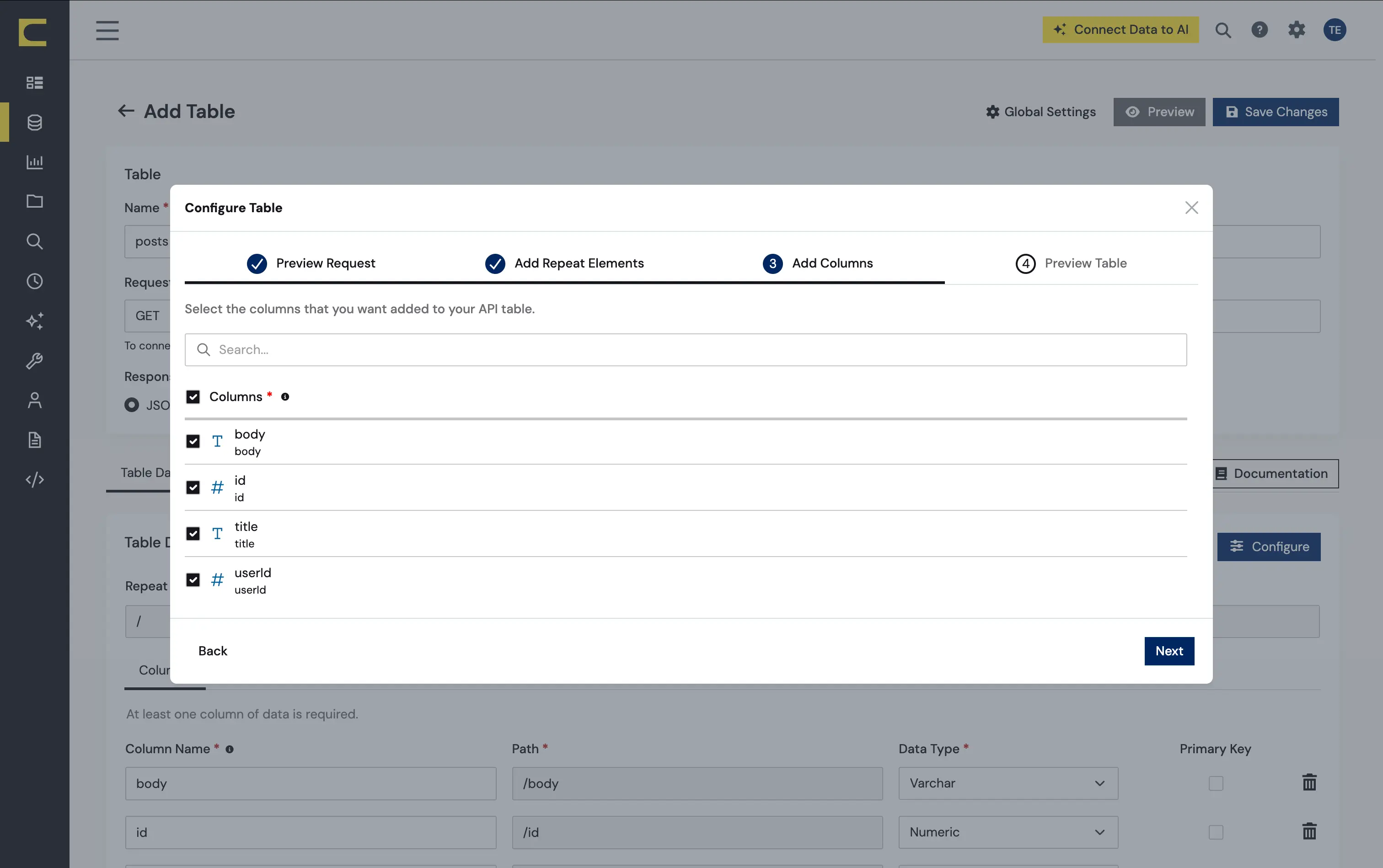
- Select which element to use as the Repeated Elements and which elements to use as Columns and click "Next"
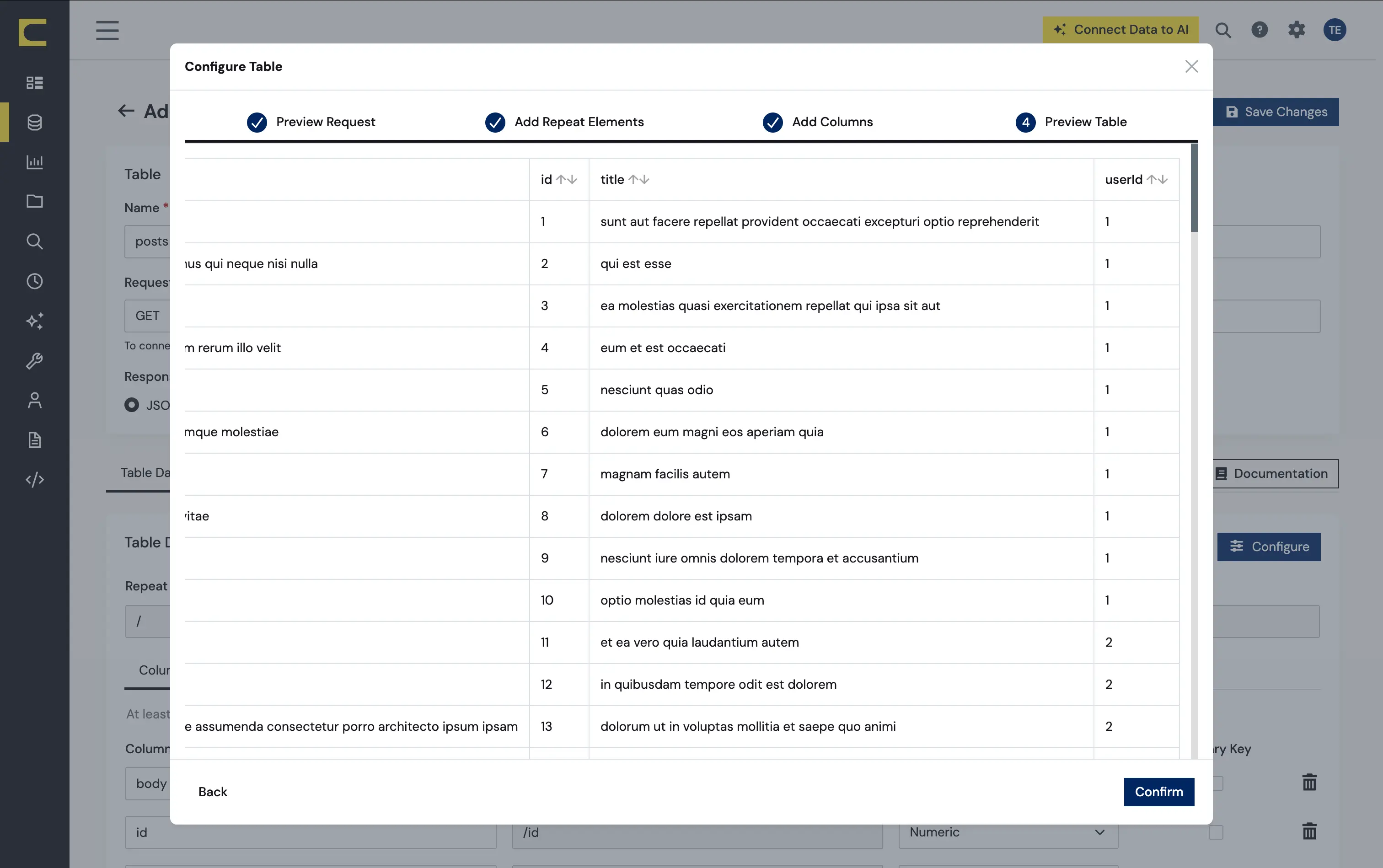
- Preview the tabular model of the API response and click "Confirm"
Configure Replication Queries
Sync enables you to control replication with standard SQL. The REPLICATE statement is a high-level command that caches and maintains a table in your database. You can define any SELECT query supported by the API API. The statement below caches and incrementally updates a table of API data:
REPLICATE posts;
You can specify a file containing the replication queries. This enables you to use the same replication queries to replicate to several databases.
Run Sync
After you have configured the connection strings and replication queries, you can run Sync with the following command-line options:
Windows
APISync.exe -g MySQLiteConfig.xml -f APISync.sql
Java
java -Xbootclasspath/p:c:\sqlitejdbc.jar -jar APISync.jar -g MySQLiteConfig.xml -f APISync.sql