







Access Live Jira Assets Data in Excel 365 Online (Excel for the web)

Microsoft Excel for the web represents a cloud-native iteration of Microsoft Excel. When integrated with CData Connect AI, you gain immediate access to Jira Assets data directly from within Excel. This access facilitates data analysis, collaborative work, calculations, and more. This article provides a step-by-step guide on connecting to Jira Assets within your Connect AI instance and accessing live Jira Assets data in Excel for the web spreadsheets, whether for viewing or updating purposes.
CData Connect AI provides a pure cloud-to-cloud interface for Jira Assets, allowing you to easily access live Jira Assets data in Excel for the web. Simply use the Connect AI Add-In to query live data (or write your own). Using optimized data processing out of the box, CData Connect AI pushes all supported query operations (filters, JOINs, etc) directly to Jira Assets, leveraging server-side processing to quickly return Jira Assets data.
This setup requires a CData Connect AI instance and the CData Connect AI Add-In for Excel. To get started, sign up a free trial of Connect AI and install the free Connect AI Excel Add-In.
Configure Jira Assets Connectivity for Excel
Connectivity to Jira Assets from Excel is made possible through CData Connect AI. To work with Jira Assets data from Excel, we start by creating and configuring a Jira Assets connection.
- Log into Connect AI, click Sources, and then click Add Connection
- Select "Jira Assets" from the Add Connection panel
-
Enter the necessary authentication properties to connect to Jira Assets.
Jira Assets supports connecting and authenticating via the APIToken.
To generate an API token:
- Log in to your Atlassian account.
- Navigate to Security < Create and manage API Token < Create API Token.
Atlassian generates and then displays the API token.
After you have generated the API token, set these parameters:
- AuthScheme: APIToken.
- User: The login of the authenticating user.
- APIToken: The API token you just generated.
You are now ready to connect and authenticate to Jira Assets.

- Click Save & Test
-
Navigate to the Permissions tab in the Add Jira Assets Connection page and update the User-based permissions.



With the connection configured, you are ready to connect to Jira Assets data from Excel for the web.
Access Live Jira Assets Data in Excel for the web
The steps below outline connecting to CData Connect AI from Excel to access live Jira Assets data.
- Log into Excel, create a new sheet (or open an existing one).
- Click Insert and click Office Add-ins. (if you have already installed the Add-In, jump to step 4).
- Search for CData Connect Spreadsheets Add-In and install the Add-in.
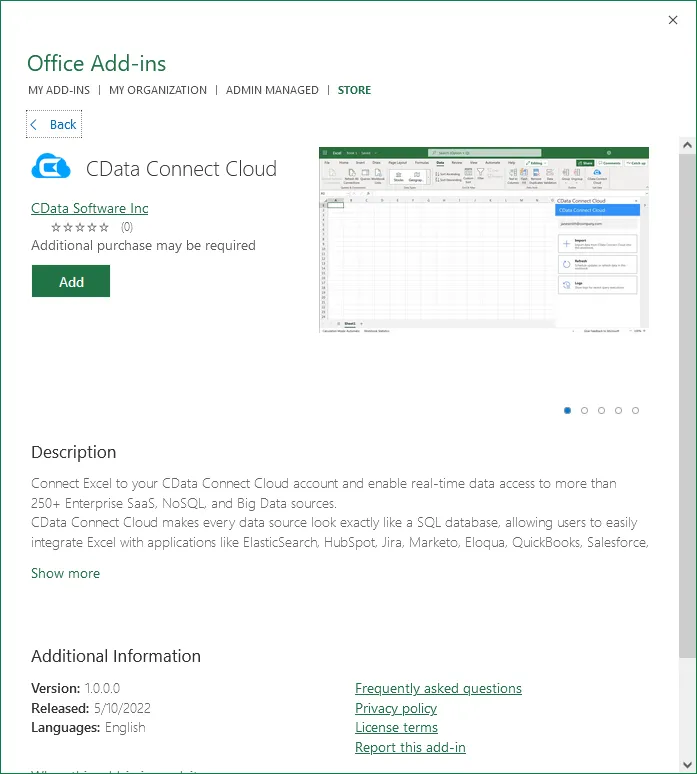
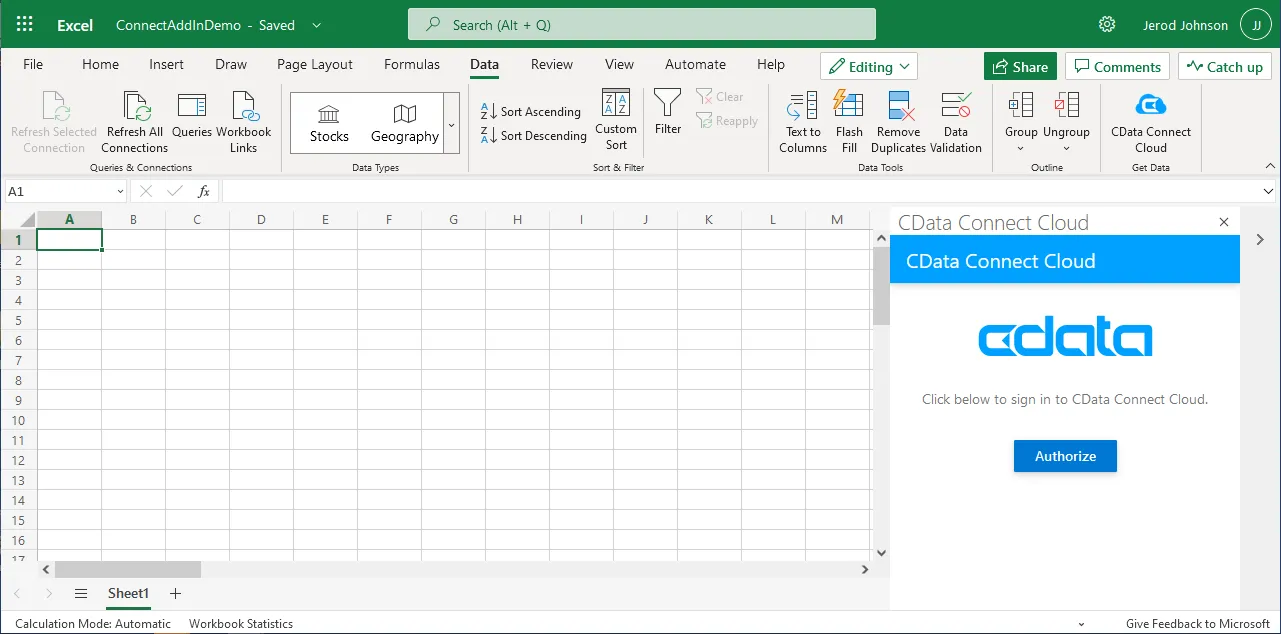
- Click Data and open the CData Connect Spreadsheets Add-In.
- In the Add-In panel, click Login or Sign-up to authenticate with your CData Connect AI instance
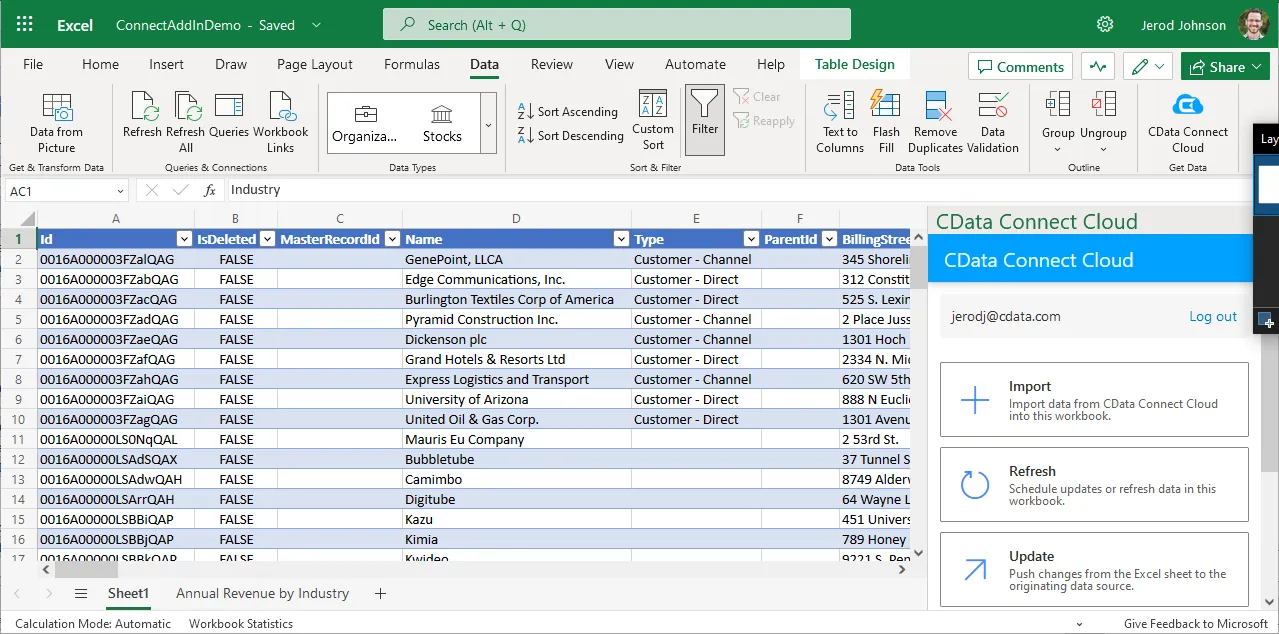
- In the CData Connect Spreadsheets panel in Excel, click Import
- Choose a Connection (e.g. JiraAssets1), Table (e.g. Objects), and Columns to import
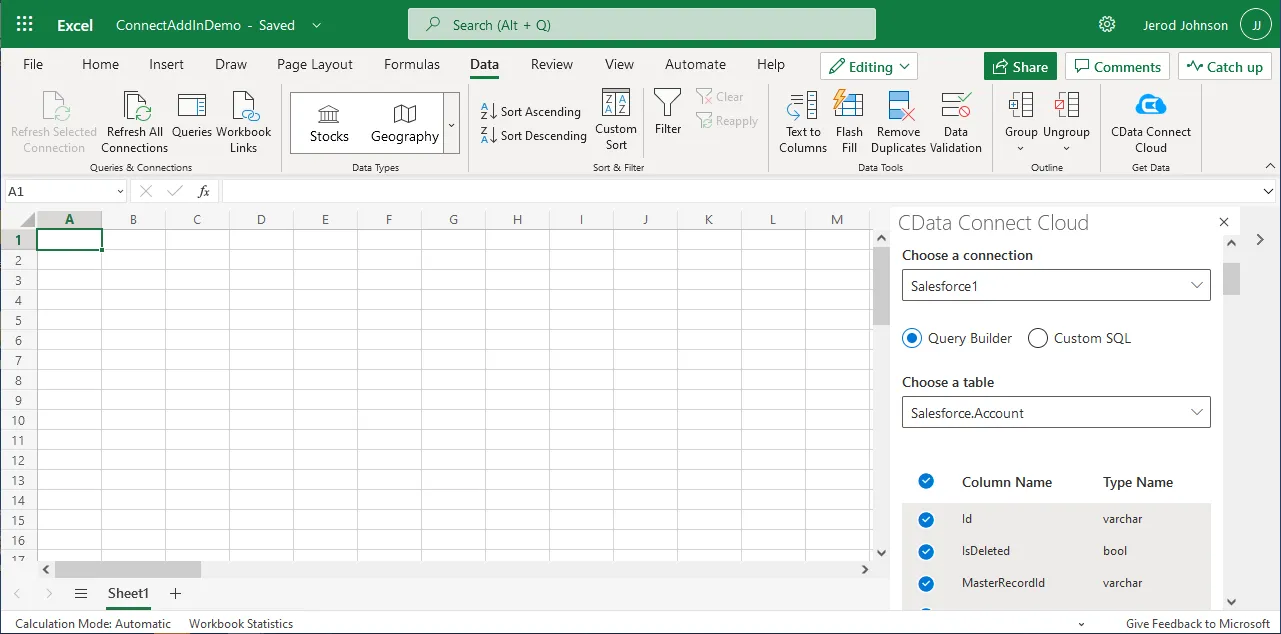
- Optionally add Filters, Sorting, and a Limit
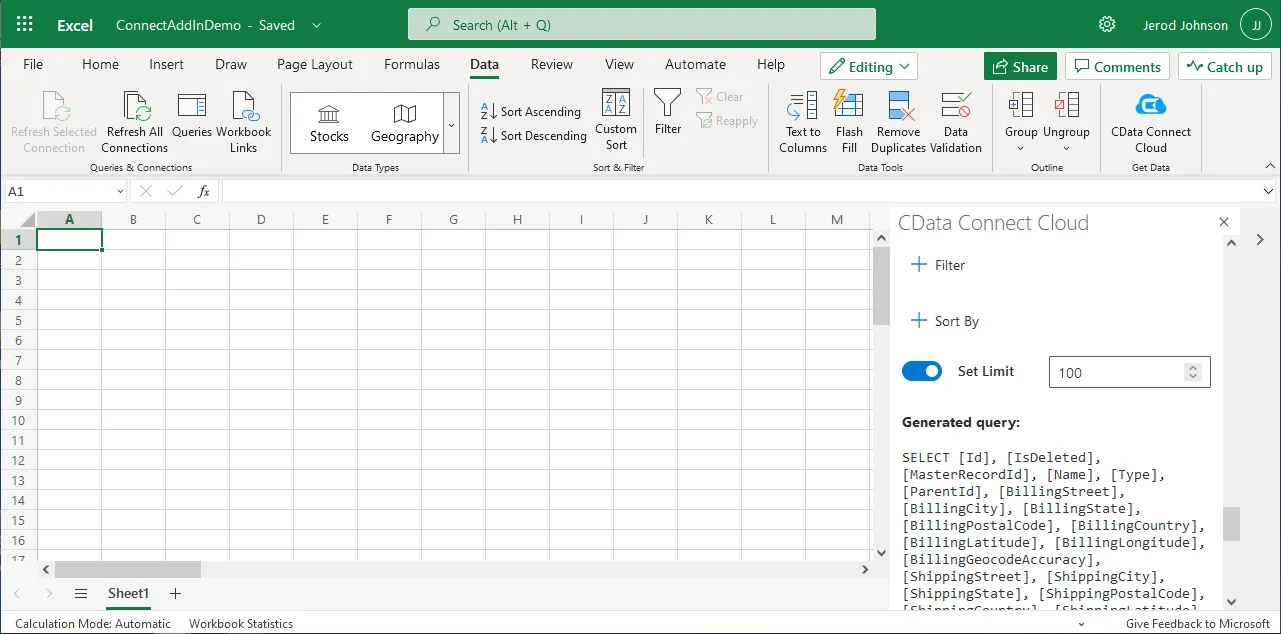
- Click Execute to import the data
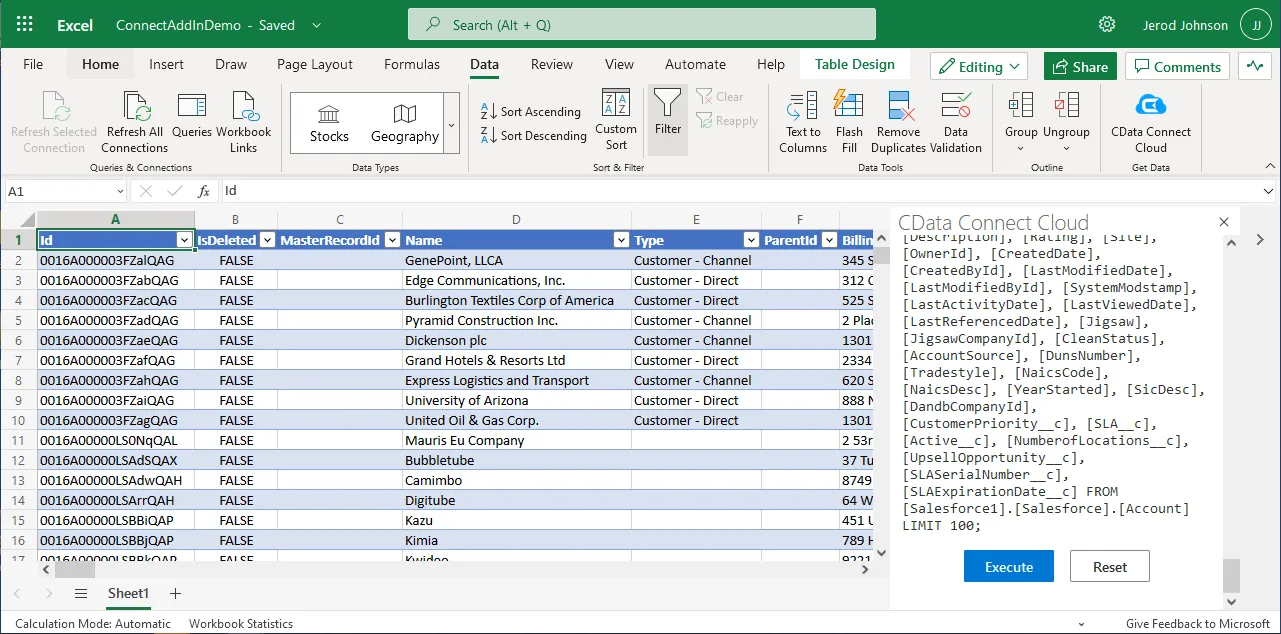
Update Jira Assets Data from Excel
In addition to viewing Jira Assets data in Excel, CData Connect AI also lets you update and delete Jira Assets data. Begin by importing data (as described above).
- Update any cell or cells with changes you want to push to Jira Assets (your changes will be in red)
- In the CData Connect Spreadsheets Add-In panel, select Update
- Optionally highlight the cell(s) you wish to update and select an update option ("Update All" or "Update Selected")
- Click Execute to push the updates to Jira Assets
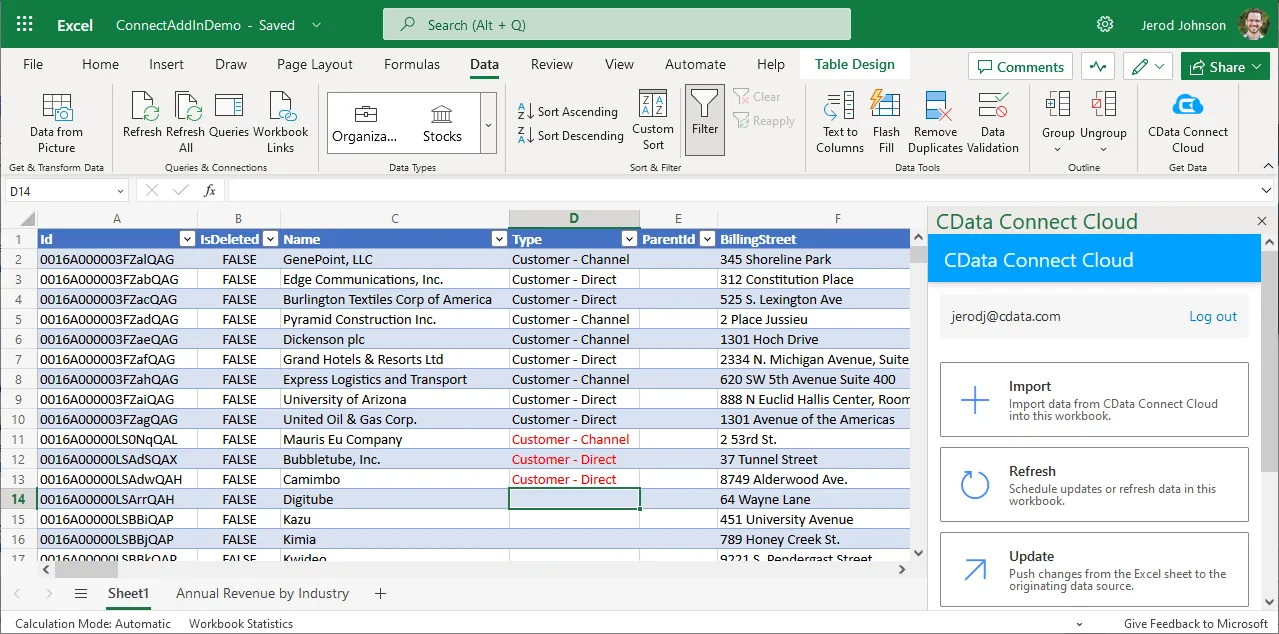
A notification will appear when the update is complete
Live Access to Jira Assets Data from Cloud Applications
New, you have a direct, cloud-to-cloud connection to live Jira Assets data from your Excel workbook. You can add more data to your workbook for calculations, aggregations, collaboration, and more.
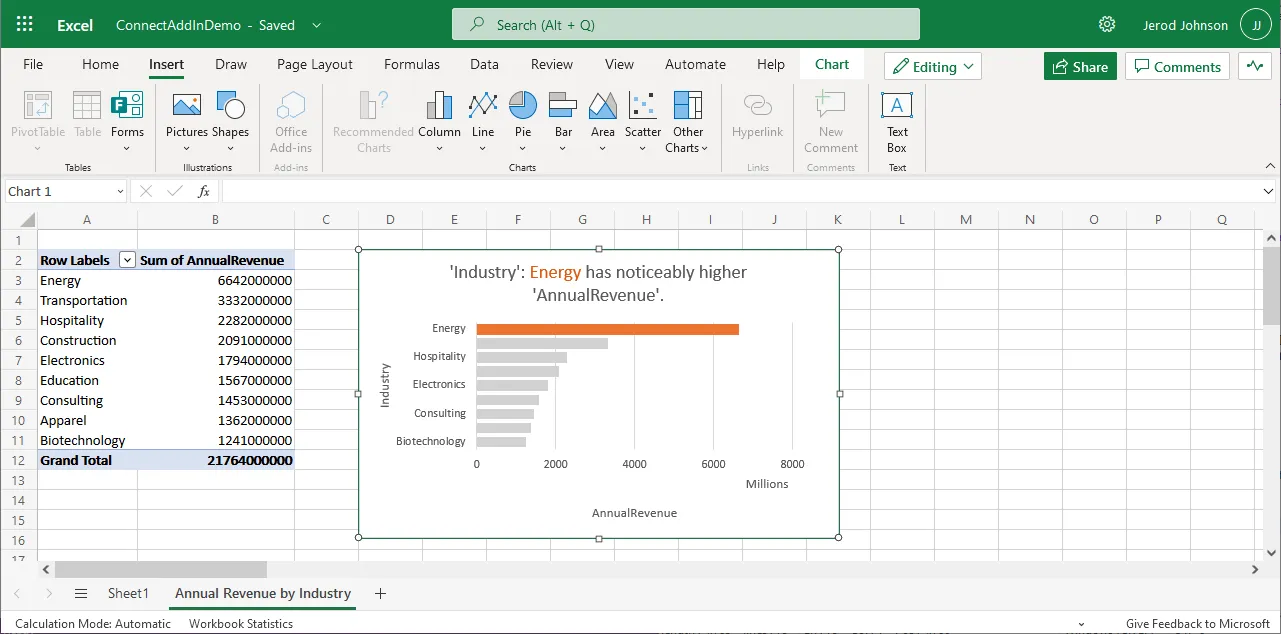
Try CData Connect AI and get real-time data access to hundreds of SaaS, Big Data, and NoSQL sources directly from your cloud applications.