







Automated Continuous SAP Business Warehouse Replication to Amazon Redshift

Always-on applications rely on automatic failover capabilities and real-time data access. CData Sync integrates live SAP Business Warehouse data into your Amazon Redshift instance, allowing you to consolidate all of your data into a single location for archiving, reporting, analytics, machine learning, artificial intelligence and more.
Configure Amazon Redshift as a Replication Destination
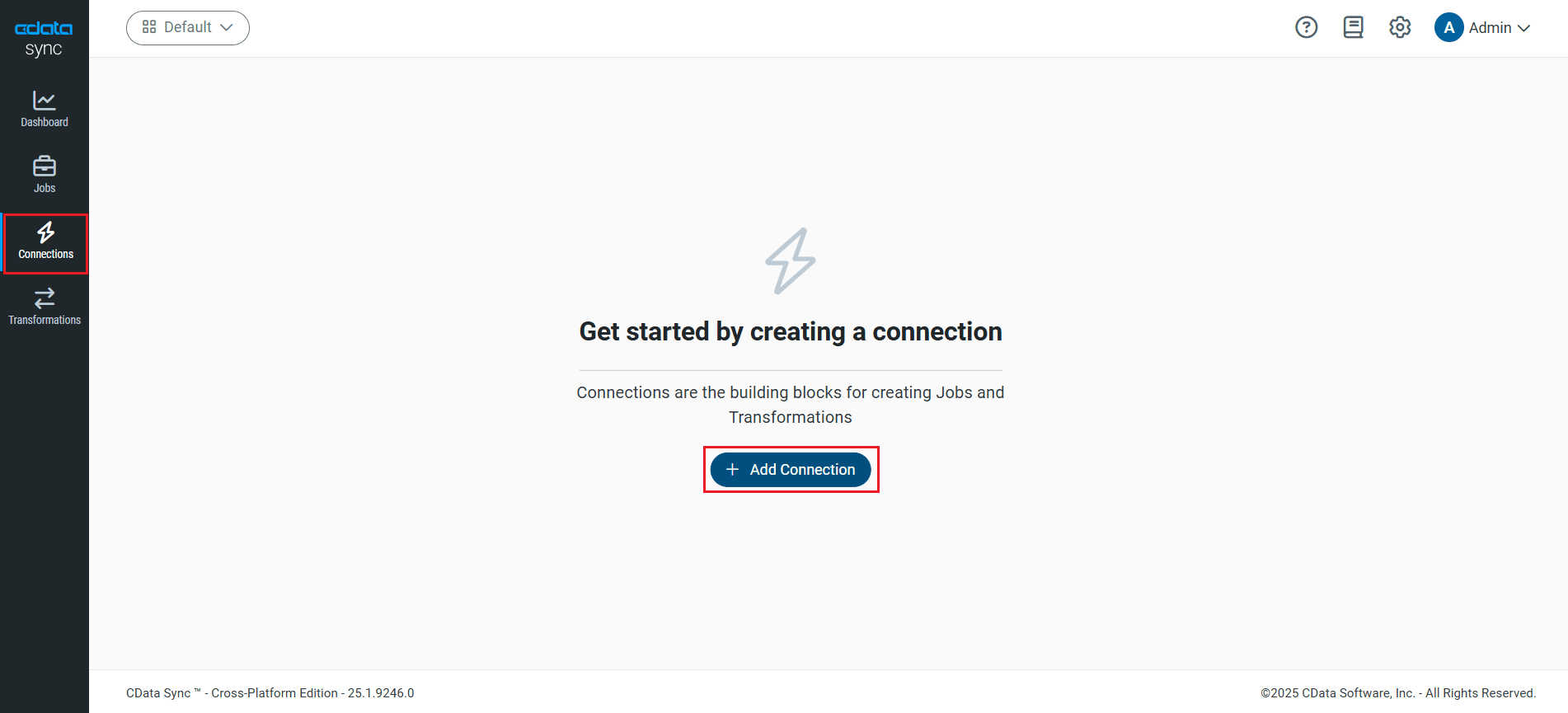
Using CData Sync, you can replicate SAP Business Warehouse data to Amazon Redshift. To add a replication destination, navigate to the Connections tab.
- Click Add Connection.
- Select the Destinations tab and locate the Amazon Redshift connector.
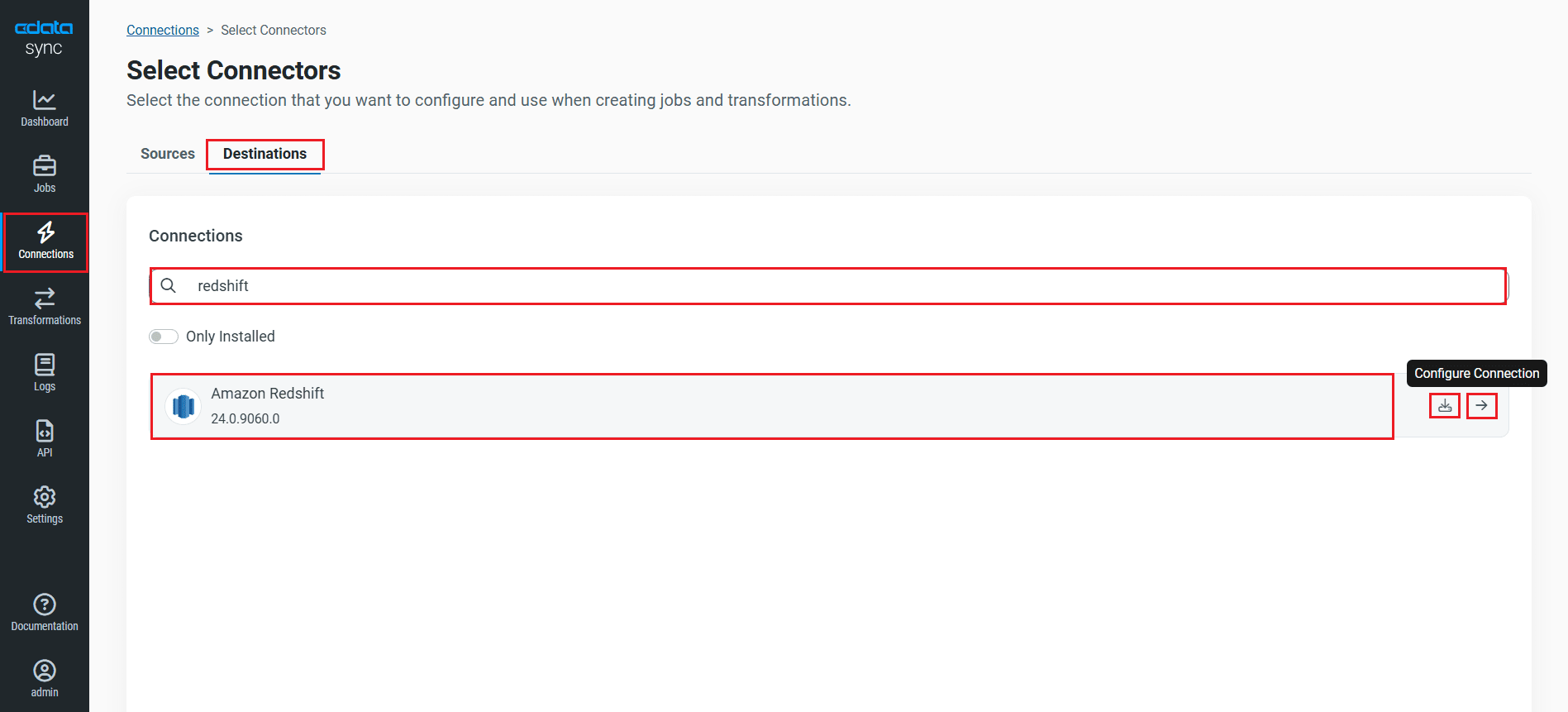
- Click the Configure Connection icon at the end of that row to open the New Connection page. If the Configure Connection icon is not available, click the Download Connector icon to install the Amazon Redshift connector. For more information about installing new connectors, see Connections in the Help documentation.
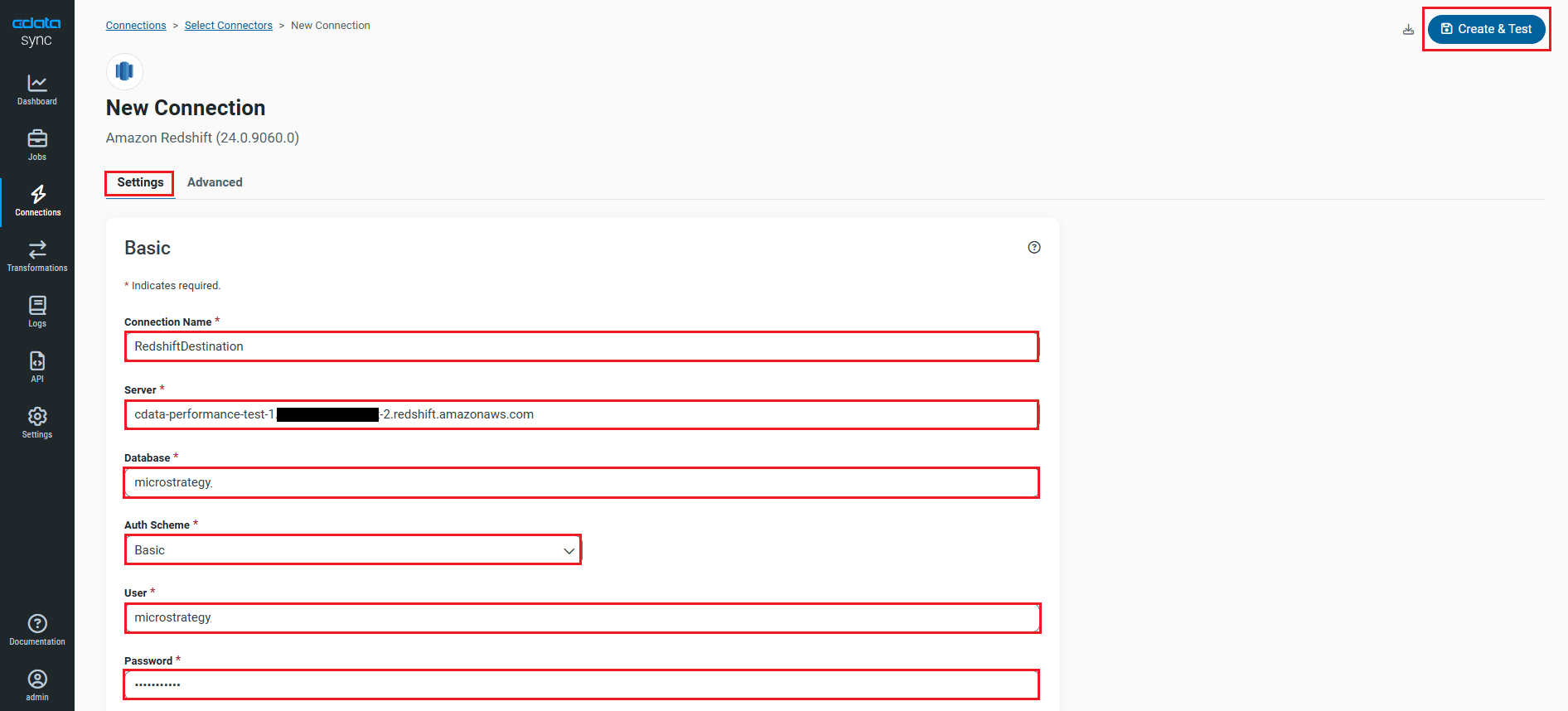
- To connect to Amazon Redshift, set the following connection properties:
- Connection Name: Enter a connection name of your choice for the Amazon Redshift connection.
- Server: Enter the host name or IP of the server that hosts the Amazon Redshift database (for example, example.us-west-2.redshift.amazonaws.com).
- Database: Enter the name of the database that you create for your Amazon Redshift cluster.
- AuthScheme: Select the authentication scheme.
- User: Set this to the username you want to use to authenticate to the Server.
- Password: Set this to the password you want to use to authenticate to the Server.
- Port: Set this to the port of the cluster.
You can obtain these values in the AWS Management Console:
- Open the Amazon Redshift console.
- On the Clusters page, click the name of the cluster.
- On the Configuration tab, obtain the properties from the Cluster Database Properties section. The connection property values will be the same as the values set in the ODBC URL.
- Once connected, click Create & Test to create, test and save the connection.
You are now connected to Amazon Redshift and can use it as both a source and a destination.
NOTE: You can use the Label feature to add a label for a source or a destination.
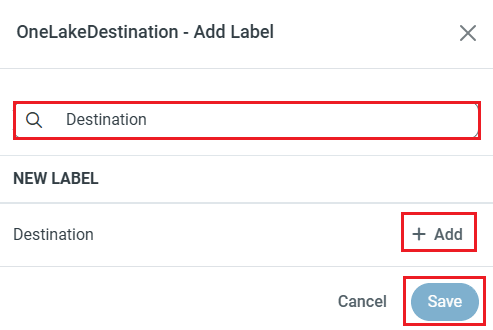
In this article, we will demonstrate how to load SAP Business Warehouse data into Amazon Redshift and utilize it as a destination.
Configure the SAP Business Warehouse Connection
You can configure a connection to SAP Business Warehouse from the Connections tab. To add a connection to your SAP Business Warehouse account, navigate to the Connections tab.
- Click Add Connection.
- Select a source (SAP Business Warehouse).
- Configure the connection properties.
To connect to SAP Business Warehouse, set the URL property to a valid SAP Business Warehouse server base URL. The driver must connect to SAP Business Warehouse instances hosted over HTTP with XMLA access.
The driver supports the following authentication schemes via the AuthScheme property:
- None: Anonymous authentication, if available on the server.
- Basic: Set User and Password and set AuthScheme to Basic.
- Kerberos: See the Using Kerberos section of the help documentation for the required Kerberos properties.
By default, the driver attempts to negotiate SSL/TLS by checking the server's certificate against the system's trusted certificate store. To specify another certificate, see the SSLServerCert property for the available formats.
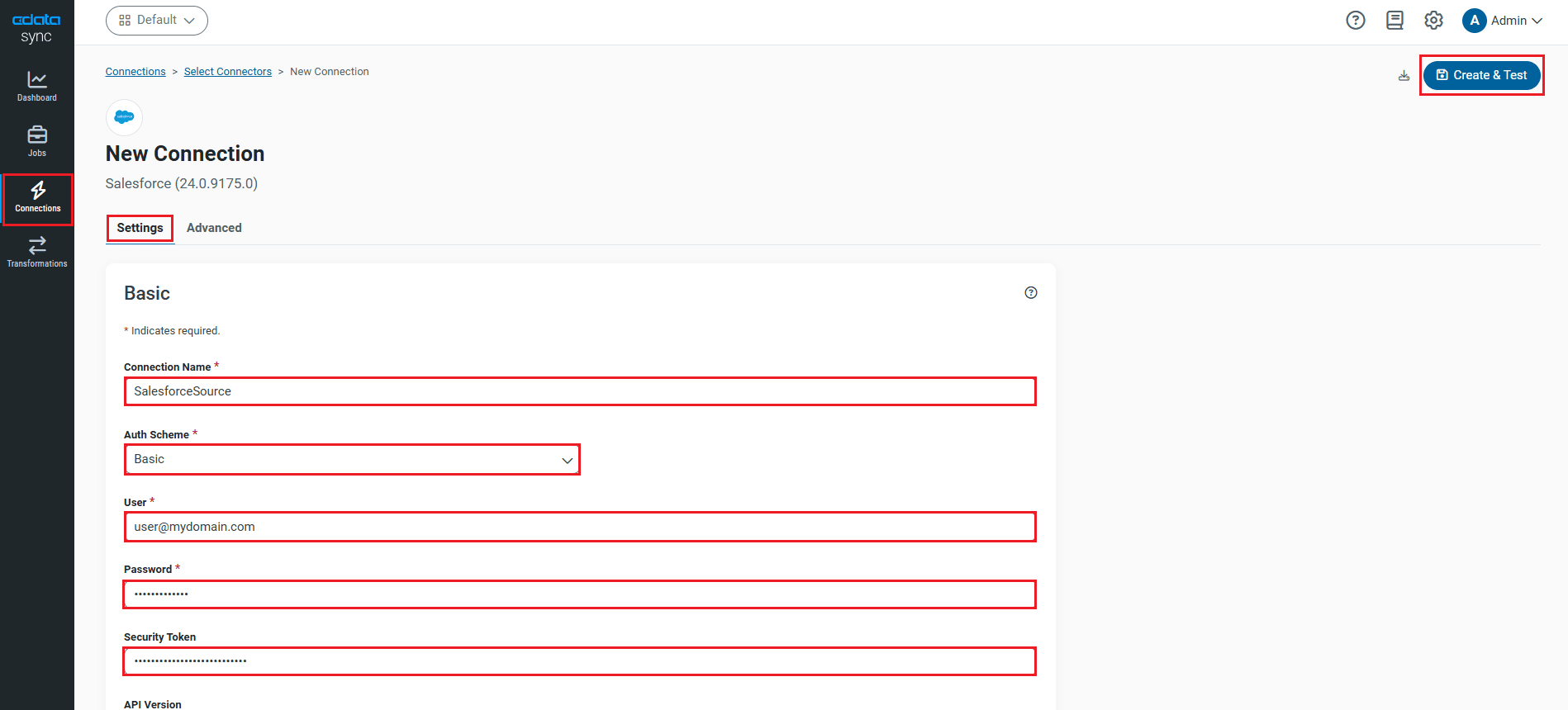
- Click Connect to SAP Business Warehouse to ensure that the connection is configured properly.
- Click Save & Test to save the changes.
Configure Replication Queries
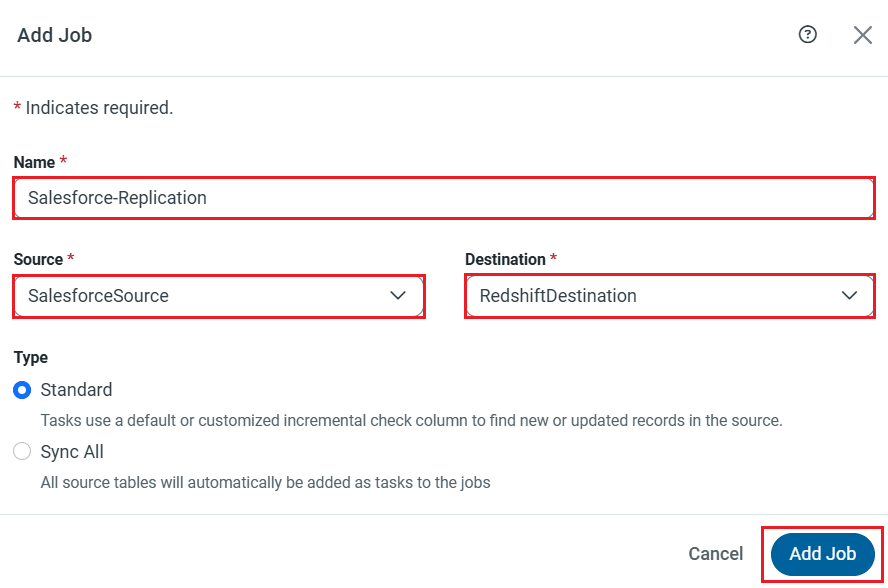
CData Sync enables you to control replication with a point-and-click interface and with SQL queries. For each replication you wish to configure, navigate to the Jobs tab and click Add Job. Select the Source and Destination for your replication.
Replicate Entire Tables
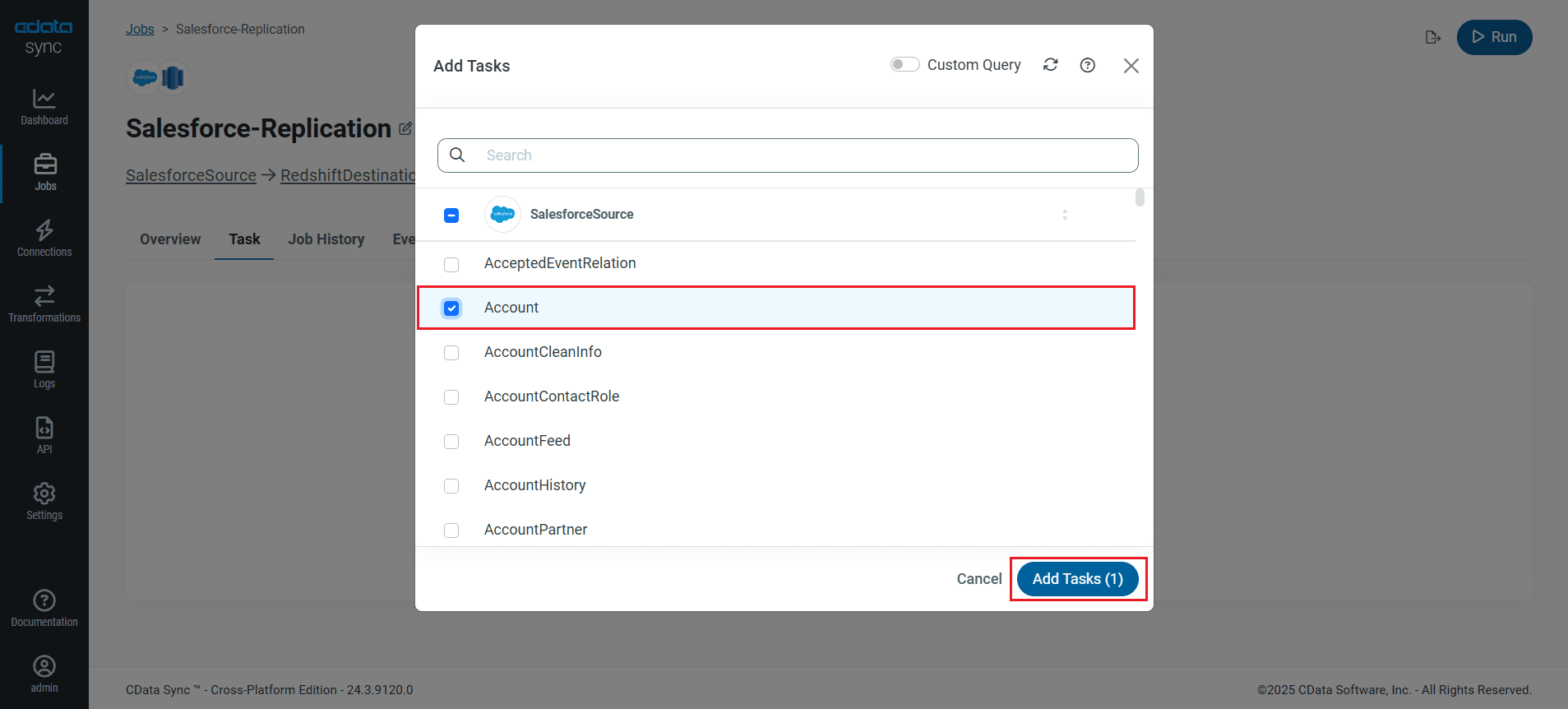
To replicate an entire table, navigate to the Task tab in the Job, click Add Tasks, choose the table(s) from the list of SAP Business Warehouse tables you wish to replicate into Amazon Redshift, and click Add Tasks again.
Customize Your Replication
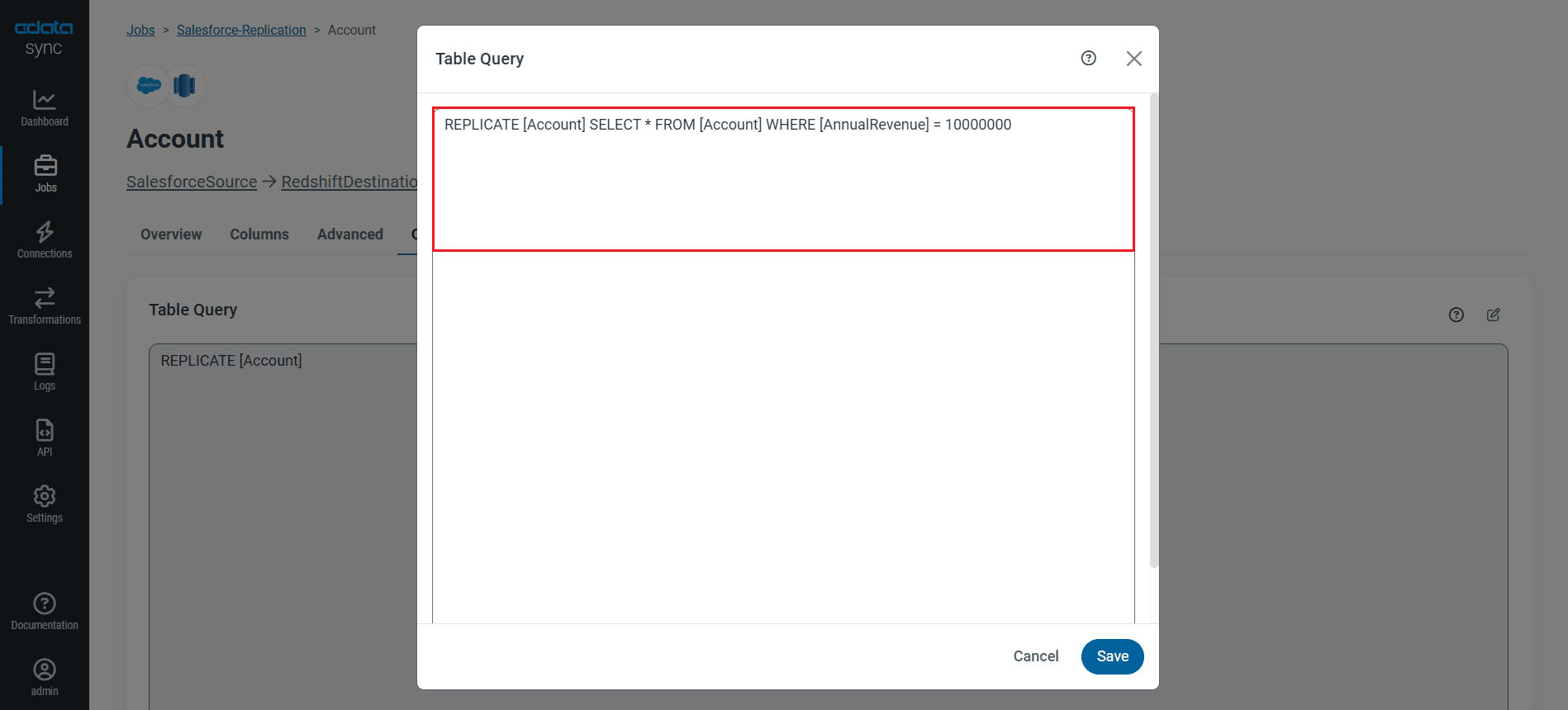
You can use the Columns and Query tabs of a task to customize your replication. The Columns tab allows you to specify which columns to replicate, rename the columns at the destination, and even perform operations on the source data before replicating. The Query tab allows you to add filters, grouping, and sorting to the replication with the help of SQL queries.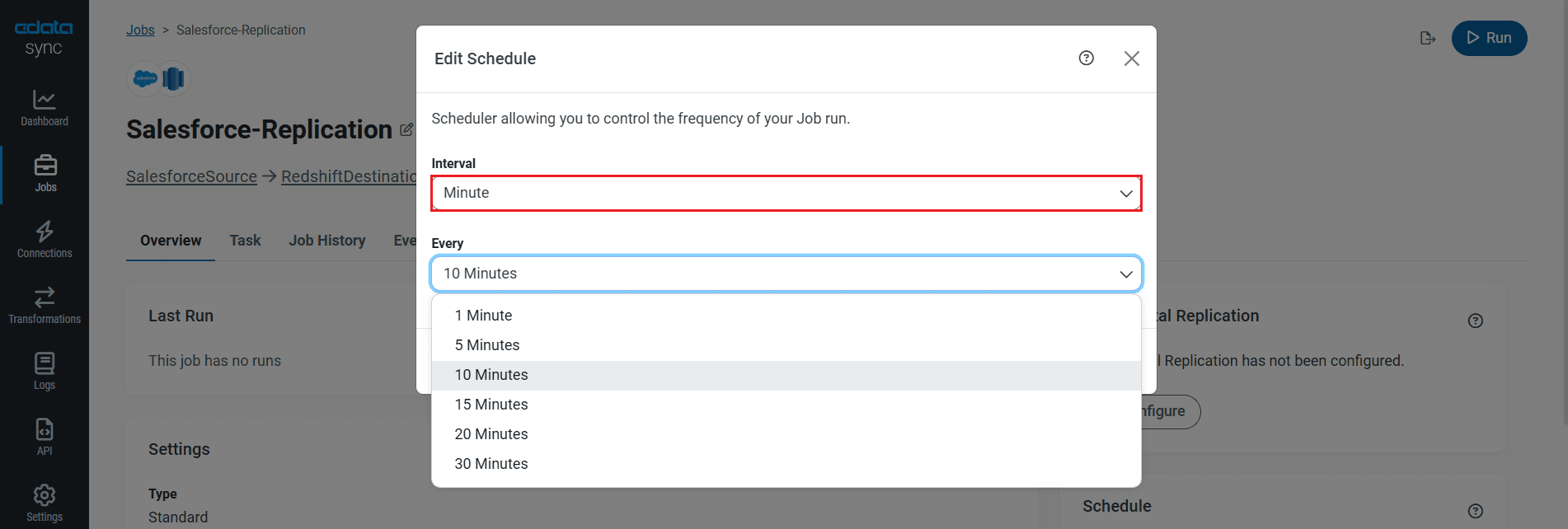
Schedule Your Replication
Select the Overview tab in the Job, and click Configure under Schedule. You can schedule a job to run automatically by configuring it to run at specified intervals, ranging from once every 10 minutes to once every month.
Once you have configured the replication job, click Save Changes. You can configure any number of jobs to manage the replication of your SAP Business Warehouse data to Amazon Redshift.
Run the Replication Job
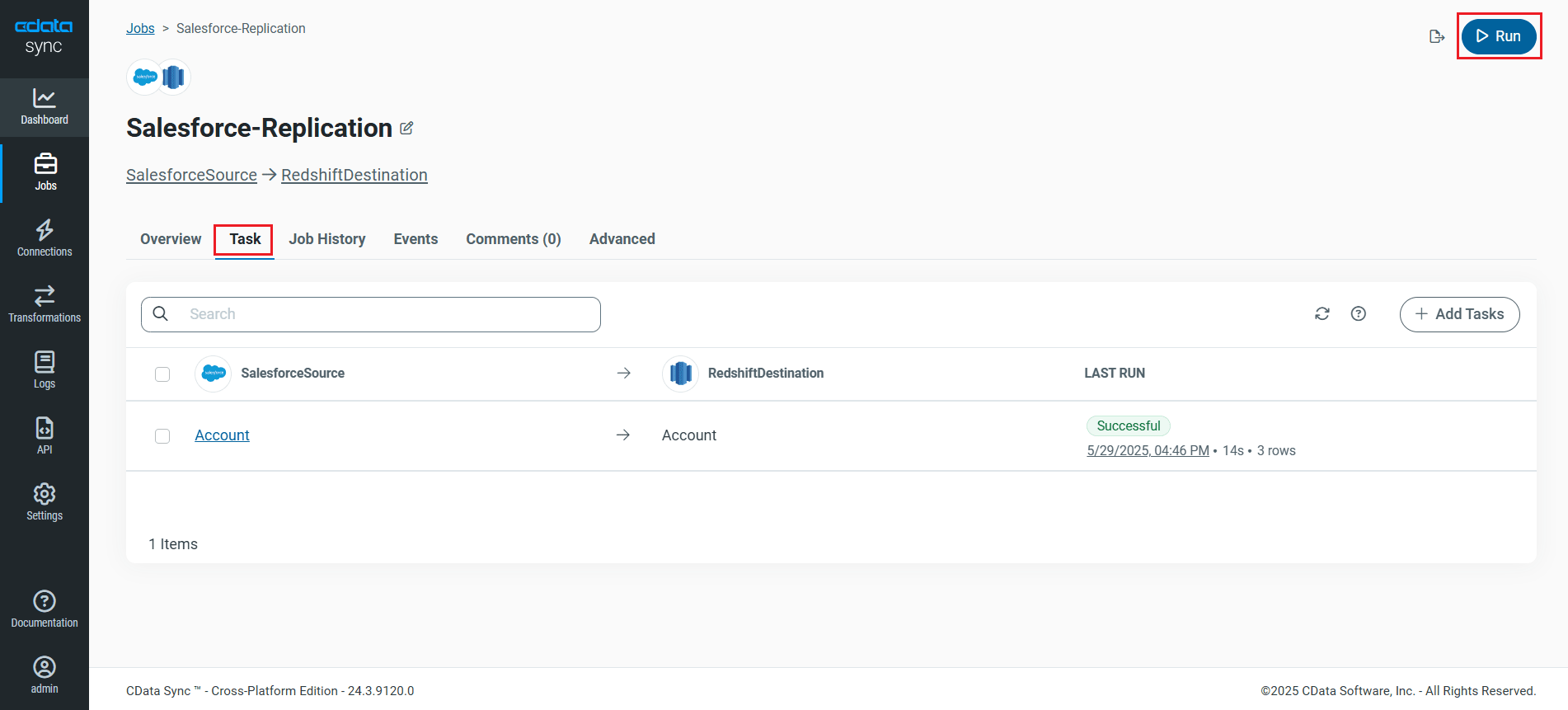
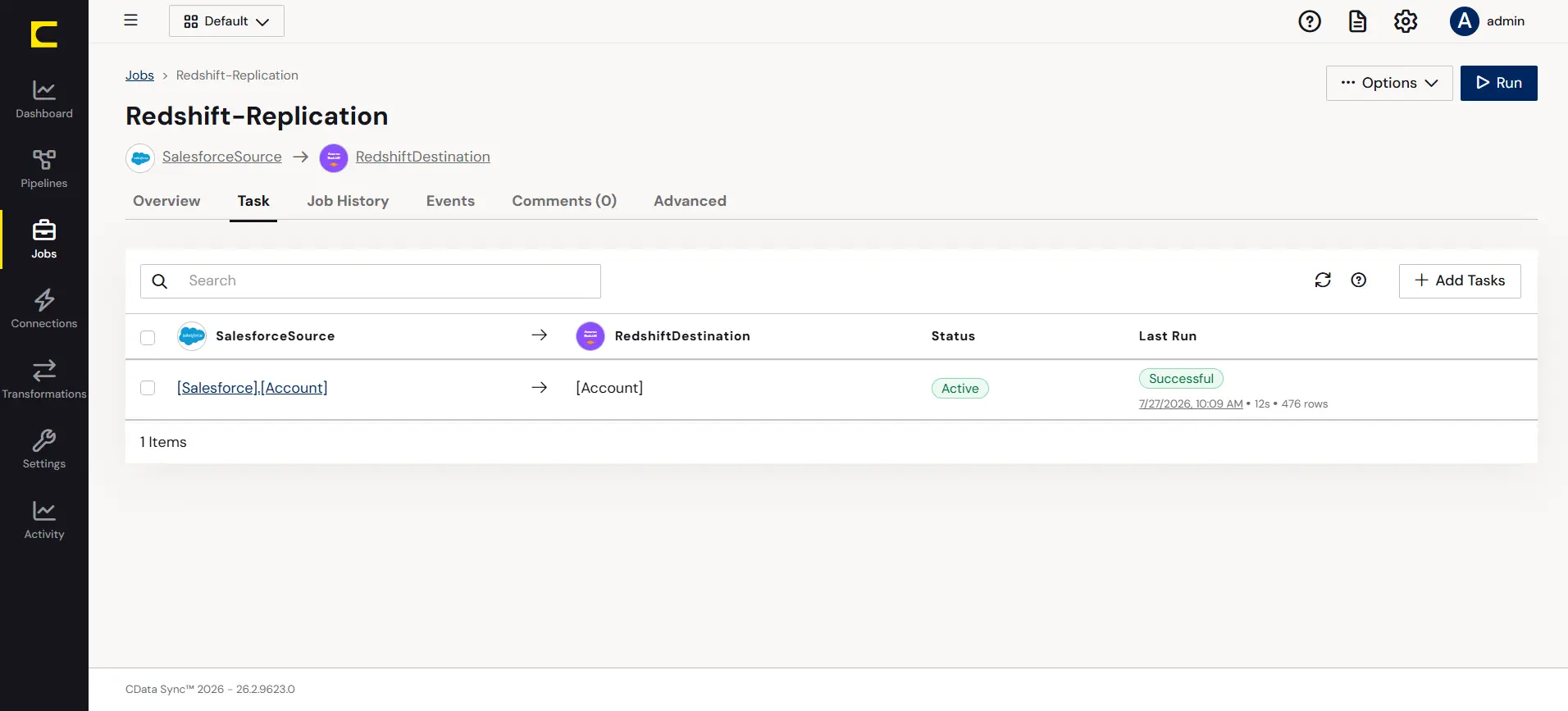
Once all the required configurations are made for the job, select the SAP Business Warehouse table you wish to replicate and click Run. After the replication completes successfully, a notification appears, showing the time taken to run the job and the number of rows replicated.
Free Trial & More Information
Now that you have seen how to replicate SAP Business Warehouse data into Amazon Redshift, visit our CData Sync page to explore more about CData Sync and download a free 30-day trial. Start consolidating your enterprise data today!
As always, our world-class Support Team is ready to answer any questions you may have.