







Integrating Gumloop with SAS Data Sets Data via CData Connect AI

Gumloop is a visual automation platform designed to create AI-powered workflows by combining triggers, AI nodes, APIs, and data connectors. By integrating Gumloop with CData Connect AI through the built-in MCP (Model Context Protocol) Server, workflows can seamlessly access and interact with live SAS Data Sets data.
The platform provides a low-code environment, making it easier to orchestrate complex processes without heavy development effort. Its flexibility allows integration across multiple business applications, enabling end-to-end automation with live data.
This article outlines the steps required to configure SAS Data Sets connectivity in Connect AI, register the MCP server in Gumloop, and build a workflow that queries SAS Data Sets data.
Step 1: Configure SAS Data Sets Connectivity for Gumloop
Connectivity to SAS Data Sets from Gumloop is made possible through CData Connect AI's Remote MCP Server. To interact with SAS Data Sets data from Gumloop, we start by creating and configuring a SAS Data Sets connection in CData Connect AI.
- Log into Connect AI, click Sources, and then click Add Connection
- Select "SAS Data Sets" from the Add Connection panel
-
Enter the necessary authentication properties to connect to SAS Data Sets.
Set the following connection properties to connect to your SAS DataSet files:
Connecting to Local Files
- Set the Connection Type to "Local." Local files support SELECT, INSERT, and DELETE commands.
- Set the URI to a folder containing SAS files, e.g. C:\PATH\TO\FOLDER\.
Connecting to Cloud-Hosted SAS DataSet Files
While the driver is capable of pulling data from SAS DataSet files hosted on a variety of cloud data stores, INSERT, UPDATE, and DELETE are not supported outside of local files in this driver.
Set the Connection Type to the service hosting your SAS DataSet files. A unique prefix at the beginning of the URI connection property is used to identify the cloud data store and the remainder of the path is a relative path to the desired folder (one table per file) or single file (a single table). For more information, refer to the Getting Started section of the Help documentation.

- Click Save & Test
-
Navigate to the Permissions tab in the Add SAS Data Sets Connection page and update the User-based permissions.



Add a Personal Access Token
A Personal Access Token (PAT) is used to authenticate the connection to Connect AI from Gumloop. It is best practice to create a separate PAT for each service to maintain granularity of access.
- Click on the Gear icon () at the top right of the Connect AI app to open the settings page.
- On the Settings page, go to the Access Tokens section and click Create PAT.
-
Give the PAT a name and click Create.

- The personal access token is only visible at creation, so be sure to copy it and store it securely for future use.
With the SAS Data Sets connection configured and a PAT generated, Gumloop is prepared to connect to SAS Data Sets data through the CData MCP server.
Step 2: Connect to the MCP server in Gumloop
The MCP server endpoint and authentication values from Connect AI must be added to Gumloop credentials.
- Sign in to Gumloop and create an account
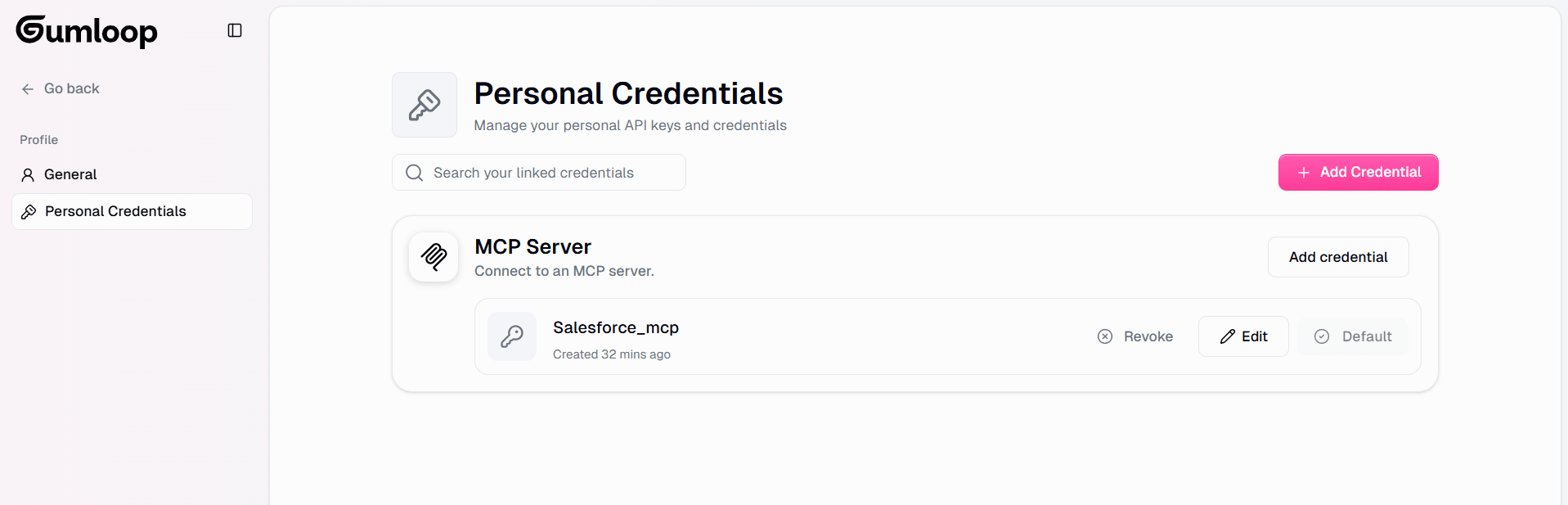
- Visit the Gumloop Credentials page to configure MCP server
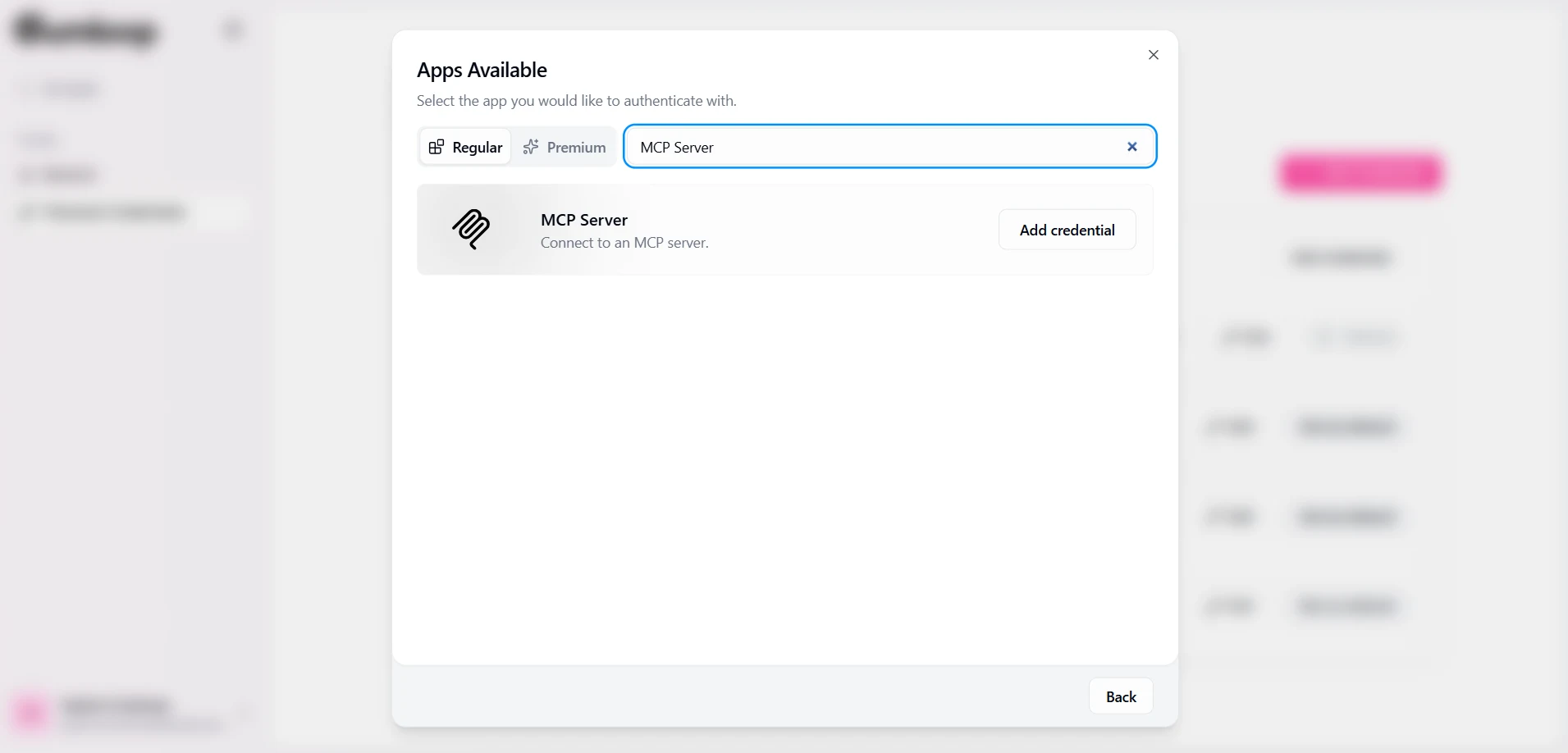
- Click on Add Credentials and search and select MCP Server
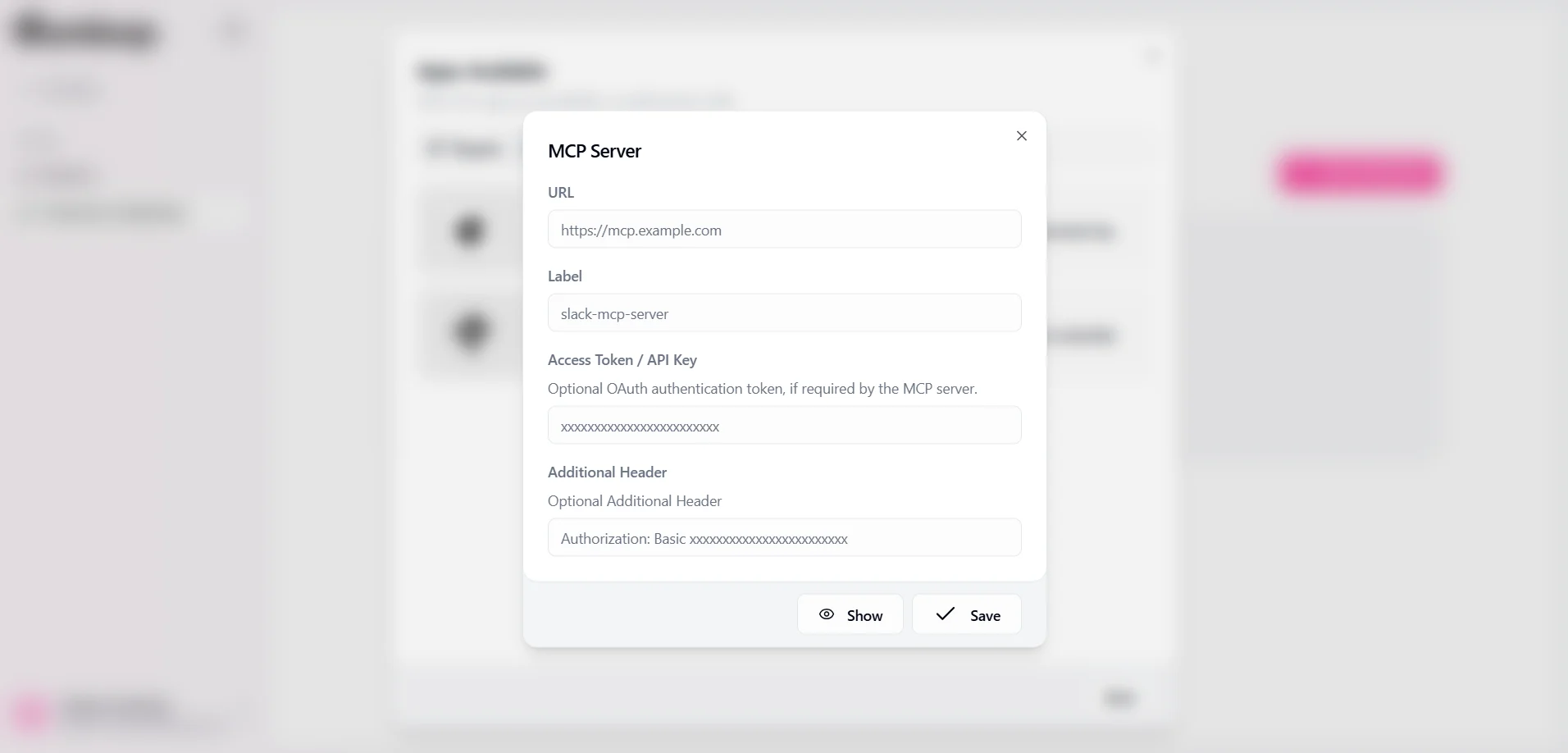
- Provide the following details:
- URL: https://mcp.cloud.cdata.com/mcp
- Label: A descriptive name such as SAS Data Sets-mcp-server
- Access Token / API Key: leave blank
- Additional Header: Authorization: Basic YOUR EMAIL:YOUR PAT
- Save the credentials

The MCP server is now available to build workflows in Gumloop.
Step 3: Build a workflow and explore live SAS Data Sets data with Gumloop
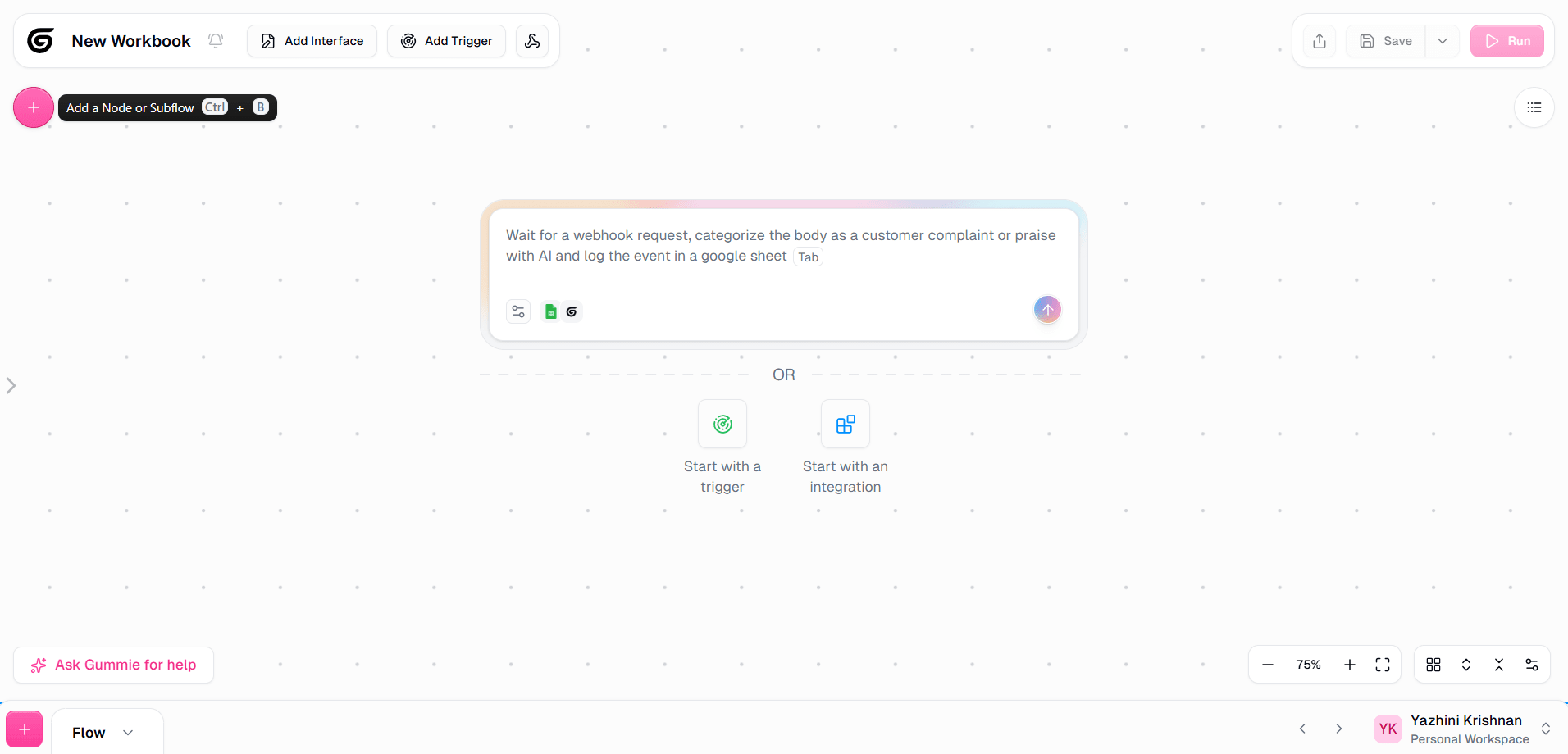
- Visit Gumloop Personal workspace and click on the Create Flow
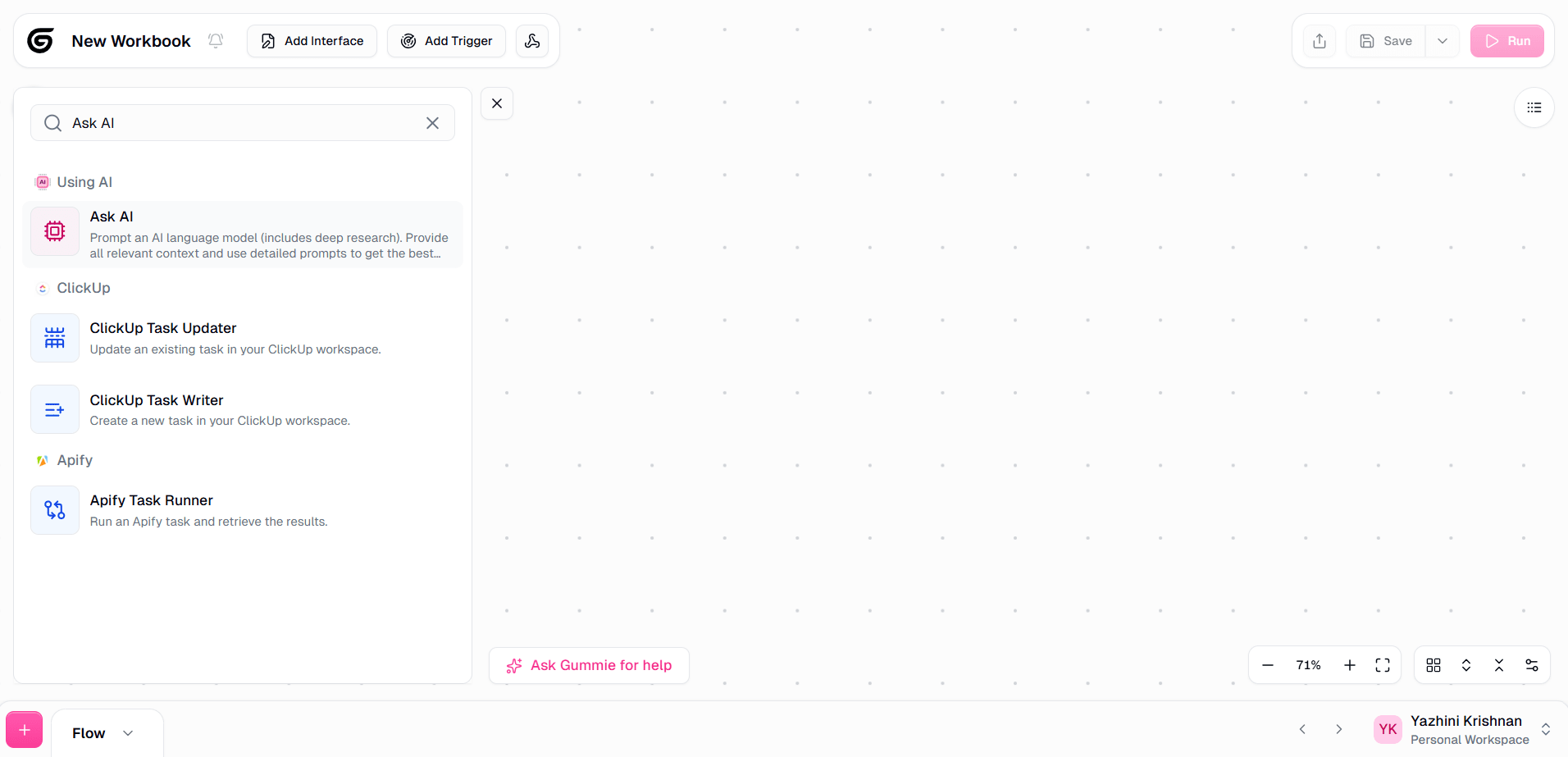
- Select the icon or press Ctrl + B to add a node or a subflow
- Search for Ask AI and select it
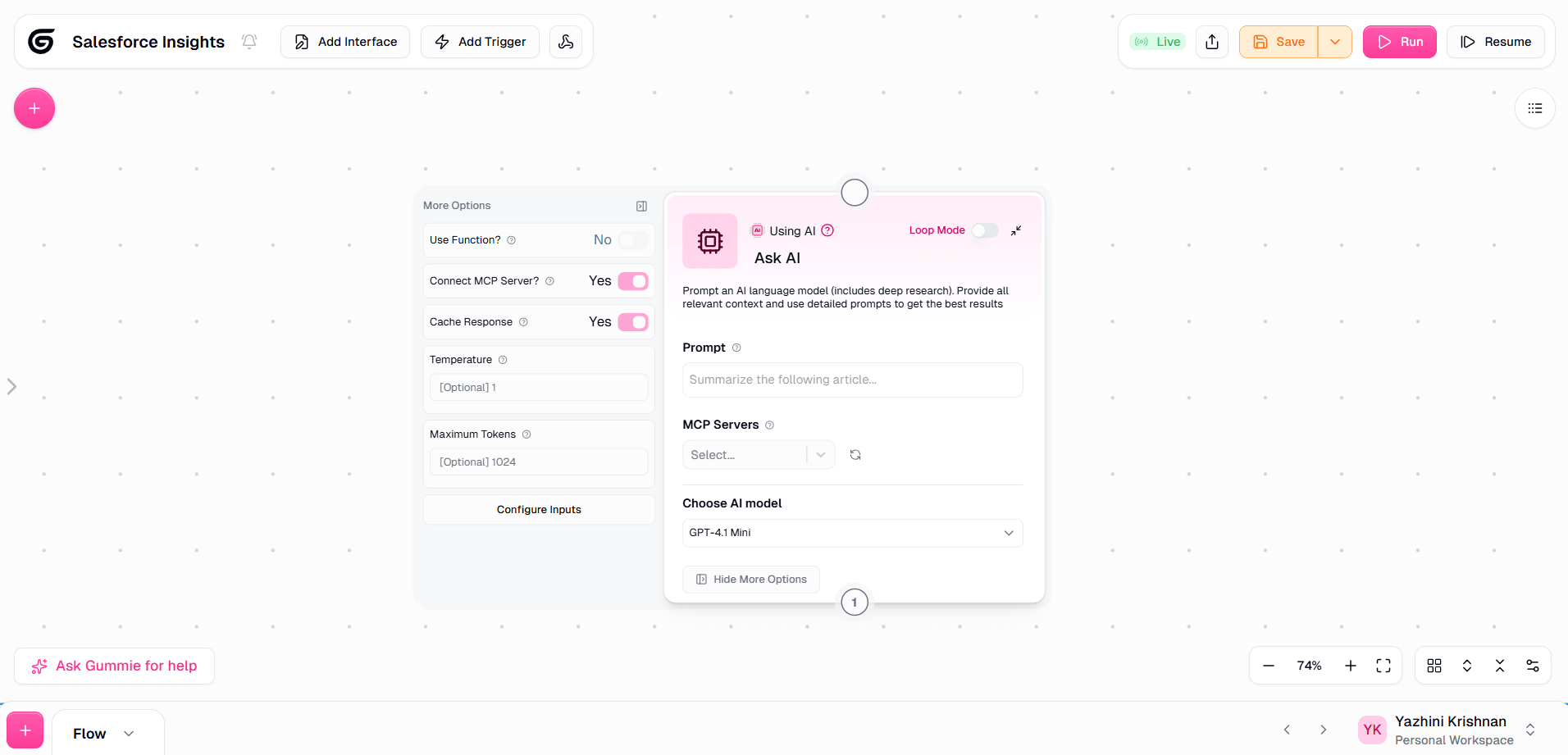
- Click Show More Options and enable the Connect MCP Server? option
- From the MCP Servers dropdown, choose the saved MCP credential
- Add a Prompt and Choose an AI Model according to your requirements
- After configuring the required details, Click Run to run the pipeline
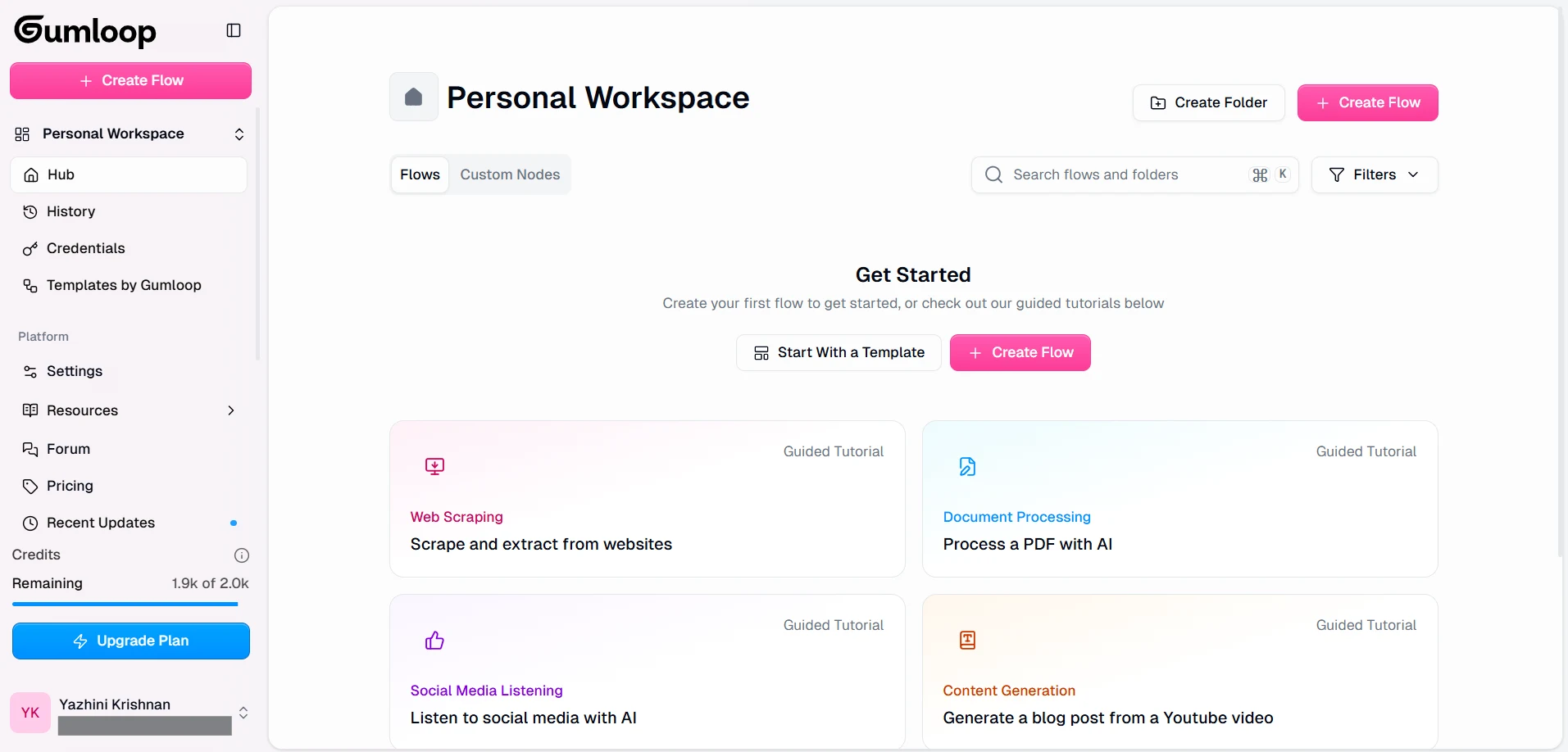
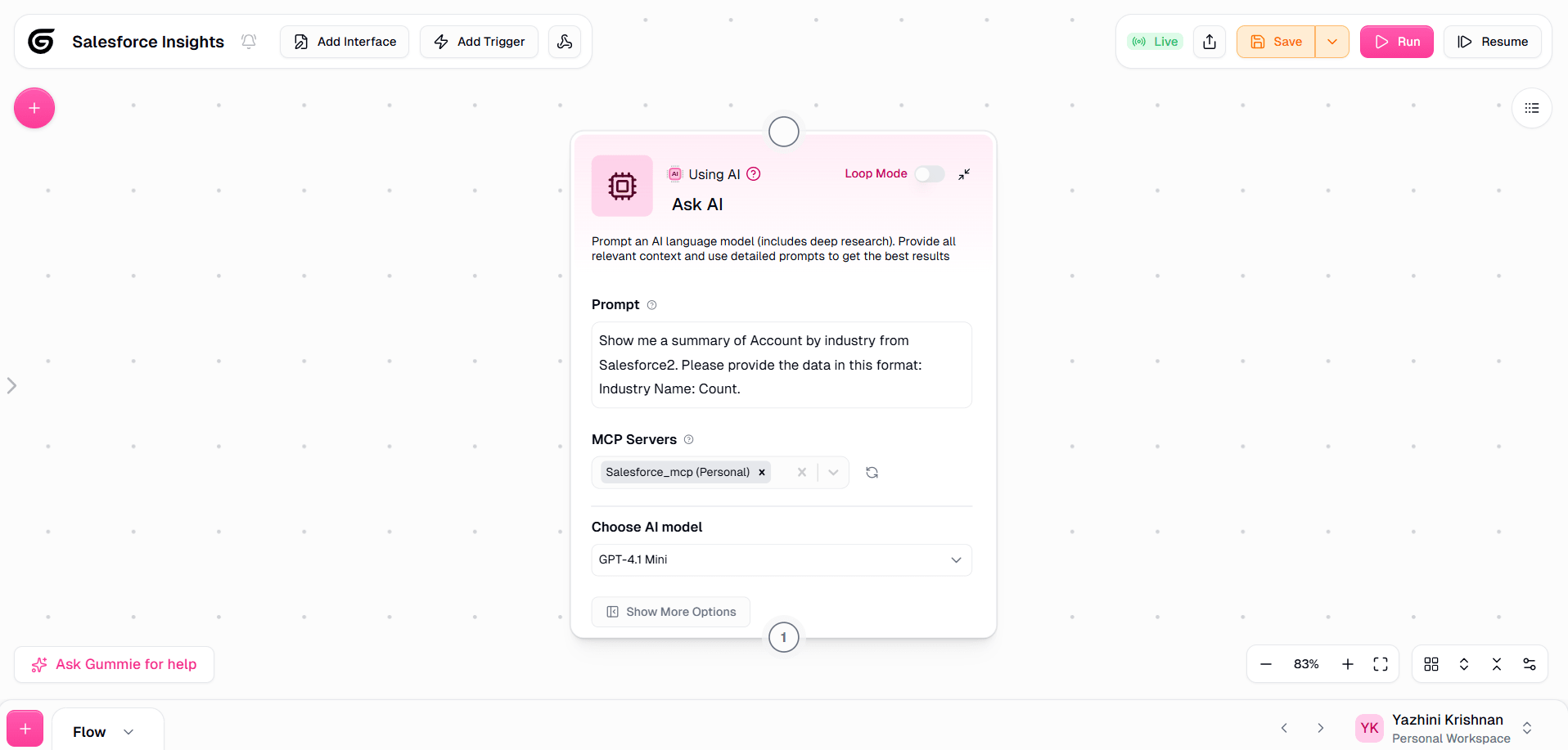
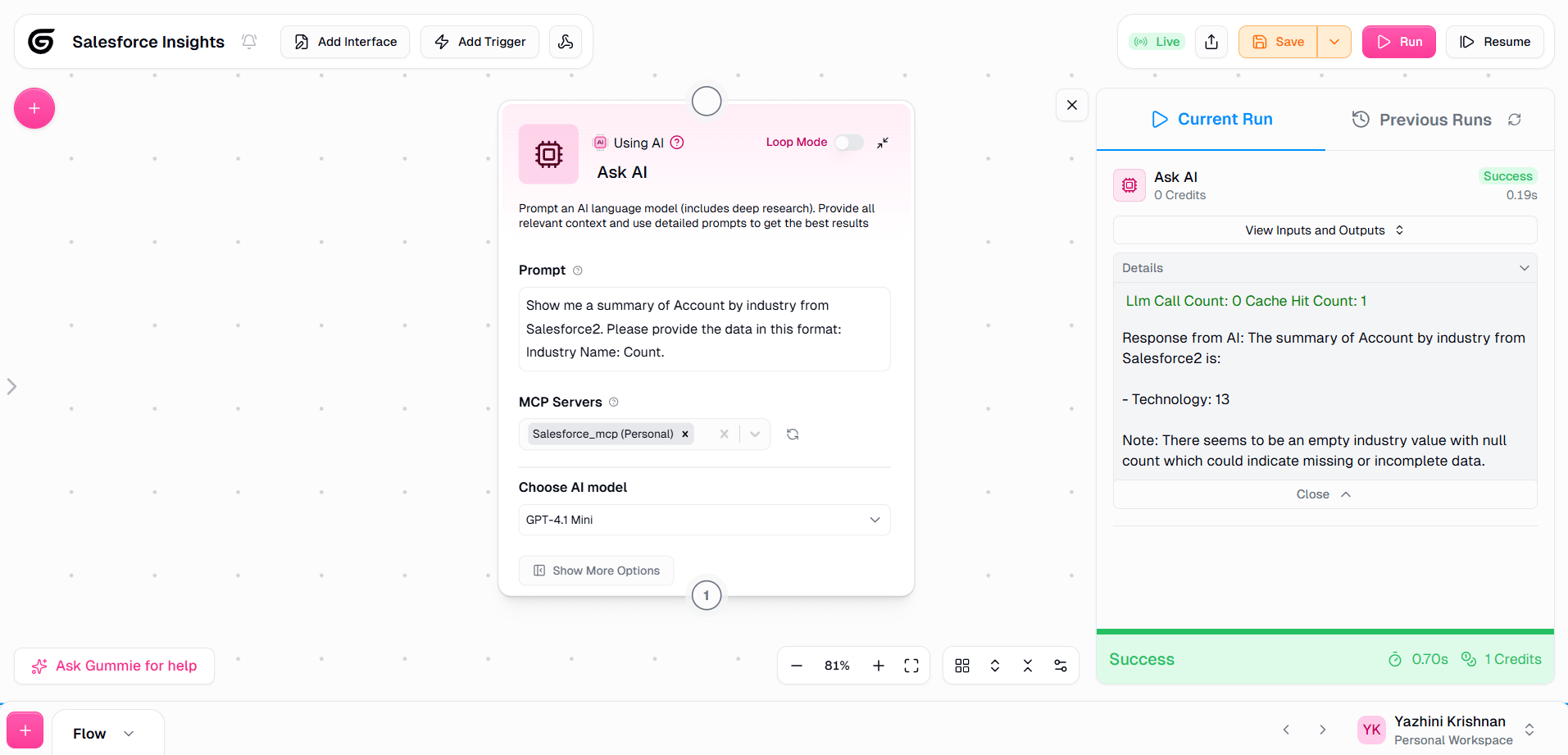
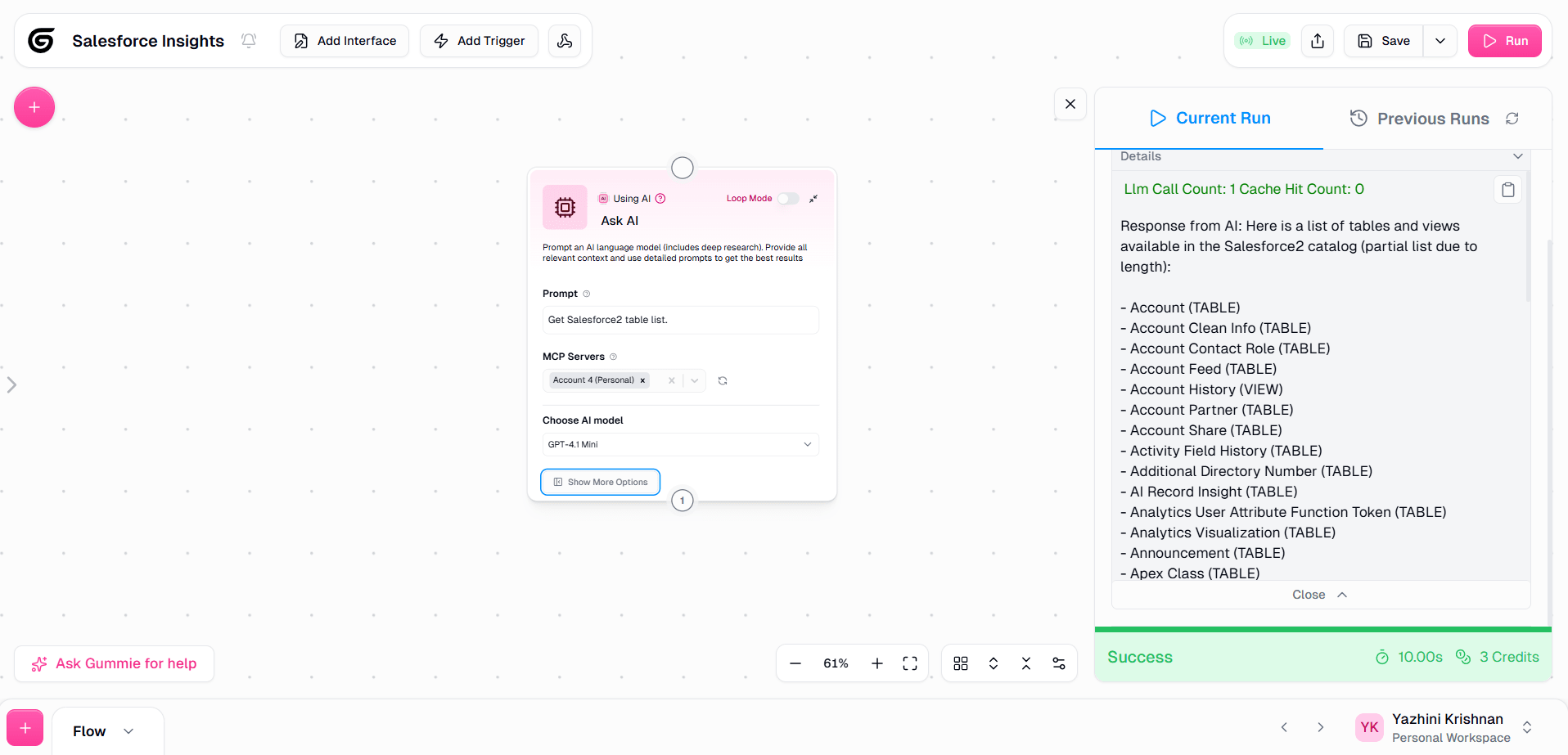
With the workflow run completed, Gumloop demonstrates successful retrieval of SAS Data Sets data through the CData Connect AI MCP server, with the MCP Client node providing the ability to ask questions, retrieve records, and perform actions on the data.
Get CData Connect AI
To get live data access to hundreds of SaaS, Big Data, and NoSQL sources directly from your cloud applications, try CData Connect AI today!